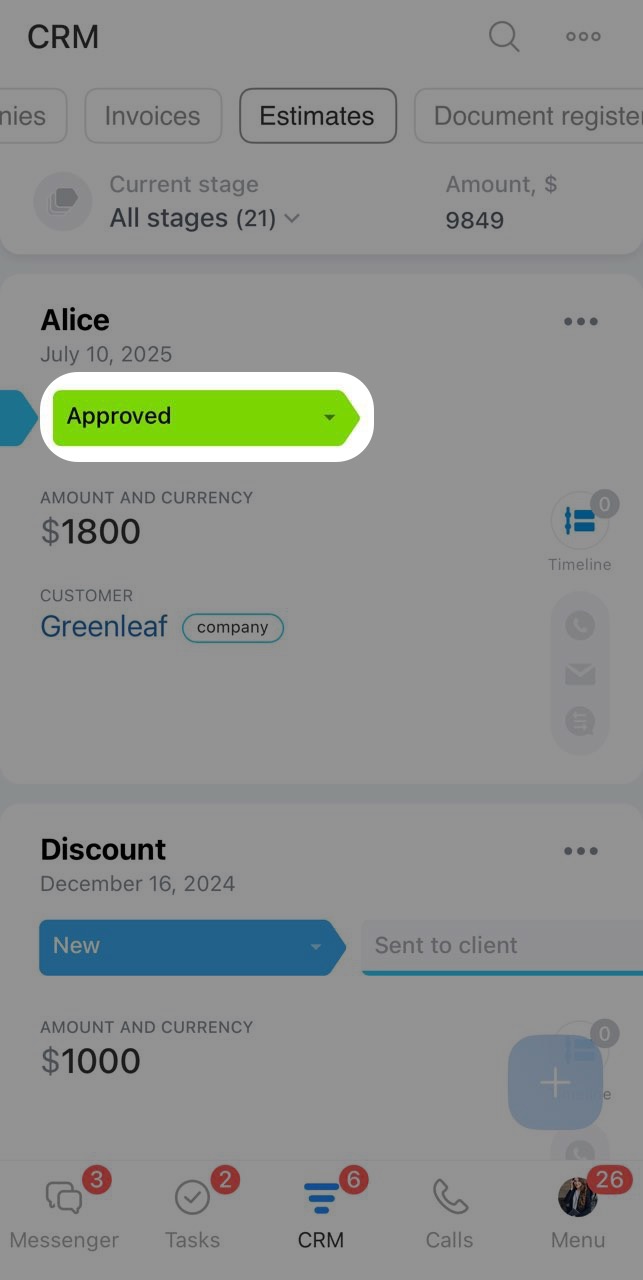
An estimate is a CRM item containing information about products or services, their prices, quantities, and discounts. Use it to prepare and send a document to the customer for agreement on cooperation terms.
You can move the estimate form through stages to track the progress of work with the customer.
Create an estimate
You can create an estimate manually or based on another CRM item, such as a deal. In this case, the data will be filled in automatically.
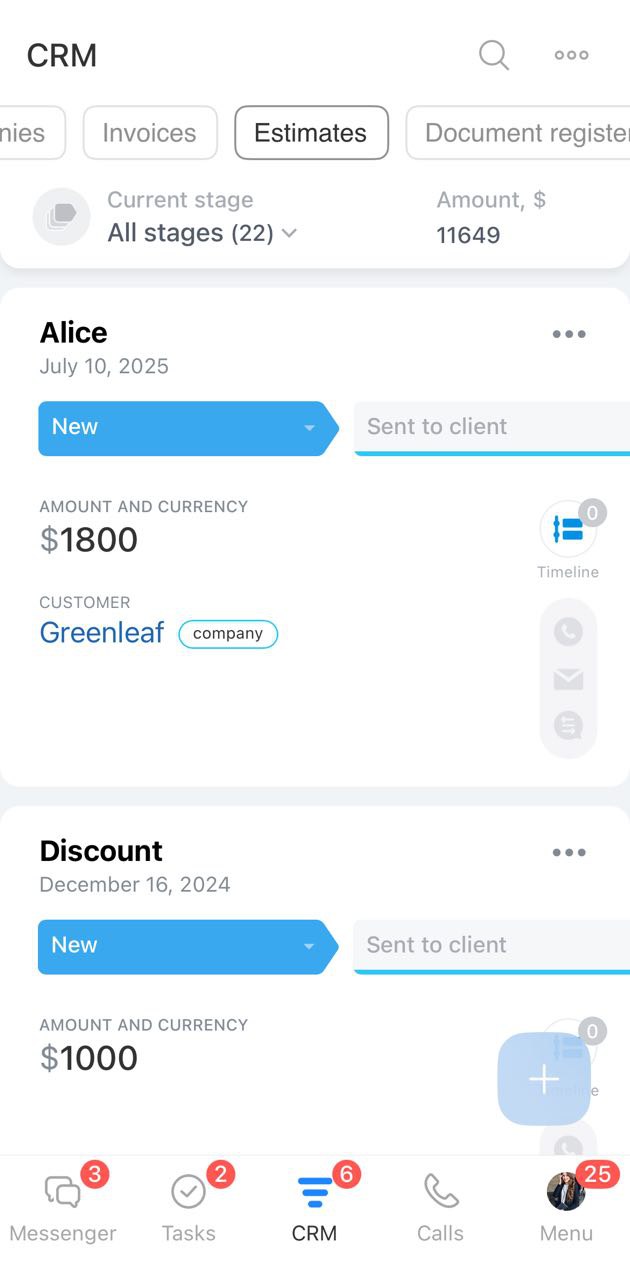
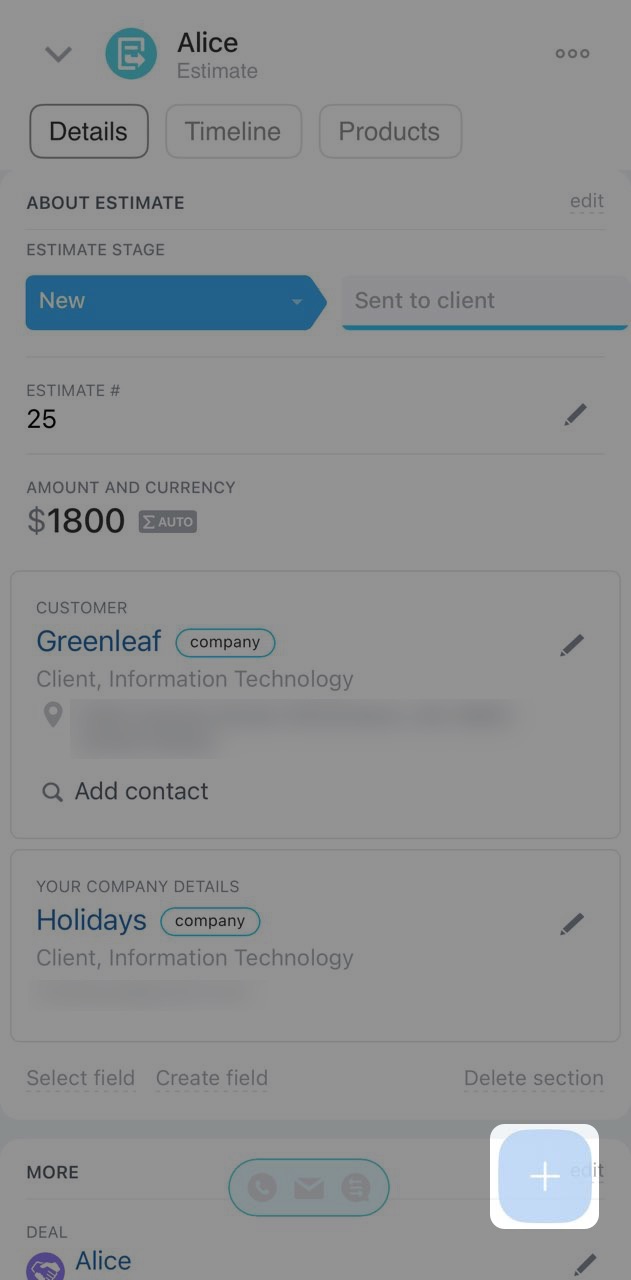
To create an estimate manually, click Plus (+).
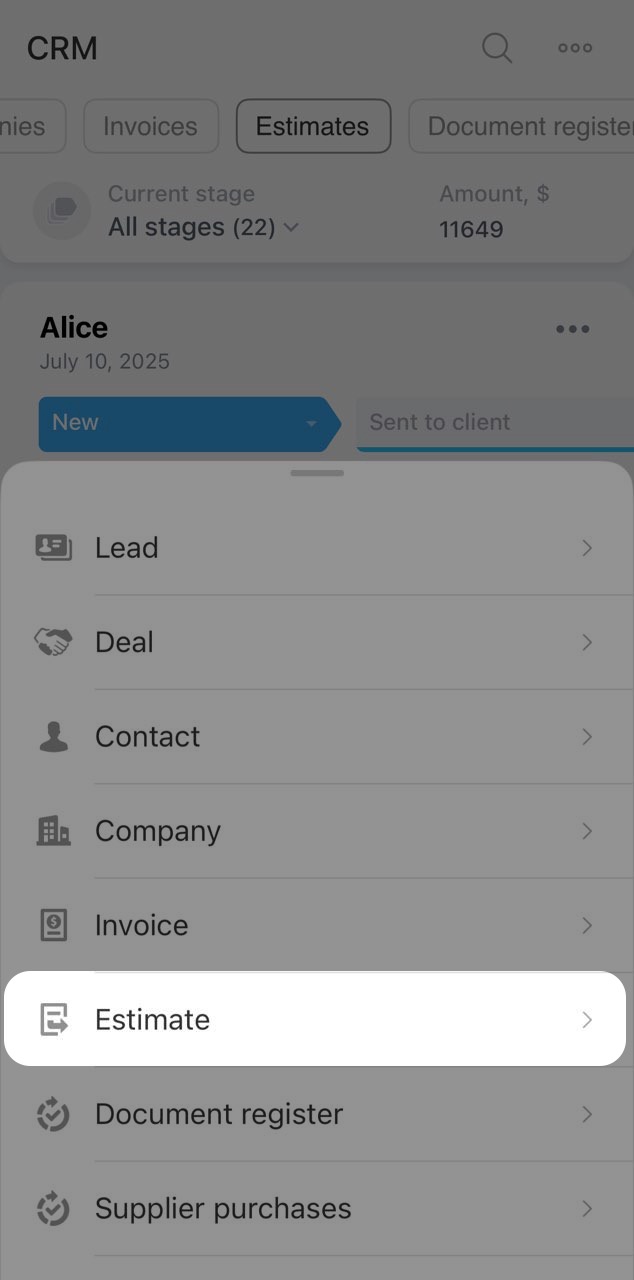
Select Estimate.
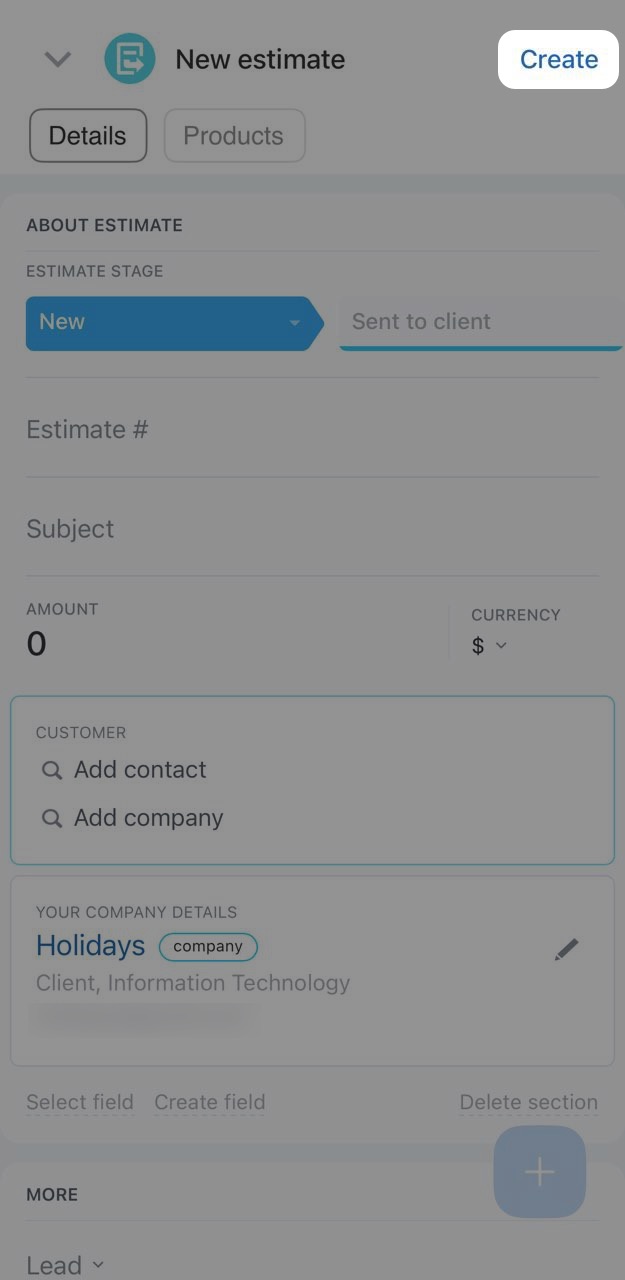
Enter the following details:
- Estimate number — you can enter it manually or leave it blank for CRM to assign a number automatically.
- Subject — briefly describe what you are offering to the customer. This text will appear as the form title.
- Amount and currency — calculated automatically after adding products.
- Customer — select a contact or company from the list or create one.
- Deal / Lead — link the estimate to a lead or deal if needed.
- Responsible person — the employee who will work with the customer.
If the estimate form lacks a suitable field, you can add it in Bitrix24 on a computer.
Once the form is complete, click Create.
Work with the estimate form
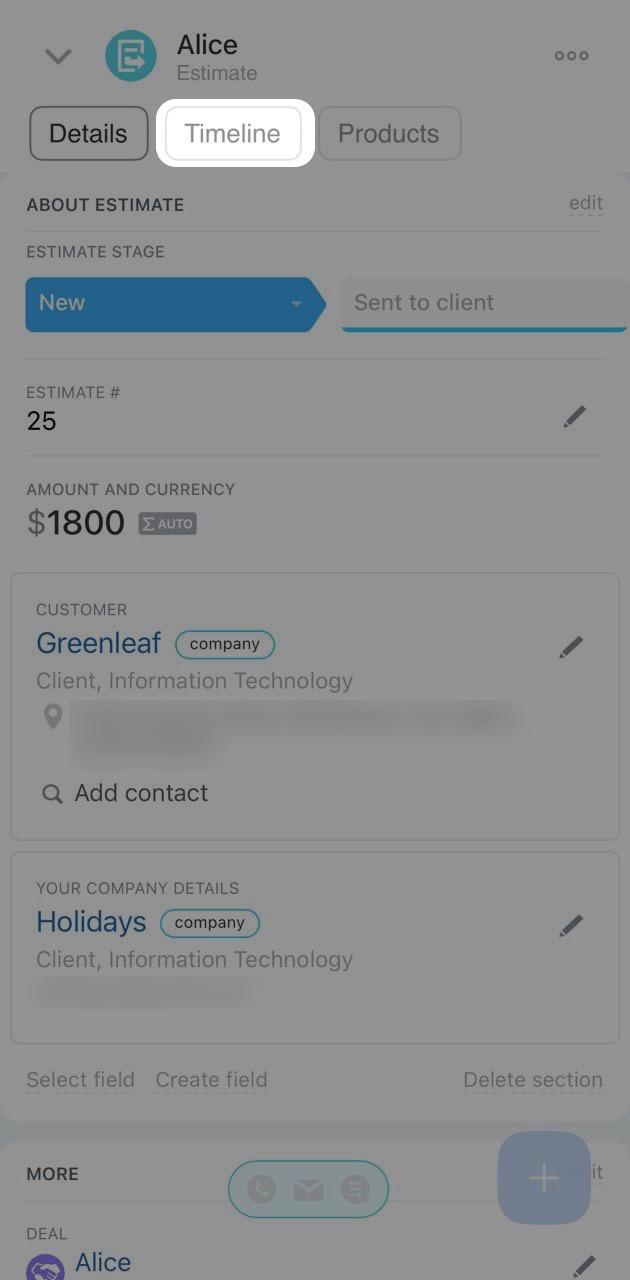
The form has three tabs: Details, Timeline, and Products.
Details — view key information about the estimate, edit field values, and change the stage in this tab.
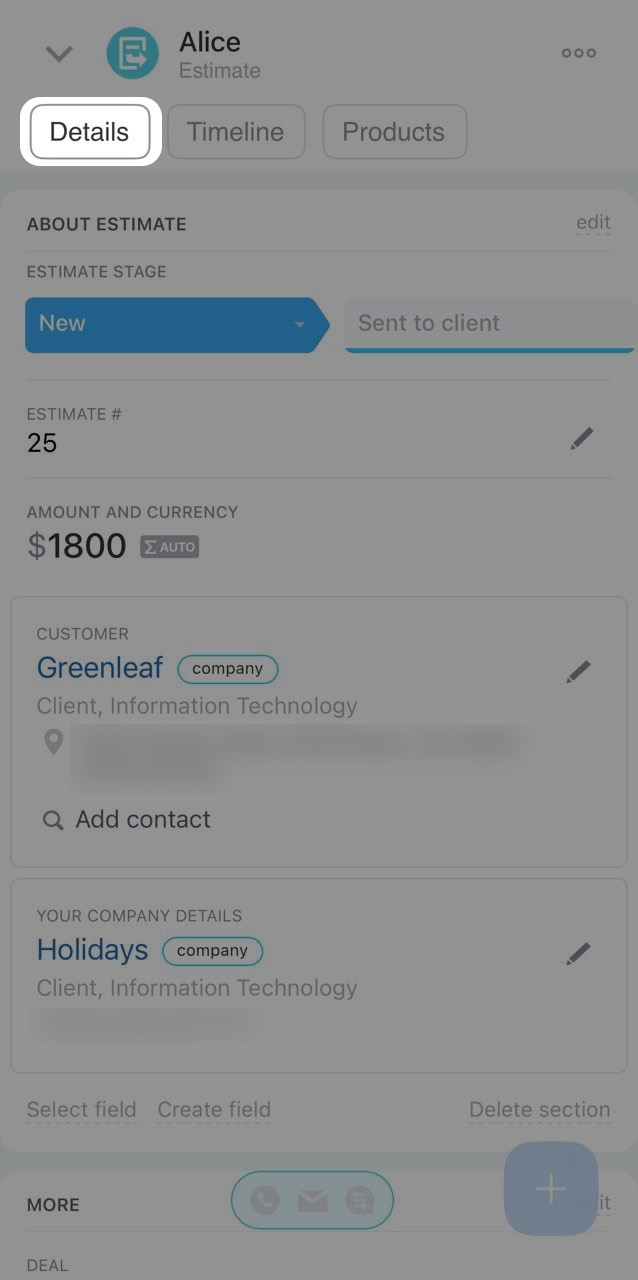
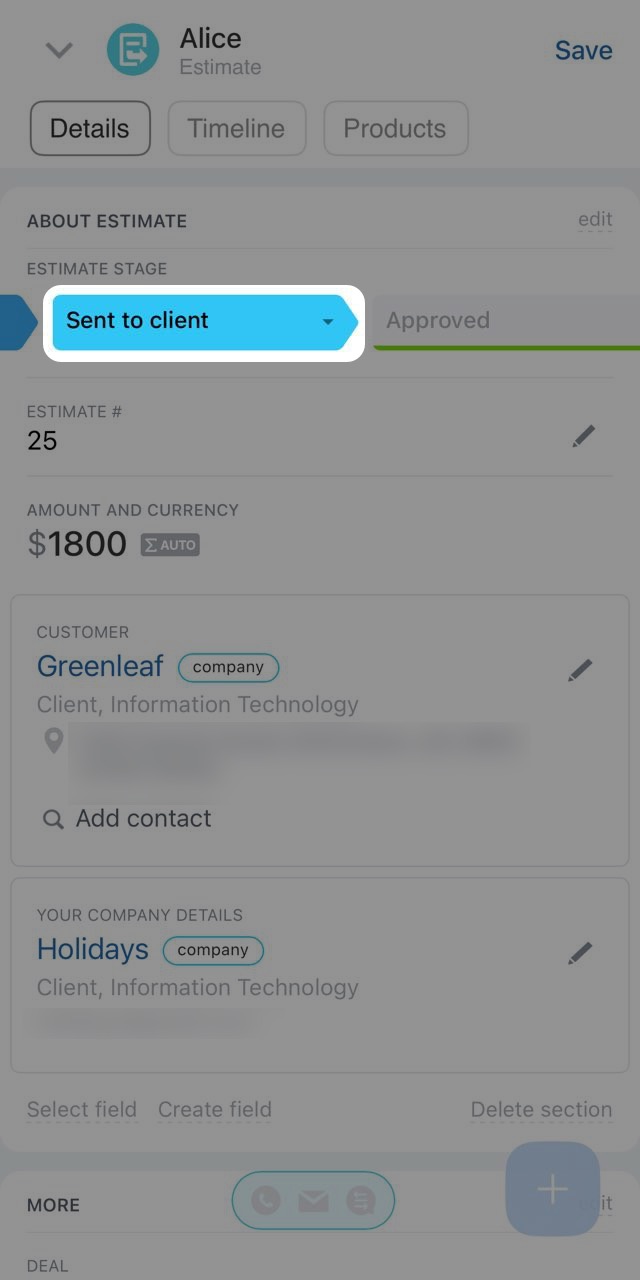
To change the stage, click:
- on the next stage — the estimate will move to it immediately
- on the current stage and select the desired one from the list
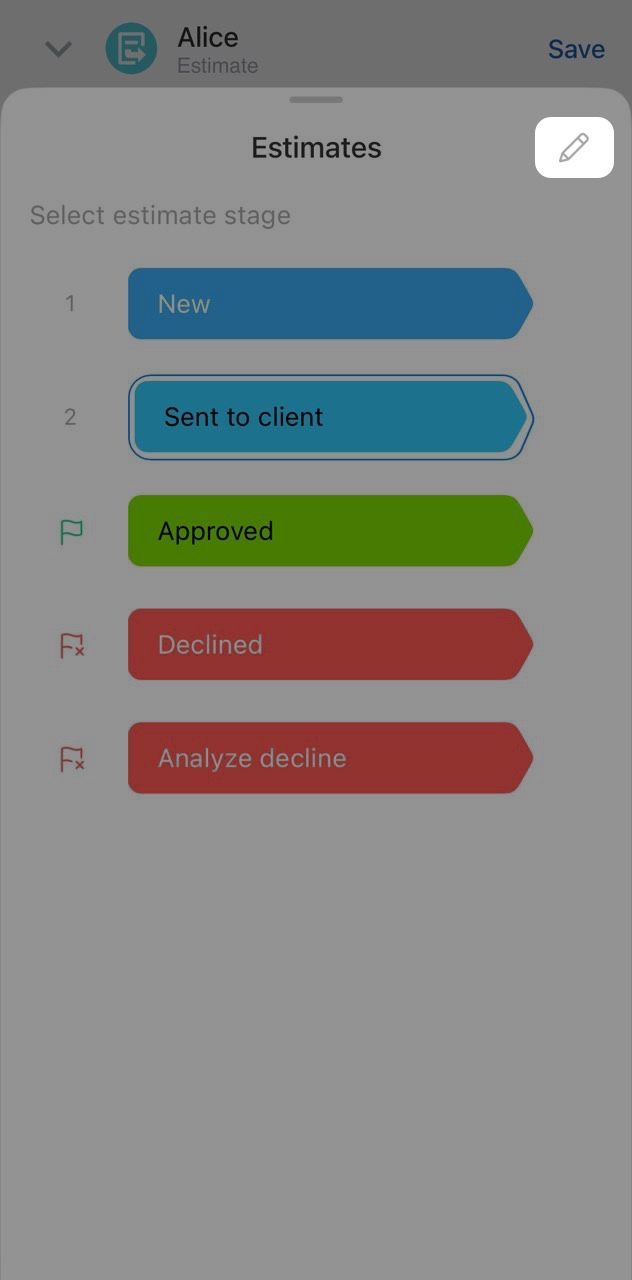
Stages can be customized — add, edit, delete, or reorder them. This is available to the Bitrix24 administrator and employees with CRM settings permissions. Click the pencil icon to edit stages.
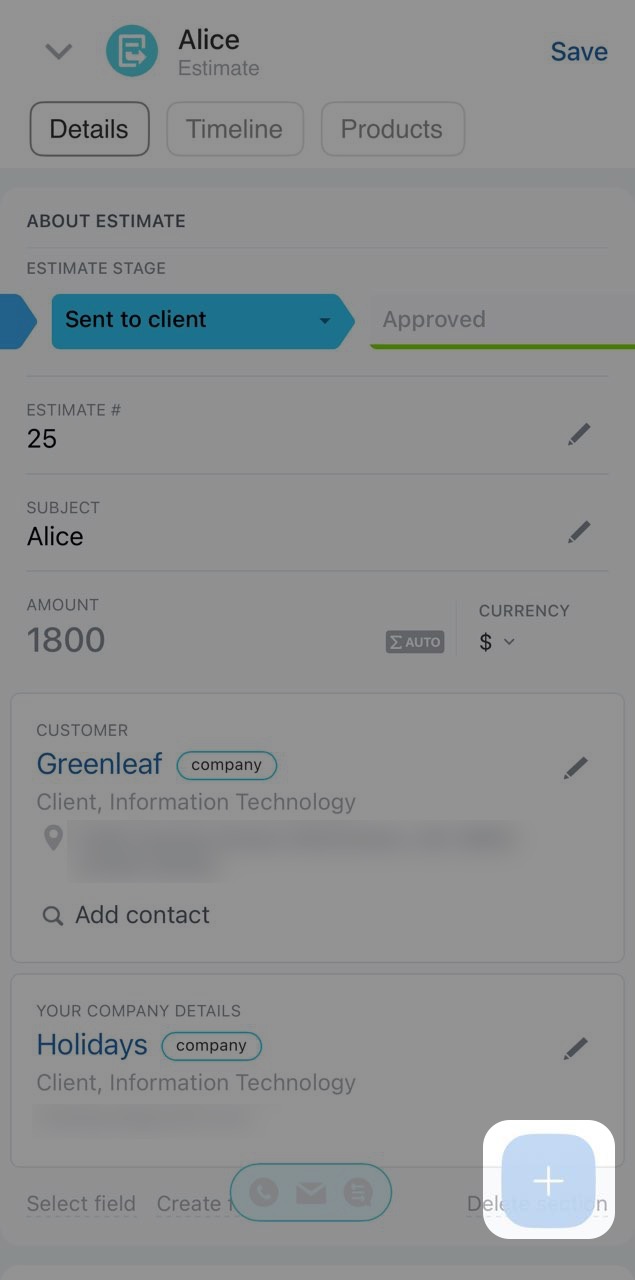
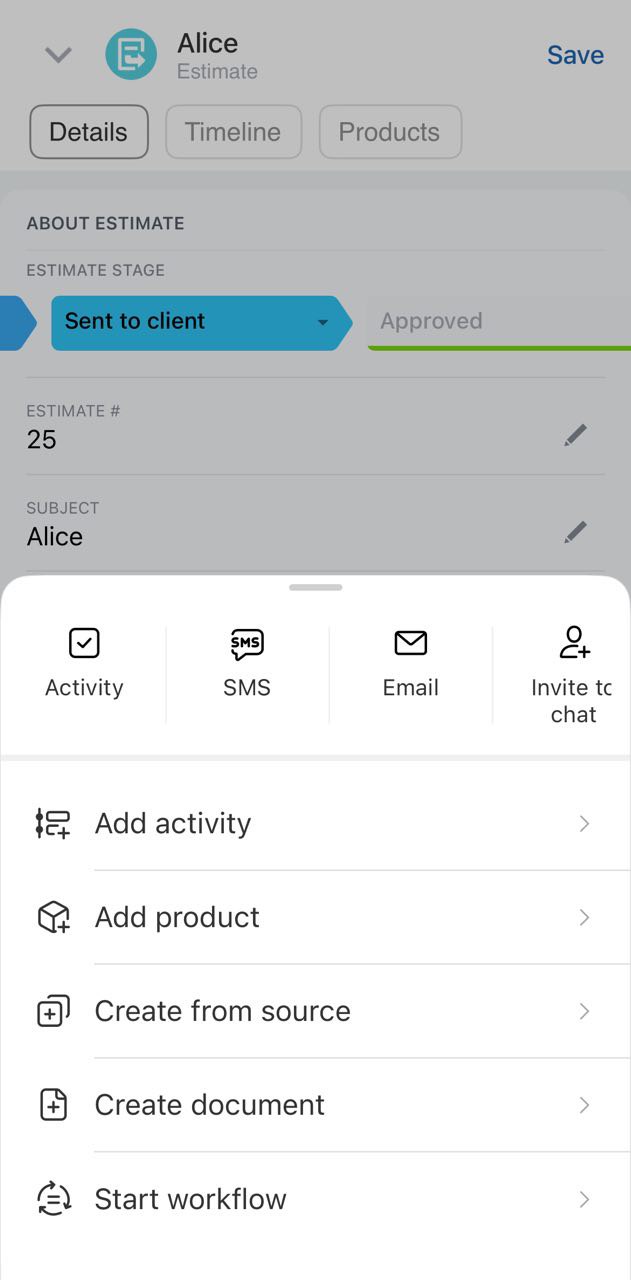
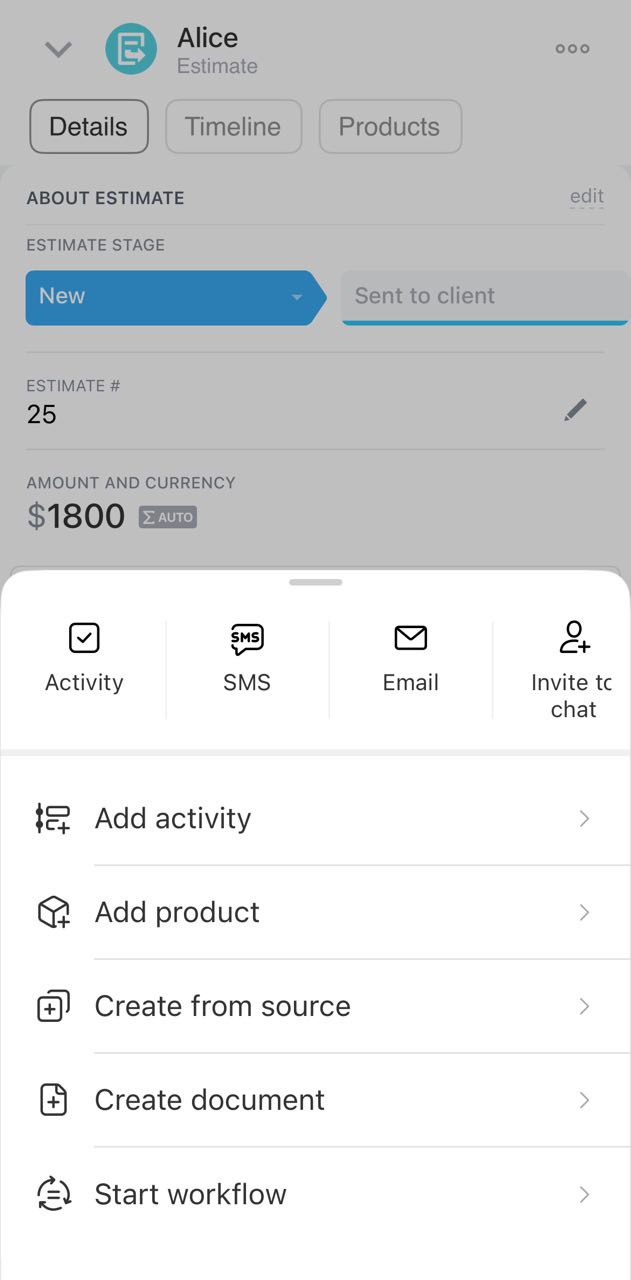
Click Plus (+) in the card to:
- Add an activity, product, or comment
- Create another CRM item based on the estimate
- Prepare a document
- Launch a workflow
- Send an SMS or email to the customer
- Invite the customer to a chat
Timeline — view the history of interactions with the customer, leave comments for colleagues, track stage changes, and more.
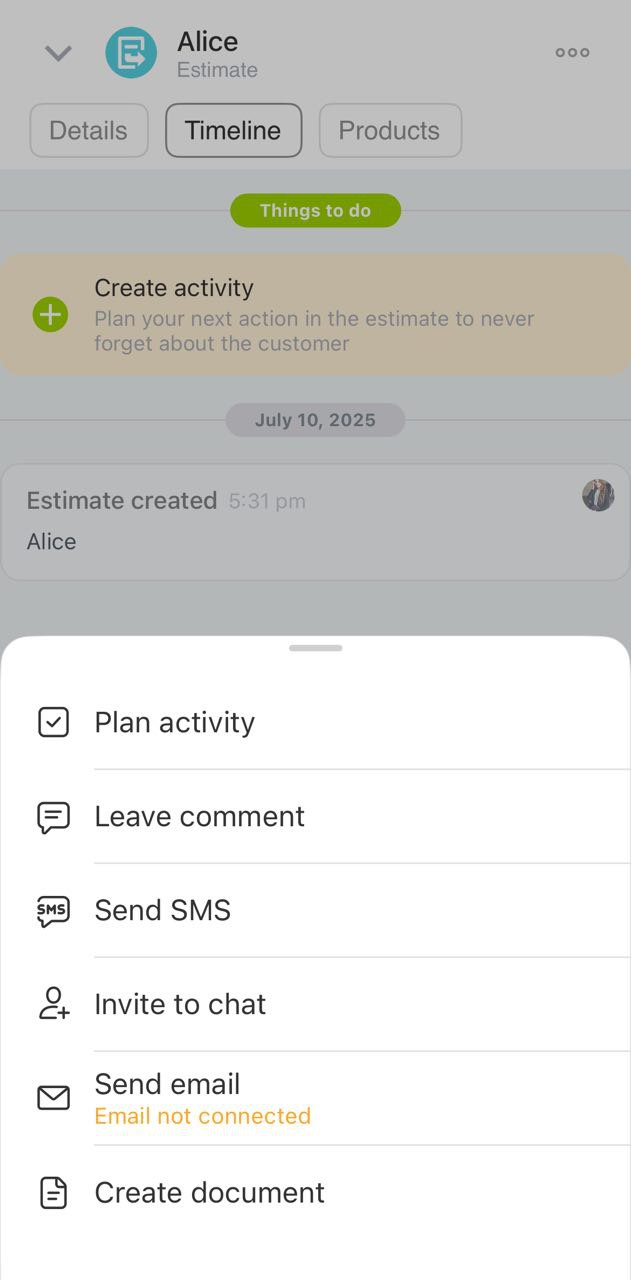
Click Plus (+) to:
- Plan an activity
- Leave a comment
- Send an SMS or email
- Invite the customer to a chat
- Prepare a document
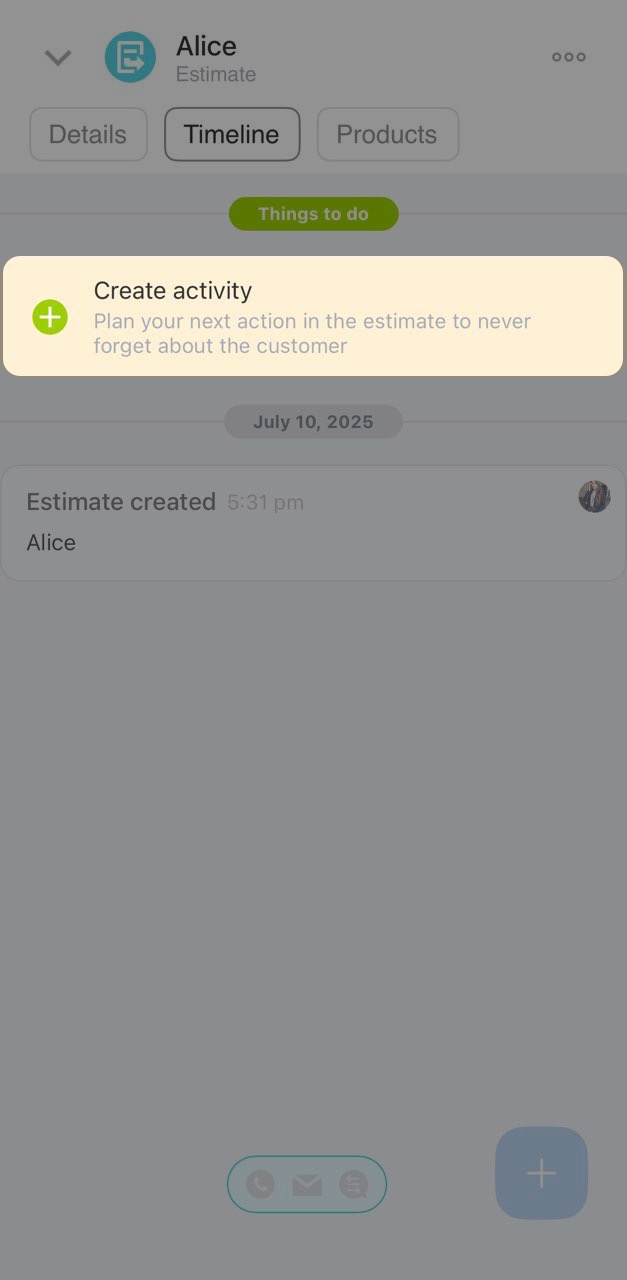
You can create an activity directly from the timeline. Click Create activity. Activities help you stay on top of customer interactions, such as scheduling a call or preparing documents.
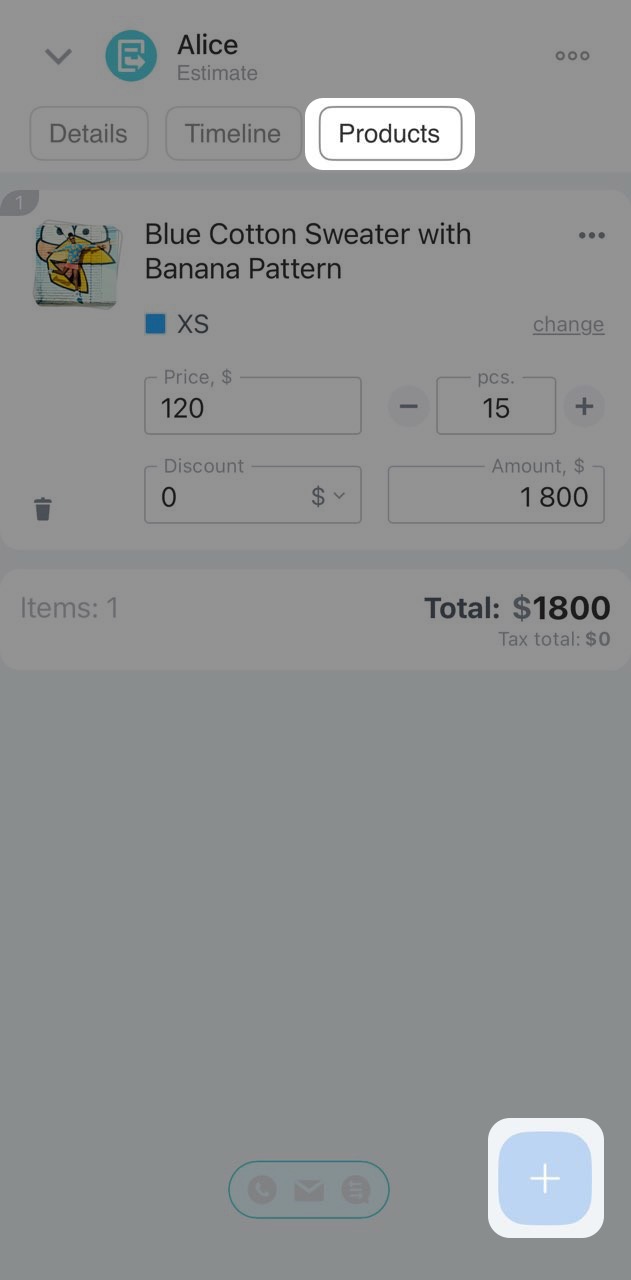
Products — add products, specify prices, quantities, and discounts in this tab. You can add products at any stage of work with the customer. Click Plus (+) to do so.
Send an estimate to a customer
You can create a document based on the estimate in several ways. CRM will auto-fill the document with details from the estimate.
Via Three dots (...).
1. Click Three dots (...) > Documents.
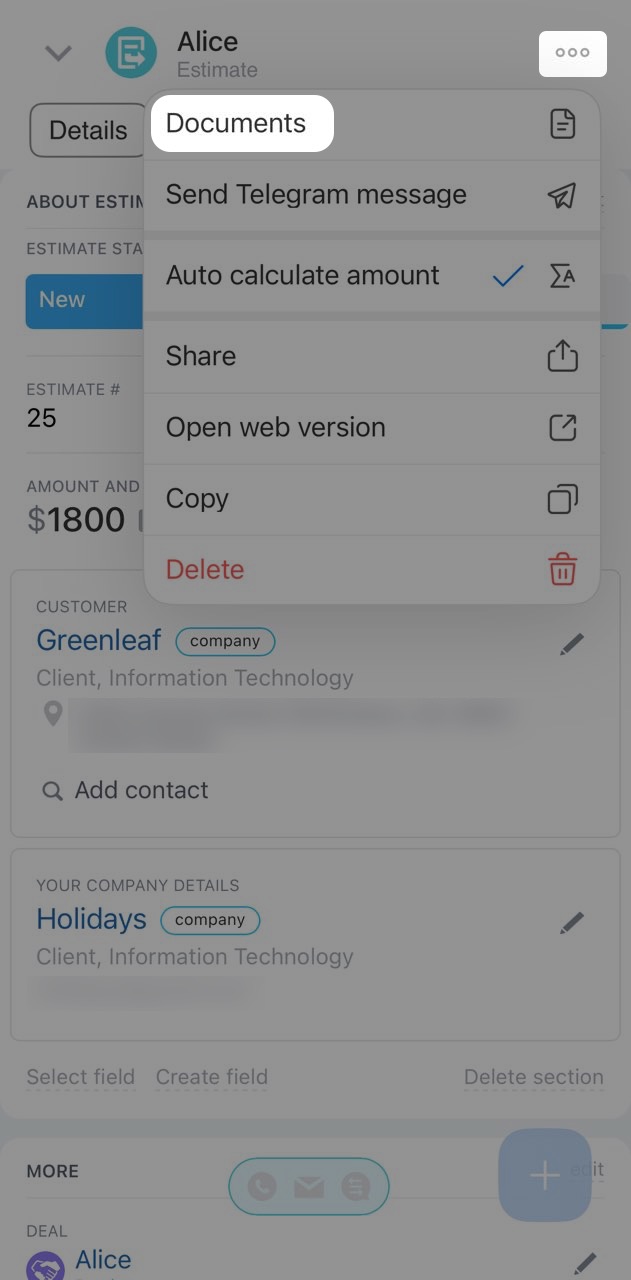
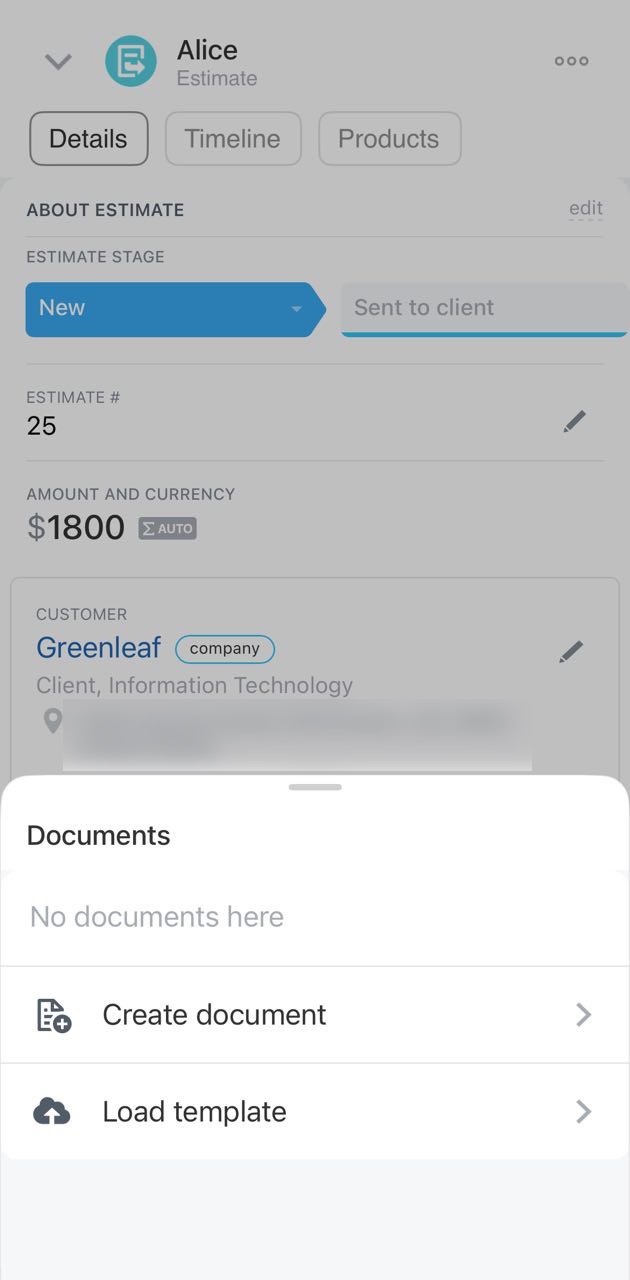
2. Click Create document.
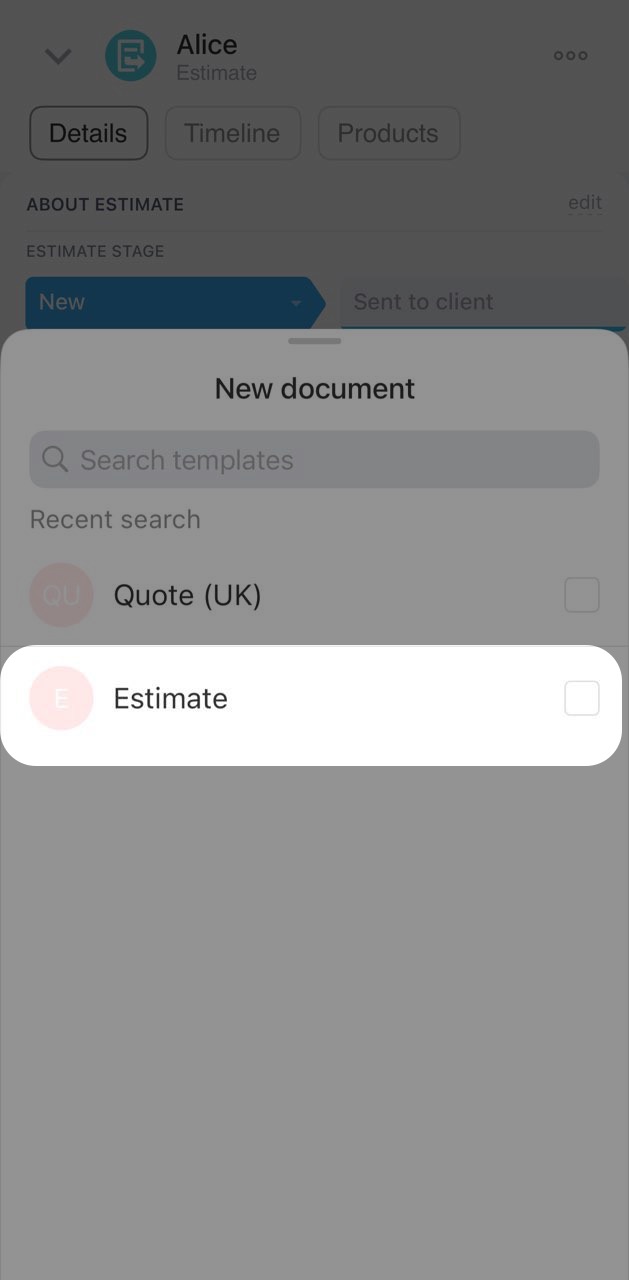
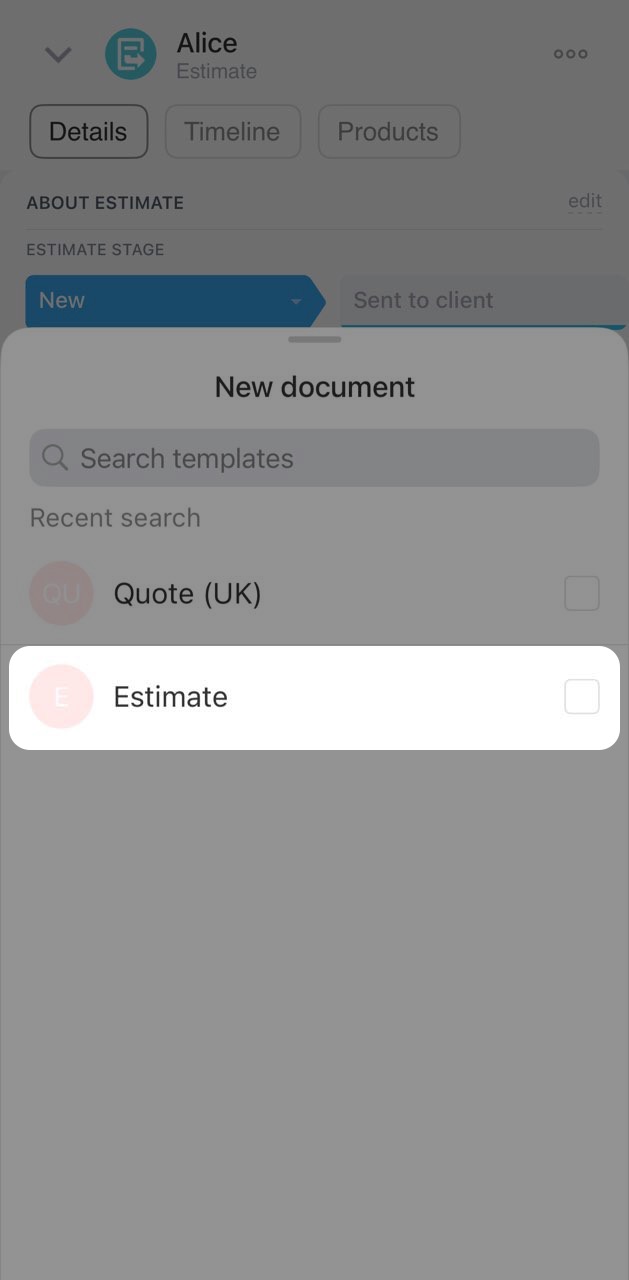
3. Select the required template. New templates can only be uploaded in Bitrix24 on a computer.
Via Plus (+).
1. On the Details or Timeline tab, click Plus (+).
2. Select Document or Prepare document.
3. Select the required template. New templates can only be uploaded in Bitrix24 on a computer.
In the opened document, click Three dots (...) to:
- Generate a QR code for payment—your company's banking details must be filled in CRM for this
- Add a stamp and signature to the document
- Open the card with your company's details
- Open the contact form
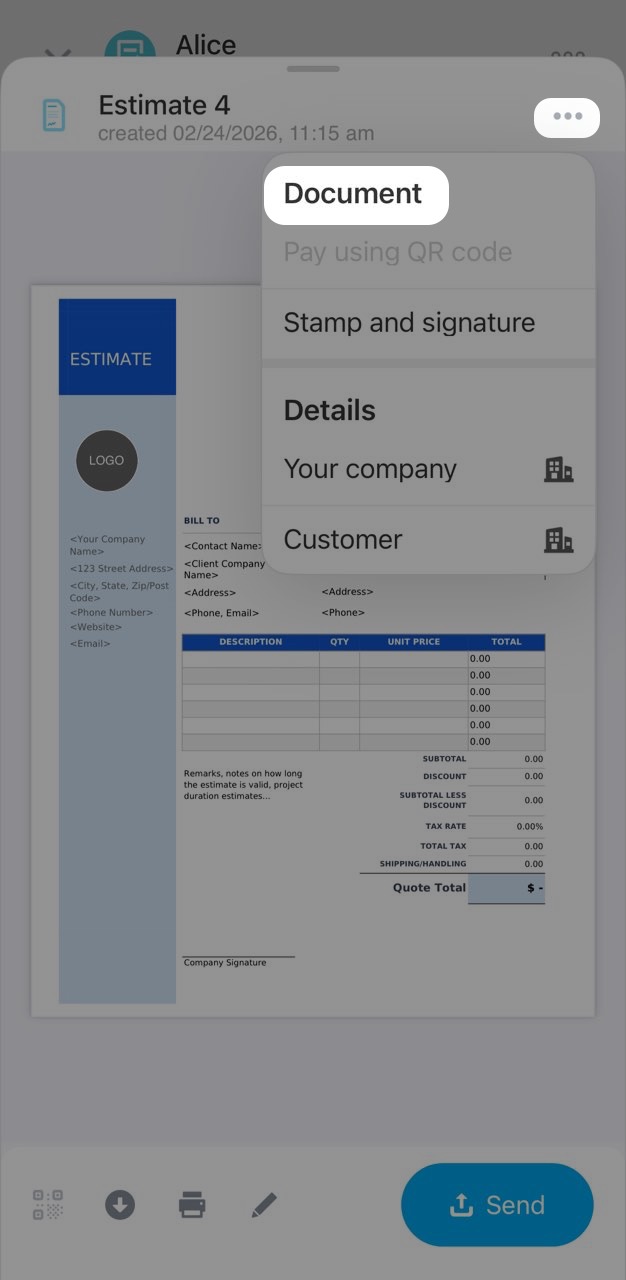
Use the buttons on the bottom panel to work with the document. You can:
- Open the QR code
- Download, print, or edit the file
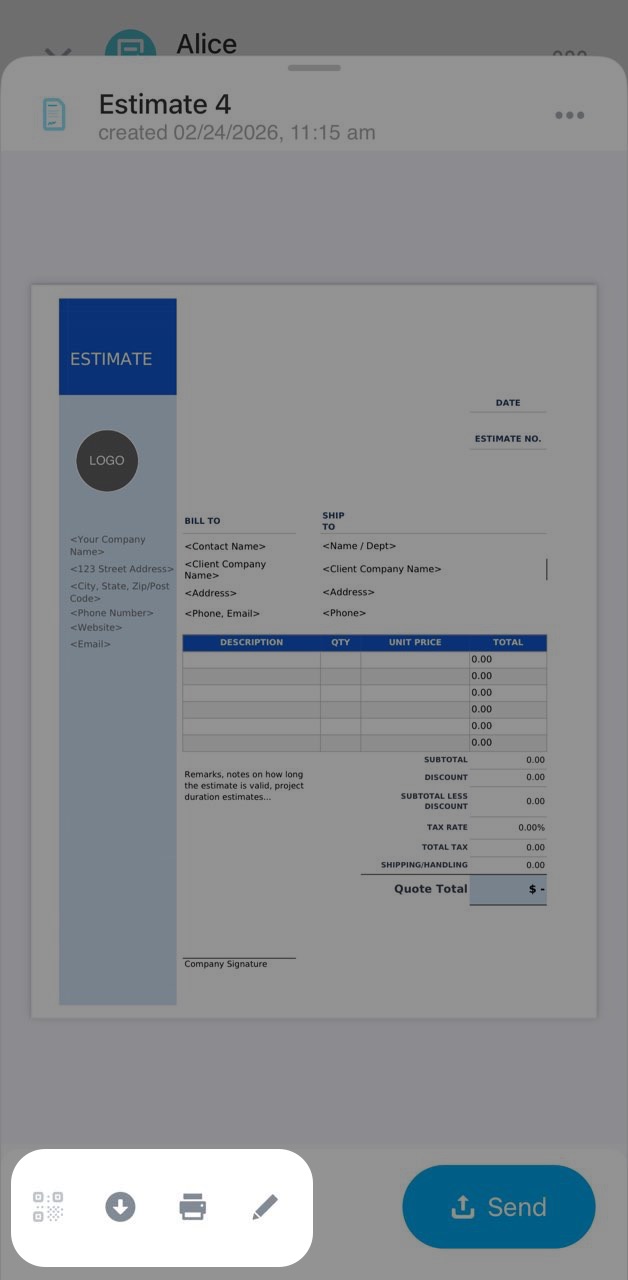
To send the document to the customer, click Send.
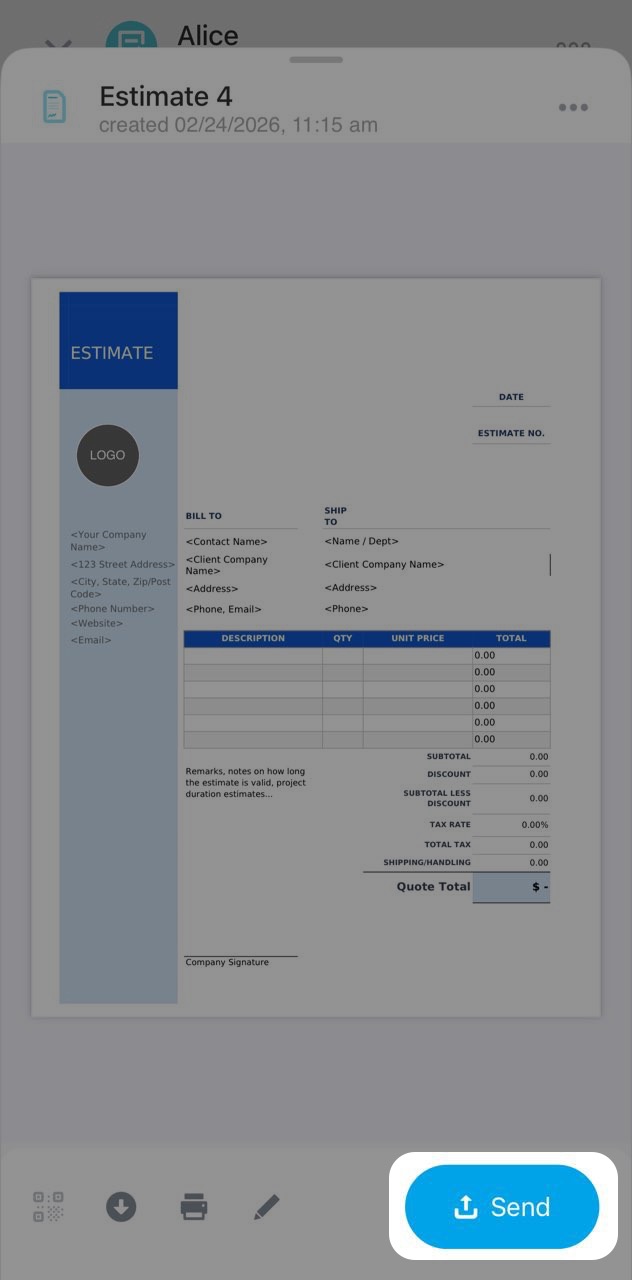
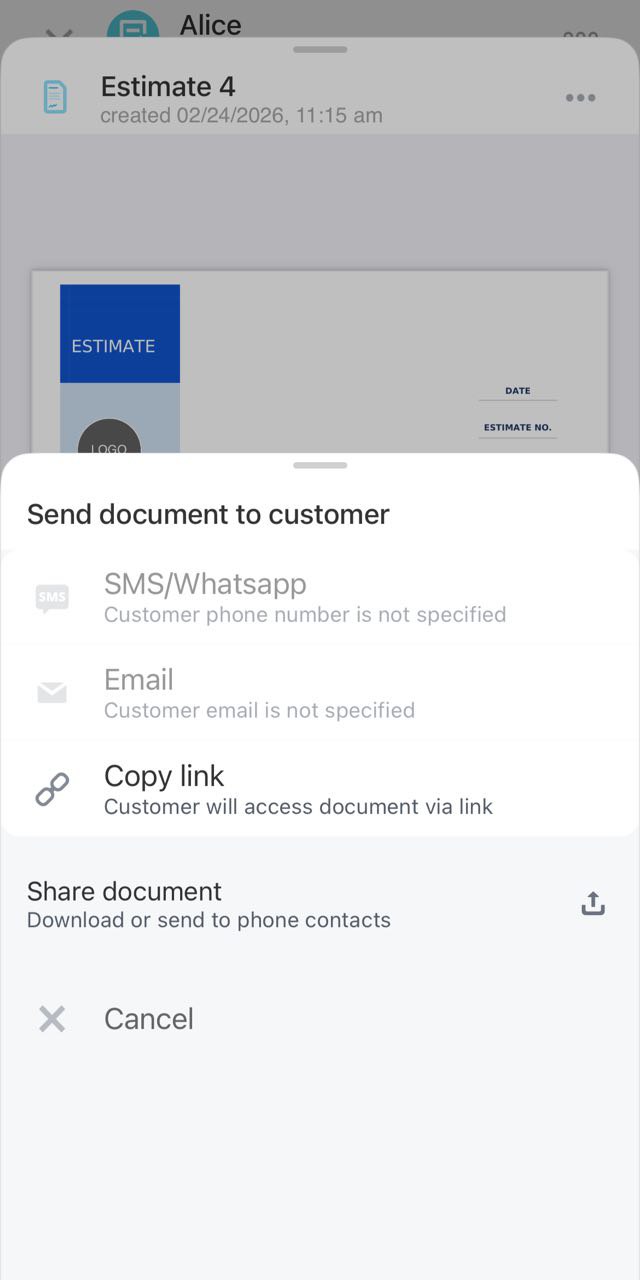
Select the desired sending method:
- Via SMS — if an SMS provider is connected and the customer's phone number is specified. The customer will receive a link to the document.
- Via email — if an email account is connected in Bitrix24 and the customer's email is specified. The customer will receive the document in PDF format.
- Share the document. The file can be sent through any app on your phone, such as a messenger or email.
You can copy the public link to the document and send it to the customer in any way.
Complete work with an estimate
When the customer makes a decision about the estimate, move it to the final stage. Click on the current stage and select the desired one, for example, Accepted if the customer agrees to the estimate.