
AI Web Search is an AI-powered search tool in the Alaio Vibecode platform. It helps apps and AI agents find information online and return a complete answer with source links, not just a list of results.
Use it when you need to:
- Fill in a CRM client record with public company information
- Prepare a contractor summary before a call
- Find mentions of a company or product in public sources
- Check a fact before sending a proposal
- Collect data for presentations without opening dozens of websites
You can use search in the Alaio Vibecode interface and in apps you build on the platform.
In this article:
How AI Web Search works
A standard web search gives you a list of links. You then need to open pages, read them, and gather the information yourself.
AI Web Search handles this for you:
- An AI agent or app sends a request.
- The platform selects a service.
- AI Web Search finds and analyzes relevant pages.
- It returns a ready-to-use answer with source links.
Search modes
AI Web Search includes two modes: standard search and deep research.
Standard search. Best for quick answers. The service checks key sources and generates a short response in seconds. Use it to verify facts, find company information, or create a brief summary.
Deep research. Best for more complex requests. The AI agent runs a multi-step search. It refines the request, reviews multiple sources, compares details, and creates a detailed answer. Use it for market overviews, competitor research, topic analysis, or tracking changes in a product or service over the past month.
Available services
Alaio Vibecode includes several search services. One is built in, and the others are external.
Bitrix AI search. This is the built-in search service for Alaio Vibecode. It is available as soon as you sign in. It handles most tasks in Bitrix24, including general requests, contractor lookups, and summary generation.
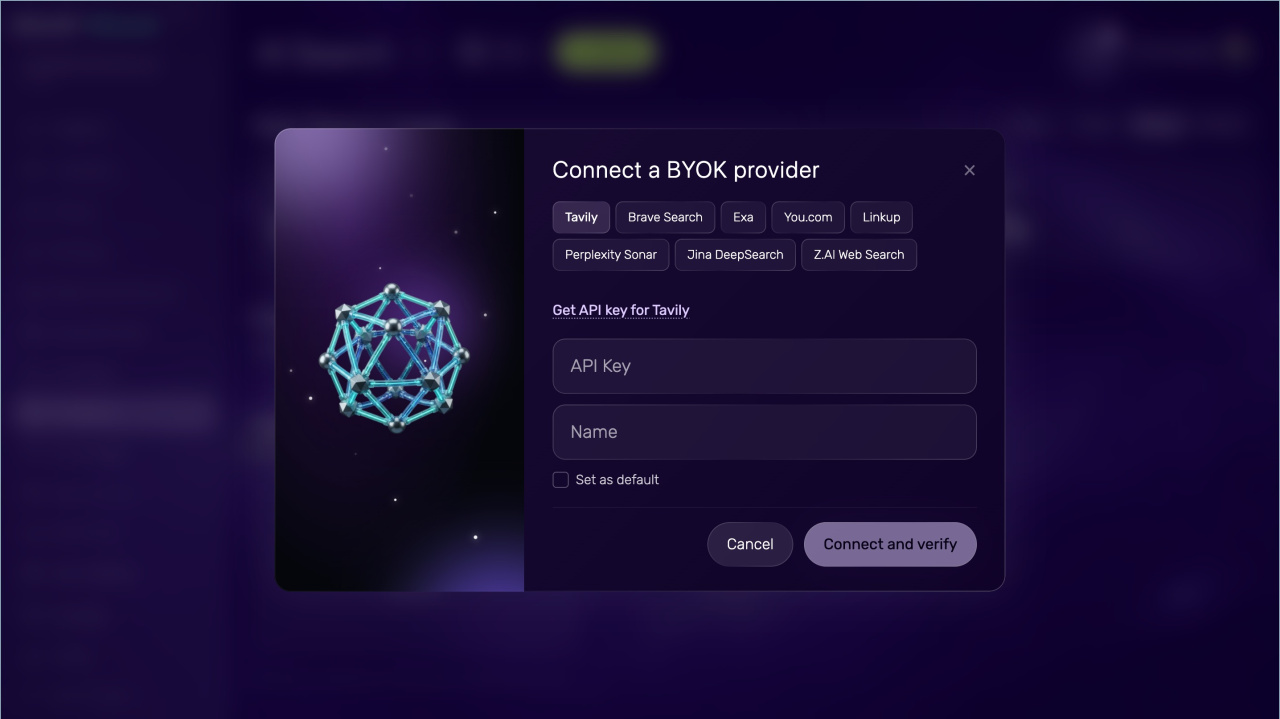
External search services. You can connect external services with the BYOK (Bring Your Own Key) model.
To do this:
- Sign up for the service you want to use.
- Get an API key.
- Add the key to Alaio Vibecode. After that, requests will run through the selected service.
Available providers:
- Tavily — AI-focused search with filters by website and publication date
- Brave — search based on the open Brave index
- Exa — semantic search based on meaning
- You.com — search with citations and follow-up questions
- Linkup — real-time search with fresh data
- Perplexity — search with deep research and citations
- Jina — multi-step AI research
- Z.AI — search with publication dates for source materials.
The best service depends on your task. Bitrix AI search covers most common scenarios. External services are useful if your company already uses them or needs specific features.
How to open the AI Search page
In Alaio Vibecode, open AI Search from the left menu.
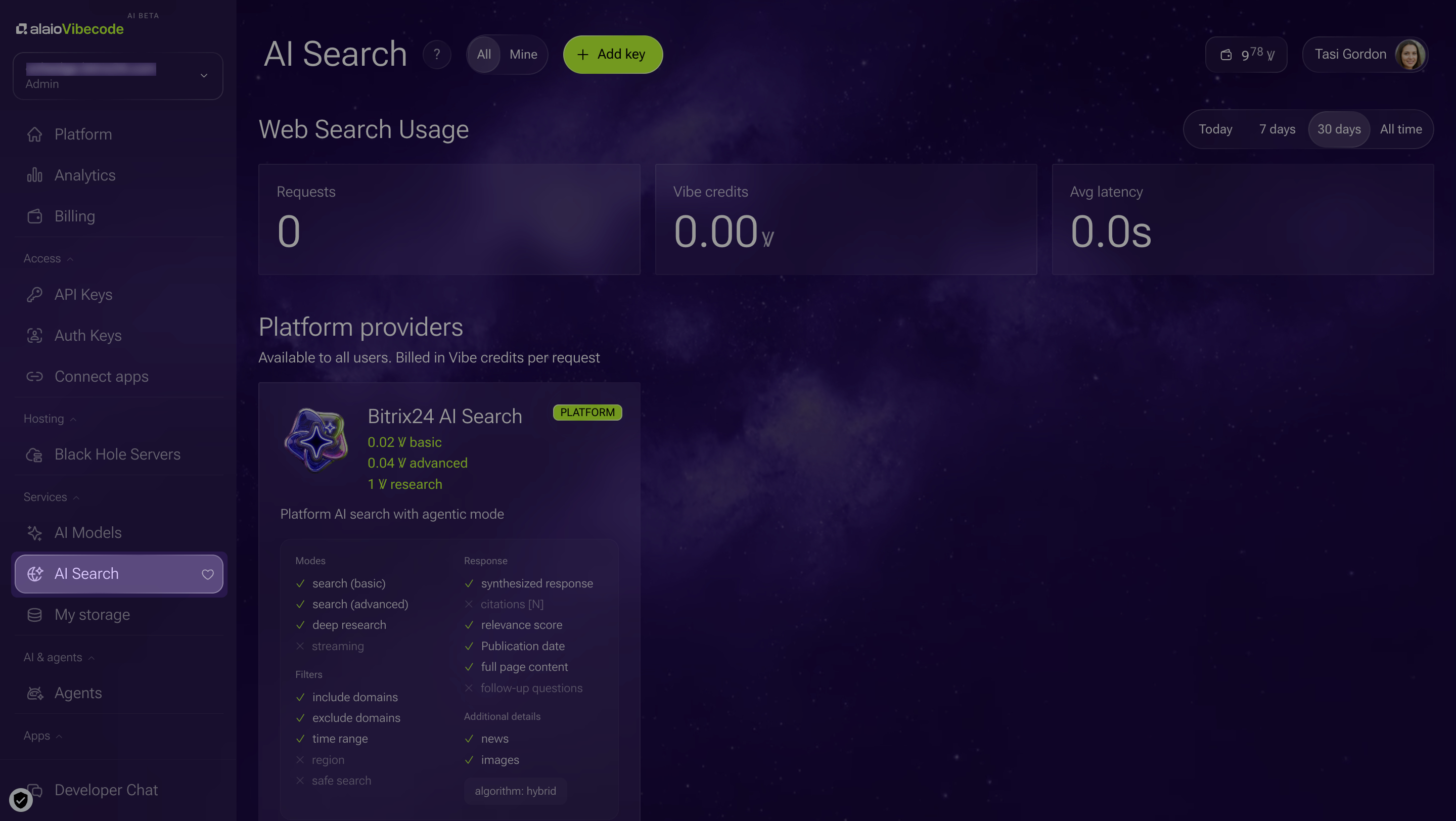
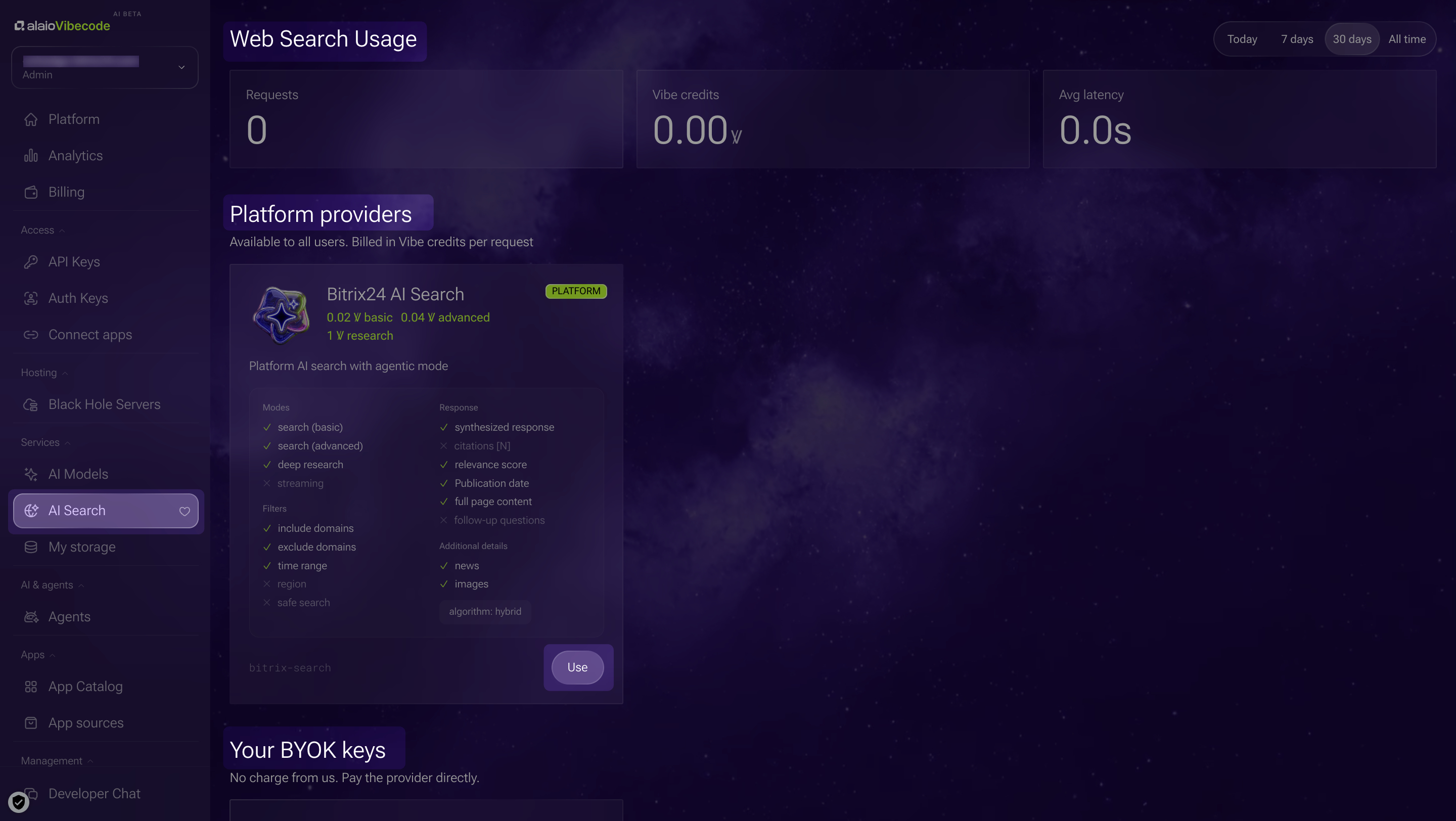
The page includes three sections:
- Web search usage — a summary for the selected period, including request count, Vibe usage, and average response time.
- Platform providers — Bitrix AI search. Click Use to open a window with code examples for app integration.
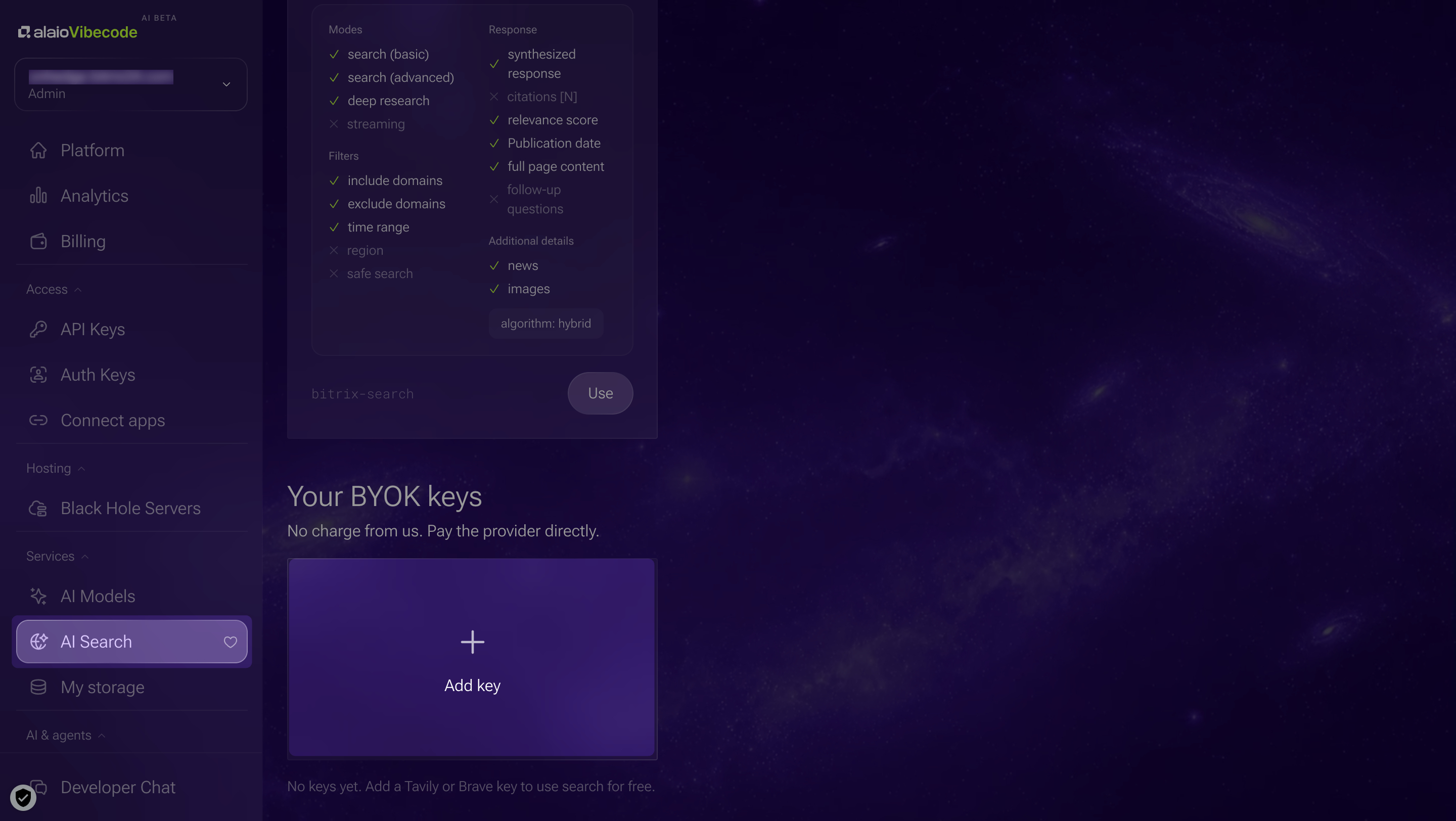
- Your BYOK keys — a list of connected keys, plus an option to add a new one.
Сonnect your own key
To use an external search engine, sign up with the provider and get an API key. Then:
- Open the AI Search section in Alaio Vibecode.
- In the Your BYOK keys section, click Add key.
- Select a service.
- Paste the API key and enter a name.
- Click Connect and verify.
Alaio Vibecode checks the key right away. If the key does not work, you will see an error message with the reason. You can then generate a new key with the provider.
AI Web Search pricing
The cost depends on the search engine you use.
Bitrix AI search. Usage is charged in Vibe credits (Ꝟ):
- Standard search: basic — 0.02 Ꝟ, advanced — 0.04 Ꝟ
- Deep research — 1 Ꝟ
External search services. Requests sent through a connected BYOK key in Alaio Vibecode are free on the Bitrix24 side. You pay the provider directly based on their rates. Terms vary by provider, so review their pricing before you connect a service.
Limitations
Keep these limits in mind:
- Rate limits — up to 60 requests per minute per Bitrix24 account for standard search and up to 20 requests per minute for deep research.
- Request logging — the first 200 characters of each request are saved for statistics and audit purposes. The full request content is not stored. This applies to all engines, including those with BYOK keys.
In brief
- AI Web Search is an AI-powered search tool in the Alaio Vibecode platform. It helps apps and AI agents find information online and return a complete answer with source links, not just a list of results.
- AI Web Search includes two modes: standard search and deep research.
- You can use the built-in Bitrix AI search or connect external search services with the BYOK model.
- To set up search, open the AI Search section in Alaio Vibecode. Click Use in the Bitrix AI search block, or click Add key in the Your BYOK keys block.