
Apps built with Alaio Vibecode do not need to be installed on a computer. They run inside Bitrix24 and appear where employees need them: in the menu, inside a CRM item, in tasks, messenger, or in another section.
For example, a price calculator can open from a deal form, an AI assistant can reply in chat, and a supervisor's report can open from the main Bitrix24 menu.
In this article:
How an app integrates into Bitrix24
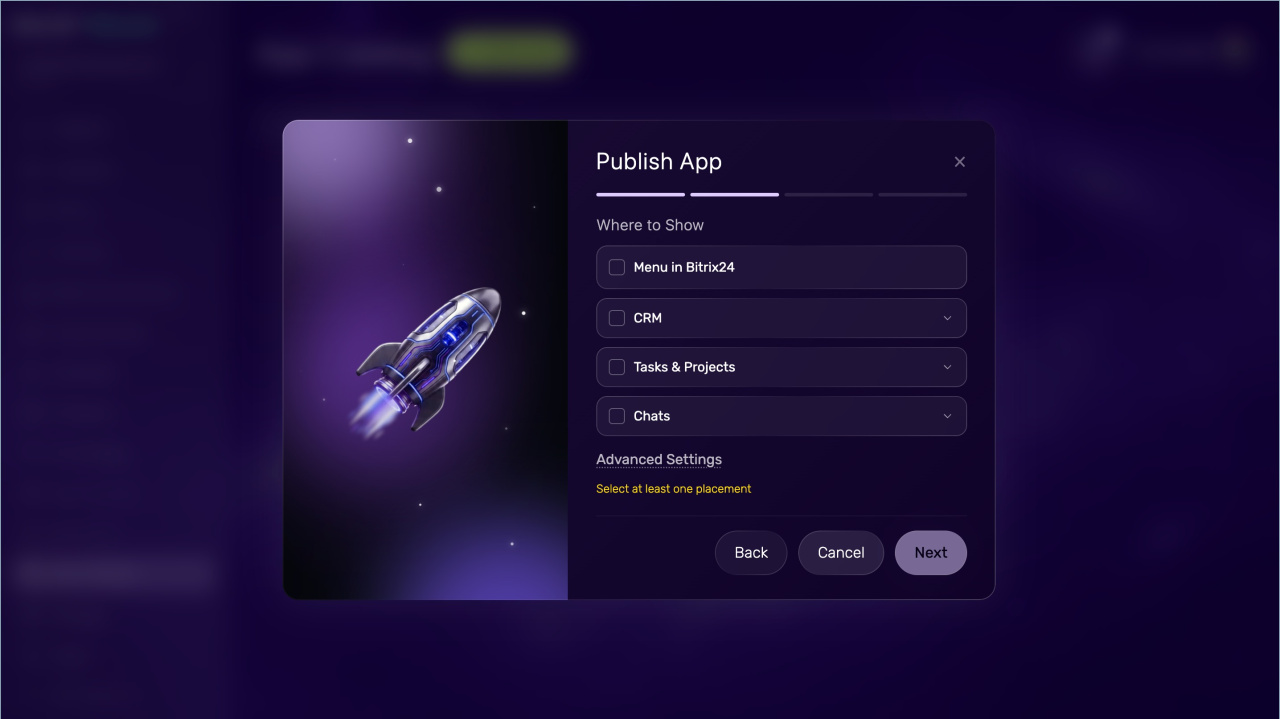
Bitrix24 uses special app locations called placement points. A placement point defines where the app appears in the interface, such as the menu, a CRM form, a task, Messenger, or another tool.
Choose the placement based on what the app does. If employees use it every day, place it in the main menu. If it supports client work, place it in a deal, contact, or company form. If employees need it during conversations, place it in Messenger.
One app can use several placement points. For example, it can open from the main menu and also show a button inside a deal form.
Configure the app placement
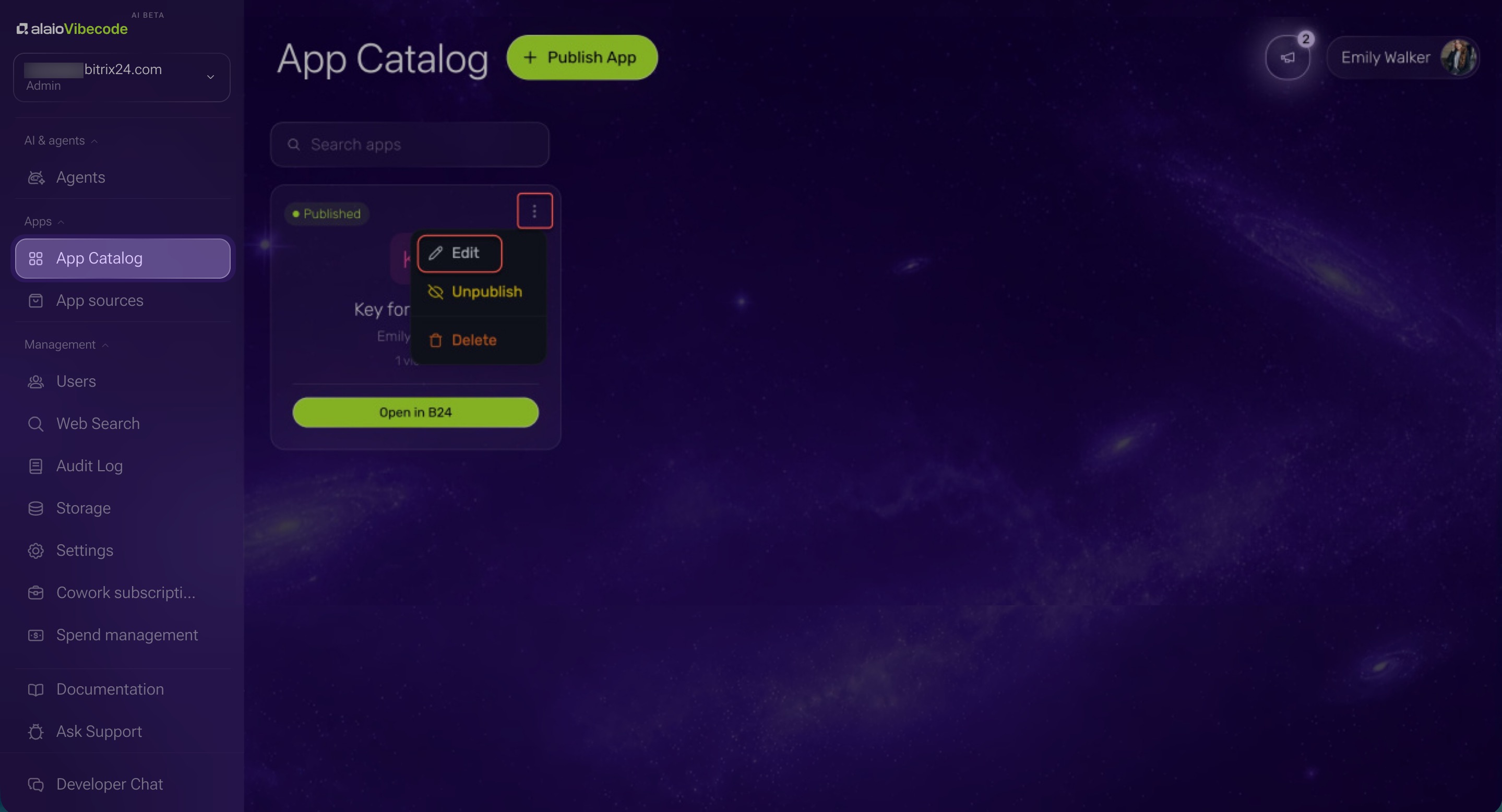
You can choose a placement when you create the app or update it later in the settings. Open App catalog > Three dots (...) > Edit and open the settings. Choose the placement point that fits your workflow:
- Main menu — The app appears as a separate item in the Bitrix24 menu. This is a good option for tools people use often. For example, a supervisor opens a sales dashboard every day.
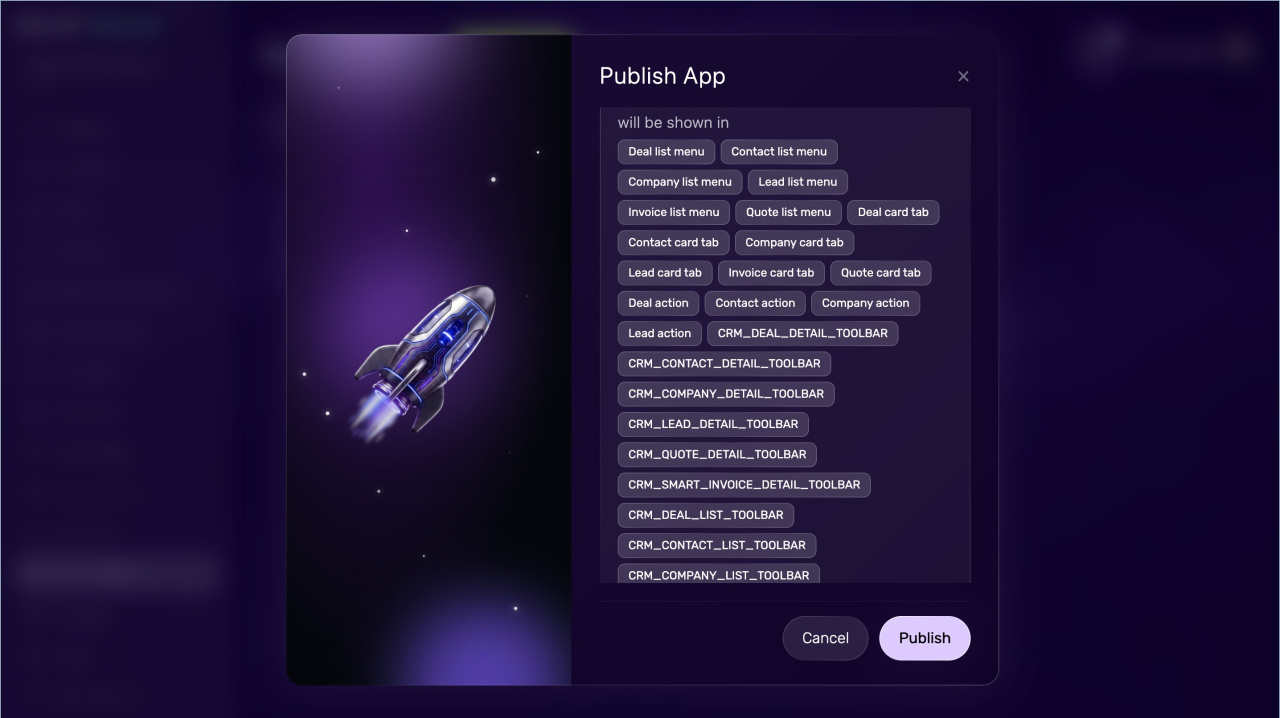
- CRM — The app can appear in CRM forms for deals, contacts, companies, or leads. Use this option when the app supports sales or client work. For example, a manager opens a price calculator from a deal form.
- Tasks and projects — Use this placement for teamwork, task tracking, and workload reviews. For example, a supervisor opens a project and sees a widget with tasks that have no recent updates.
- Messenger — The app opens from Bitrix24 Messenger. It appears in a slider above the chat window, so employees can keep the conversation open. For example, a manager discussing a client with a teammate opens the app to check a deal summary.
- Bitrix24 top panel — Use this placement for quick actions from any section. For example, an employee clicks the icon and sends a question to an AI assistant without leaving the current page.
- Background — Some apps run without a visible interface. They start on a schedule or after an event and send results automatically. For example, an app collects a daily sales summary and sends it to a supervisor in chat.
After you select the placement points, save your changes. If your workflow changes, go back to the app settings and choose different placements.
Things to consider when configuring
Workflow. The placement point should match the app's purpose. If a manager needs the app while working on a deal, add it to CRM. If the app is for regular reporting, the main menu or background mode may work better.
Permissions. Check who will use the app and what data it needs. If the app shows CRM data, employees will only see the records they have permission to access.
Name and description. Choose a name that clearly explains what the app does. Keep the description short. Explain what problem it solves and when to use it. For example: "Sales summary" — shows deals with no activity, overdue tasks, and large active deals.
Available options. Available placement points can depend on the app type, its settings, and Bitrix24 features. If a placement point is not available, choose another one or adjust the workflow.
In brief
- Placement points are the locations where an app appears in Bitrix24.
- You can choose a placement when you create the app or change it later in the settings: App catalog > Three dots (...) > Edit
- Choose the placement based on your workflow. The main menu works well for regular analytics, CRM for client work, Messenger for quick access during conversations, and background mode for automated summaries.
- Employees do not need to install the app on their computers. They open it directly in Bitrix24 or receive the results automatically.
- Before you configure the app, review the workflow, permissions, name, description, icon, and available placement points.