
A Black Hole server is a cloud server with a built-in security mode. It has no public IP address, stays hidden from the network, and is available only through an encrypted Alaio Vibecode tunnel. You can use this server to host a Bitrix24 app or bot. It comes with a simple setup, built-in data protection, and flexible access settings, so you can start using it right after deployment.
Black Hole servers
In this article:
Create a Black Hole server
You can create a Black Hole server automatically or manually.
Automatically — create the app or bot in Alaio Vibecode. After you send a prompt to the AI model, it deploys the server and hosts the AI solution automatically.
Alaio Vibecode: Create and set up an app
Manually — use this option if you want to set the server parameters yourself. You can host any AI solution on it.
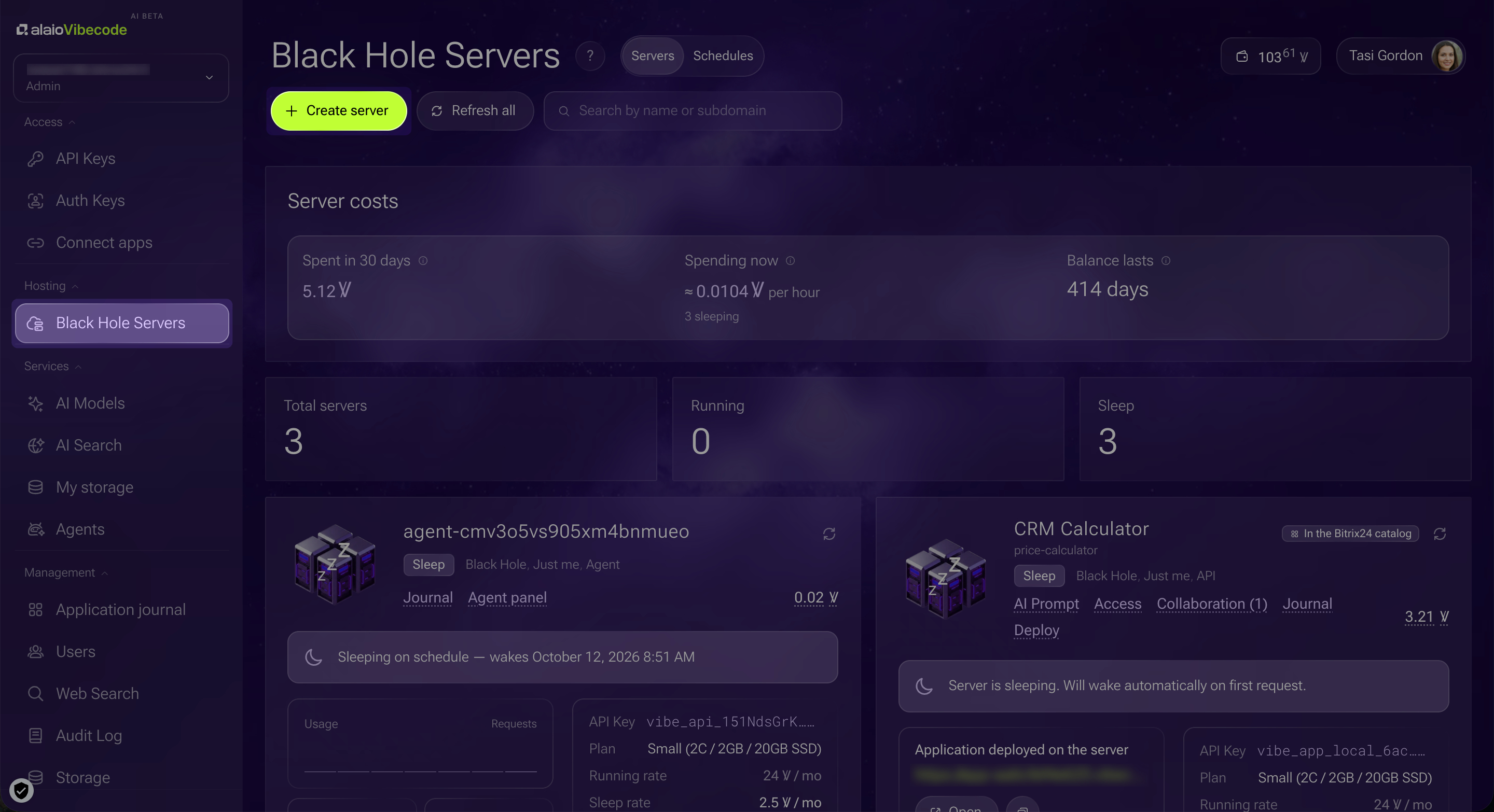
1–2. In your Alaio Vibecode account, go to Hosting > Black Hole Servers and click + Create server.
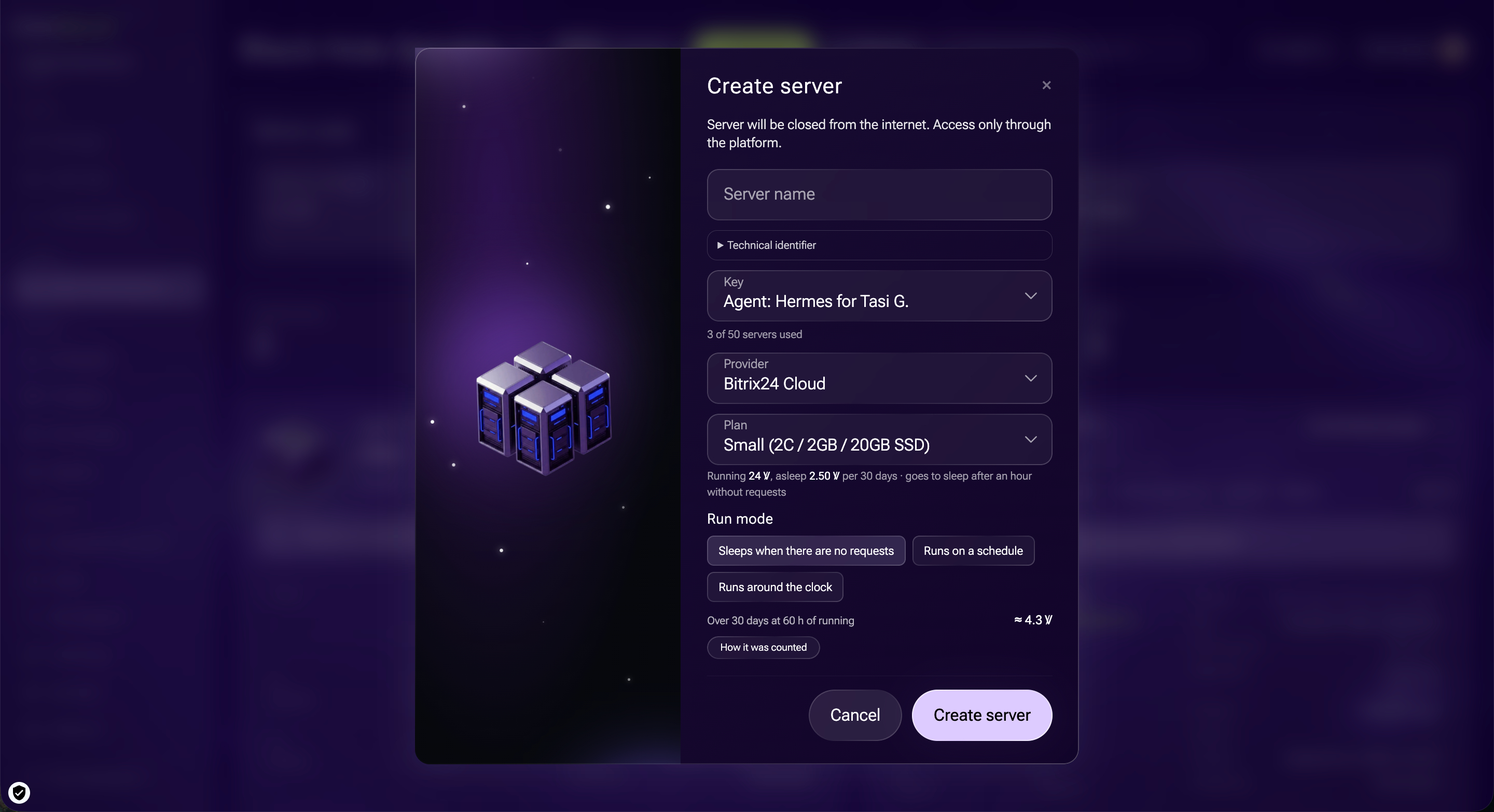
3. Enter the server details: name, key, provider, and plan. You will need the API key when you create the app. The plan shows how much it costs to run the server and keep it idle for 30 days.
4. Select the run mode. The estimated cost for 30 days appears below. For Sleeps when there are no requests mode, the estimate assumes 60 hours of activity. Click How it was counted to see the cost breakdown.
5. Click Create server.
Manage a Black Hole server
All servers created in Alaio Vibecode appear in the Black Hole Servers section. To manage a server, find its form on the page.
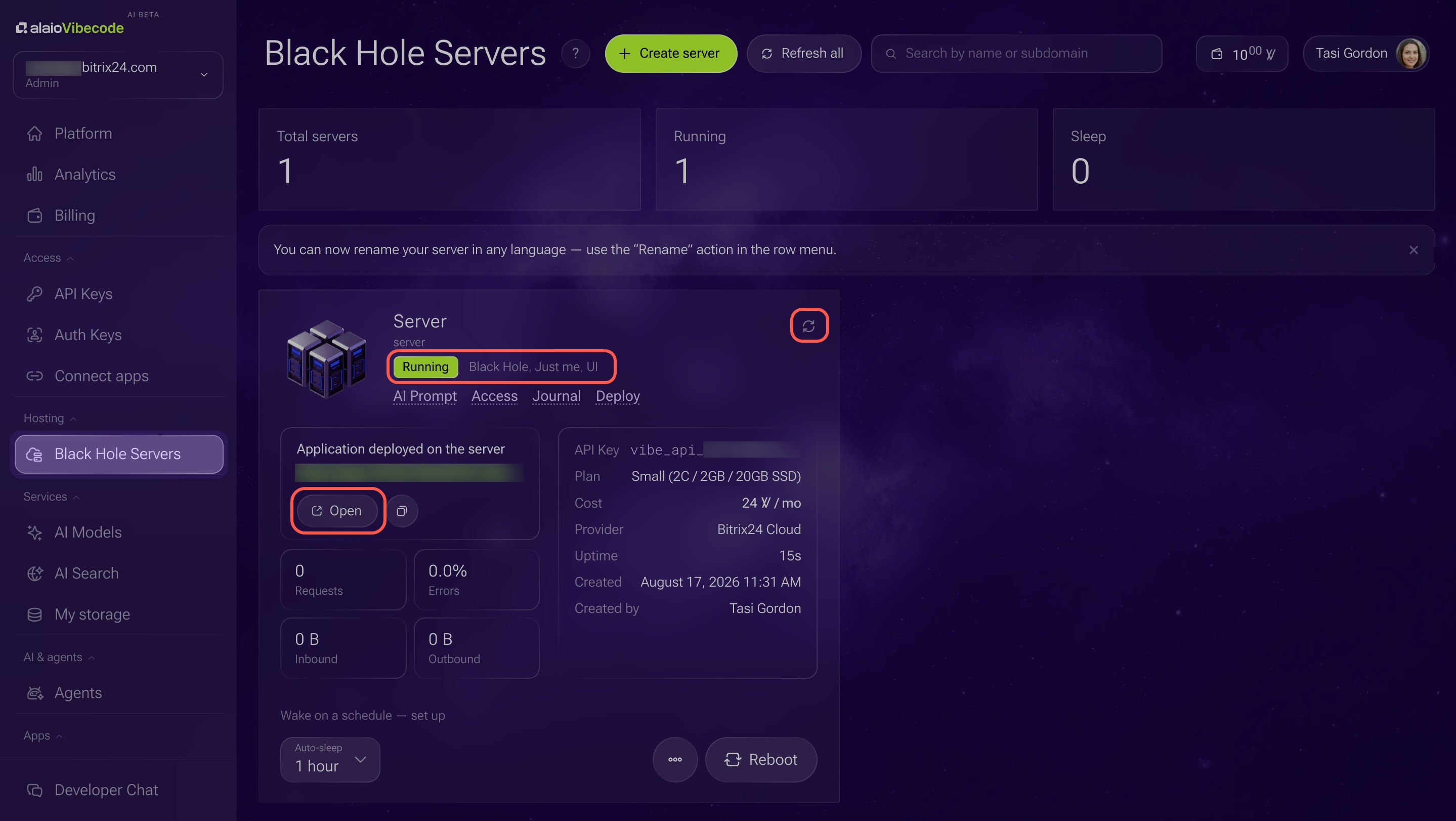
Server information
View server details. Below the server name, you can see the status, operating mode, access settings, and source. Hover over a value to see more information.
Refresh page data. Click the refresh icon if you made changes and they do not appear right away.
Open the AI solution in a new browser tab.
Copy link to share the AI solution without publishing it in the app catalog.
Settings
Configure the server. Click any tab below the server name to open the settings panel.
- Prompt for AI. Copy the prompt, add an API key, and send it to the AI model. The agent will deploy the app to this server. Use the same API key for both the server and the app you want to host.
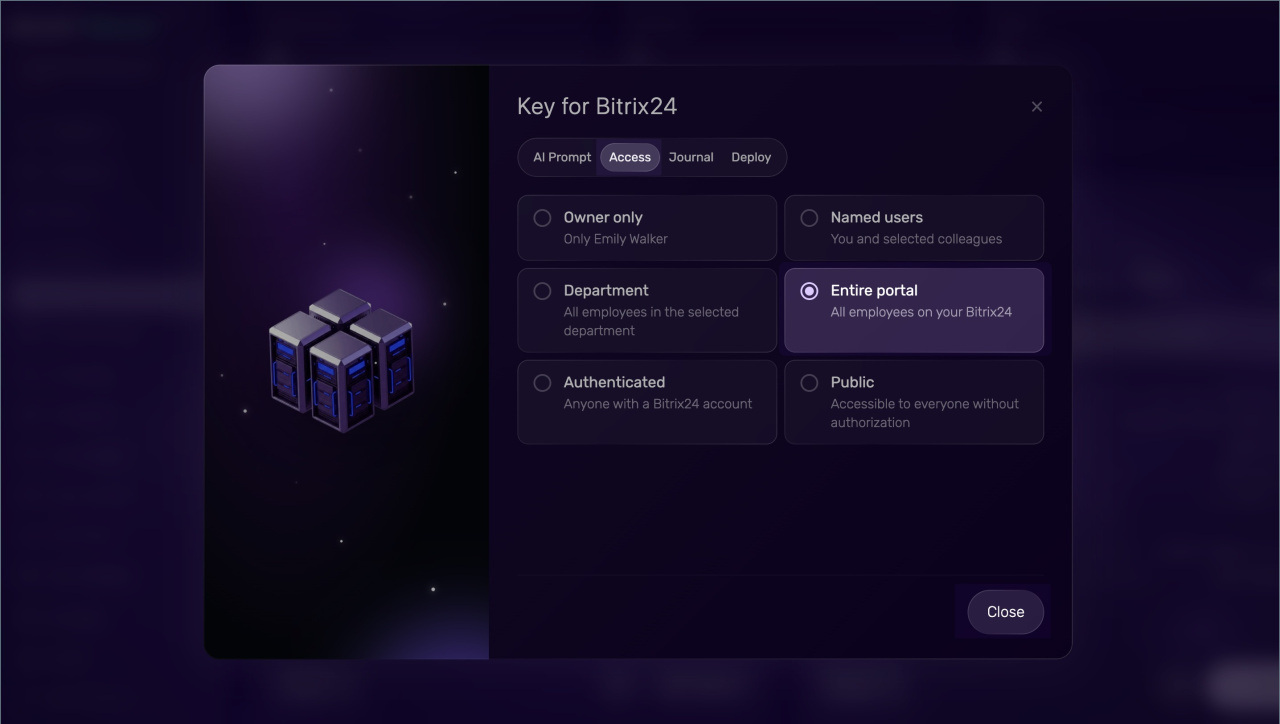
- Access. Choose who can view and use the app, such as only the owner or any Bitrix24 user.
- Log. Review session history. You can see who used the app, when they used it, and what errors occurred.
- Deploy. Copy the data you need to manage the server through REST.
- Links. Copy links to the app or bot and share them with coworkers or an AI agent for testing.
Click Close to return to the server list.
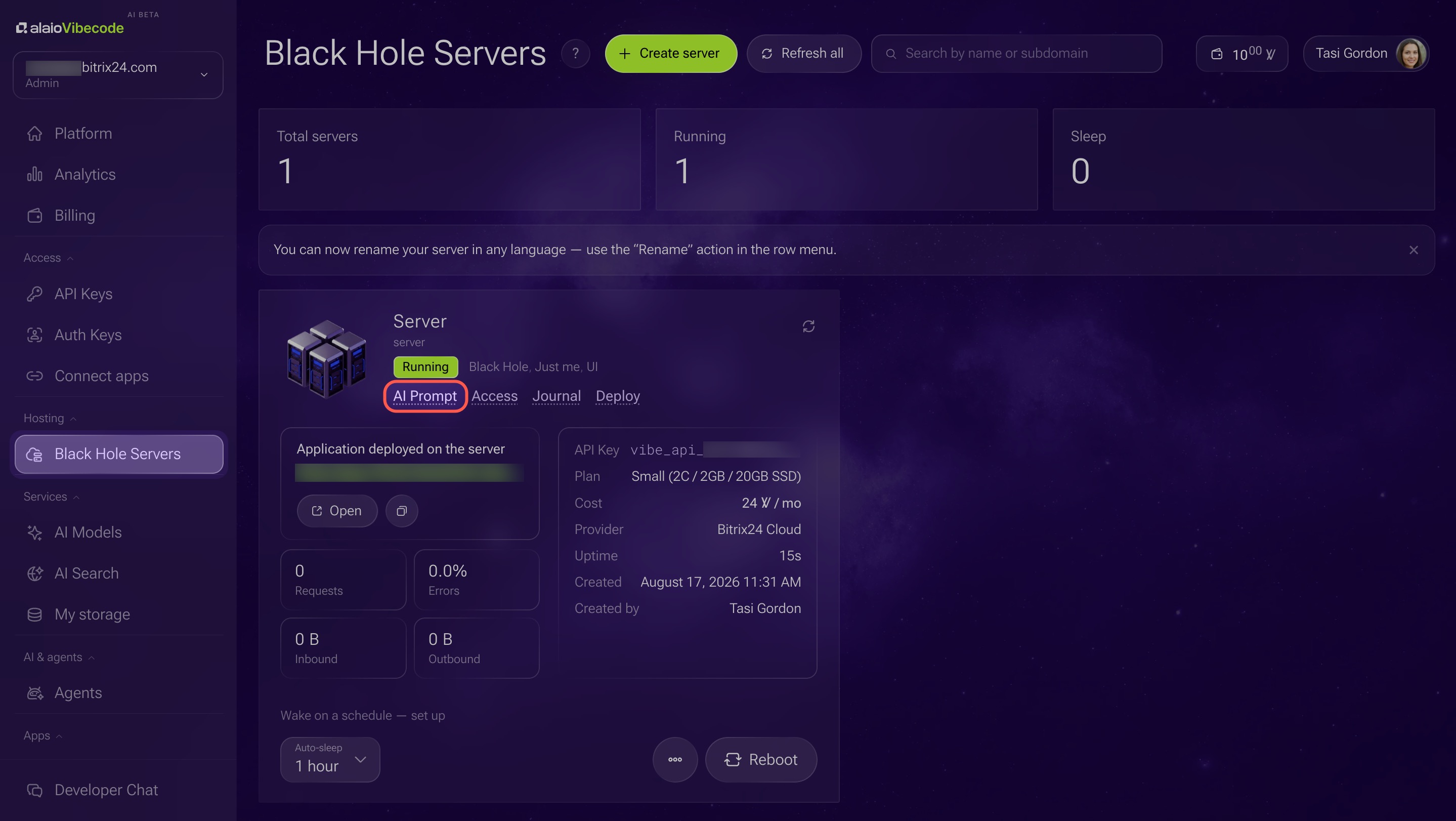
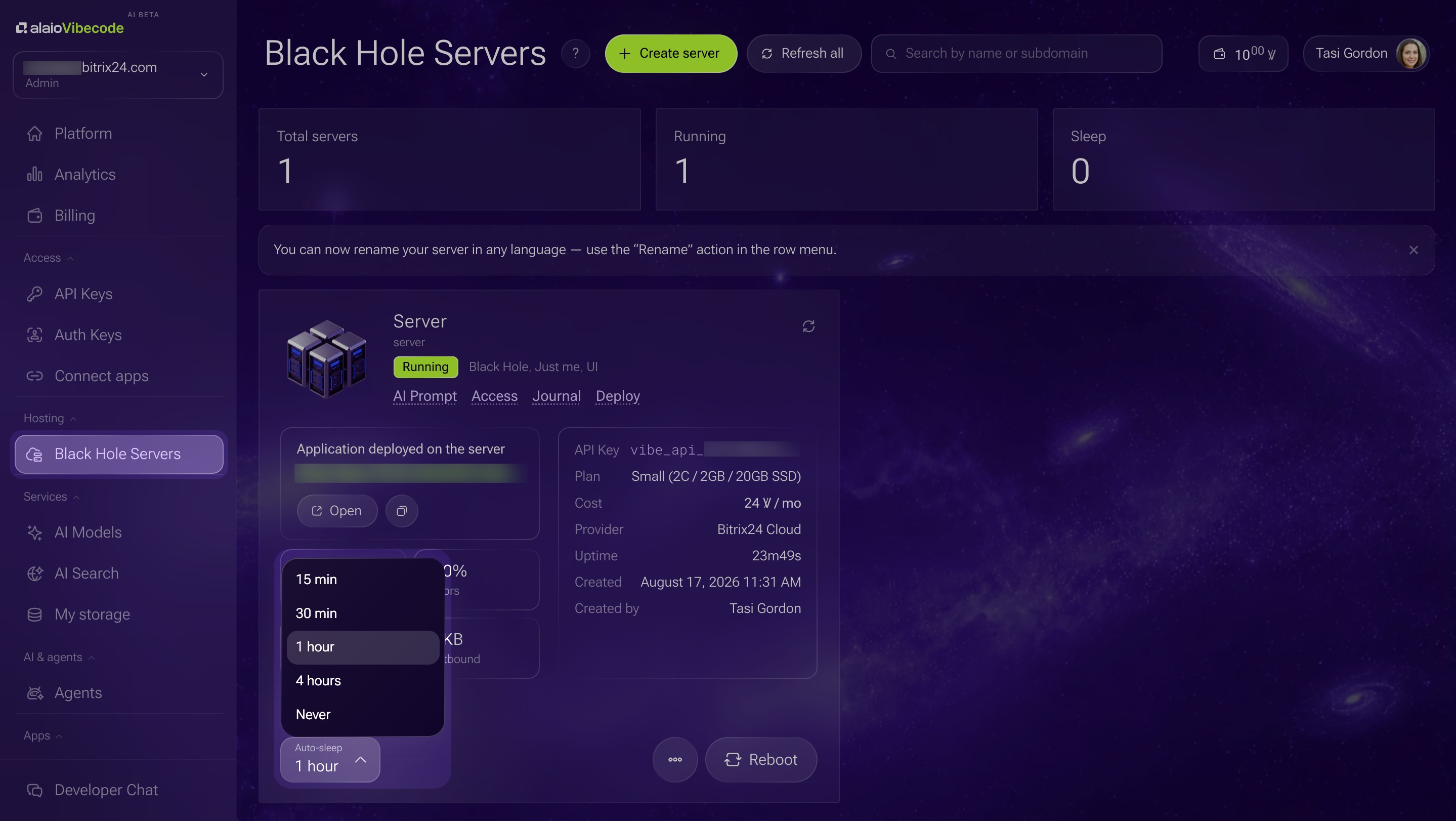
Configure sleep mode. Click Auto-sleep in the lower-left corner and choose how long the app can stay inactive before it goes to sleep: 15 minutes, 30 minutes, 1 hour, 4 hours, or Never.
If the server goes to sleep, it wakes up automatically the next time someone opens the app.
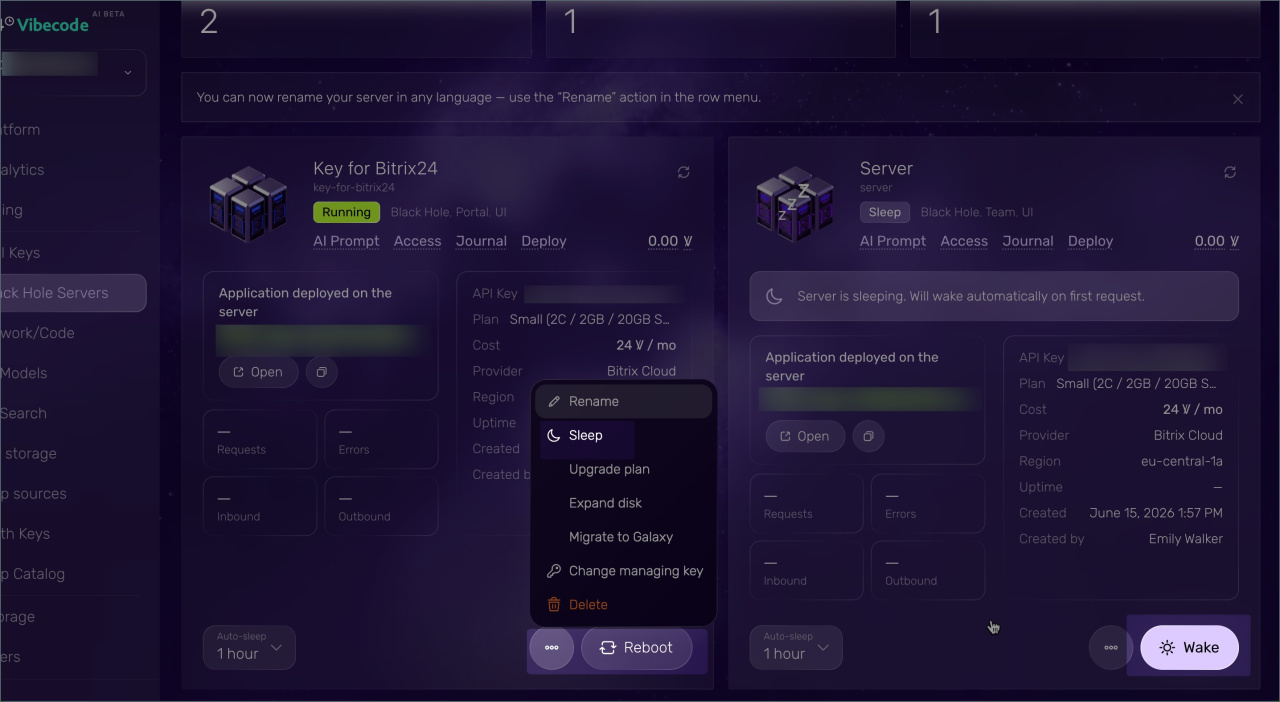
State management
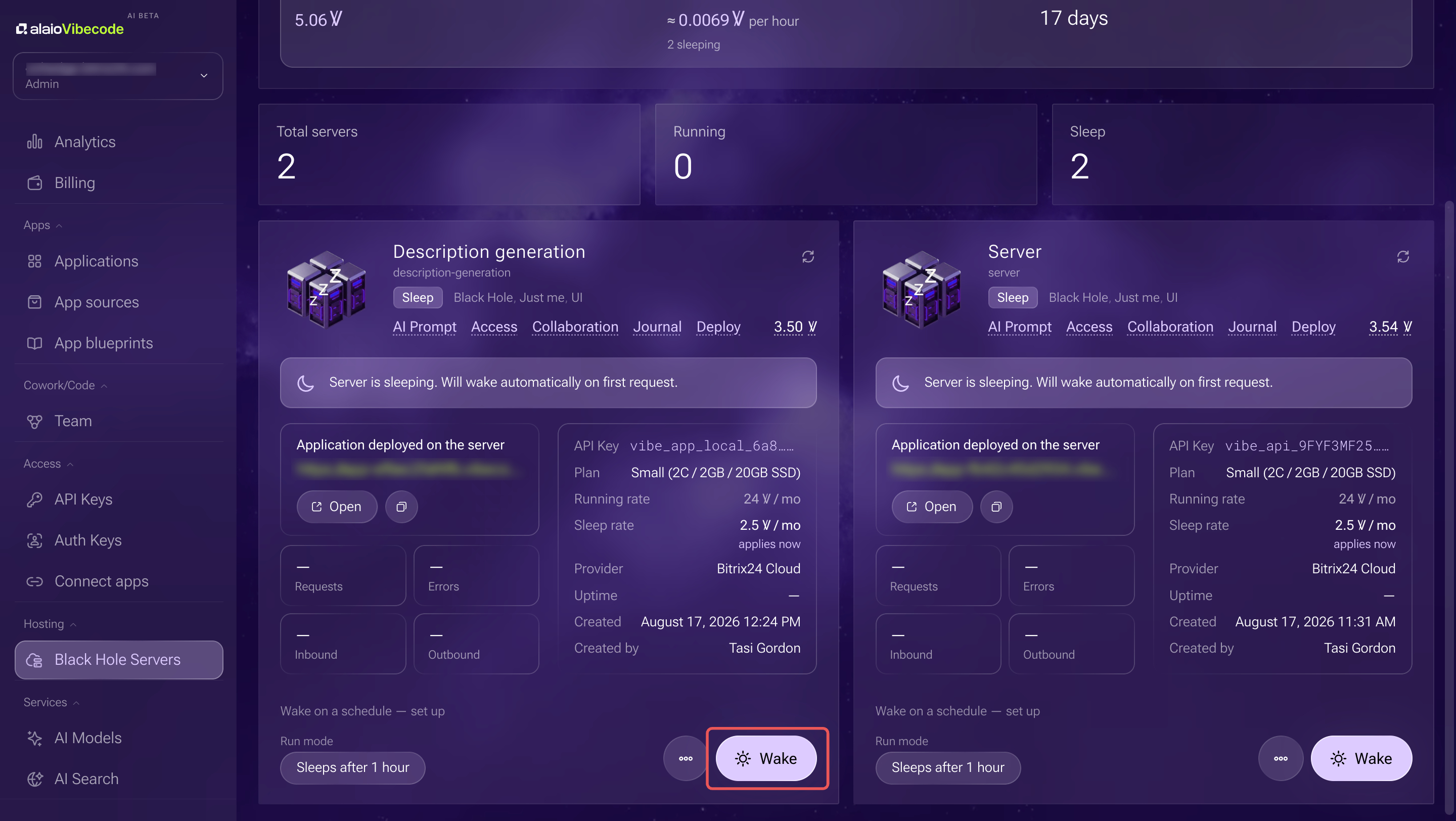
Activate the server. The server wakes up automatically when someone opens the app, but this can take some time. If you want the app to open right away at a specific time, click Wake up in advance. The button is in the lower-right corner of the server card.
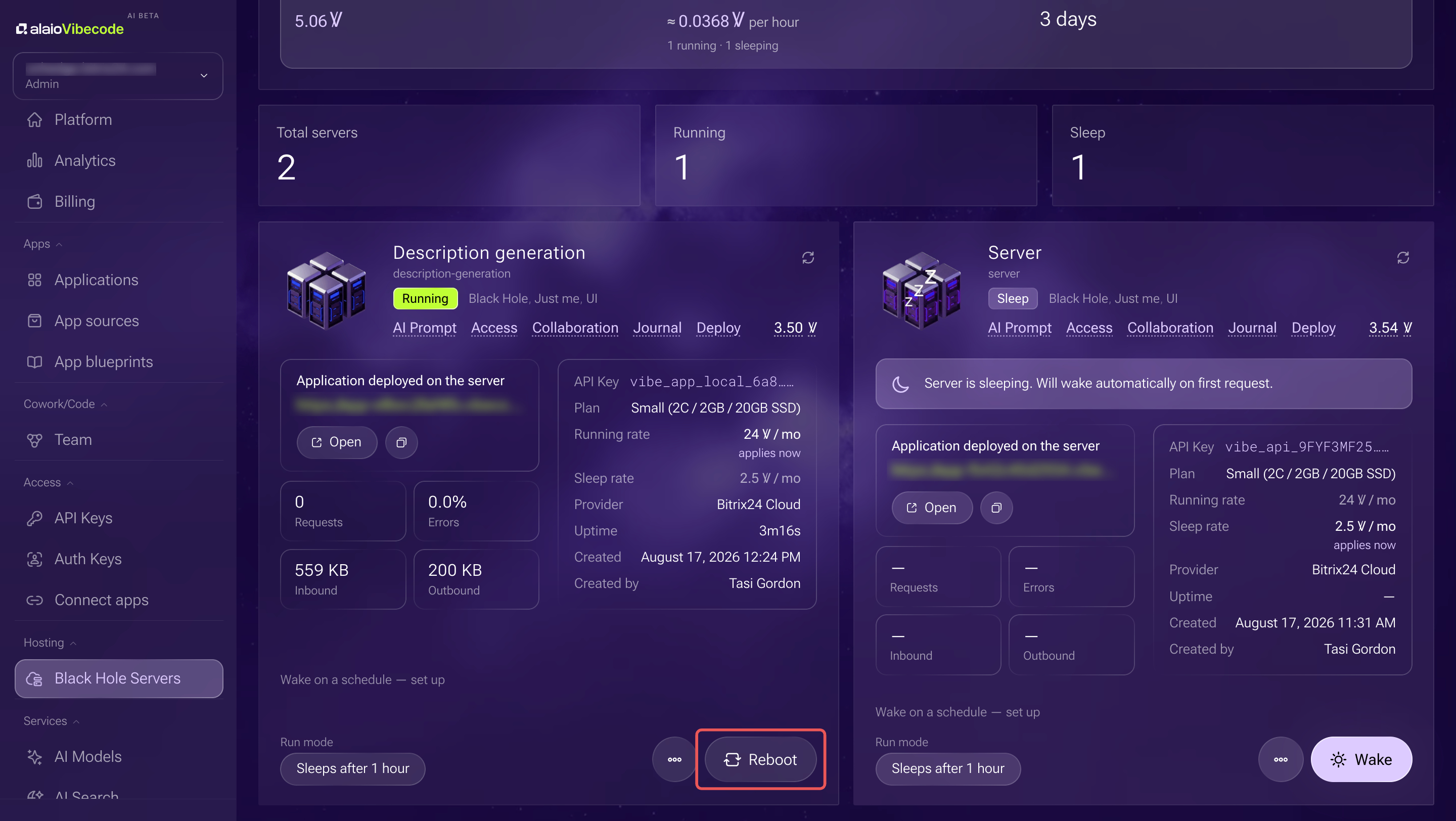
Restart — click Restart in the lower-right corner of the server card. The app will be unavailable for a few minutes.
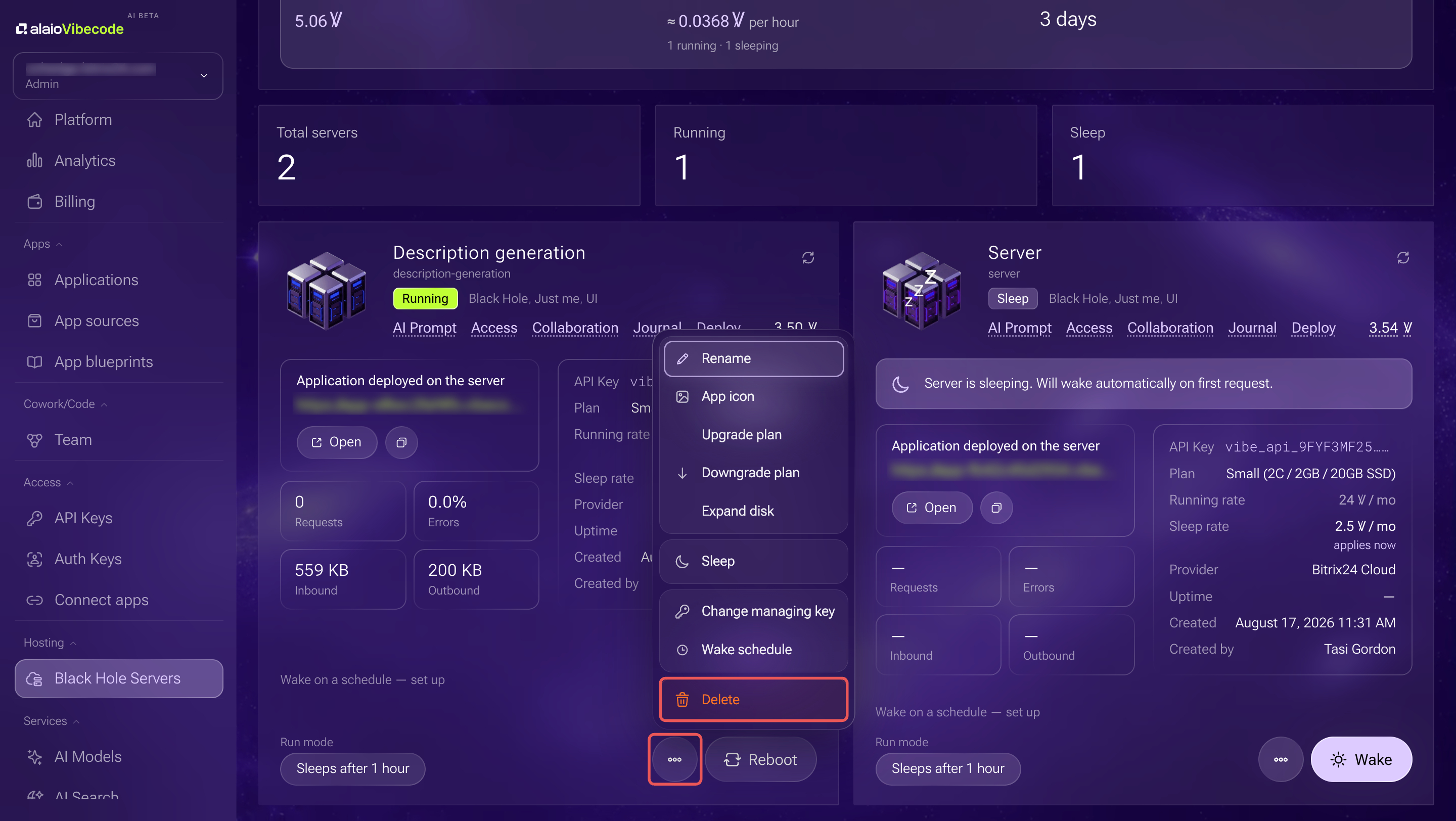
Put the server to sleep to stop the server temporarily and switch to a lower billing rate. Click Three dots (...) > Sleep.
Delete. Click Three dots (...) > Delete and confirm the action. This permanently deletes all server data and makes the app unavailable. You cannot undo this action.
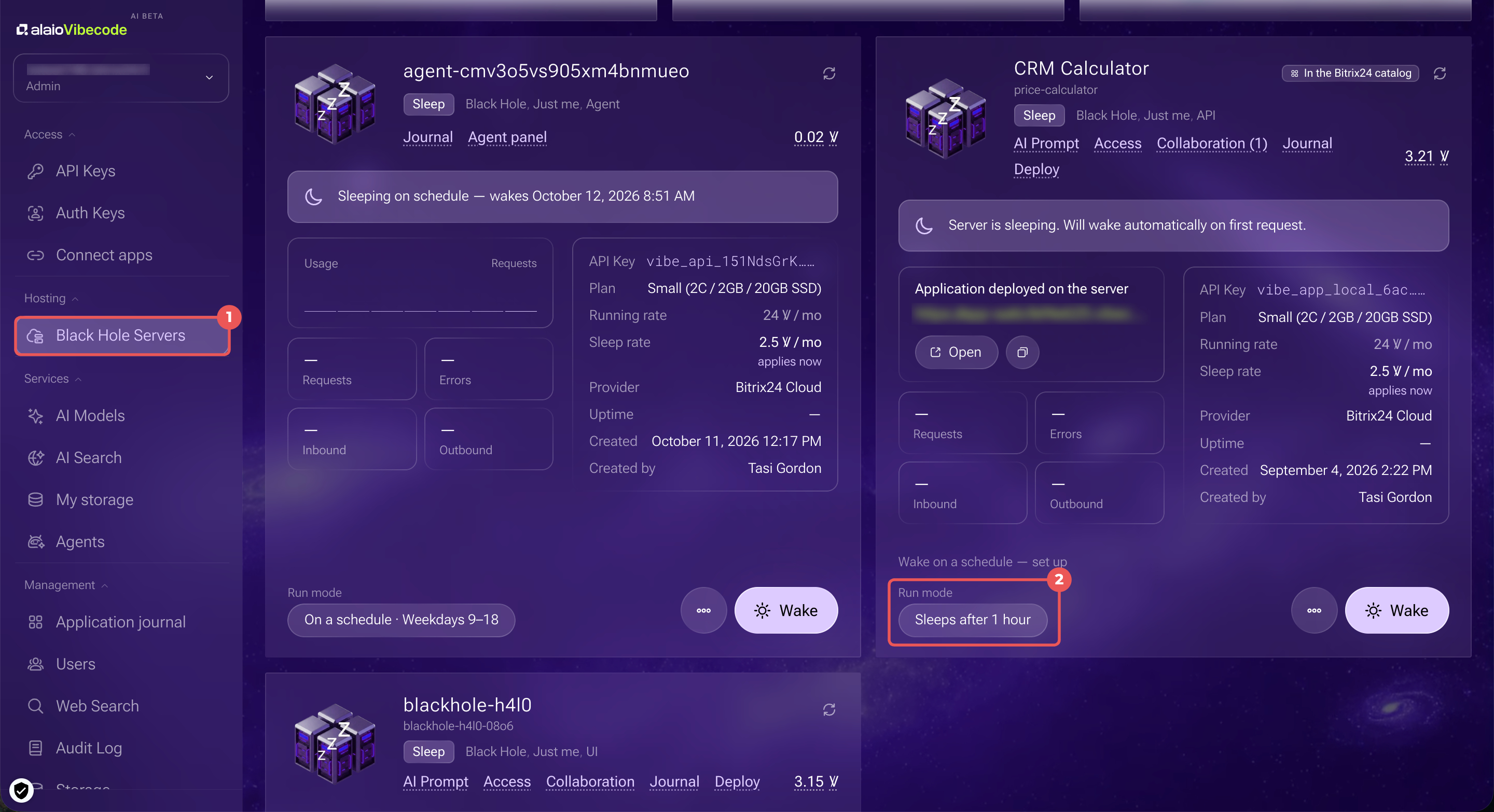
Select a server run mode
The run mode controls when a server runs at the full rate and when it switches to sleep mode at a lower rate. You can select the mode when you create the server or change it later.
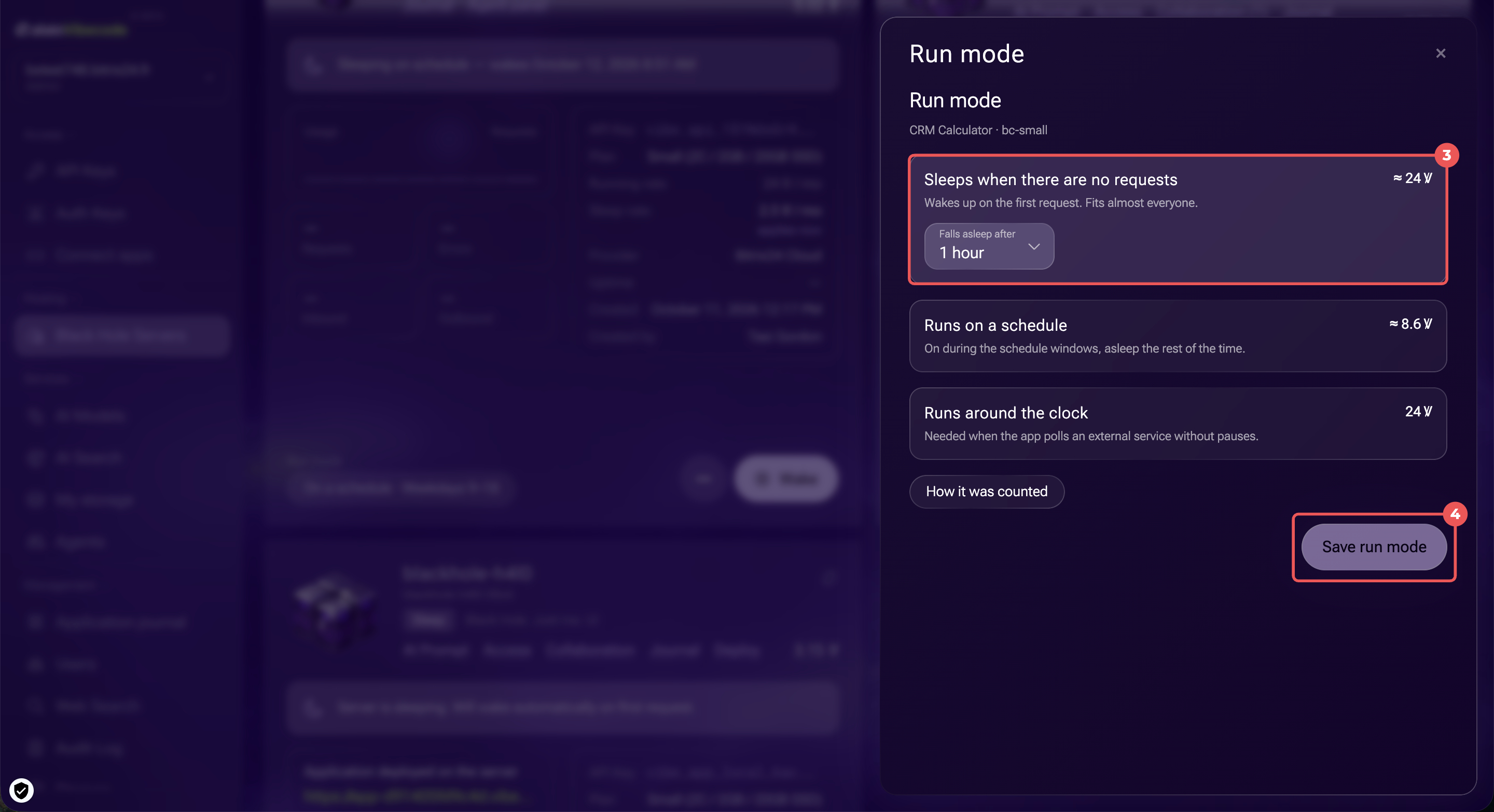
At the bottom of the server form, click Run mode. The estimated cost for 30 days appears next to each option.
Sleeps when there are no requests. The server goes to sleep if no one accesses the app for a while and wakes up automatically on the first request. Select how long the server stays active before going to sleep: 15 min, 30 min, 1 hour, or 4 hours.
Runs on a schedule. The server runs during the time periods you specify and sleeps the rest of the time. Choose a preset schedule or set the time periods directly on the slider.
Runs around the clock. The server never sleeps and is billed at the full rate. Use this mode if the app needs continuous access to an external service.
Click Save run mode to apply the mode.
Set up a server schedule
A schedule defines when a server runs during the week. You can use a preset schedule, such as Weekdays 9–18, or create your own.
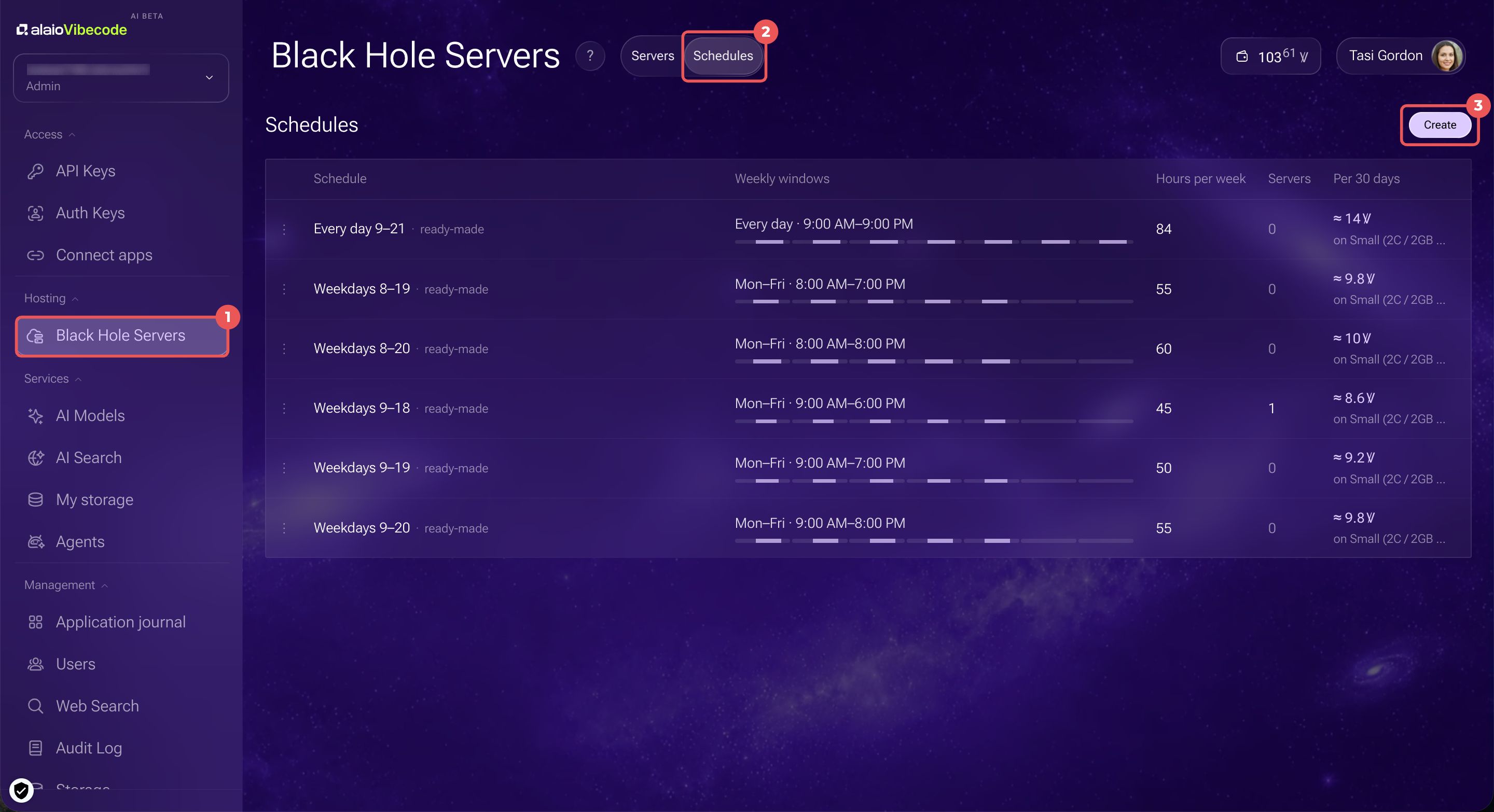
You can find all schedules in Black Hole Servers > Schedules.
1. Go to Hosting > Black Hole Servers.
2. Open the Schedules tab.
3. Click Create.
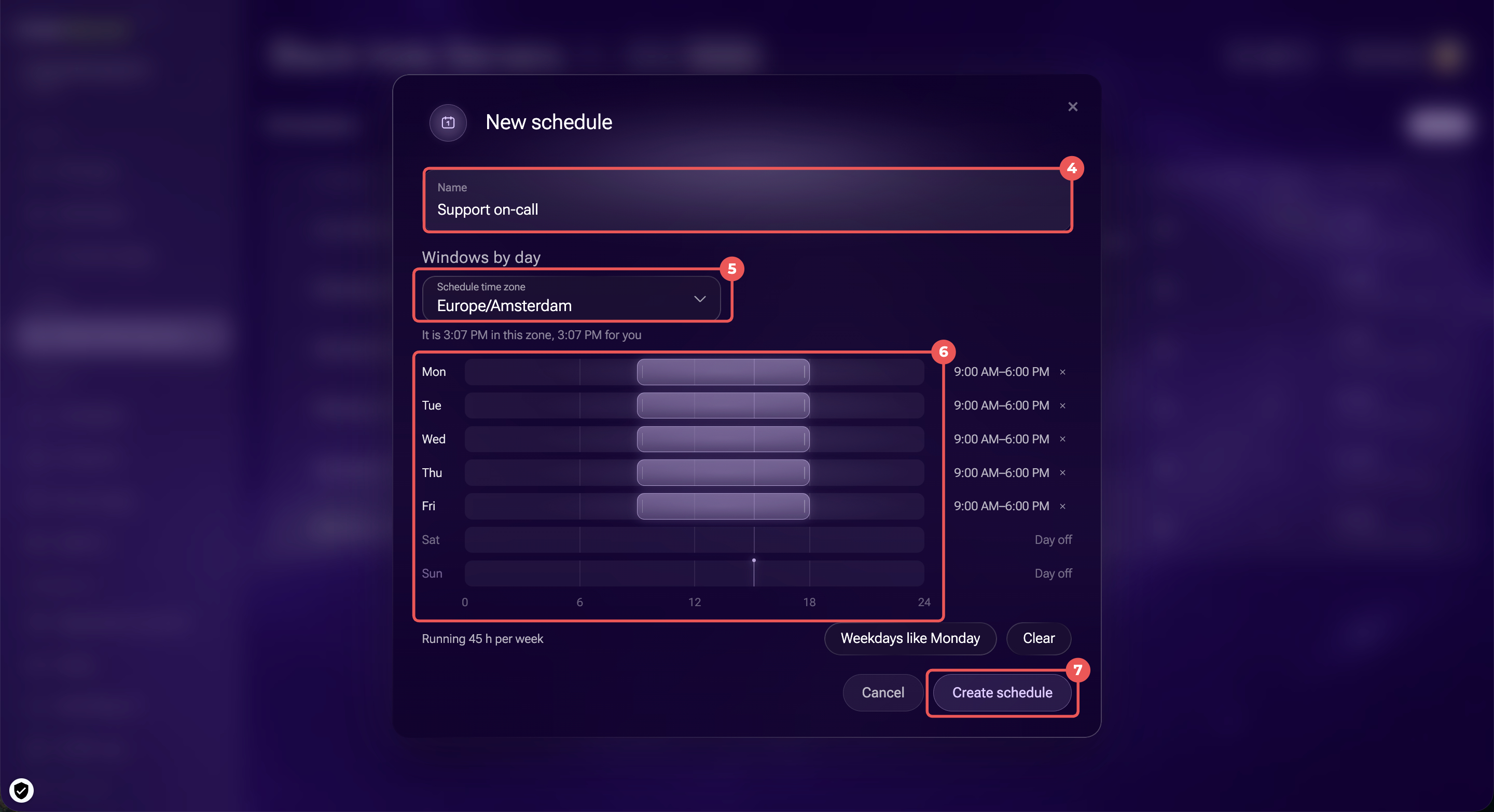
4. Enter a name.
5. Select a time zone. The server will follow the schedule based on this time zone.
6. Set the hours for each day by dragging across the timeline. To use Monday's hours for all weekdays, click Weekdays like Monday.
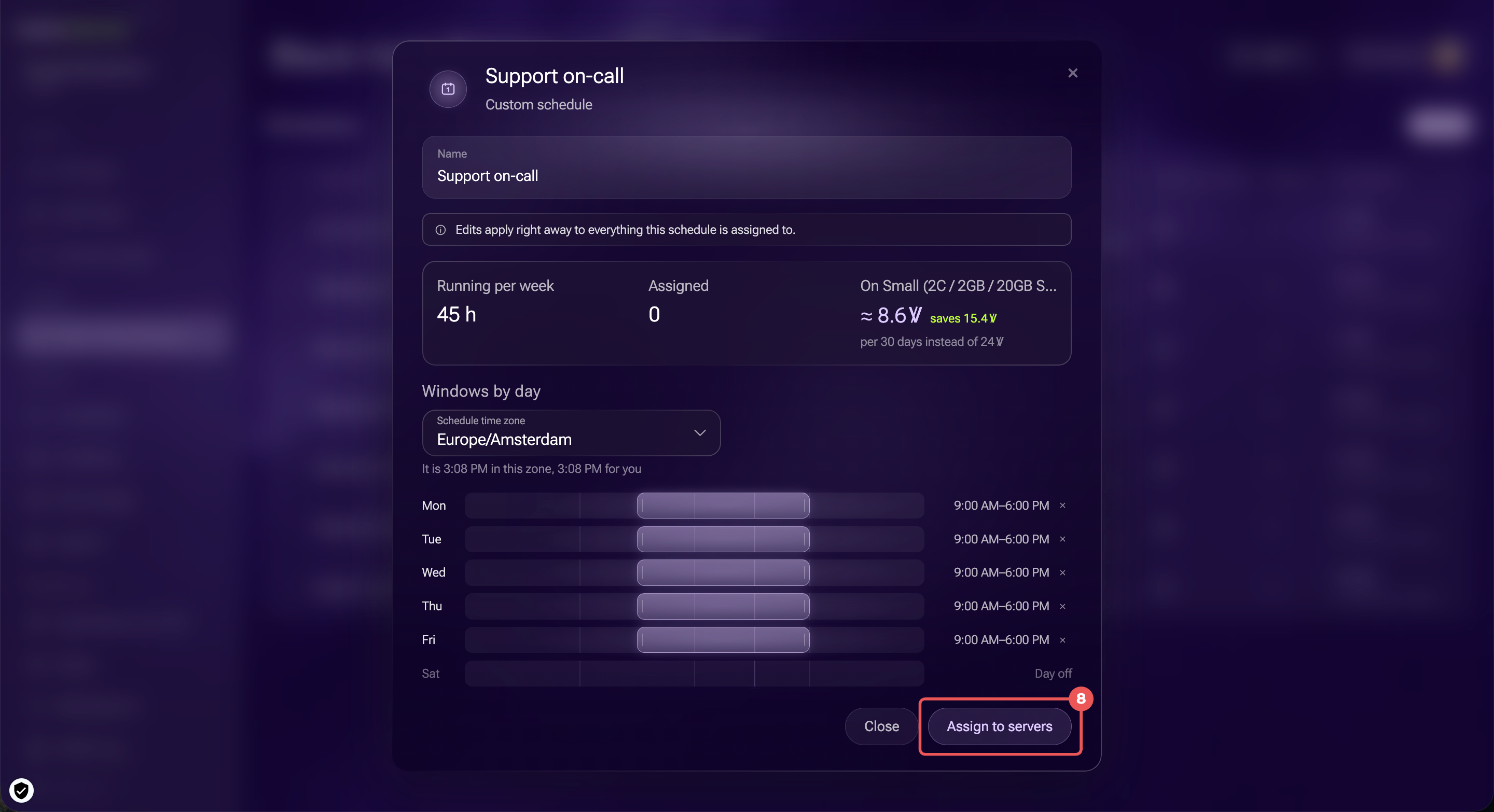
7. Click Create schedule. The schedule form shows the estimated cost for 30 days and potential savings.
8. To apply the schedule to servers, click Assign to servers.
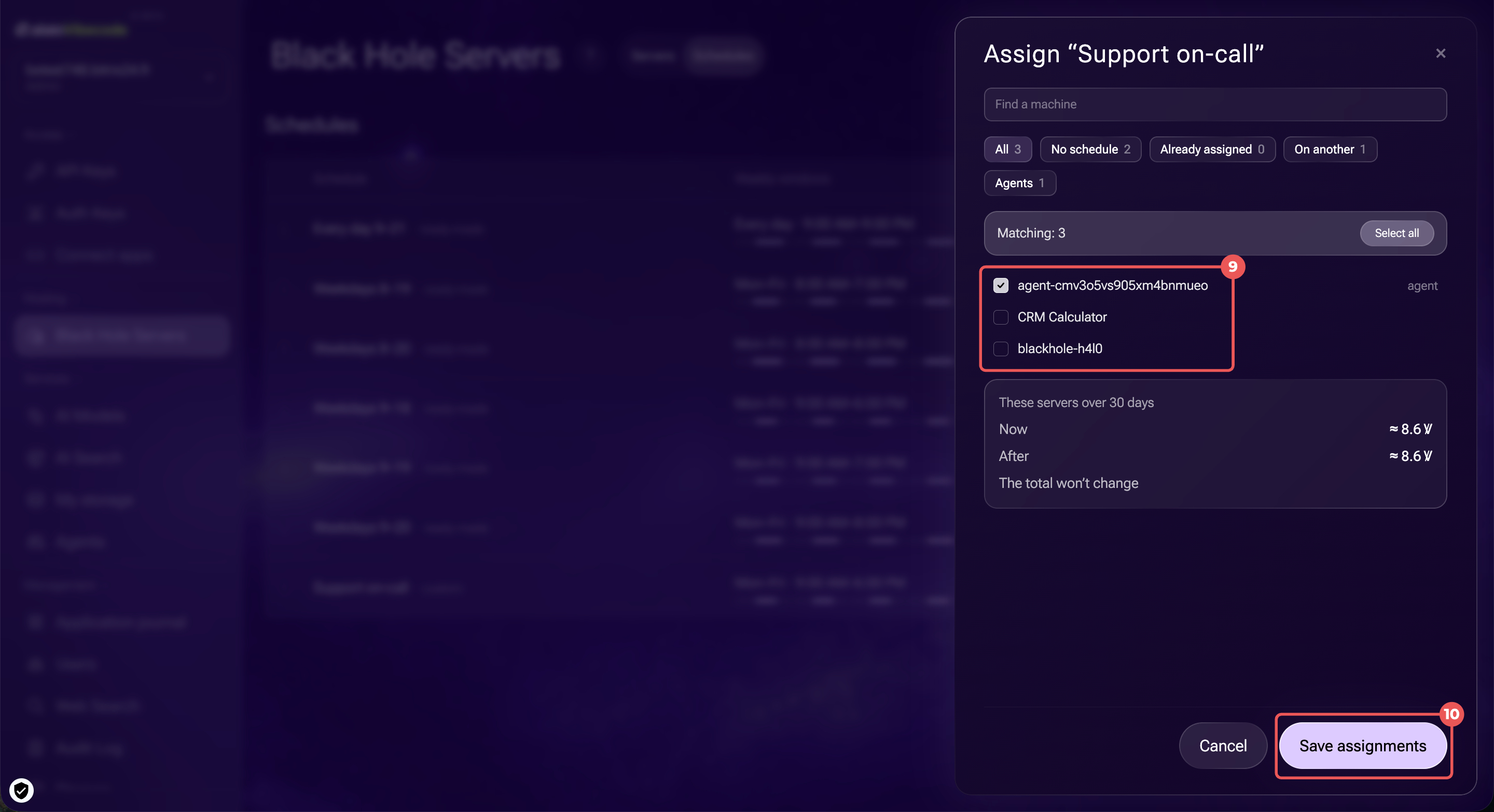
9. Select the servers or click Select all. The These servers over 30 days block compares their current cost with the estimated cost under the new schedule.
10. Click Save assignments.
You can also edit preset schedules or schedules created by other users. When you edit one for the first time, Bitrix24 creates a personal copy. The original schedule and its assigned servers remain unchanged.
Assign a schedule to multiple servers
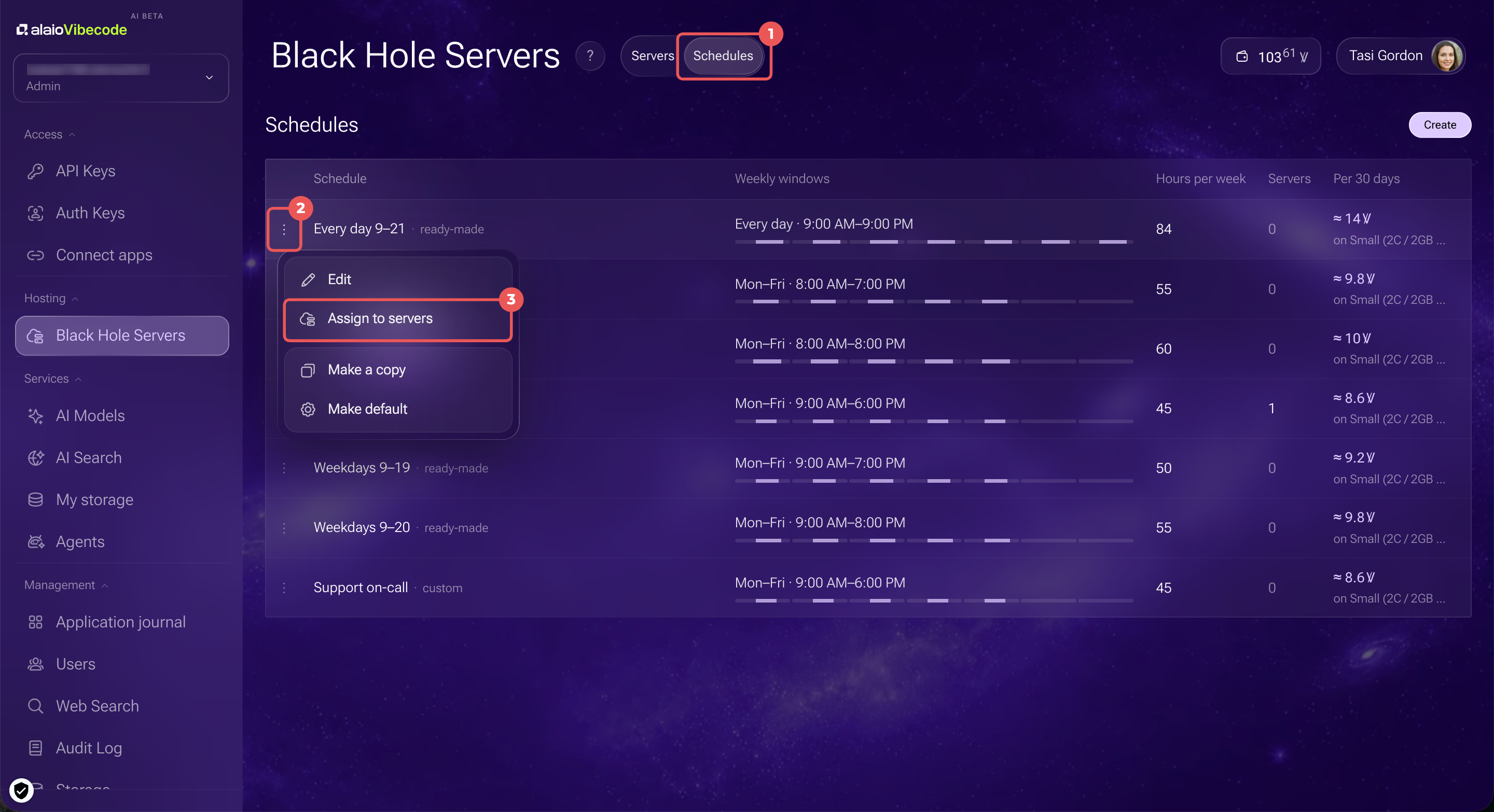
1. Open the Schedules tab.
2. Click Three dots (...) next to the schedule.
3. Select Assign to servers.
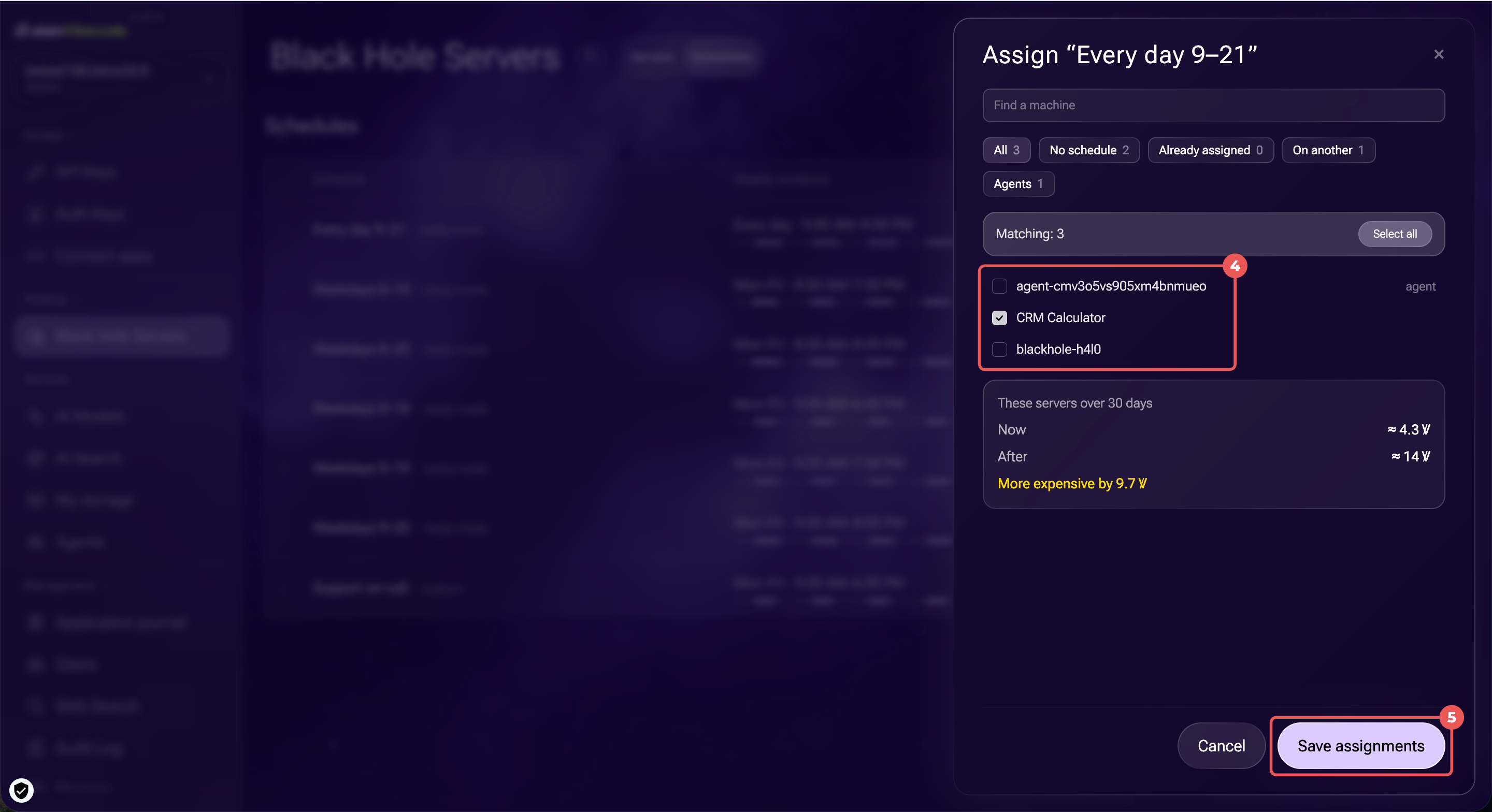
4. Select the servers or click Select all.
5. Check the These servers over 30 days block. It shows the current cost of the selected servers with their estimated cost under the new schedule.
6. Click Save assignments.
Track server costs
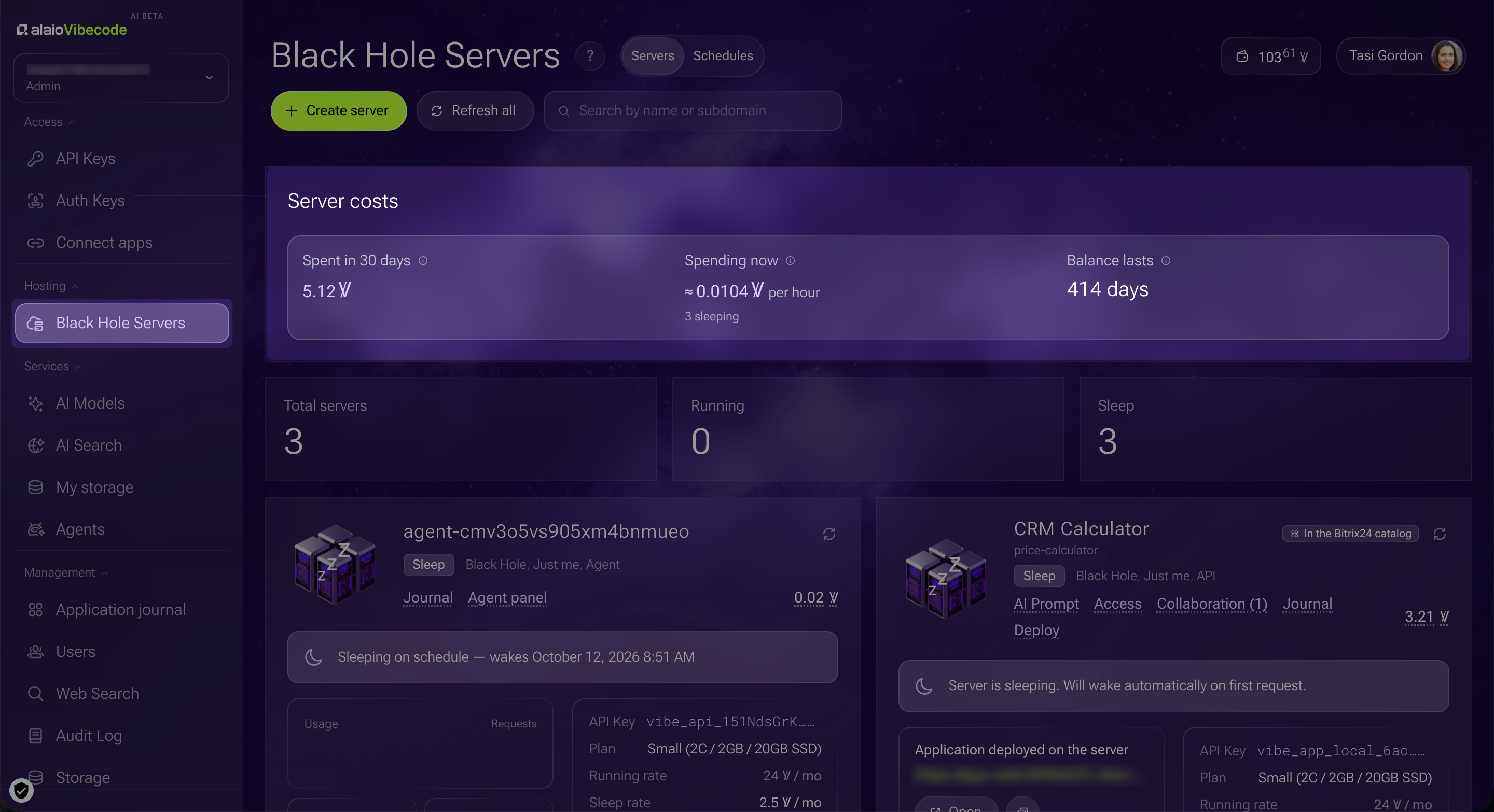
The Server costs block at the top of the Black Hole Servers section shows how much you spend on servers and how long your balance is expected to last.
- Spend in 30 days — the amount charged for servers in the last 30 days.
- Spending now — the estimated hourly cost. A running server is billed at the full rate, a sleeping server at a lower rate, and an additional drive separately.
- Balance lasts — the estimated number of days your balance will last at the current rate.
Set up app access and collaboration
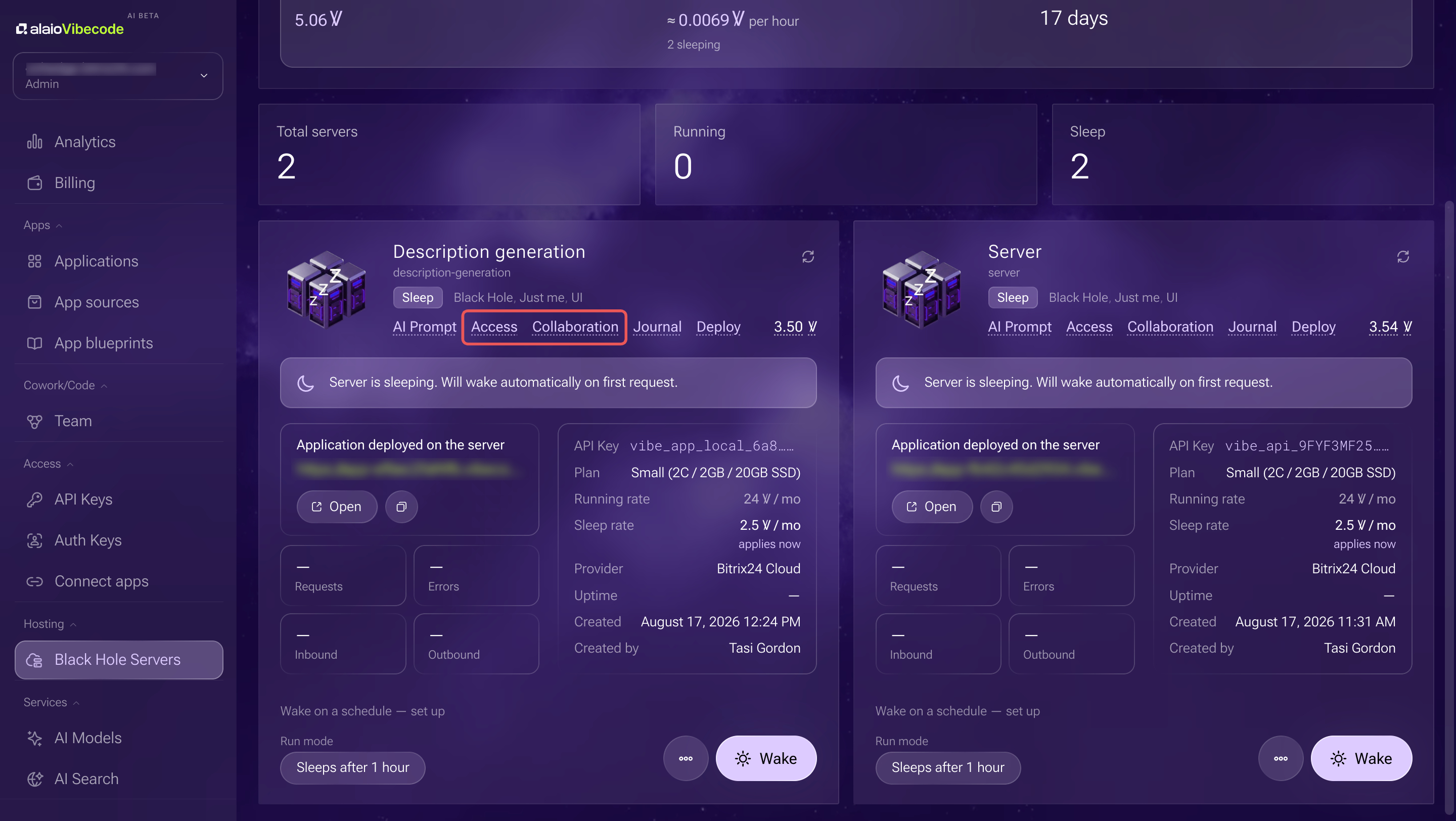
In the Black Hole Servers section, find the server you need. The server form has two tabs:
- Access — control who can open the app
- Collaboration — manage who can work on the app's code
Alaio Vibecode: Collaborate on an app and transfer it to a colleague
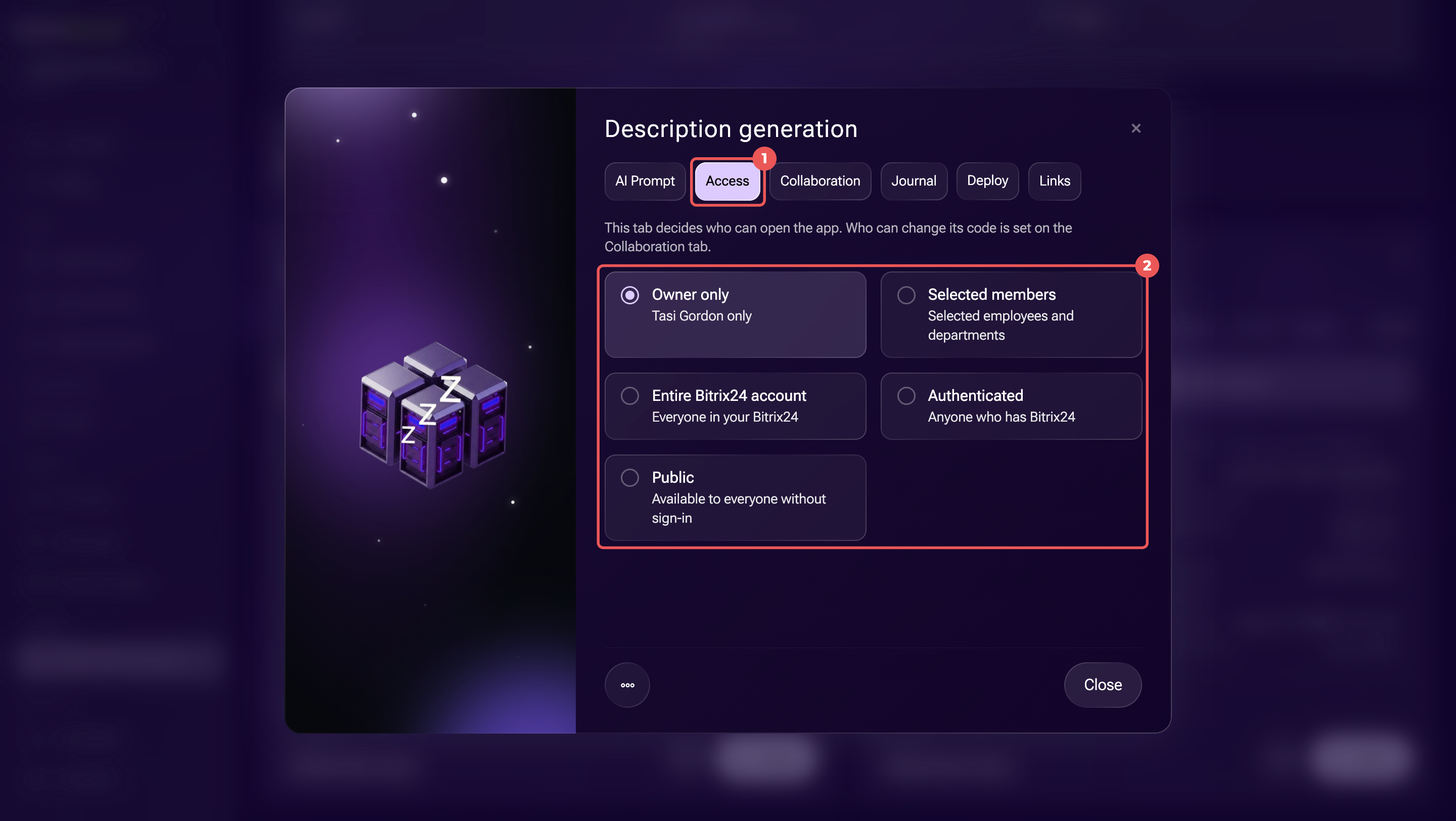
Set up app access. Go to the Access tab and select who can open the app:
- Owner only — only the app creator
- Selected members — selected employees and departments
- Entire Bitrix24 account — all employees in your Bitrix24 account
- Authenticated — anyone signed in to Bitrix24
- Public — anyone, even without signing in
If you select Owner only or Selected members access, other users cannot open the app using its link. Instead, they see a No access to this app page in their browser. This page shows the Bitrix24 account used to sign in. Users can also request access from this page. If they already have permission but still see this page, they can click Sign in with another account and sign in to the Bitrix24 account with access.
You can review requests in the Access change requests block on the Access tab. Approve a request to grant access, or decline it. The server owner, a Bitrix24 account administrator, or a development team administrator can approve or decline a request. If app access changes while a request is pending, the request becomes outdated.
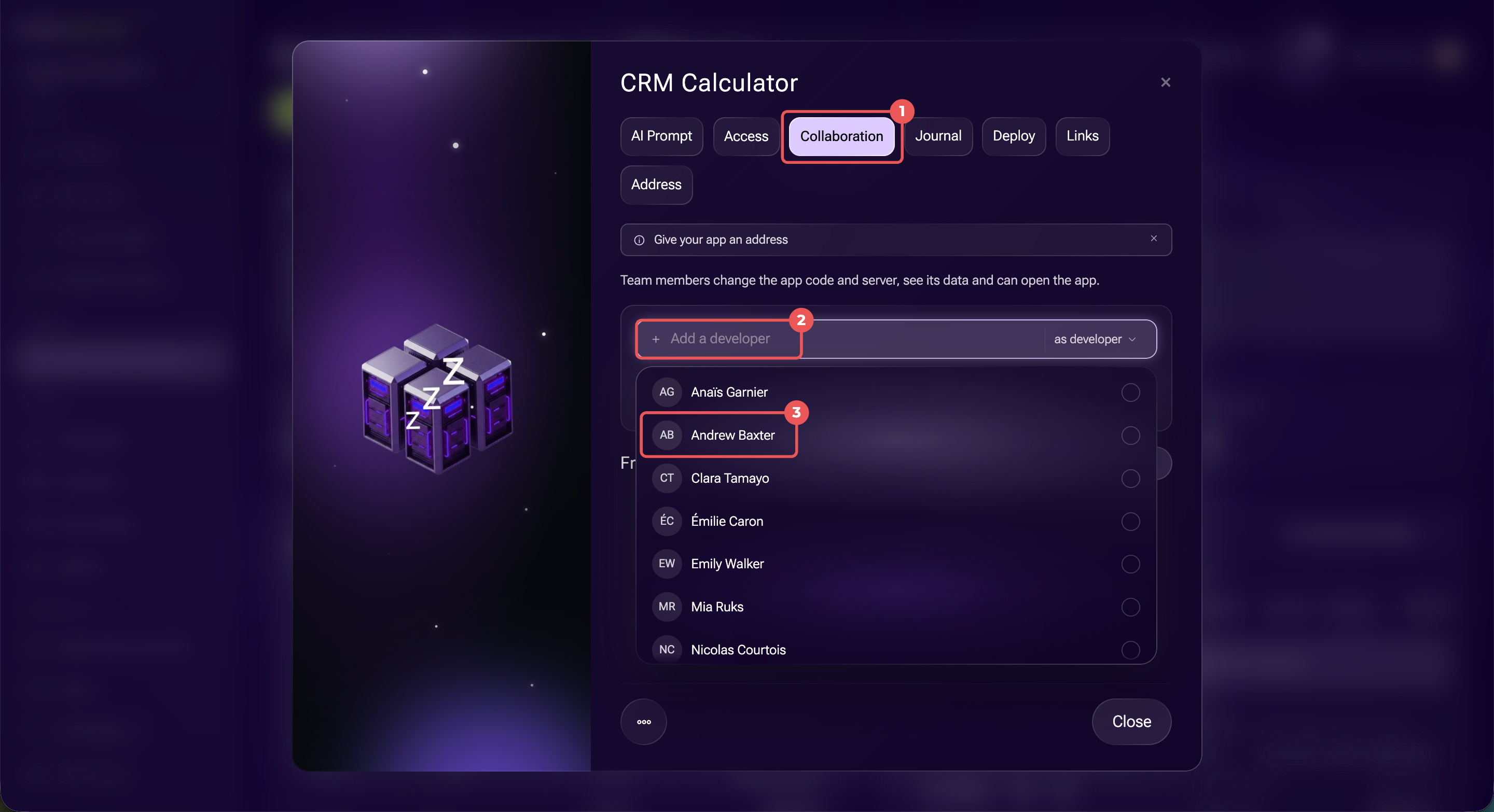
Add a developer. Go to the Collaboration tab and click Add a developer. Start typing a name, then select an employee from your Bitrix24 account.
Developers can access the source code, publish new versions, view logs, and run commands on the server. They also have access to the app data stored on the server, including environment variables.
When you add a developer, they automatically get permission to open the app. If you want to restrict their access to the app itself, remove that permission separately on the Access tab.
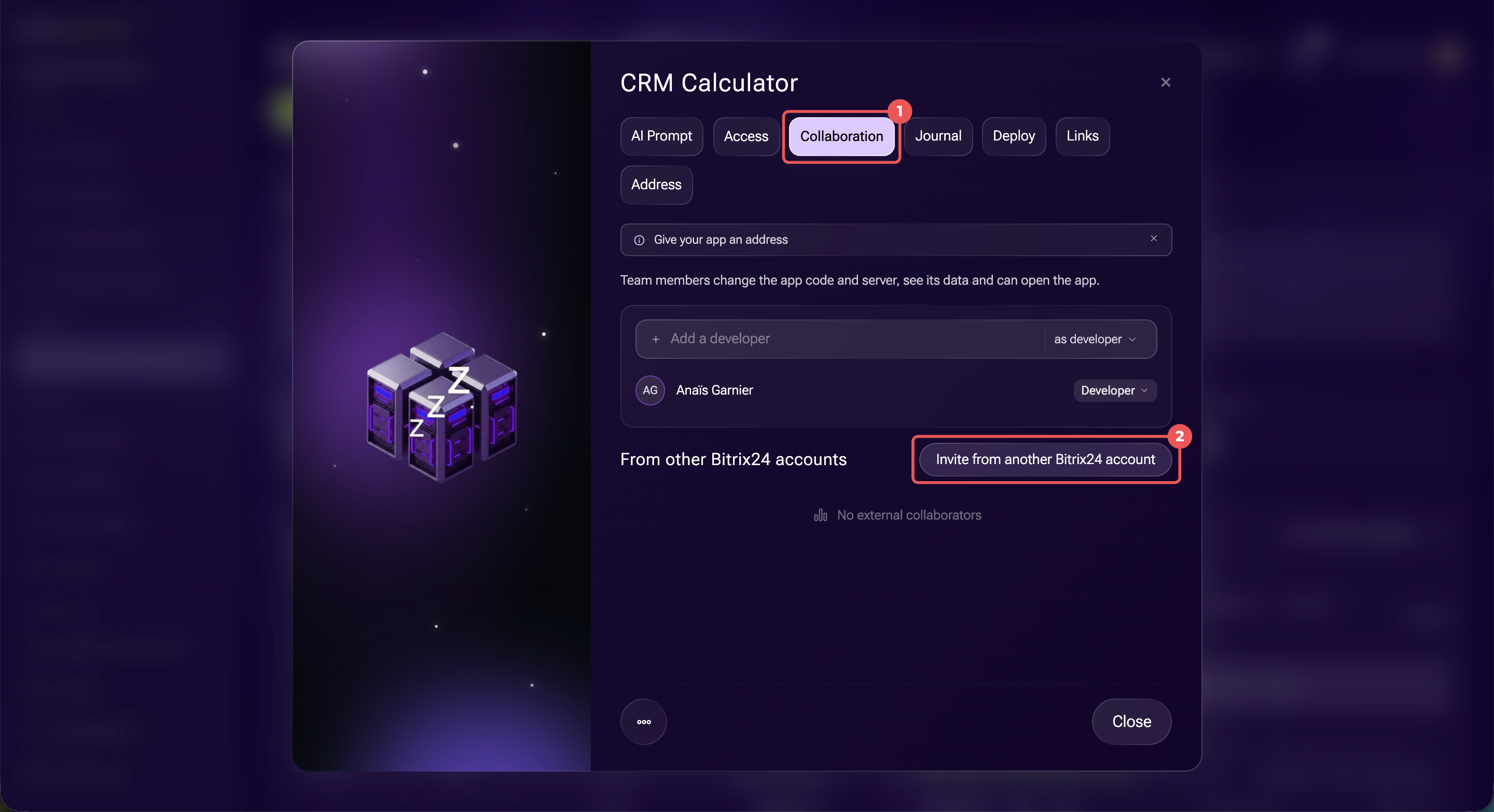
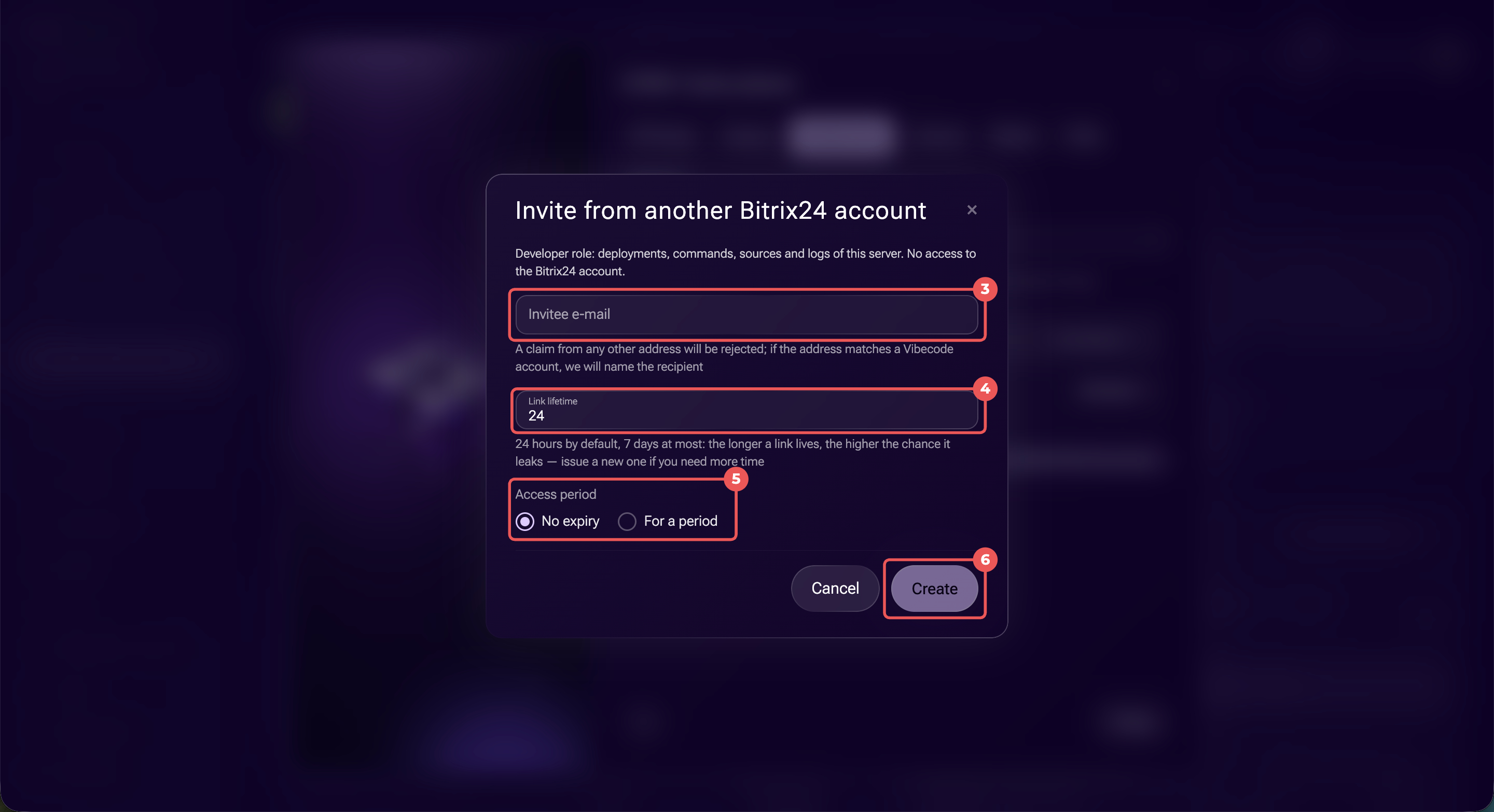
Invite a developer from another Bitrix24 account. On the Collaboration tab, click Invite from another Bitrix24 account. Enter the invitee's email address, set how long the link remains valid, and specify how long they can access the app. By default, the link is valid for one day, but you can extend it to up to seven days.
The external participant gets the Developer role. They can work with the server’s source code, view logs, and run commands, but cannot access your Bitrix24 account.
Manage Black Hole server operations
Wake up the server. A server wakes up automatically when the app receives a request, but this takes time. If the app must be ready in advance, click Wake up in the bottom-right corner of the server form.
Reboot the server. Click Reboot in the bottom-right corner of the form. The app will be unavailable for a few minutes while the server reboots.
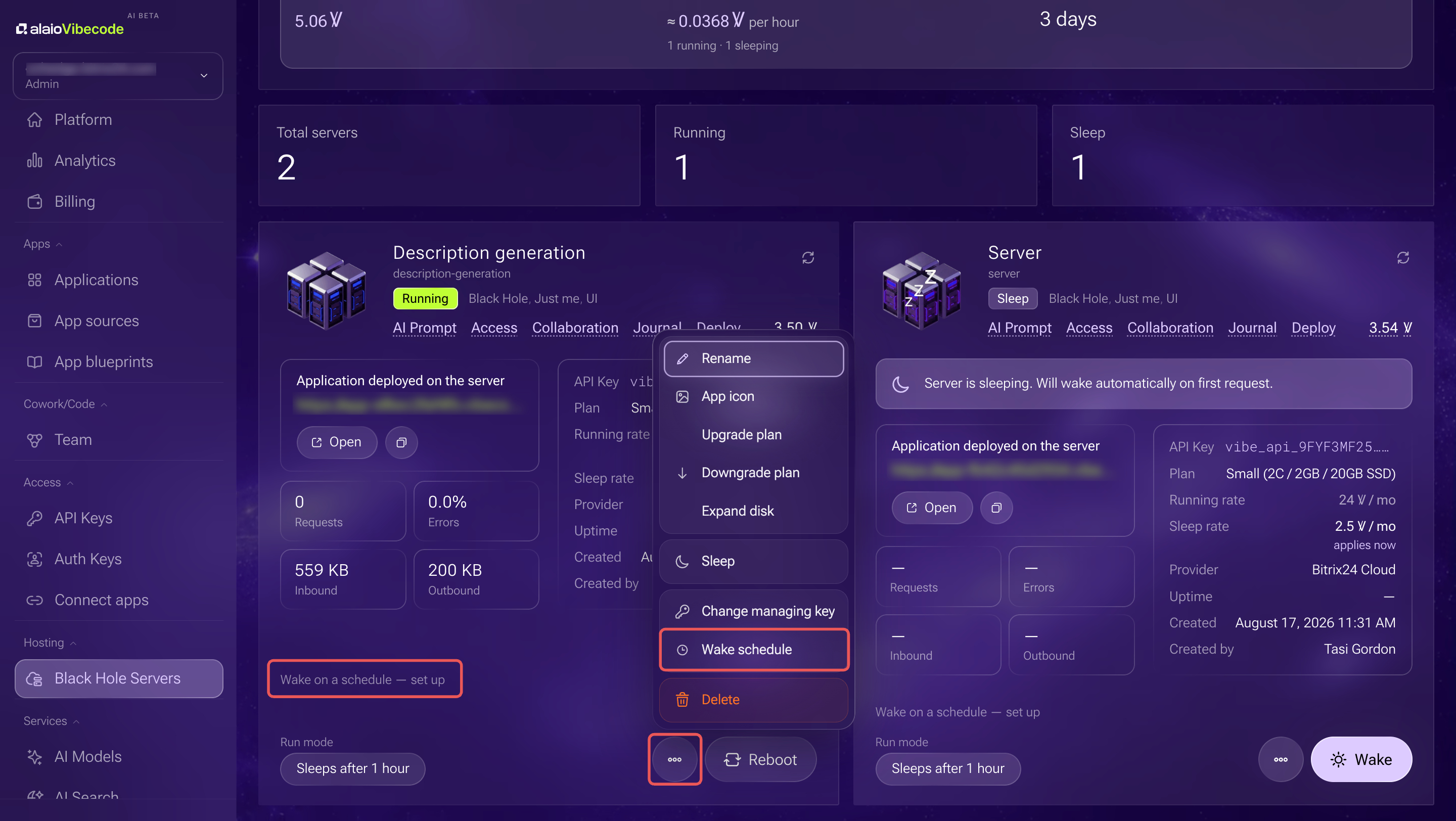
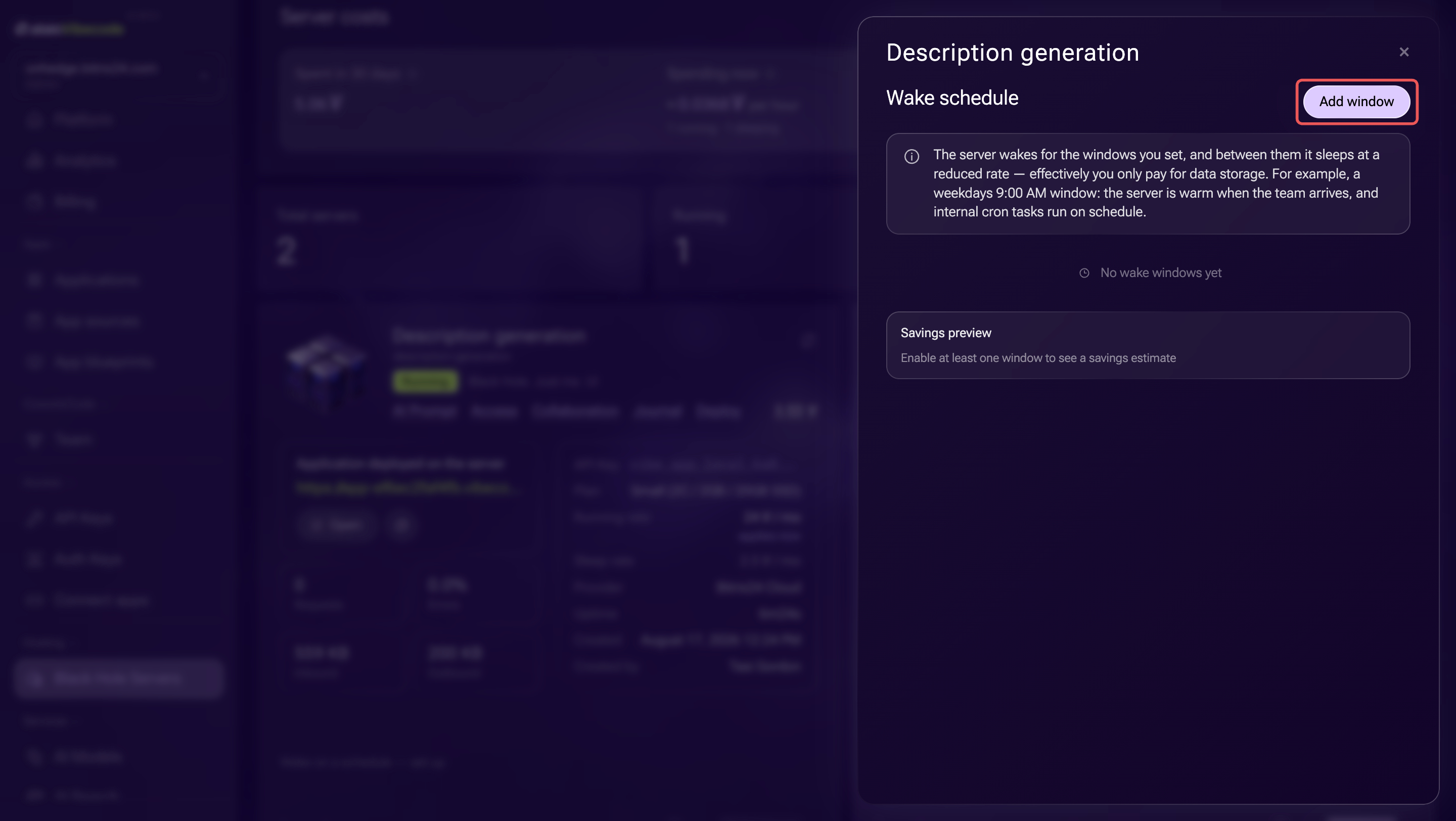
Schedule server wake-ups. Click Wake on a schedule — set up below the server form, or open Three dots (...) > Wake schedule. Set the wake-up times in the form that opens.
Delete the server. Click Three dots (...) > Delete at the bottom of the server form and confirm. This permanently deletes all data on the server and makes the app unavailable. You cannot undo this action.
In brief
- Before an app or bot can run, it needs a server. In Alaio Vibecode, apps are placed on Black Hole servers — cloud servers with a special security mode.
- You can create a Black Hole server automatically when you deploy an AI solution through Alaio Vibecode, or create one manually.
- All servers created in Alaio Vibecode appear in the Black Hole Servers section.
- On the Alaio Vibecode site, you can view server information, configure parameters, and manage the server.
- A server's run mode determines when it runs at the full rate: it goes to sleep when there are no requests, runs on a schedule, or runs around the clock. You can assign one schedule to multiple servers.
- The Server costs block shows charges for the last 30 days, the current hourly cost, and how long your balance is expected to last.