
In a project, your team can keep all discussions in one place. You can talk about the overall project status, tasks, meetings, and specific workstreams. Each topic has its own chat, and all chats are available inside the project. You do not need to search across different chats, and your team always knows where each discussion belongs.
In this article:
Chat types in projects
Projects include five chat types.
Main project chat. This is the shared chat for the whole team. Use it for project-wide updates and news that affects everyone.
Project group chats. Use these chats for specific topics or workgroups. For example, if designers and developers work on the same project, you can create a separate chat for each team.
Task chats. Use task chats to discuss a specific project task without leaving the task.
Meeting chats. Use meeting chats to discuss a specific project meeting and share related materials.
CoPilot in chat. CoPilot can answer questions about project status and risks. You can create more than one CoPilot chat.
Users only see chats they are part of.
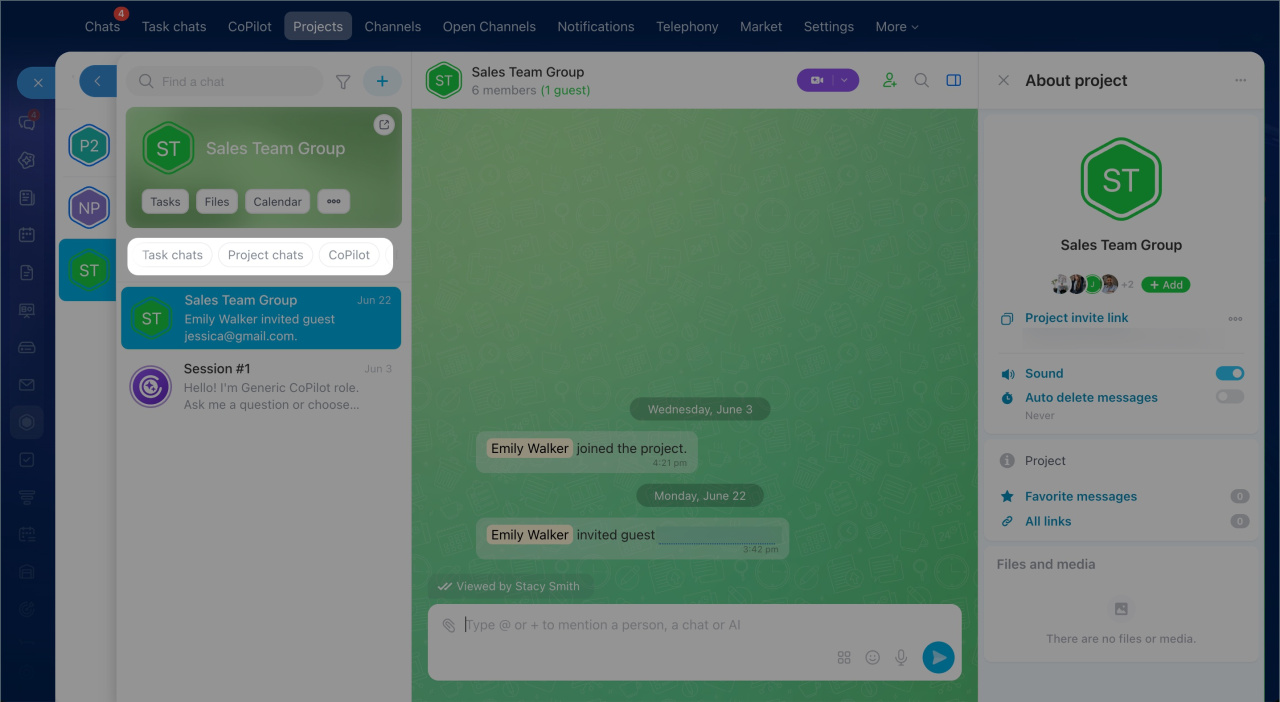
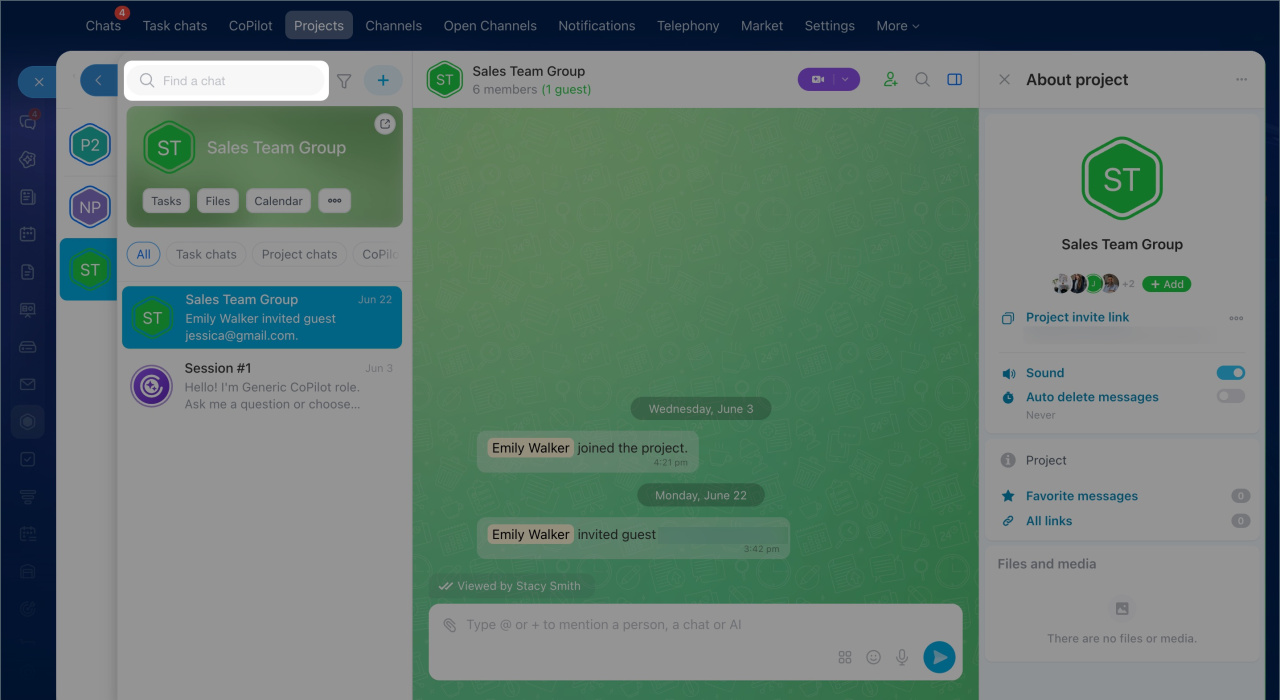
Find a chat in a project
If a project has many chats, you can find the one you need in three ways.
- Enter the chat name in the Find a chat field above the chat list.
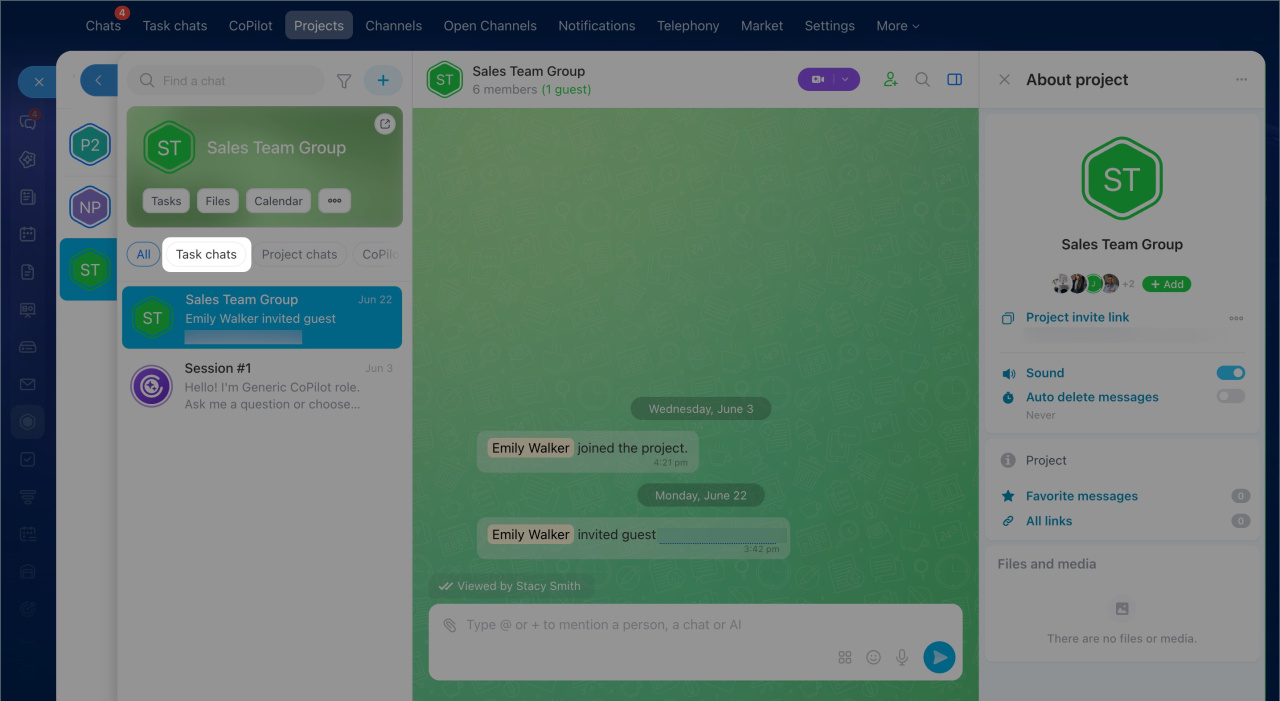
- Use a tab — All, Task chats, Project chats, or CoPilot — to see only chats of that type.
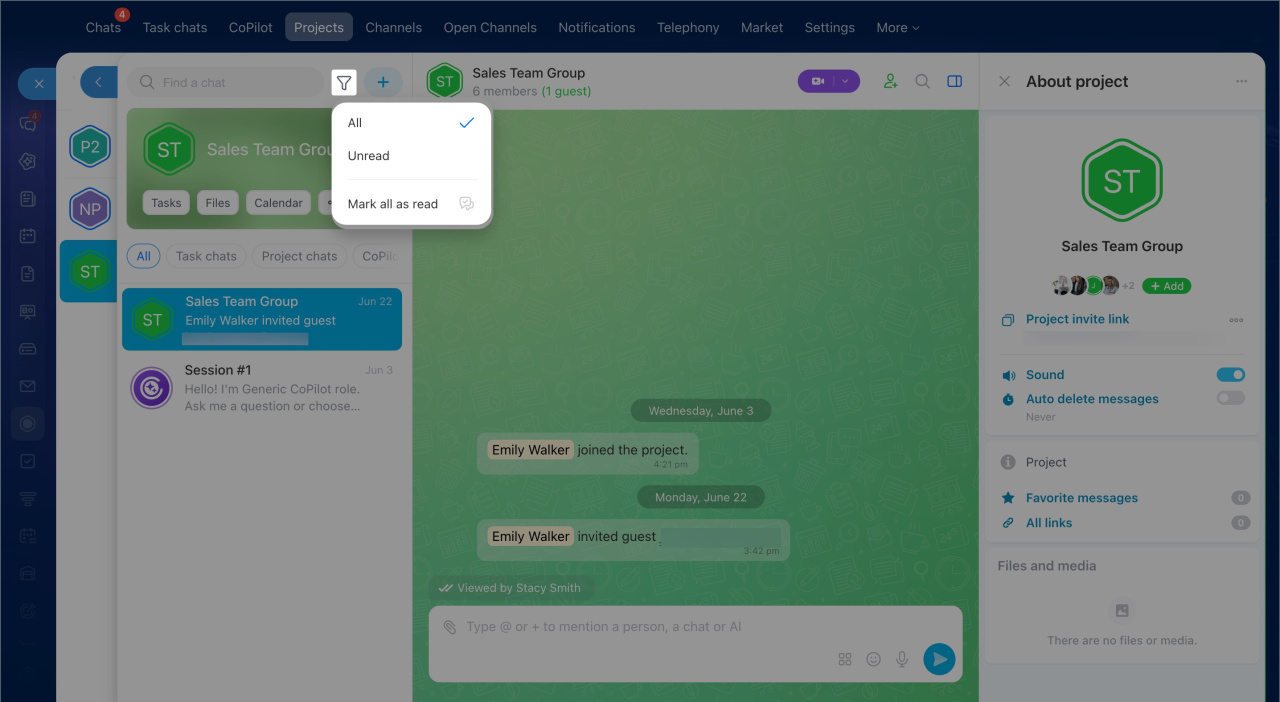
- Click the filter icon next to the search field to show only unread chats. You can also mark all chats as read.
Create a chat in a project
Group chat. Select Create group chat and complete these fields:
1. Enter a chat name and upload an avatar.
2. Add members. You can add individual employees, a whole subdepartment, or a cross-functional team. If you add a subdepartment or employees who are not yet in the project, they will automatically join the project.
3. If needed, open Chat settings and Access permissions. There you can:
- Add a chat description
- Turn on auto-delete for messages
- Assign administrators
- Choose who can add or remove members, change the appearance, and send messages
4. Click Create chat.
CoPilot in chat. Select CoPilot in chat — a new chat opens, and you can enter your request right away. You can create multiple CoPilot chats, for example, for different project questions.
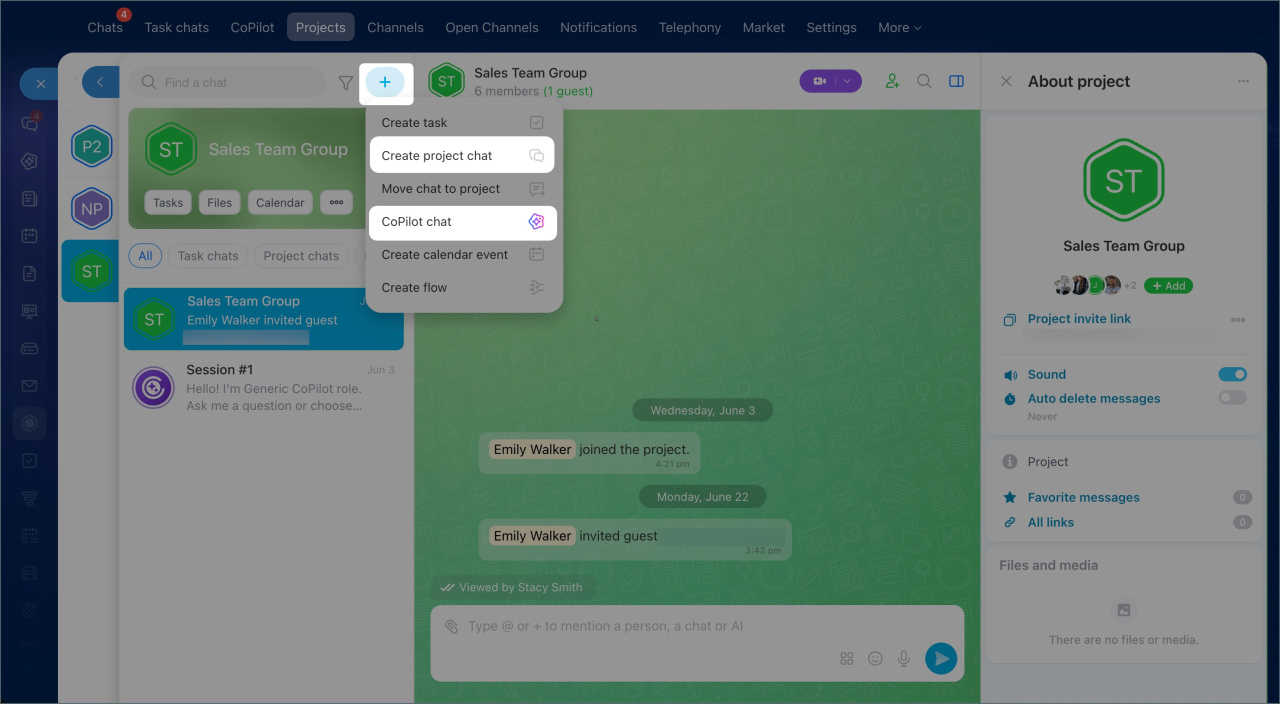
Add or remove a chat from a project
If a group chat already exists in Bitrix24 outside the project, you can add it to the project. You do not need to recreate the chat or move the message history.
Only an employee can add an existing chat to a project if both conditions are true:
- They are the project owner or have permission to invite members
- They are the chat owner
When you add a chat to a project, all chat members automatically become project members. Before the chat is added, the system shows a warning. All project members will be able to see the chat history, including users who were not previously in the chat.
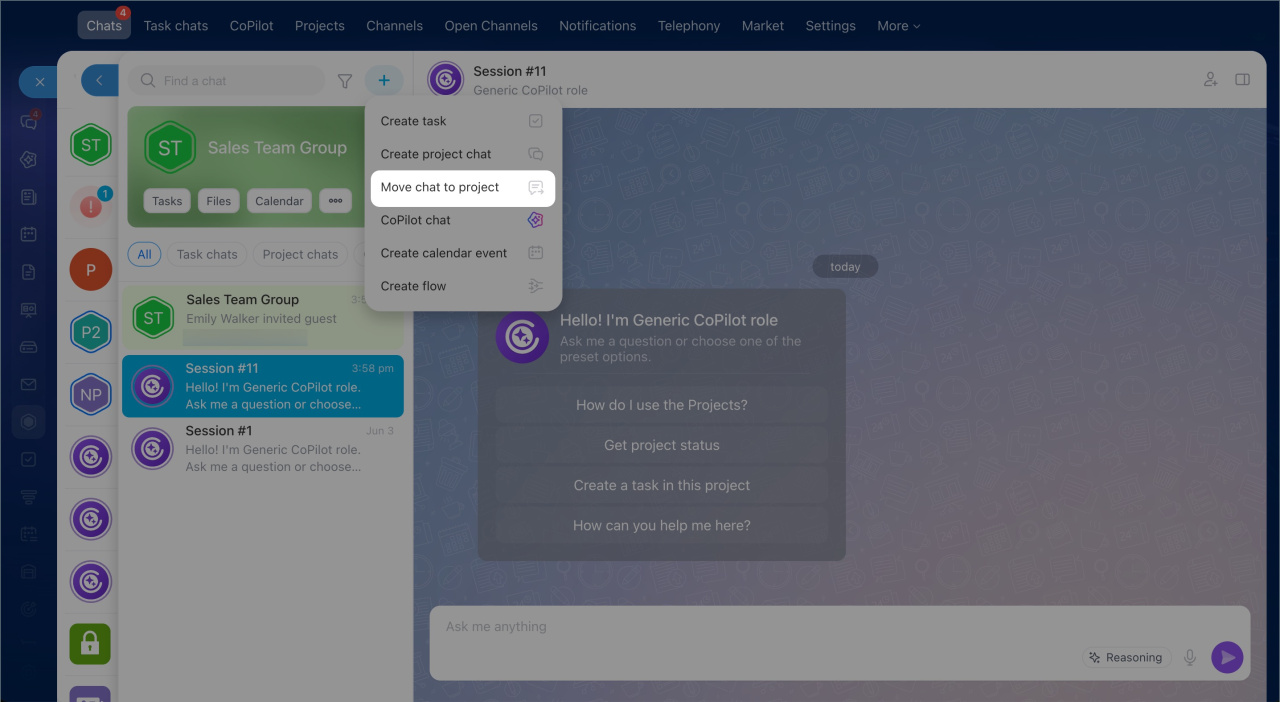
You can add a chat in two ways:From the project. Open the project and click Plus (+) > Move chat to project. Then select the chat you want to add.
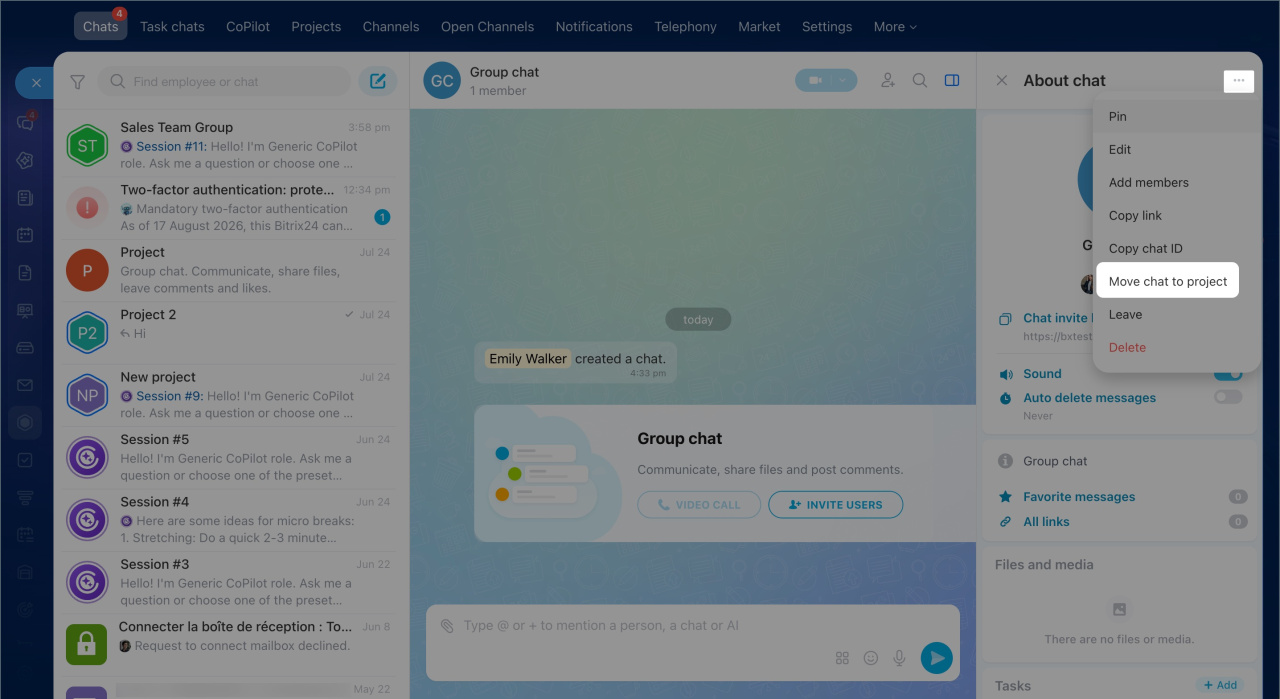
From the group chat. Open the chat, go to the sidebar, and click Three dots (...) > Move chat to project. Then select the project.
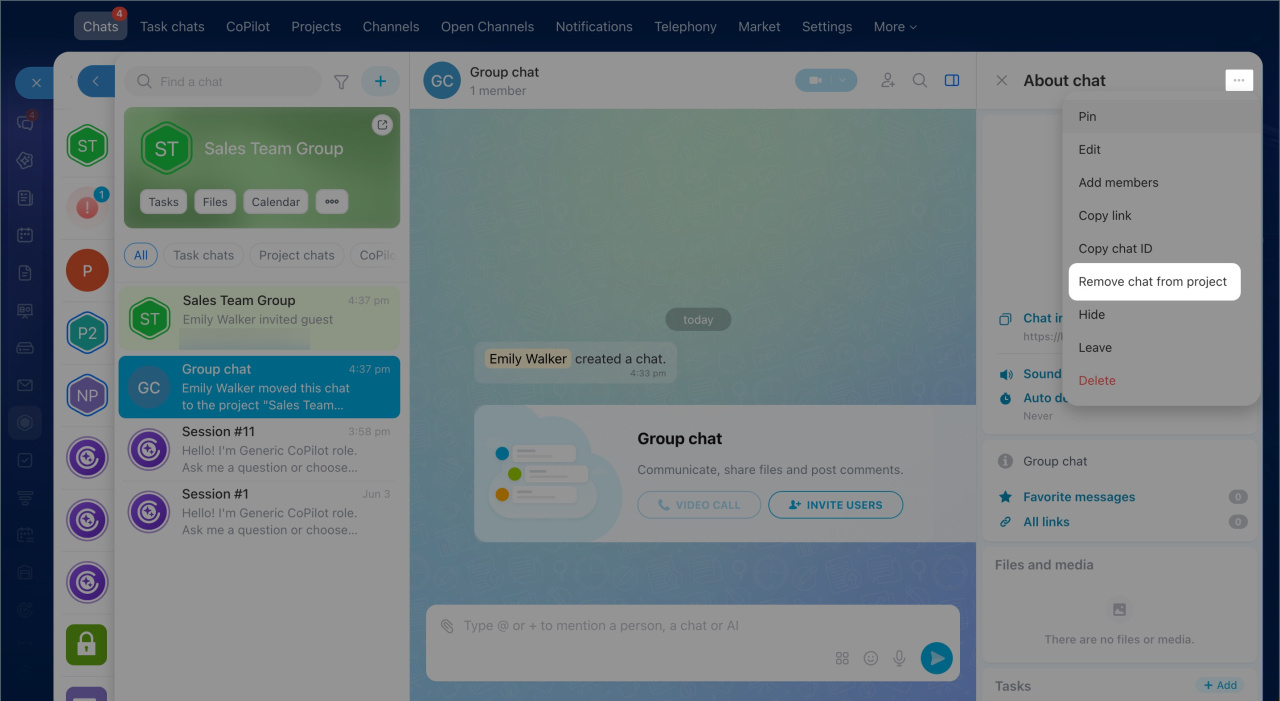
To remove a chat from a project, open the chat sidebar, click Three dots (...), and select Remove chat from project.
In brief
- Projects support five chat types: main chat, group chats, task chats, meeting chats, and CoPilot in chat. Users only see chats they participate in.
- You can find a chat by name or by using tabs and filters.
- Any project member can create a chat in the project.
- Only the chat owner can add an existing chat to a project.
- When you add a chat to a project, all chat members automatically become project members.