
Teams increasingly build project work around communication. They discuss plans, align on decisions, and track progress in chat.
AI Projects in Bitrix24 support this way of working. A project is now a single workspace that brings team communication together. Employees keep context, new members get up to speed faster, and supervisors get a full view without collecting information manually. Each project includes everything a team needs: chats, tasks, files, meetings, and an AI assistant that keeps everyone informed.
This article explains how the new projects work and what has changed.
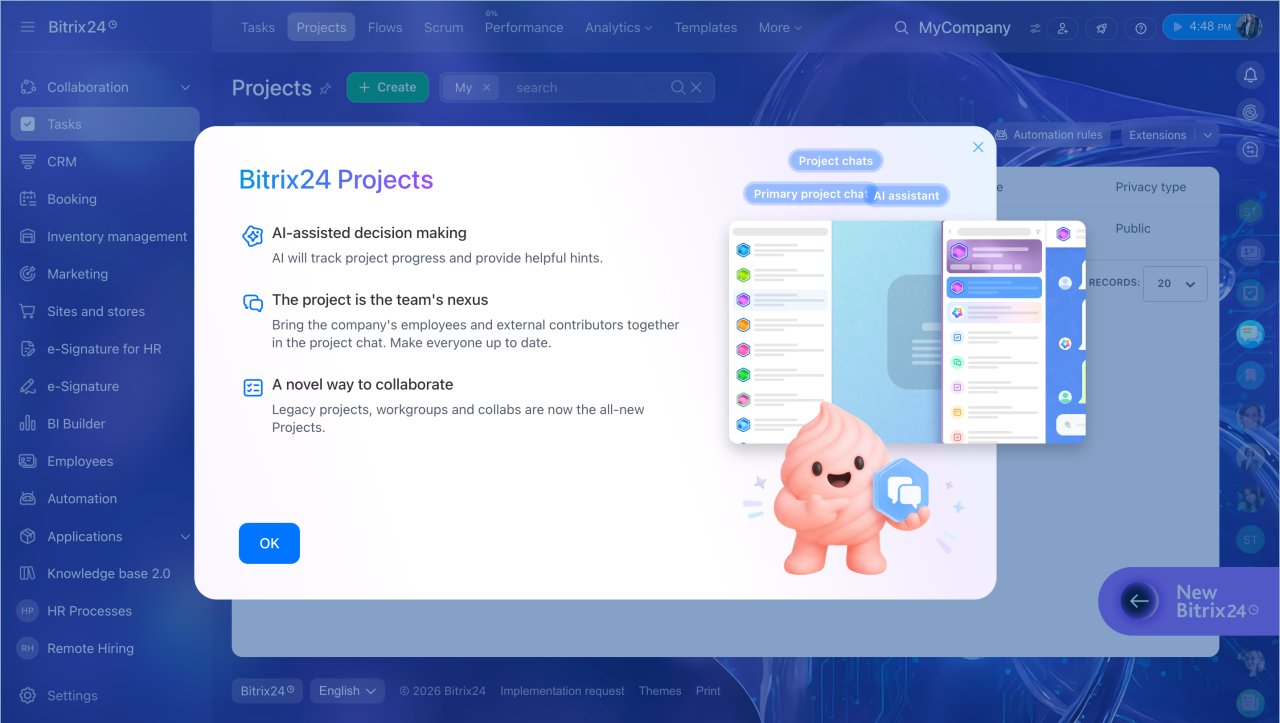
All project chats in one place
A single project can include many topics: overall status, tasks, meetings, and discussions for specific groups. Each topic has its own chat.
All chats are gathered in one place, so you do not need to search through separate conversations. Your team can quickly see where work is happening, open the right discussion, and stay in context.
The project chat list includes:
- The primary project chat
- Project group chats
- Task chats
- Meeting chats
Users only see chats they are part of:
- Project chats — only if they were added
- Task chats — for tasks they participate in
- Event chats — after a meeting is created in the project
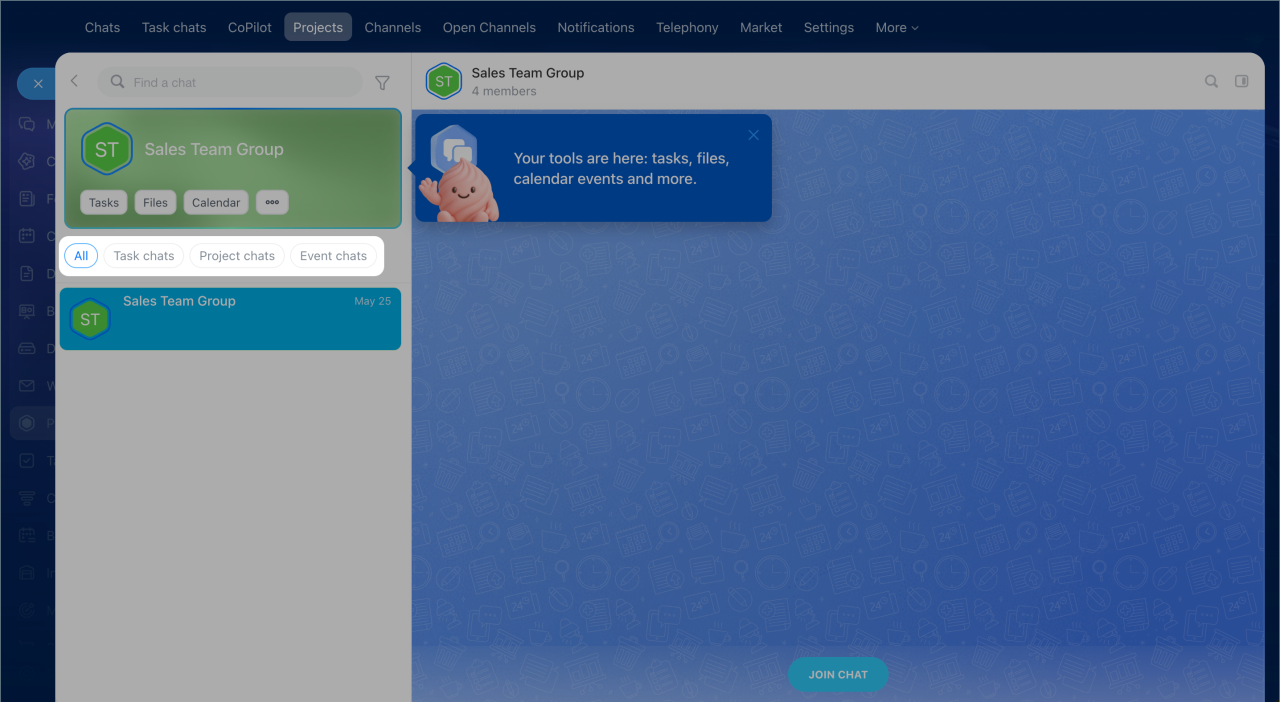
The primary project chat: the starting point of the project
Every project has a primary chat. Bitrix24 creates it automatically. It opens first when you enter the project. This chat stays pinned at the top and has a color highlight, so it is easy to find.
Use the primary chat to:
- Discuss project progress and coordinate the team
- Capture agreements and decisions
- Add new members quickly. When you add users to this chat, they automatically become a project member.
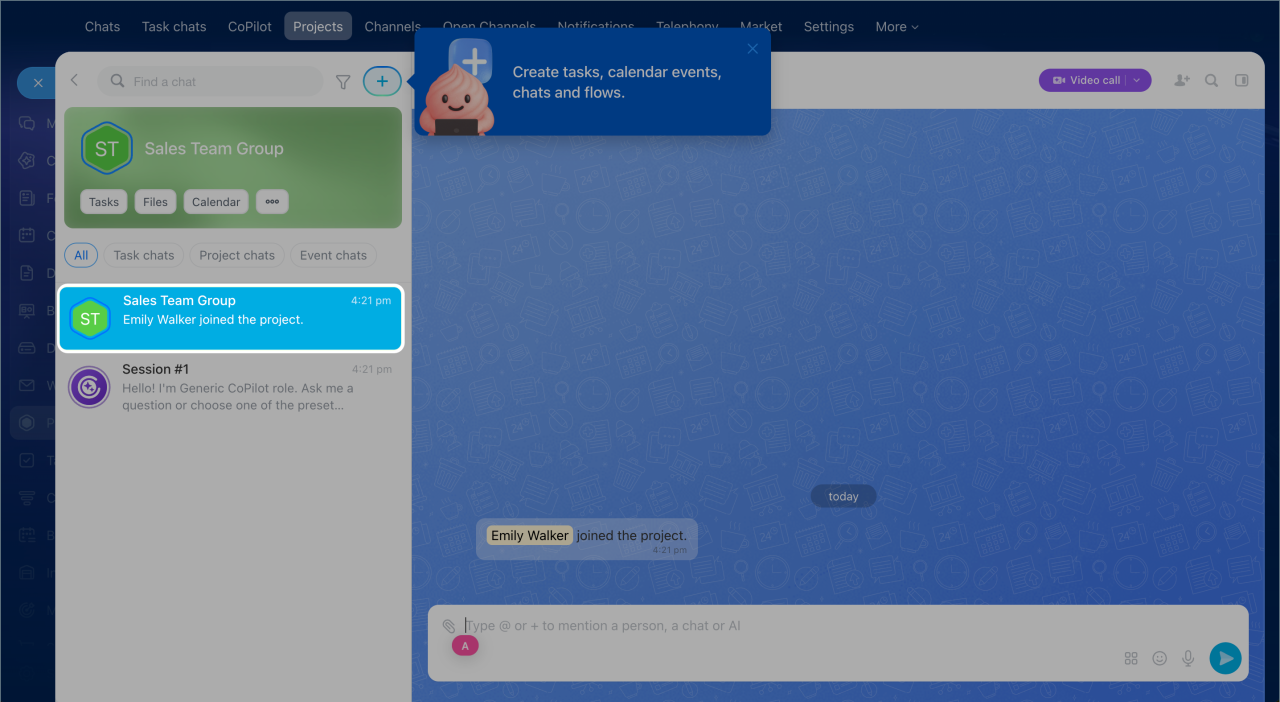
Project group chats
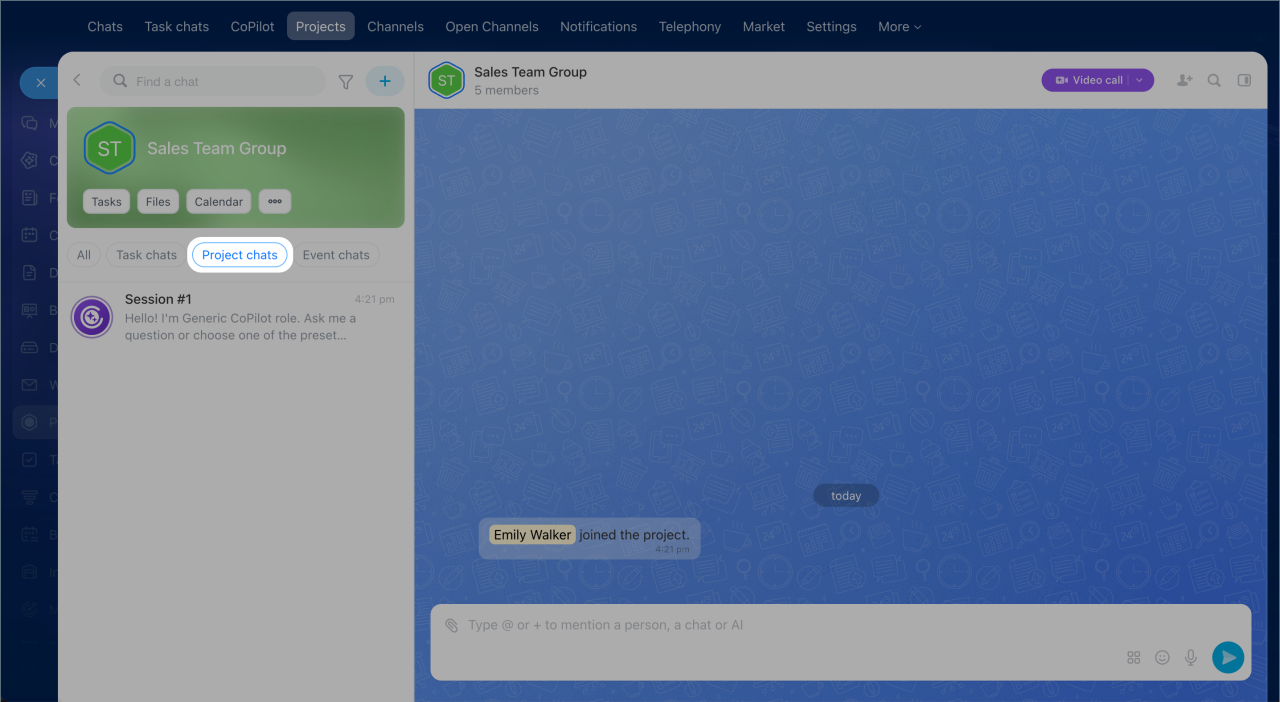
The primary chat brings the whole team together, but some topics are easier to discuss in a smaller group. For that, you can create group chats inside the project. For example:
- A chat for designers to discuss layouts separately
- A chat for supervisors to review risks without extra participants
Only invited members can see these chats.
Project tools
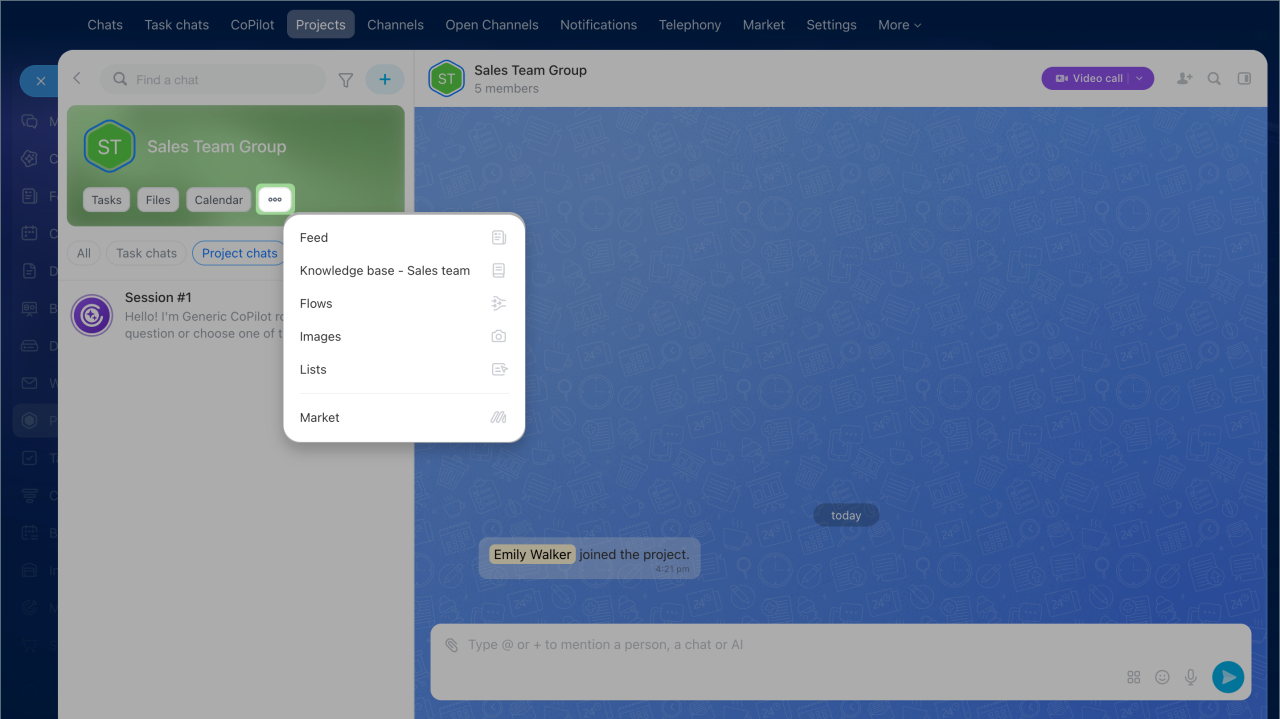
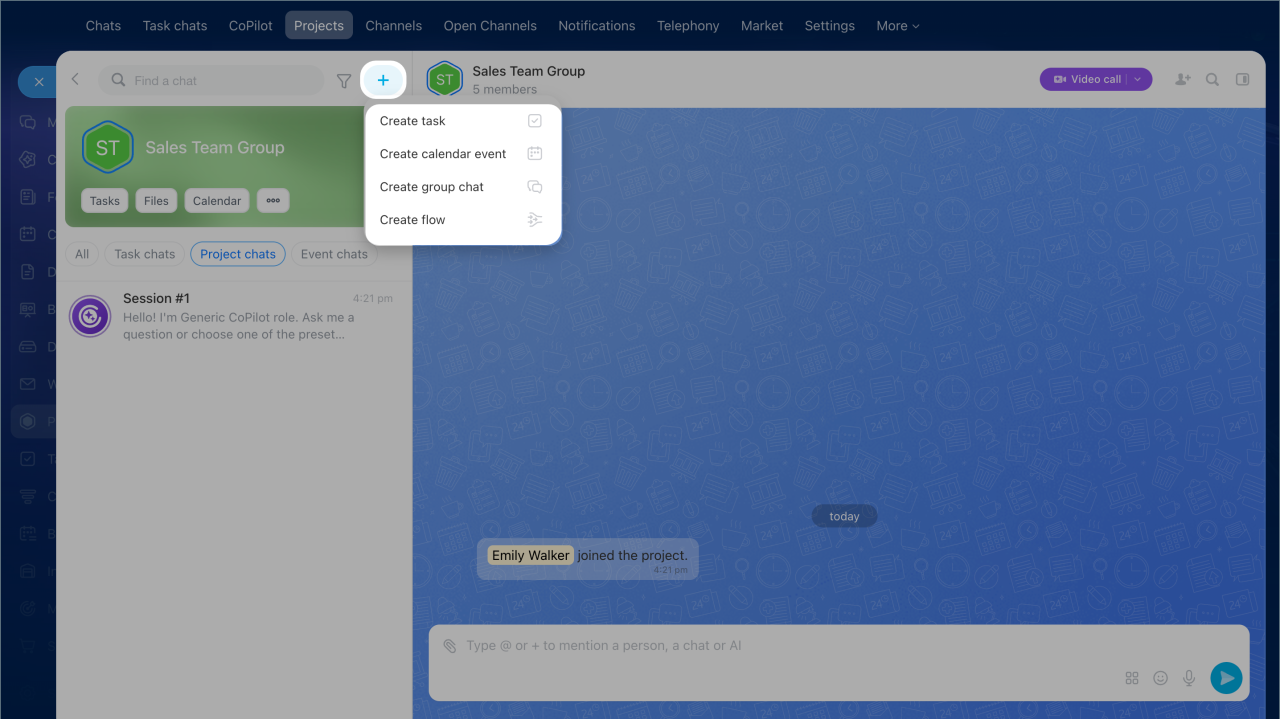
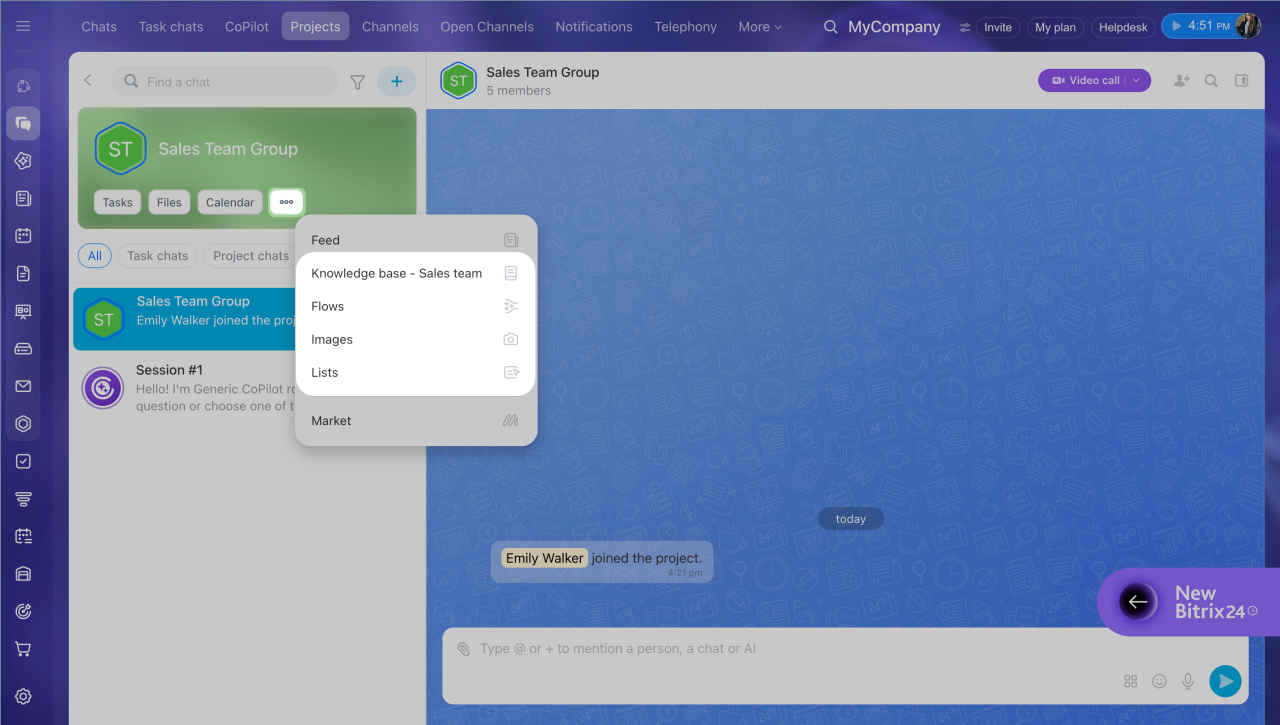
A project includes the main collaboration tools: chats, tasks, feed, files, and calendar. Everything is available on one page. To switch between tools, click the tool name in the project form, or open Three dots (...) to see more. To create a task, meeting, or group chat without leaving the project, click next to the search bar.
If your company uses Market apps or Flows, they also appear in the menu.
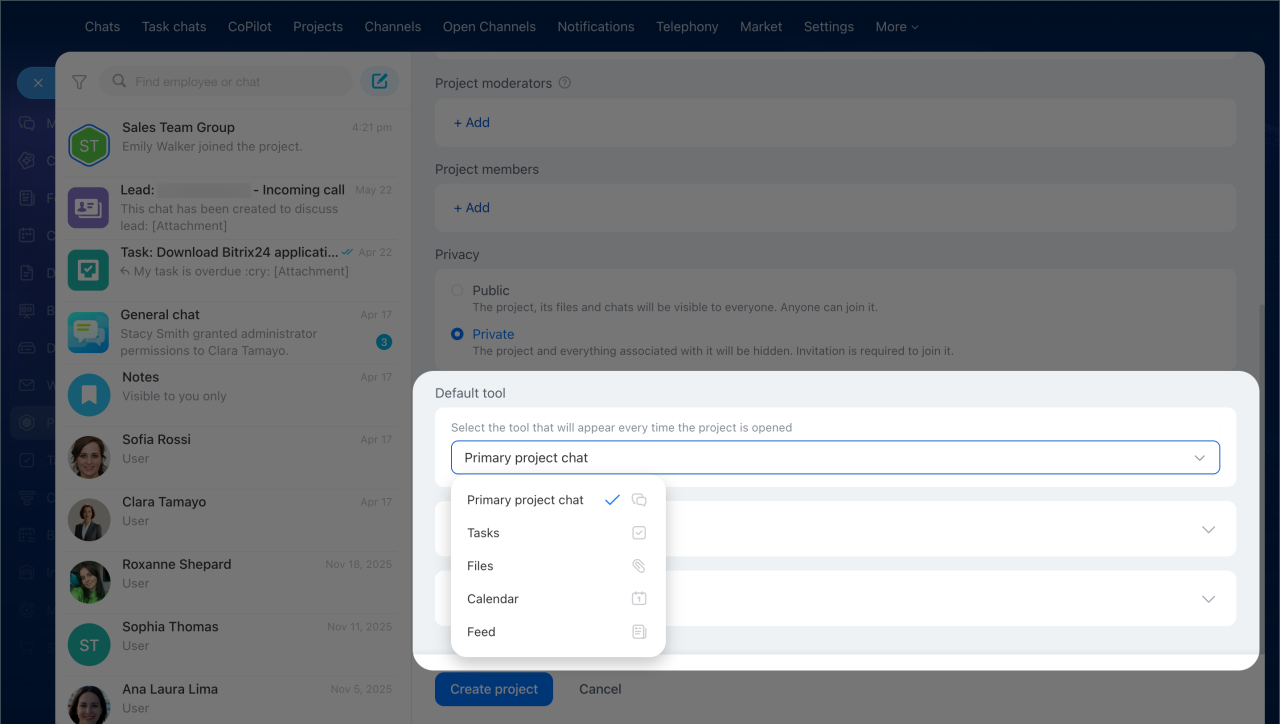
In Bitrix24 accounts created before May 31, 2026, you can change which tool opens first when you enter a project. This helps if your team prefers to start with the feed or tasks instead of chat.
1. Open the sidebar in the primary project chat.
2. Click Three dots (...) > Edit.
3. In the Main tool section, select the tool you need.
Work with external members
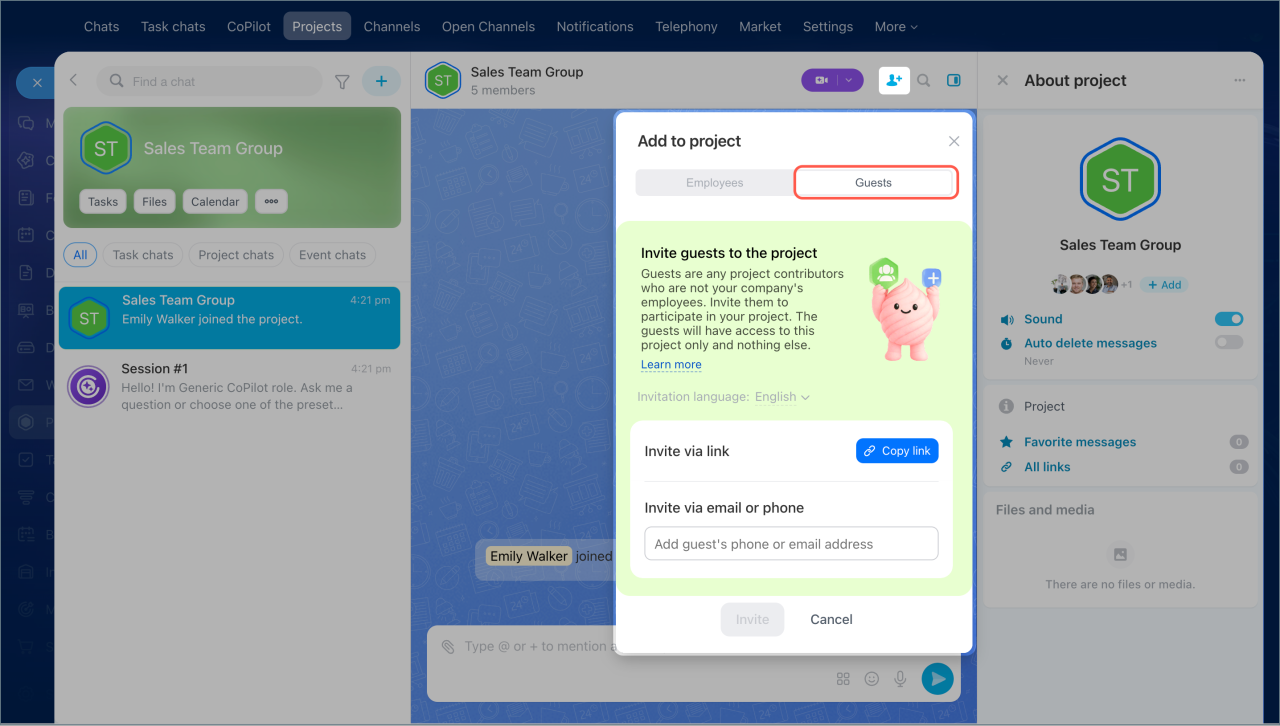
You can invite not only employees but also guests, such as contractors or clients. Guests can work only inside the project and cannot access the rest of your company information.
Guests can chat, work with tasks, and join meetings inside the project without switching to external messengers. In the access settings, you can choose which project tools guests can use.
Configure access permissions to a collab
Access levels
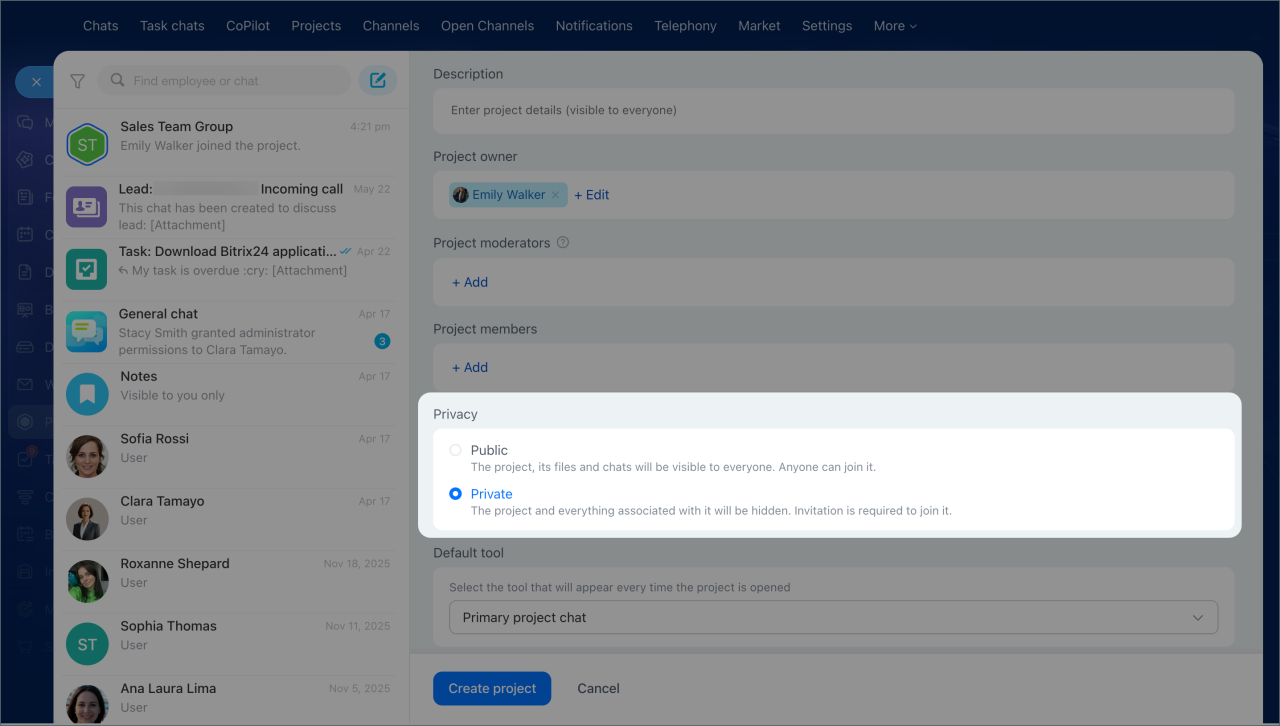
For each project, you can choose who gets access: all company employees or only invited members.
1. Open the sidebar in the primary project chat.
2. Click Three dots (....) > Edit.
3. In the Privacy section, select one of these options:
- Public — the project and its content are visible to all Bitrix24 employees, and any user can join.
- Private — the project and its content are hidden from employees, and only invited members have access.
How to find projects
You can find projects in three sections of Bitrix24:
- Projects — shows open projects and those you are a member of.
- Tasks and Projects — the My filter is on by default and shows projects you participate in. Remove the filter to see all open projects in the company.
- Messenger > Projects — shows the primary chats of your projects. The counter on the primary chat shows new messages from all project chats. If there are unread messages in group chats, an additional counter appears. The primary project chats also appear in the general messenger chat list.
AI Projects represent a new way for teams to work. Chat is now the center of the project: teams communicate, create tasks, and make decisions without losing context. The AI agent analyzes tasks and messages, captures agreements, and regularly sends a status report — no need to collect information manually.
Changes to existing projects
Unified format. Projects, Groups, and Collabs now use one format: Projects. This format supports different use cases, including team collaboration, internal workgroups, and work with external participants.
All existing Groups and Collabs are converted automatically. They continue to work in the unified section. Your data and settings stay the same. You do not need to migrate anything manually.
Access levels. Before, there were three access types: public, private, and hidden. Now there are two: public and private. Hidden projects become private projects. They do not appear in the general list and are available by invitation only.
Legacy tools. Wiki, Knowledge Bases, Photos, and Lists now work in limited mode. You can no longer create new items. Existing items remain available, and you can still view, edit, and delete them.
AI Projects are a new way to work with your team. The project chat is now the main workspace. Your team can communicate, create tasks, and make decisions without losing context.
The AI agent reviews tasks and conversations, captures agreements, and sends regular status updates. You no longer need to collect this information manually.