
Project access permissions help you control who can work with tasks, post in the Feed, and invite new members. For example, all members can create tasks, but only the owner can delete them.
This article explains how to set up access permissions for a Bitrix24 project on a computer and in the mobile app.
You can set access permissions when you create a project or update them later in the project settings.
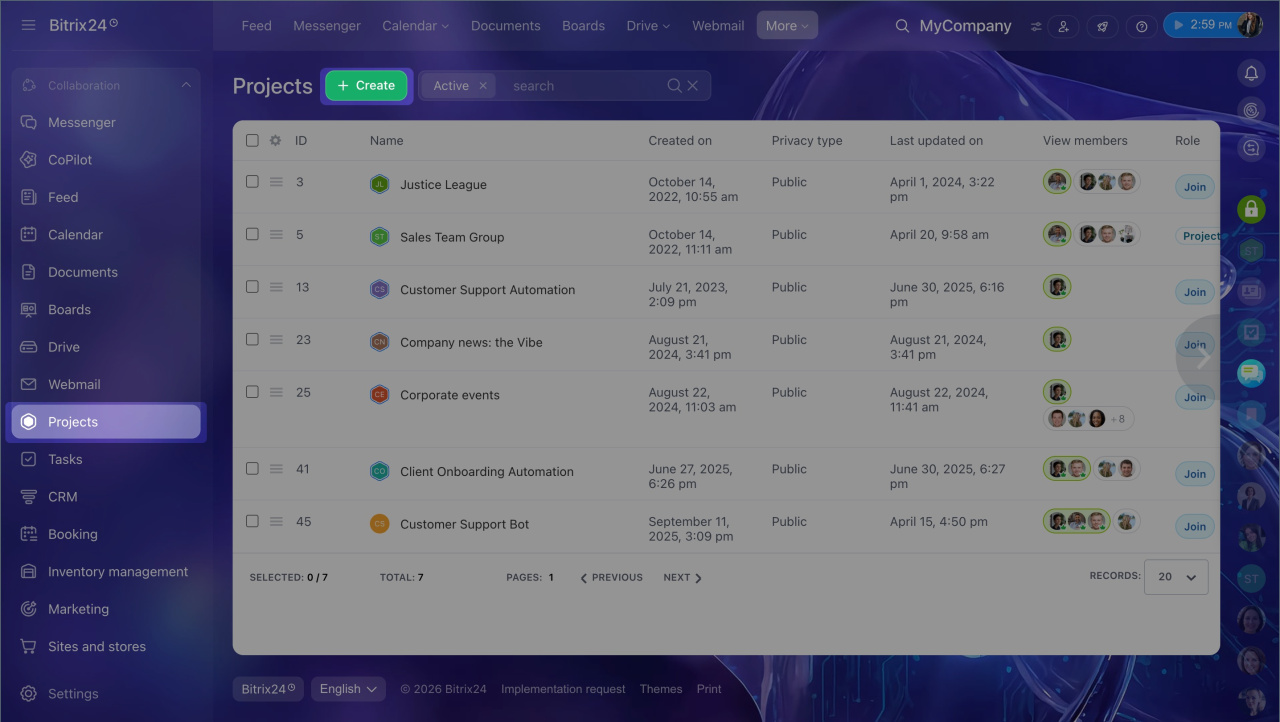
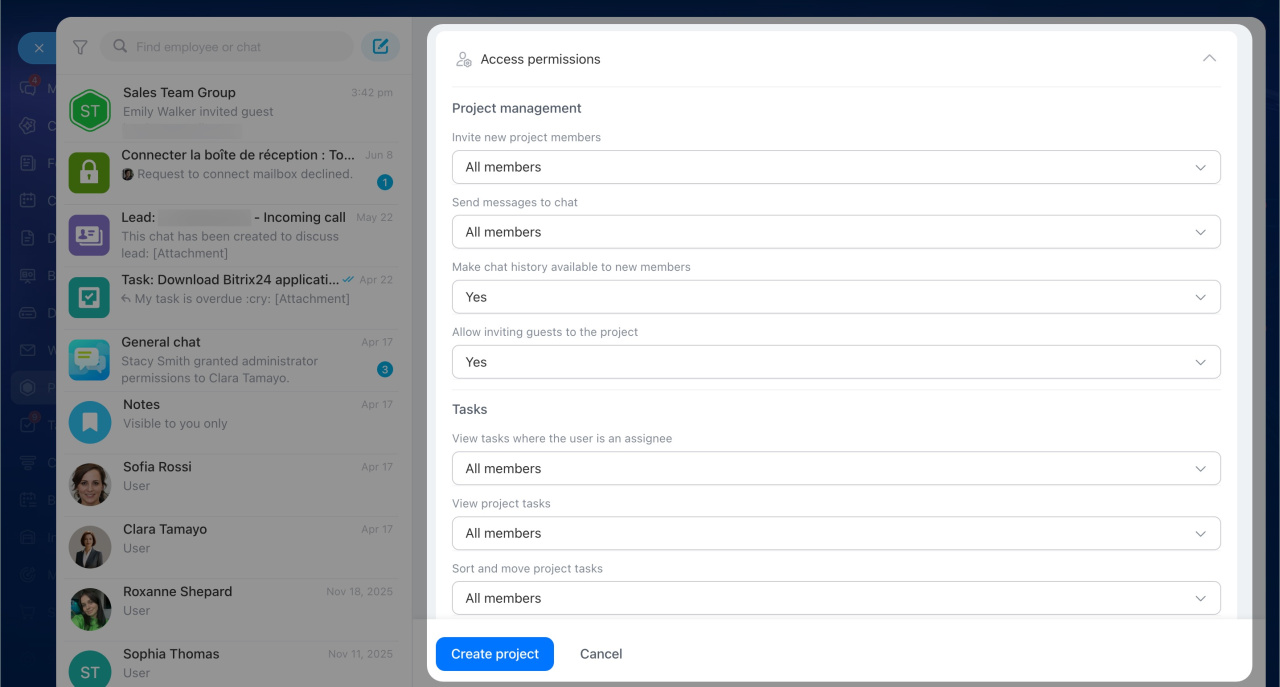
- When creating a project — open the Access permissions section in the project form. Default permissions are already set, so you only need to change them if needed.
- In an existing project — click Three dots next to the project name in the sidebar and select Edit. Scroll to Access permissions and open that section.
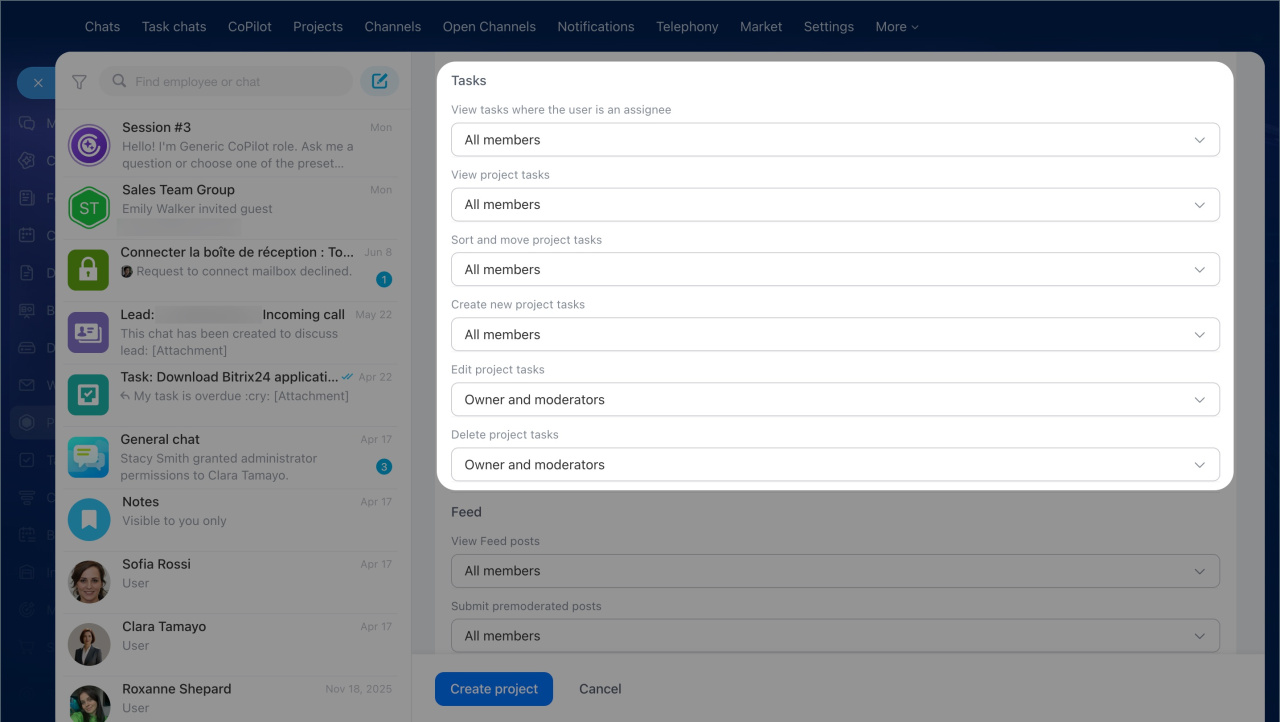
Tasks. In this section, you choose who can work with tasks in the project.
- View tasks where the user is an assignee — lets members see tasks they are involved in.
- View project tasks— lets members see all tasks in the project, even if they are not involved in them. If tasks contain sensitive information, limit this permission.
- Sort and move project tasks — lets members change the task order. If the order should stay fixed, give this permission only to the owner and moderators.
- Create new project tasks— to allow everyone to create tasks, select All members.
- Edit project tasks — lets members edit tasks in the project.
- Delete project tasks — to avoid accidental deletion, give this permission only to the owner and moderators.
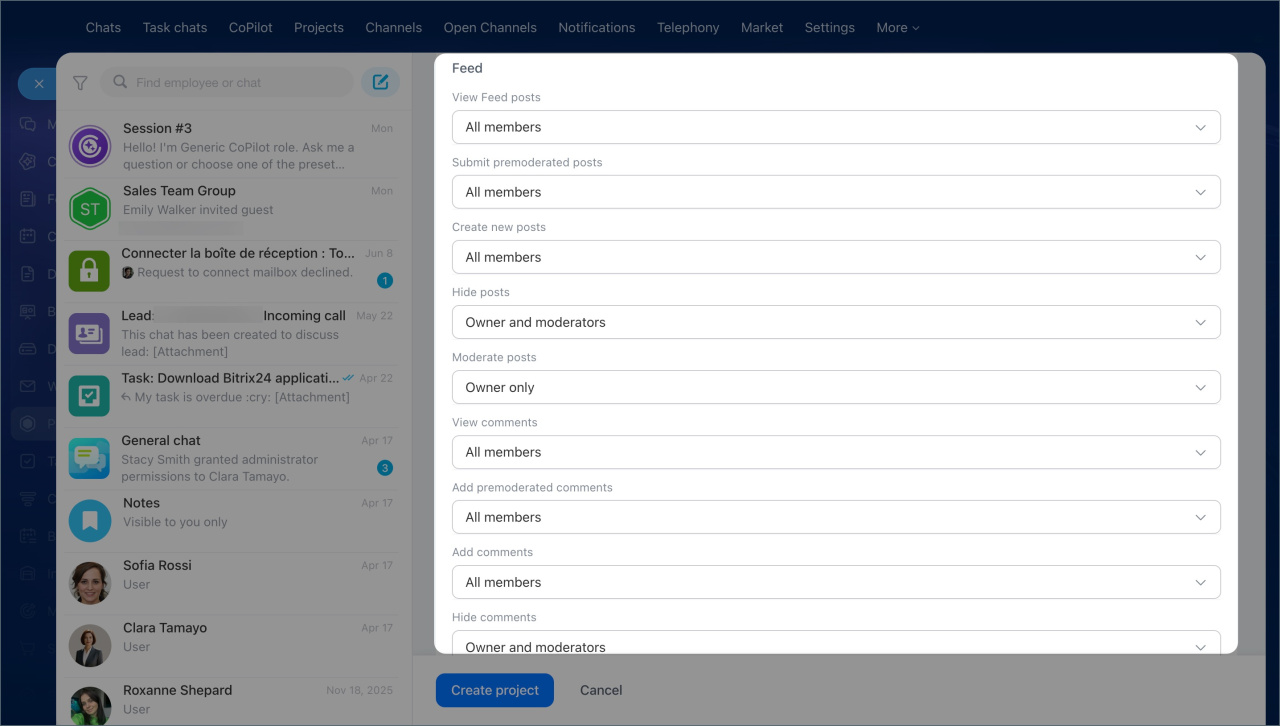
Feed. In this section, you choose who can post messages and comments in the project feed.
- View Feed posts — determines who can see feed posts.
- Submit premoderated posts — messages appear only after the owner or a moderator approves them.
- Create new posts — determines who can publish messages without approval.
- Hide posts — lets members hide or approve messages from other participants.
- Moderate posts — lets members edit and delete any messages in the feed.
- View comments — determines who can see comments on posts.
- Add comments — comments are reviewed before they are published.
- Hide comments— determines who can leave comments without approval.
- Moderate comments — lets members hide or approve comments from other participants.
To reset all permissions to their original values, click Restore default settings at the bottom of the Access permissions section.
Set up Files and Calendar permissions separately. Open the project's Files or Calendar section and configure access there.
Manage files in workgroups and projects
Configure access permissions for calendars
You can set access permissions when you create a project or update them later in the project settings.
Create a collab
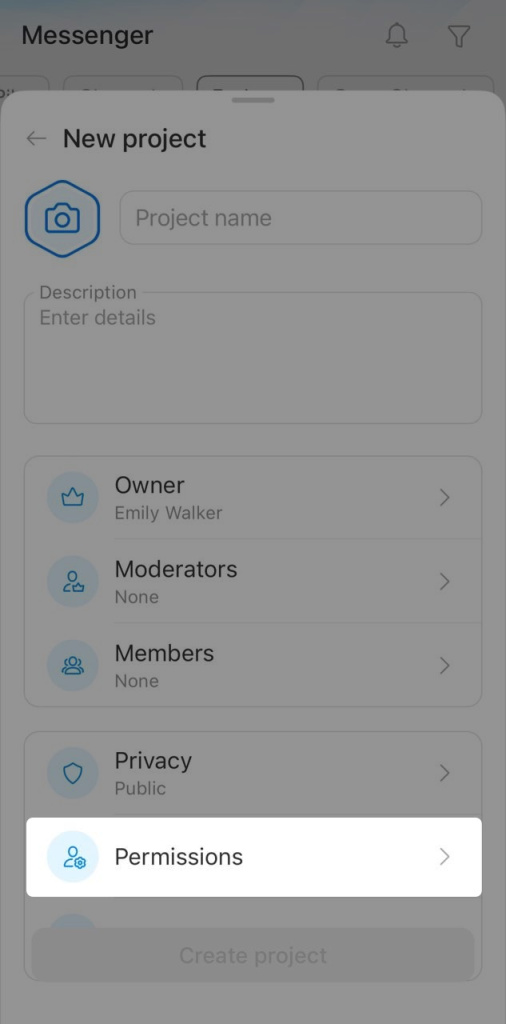
When creating a project — tap the Access permissions section and set the permissions you need.
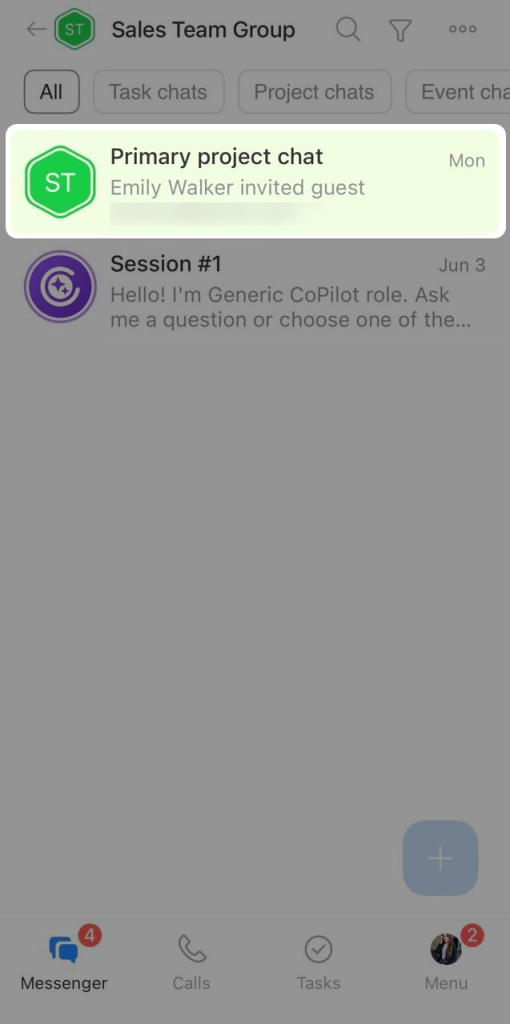
When editing a project — open the project's main chat and tap the project name.
Tap Three dots > Edit. Open Access permissions and set the permissions you need.
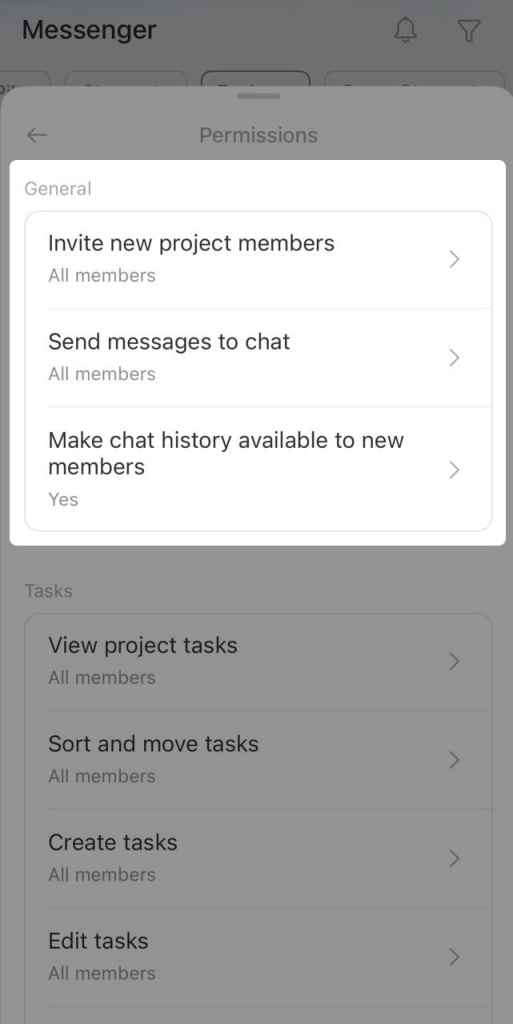
General. In this section, you choose who can change project settings, invite members, and post in the chat.
- Invite new project members — to control team membership and avoid accidental invites, give this permission only to the owner and moderators.
- Send messages to chat — if the chat is only for important updates, give this permission only to the owner and moderators. If everyone should be able to discuss the project, select All members.
- Make chat history available to new members — turn this on so new members can review earlier messages and catch up faster.
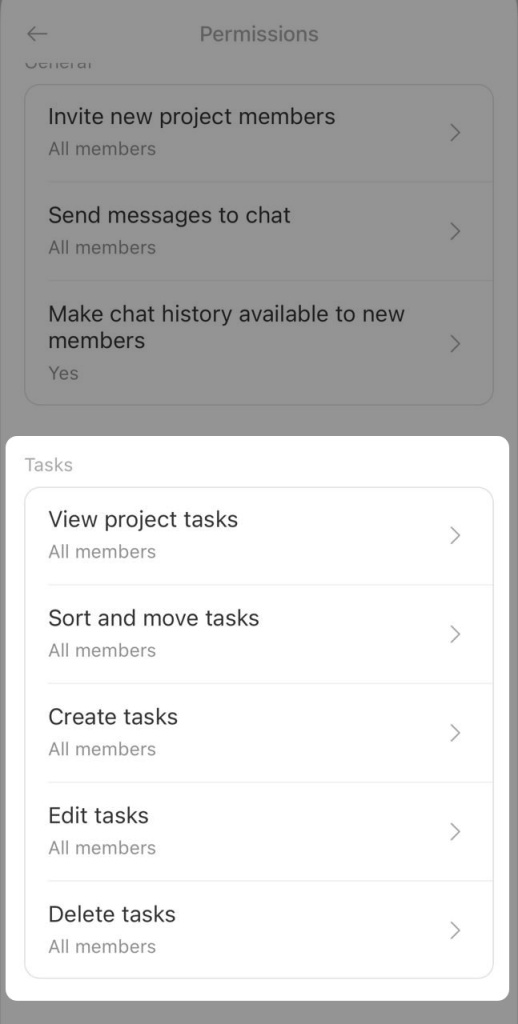
Tasks. In this section, you choose who can create, edit, and view tasks in the project.
- View project tasks — lets members see all tasks in the project. If tasks contain sensitive information, limit this permission.
- Sort and move tasks — lets members change the task order. If the order should stay fixed, give this permission only to the owner and moderators.
- Create tasks — lets members add new tasks. To allow everyone to create tasks, select All members.
- Edit tasks — lets members edit tasks in the project.
- Delete tasks — to avoid accidental deletion, give this permission only to the owner and moderators.
In brief
- Access permissions control who can invite participants, work with tasks, and post in the feed.
- Only the project owner can configure permissions.
- You can set permissions when you create a project or change them later in the settings.
- In Bitrix24 on a computer, there are three permission sections: project management, tasks, and feed.
- In the mobile app, the Feed section is not available — to configure it, open Bitrix24 on a computer.
- Files and Calendar access permissions must be configured separately — through the project's Files or Calendar section.
- In the mobile app, Files and Calendar permission settings are not available — open Bitrix24 on a computer.