
A project brings together the main tools your team needs to work together: chats, tasks, files, a calendar, and a feed. Your team works in one place, so you do not need to switch between Bitrix24 sections to create a task, schedule a meeting, or share a document.
Chats
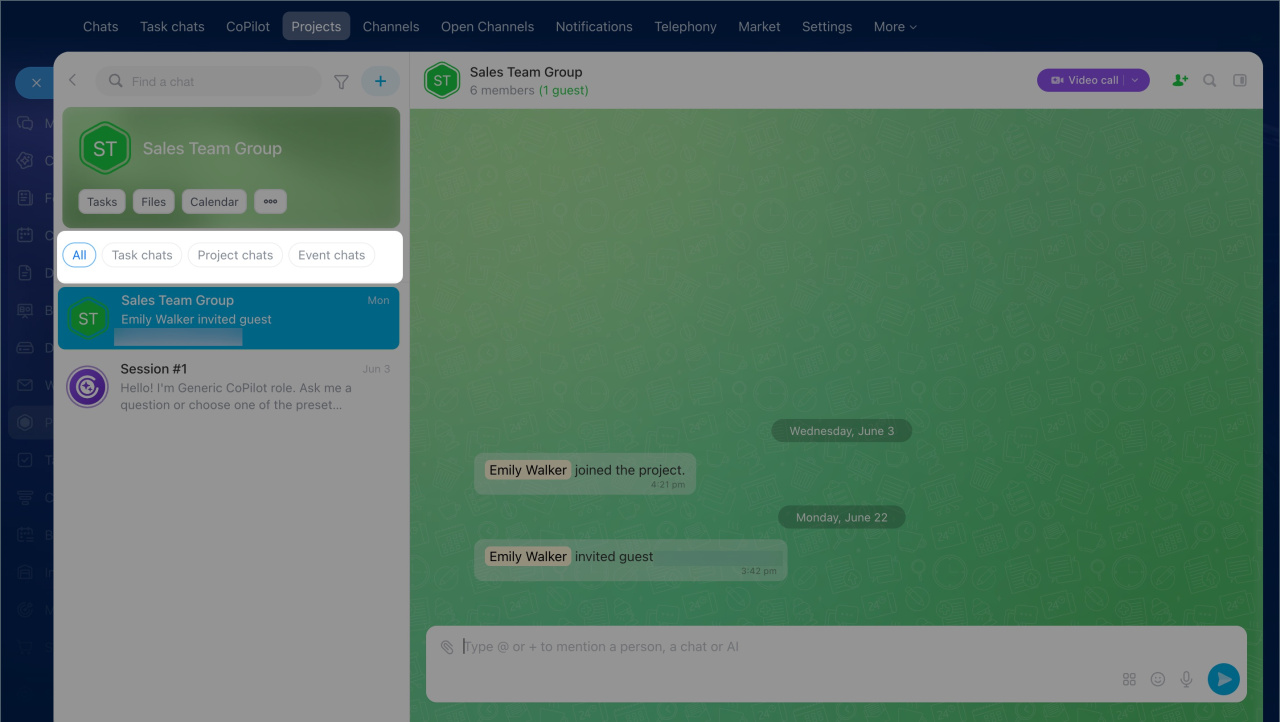
Each project includes several chat types: a main chat, public and private chats, and chats for tasks and meetings. Everything stays in one place, so team members can quickly find the conversation and keep the full context.
The main chat is created automatically. It opens first when you enter the project. Use it to discuss work with the whole team and capture decisions.
For separate topics, you can create public or private chats. Only invited participants can see these chats.
Users only see the chats they are part of:
- Public and private chats: if they were added to them
- Task chats: for tasks they participate in
- Meeting chats: after a meeting is created in the project
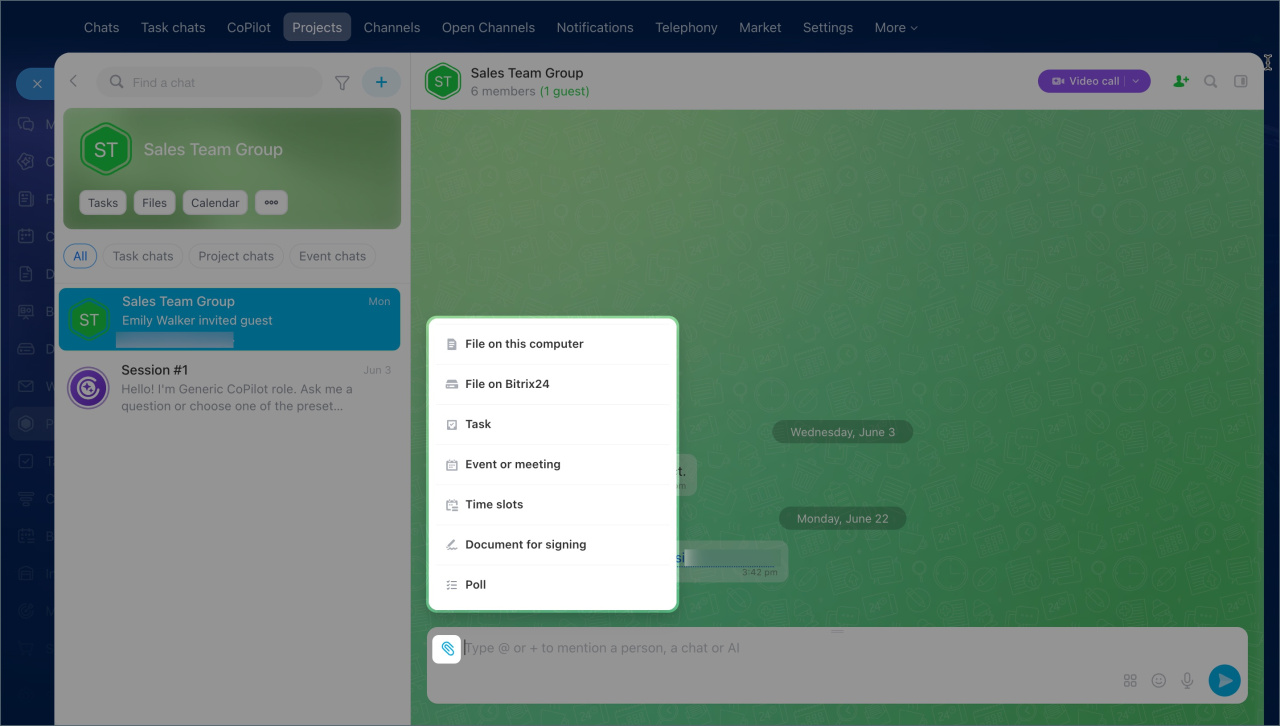
The main chat also includes extra tools. Click the paperclip in the message field and choose what you want to do:
- Create a task or meeting
- Upload a file
- Share your open slots schedule
- Run a poll
- Send a document for signing
Bitrix24 Chat: new interface and features
Bitrix24 e-Signature: Getting started
Tasks
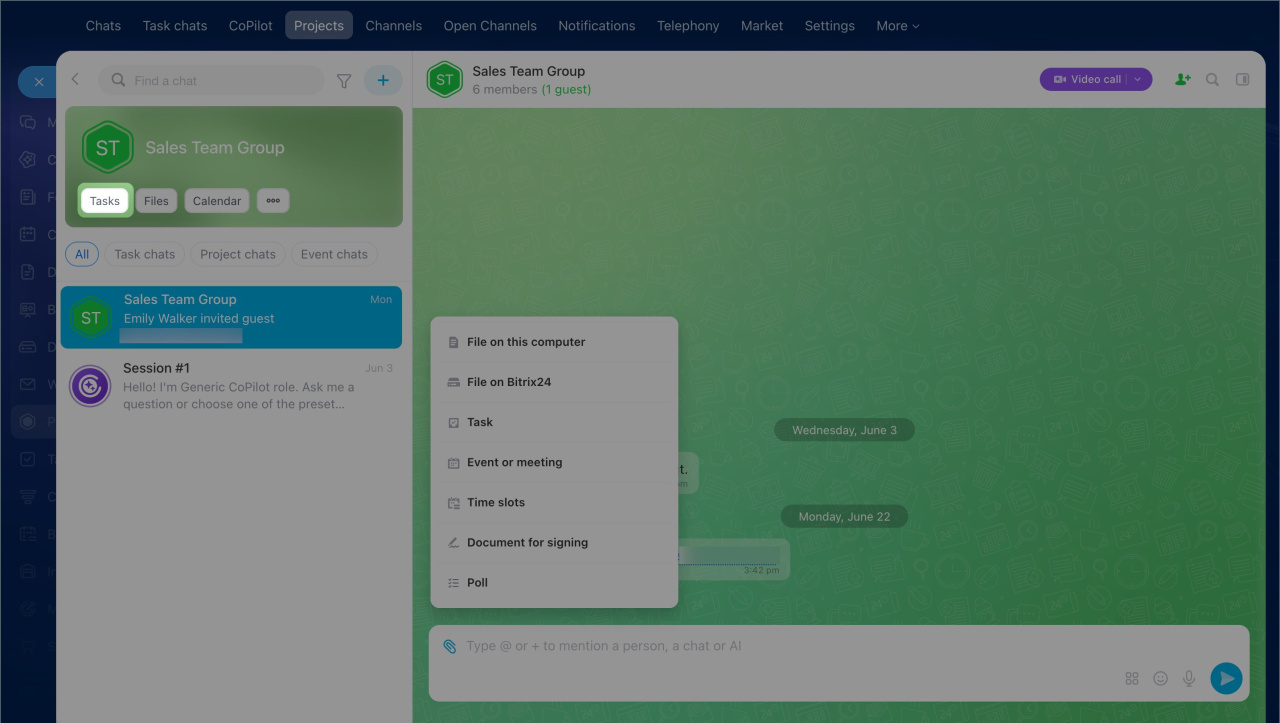
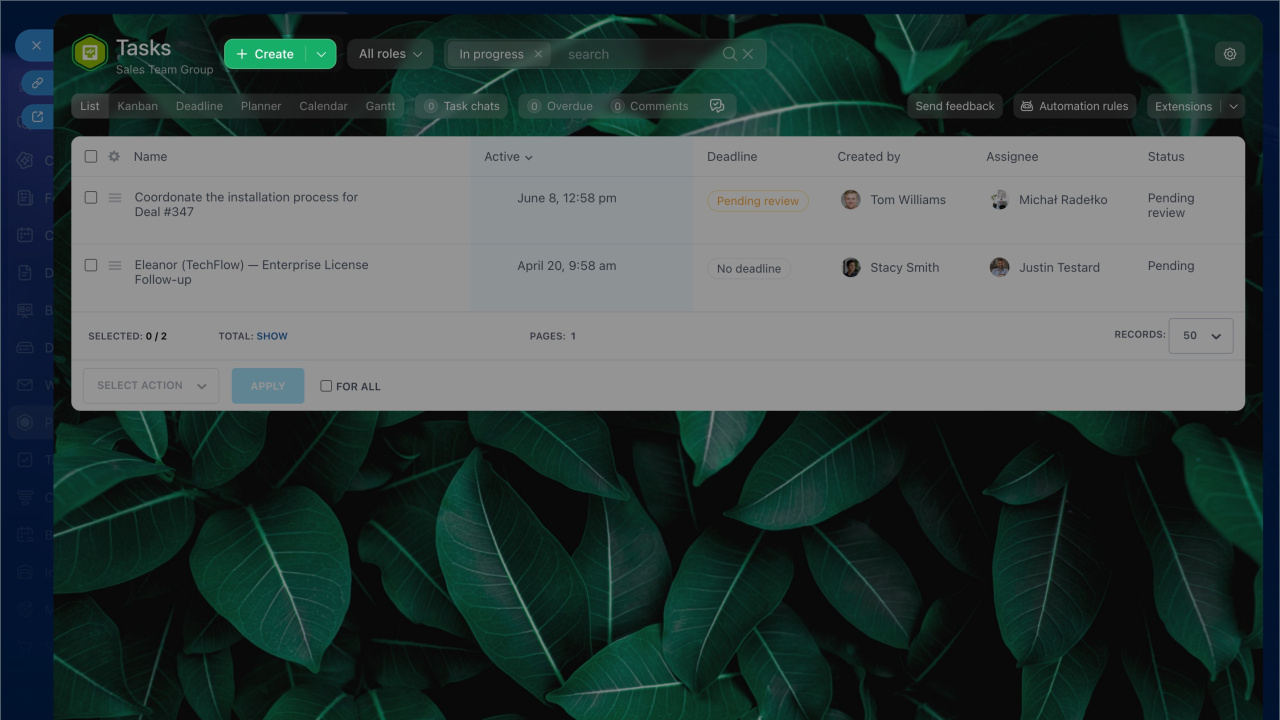
All project tasks are stored in the Tasks section. You do not need to look for them in the general Bitrix24 task list. Project members only see tasks from that project, which makes it easier to stay focused and find work quickly.
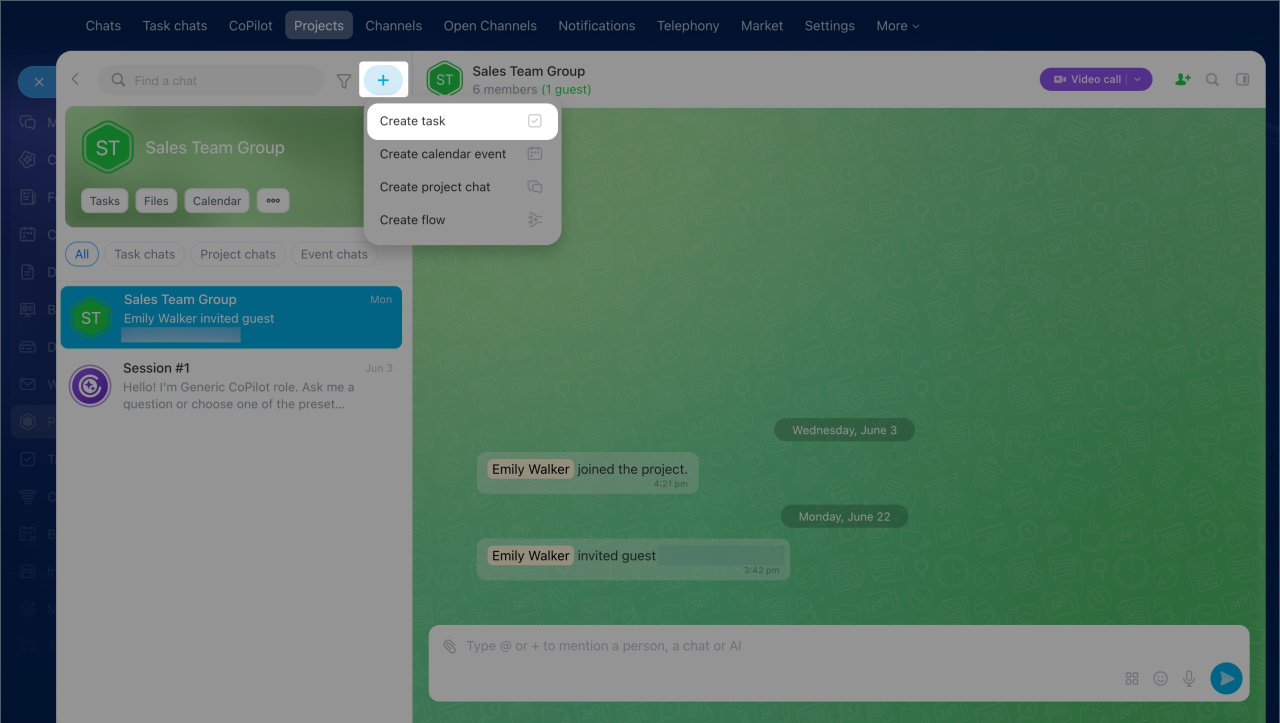
To create a task, open Tasks > Create, or click the button next to the search bar. In the task form, enter the title, description, and deadline, then assign the responsible person. If needed, attach files, add a checklist, or use tags.
Create a task
Files
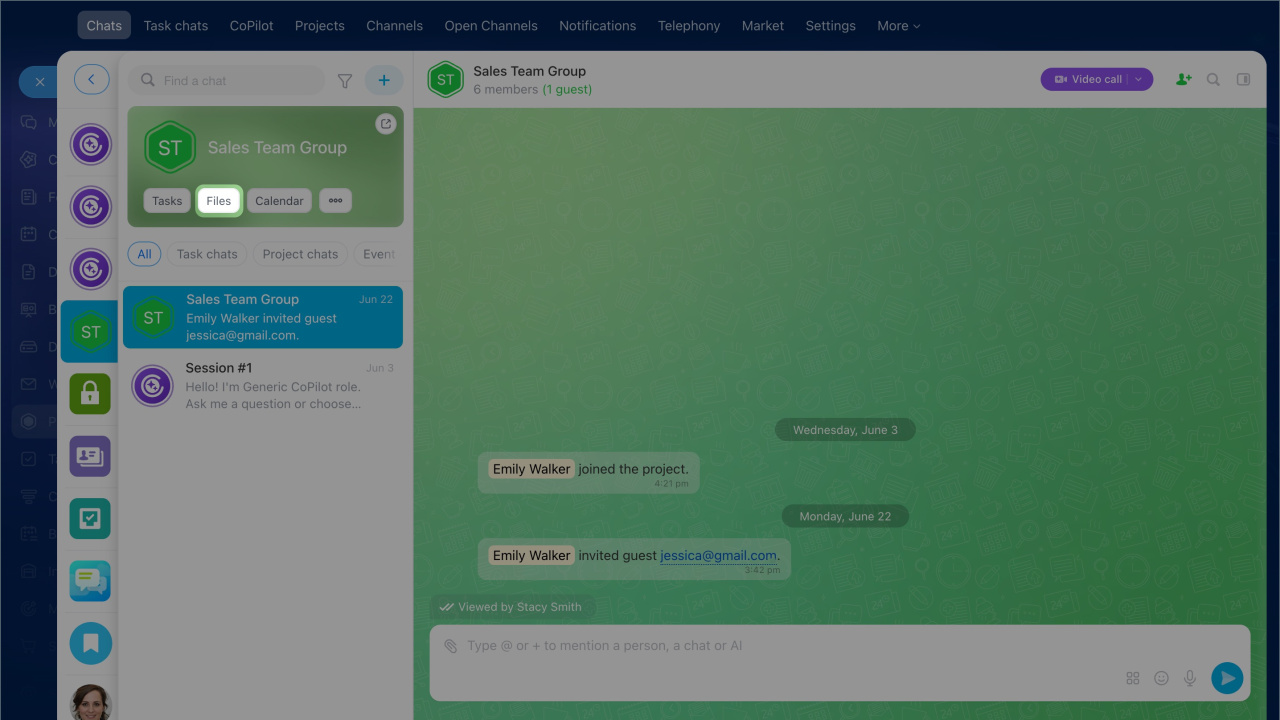
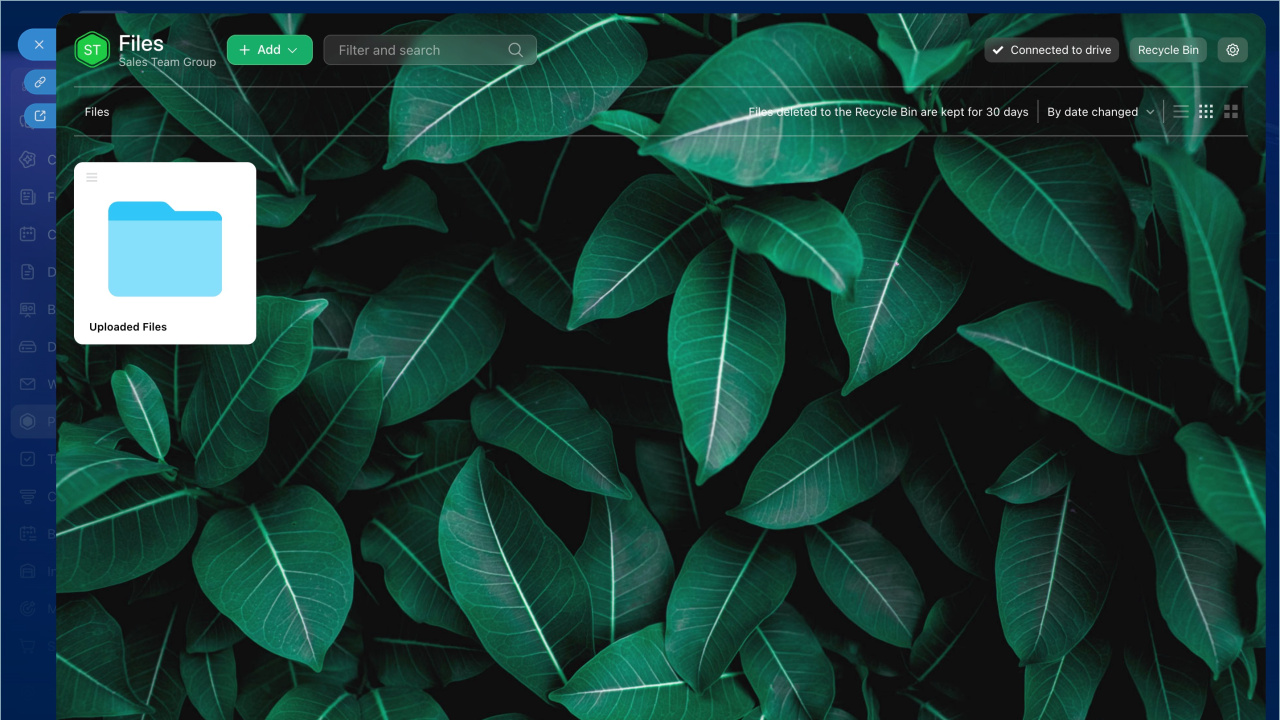
The Files section stores all project attachments, including documents, spreadsheets, images, presentations, and more.
Any file attached in the main project chat is automatically saved to the project Drive in the Uploaded files folder. All workgroup members can access this folder.
Bitrix24 Drive
Calendar
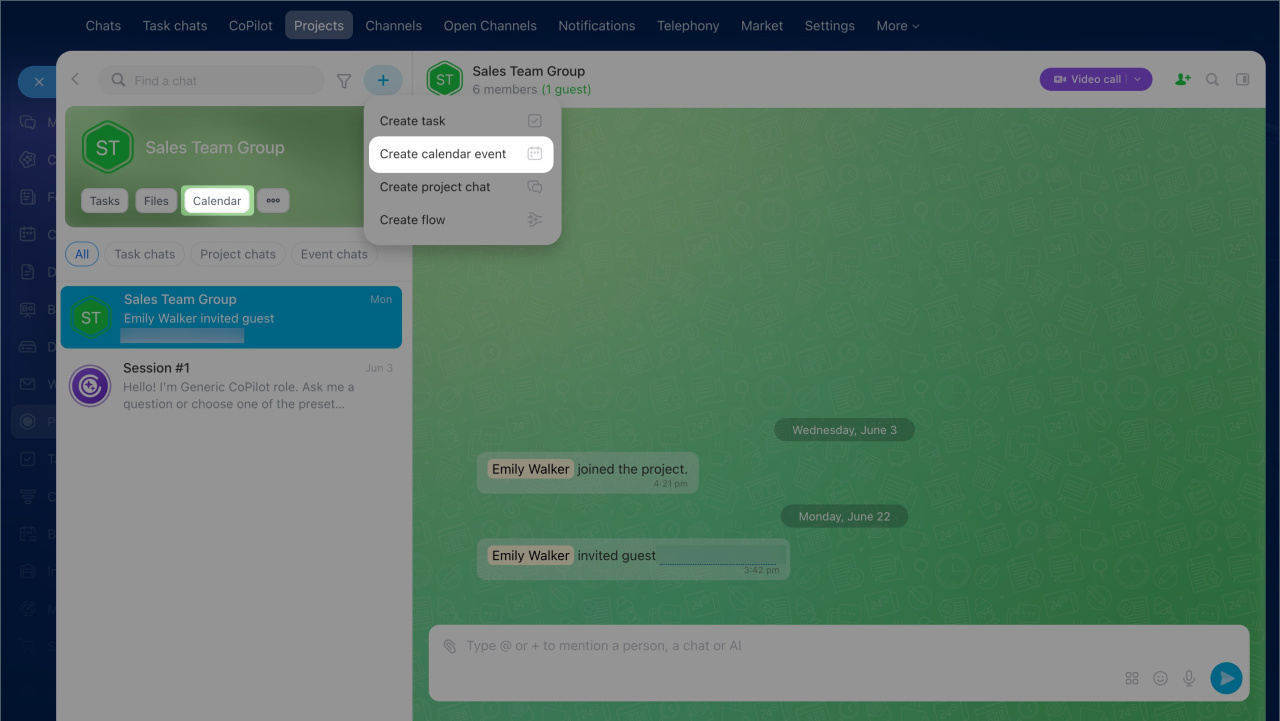
The project calendar helps you schedule meetings without long back-and-forth. When you create an event and invite attendees, the event appears in their calendars automatically.
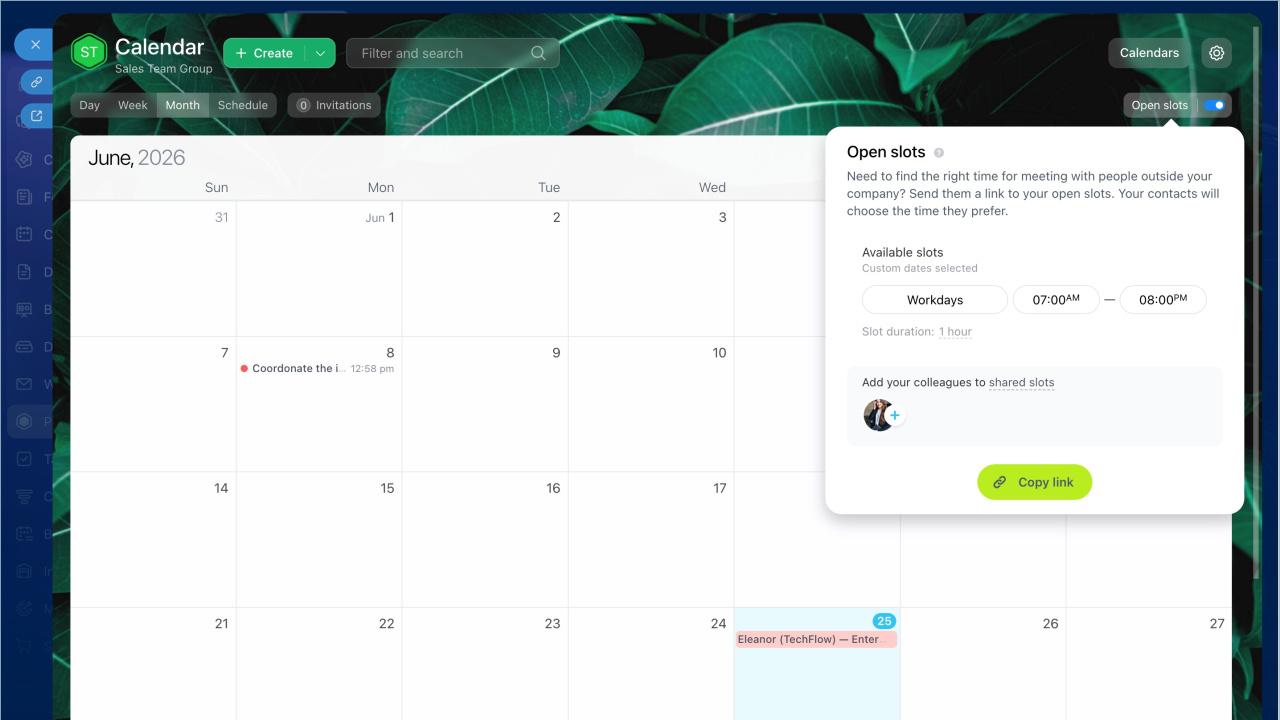
To create an event, open the Calendar section or click the button next to the search bar. In the Calendar section, you can also turn on Open slots. This tool helps you schedule meetings with external participants. Share a link to your schedule so the other person can choose a convenient time.
Open slots in the Bitrix24 Calendar
Feed
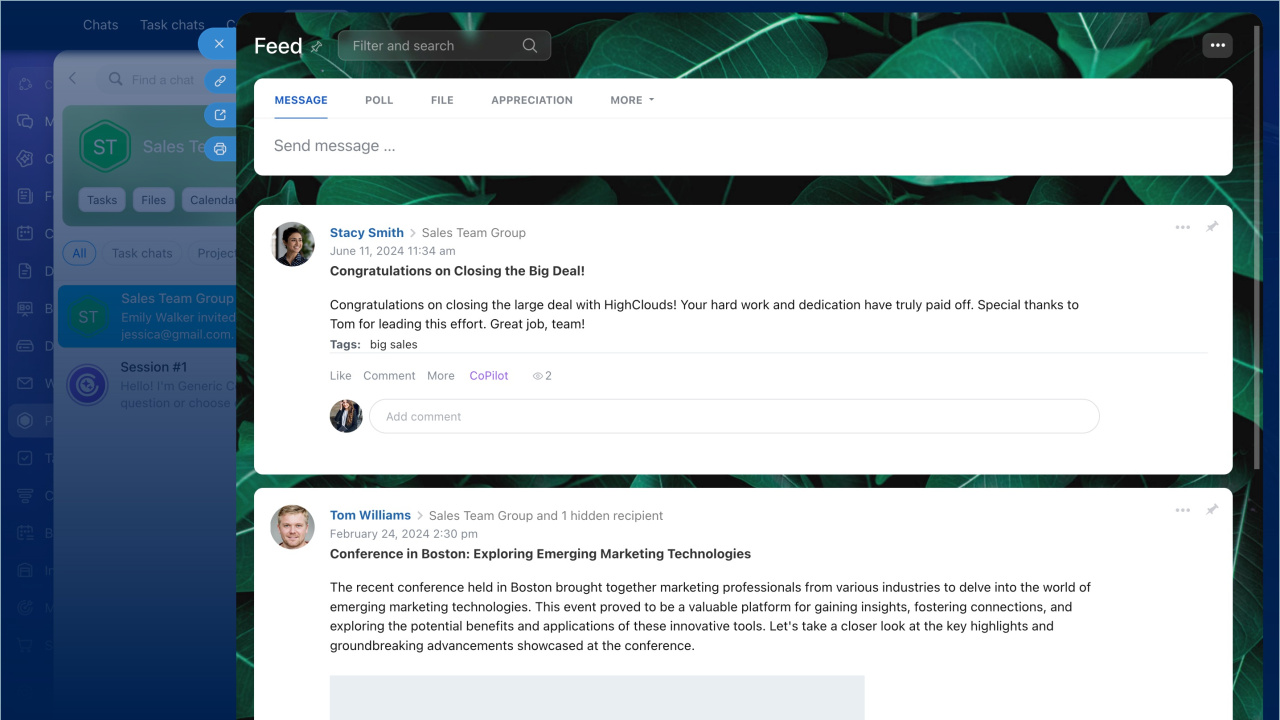
The Feed is useful if you want to run a poll, publish a report, or post an announcement with read confirmation so everyone sees it.
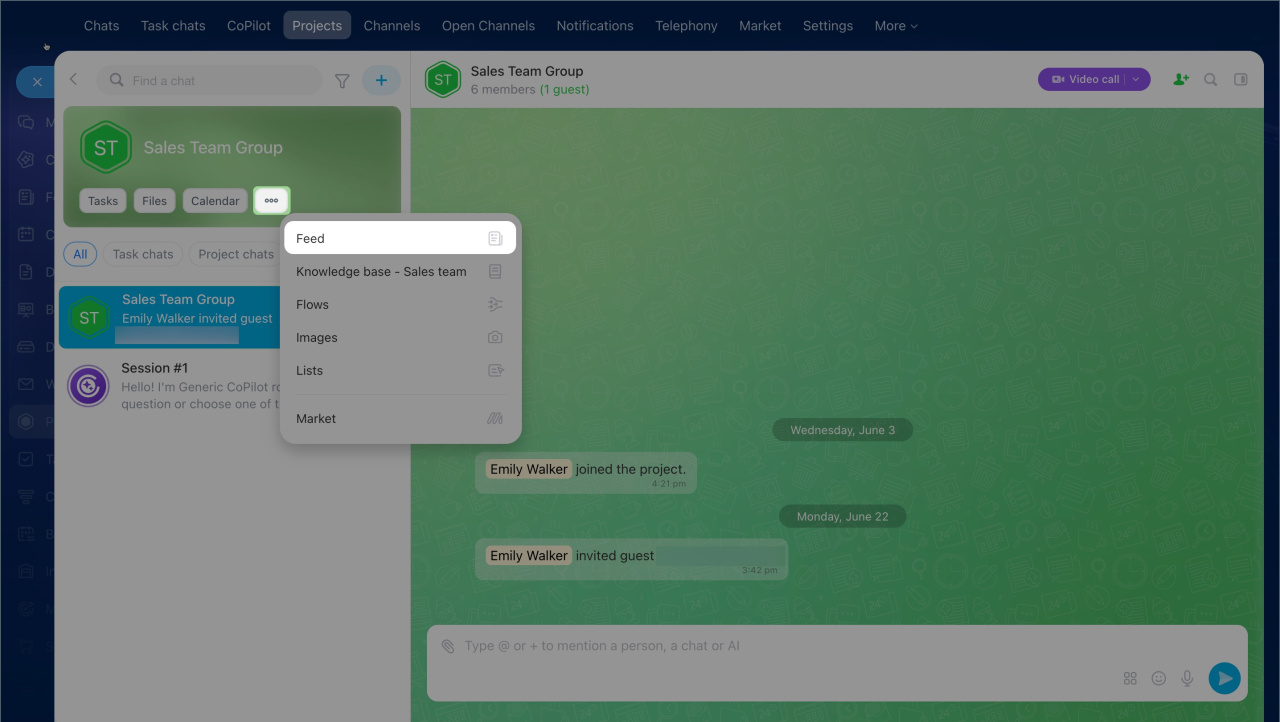
Click Three dots (...) > Feed.
Feed in Bitrix24
In brief
- A project includes the main collaboration tools: chats, tasks, files, a calendar, and a feed.
- Project chats help your team discuss work, create tasks and meetings, share files, and run polls.
- The Tasks section shows all tasks for that project, so they are easier to find and manage.
- The Files section stores project documents and other materials. Files from the main chat are saved automatically to the Uploaded files folder.
- The Calendar helps you schedule team meetings and use Open slots for meetings with external participants.
- The Feed works well for important announcements, reports, and polls inside the project.