
Use the Drive inside a workgroup to store and manage files for specific projects. This helps you find documents faster and avoid clutter in the Company Drive.
Open the workgroup Drive
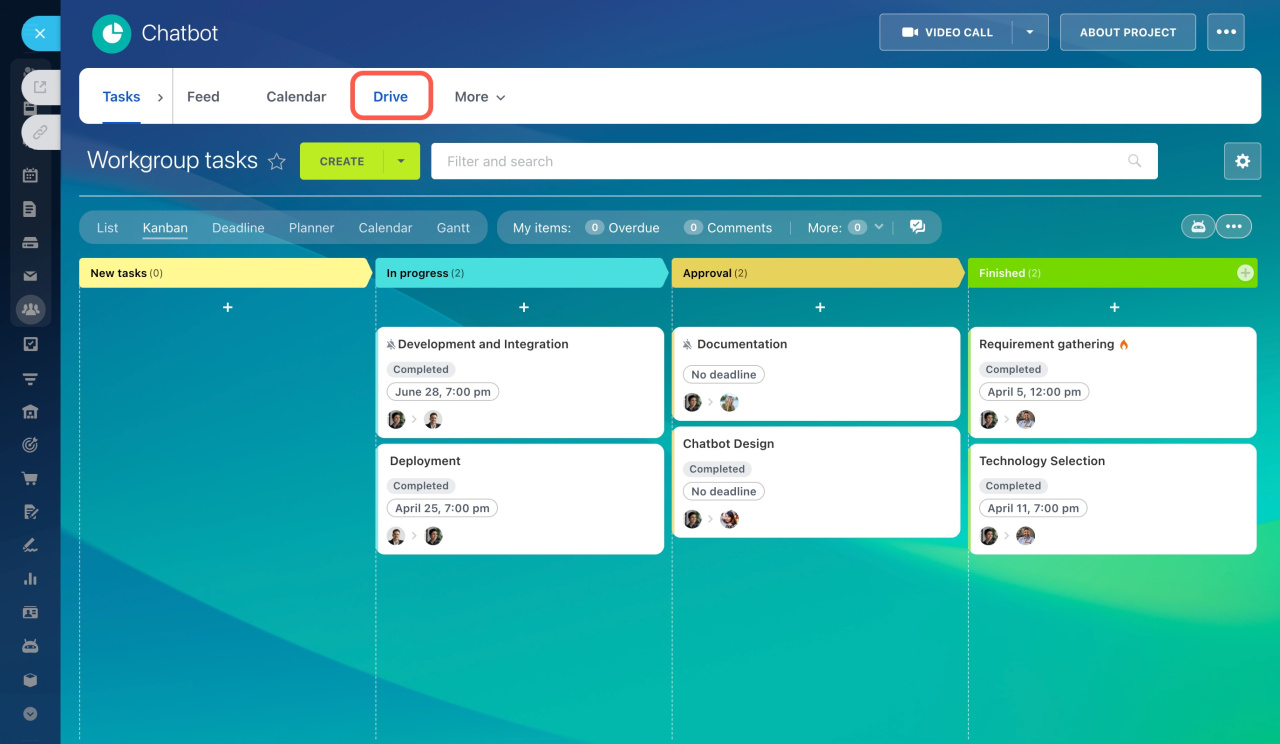
Go to the required workgroup or project and select Drive.
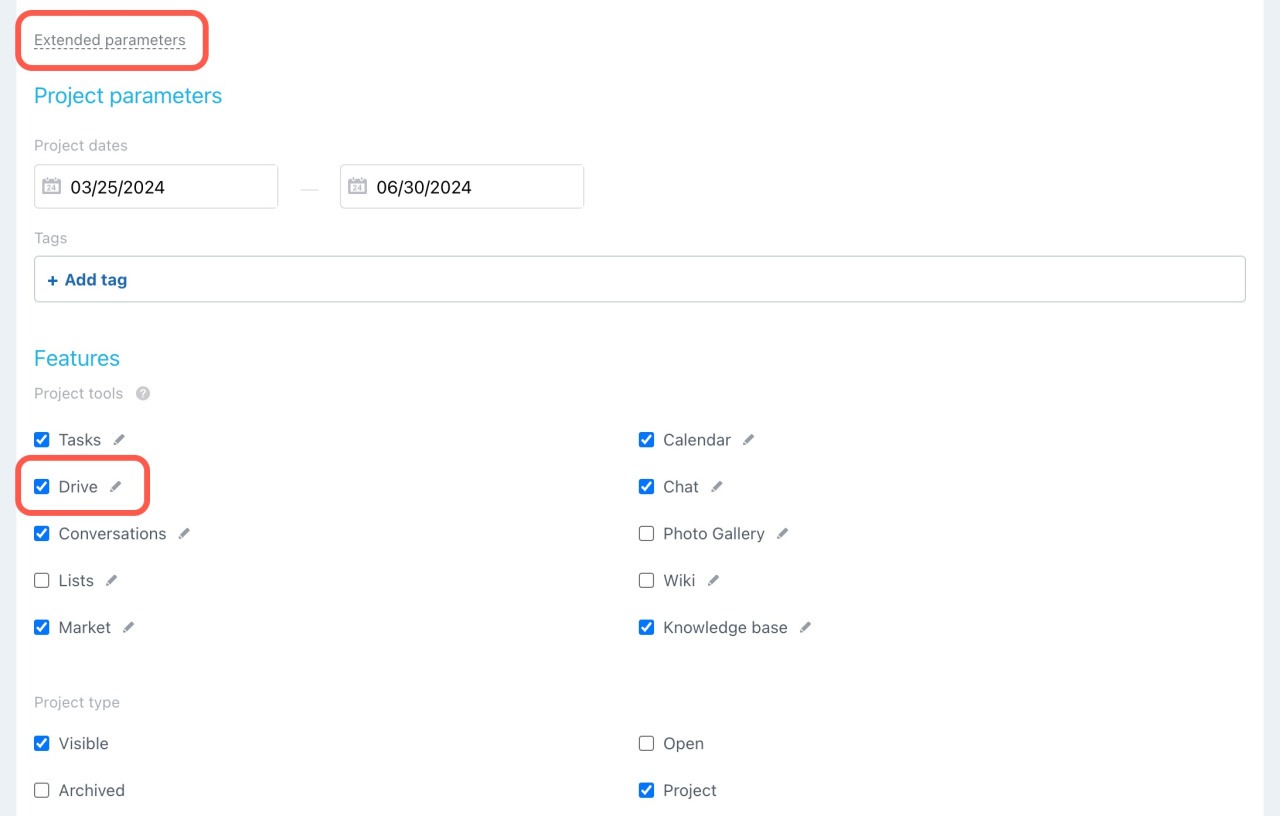
If you don’t see this option, enable it in Extended parameters > Features.
Create files and folders
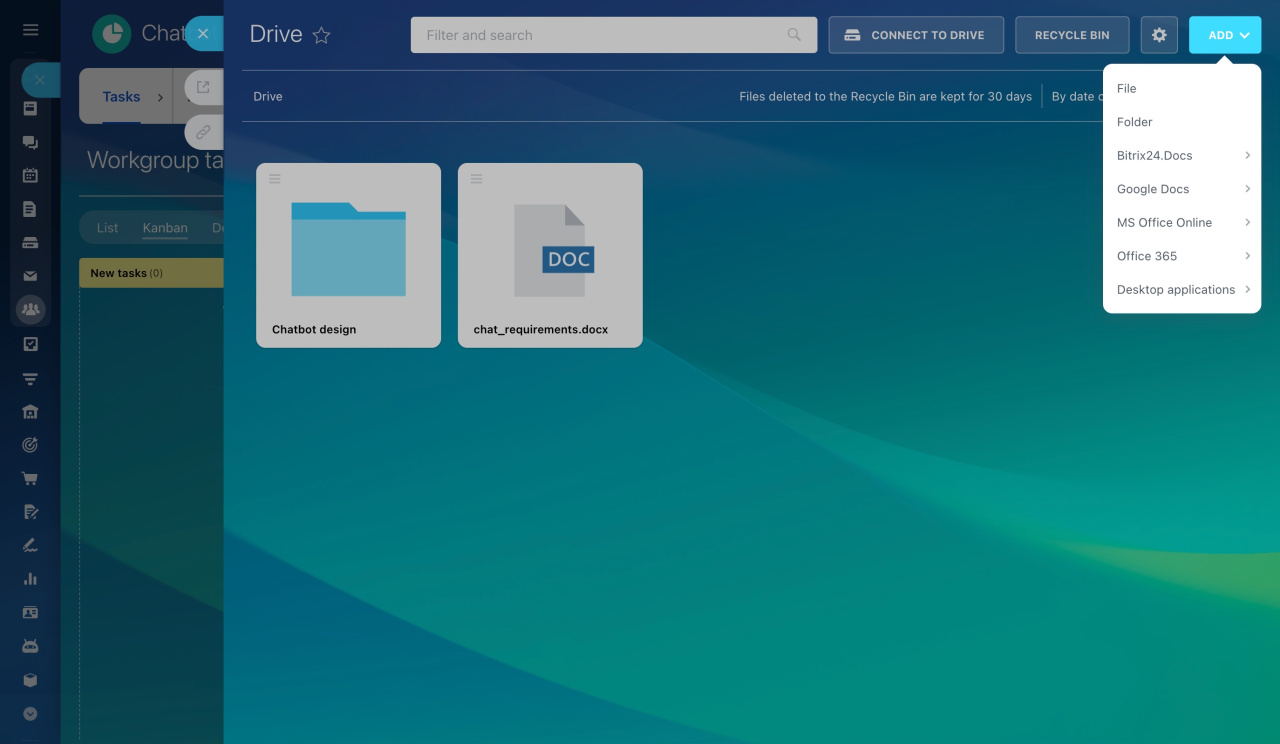
Open the Add menu to:
- Upload files from your computer
- Create folders
- Create documents, spreadsheets, or presentations
You can use Bitrix24.Docs, Google Docs, MS Office Online, Office 365, or local editors.
Perform necessary actions on files, just like on the Company Drive.
Company Drive overview

Connect files to your personal Drive
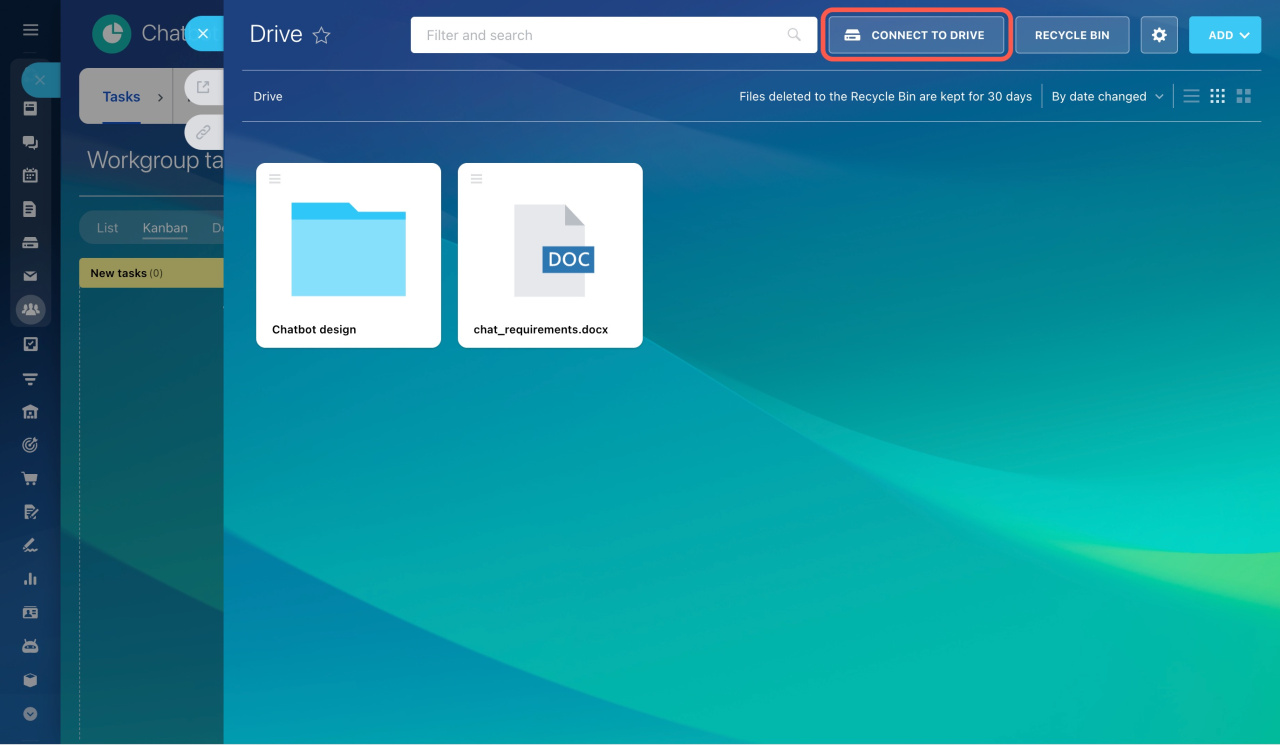
You can link a file or the entire workgroup Drive to your personal storage.
Select Connect to Drive. The files will appear in My Drive.
Configure access permissions for workgroup members. Click the gear button (⚙️) and select Assign permissions.
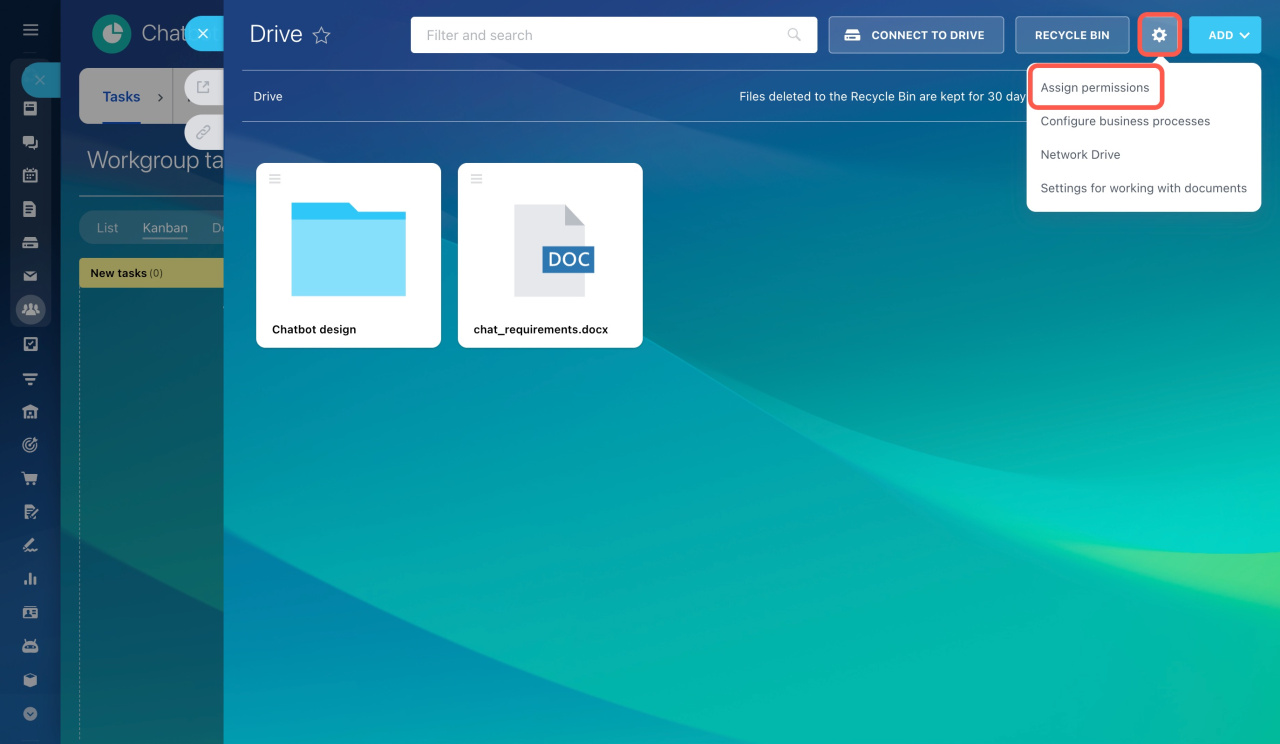
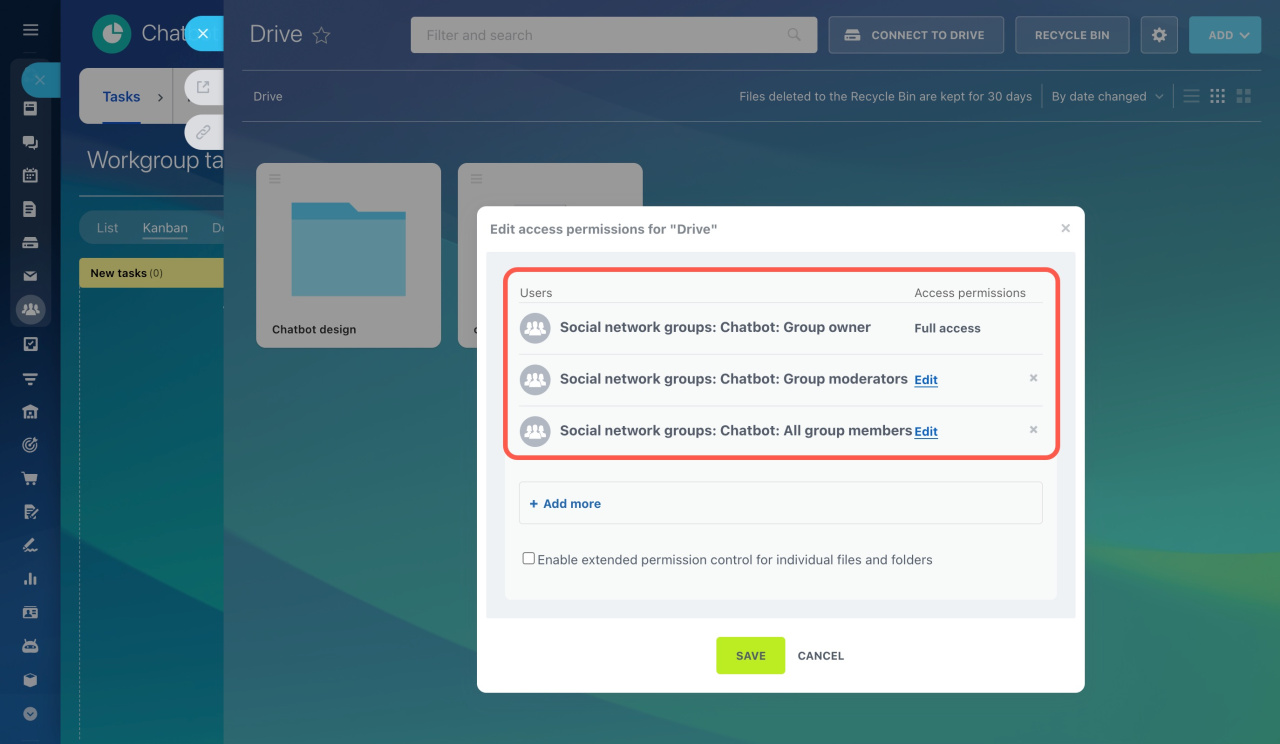
Default roles:
- Group owner: Full access
- Moderators: Edit
- Members: Edit
Only users with Full access can change permissions.
Permission levels
- Read: View files
- Add: View and upload files
- Edit: Modify files and connect folders, but cannot change settings
- Share: Share files with others
- Full access: All actions allowed
In brief
- Use the workgroup Drive to organize project files
- Create, upload, and manage documents in one place
- Connect files to your personal Drive for quick access
- Control access with flexible permission settings