
Workgroups and projects in Bitrix24 help you organize team collaboration. You can invite teammates, assign tasks, share files, and keep everything in one place.
In this article:
- Difference between a workgroup and a project
- Who can create workgroups and projects
- View all workgroups and projects
- Archive a workgroup or project
- Delete a workgroup or project
- Leave a workgroup or project
- Remove a member from a workgroup
- Invite external users to a workgroup
Difference between a workgroup and a project
The key difference is deadlines.
- A workgroup is for discussions related to a department or the whole company.
- A project is for managing work. You can link tasks, set deadlines, assign responsible users, and track progress.
Who can create workgroups and projects
Any user can create workgroups and projects and invite participants. There is no limit on how many you can create.
Create a workgroup and a project
View workgroups and projects
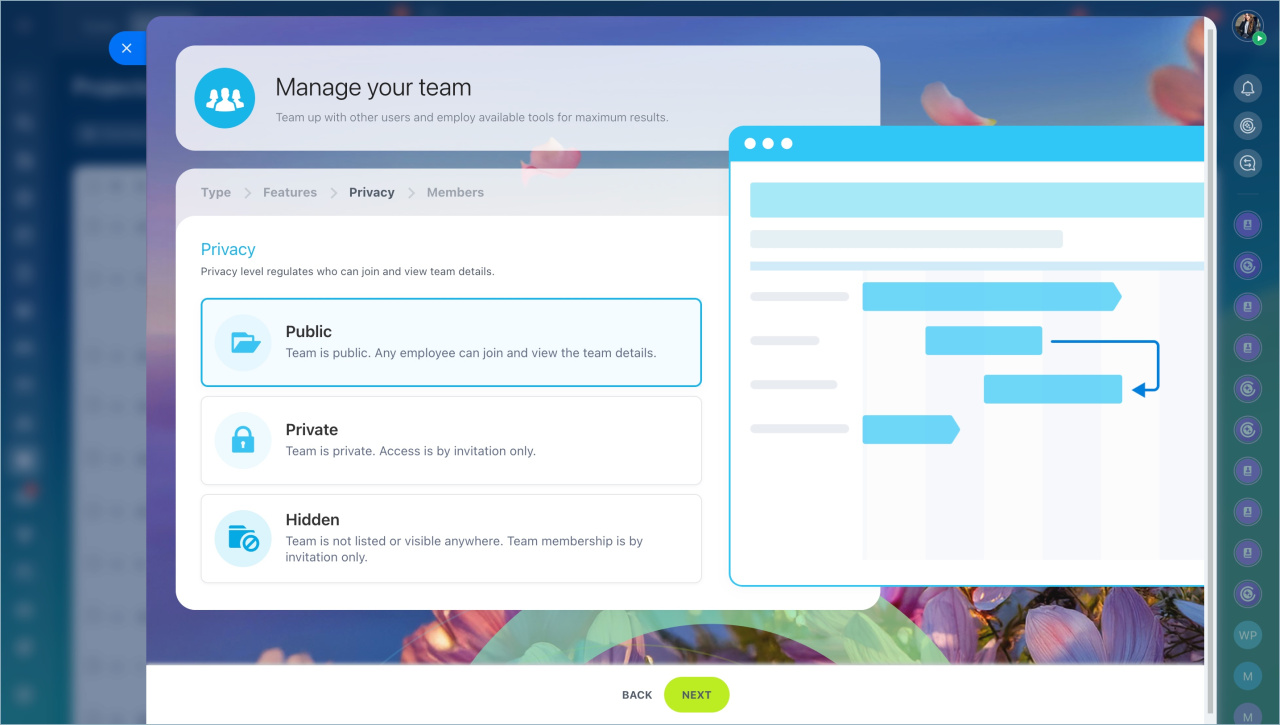
There are three privacy levels:
- Public — visible in the list. Any employee can join.
- Private — visible in the list. Employees can request access.
- Hidden — not visible in the list. Users can join by invitation only.
These settings control who can see and join a workgroup or project.
A Bitrix24 administrator can view and manage all workgroups and projects by enabling Admin mode.
Archive a workgroup or project
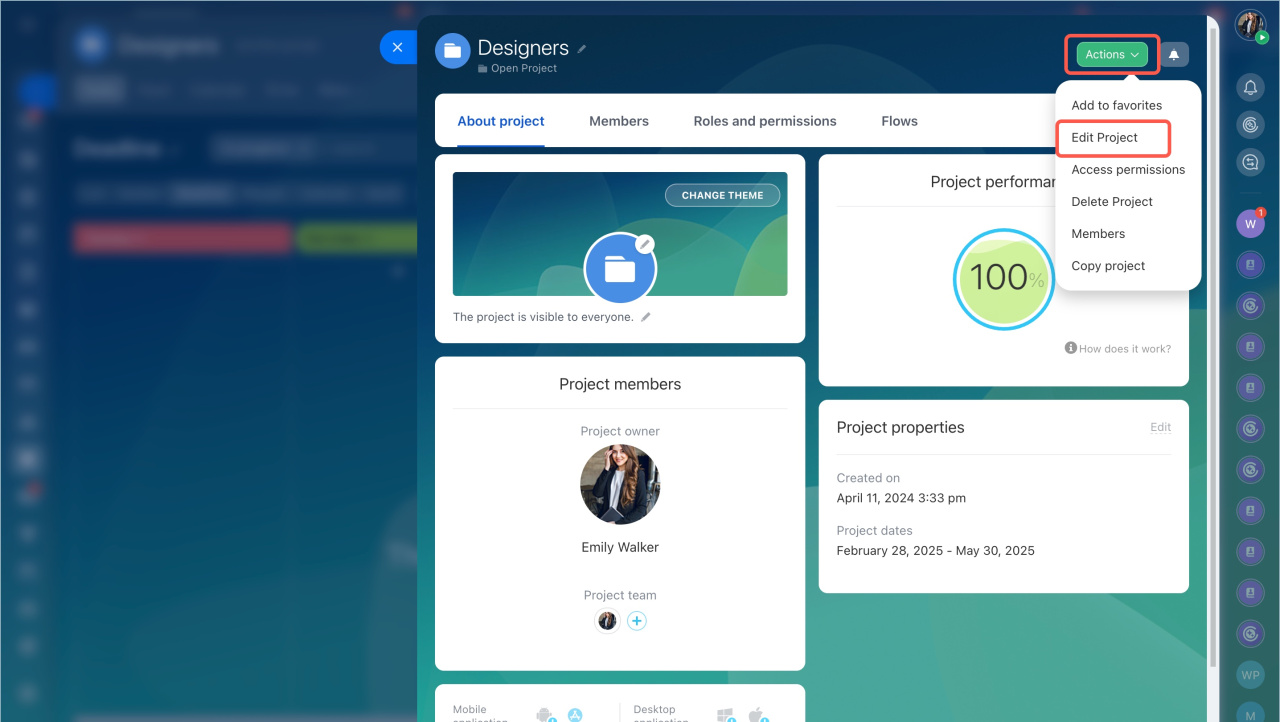
- Open the project.
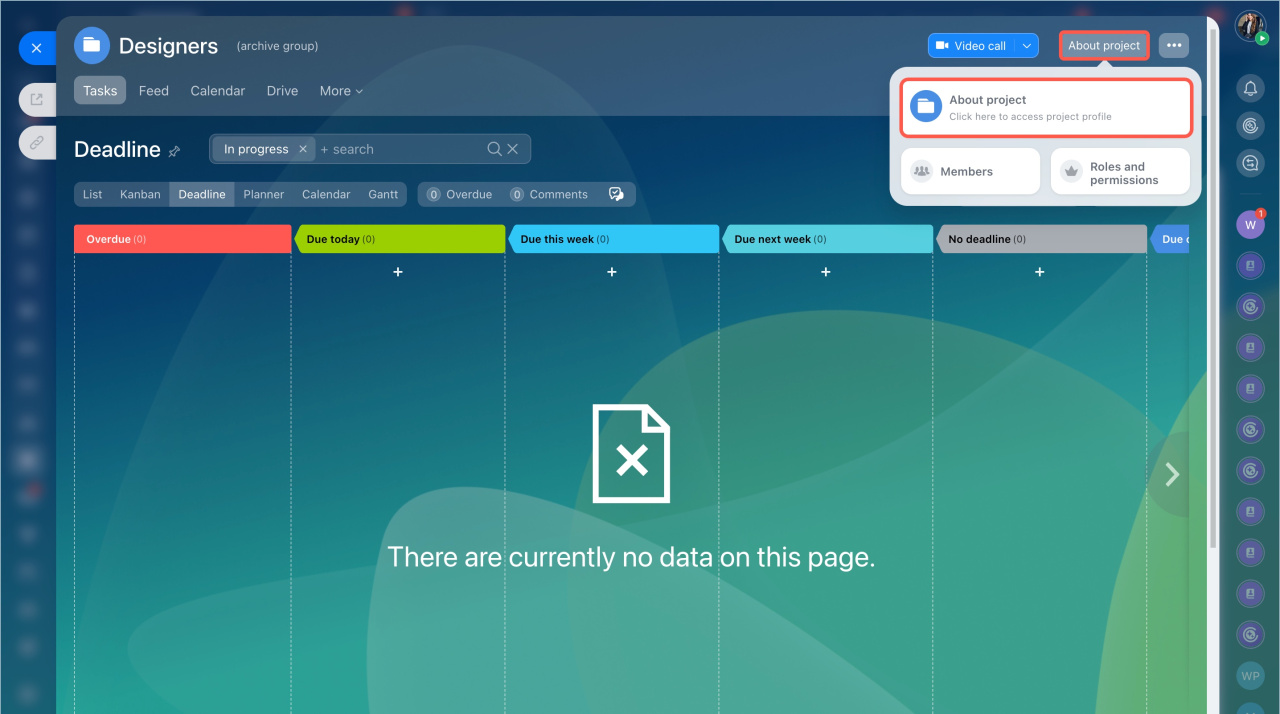
- Click About Project.
- Select Edit Project in the action menu.
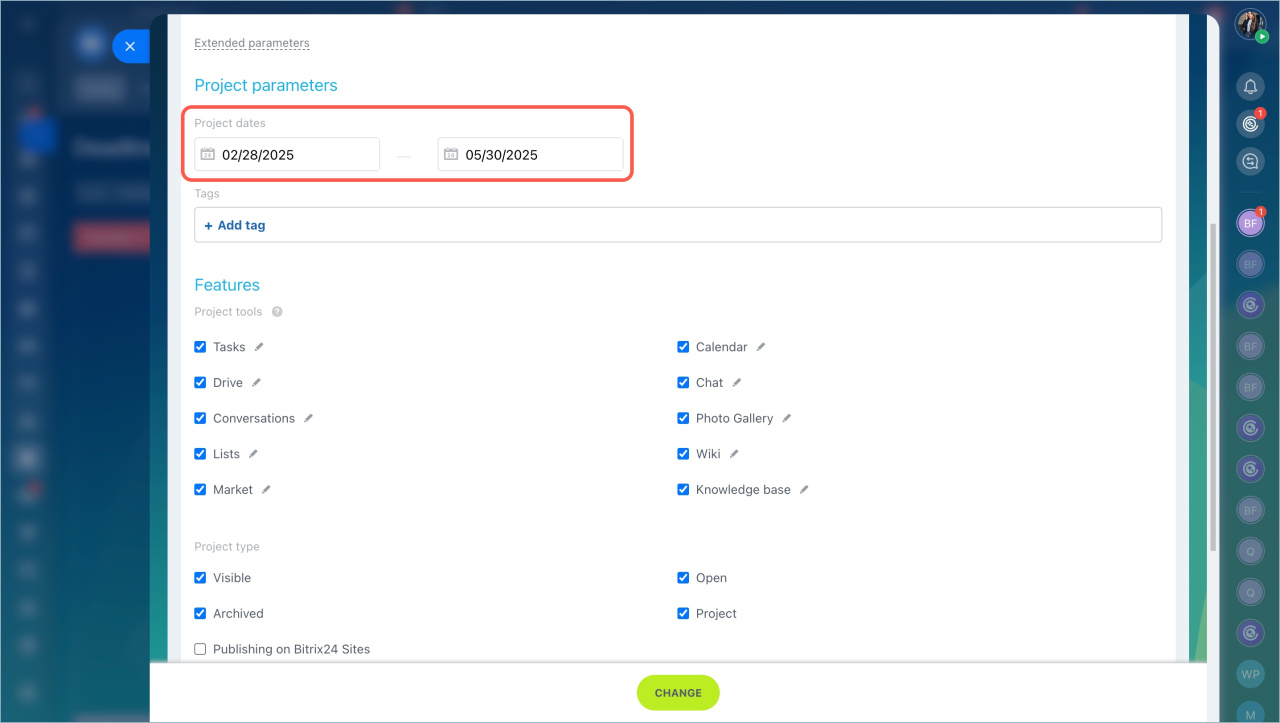
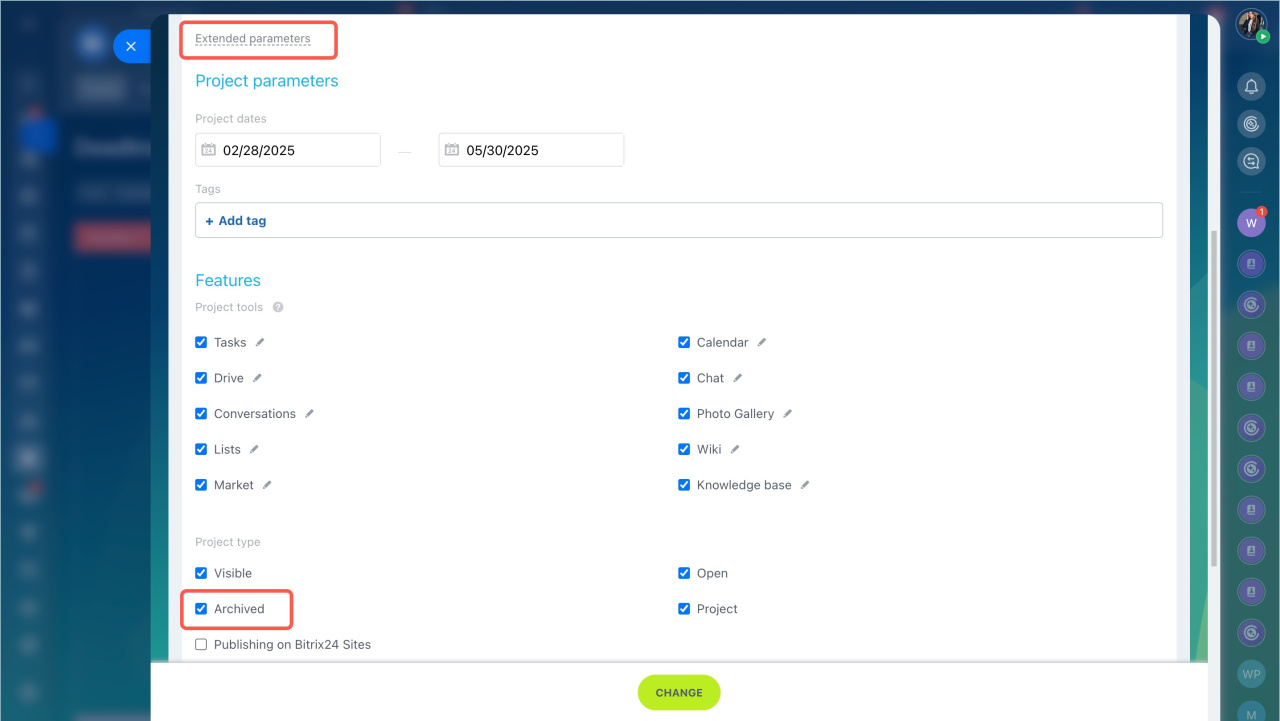
- Click Advanced Settings.
- In the Project Type section, enable Archived.
- Click Change.
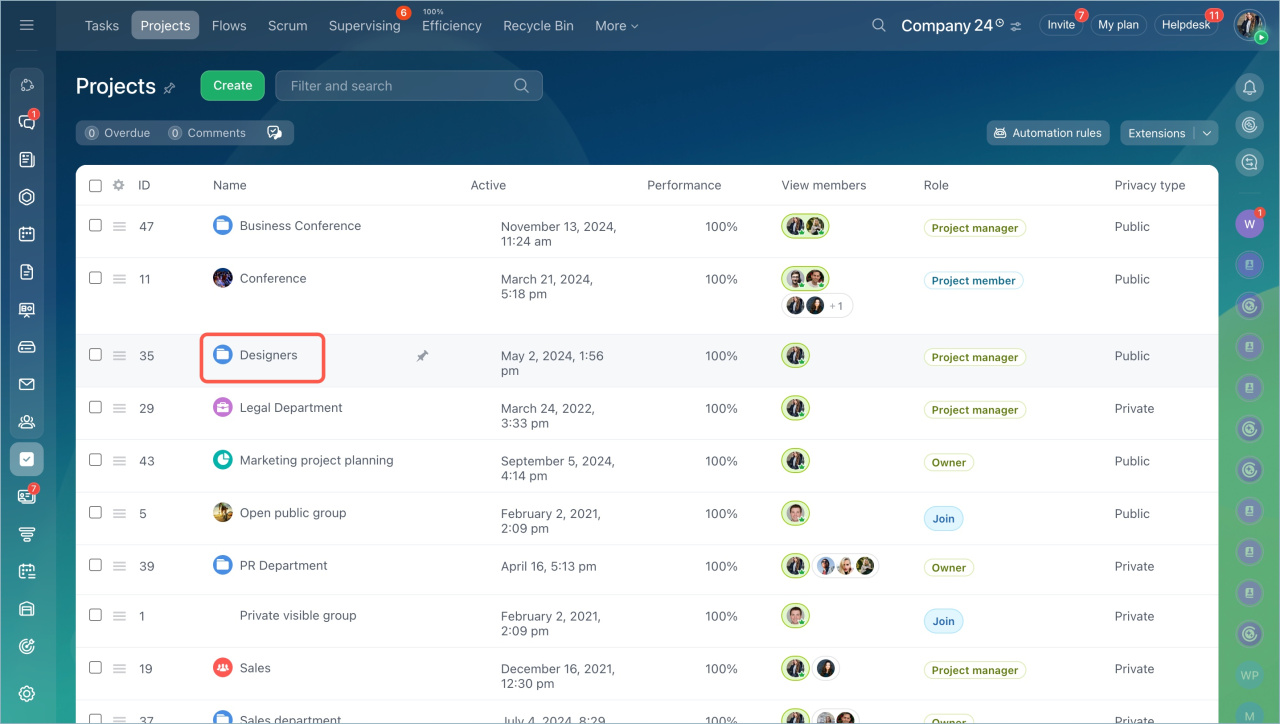
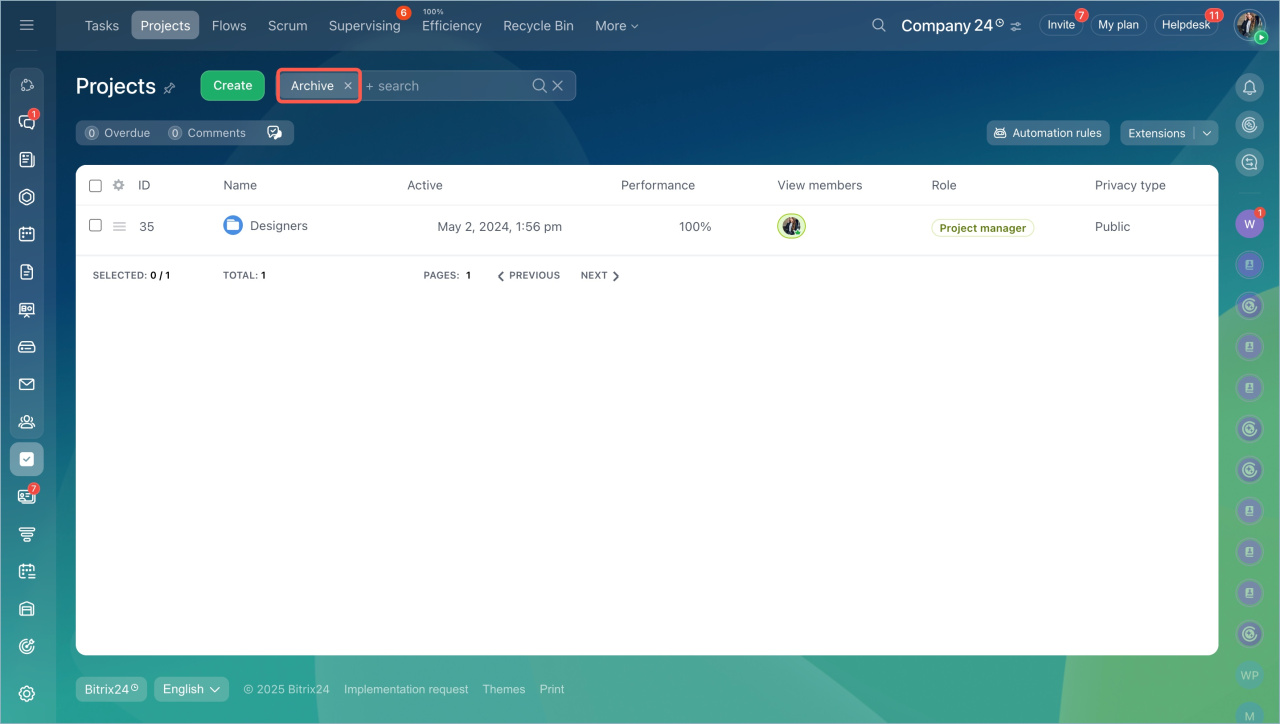
Archived workgroups and projects do not appear in the main list. Use filters to find them.

Delete a workgroup or project
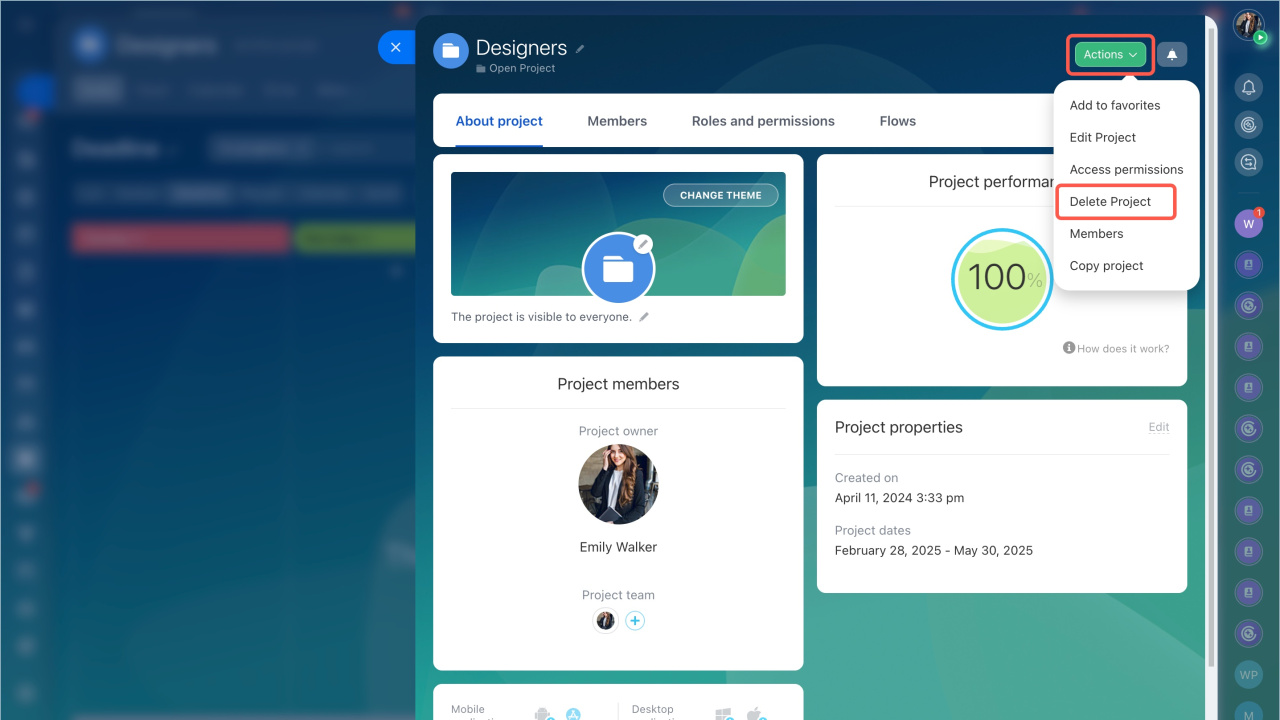
- Open the project.
- Click About Project.
- Select Delete Project in the action menu.
- Confirm the action again.
Assign admin permissions.
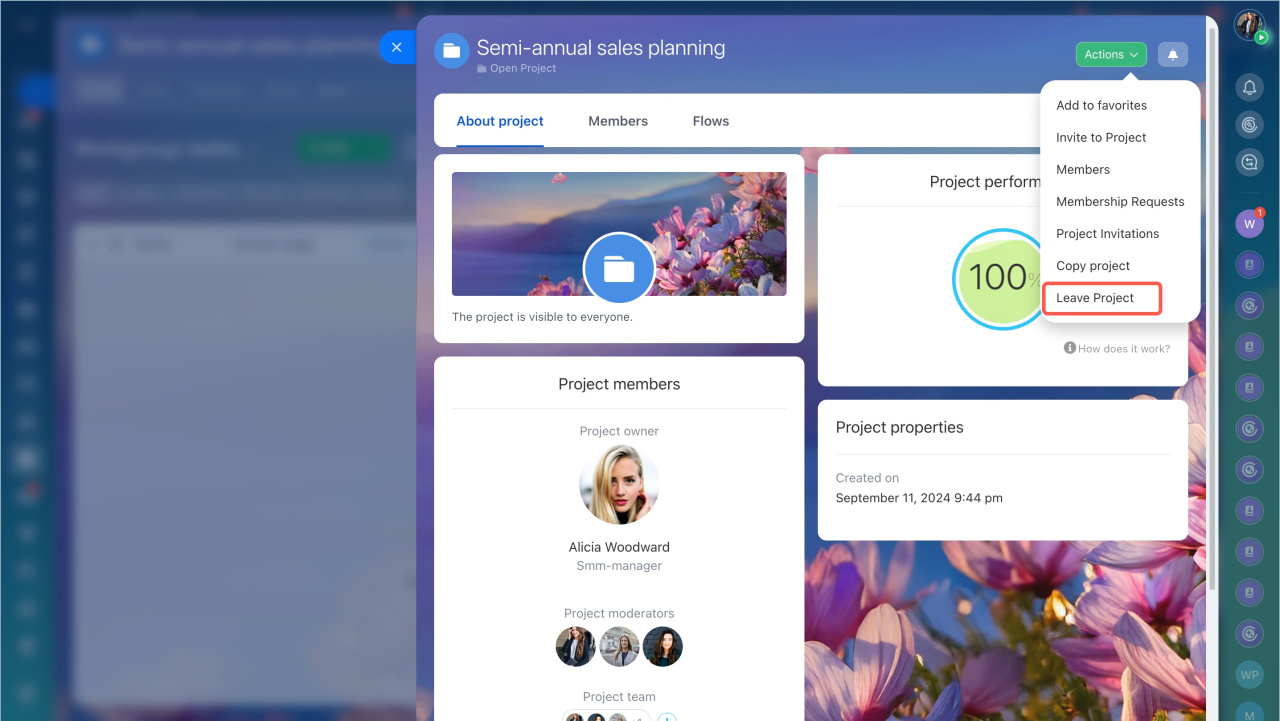
Leave a workgroup or project
- Open the project.
- Click About Project.
- Select Leave Project in the action menu.
Remove a workgroup member
Only the owner can remove users from a workgroup. In a project, the supervisor can remove members.
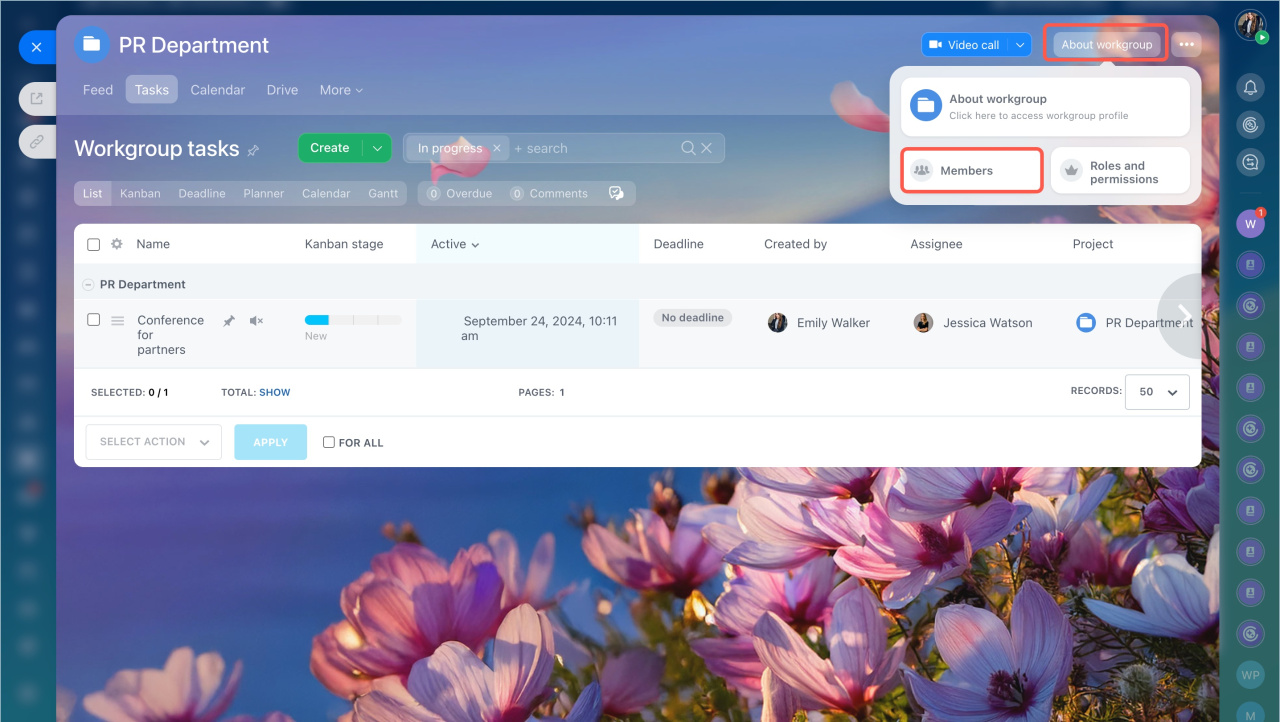
- Open the project.
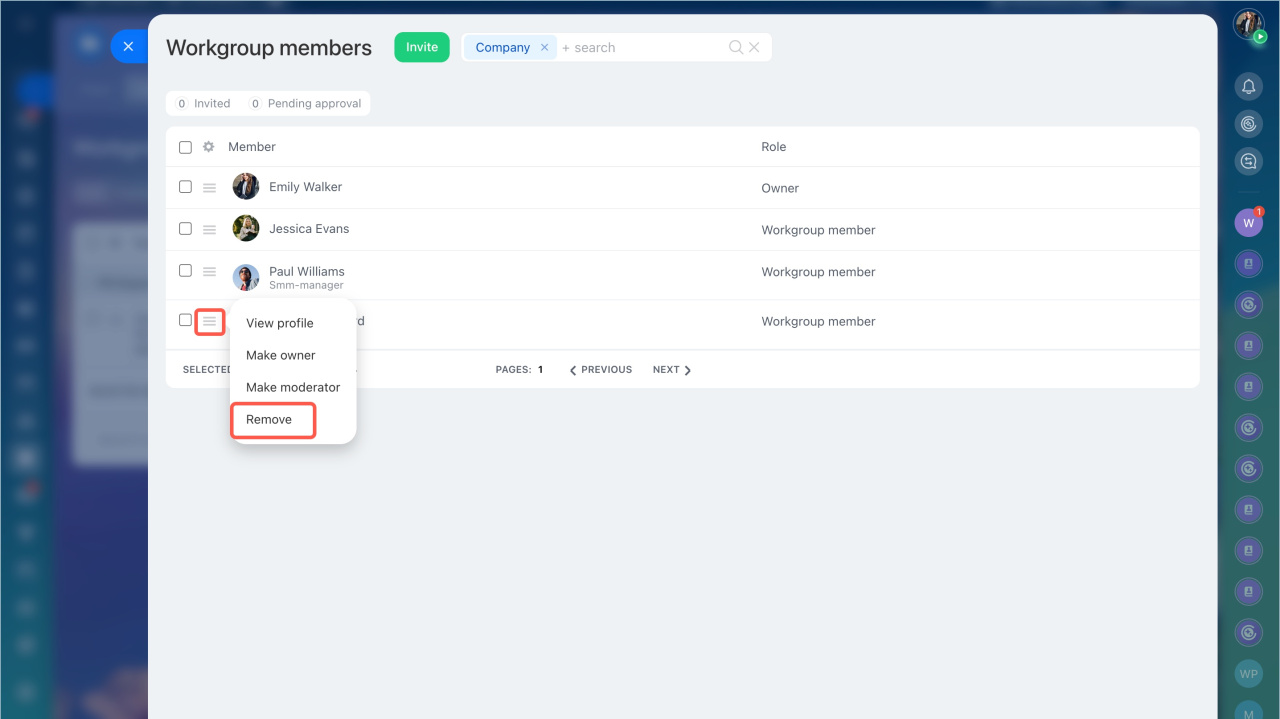
- Click About Project > Members.
- Select a member and click Menu (≡) > Remove.
Invite external users to a workgroup
You can invite external users to existing extranet workgroups. You cannot create new extranet workgroups.
To collaborate with external teams or clients, use Bitrix24 Collabs.