
A service is work your company provides to customers, such as consultations, repairs, or installations. Unlike products, services don't have inventory or variants, such as different sizes or colors.
Add a service to the catalog once, and employees can use it in leads, deals, invoices, and estimates. When they select a service, Bitrix24 automatically fills in its name, price, and other details.
Account administrators and employees with the Create product permission can create a service.
Inventory access permissions
Inventory access permissions
In this article:
Create a service
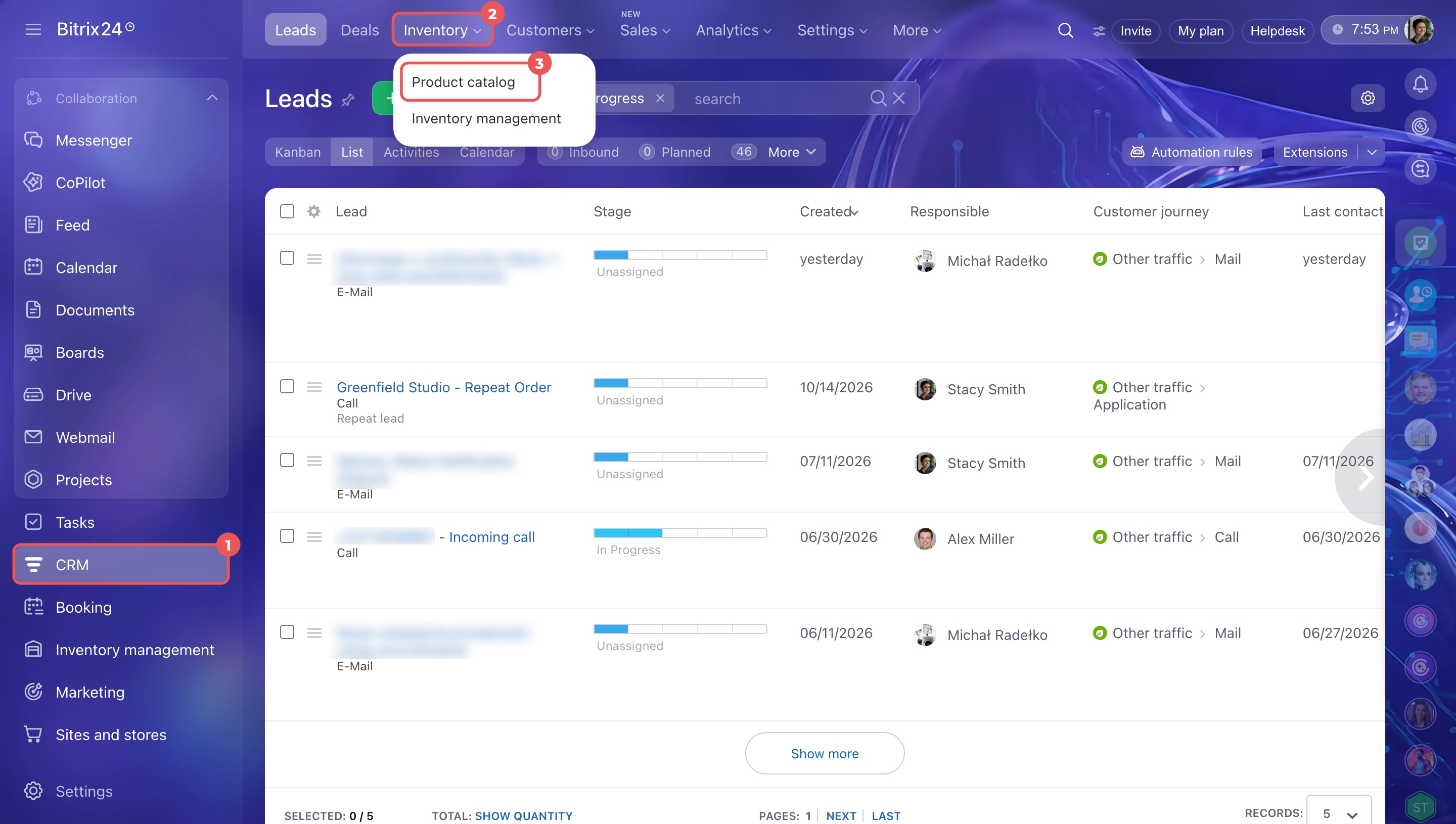
- Go to CRM > Inventory > Product catalog.
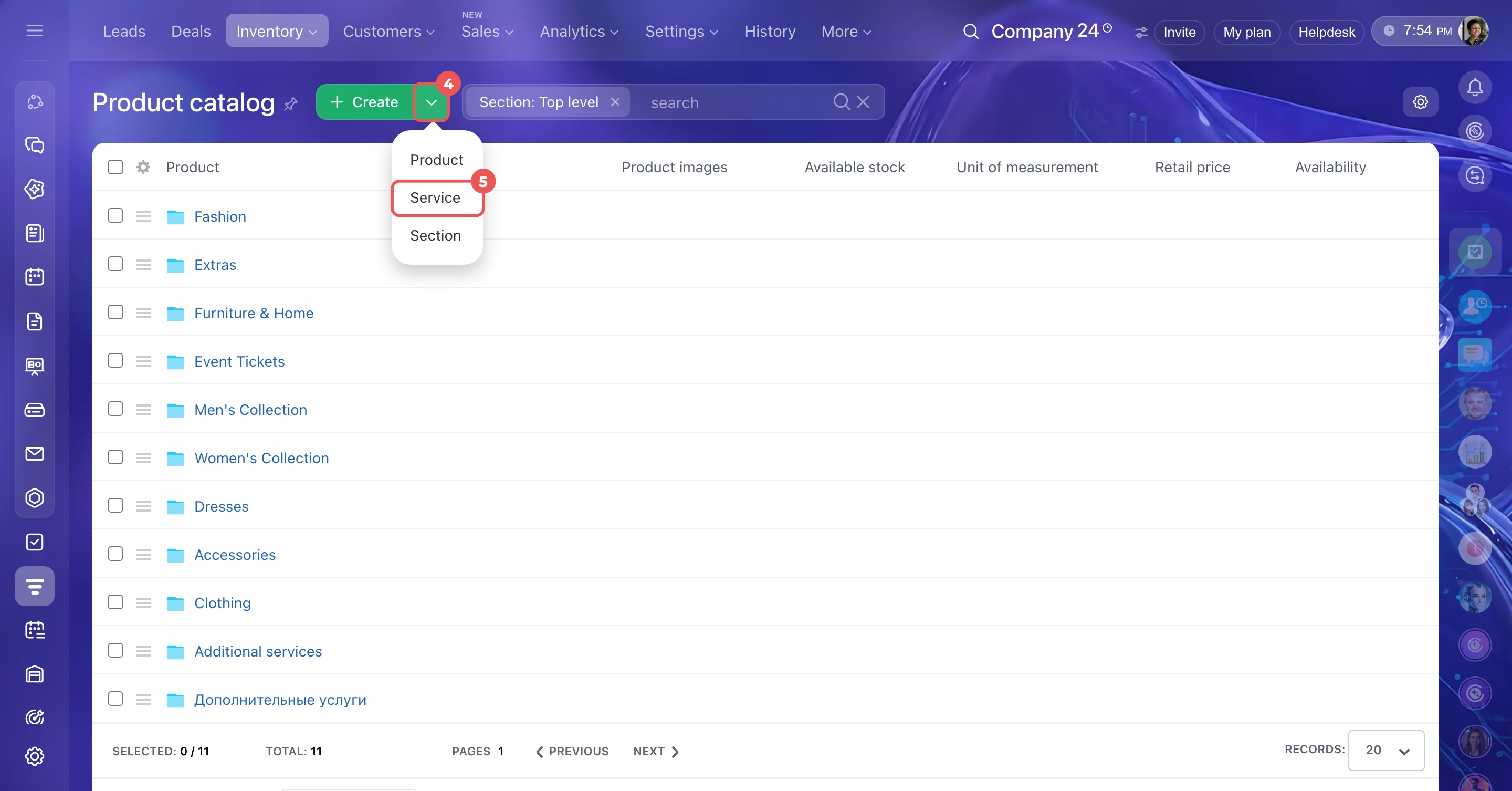
- Click the arrow next to Create and select Service.
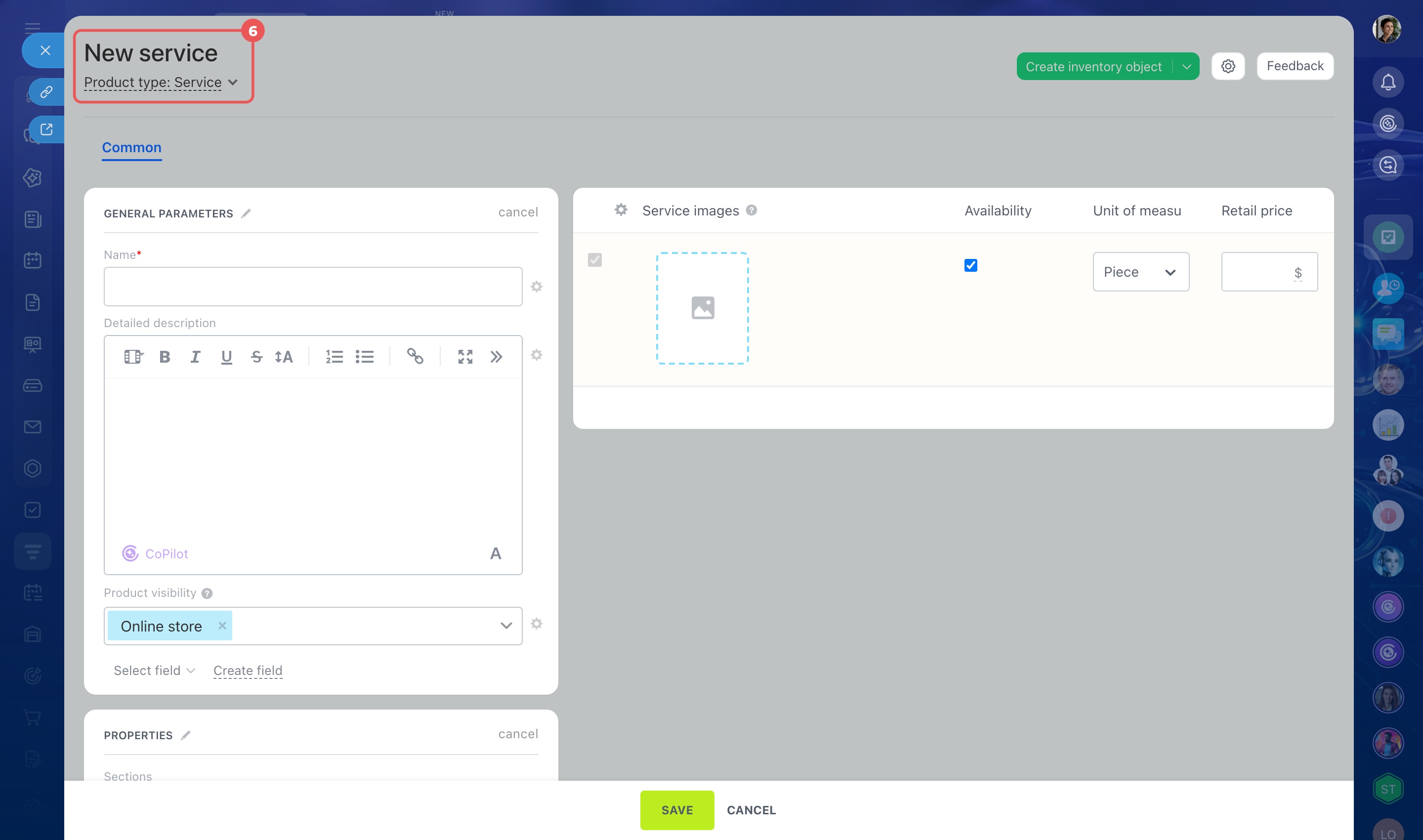
- The New service form opens.
Fill in the main service fields
Fill in the fields you need in the New service form.
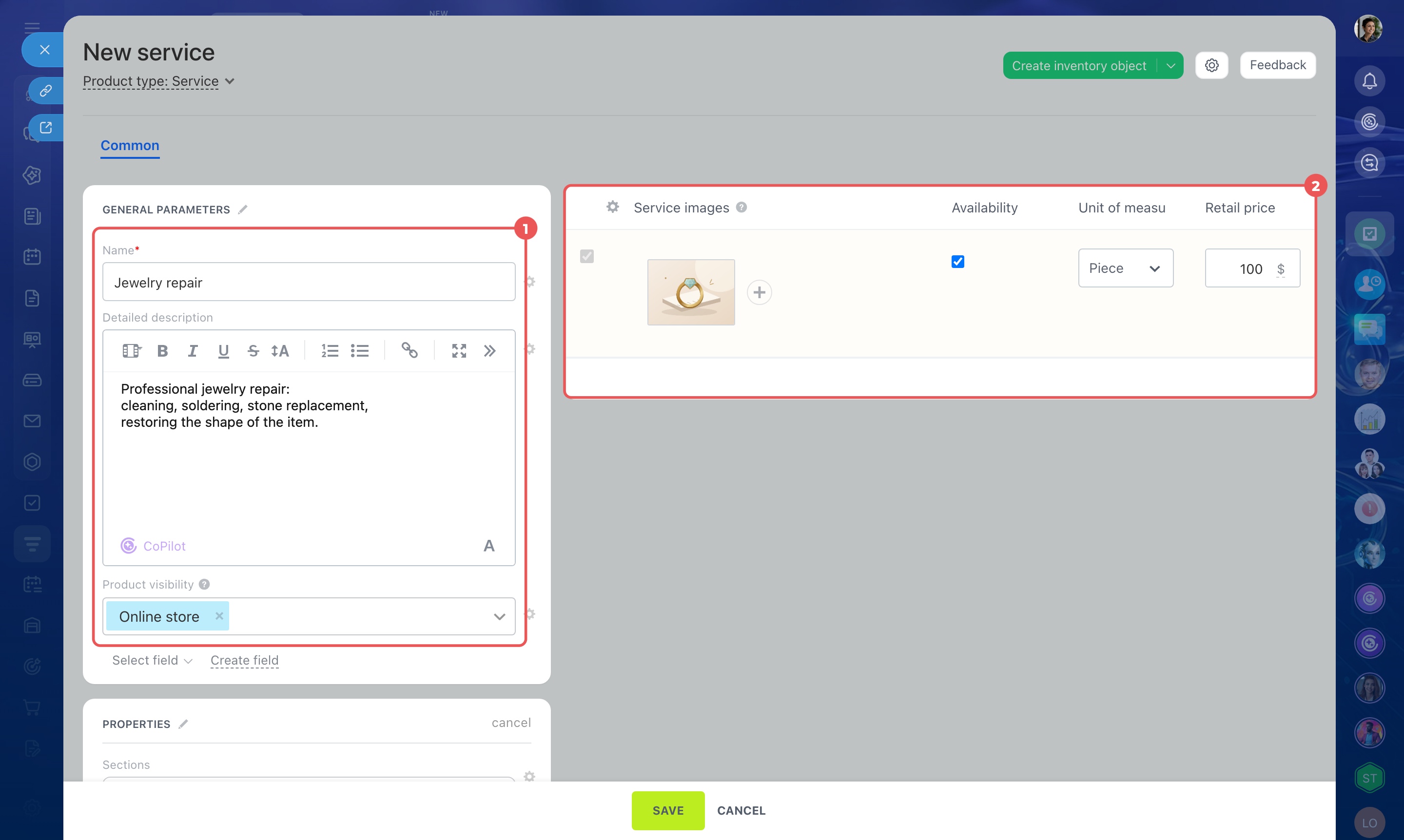
- Name. — enter a name employees can use to find and select the service in the catalog, for example, Jewelry repair. This field is required.
- Detailed description — describe what the service includes, how long it takes, and any important conditions. For example, jewelry repair may include cleaning, soldering, stone replacement, and reshaping.
- Product visibility — by default, the service is visible in the online store. To hide it from customers, click the field and clear the Online store checkbox.
Hide a product in the Bitrix24 online store - Service images — add an image if the service is visible in the online store, such as a photo of the repair process or result.
- Availability — determines whether you can sell the service. By default, it is available in CRM and the online store. If you turn off this option, the service remains visible on the site, but customers can't add it to their cart. Use this option when you temporarily stop offering a service but want to keep it in the catalog. Employees can still add the service to deals, but they can't close those deals.
Availability field in service form - Unit of measurement — choose how to measure the service. For example, select Piece for a single repair or Hour for a consultation billed by the hour.
Add units of measurement in CRM - Retail price — enter the price of the service, for example, $20.
Add the service to catalog sections and set properties
Use catalog sections to organize services and properties to store additional details. Both are optional.
Account administrators and employees with permission to change CRM settings can add and edit product properties.
Role-based access permissions in CRM
Role-based access permissions in CRM
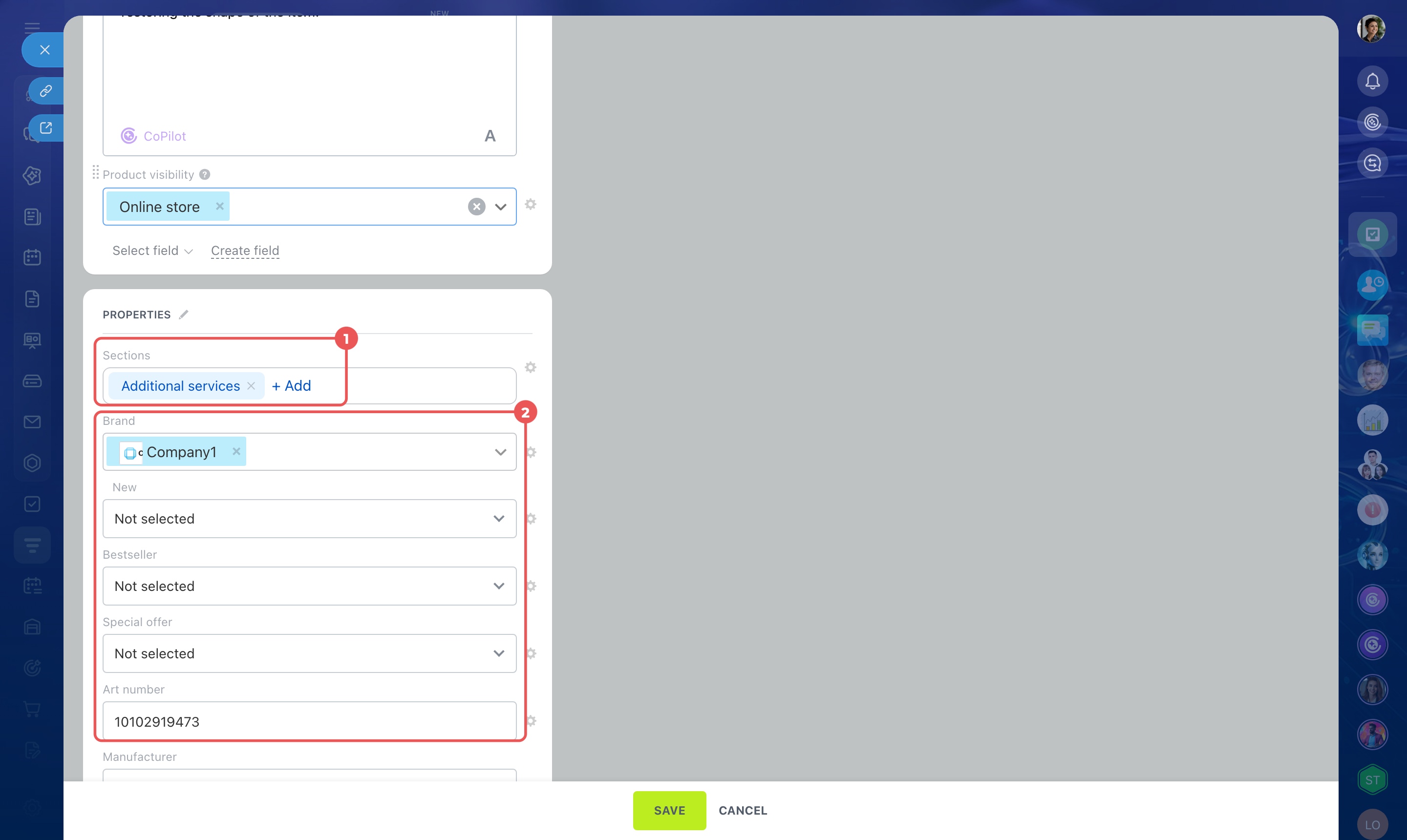
- In the Properties block, click Sections. Select one or more catalog sections. For example, add Jewelry repair to Additional services so employees can find it easily.
- Fill in standard properties, such as the brand or art number.
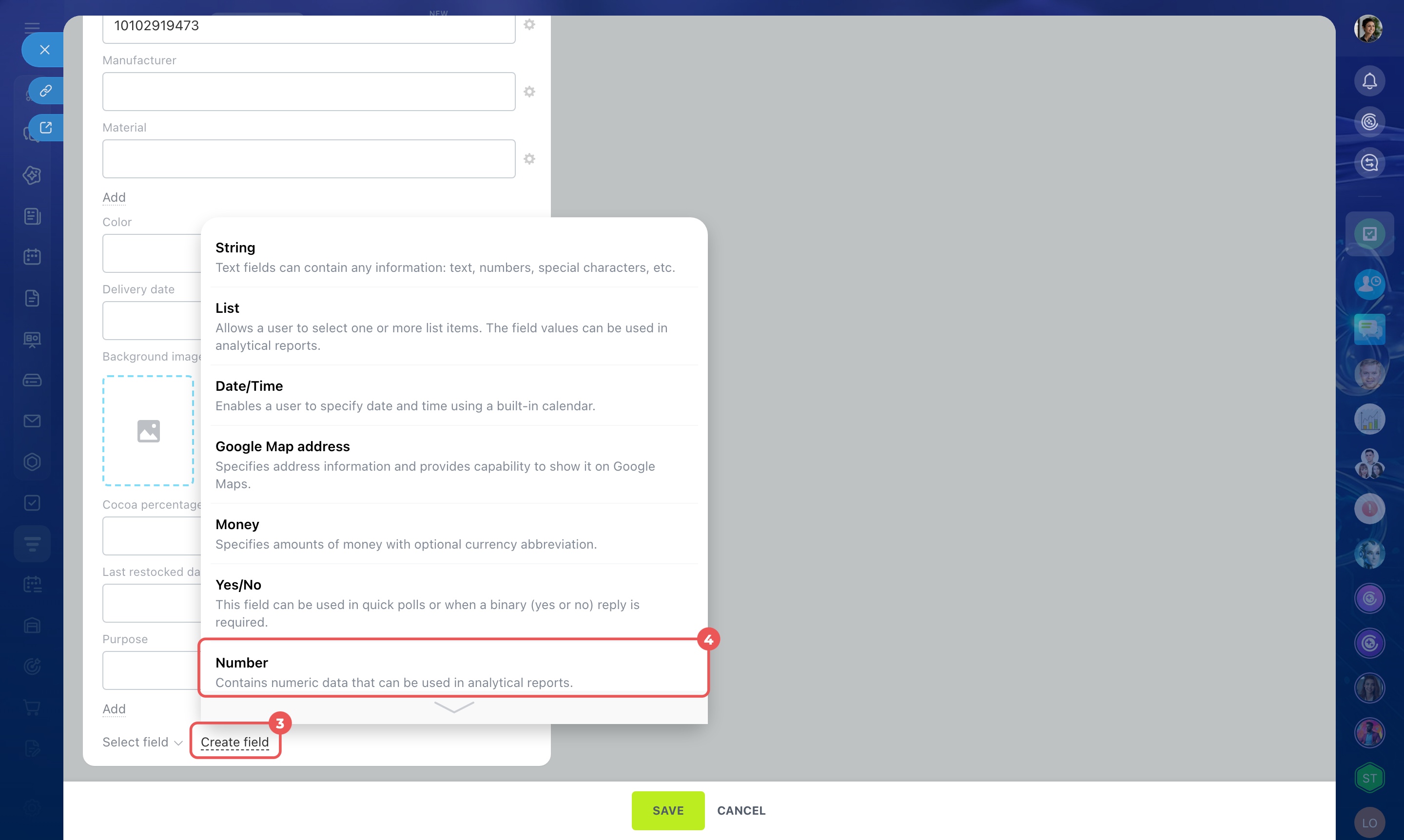
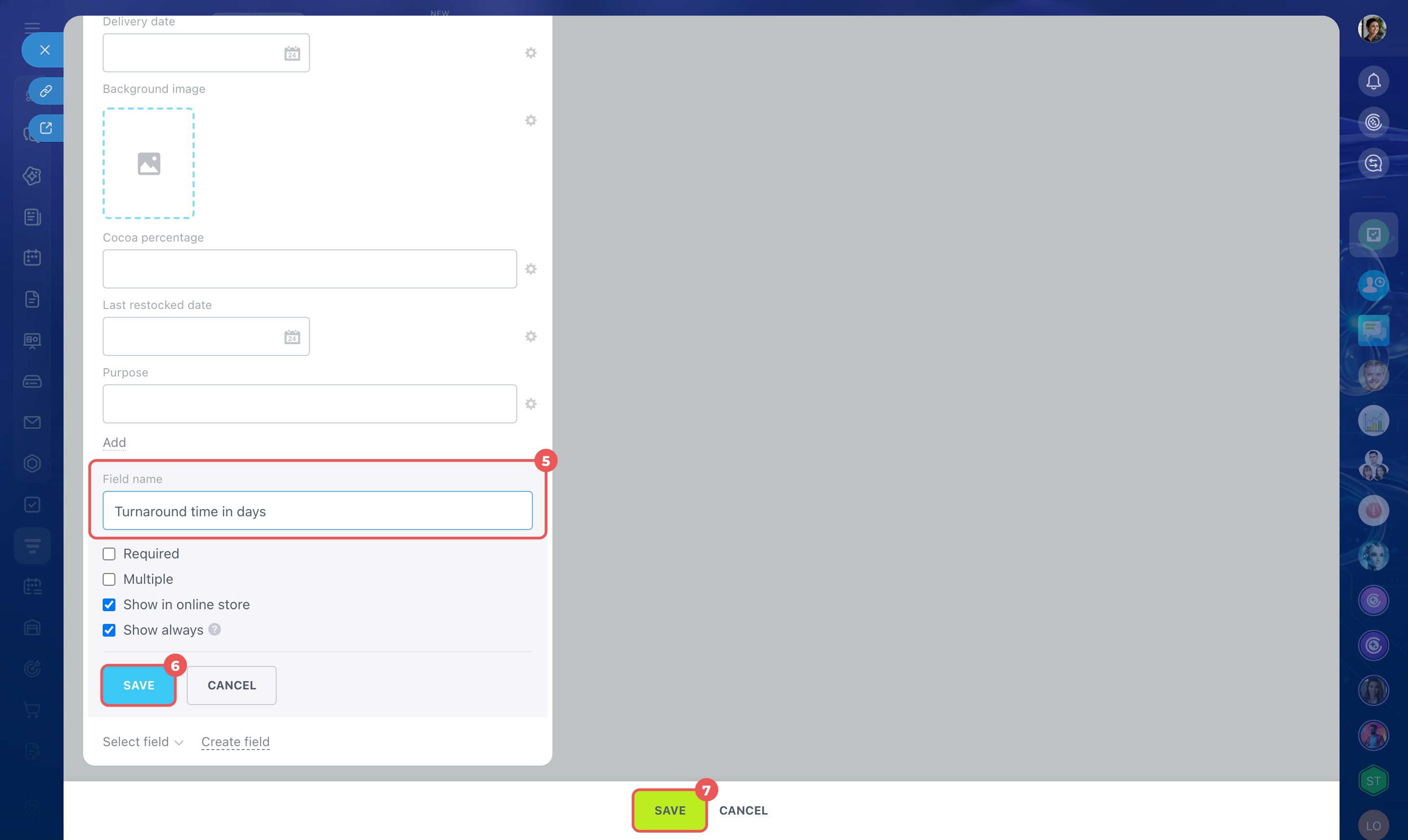
- If no suitable property is available, click Create field in the Properties block and choose a field type. For example, select Number to create a Turnaround time in days field. Enter the field name and click Save.
Create and configure product properties in CRM
Product and variant properties
- After filling in the fields you need, click Save. The service appears in the catalog, and employees can select it in leads, deals, invoices, and estimates.
Work with services in the product catalog
In brief
- Services don't have inventory or variants, unlike products.
- To create a service, go to CRM > Inventory > Product catalog > Create > Service.
- Account administrators and employees with the Create product permission can create a service.
- In the service form, enter a name, add a description and images, and set any additional properties you need.
- You can organize services into one or more catalog sections.
- Once saved, the service appears in the catalog, and employees can select it in CRM.