
Products are physical items tracked in inventory and sold. The product form stores key details: name, description, price, stock level, and properties. Managers add products to deals, invoices, and the online store. This helps close sales faster and keeps pricing and inventory accurate.
Inventory access permissions
In this article:
Create and fill out a product form
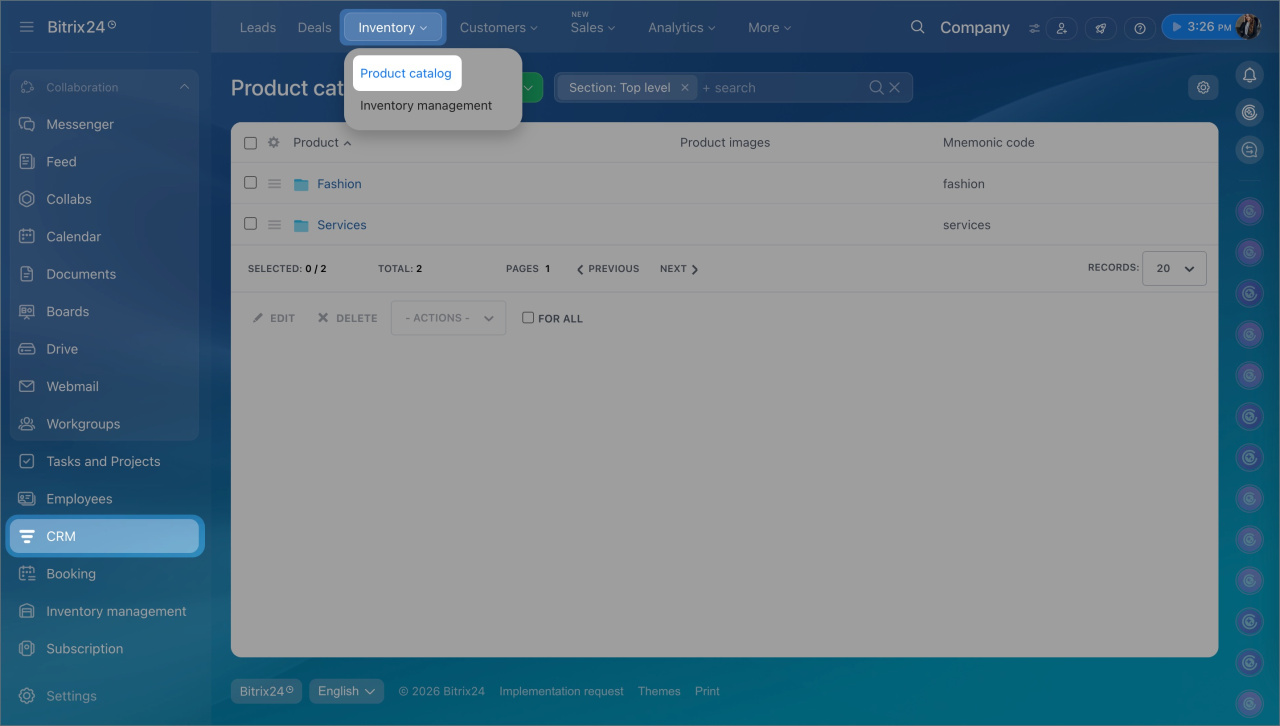
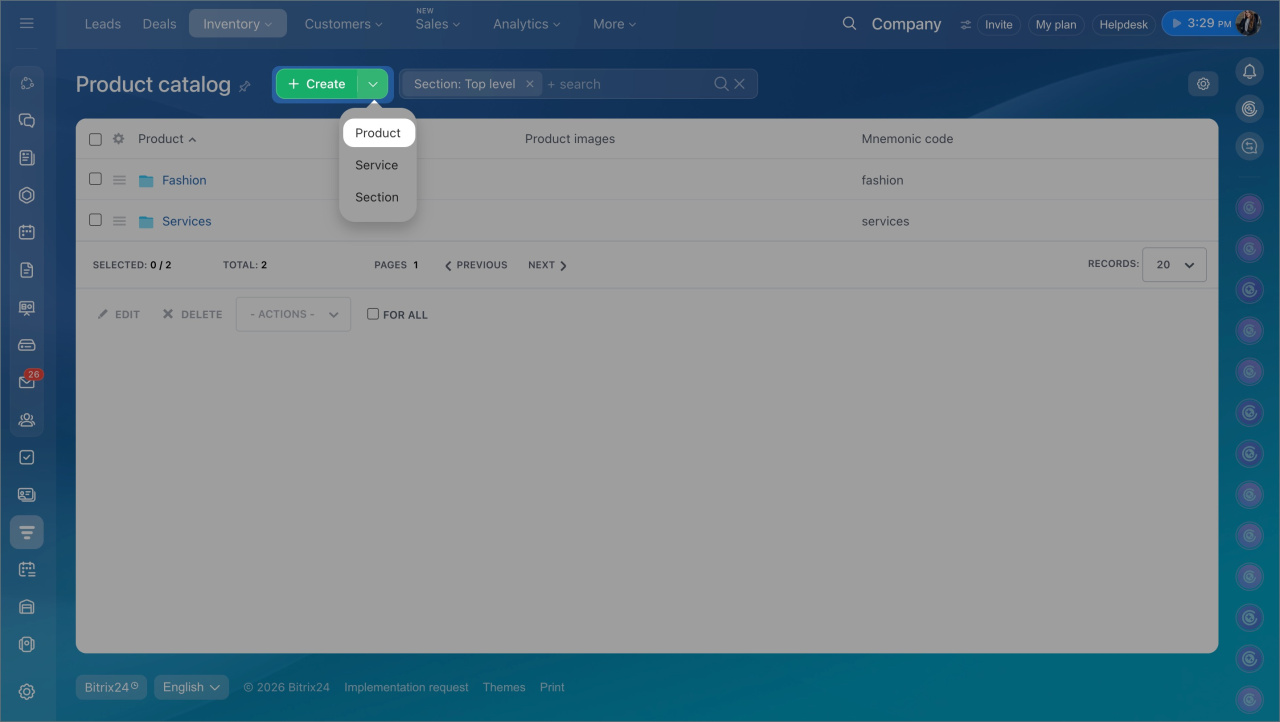
Go to CRM > Inventory > Product catalog. Click Create. The product form opens.
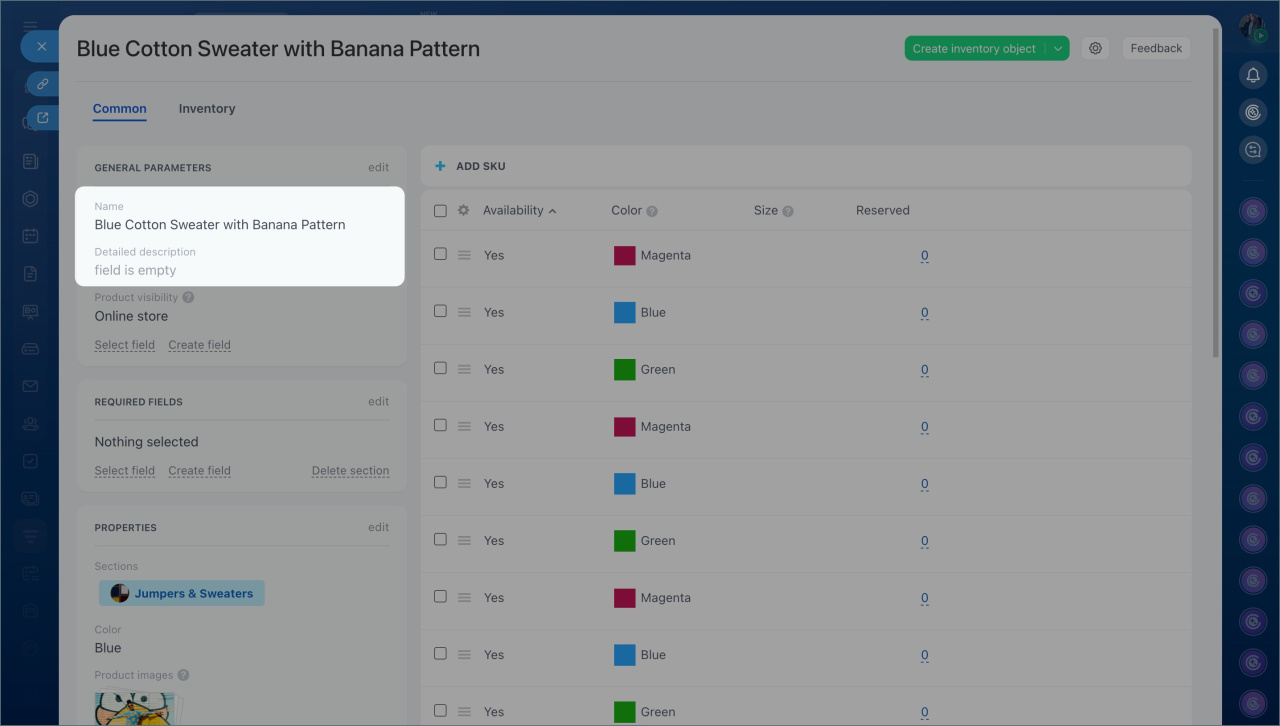
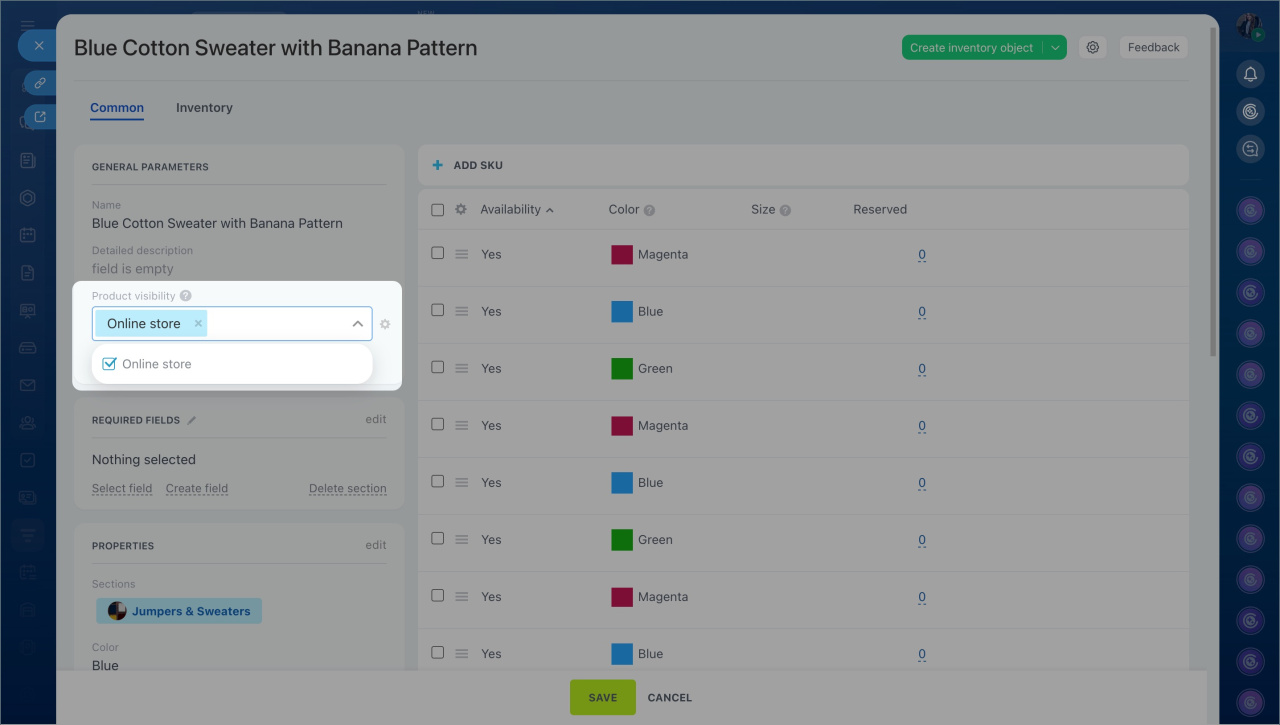
Enter general information.
- In the General section, enter the product name, for example T-shirt. Add a description with key details such as material or fit.
- Configure online store visibility. It is enabled by default. To disable it, click Product visibility and clear the checkbox next to Online store.
Hide a product in the Bitrix24 online store
Add variants.
- Upload an image. Select the unit of measure, for example piece for T-shirts. Enter the price and available stock.
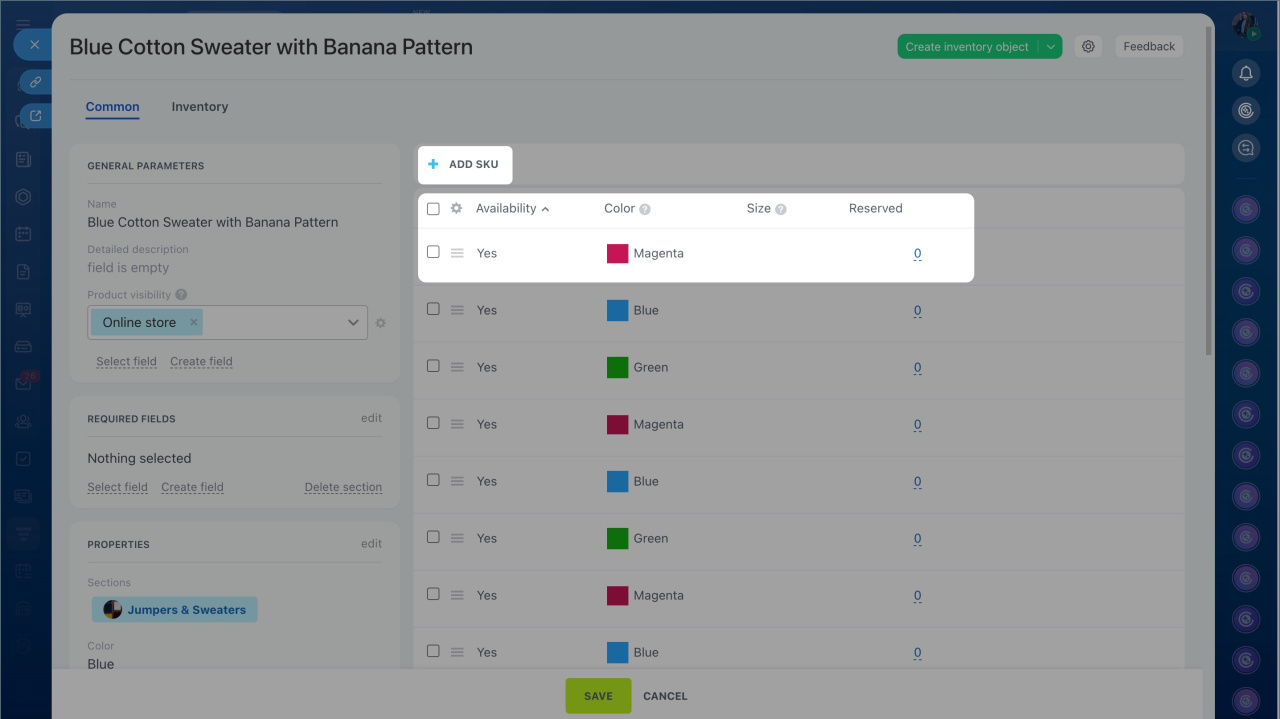
- Add variants if the product has options. For example, a T-shirt may come in multiple sizes and colors. This tracks price and stock for each variation. Click Add SKU and fill out the fields.
Add properties.
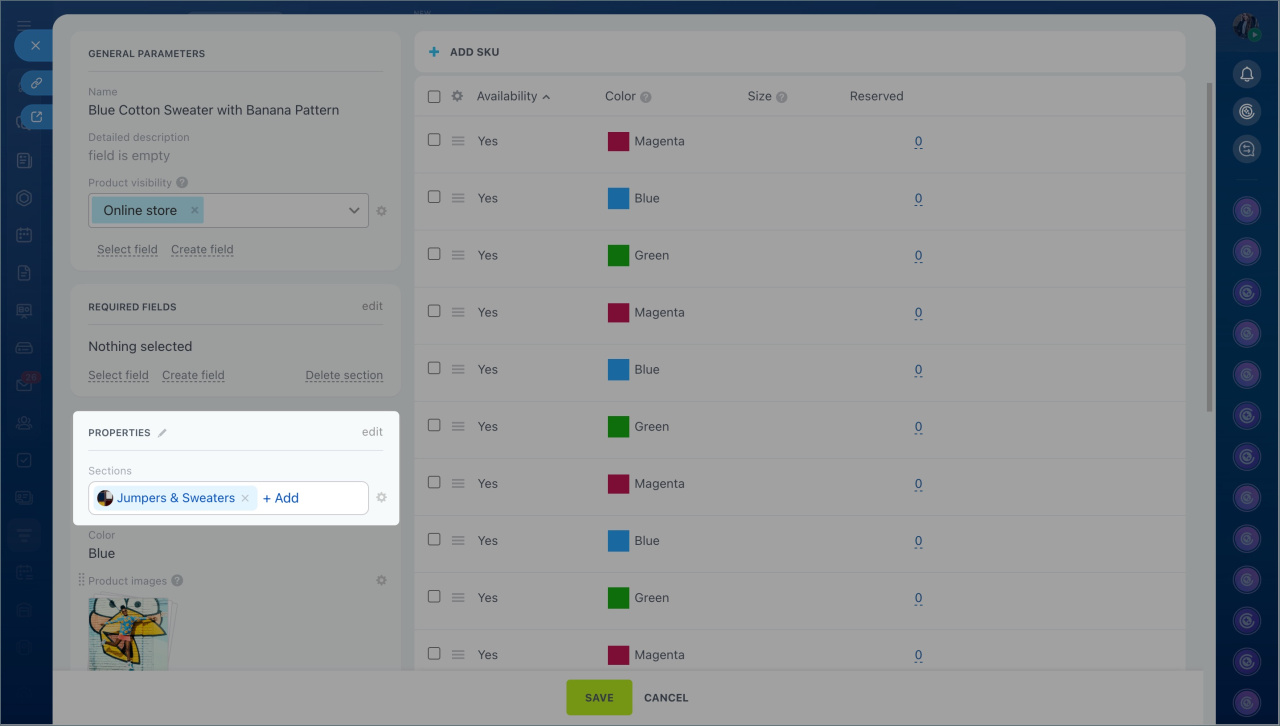
- Link the product to one or more catalog sections. Click Add in the Sections field and choose the appropriate section. For example, a T-shirt can belong to Clothing, and sneakers to Shoes. Click Add again to link another section.
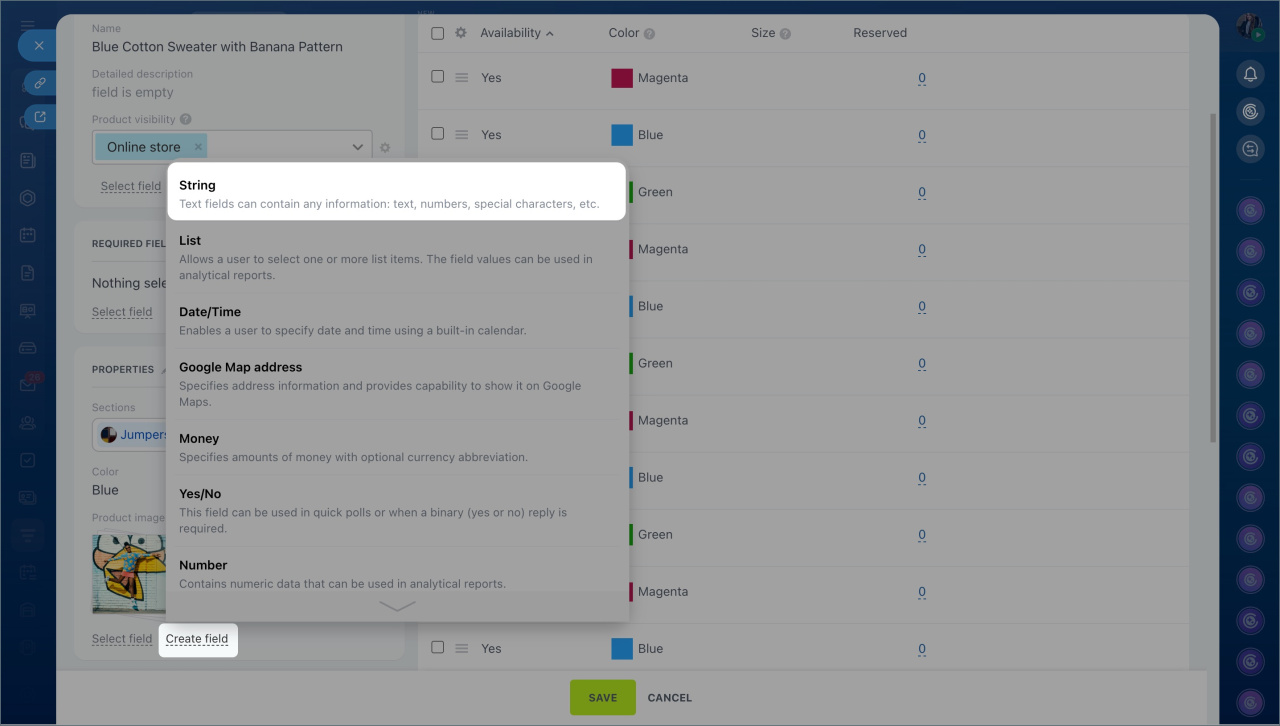
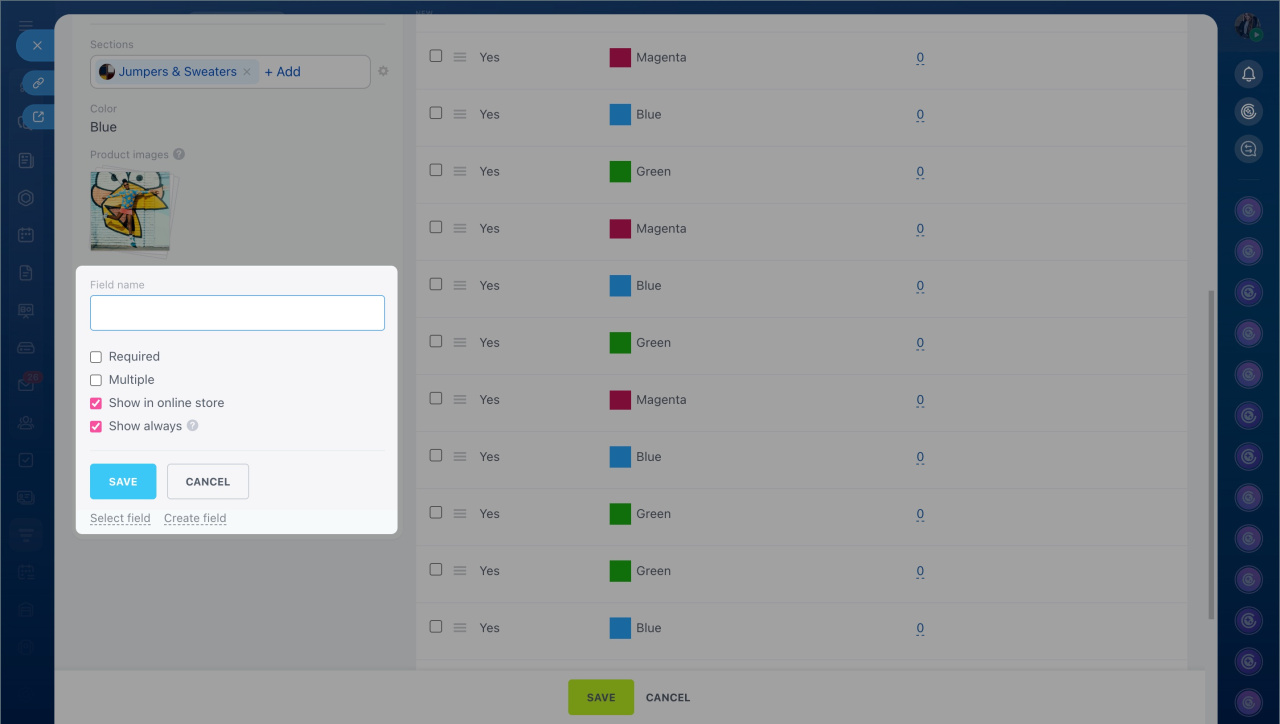
Create and configure product catalog - Add custom properties if standard fields are not enough, for example color, material, or manufacturer. Click Create field, select the data type, enter the property name, and click Save.
Create and configure product properties in CRM - Save the form. The product will appear in the catalog.
Change the product type to simple
Bitrix24 supports two product types:
- Simple — a single item without variants, for example a book or a specific smartphone model.
- With variants — one product with different properties. For example, a T-shirt available in several colors.
By default, Bitrix24 creates products with variants. To convert a product to simple, use one of the following methods.
Delete variants. Use this method if the product already exists.
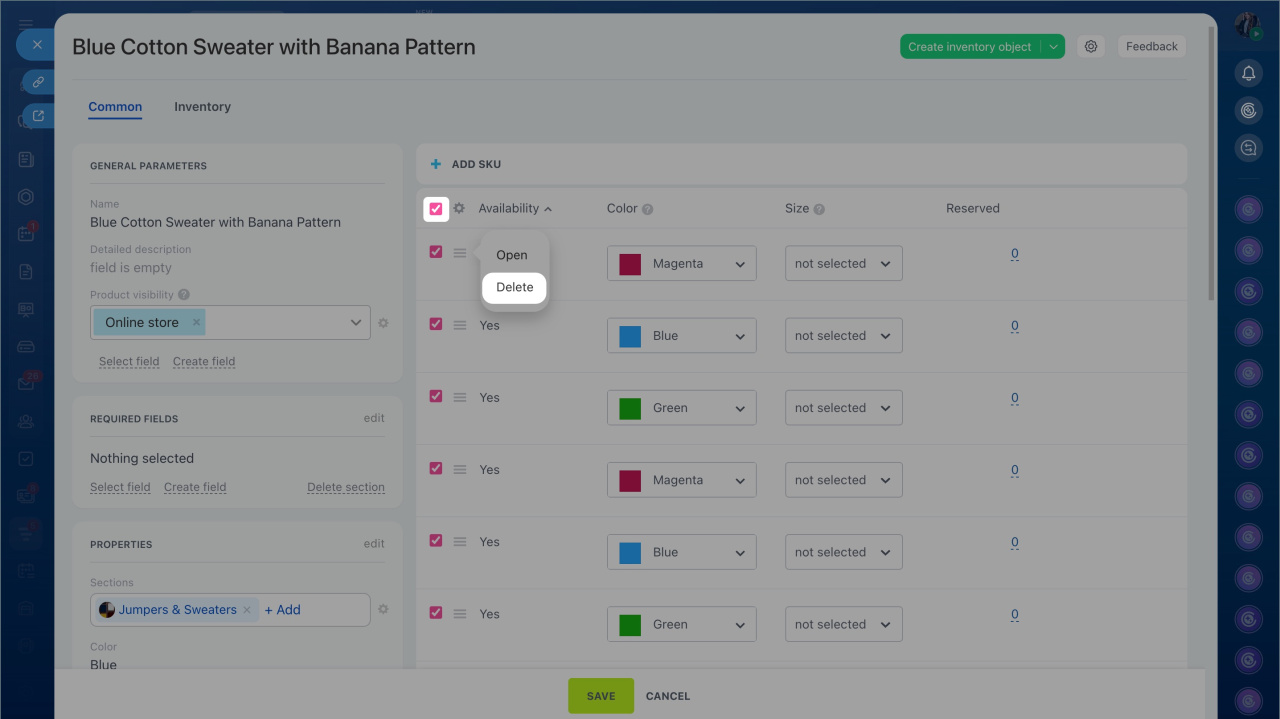
- Open the product form with variants. Select them and click Delete. Confirm the action.
- Close the form without saving changes. If you click Save, the variants will be recreated. Refresh the catalog page. The product type changes to Simple.
The Allow purchase when out of stock option in Inventory management settings turns off automatically.
Inventory management settings
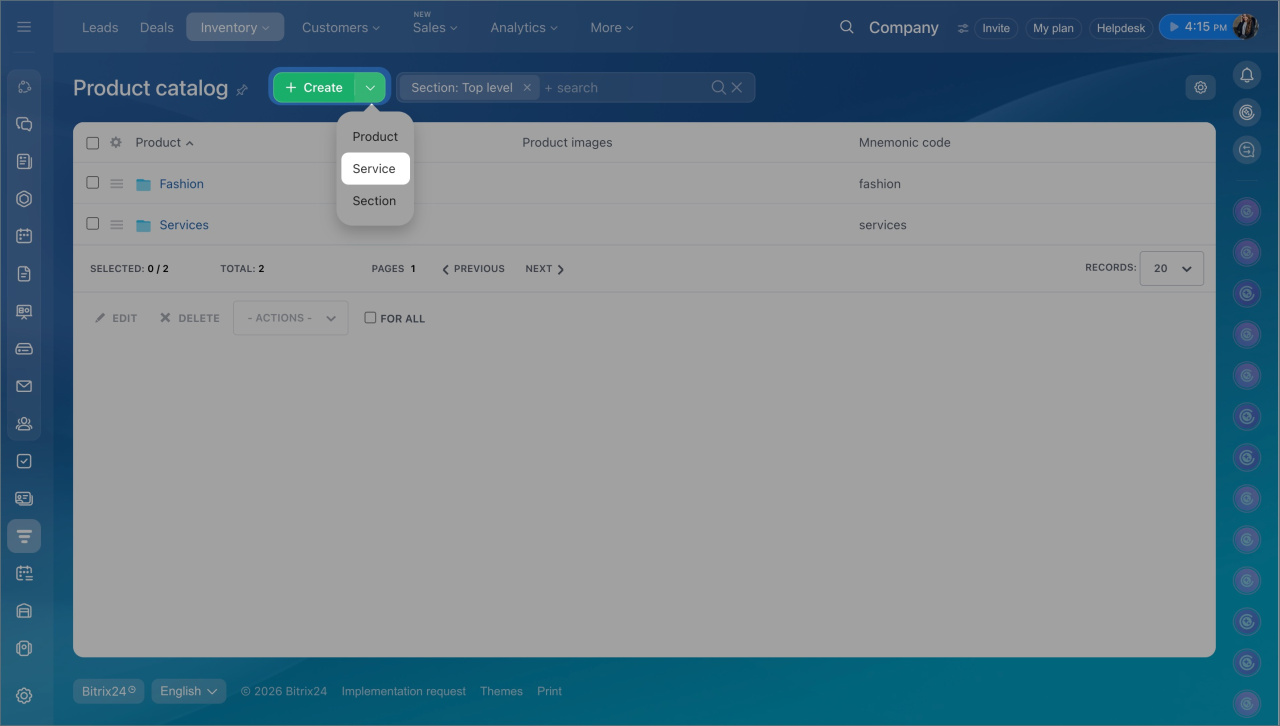
Create a service and convert it to a product. Use this method to create a simple product from the start.
- In the Product catalog, click the arrow next to Create and select Service. Enter the name, then save and close the form.
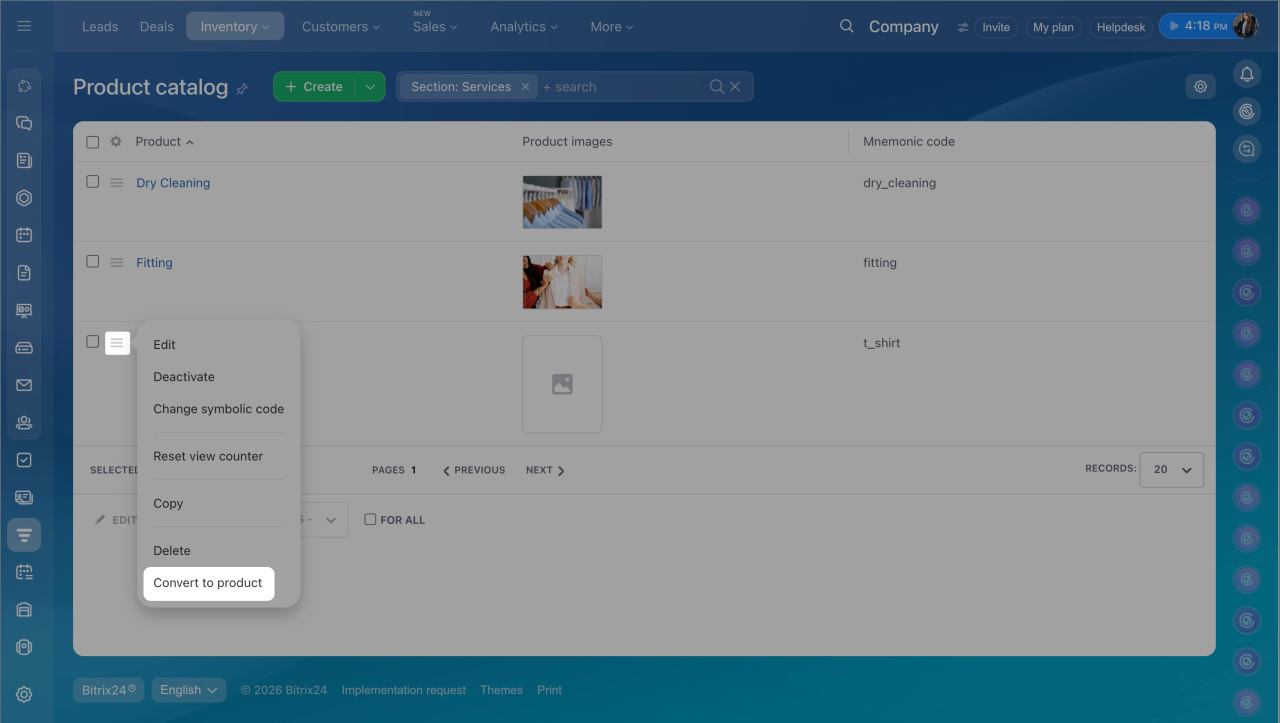
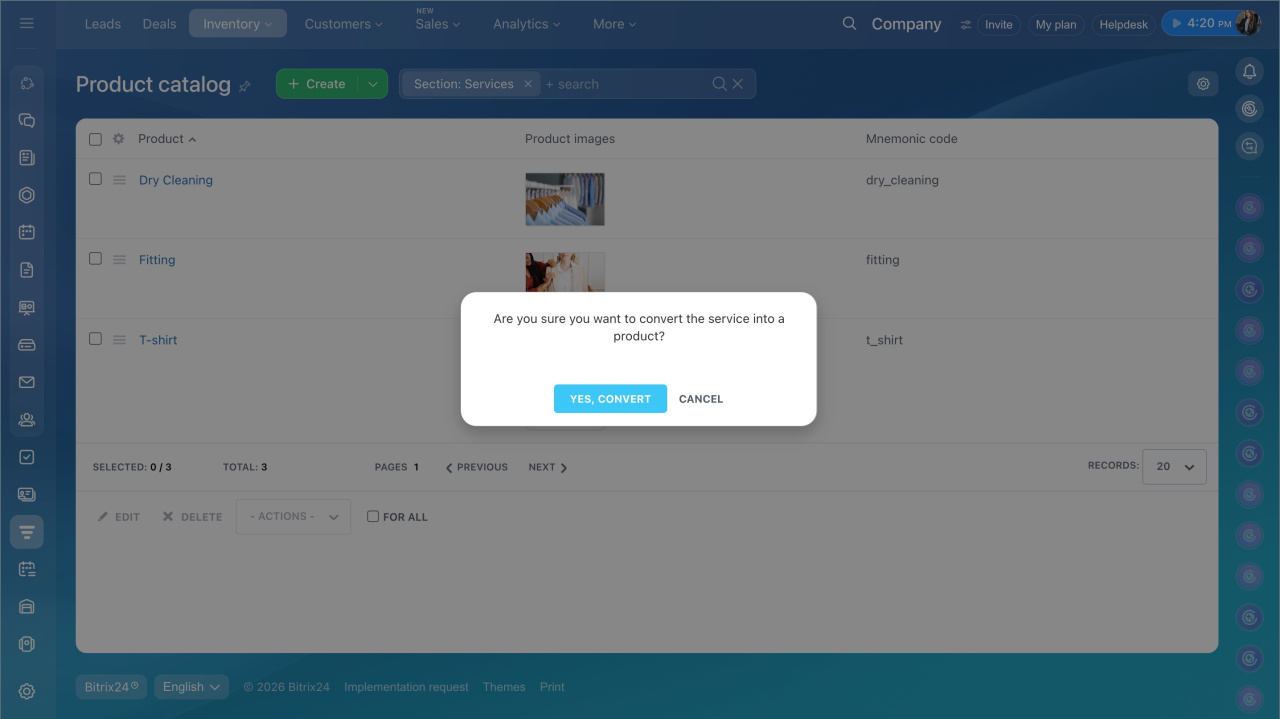
- Click Menu (≡) next to the service name and select Convert to product. Confirm the action. The service becomes a simple product.
In brief
- Products are physical items tracked in inventory and sold in Bitrix24.
- Bitrix24 administrators and employees with permission can create products.
- Go to CRM > Inventory > Product catalog and click Create.
- Enter general information: name, description, online store visibility, and group.
- Upload an image, select the unit of measure, enter price and inventory, and add variations if needed.
- Link the product to catalog sections and add properties: color, material, or manufacturer.
- Products are created with variants by default. Delete them or convert a service into a product to make it simple.