
A service is work a company performs for a client, such as equipment setup, repairs, consultations, or installation. Unlike a product, a service focuses on the work performed rather than a physical item. Services are common in businesses such as law firms, installation companies, and service departments. They can also be offered alongside products. For example, a client might buy an air conditioner and order installation, setup, and warranty support.
In Bitrix24, you can add services to the catalog just like products. Employees can add services to deals and, once the work is complete, generate a certificate of completion to document the services provided.
In this article:
Scenarios for working with services in CRM
You can use services in different ways depending on your business needs and sales process. Some businesses, such as law firms, sell only services. Others combine products and services. For example, an online store might sell electronics and offer delivery and installation. Some businesses add services only at the final stage, when preparing a certificate of completion.
Here are three common ways to work with services in CRM:
Selling services directly. A company sells services as its primary offering, without linking them to physical products. Examples include consulting, training, and repairs. Add each service to the catalog as a separate item with a name, price, and unit of measurement. Employees can then add the service to a deal, specify the quantity, and agree on the terms with the client. Once the work is complete, generate a certificate of completion directly from the deal form. If your company uses VAT, you can also generate an invoice.
Offering additional services with products. A company sells products and offers related services, such as delivery, installation, or maintenance. For example, a furniture store might offer delivery and assembly. Add these services to the catalog as separate items in advance. The product and service prices are included in the total deal amount. When generating documents, you can create a bill of lading for the product and a certificate of completion for the service. If your company uses VAT, you can also issue an invoice.
Tracking internal services. Some services aren't sold separately but are included in a deal, such as packaging or device setup before a sale. These services are usually free or included in the product price. To track them and monitor employee workloads, add them to the catalog as separate items with a price of zero. For example, an employee creates a deal for a laptop purchase and adds a free "Initial setup" service. The deal amount stays the same, but the client can see that setup was included, and the company can track how many times the service was provided.
Add services to the catalog
To add a service to the catalog, follow these seven steps:
- 1–2. Go to CRM > Inventory > Product catalog.
- 3–4. Click Create > Service.
- 5–7. Enter the service name, price, and other required details. Review the fields and click Save. The service is added to the catalog, and you can use it in deals, invoices, and quotes just like a product.
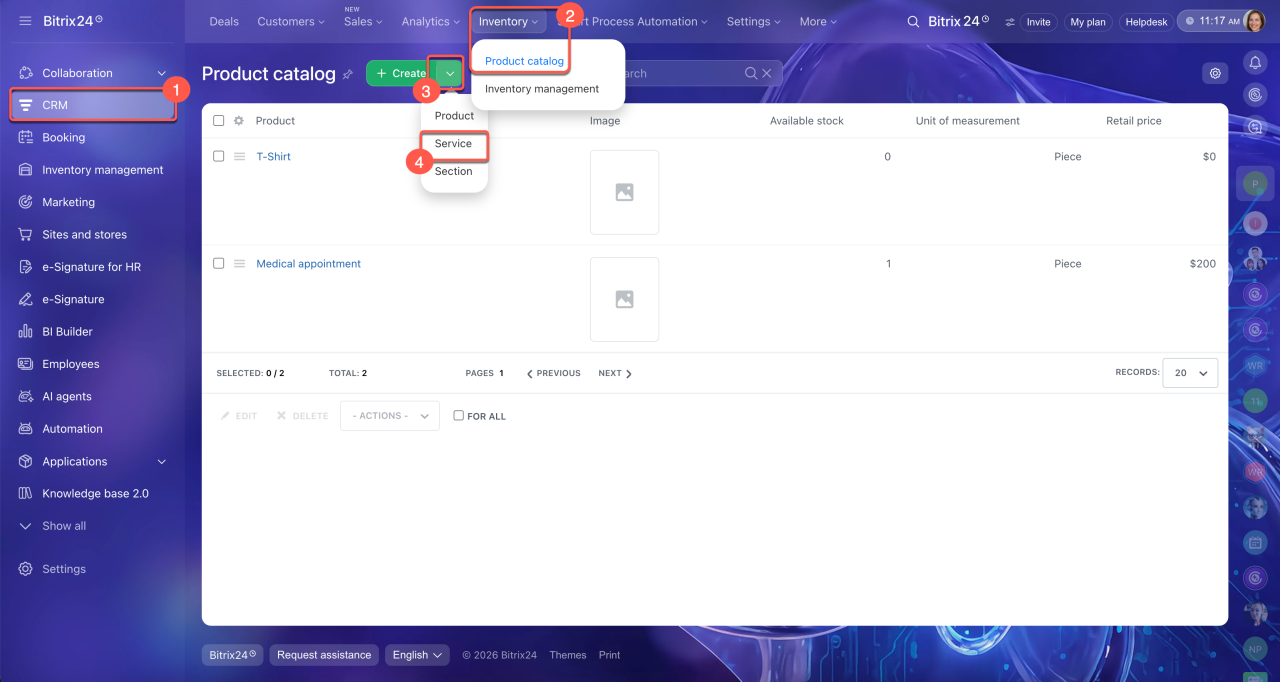
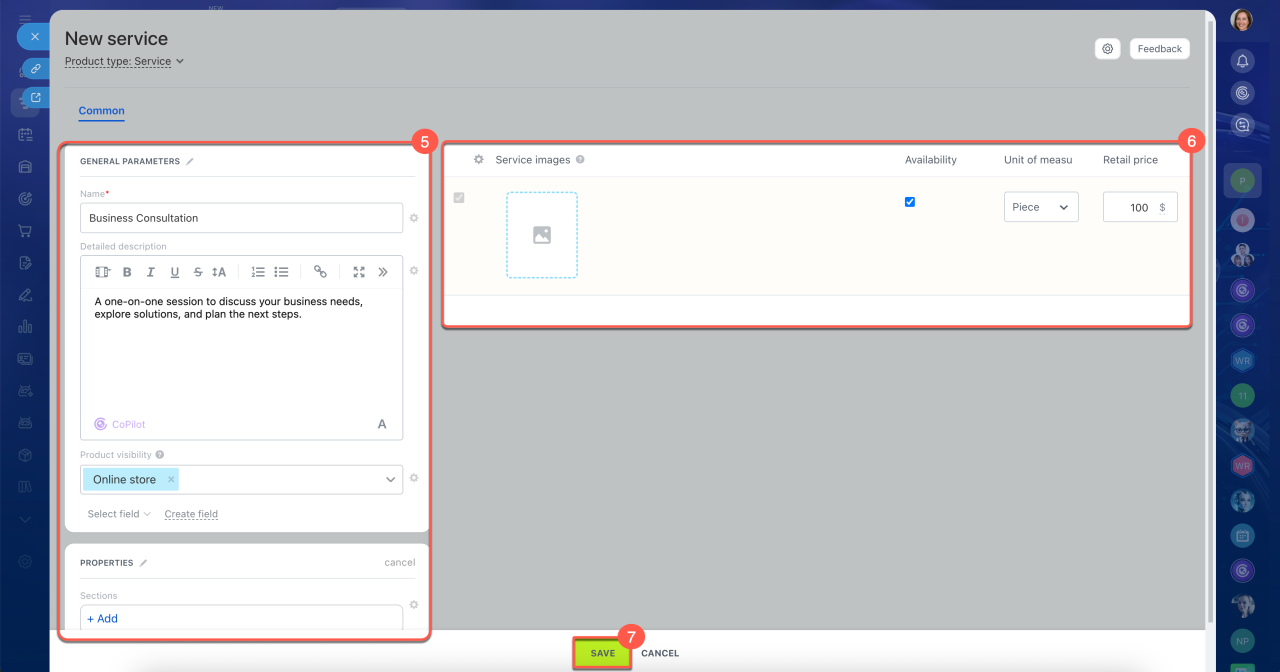
You can update a service and add more details later. Basic information, such as the name, price, and description, is enough to start using it in CRM. For example, a law firm adds a service called "Legal Document Preparation" for $100. Employees can then add it to deals, generate service completion documents, and send them to clients.
Product catalog
Use document templates
Bitrix24 provides ready-made document templates. For example, a company installs and sets up air conditioning systems. After completing a job, an employee opens the deal and selects a certificate of completion template. Bitrix24 automatically fills in the document with the company and client details, service name, and price. The employee can then save the generated document as a PDF or email it to the client.
By default, Bitrix24 provides templates for certificates of completion, bills of lading, invoices, and tax invoices. Documents are generated using your company's and client's data, so you don't need to fill them out manually. For services, businesses most often use a certificate of completion.
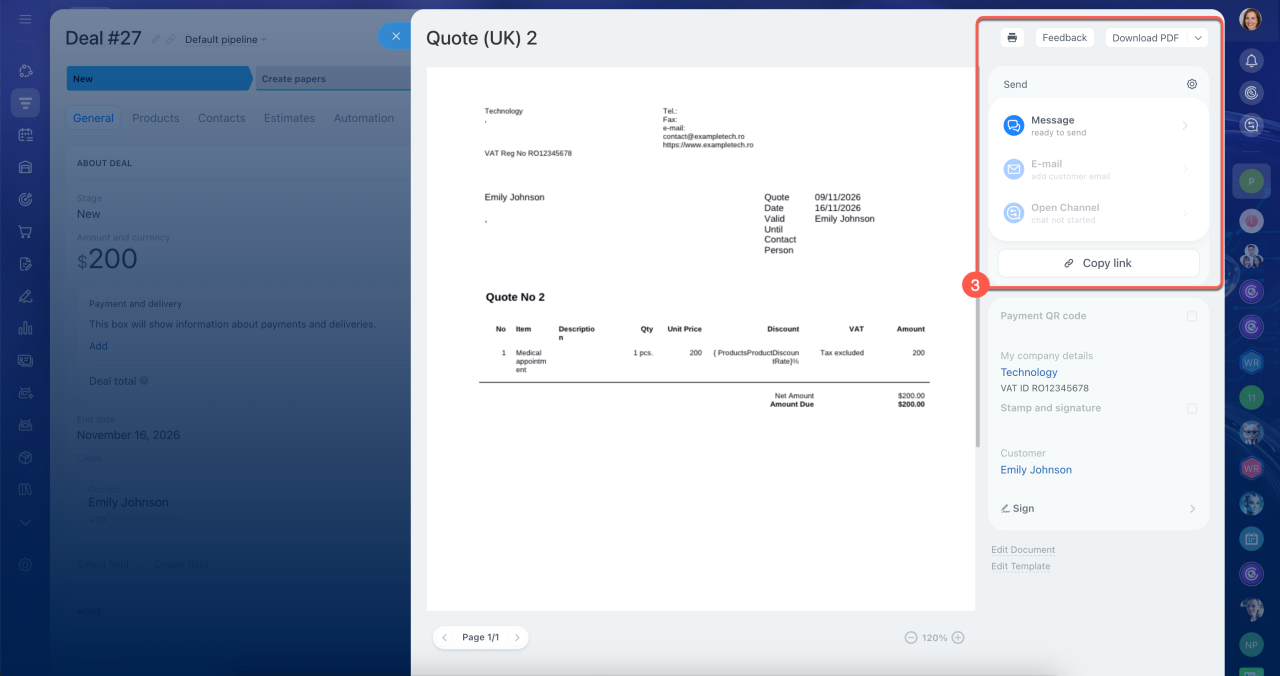
Employees can create and send a document to a client in three steps:
1. Create a deal and add the required services.
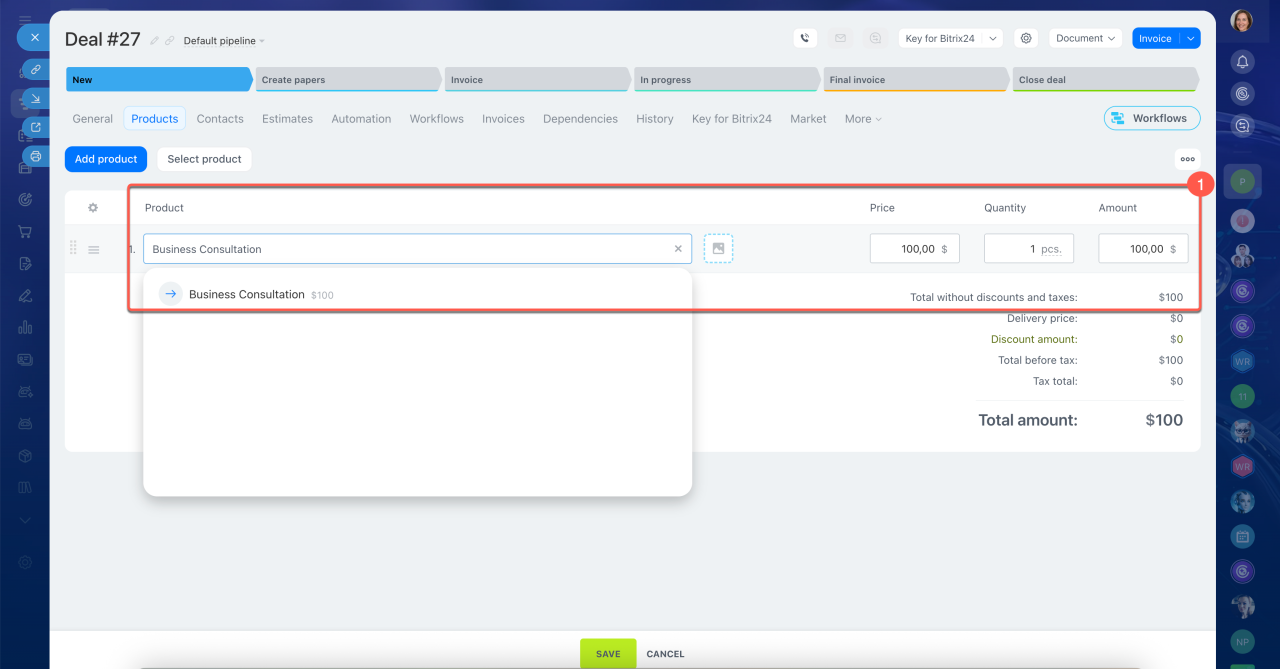
2. Select a document template or configure an automation rule to generate the certificate at a specific deal stage. For example, you can set up an automation rule to generate the certificate and send it to the client when the deal moves to the next stage. The employee only needs to move the deal to that stage, and Bitrix24 generates the certificate and sends it to the client.
Automation rules in CRM
Automation rules in CRM: Paperwork
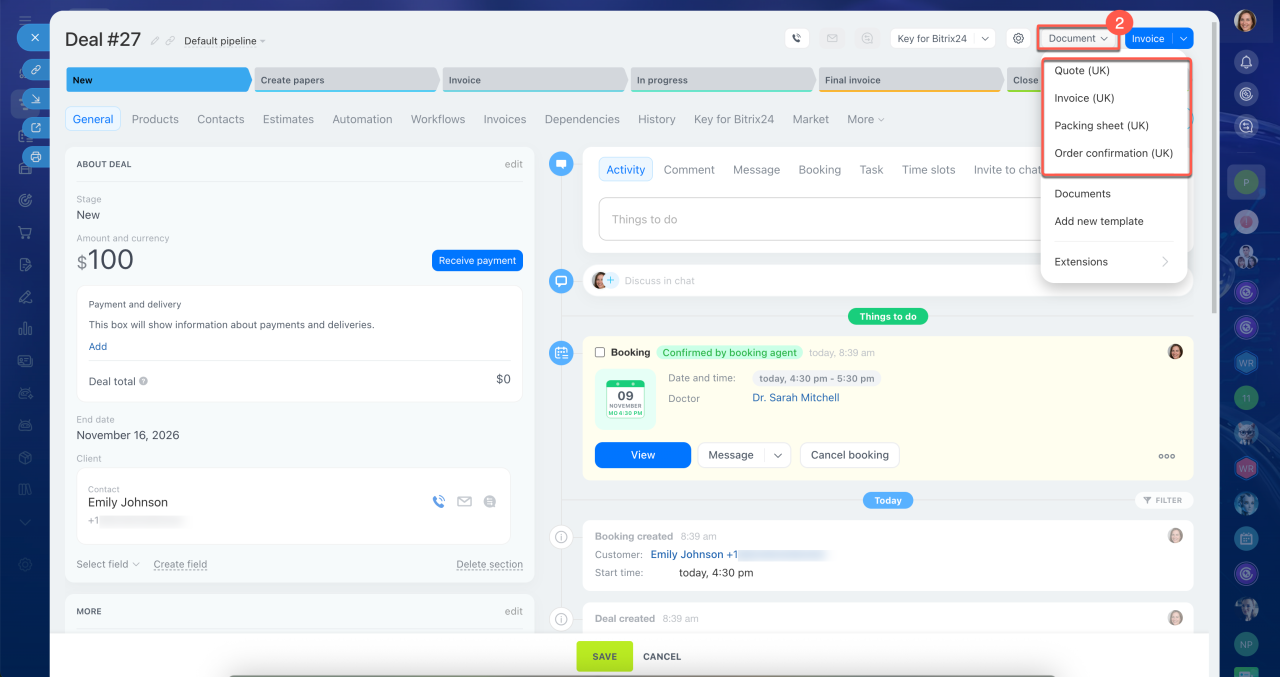
3. Bitrix24 automatically fills in the document with service names, prices, and details about your company and the client. You can download it as a PDF, send it by email, or share it through a messaging app directly from CRM.
Documents in CRM: Create and send to customers
Edit standard document templates in CRM
Create and upload your document template to CRM
In brief
- In Bitrix24, you add services to the catalog just like products, with a name, price, and unit of measurement.
- You can sell services separately, offer them alongside products, or use them to track internal services.
- Once the work is complete, you can generate a certificate of completion using data from the deal.
- To add a service, go to CRM > Inventory > Product catalog. Click Create, select Service, fill in the fields, and save it.
- You can add services to deals, invoices, and quotes, just like products.