
Booking: Getting started
Bitrix24 CRM also includes the Resource booking option. Use it to specify the service, date, time, and employee who will provide the service.
To use resource booking, create a custom Book a resource field in CRM. You can add this field to leads and deals.
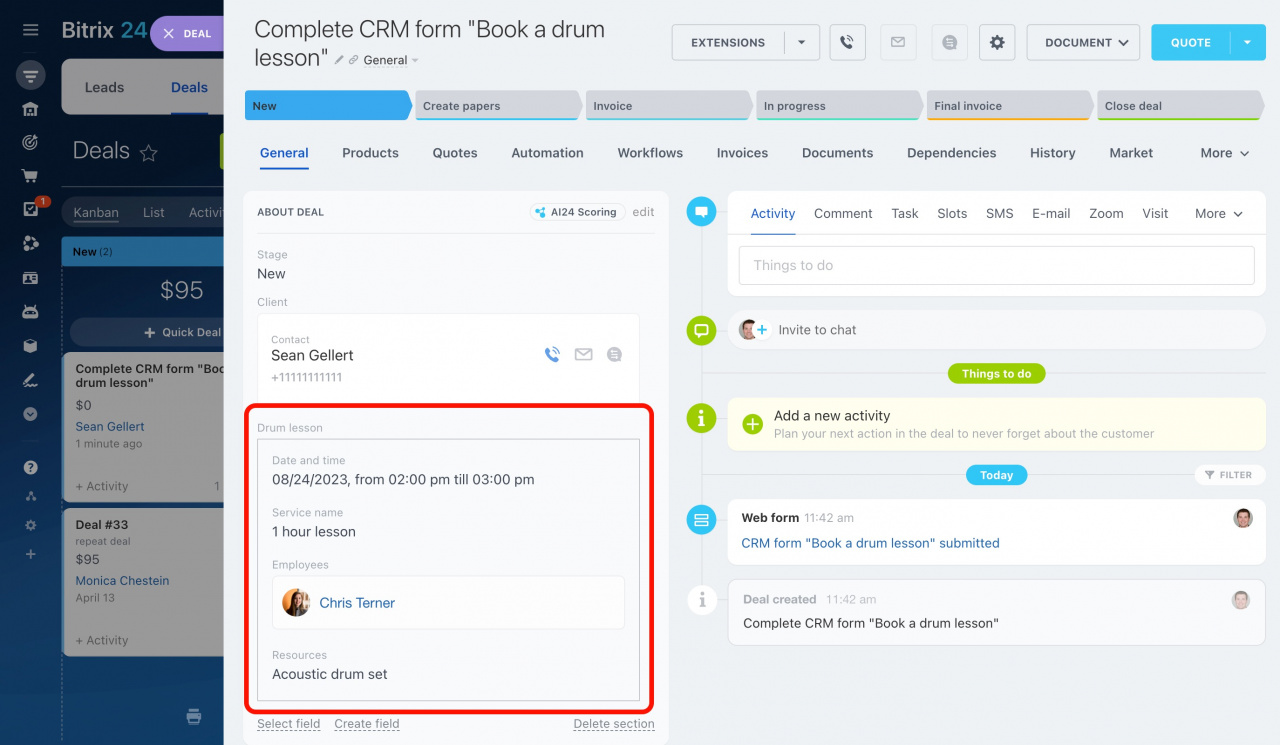
Below is an example of how to create a Book a resource field in a CRM deal form.
-
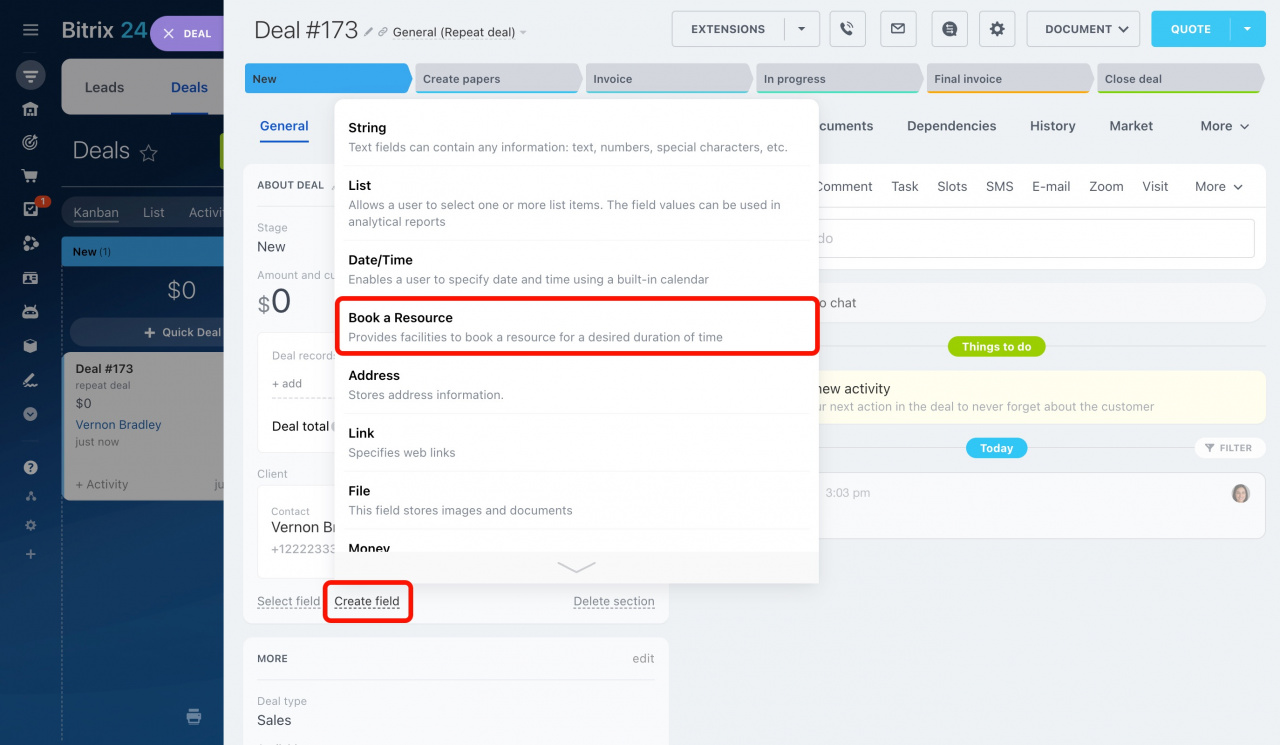
Open a deal form and click Create field in any section.
-
In the dropdown menu, select Book a resource.
-
Configure the field settings.
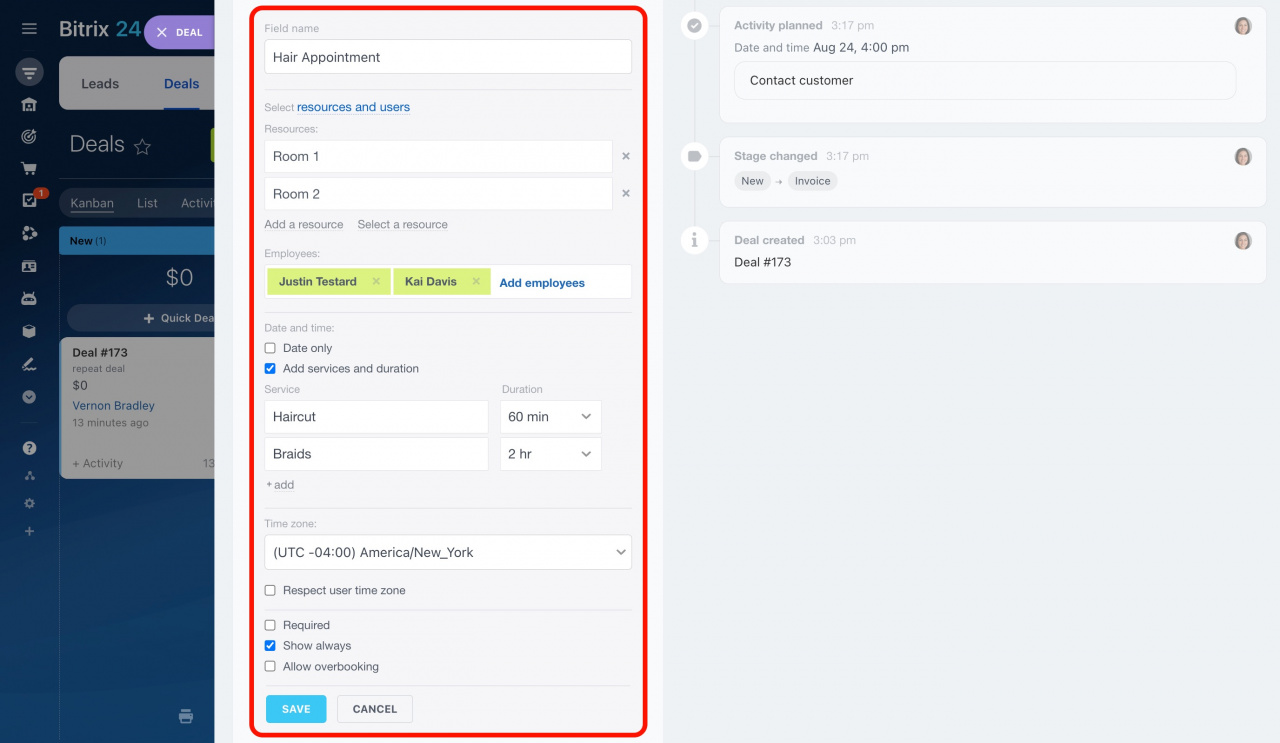
This field type includes several settings.
-
Field name: This is the name displayed in the CRM form. Use a clear and descriptive name so employees can quickly find and complete the field.
-
Select resources and users: Choose what clients can book:
- Resources
- Users
- Resources and users
Resources are not services. They are items used to provide services, such as workplaces, offices, or real estate properties.
For example, if the service is a movie screening, the resource is a seat in the theater.
Users are employees who provide the service.
The resources and users you select depend on the type of service you offer.
Examples:
-
Example: Car rental
The client chooses a car. Cars are the resources. It does not matter which employee prepares the rental agreement.In this case, select resources but do not select users.
-
Example: Beauty salon
The client chooses a service and a stylist. Each stylist has their own workplace, so the client does not need to choose it.In this case, resources are not important. Select only users.
-
Example: Tennis club
The client chooses a coach and a court.In this case, select both resources and users. Tennis courts are resources, and coaches are users.
Depending on your selection, configure the following settings.
-
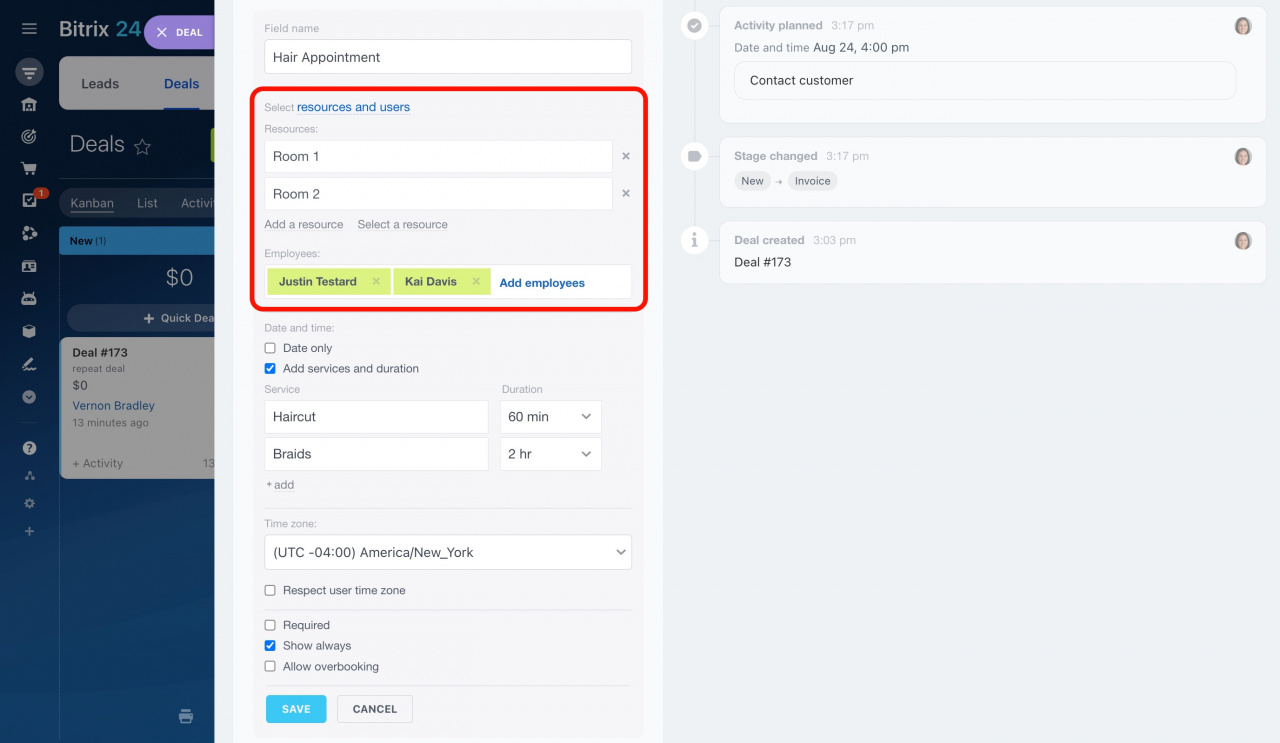
Resources: Specify the resources available for booking.
This option appears if you select Resources or Resources and users.
-
Employees: Specify the employees who will provide the service.
This option appears if you select Users or Resources and users.
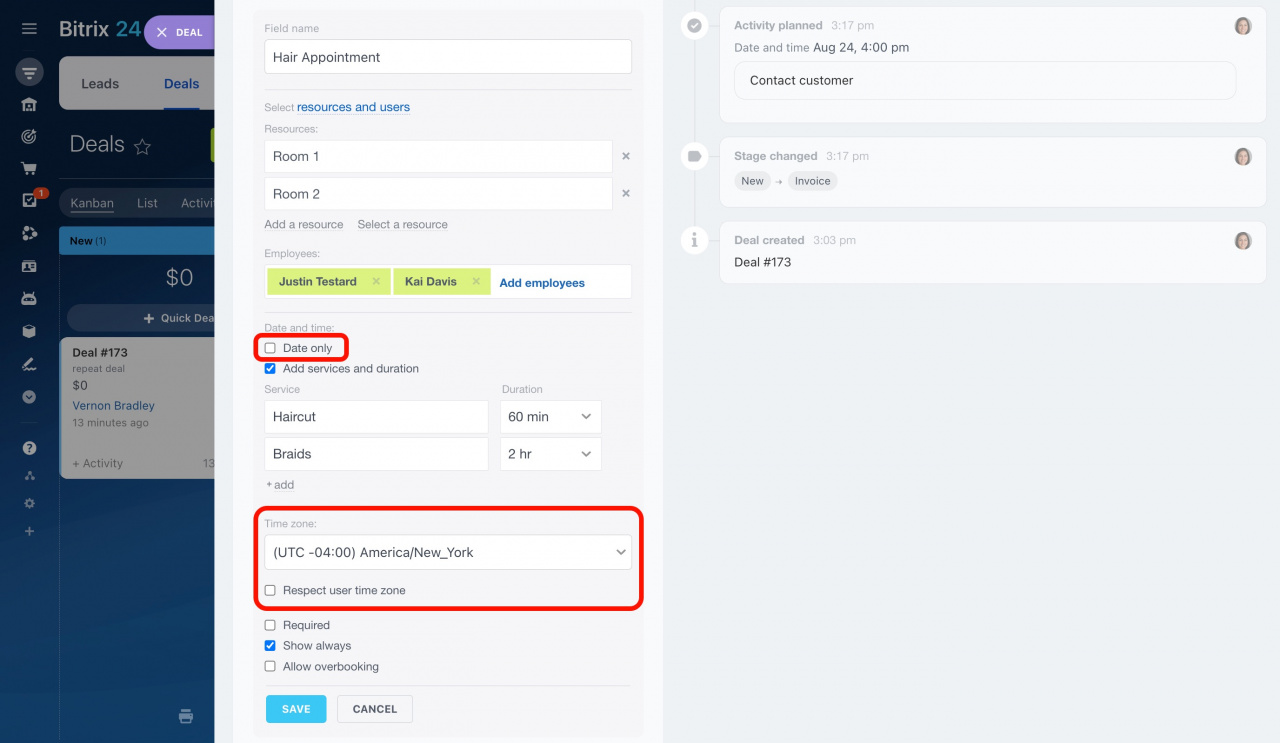
: Enable this option if you offer services booked by day, such as apartment or parking space rentals.
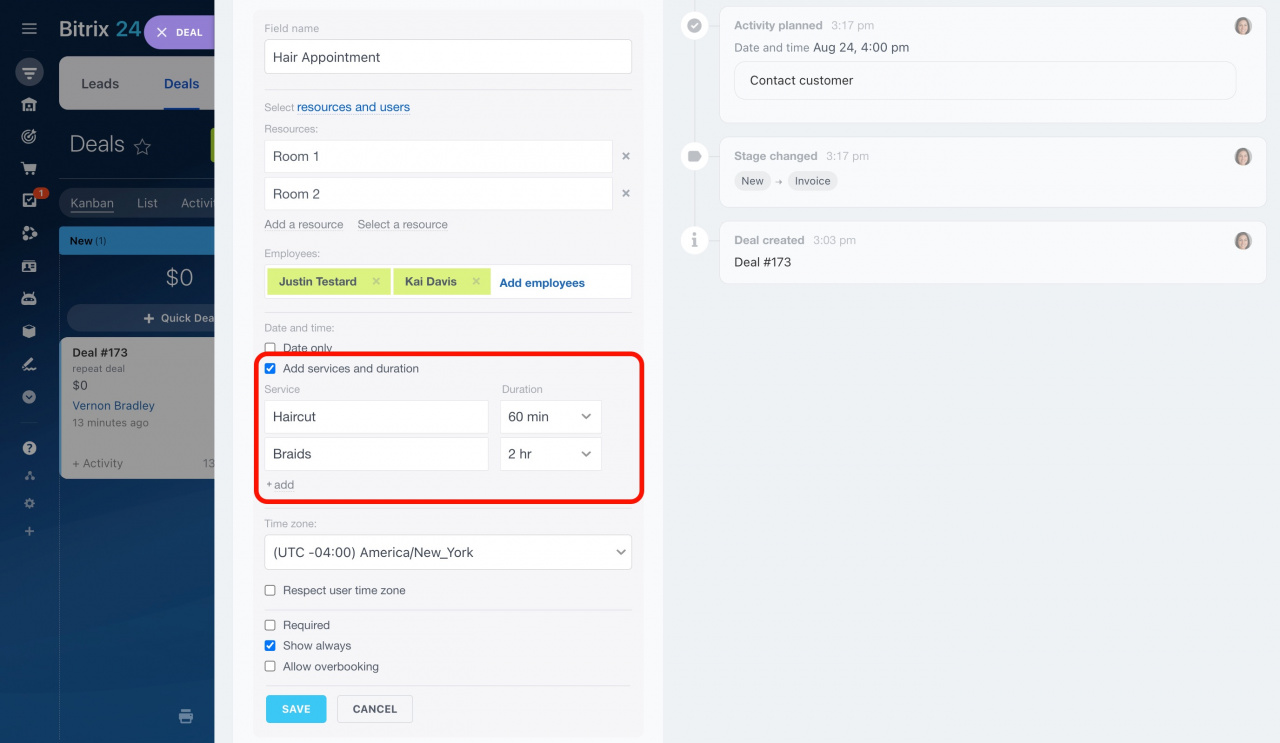
: Use this option to add services with a specific duration.
For example, a barbershop may offer haircuts and shaves with different appointment lengths.
-
Time zone: Select the time zone used for bookings.
: Enable this option to show available time slots based on the client’s time zone.
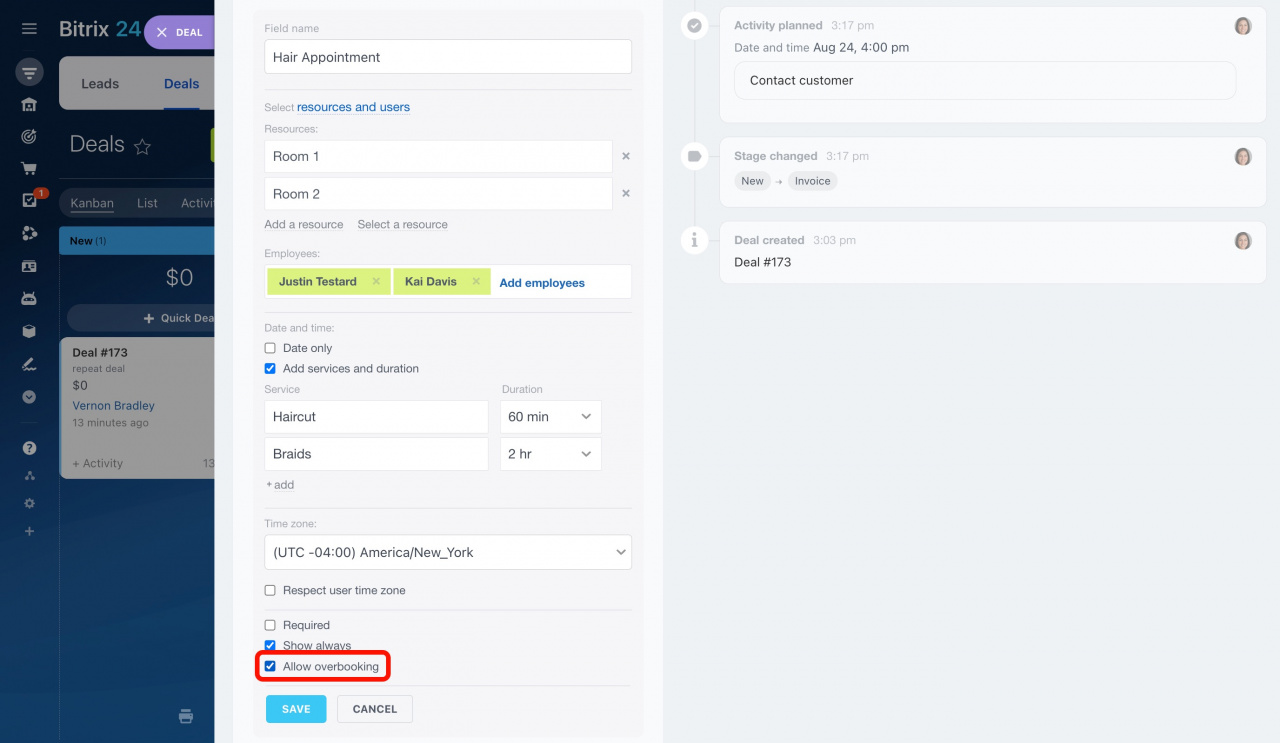
: Enable this option to allow multiple clients to book the same service at the same time.
For example, you can use this option for conferences or group events.
Custom fields also include two standard settings.
: Enable this option to make the field mandatory.
: Enable this option to always display the field in the CRM form, even if it is empty.
That’s it. Complete the field in the CRM form to create a booking.
Customers can also book services themselves if you add the field to a CRM form on your website.
After a booking is created, you can track employee and resource availability in the calendar.