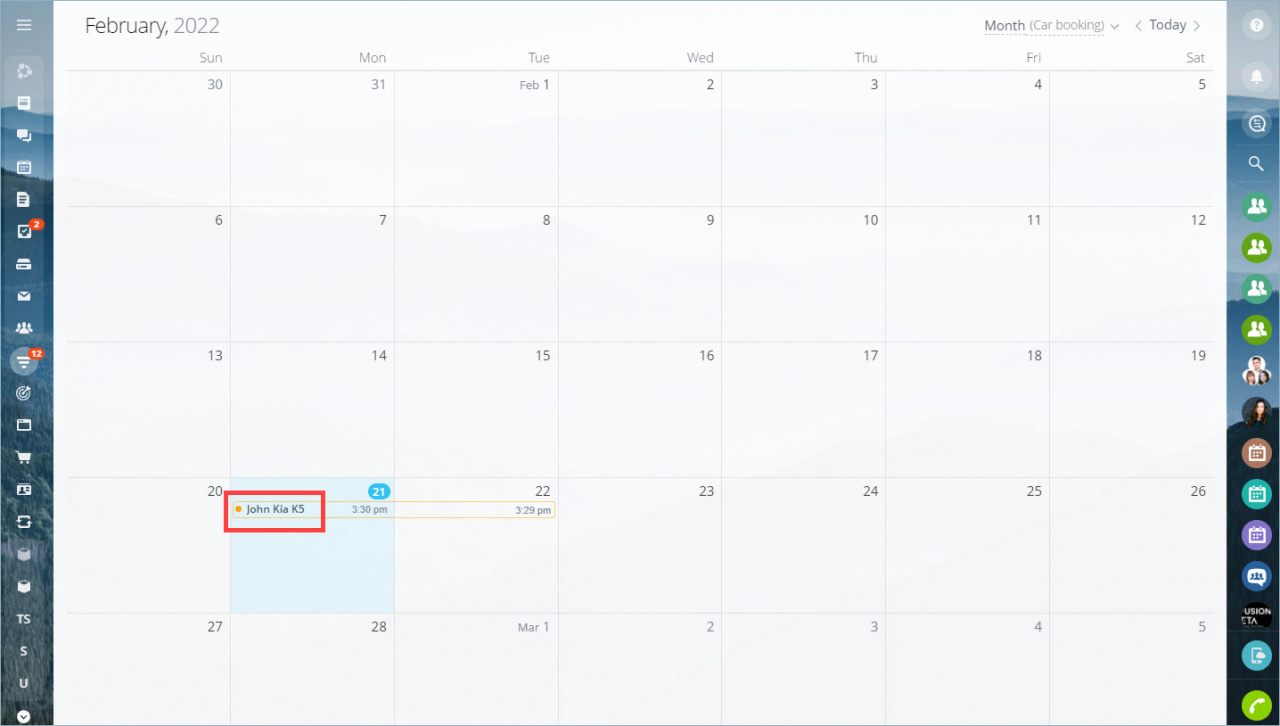
Booking: Getting started
Resource booking is a service sales scenario. You can specify the service, date, time, duration, and the specialist who will provide the service. This scenario works well for businesses in industries such as health and beauty, car rental, apartment rental, and other service-based companies.
This example shows how to set up resource booking for a car rental business and track bookings in the calendar.
Set up resource booking for car rentals
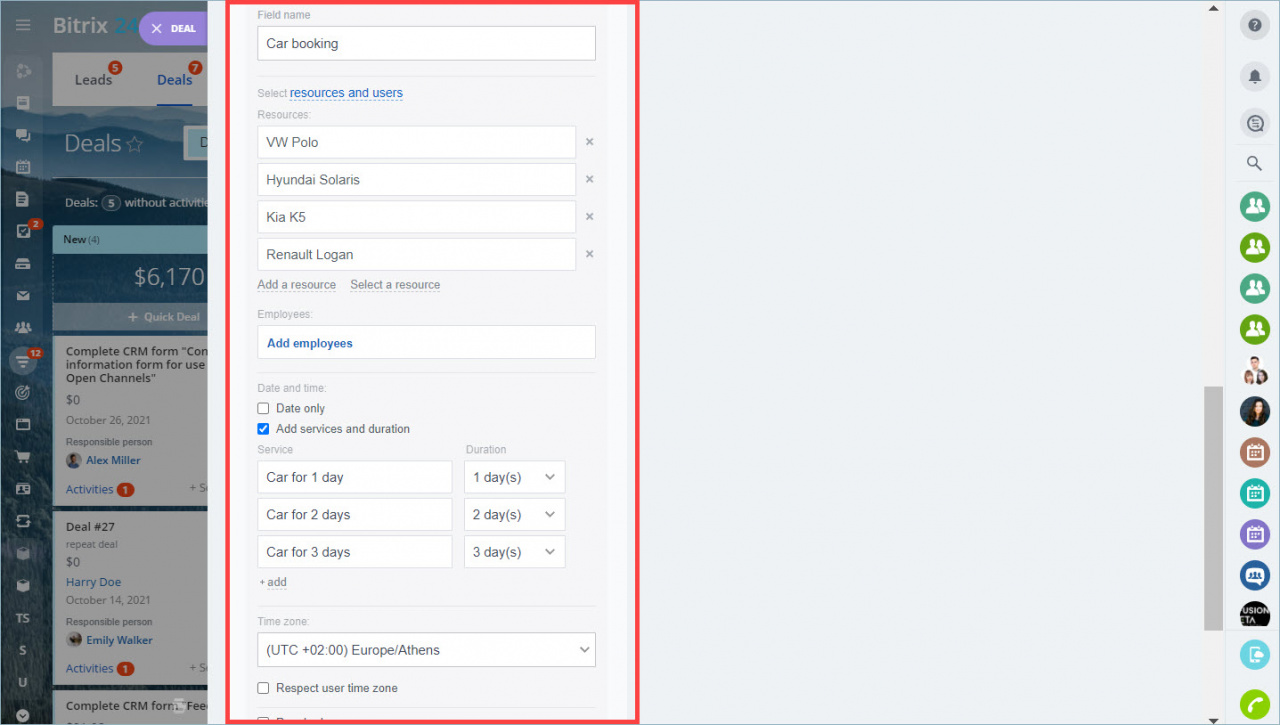
Create the following fields:
- Field name: Enter the field name.
- Resources: Select this field type.
- Resource name: Add several car types.
- Add services and duration: Add rental options for 1, 2, and 3 days.
- Time zone: Select your time zone.
- Allow overbooking: Disable this option if you only have one car of each type.
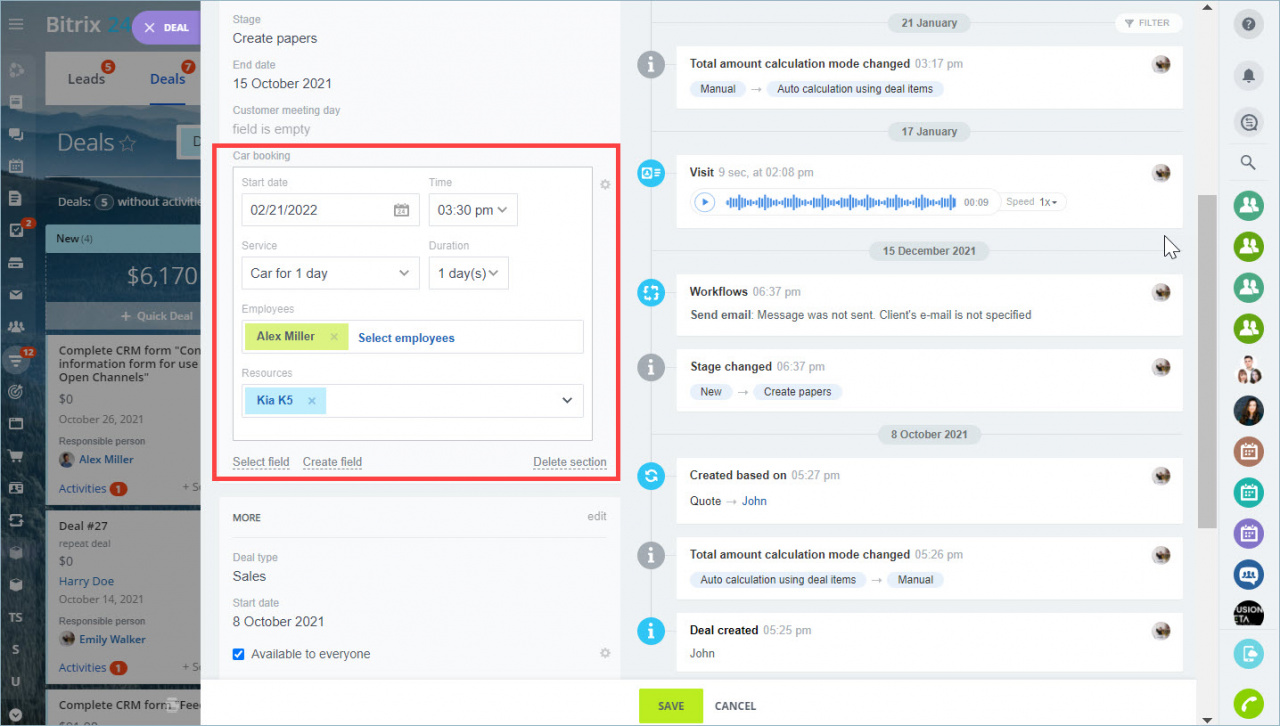
When a customer visits your office, you can create a booking in just a few clicks.
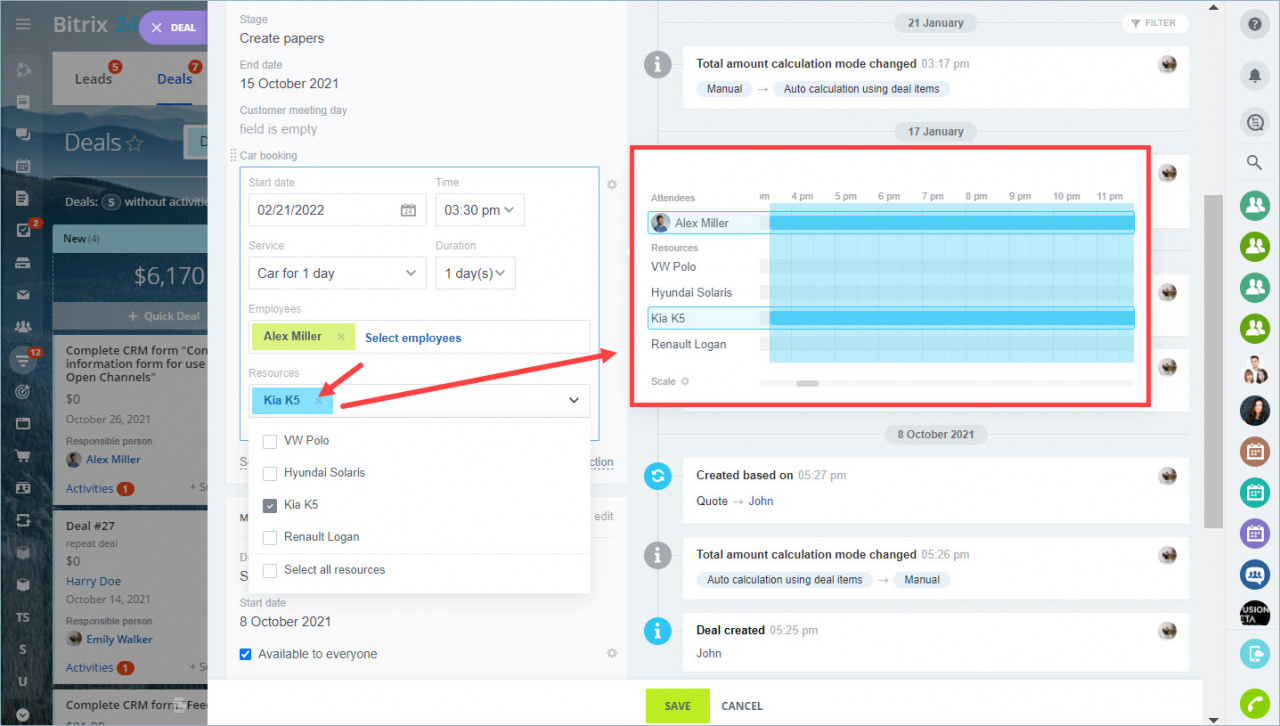
When you fill out the resource field, you can immediately see whether the car is available for the selected time period. Use the Scale button in the calendar to choose a convenient display mode.
If you use another plan, you can test Planner by creating up to 100 events. After that, the feature becomes unavailable.
After you complete the field, the Car booking section appears in the form.
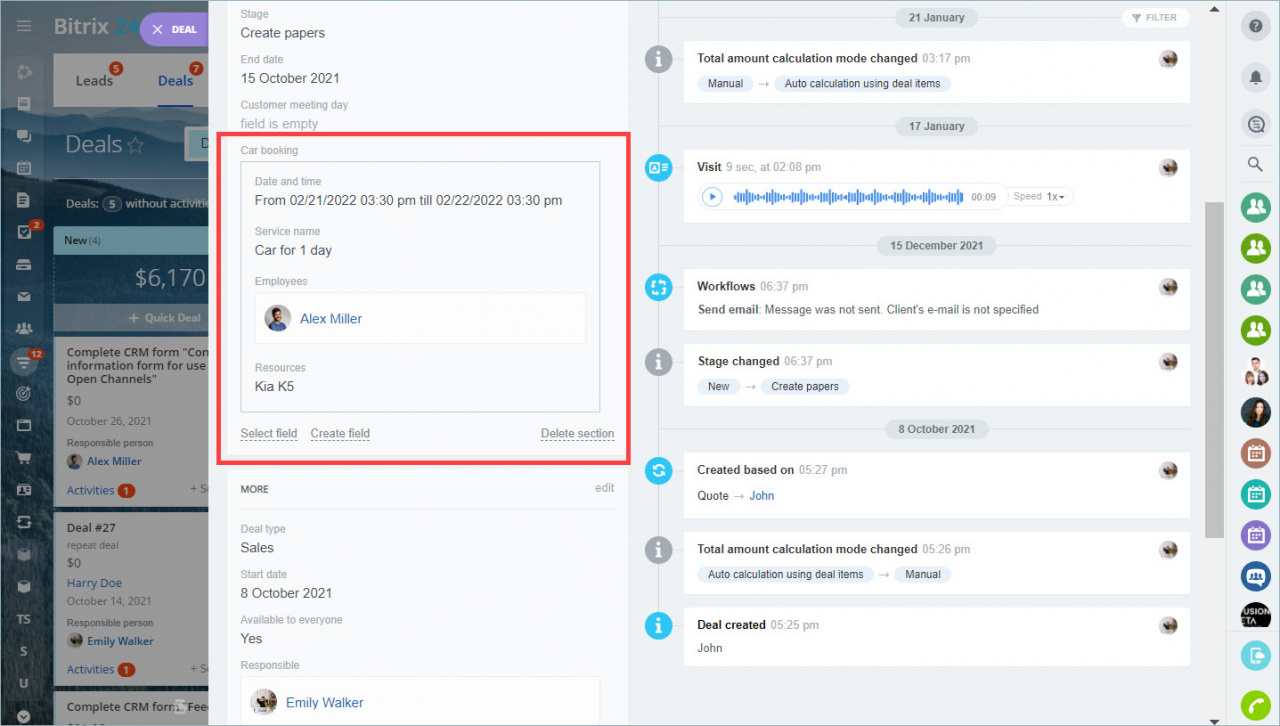
Track resource bookings in the CRM Calendar
You can track bookings in the CRM Calendar.
- Exit the deal form.
- Open Calendar next to Kanban and List.
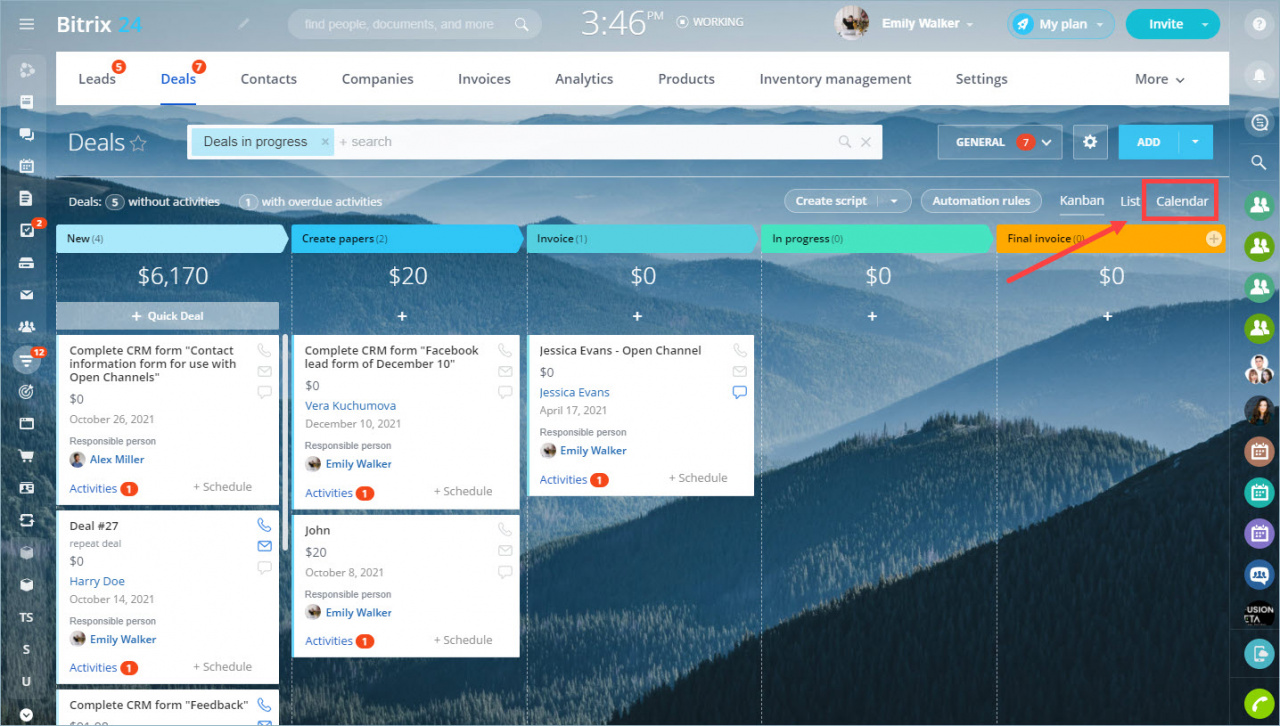
In the calendar:
- Click the required time slot.
- Select Resource Reservation.
- Choose a convenient time period.
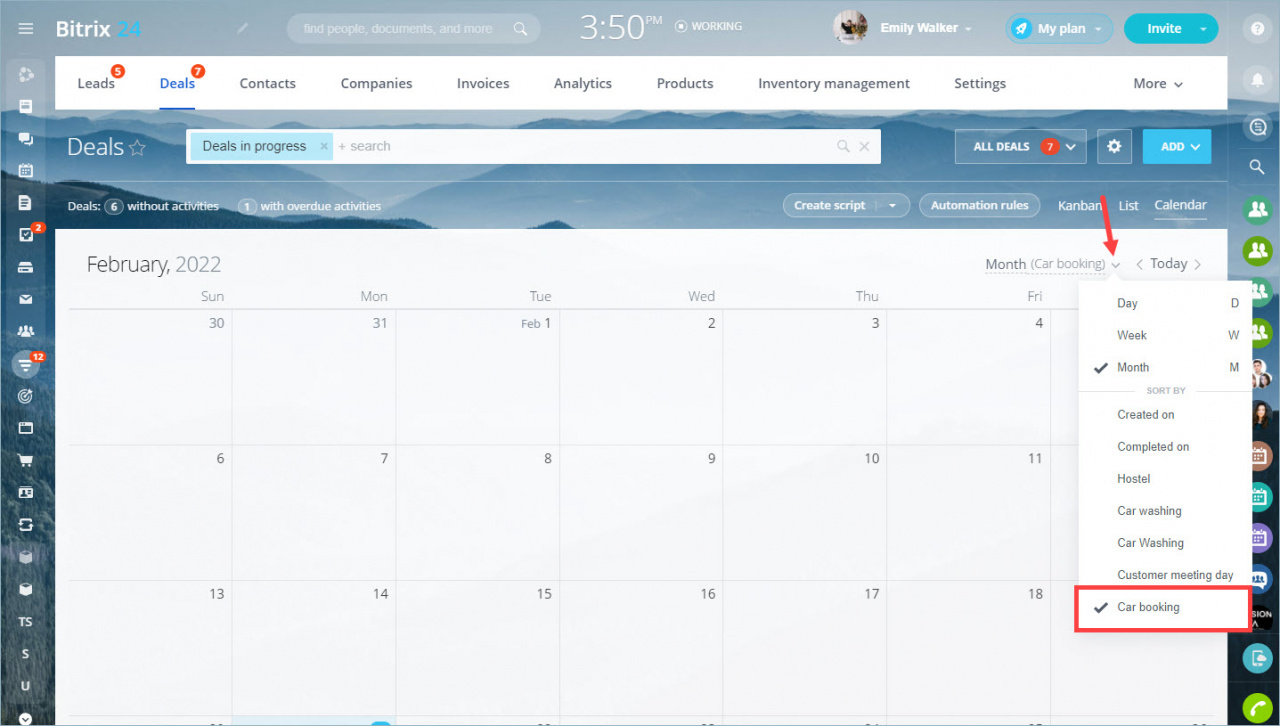
Each deal appears in the calendar for the same duration as the resource booking linked to the deal.
Example: February 21, 3:30 PM → February 22, 3:29 PM
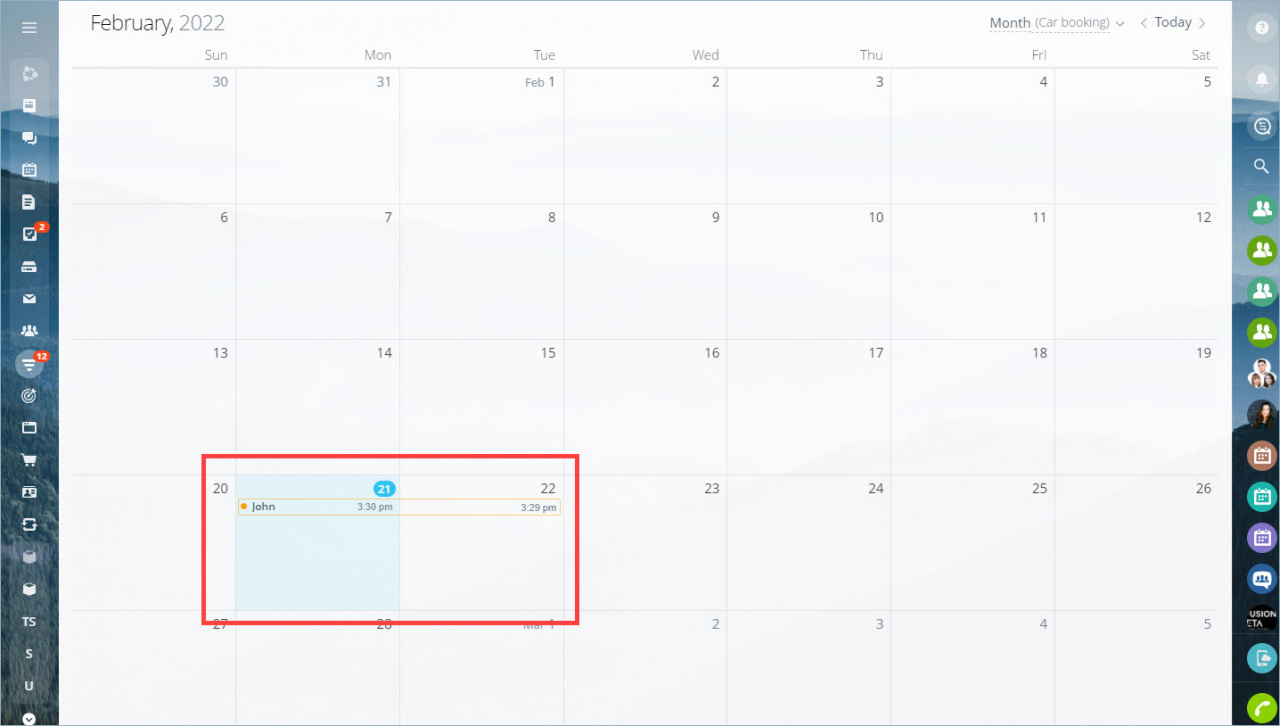
If you manage many resources, include the resource name in the deal title. This makes bookings easier to track in the calendar.