
The Bitrix24 catalog supports two types of products:
- Regular product — a product without variants, such as a book or a specific phone model.
- Product with variants — a product available in different colors, sizes, or models. For example, a T-shirt that comes in several colors and sizes.
Choosing the right product type helps you organize your catalog. Employees can quickly find products and add them to deals, while customers can choose from the available options on your website.
In this article:
Regular products and products with variants
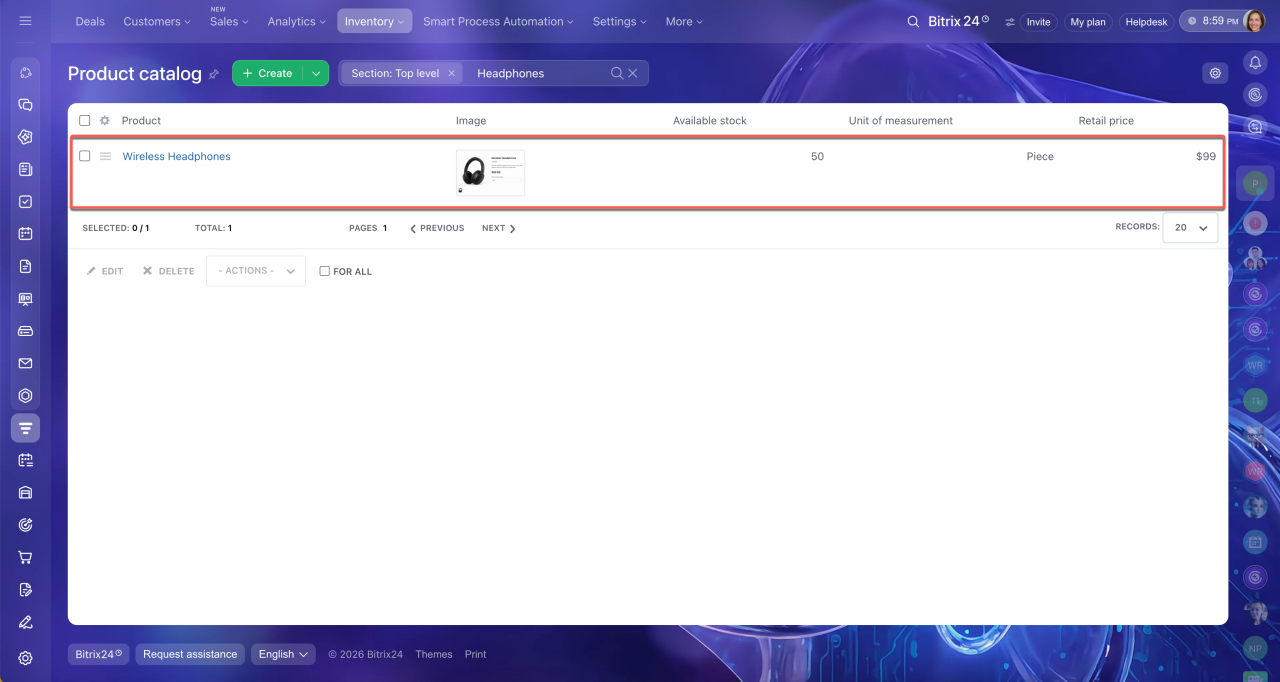
Regular products appear in the catalog as separate items. For example, an office supply store can add A4 paper as a regular product if it doesn't offer other paper sizes. Enter the product name, price, and quantity, and it's ready for sale.
Not every product needs variants. Here are three situations where a regular product works best:
- The product has no variants. If a product is sold in only one version, you don't need to create variants. For example, a company that makes custom furniture to order can add each piece as a separate product because its dimensions and specifications are unique.
- The products are very different. If products or services don't share common characteristics, it's better to keep them as separate catalog items. For example, consulting and equipment repair are different services, so each should have its own catalog entry.
- You have a small catalog. If you sell only a few unique products, it's easier to add them separately. For example, if you sell handmade mugs with unique shapes, you can track each one individually. If you later offer similar mugs that differ only in color or capacity, you can use variants to keep your catalog organized.
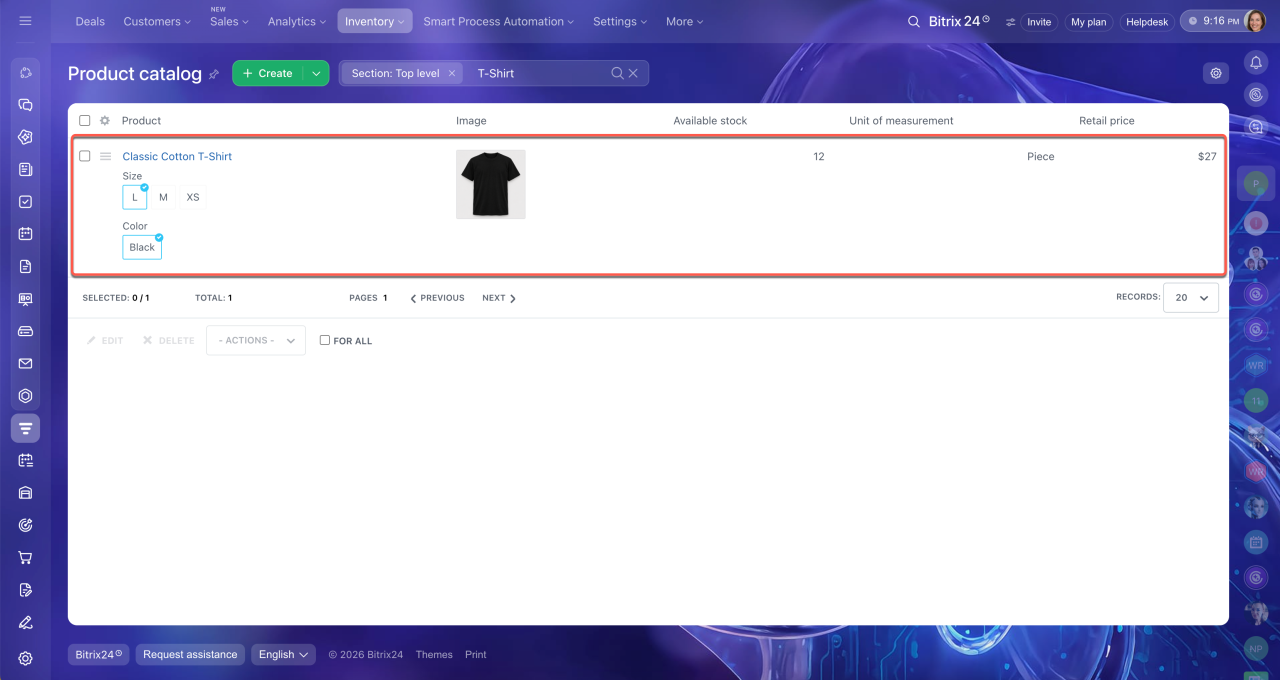
Products with variants are available in different versions, such as clothing in different sizes or electronics in different models and colors. Instead of adding each version as a separate product, you can group them under one product in the catalog. For example, you don't need to create a separate product for every smartphone color and storage capacity. This would make the catalog harder to manage and search. Instead, create one product called "Smartphone" with variants such as "Smartphone, black, 64 GB" and "Smartphone, white, 128 GB."
Variants let you manage different versions of a product in one form. This offers three main benefits:
- All variants in one form. All variants are grouped under one product. This keeps the catalog organized and makes it easier for employees to update product information. For example, if you sell a T-shirt in different colors, you can manage all its variants from one form.
- Easier catalog updates. You can add new variants without creating separate products. For example, if you start selling a T-shirt in a new color, add another variant. If a size is no longer available, you can hide that variant without affecting the others.
- Easier shopping for customers. Customers can choose the size, color, or other options they need on a single product page. They don't have to browse multiple pages for similar products.
Add a regular product
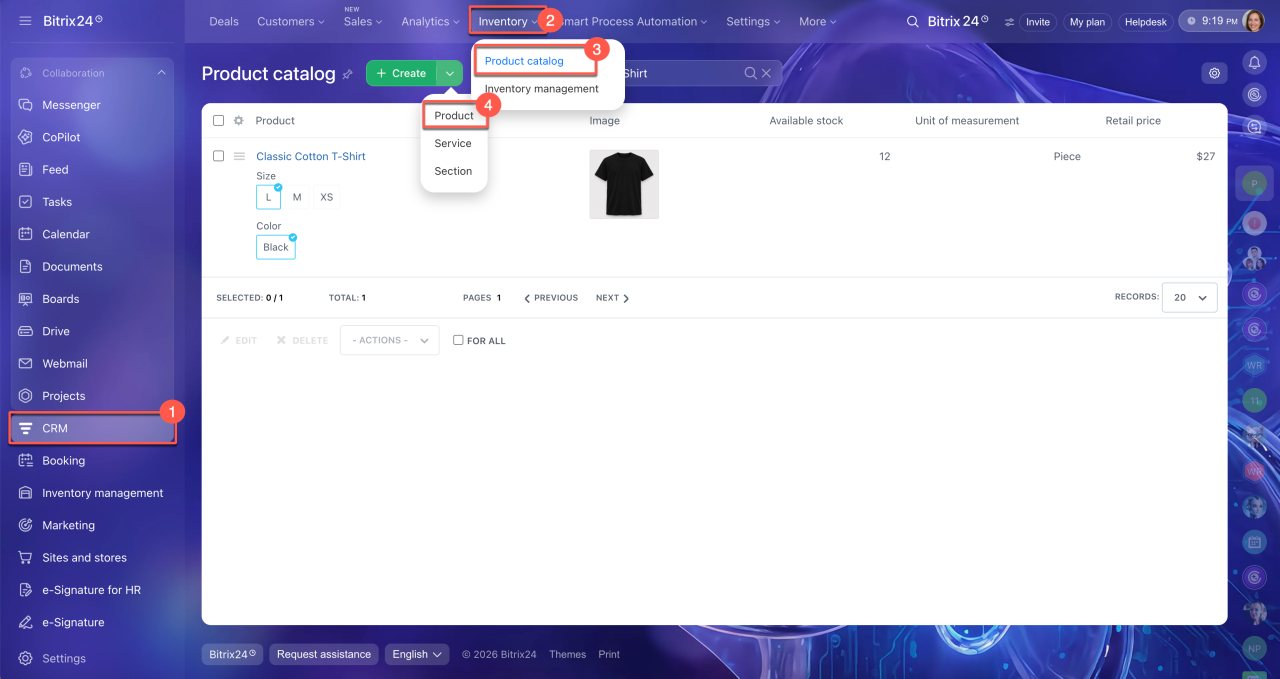
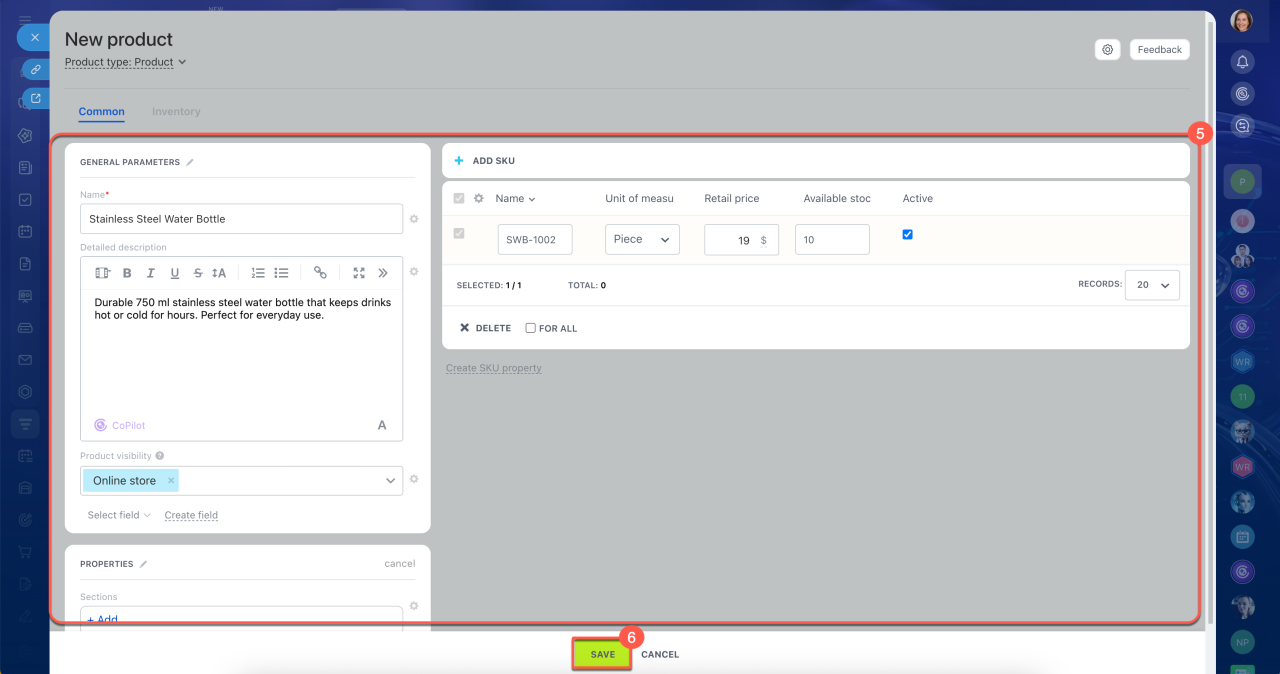
To add a regular product to the catalog, follow these six steps:
- 1–4. Go to CRM > Inventory > Product catalog. Click Create > Product.
- 5–6. Enter the product name, price, and other details. If the product has no variants, click Save.
Add products to the catalog in CRM
Add a product with variants
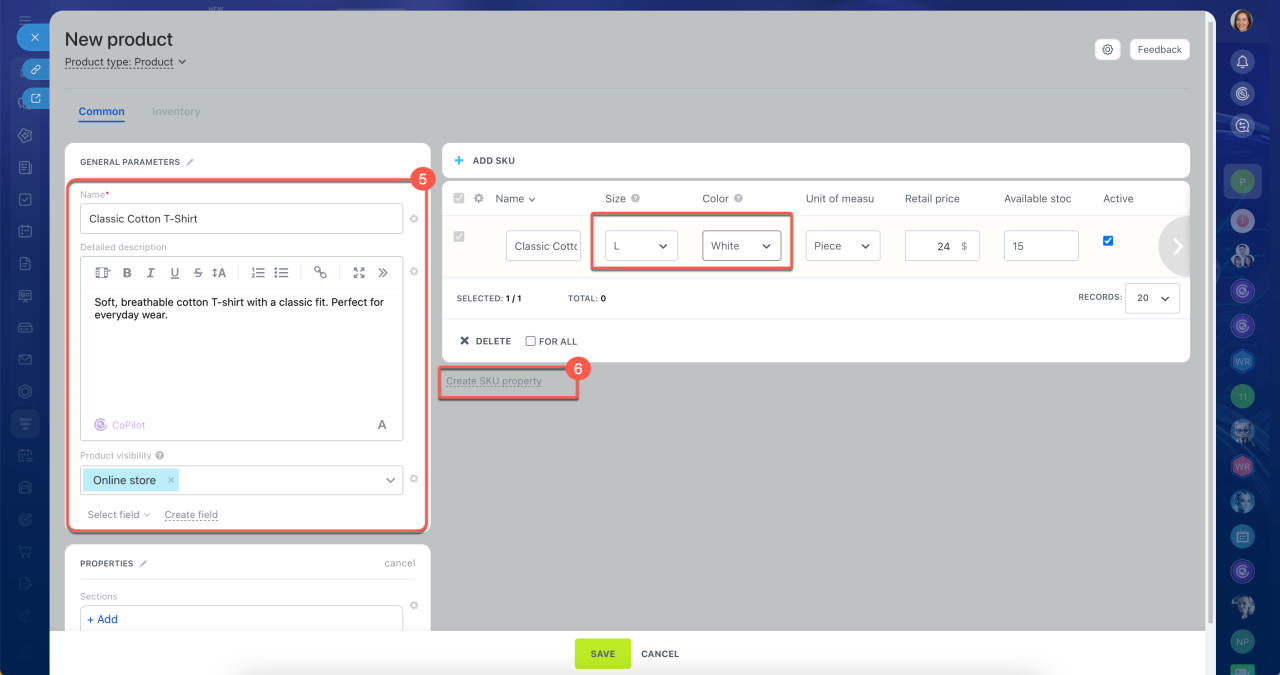
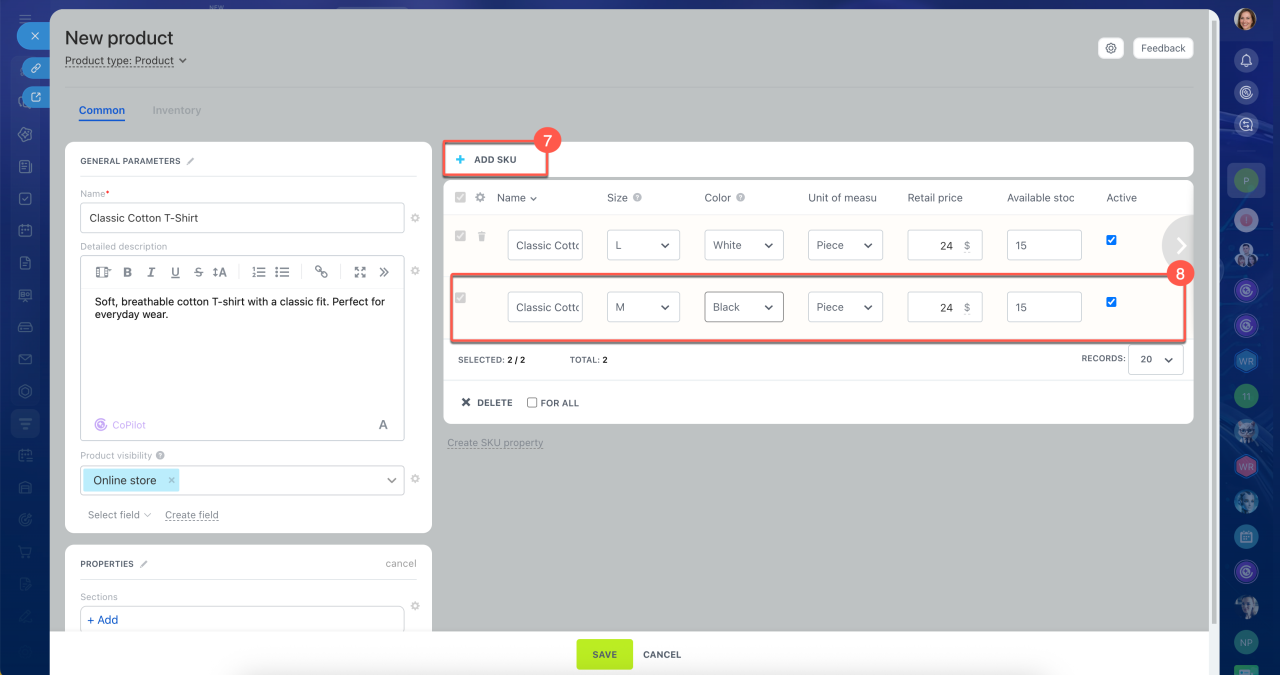
To add a product with variants, follow these eight steps:
- 1–4. Go to CRM > Inventory > Product catalog. Click Create > Product.
- 5–6. Enter the main product name and create appropriate properties for the variants.
Product and variant properties - 7–8. Click Add SKU and enter the required characteristics.
Working with product variants
In brief
- Bitrix24 supports two product types: regular products and products with variants.
- Regular products have no variants. Examples include office supplies and food items sold in one size or version.
- Products with variants come in different colors, sizes, or other options. All variants are grouped under one product in the catalog.
- To add a regular product, go to CRM > Inventory > Product catalog. Click Create > Product, enter the product name, price, and other details, and save it.
- To add a product with variants, create the product first. Then add variants and specify their characteristics, such as color or size.