
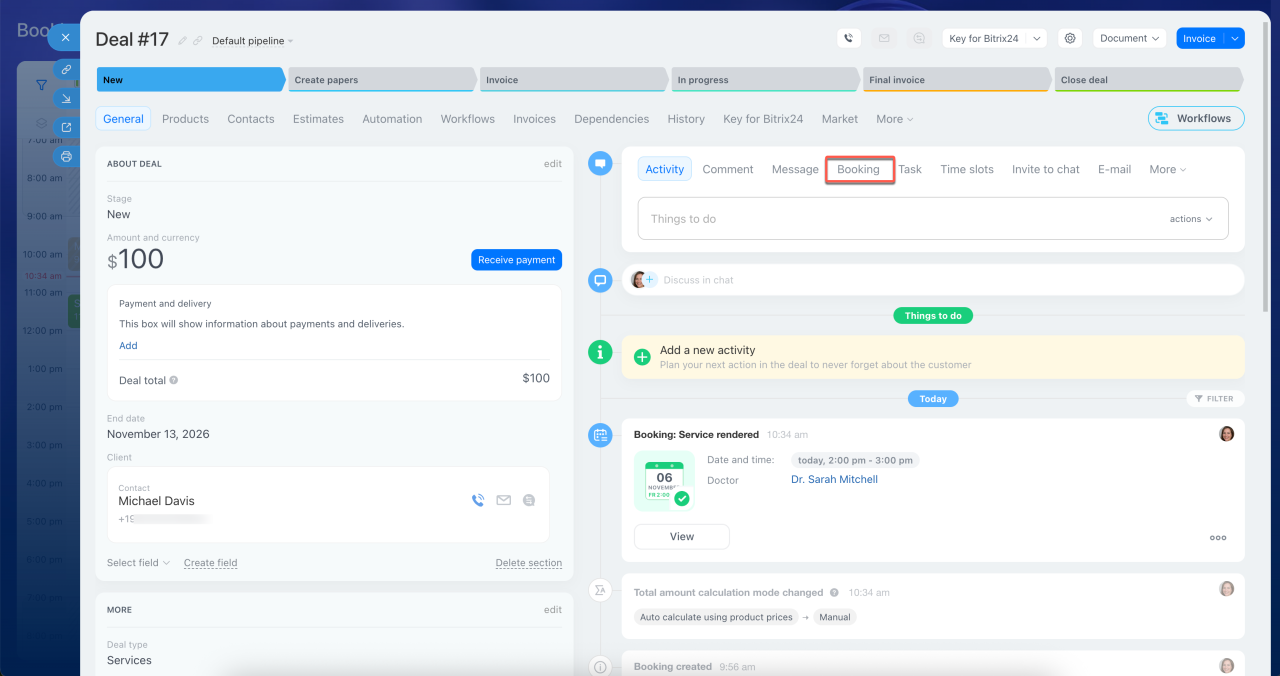
Booking is available directly in the deal form. Employees can schedule client appointments without leaving the deal, and booking details are automatically added to the deal's timeline. This helps businesses manage appointments and achieve three goals:
- Reduce no-shows. Bitrix24 automatically sends appointment reminders to clients via SMS or WhatsApp, helping reduce missed appointments.
- Simplify client management. Bitrix24 tracks booking activity, from scheduling to confirmation. Employees can review the communication history and respond quickly to changes.
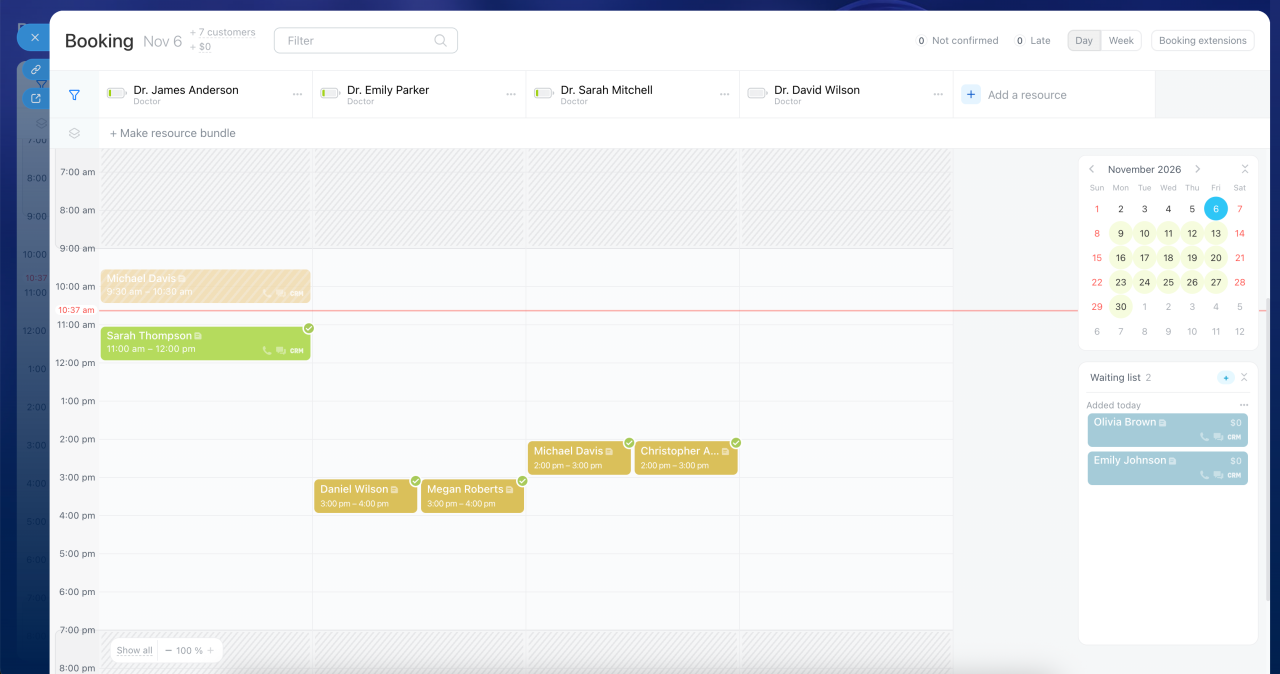
- Make the most of your resources. Bitrix24 shows available time slots, helps prevent scheduling conflicts, and keeps the schedule full.
In this article:
Use booking in a deal
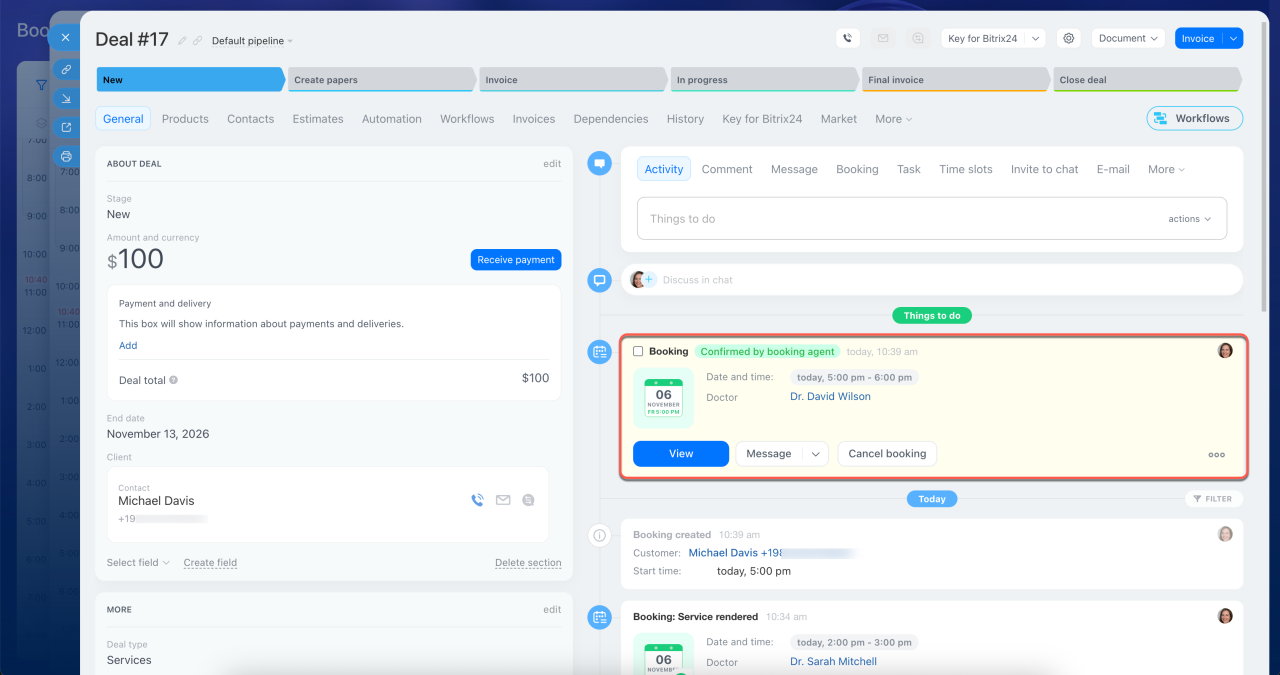
Open the Booking tab in the deal form to view the schedule. Select an available time slot, book the client, and track appointment statuses. A new activity with the appointment date, time, and details automatically appears in the deal's timeline. You can manage appointments and respond to changes without leaving the deal form.
Automatic notifications and reminders. After you create a booking, Bitrix24 sends the client an initial message with appointment details but no confirmation link. If more than 24 hours remain before the appointment, Bitrix24 sends a separate message with a confirmation link. If less than 24 hours remain, the booking is automatically marked as confirmed, and no confirmation link is sent.
The deal timeline records when messages are sent, delivered, and read, as well as when clients click links. This helps you track communication and follow up quickly if a client doesn't respond. If an automatic reminder isn't enough, employees can send the client an additional message, such as a day before the appointment or immediately after a cancellation.
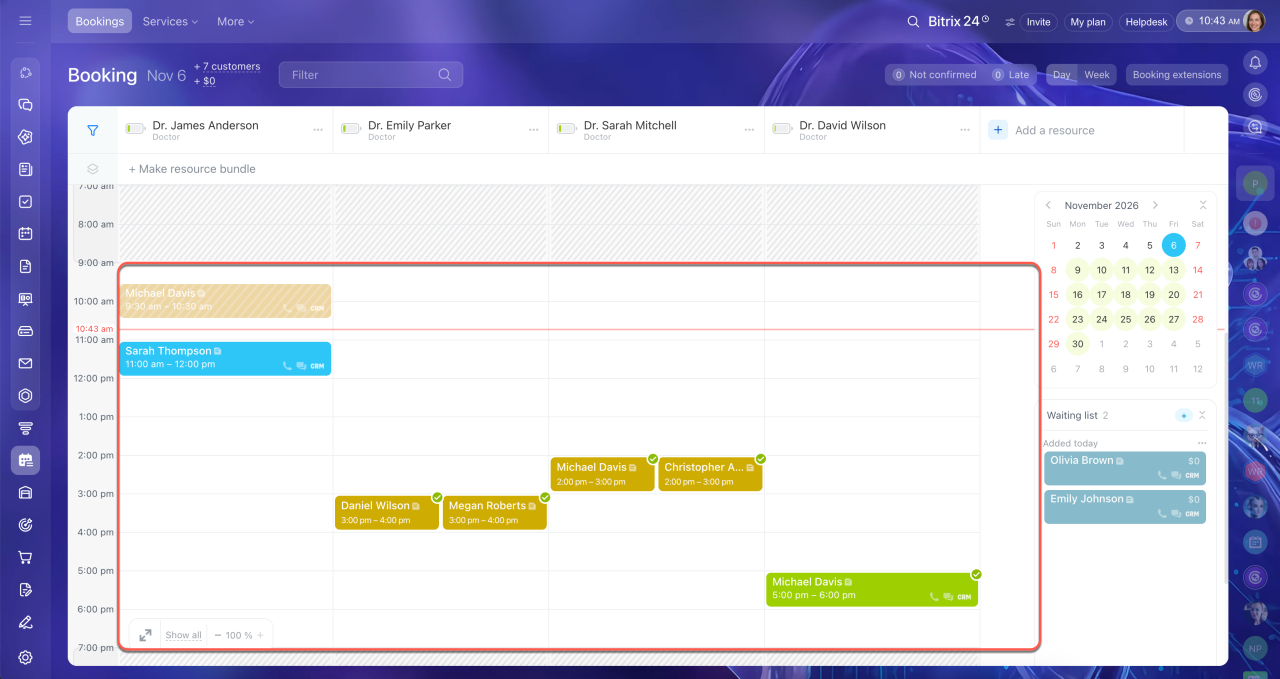
Track booking statuses. Each booking in the schedule is color-coded according to the current visit status:
- Green: The client confirmed.
- Blue: The client hasn't confirmed.
- Orange: The client didn't show up.
Red counters show how many clients haven't confirmed a booking or are currently late. Employees can immediately see which bookings need attention. For example, if a client hasn't confirmed a booking, there is still time to call and check. The timeline records every action, including messages, statuses, and confirmations. This helps you retain clients and manage bookings.
Booking: Getting started
Booking scenarios
Booking helps you manage employee workloads and resource availability. Bitrix24 supports several scenarios, including resource bundles, overbooking, and waiting lists. These features help you retain clients and reduce lost revenue, even when your schedule is full.
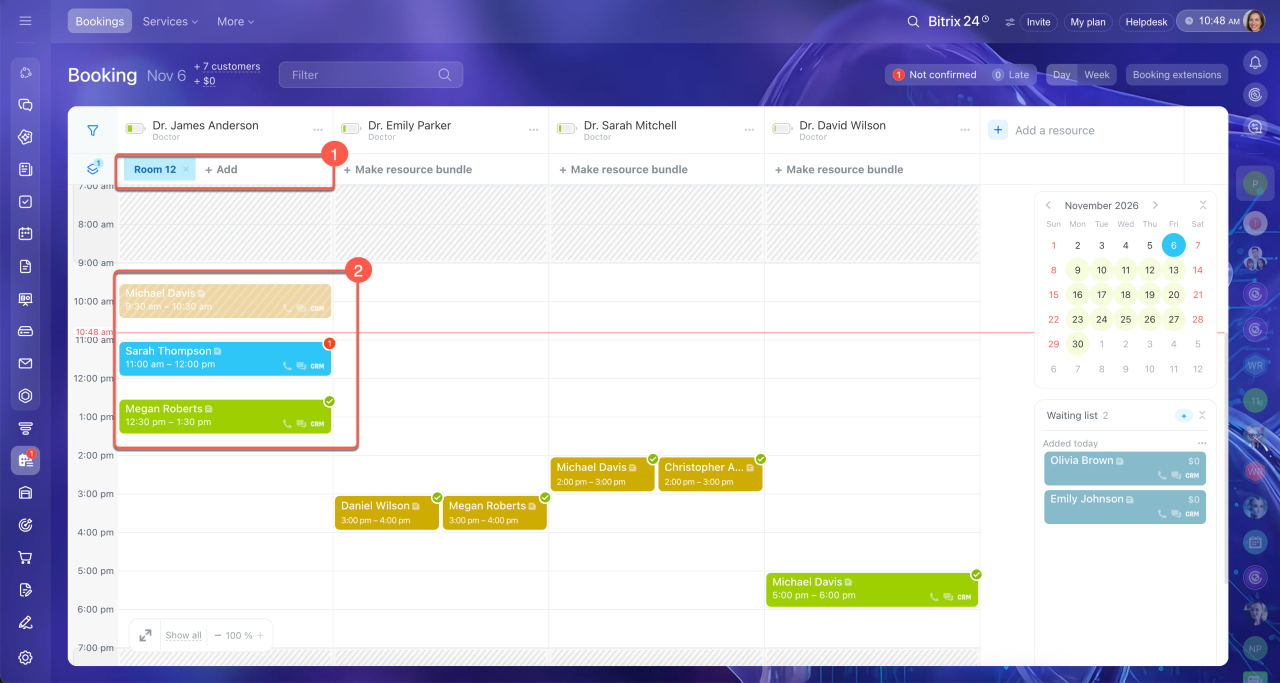
Resource bundles. Some services require several resources at once, such as employees, vehicles, equipment, or rooms. For example, installing an air conditioner requires both a technician and a lift truck, while delivering furniture requires a truck and a crew. In CRM, select a main resource, such as a specialist, and add the other required resources. Bitrix24 shows only time slots when all required resources are available. This helps you avoid scheduling conflicts and complete services on time.
Booking: how to create a new resource
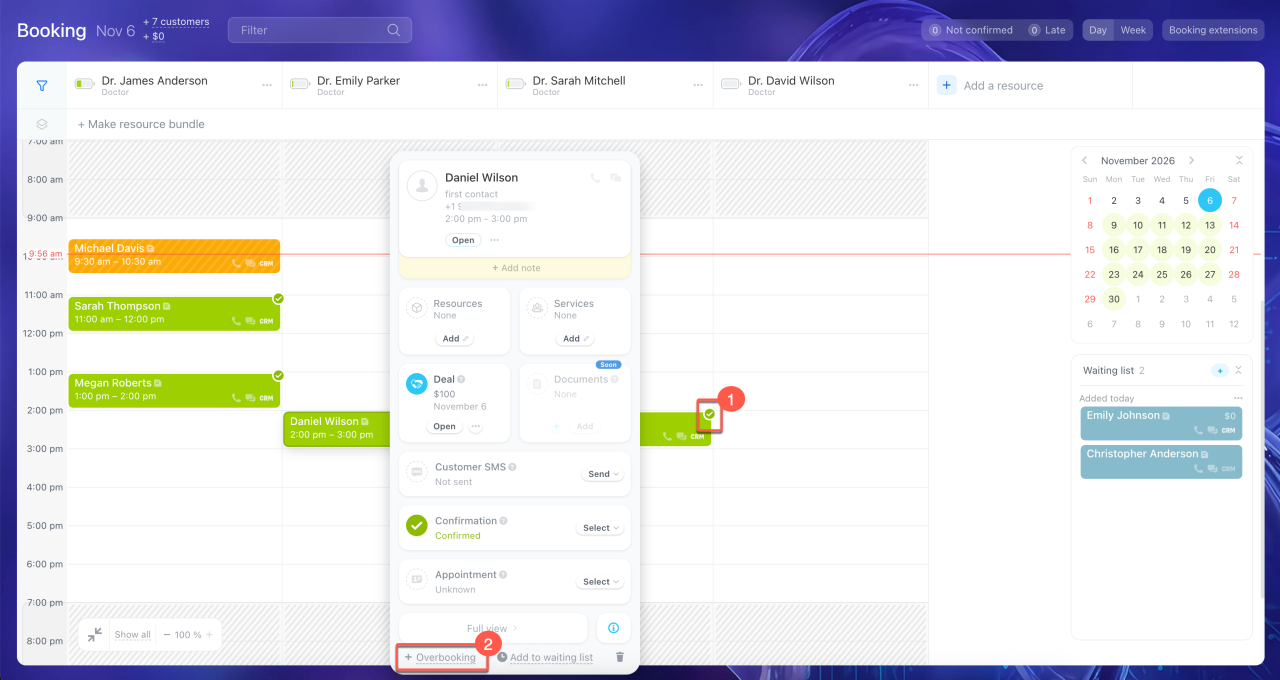
Overbooking. If some clients don't show up for their appointments, you can use overbooking to book two clients for the same time slot. This helps reduce employee downtime. In Bitrix24, click Overbooking and add a second client to an occupied time slot. If both clients show up, you may need to ask one of them to wait or reschedule their appointment. You can offer compensation for the inconvenience.
For example, if 1 out of 10 clients at a beauty salon misses their appointment, the receptionist can add a second client to a morning time slot. If one client cancels or doesn't show up, the specialist can still serve the other client.
Add a customer booking
Use overbooking in online booking
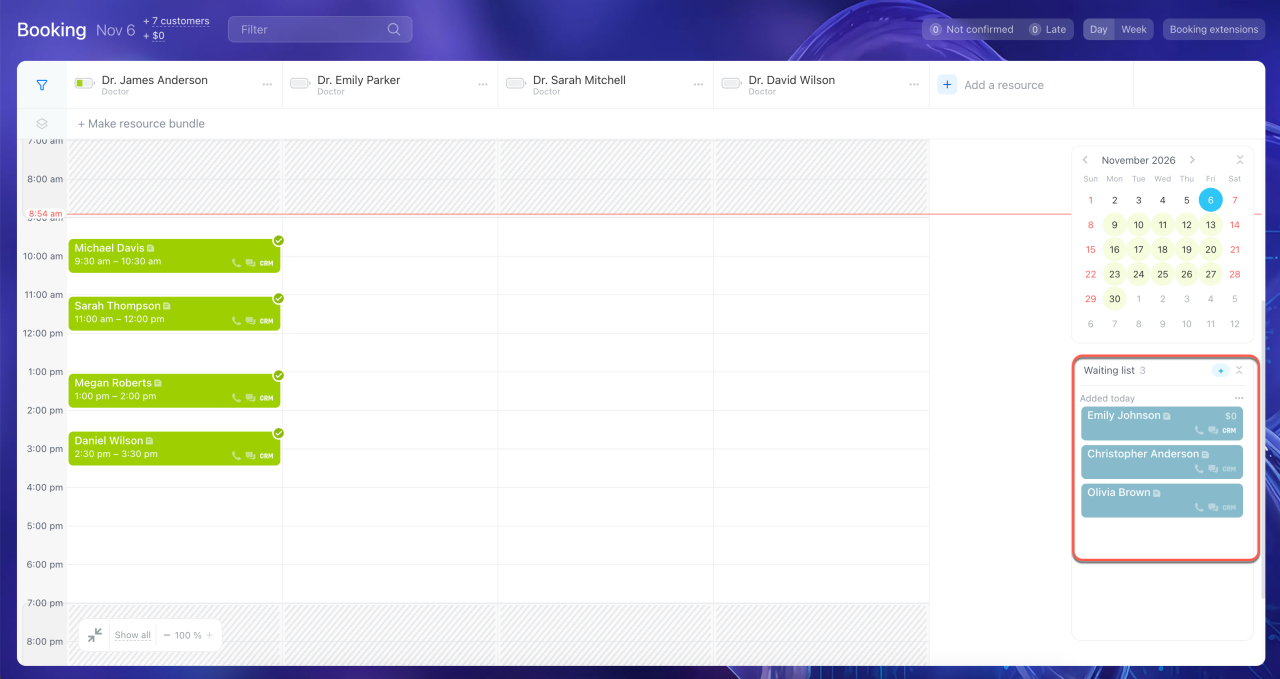
Waiting list. When all time slots are booked, add the client to the waiting list. Employees can add details, such as the requested service and preferred time, in a comment on the waiting list entry. If someone cancels an appointment, employees can offer the available time slot to a client on the waiting list. For example, an auto repair shop is fully booked for the week, so employees offer new clients a place on the waiting list. Two days later, someone cancels a diagnostic appointment. An employee contacts a client on the waiting list and offers the available slot. This helps the shop avoid losing a booking.
Bitrix24 Booking: put a client on the waiting list
Use the waiting list in online booking
Booking helps you balance employee workloads, reduce no-shows, and respond quickly to schedule changes. Use these features to make better use of your resources and retain clients.