
Product pricing directly affects profitability. If prices are too high, customers may choose competitors. If they're too low, your business may not make a profit or could even operate at a loss. To price products effectively, consider all costs and leave room for discounts without selling at a loss.
For example, retailers often run seasonal sales with discounts of 20–30%. If you don't account for these discounts when setting regular prices, the promotions may become unprofitable. In wholesale sales, the price often depends on the order quantity: the larger the order, the lower the price per unit.
In this article:
Determine product prices
To set a selling price, calculate the total cost of a product and add the profit you want to earn. Keep these three principles in mind:
Account for all costs. The selling price should cover all costs related to the product and leave room for profit. Include purchasing, production, delivery, packaging, employee wages, and applicable taxes. Then calculate your margin.
Margin (%) = ((Selling price − Cost) / Selling price) × 100%
For example, if a product costs $15 in total and you sell it for $30, your profit is $15 and your margin is 50%. If you offer a discount of more than 50%, the selling price falls below the product's cost, and you lose money on each sale.
Assess how discounts affect profit. Even a small discount can significantly reduce your profit. For example, if a product has a 50% margin, a 30% discount reduces the profit per unit by 60%. Before offering a discount, calculate how much profit you'll have left. When setting prices, leave room for future promotions, or offer discounts only on products with a high enough margin.
Check when a discount pays off. A discount may be worthwhile if it helps you sell more products. To maintain the same total profit, you need to offset the lower profit per unit by increasing sales volume. Use this formula to calculate the required increase in the number of units sold:
For example, with a 50% margin and a 10% discount, you need to sell 25% more units to earn the same total profit as before the discount, assuming the cost per unit stays the same. If sales grow by less than 25%, your total profit decreases. If they grow by more than 25%, your total profit increases. If such growth seems unlikely, offer a smaller discount or choose a product with a higher margin.
Here are four common pricing mistakes to avoid:
Discounts that are too large or too small. Large discounts cut deeply into profit, while small discounts, such as 3–5%, may not be enough to encourage customers to buy. Use the formula above to check how much your sales need to grow. If you're unsure whether sales volume will grow, consider offering additional value, such as free delivery, a gift, or a bonus. Use large discounts selectively and set clear limits, such as "Only until the end of the week" or "Only for the first 20 customers."
Overlooking expenses. Profit isn't simply the difference between the purchase price and the selling price. For example, you might buy a product for $5 and sell it for $7, assuming you've earned $2. However, delivery, packaging, rent, wages, and taxes can reduce your actual profit or even turn it into a loss.
Running promotions too often or for too long. When discounts are always available, customers may start waiting for the next sale instead of buying at the regular price. Frequent promotions can also reduce a product's perceived value. Tie promotions to specific occasions and limit them by time or quantity.
Using the same price for all customers. Retail and wholesale customers often have different needs. For example, wholesale buyers may expect lower prices for larger orders, while retail customers may place greater value on service and convenience. Consider separate prices for retail, wholesale, repeat, and high-volume customers.
Set product prices in the catalog
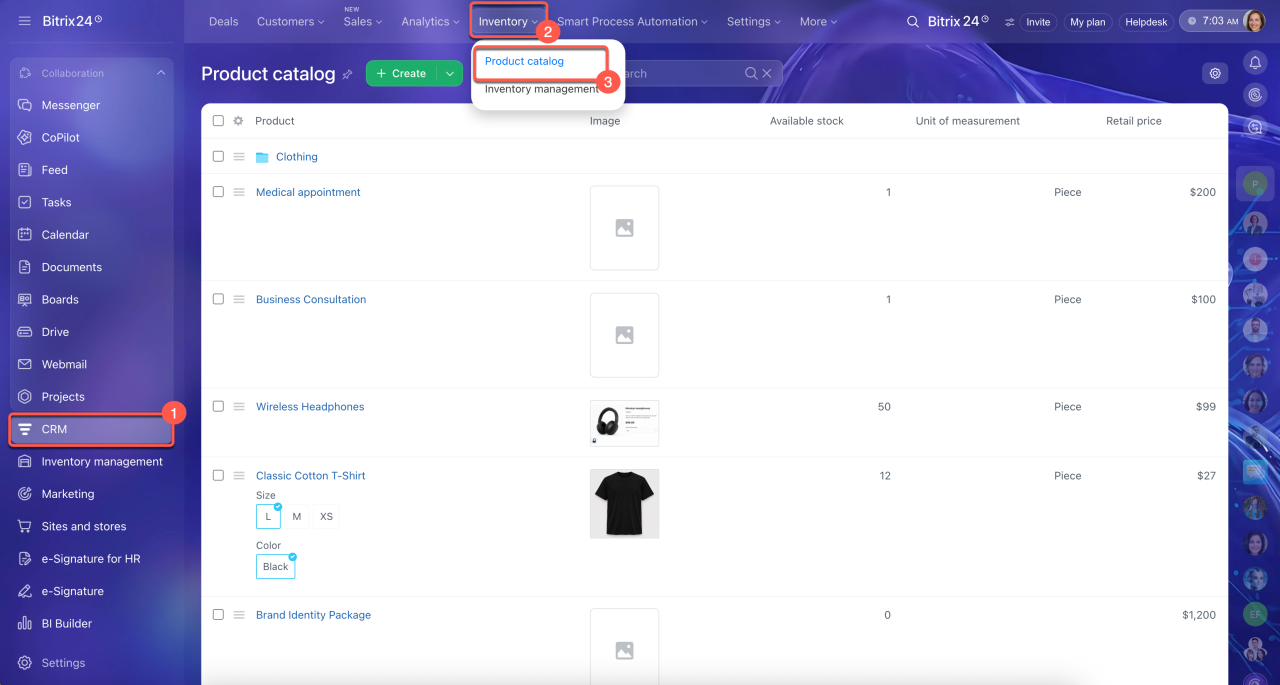
The product catalog contains your company's products and services, along with their prices. Catalog prices are used by default in deals, invoices, and estimates. They can also appear in your online store if you have one connected. To set or change a product price, follow these four steps:
1–3. Go to CRM > Inventory > Product catalog.
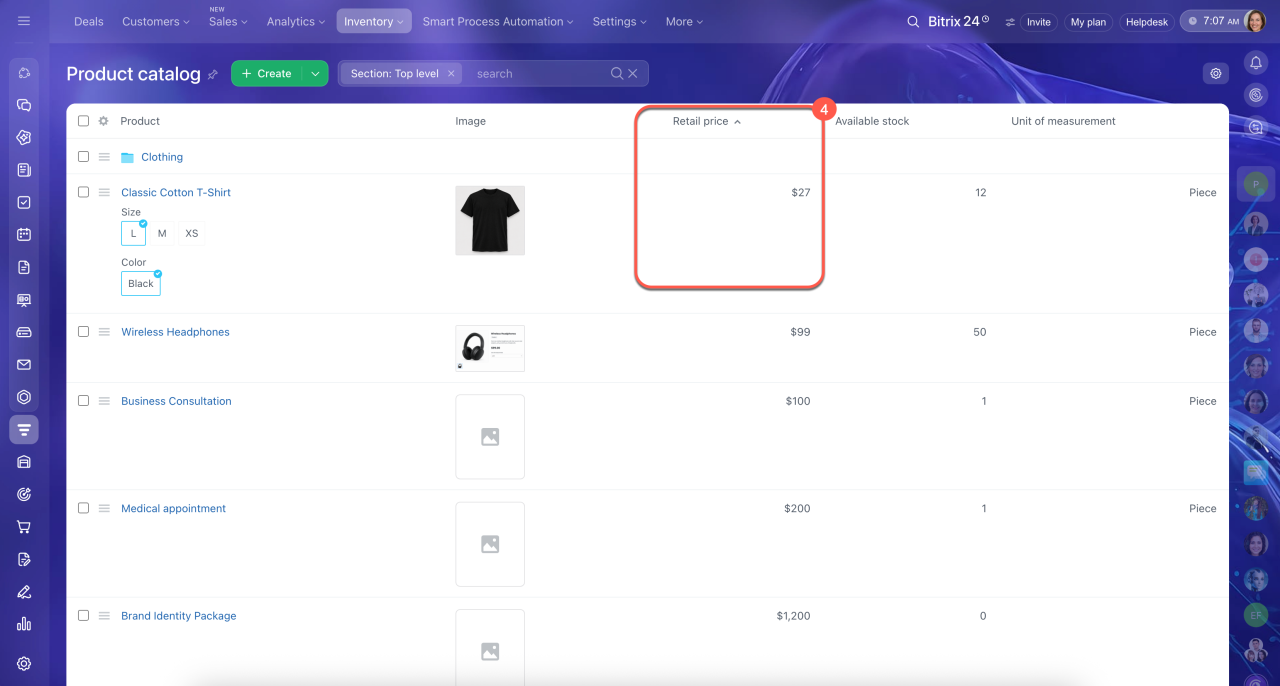
4. Select the product you need or add a new one. Enter the price in the Retail price field. This is the default selling price.
Product catalog
Add products to a CRM item form
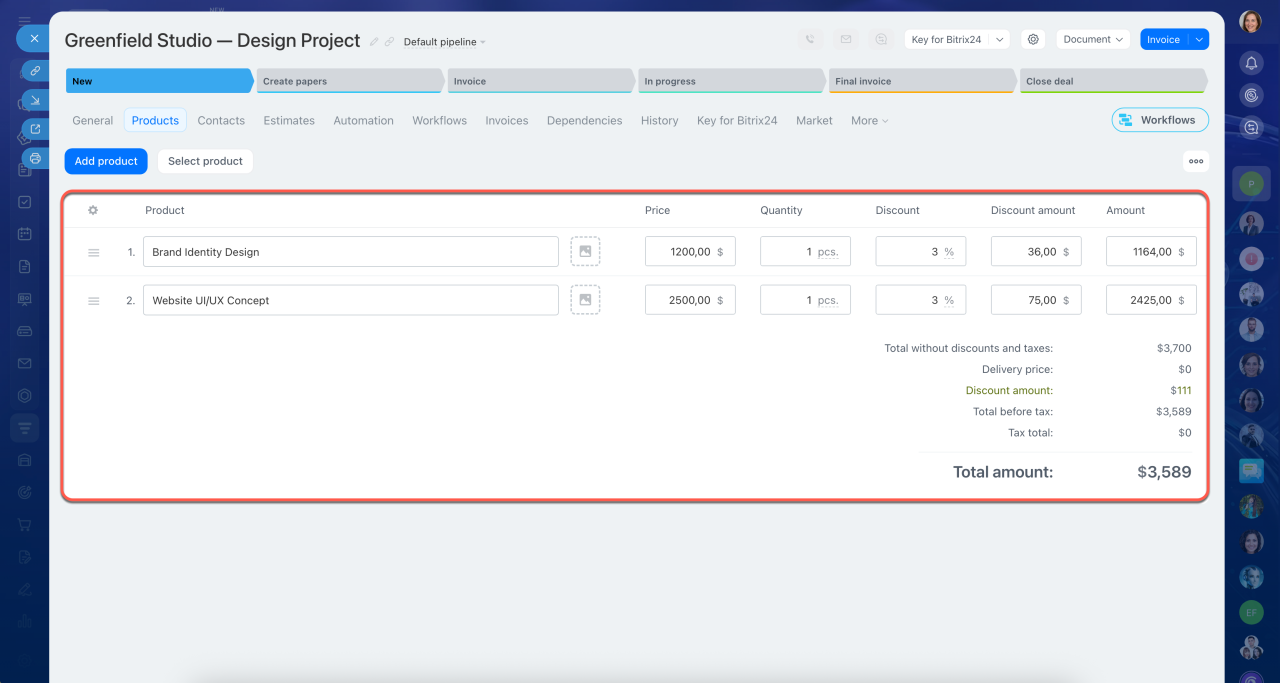
When an employee adds a product to a deal, Bitrix24 uses the catalog price to calculate the total amount. You can configure access permissions to allow employees to change product prices or apply discounts directly in the deal form. This is useful when offering special pricing to individual clients.
Inventory access permissions
Configure access permissions to change product prices in CRM forms
Inventory access permissions: Control who can edit selling prices
In brief
- Product pricing affects profitability. Set prices based on product costs and your desired profit margin.
- Product costs include purchasing, delivery, packaging, wages, and other expenses. Account for these costs and add your desired profit to determine the selling price.
- Discounts reduce profit per unit, so calculate their impact before offering them. For example, with a 50% margin, a 10% discount requires a 25% increase in sales volume to maintain the same total profit, assuming costs per unit stay the same.
- Set product prices in the CRM catalog. When employees add products to deals, Bitrix24 applies the catalog prices automatically. Use access permissions to control who can change prices and apply discounts.