
Automation rules help streamline customer interactions. Use them to prepare an estimate, send an email, or schedule a call or meeting with a client.
Automation rules are grouped by what they do. For example, the Document Processing group handles document-related tasks. When a deal is closed, the system can automatically generate a document and send it to the client for signature.
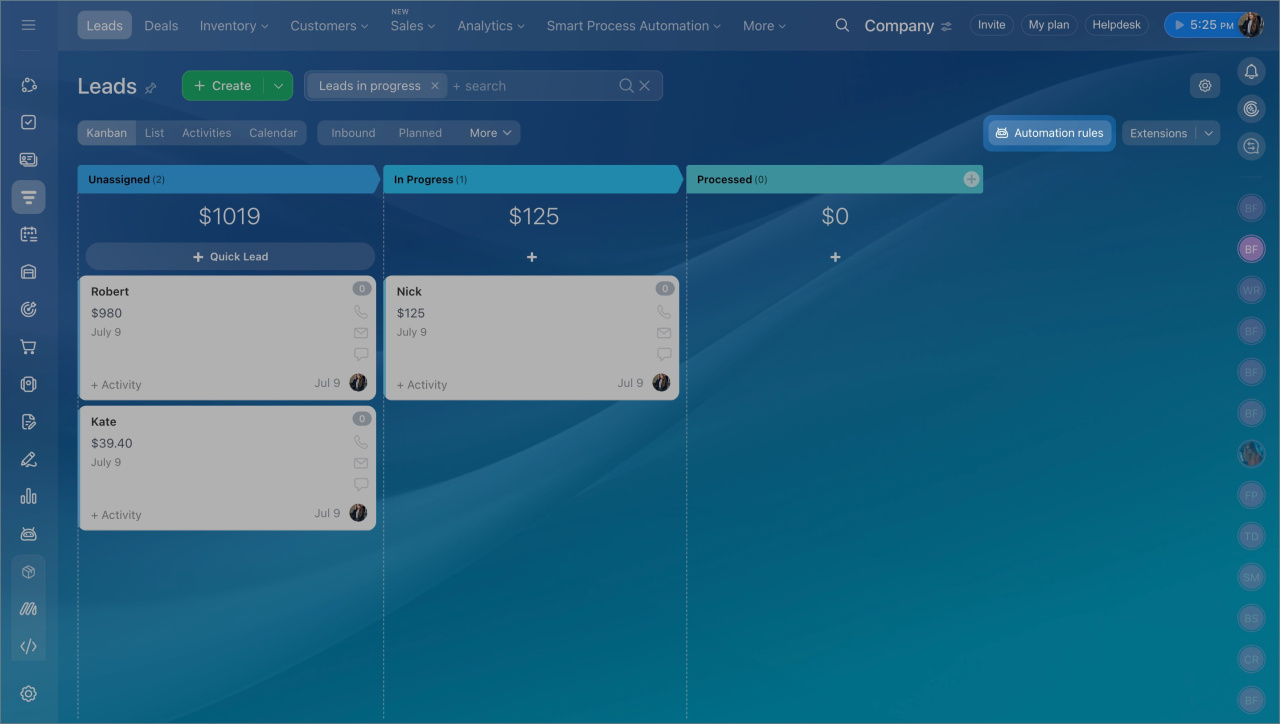
- Go to the CRM section and open the item you need, such as leads or deals.
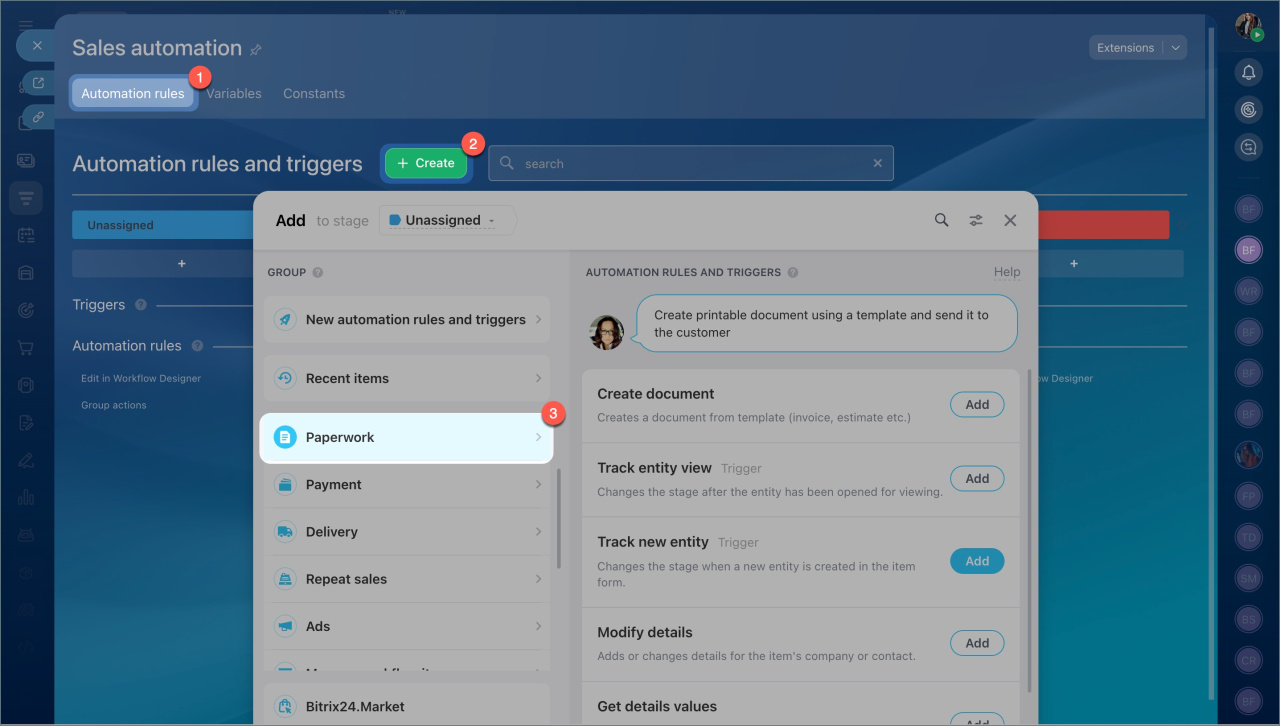
- Open the Automation rules tab.
- Click Create.
- Select the stage where you want to add the rule.
- Open the Document Processing group.
Add automation rules and triggers
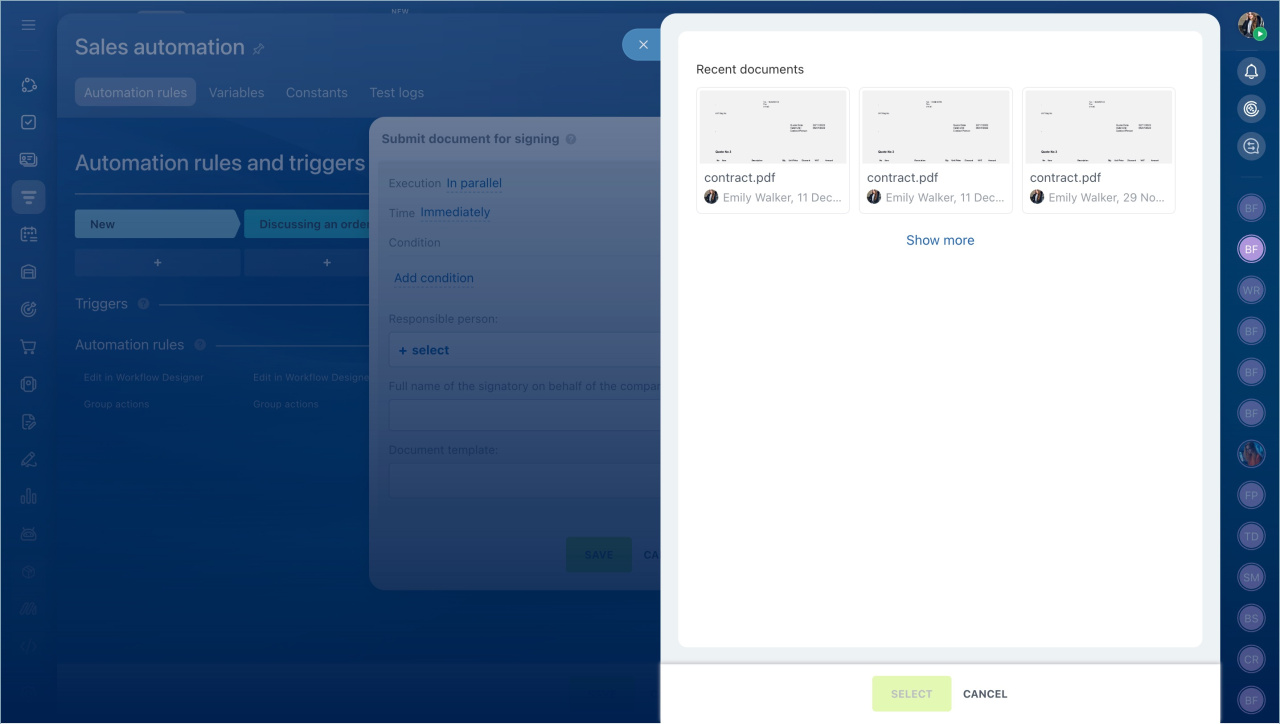
Submit document for signing
This rule generates a document from a template in the e-Signature section and sends it to the company representative and the client for signing. The CRM item form shows the sending status. The manager can check when the document was sent and which one was delivered.
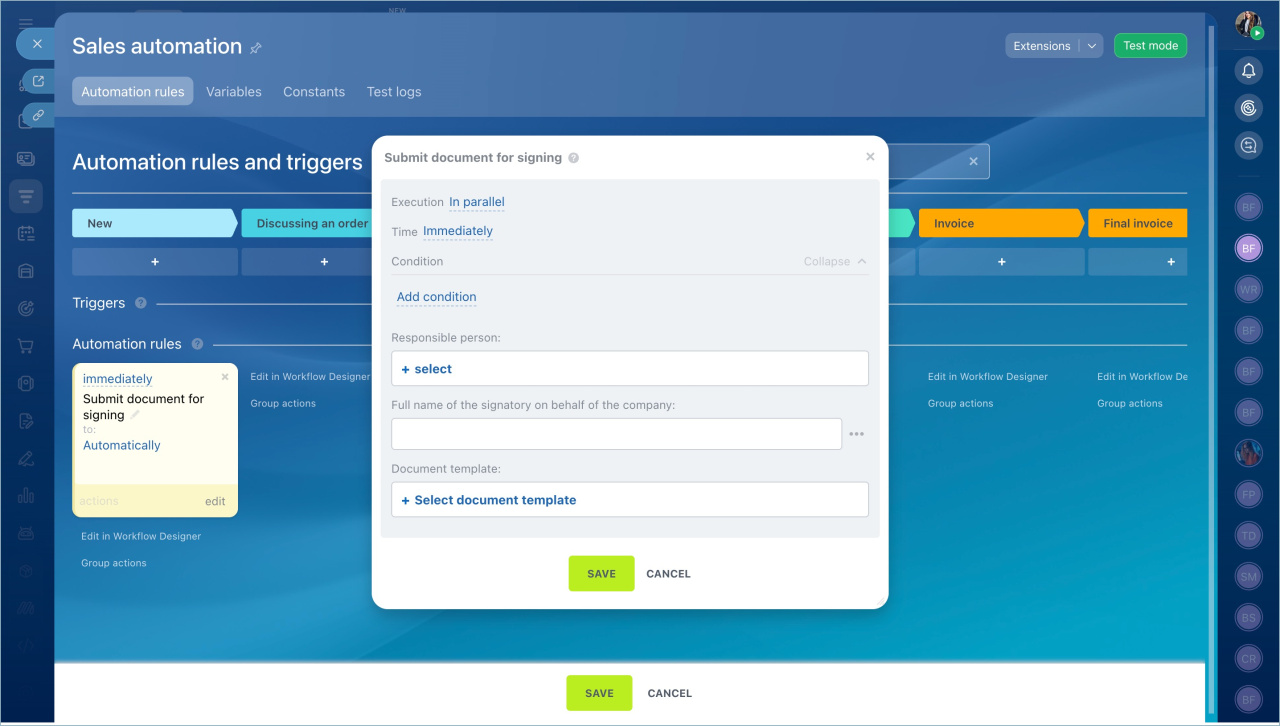
Set up the "Submit document for signing" rule
Example: set up the rule for deals.
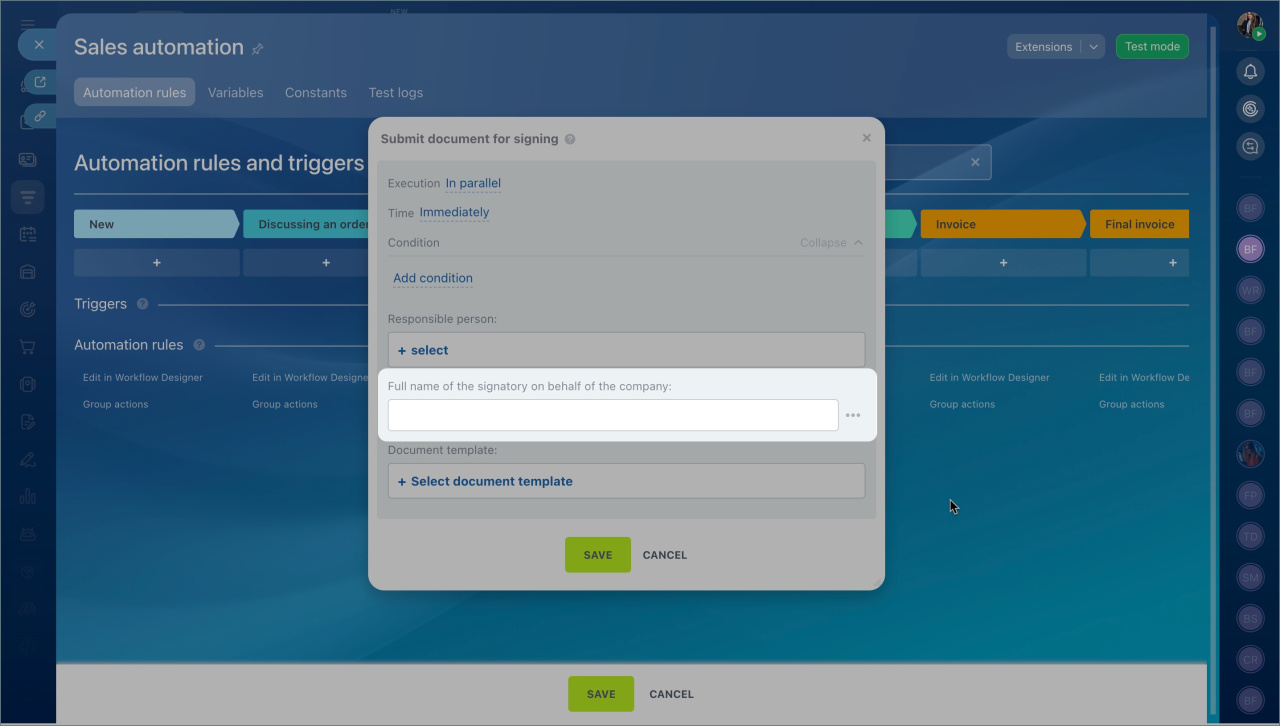
Full name of the signatory on behalf of the company. Enter the full name of the employee who signs the document. You can type it manually or insert a constant, variable, or CRM field value. Click Three dots (...) and select a value.
Variables and constants in automation rules
Document template. Select a template or add one in the e-Signature section.
Create and send an electronic document for signing
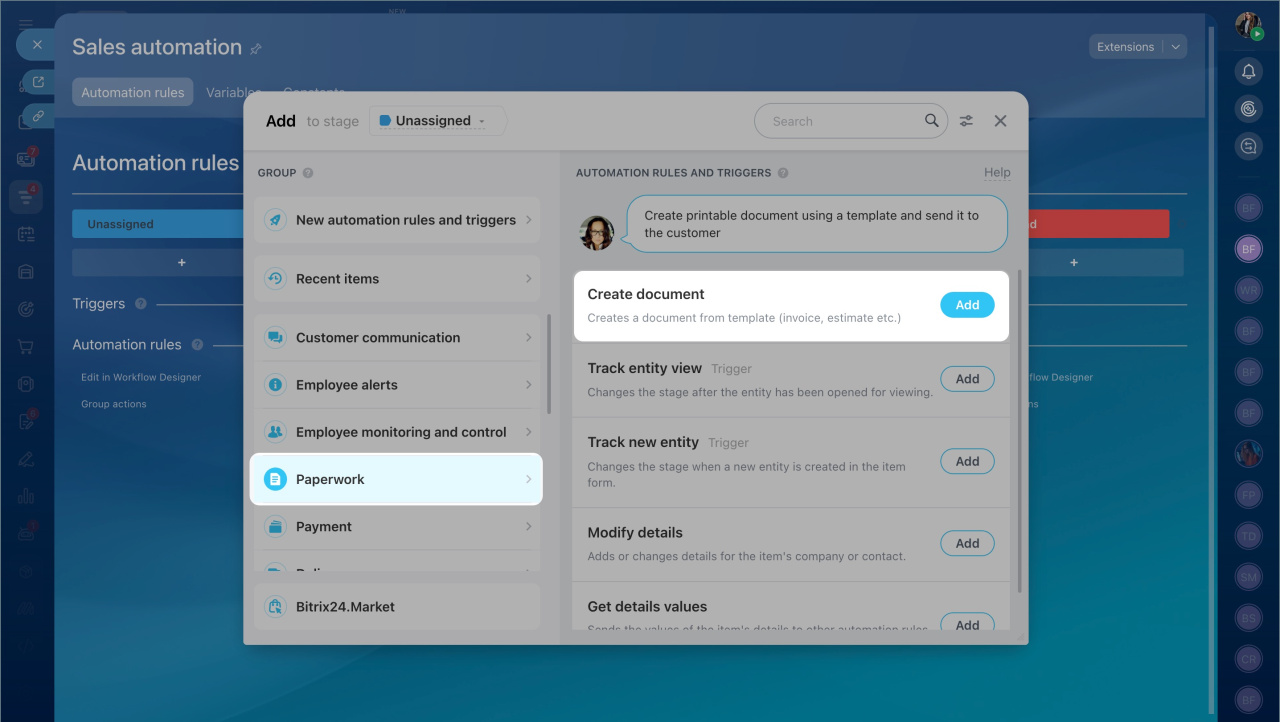
Create document
When a CRM item reaches a selected stage, this rule generates a document from a template, such as an invoice, estimate, or contract.
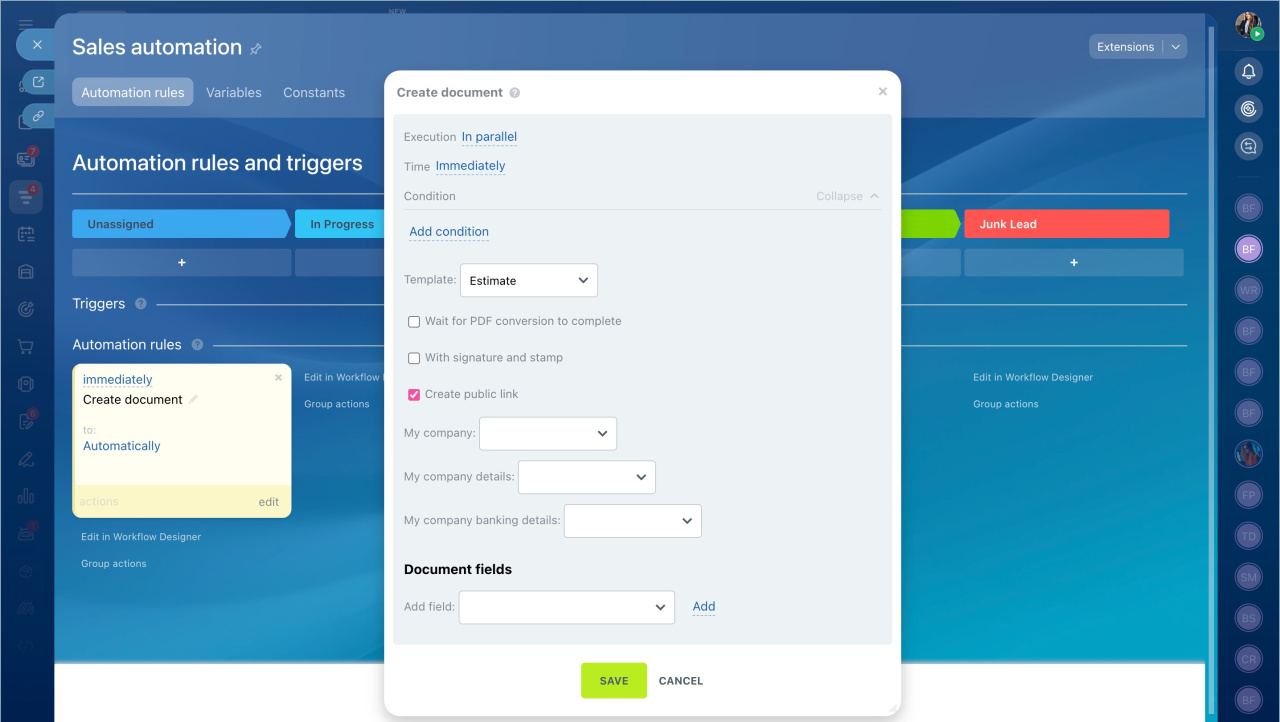
Set up the "Create document" rule
Example: set up the rule for deals.
Template. Select the template used to generate the document.
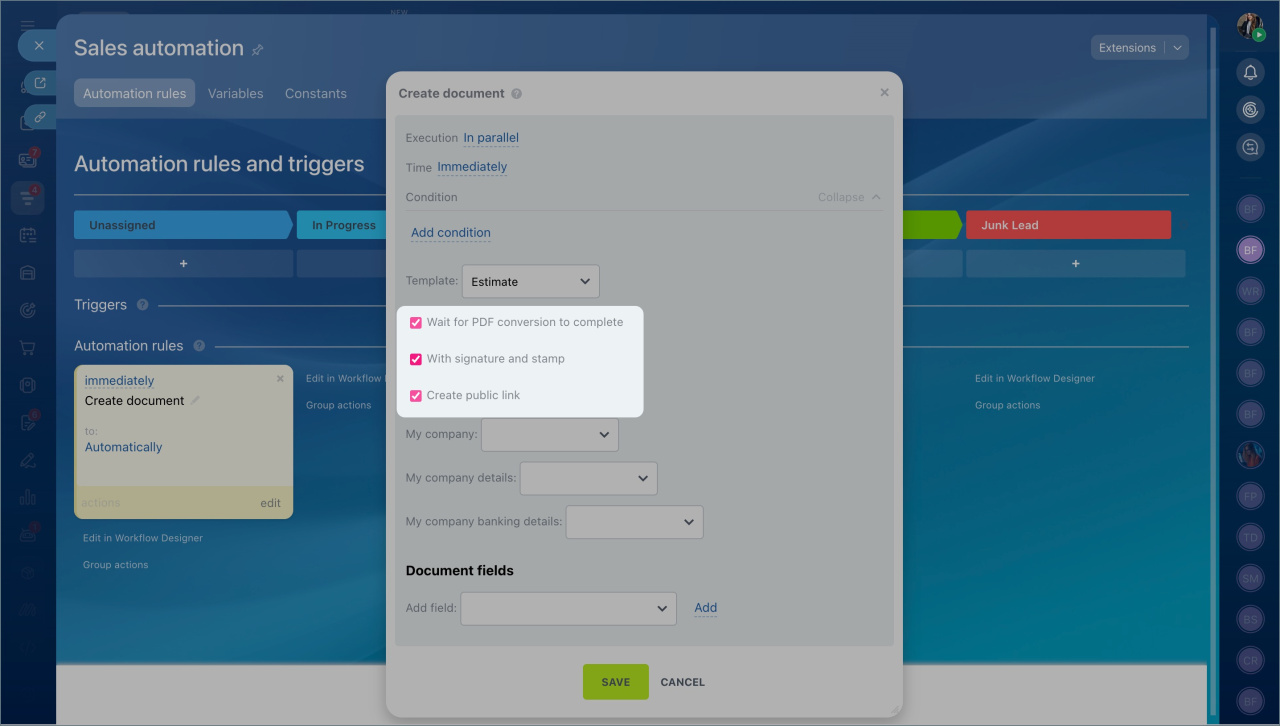
Wait for PDF conversion to complete. Enable this option to run the next rule only after the document is ready as a PDF.
With signature and stamp. Add the company signature and seal to the document.
Add company details
Create public link. Generate a link for the client to view and download the document.
My company and company details. Select the company and define its details.
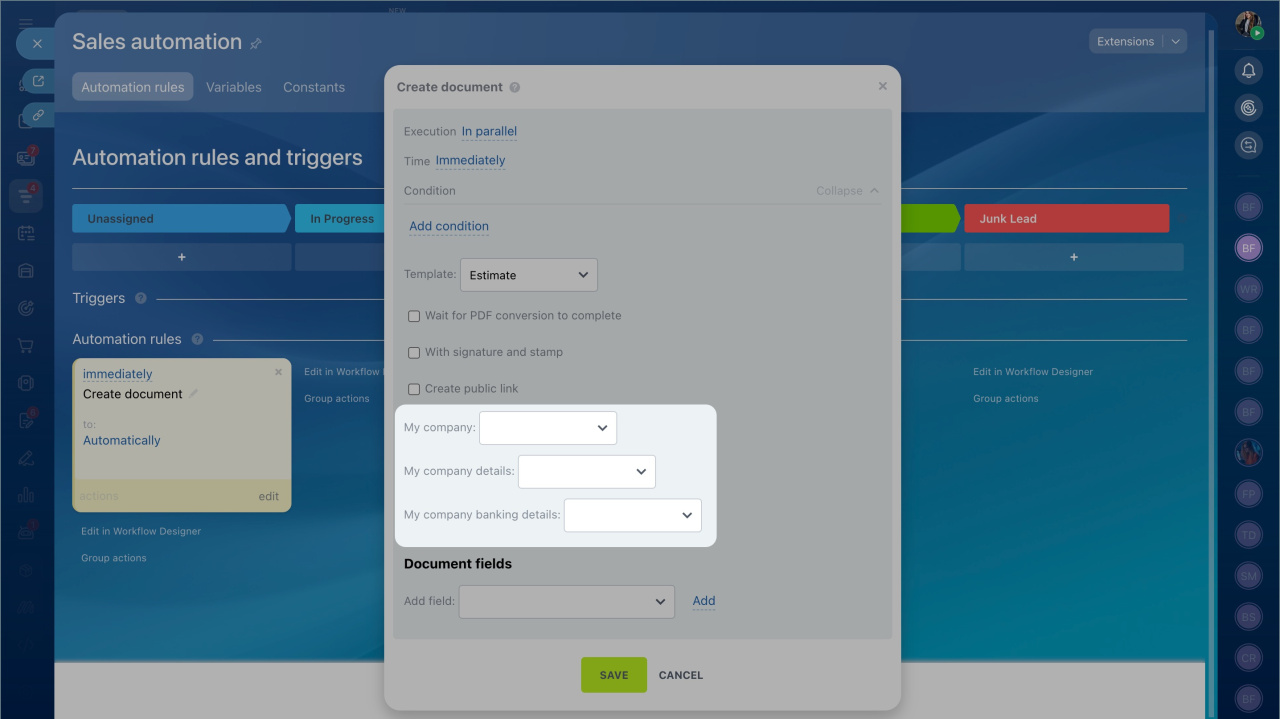
Document fields. Add extra fields and set their values, such as document title or legal address. Click Add and choose a field.
Modify details
This rule updates existing contact or company details linked to a CRM item.
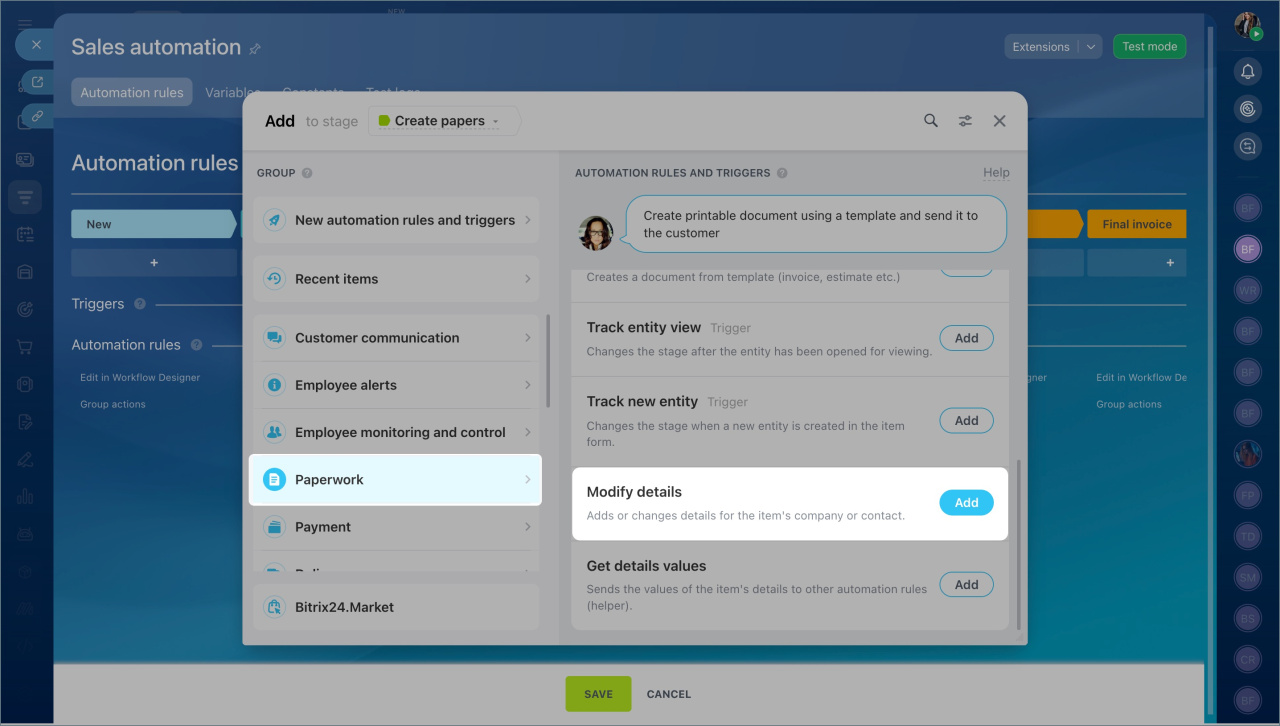
Set up the "Modify details" rule
Example: set up the rule for deals.
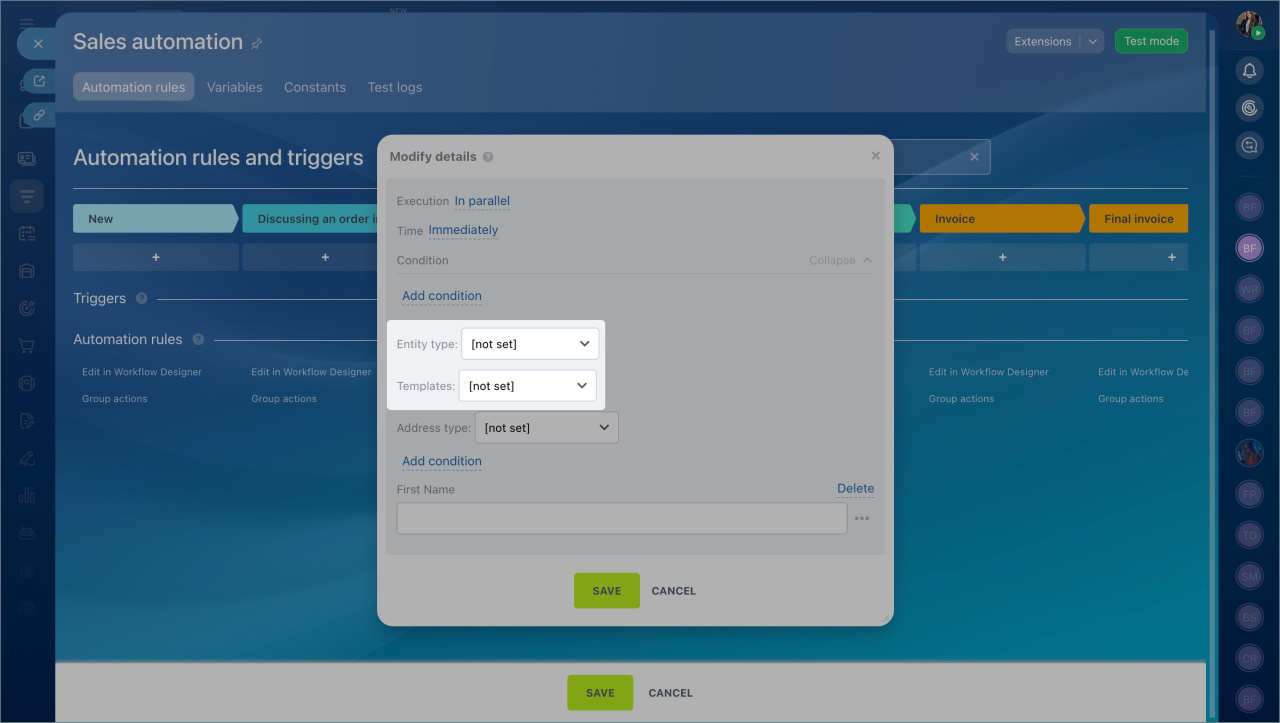
Entity Type. Choose whether to update a contact or a company.
Templates. Select the details template.
Contact or company details templates
Address type. Select the address type.
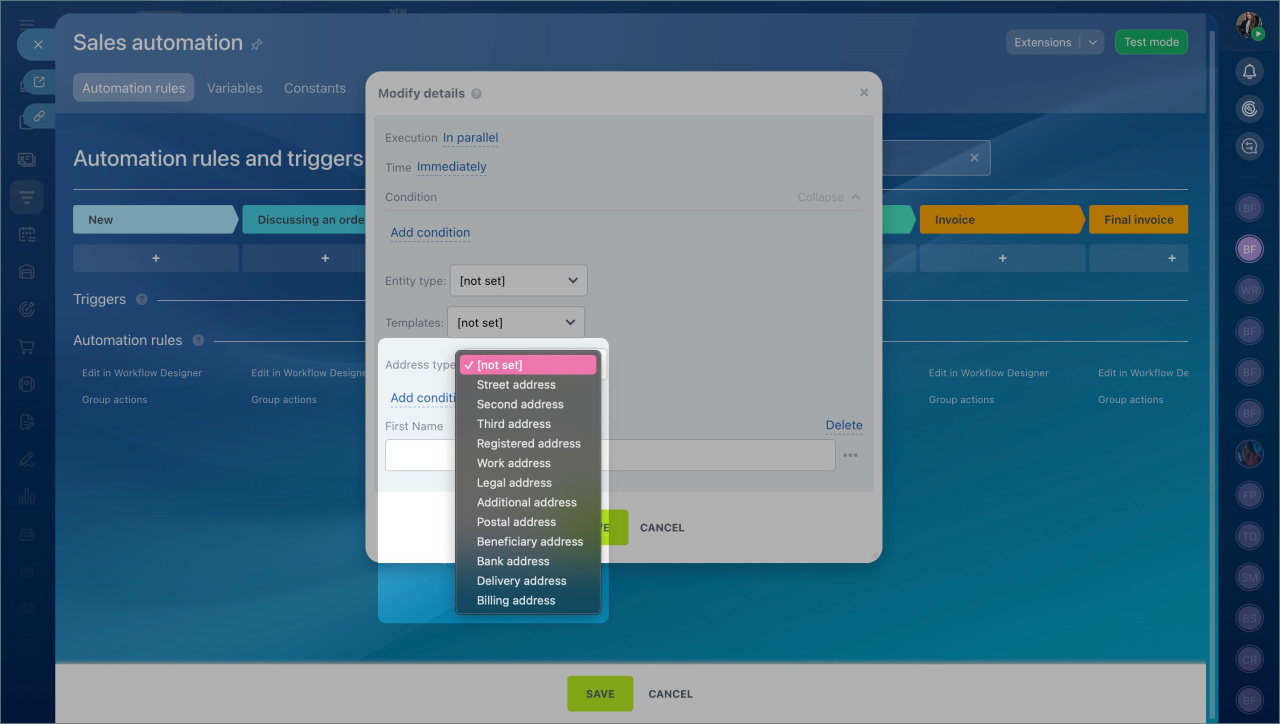
Add Condition. Add one or more fields to update. The available fields depend on the selected template. Click Add Condition and choose a field.
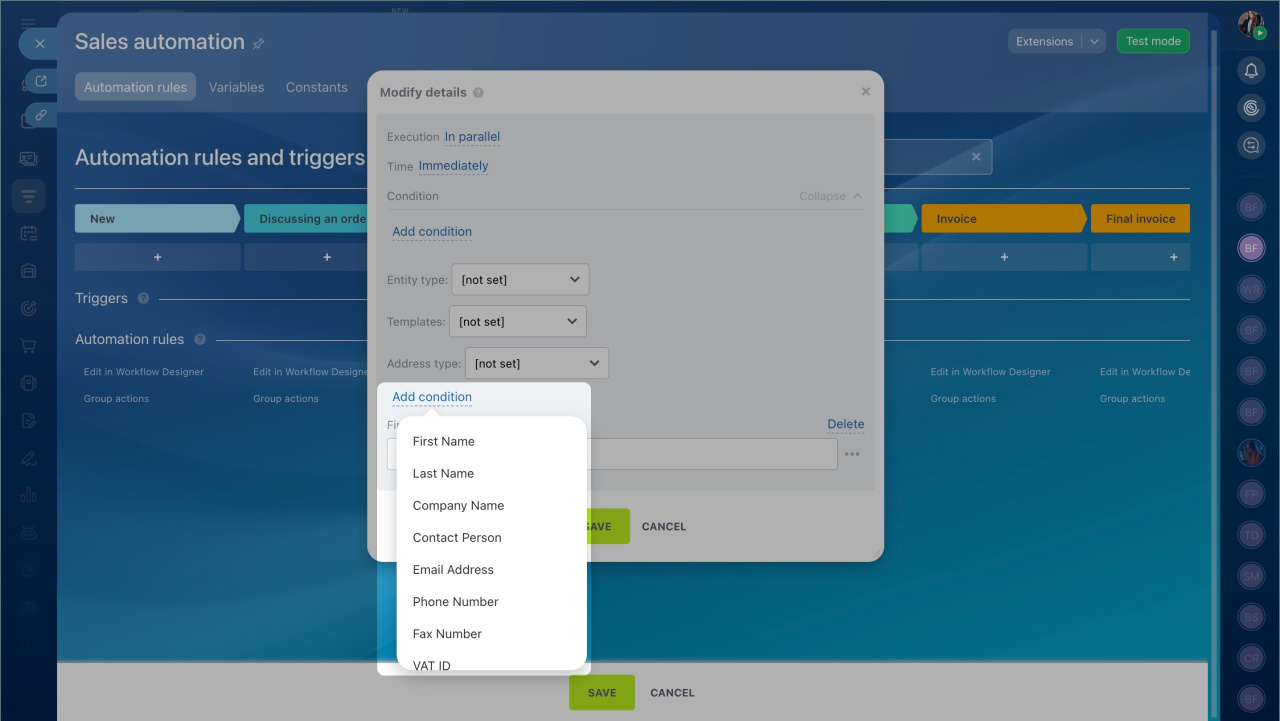
To set a new value, click Three dots (...) and select a constant, variable, or CRM field. The selected value will appear in the details.
Get details values
This helper rule retrieves values from details fields and passes them to other automation rules.
Helper automation rules
Set up the "Get details values" rule
Entity Type. Choose where to get the data from: contact or company.
Templates. Select the details template.
Address Type. Select the address type.