Bitrix24 includes a built-in tool for meetings and briefings. Use it to discuss work with your team, capture decisions, and track follow-up tasks.
Bitrix24 pricing page
How to create a meeting
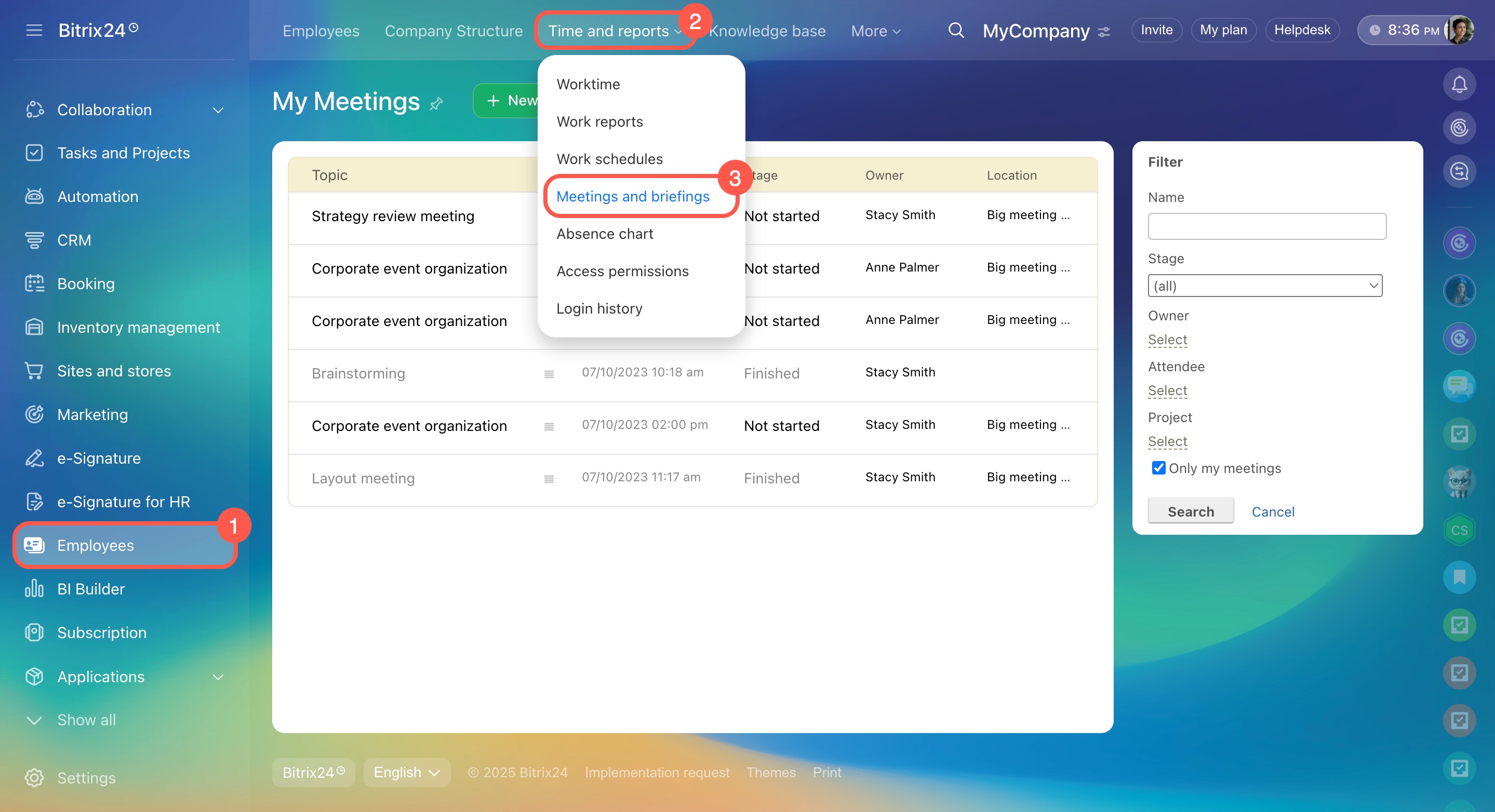
Go to Employees > Time and reports > Meetings and briefings.
If you don’t see the Meetings and briefings tab
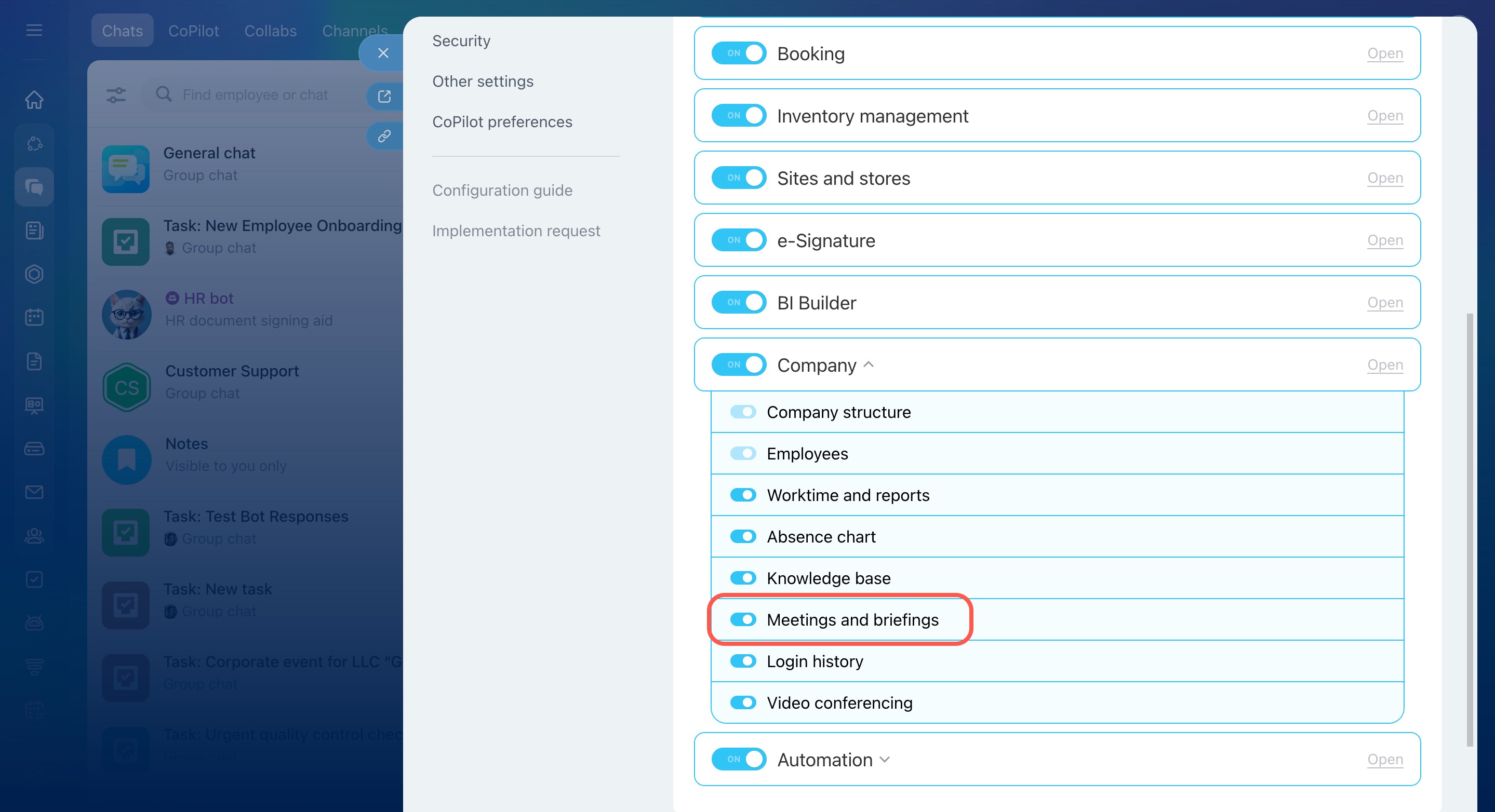
If your plan includes this feature but the tab is missing, the tool may be disabled in your account settings.
To enable it:
- Open the account settings.
- Go to the Tools tab.
- Expand the Company section.
- Enable Meetings and briefings.
- Click Save.
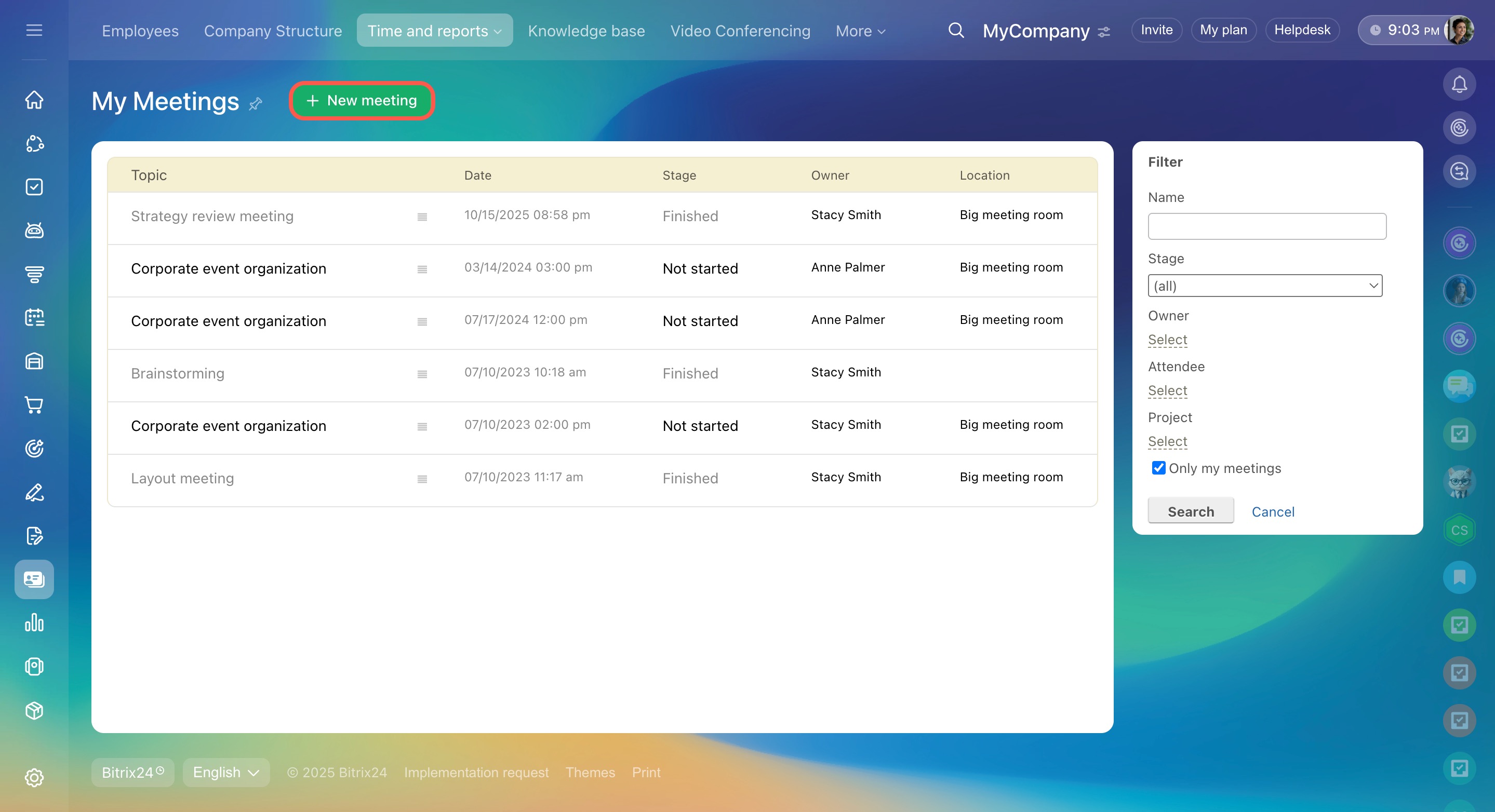
To create a meeting, click New meeting.
Enter the meeting topic, date, time, and duration. Then add attendees and select an administrative assistant who will take notes during the meeting. You can also specify the meeting location.
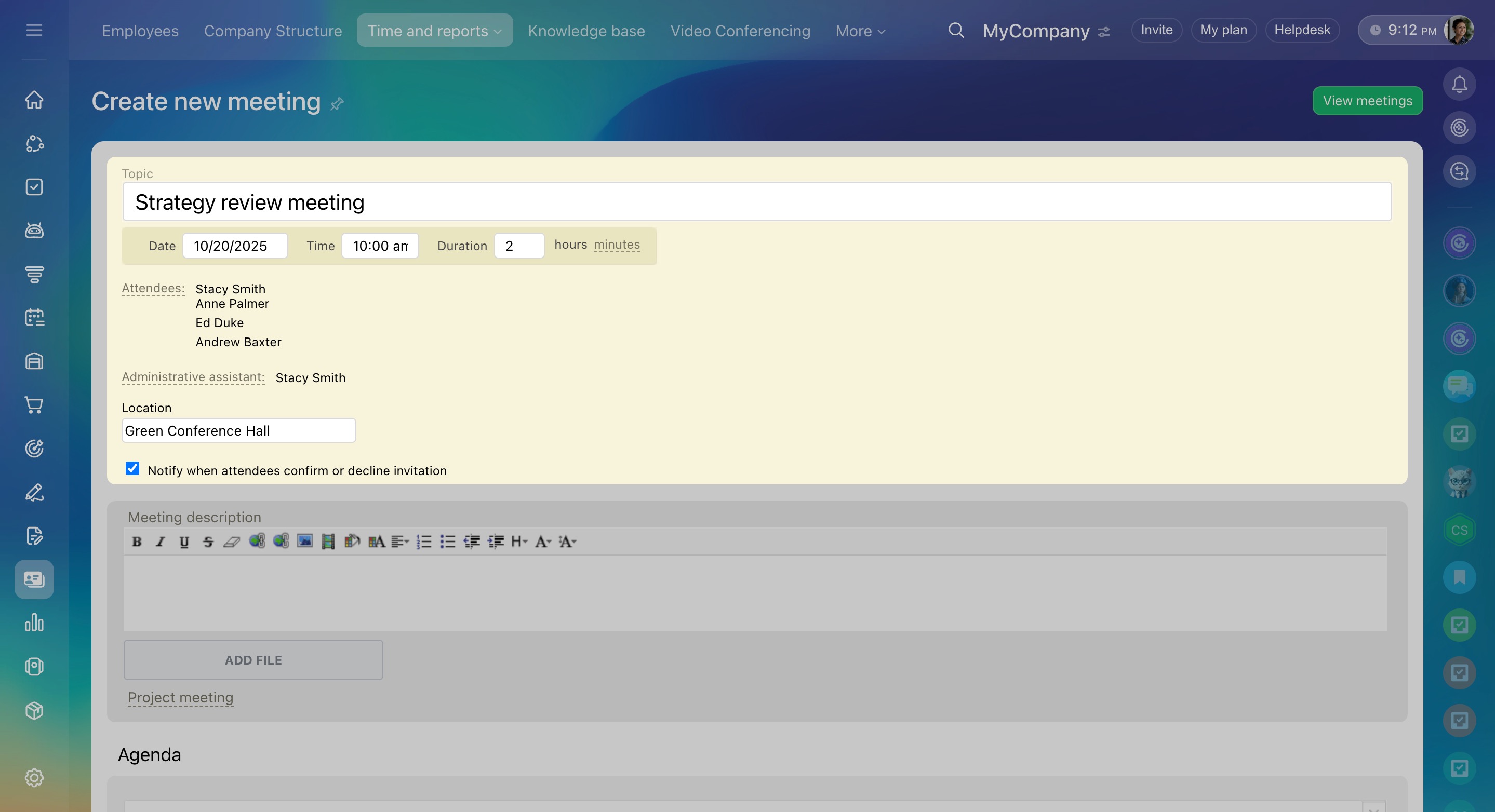
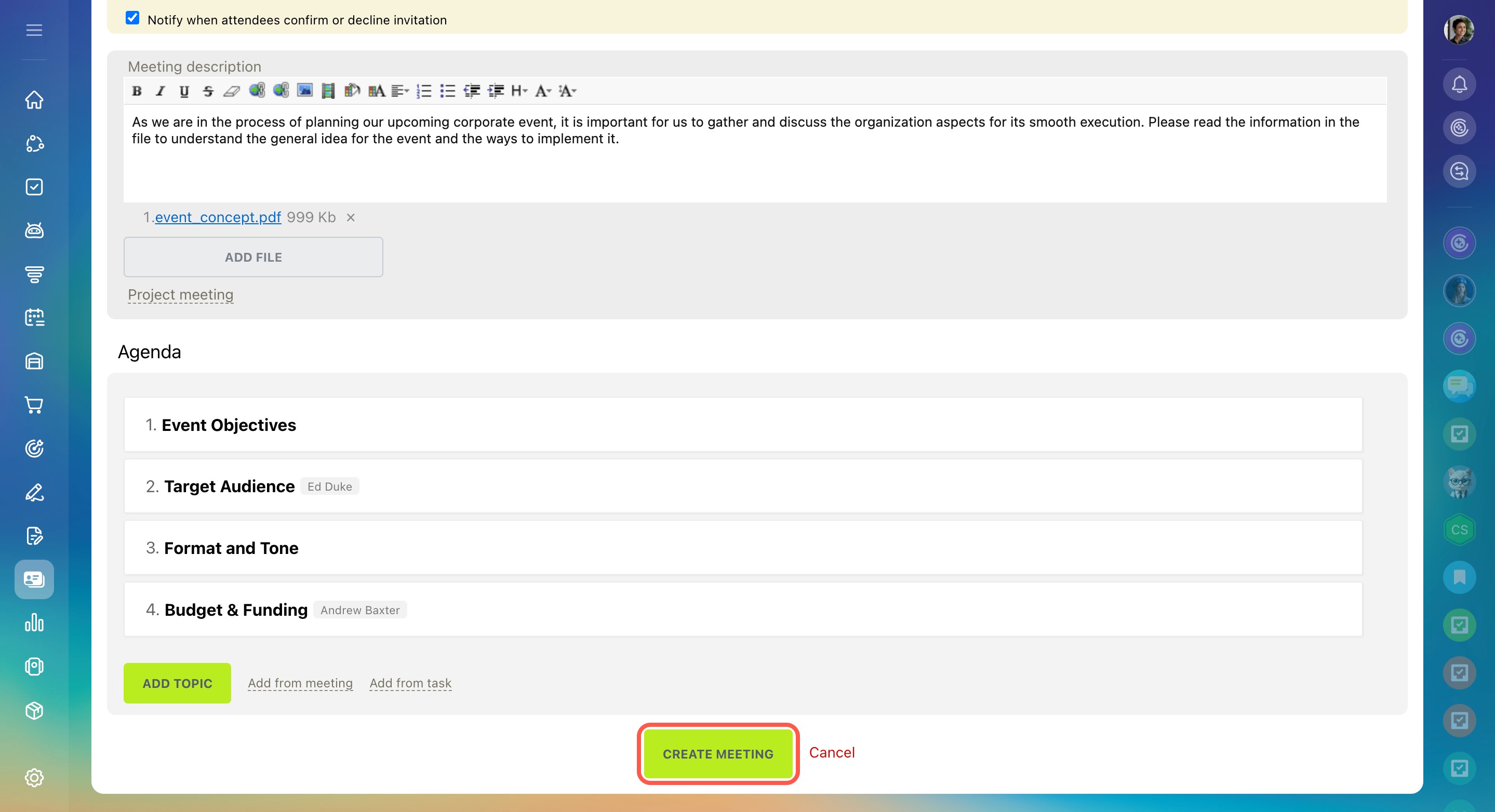
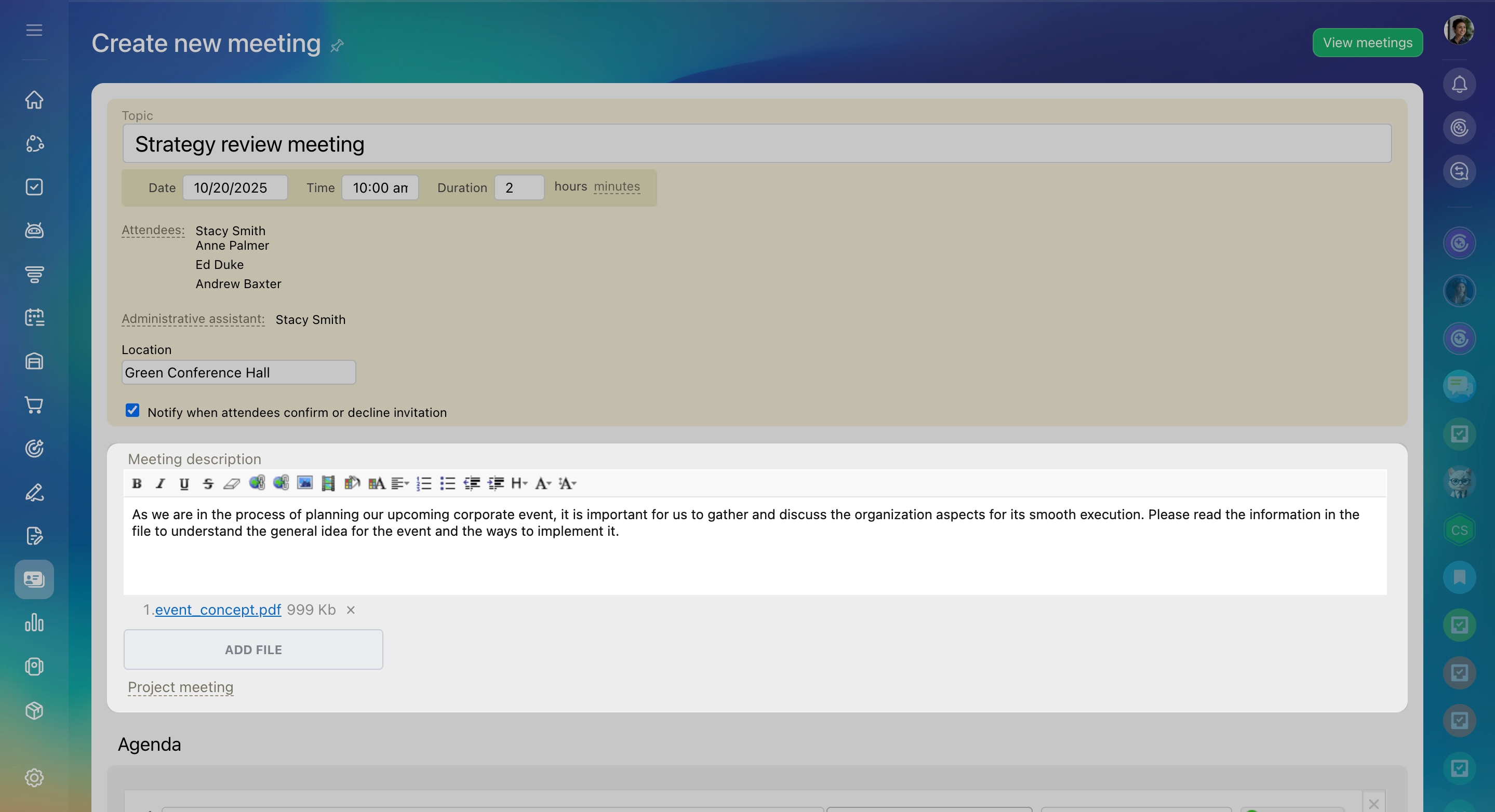
Add a description and attach any necessary files. You can also link the meeting to a workgroup or project.
In the Agenda section, add the topics you want to discuss. You can import topics from another meeting or from a task. For each agenda item, you can:
- Assign a responsible person
- Create a task
- Set a deadline
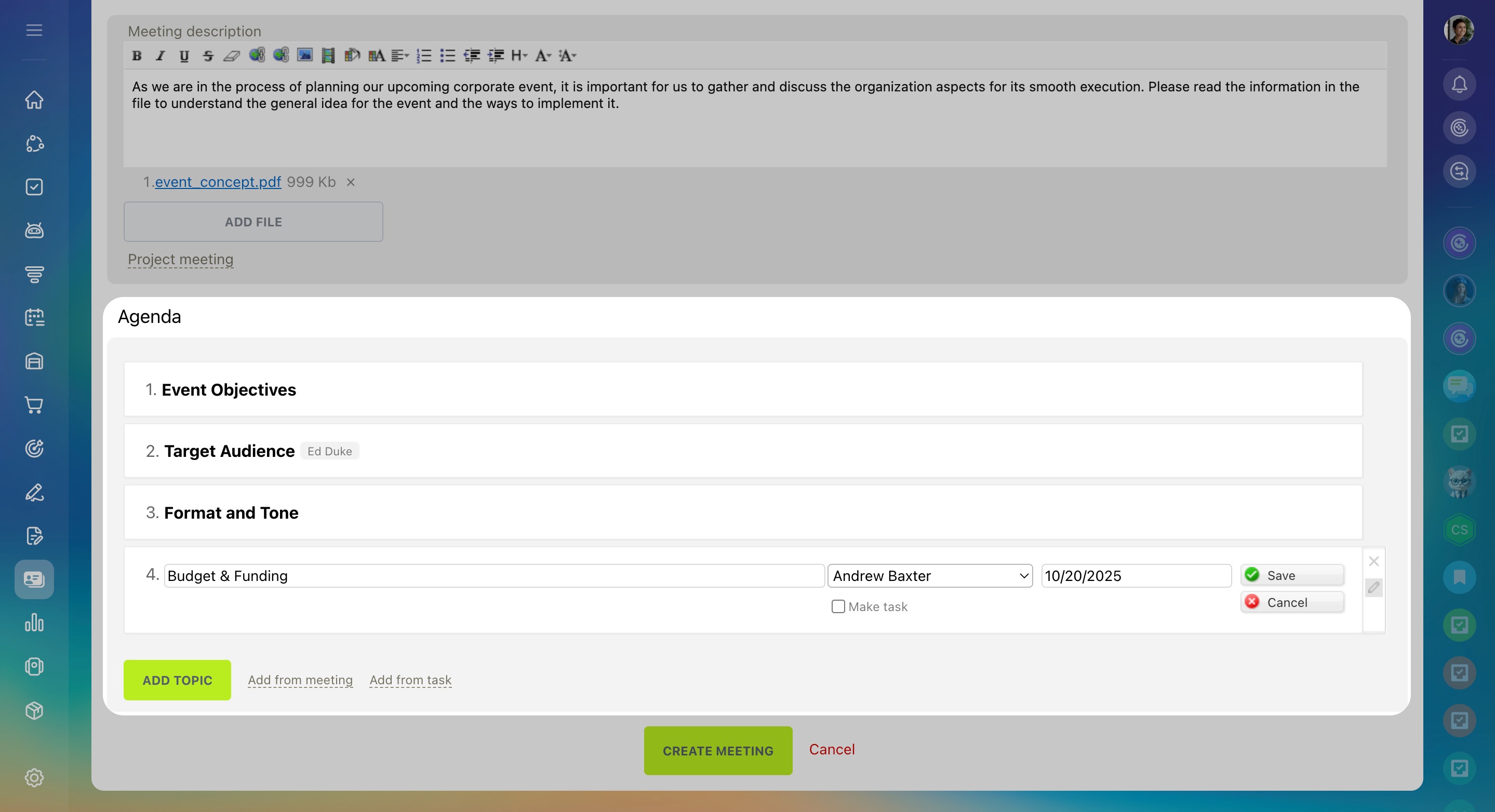
If the meeting is linked to a project, all related tasks are automatically added to that project.
When everything is ready, click Create meeting.
All attendees will receive a notification with the meeting invitation.