
Sync your Bitrix24 calendar with your iPhone calendar to keep all events in one place. Events created in Bitrix24 appear on your iPhone, and events from your iPhone appear in Bitrix24. :contentReference[oaicite:0]{index=0}
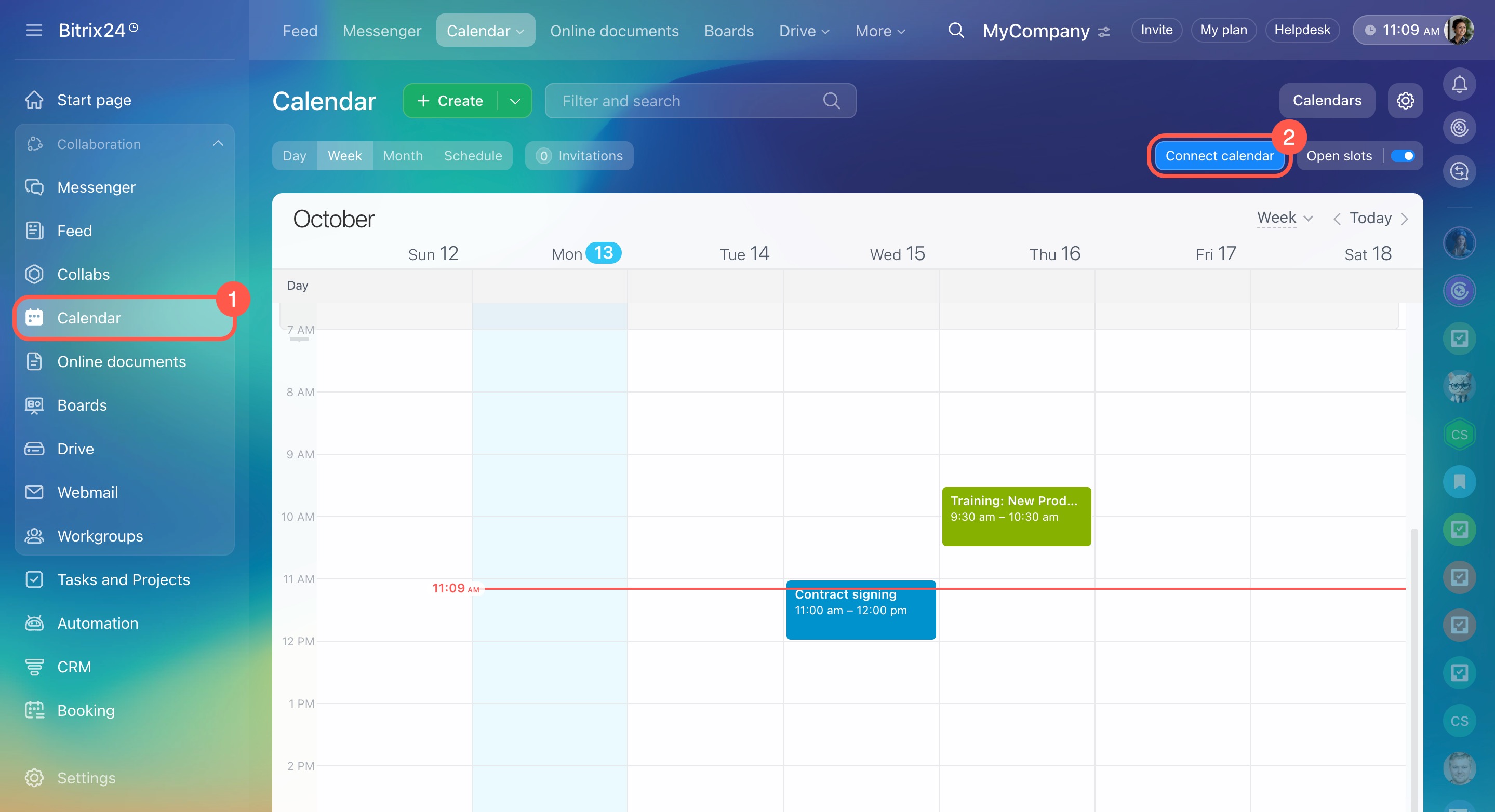
- Go to Calendar.
- Click Connect calendar.
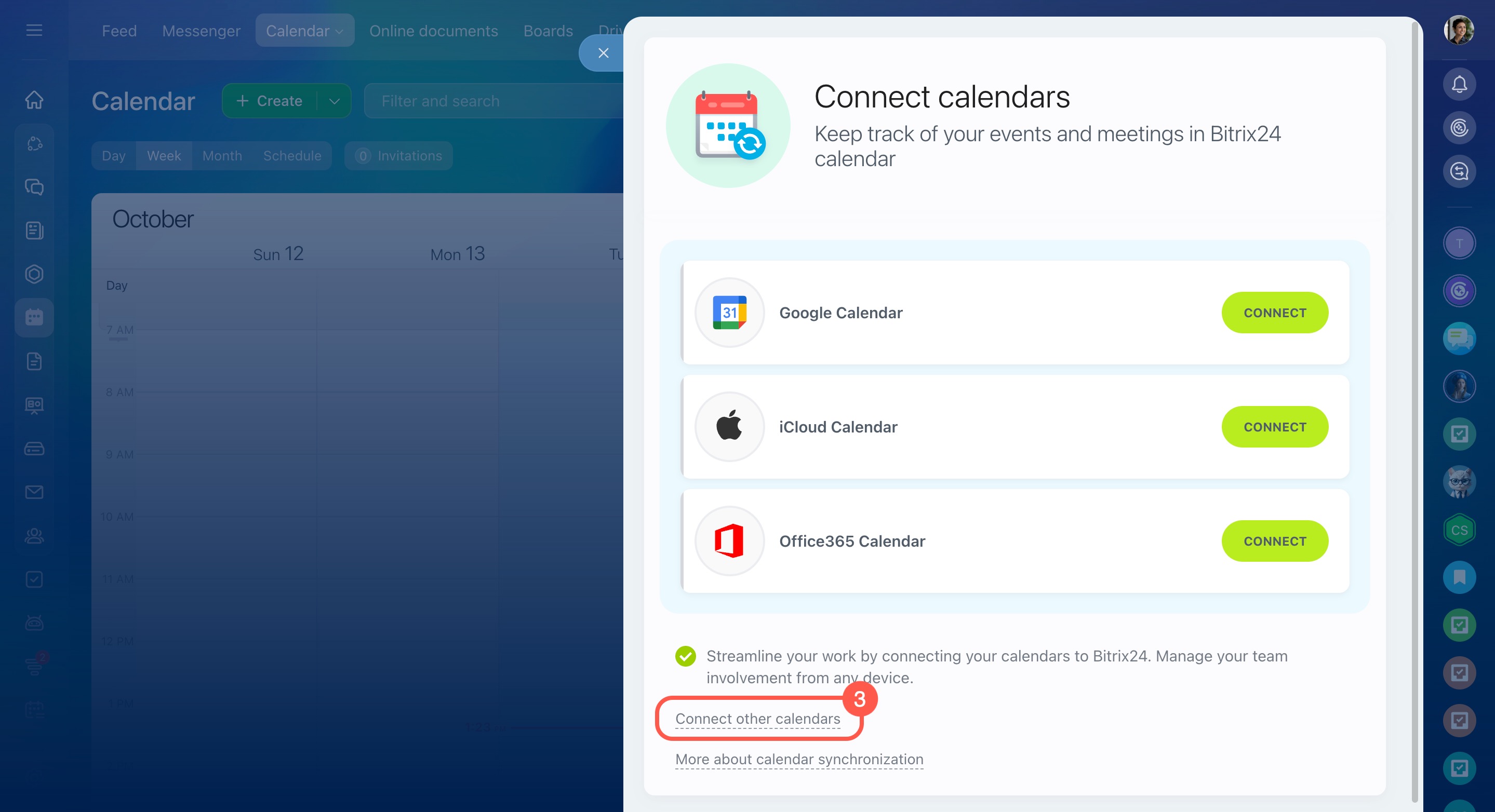
- Select Connect other calendars.
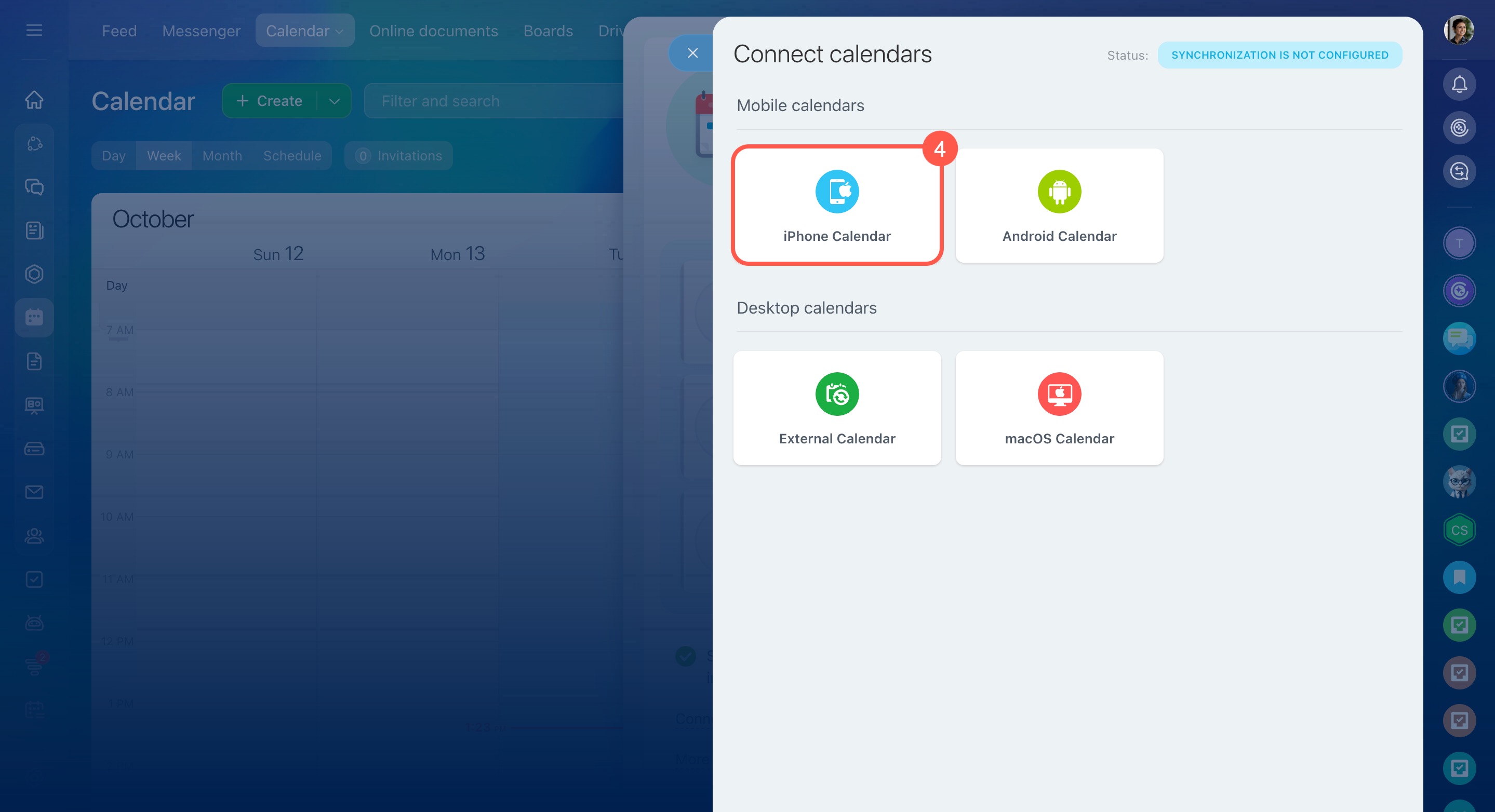
- In the Mobile calendars section, select iPhone Calendar.
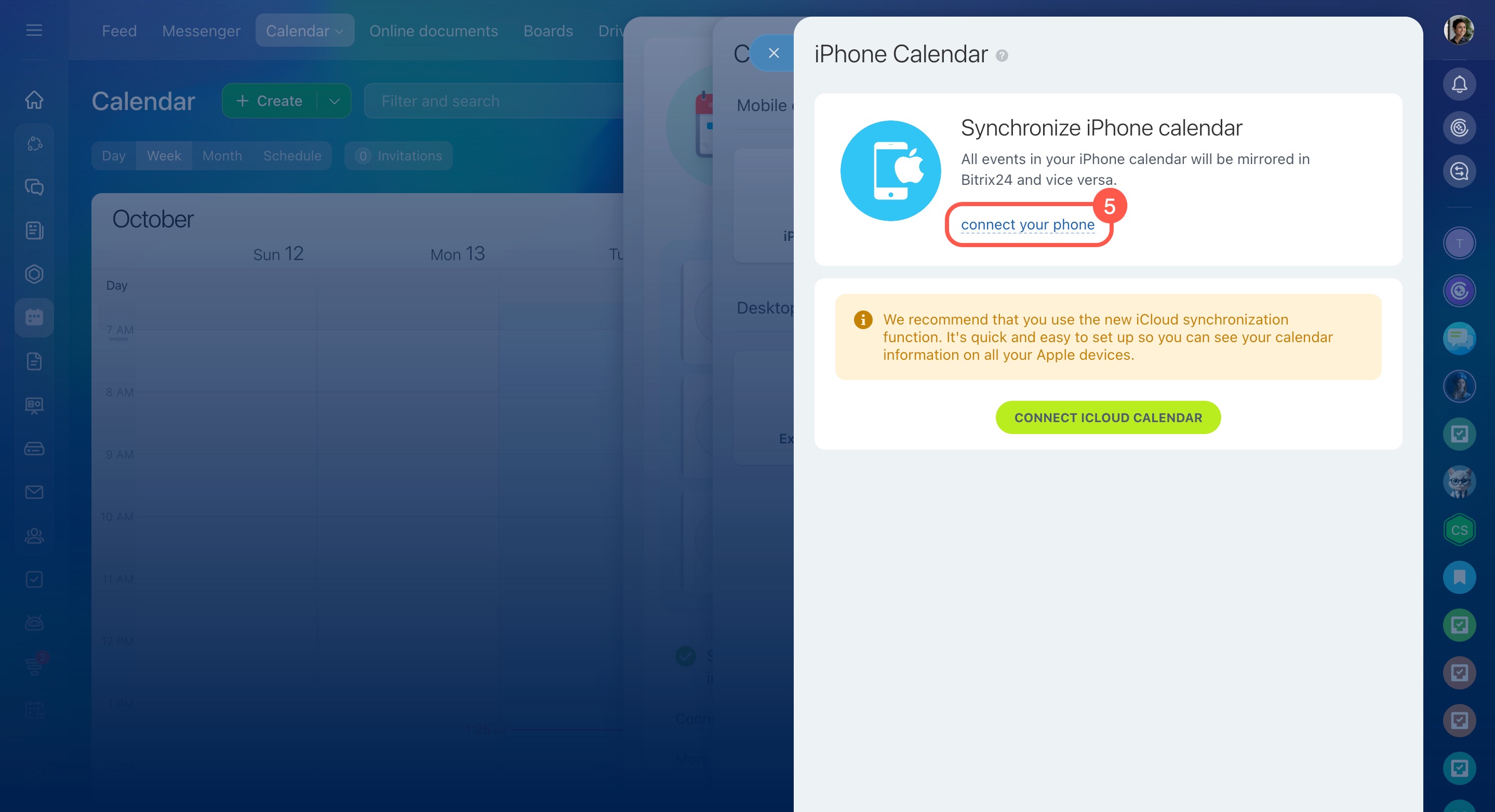
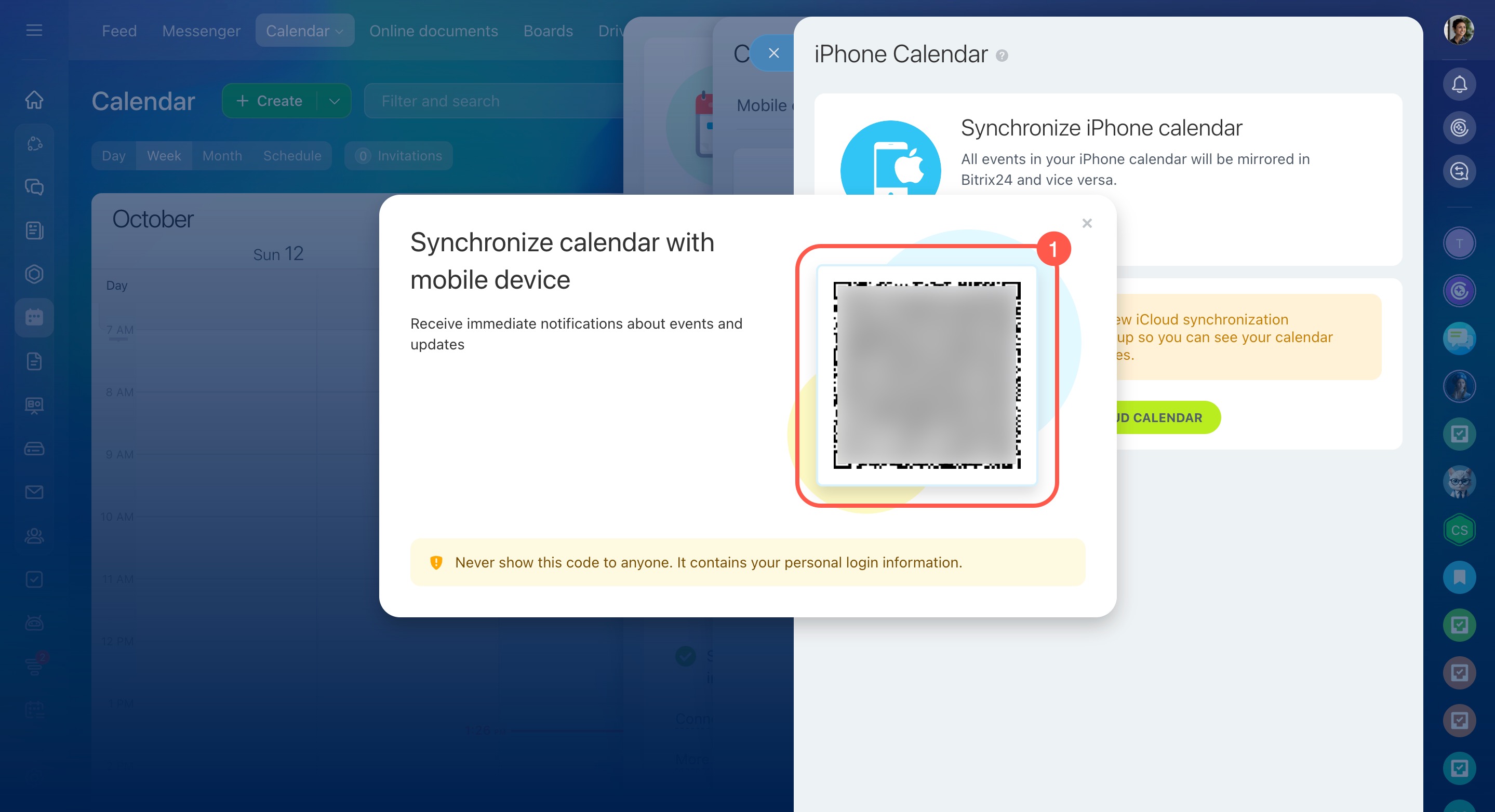
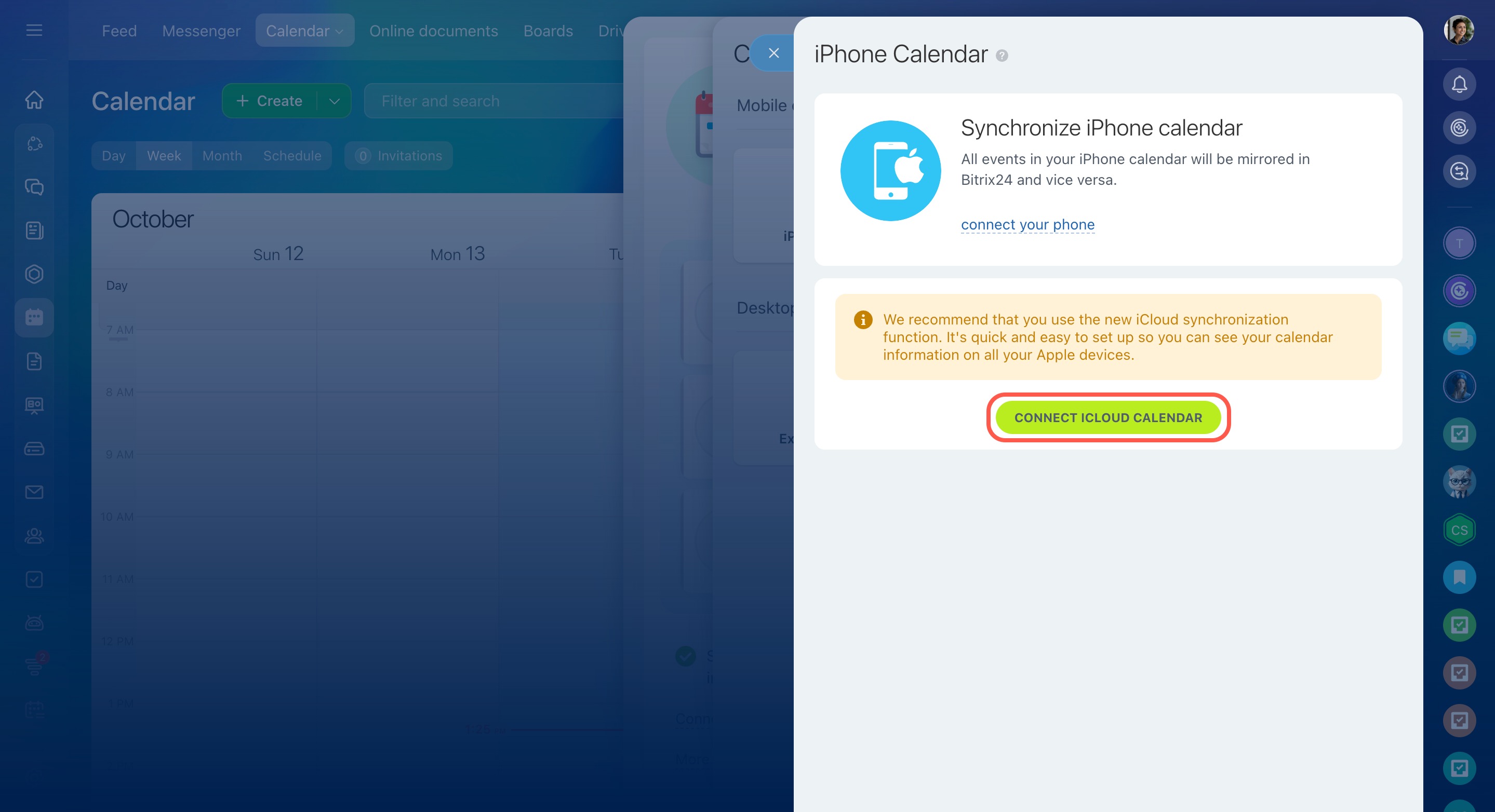
- Click Connect your phone.
On your iPhone, follow these steps:
- Scan the QR code to open the setup instructions.
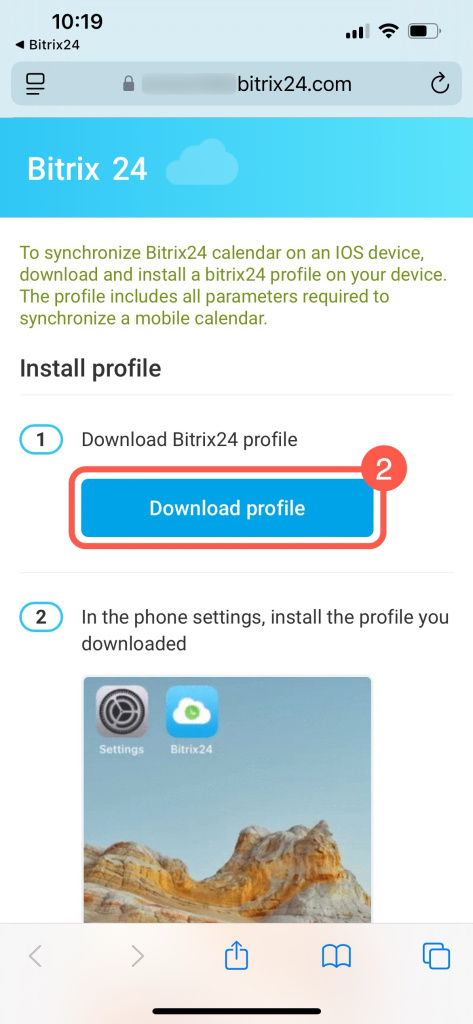
- Tap Download profile.
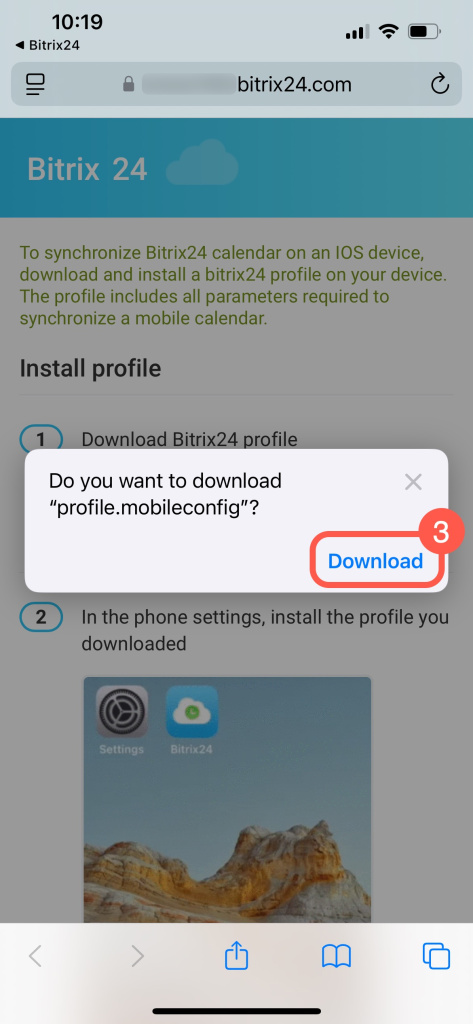
- Select Download to save the file to the Files folder.
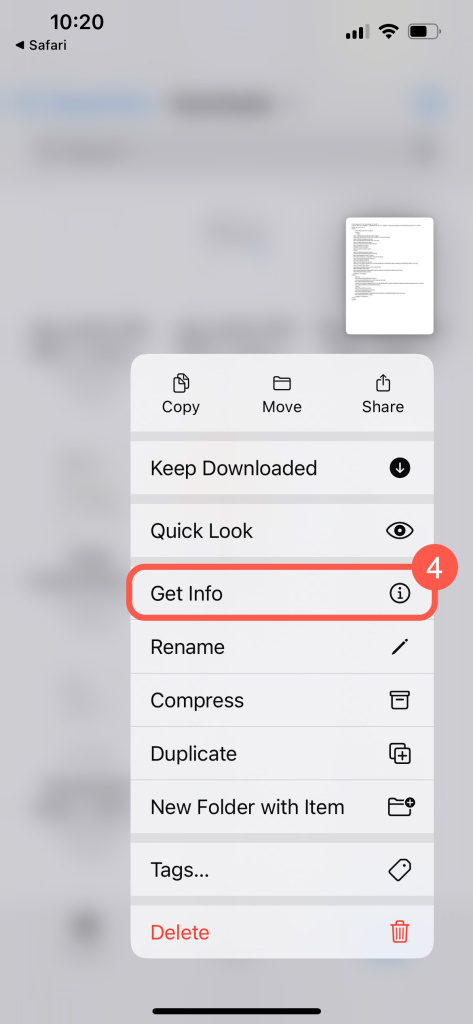
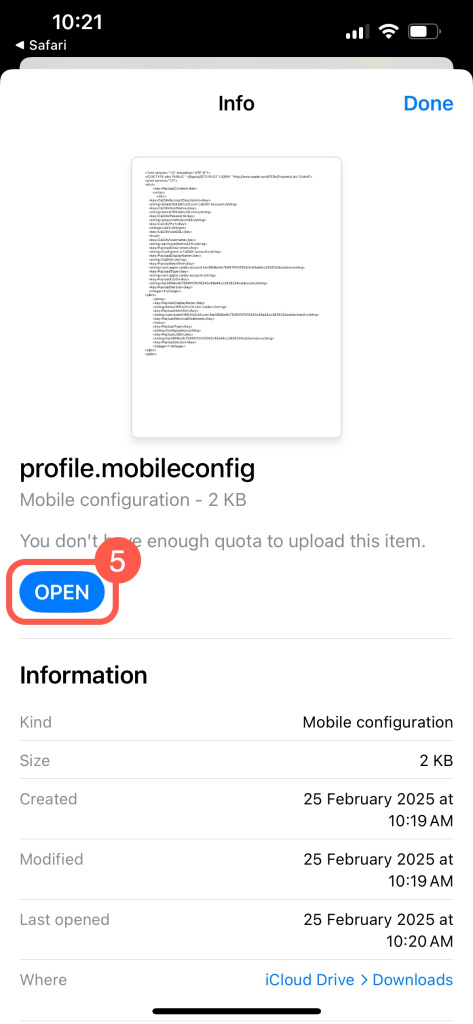
- Find the file, tap and hold it, then select Get info.
- Tap Open.
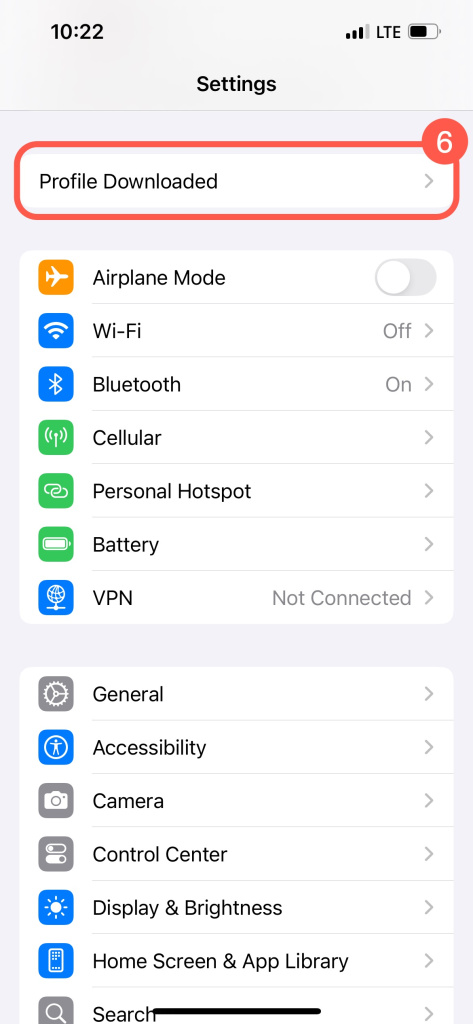
- Go to Settings and open the Profile Downloaded section.
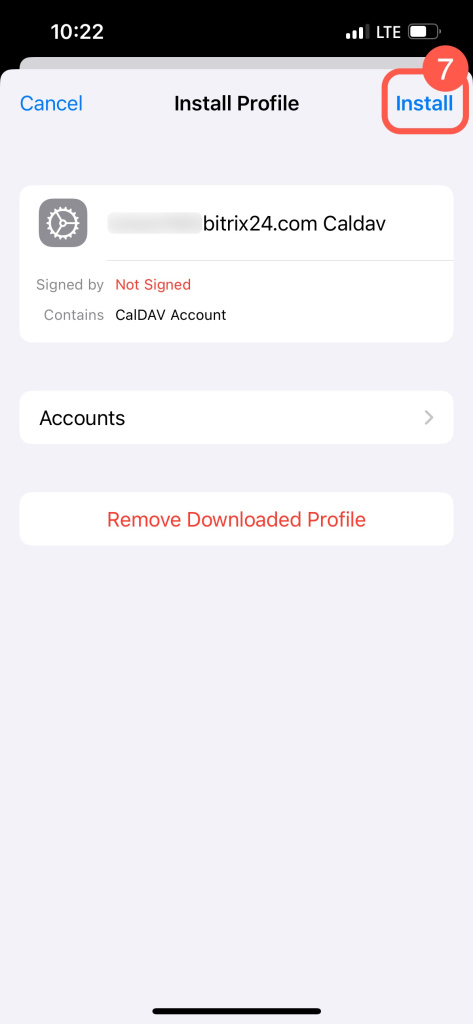
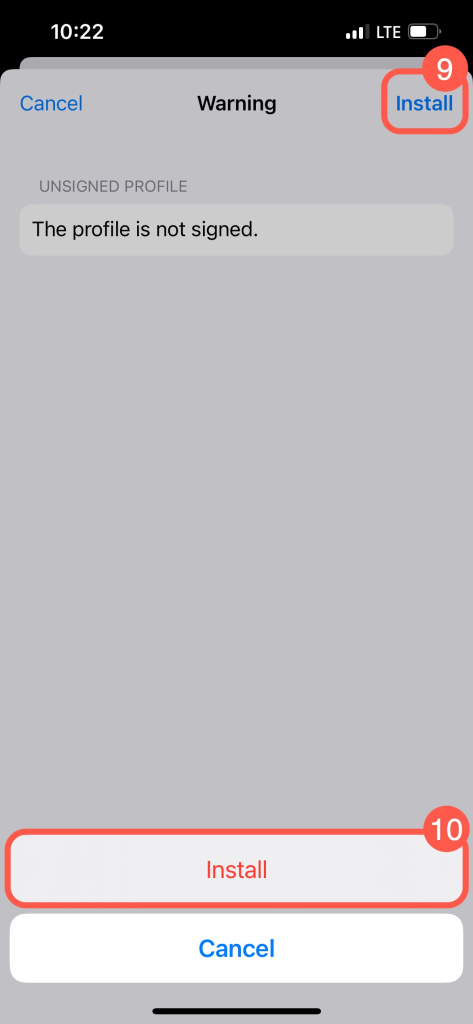
- Tap Install.
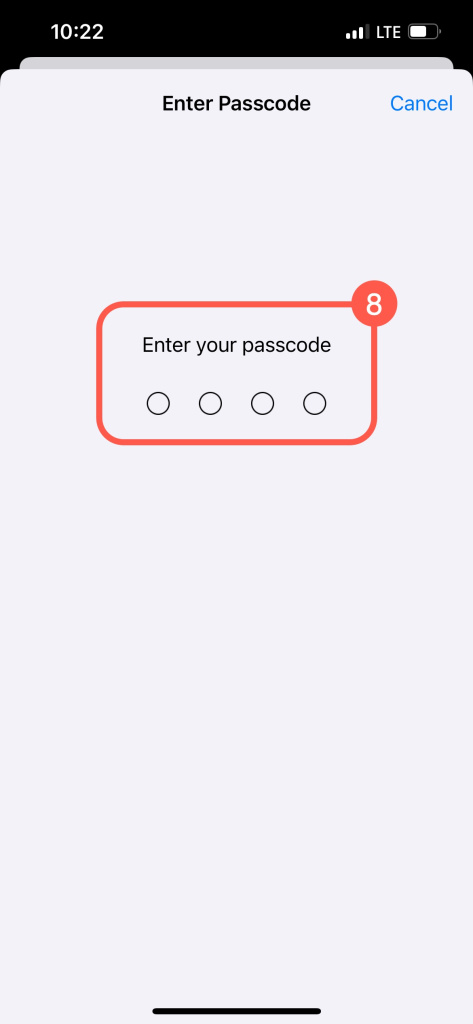
- Enter your device passcode.
- Tap Install again to confirm.
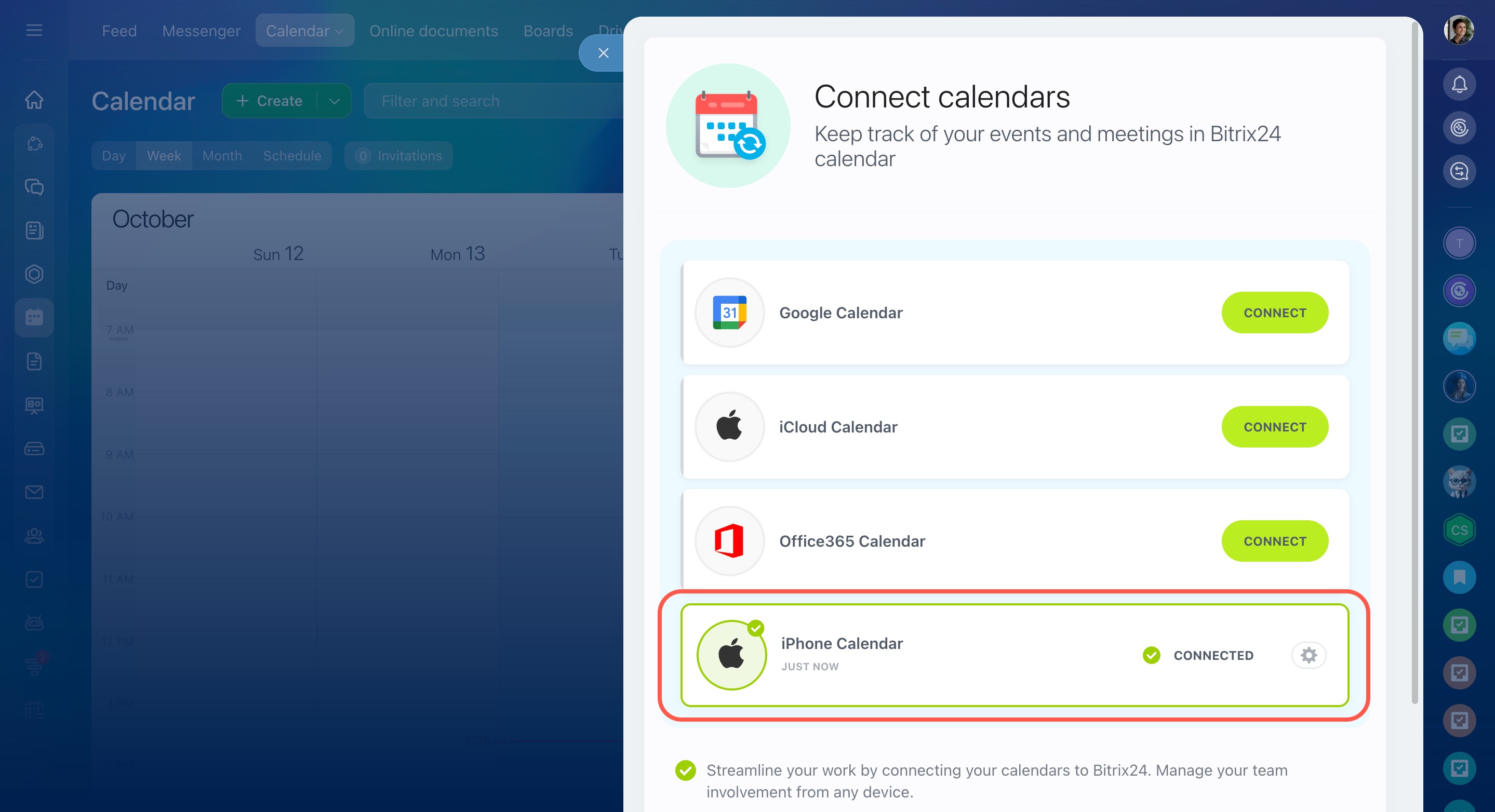
After you install the profile, the calendars start syncing. The connection status updates in Bitrix24.
Synchronize Bitrix24 calendar with iCloud
You can turn off sync in your iPhone settings. Bitrix24 events will stop appearing. The sync status remains visible for 24 hours.
Disable synchronization with iPhone
In brief
-
Sync your Bitrix24 and iPhone calendars to keep all events in one place.
-
Scan the QR code, download the profile, and install it on your iPhone.
-
Use iCloud to sync your calendar across all Apple devices.
-
Turn off sync anytime in your iPhone settings.