
After you create a Smart Process Automation (SPA) and add it to your automated solution, configure it based on your workflow. If your solution includes multiple SPAs, configure each one separately.
This article covers how to set up:
Example: a recruitment SPA that tracks candidates from application to hiring. It stores candidate data, manages vacancies, and uses automation to generate job offers and assign HR tasks.
Configure the SPA item form
Set up the item form so employees can quickly find and enter information. In this example, the form includes candidate details and the related vacancy.
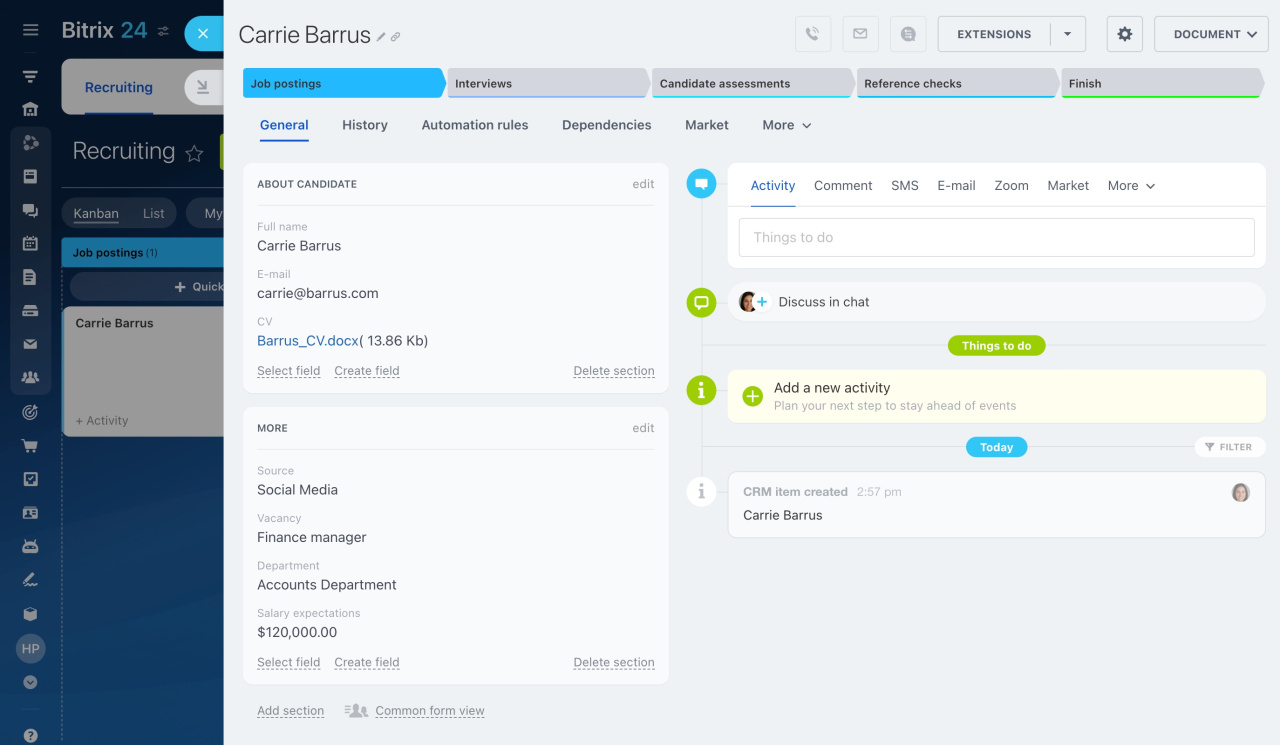
To create or edit fields:
- Open the Kanban or List view.
- Click the gear icon (⚙️).
- Select Field settings.

On this page, you can:
- View all custom fields in the SPA
- Create new fields
- Edit existing fields
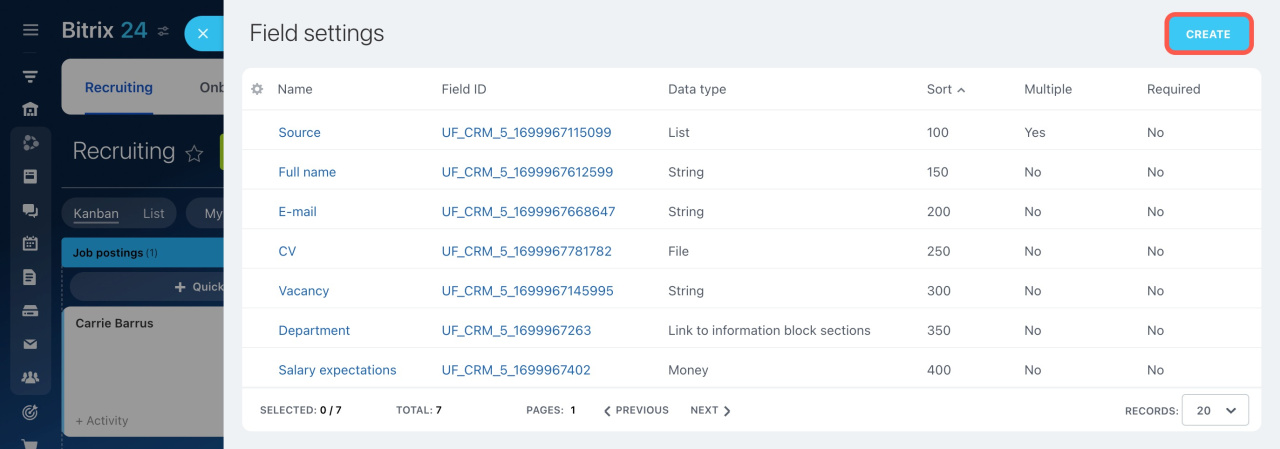 This page shows a list of all the custom fields in your SPA.
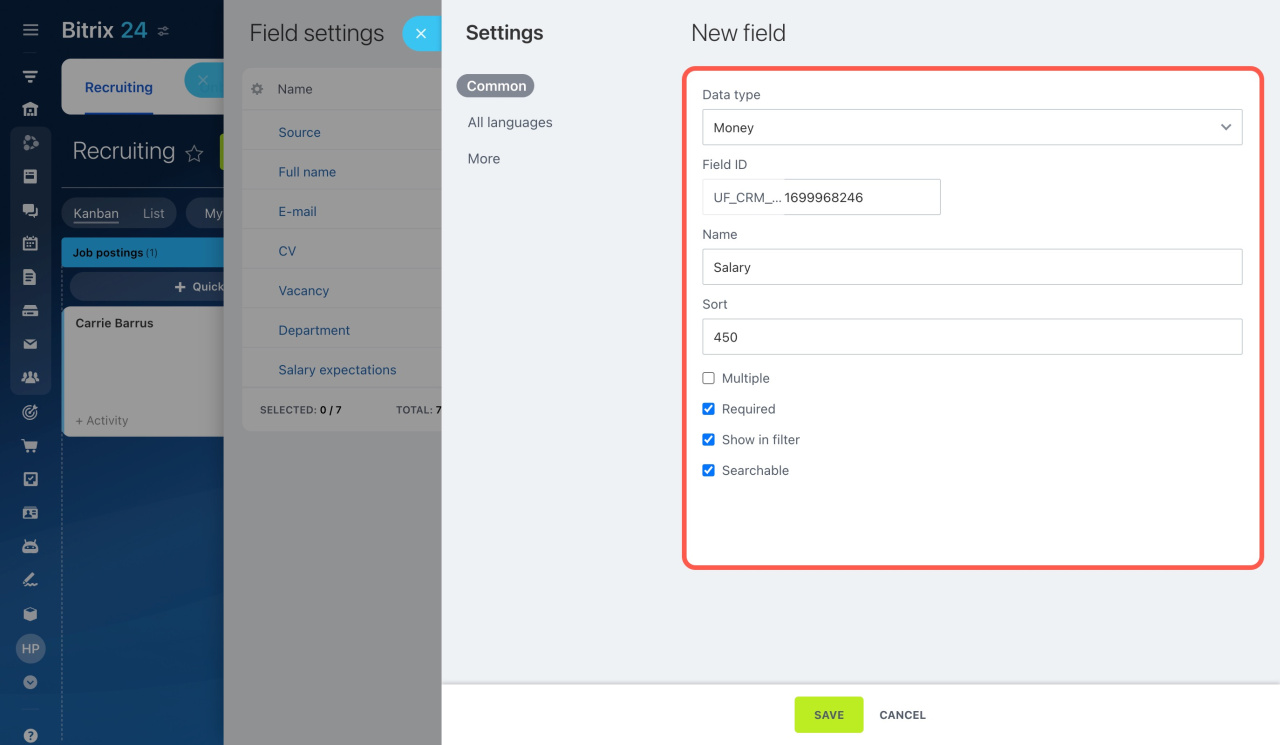
To create a field:
- Choose a field type.
- Enter a name.
- Set additional options.
Custom fields of invoices and smart processes
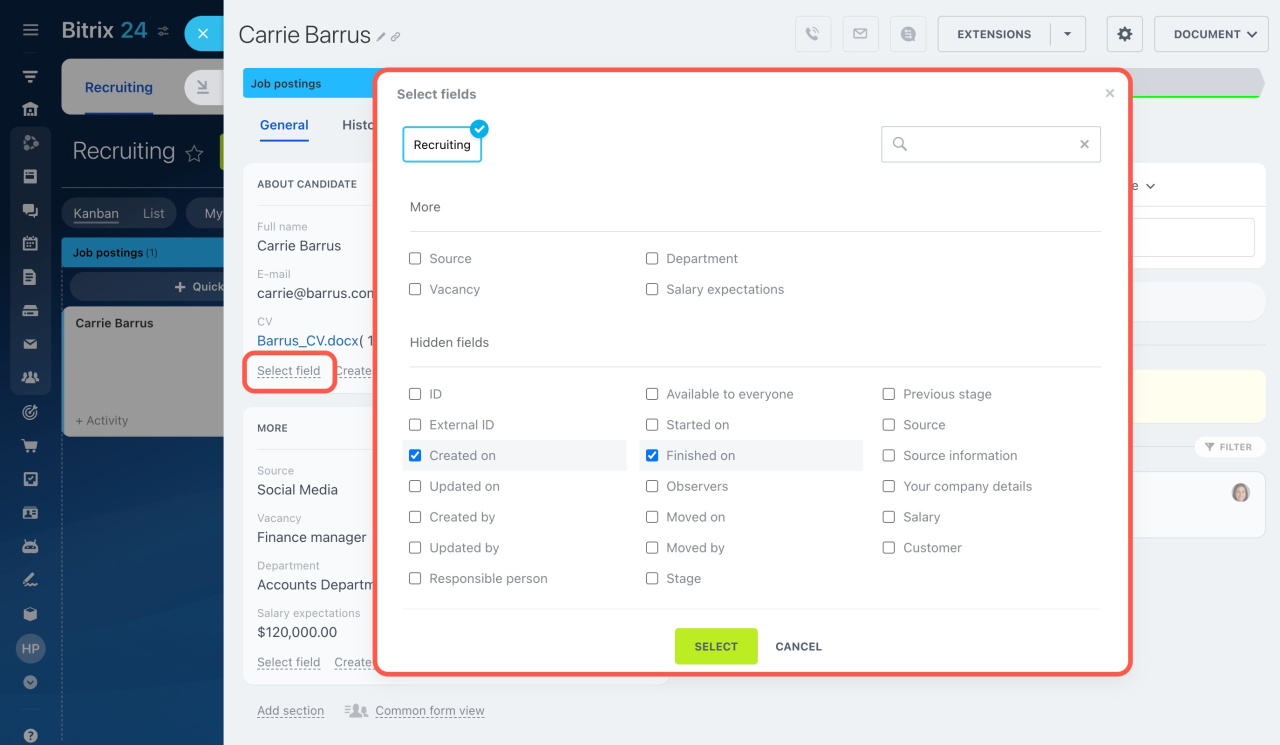
To add fields to the item form:
- Open any item form.
- Click Select field.
- Select the fields you want to display.
- Click Select to save.
Arrange fields in a logical order. Group related fields into sections to improve readability.
Example: Create separate sections for candidate details and job information.
 For instance, the item form in the screenshot has two sections with their own set of fields.
Configure the Kanban and List views
You can work with SPA items in two views: Kanban and List. Switch between tabs in the interface to configure each view.
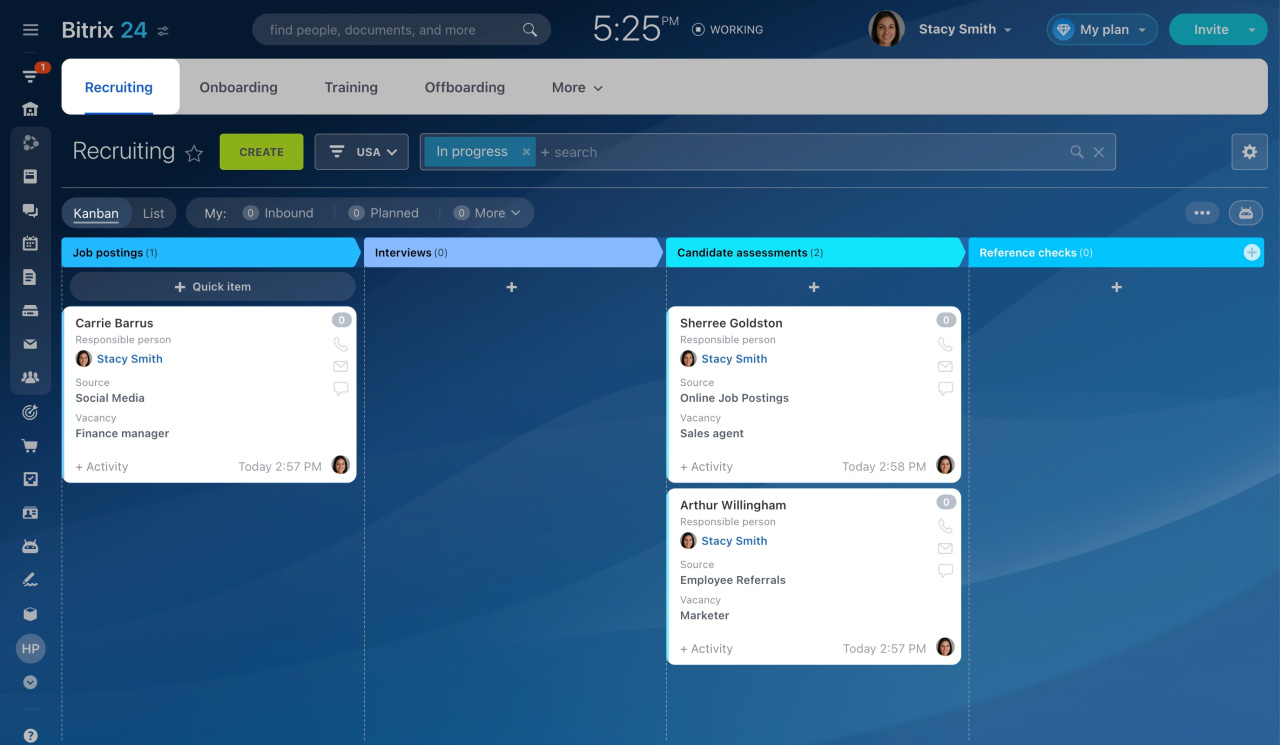
Create stages
Set up custom stages to define how items move through the process. Stages help you track progress and workload.
Set up the automation
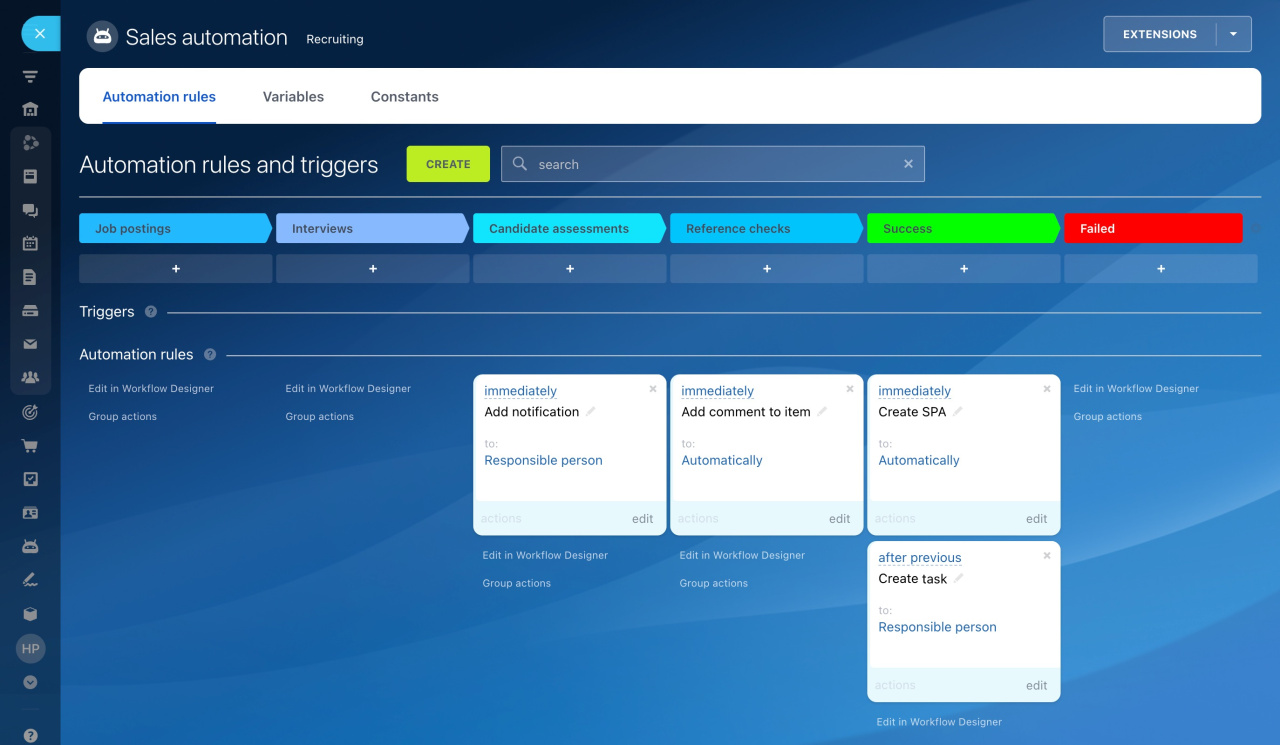
Add automation rules and triggers to stages to create tasks, send notifications, copy items to another SPA, and more.
Create automation rules and triggers
Configure the view form
Choose which fields to show in the Kanban view by editing the view form. This helps you focus on key information. Each employee can customize this view individually.
- Click the gear icon (⚙️) in the top right.
- Open Kanban settings.
- Select Configure view form fields.
- Choose the fields to display.
- Save changes.

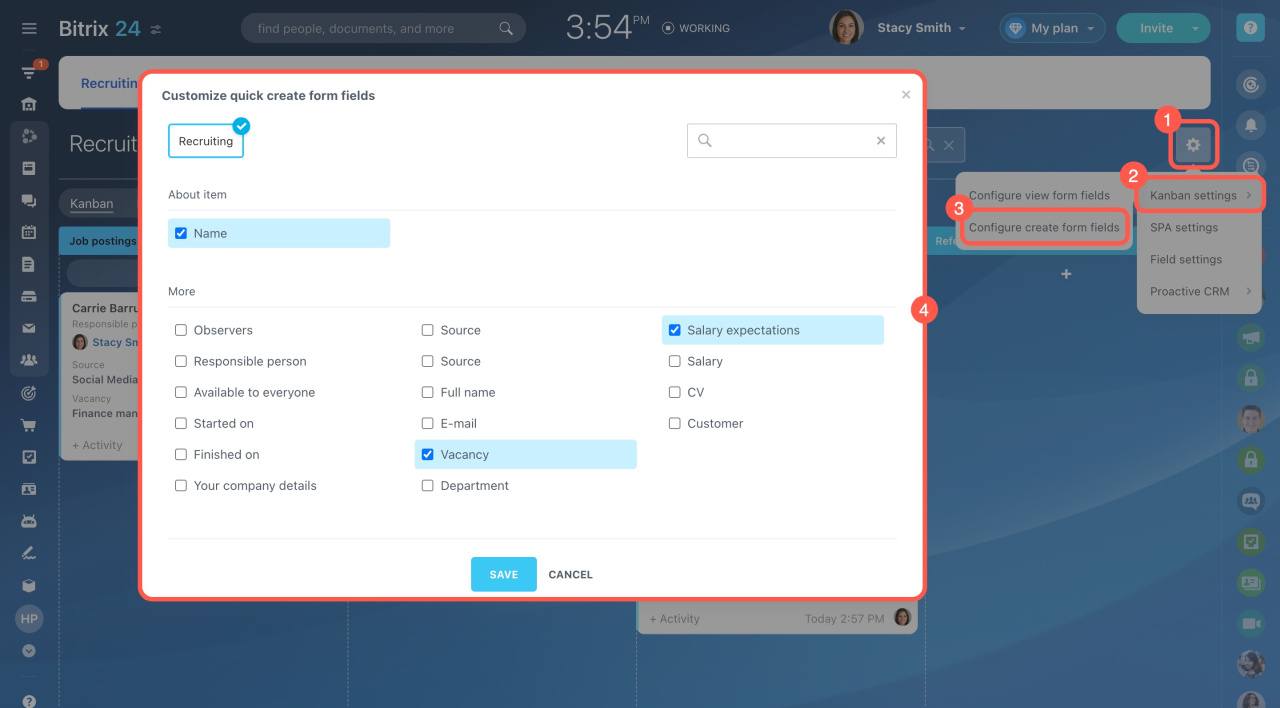
Configure the quick create form
Control which fields appear when creating a new item in Kanban.
- Click the gear icon (⚙️).
- Open Kanban settings.
- Select Configure create form fields.
- Choose the required fields.
- Save changes.
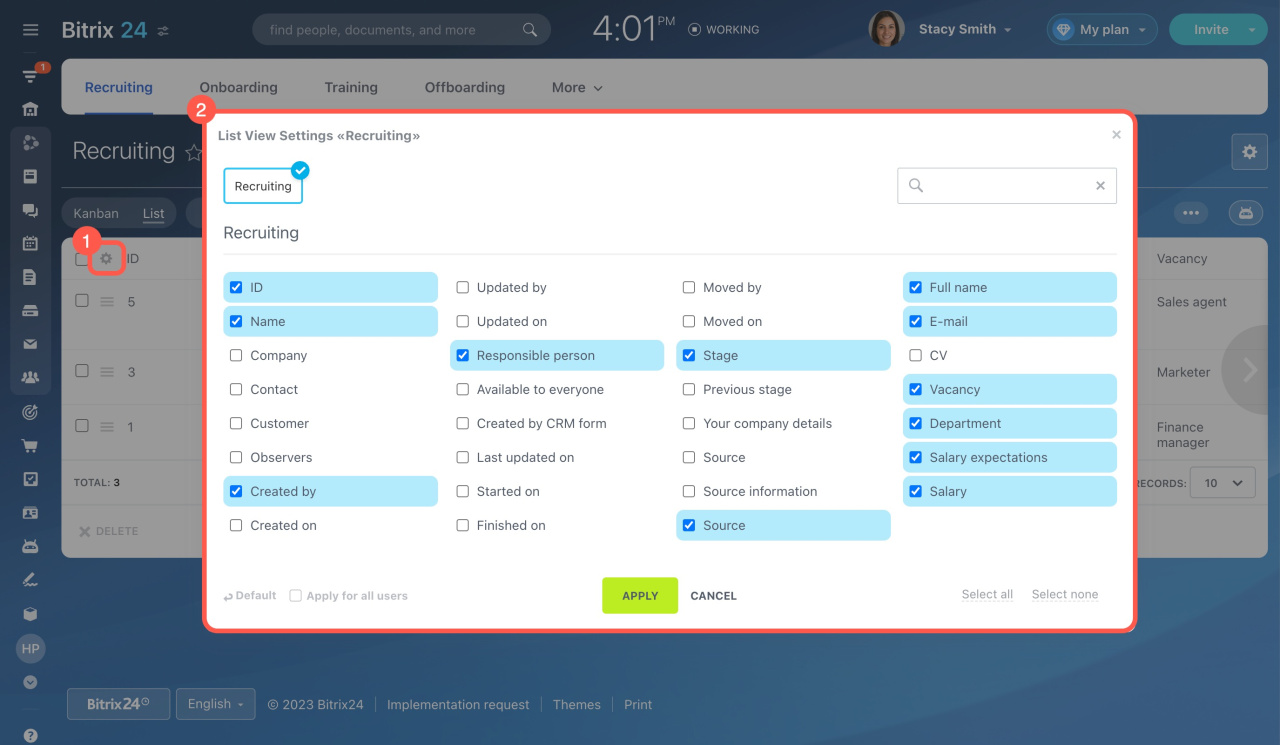
Choose which columns to display in the List view and adjust the layout.
- Click the gear icon (⚙️) in the top left corner.
- Select the fields you want to show.
- Click Apply.
To reorder columns, drag a column header to a new position.
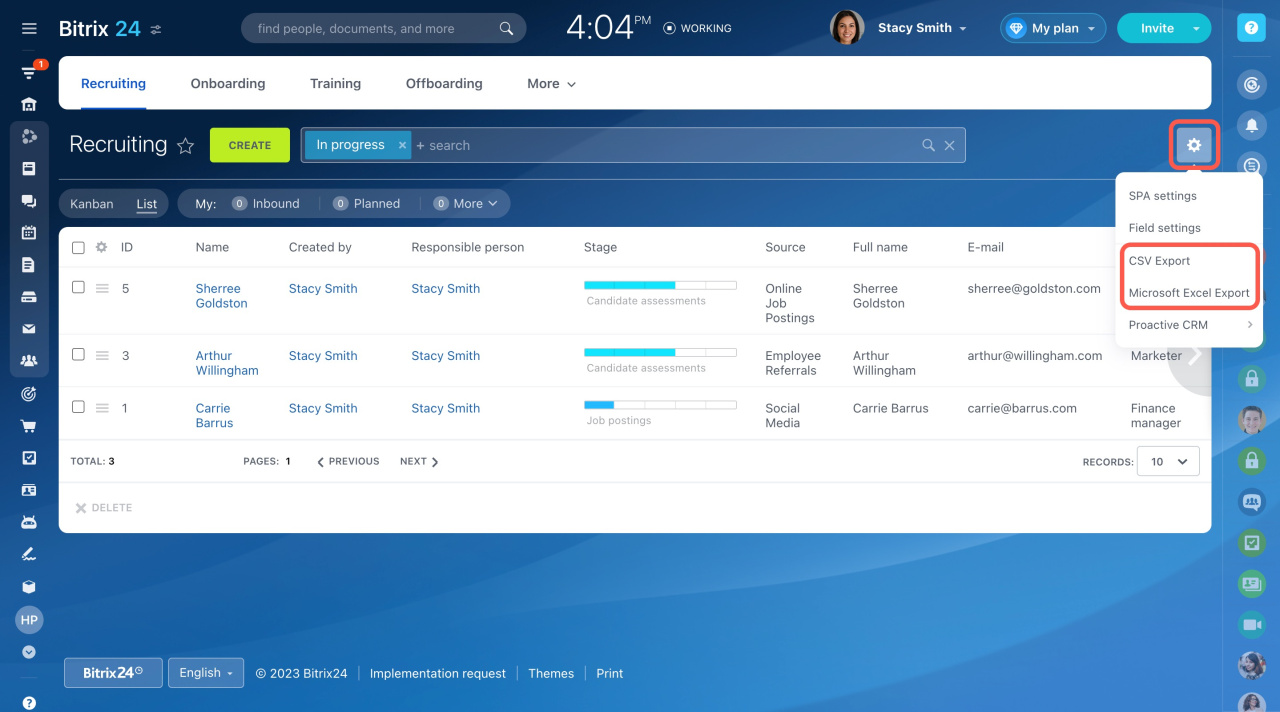
To export items:
- Click the gear icon (⚙️) in the top right corner.
- Select CSV Export or Microsoft Excel Export.
Configure SPA access permissions
Control who can access and manage the SPA.
- Go to CRM > Settings > Access permissions > CRM.
- Select a role.
- Define the actions available for that role.
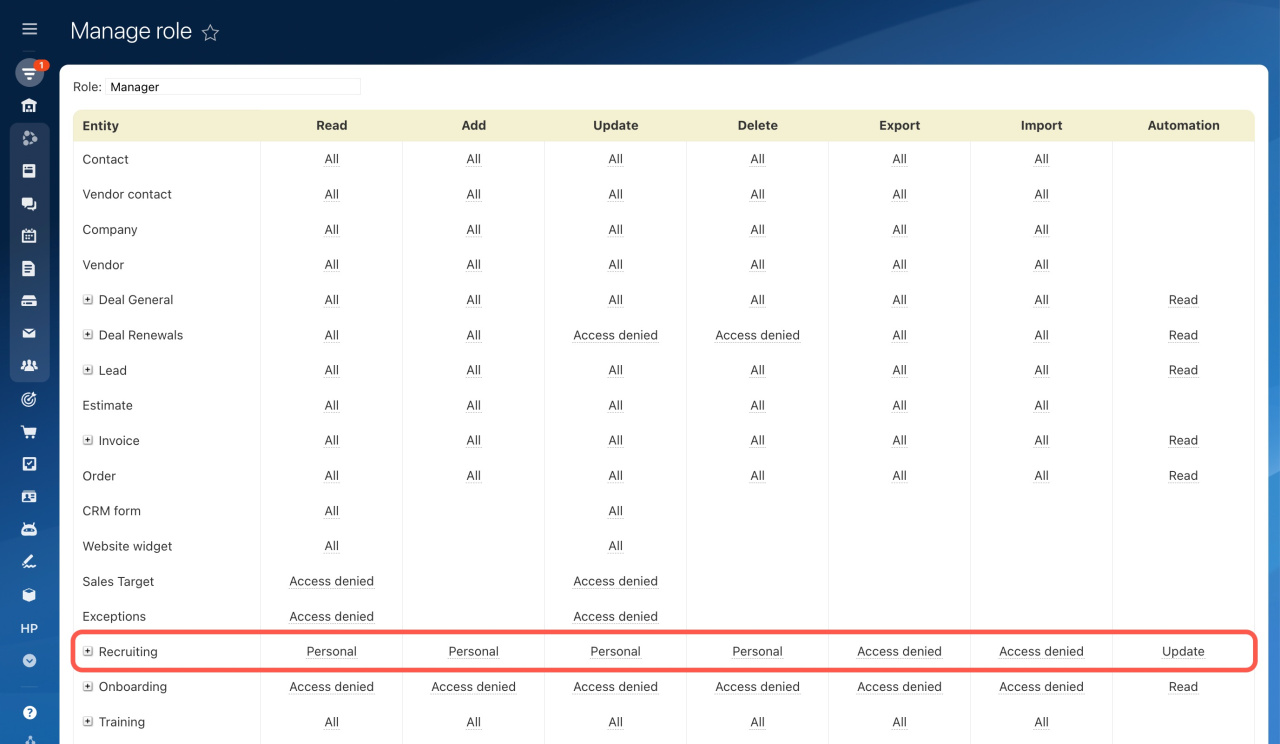
If your SPA uses pipelines or funnels, set permissions for them in the pipeline settings.

In brief
- After you add an SPA to your automated solution, configure it to match your workflow. Configure each SPA separately if you use more than one.
- Set up the item form with clear fields and sections so users can enter and find information easily.
- Use Kanban stages to manage item progress. Configure view and quick create forms for better usability.
- Add automation rules to streamline tasks and communication.
- Set access permissions in CRM to control who can view and manage the SPA.