
Automated solutions let you use SPAs outside of CRM. This is useful when a team does not work in CRM but still needs structured workflows.
Automated solutions: automate the work of any department
Before you start
- Only admins and users with permission to edit CRM settings can create automated solutions.
- You can create automated solutions and SPAs only in the web version.
- You can work with SPA items in both the web version and the mobile app.
Automated solutions in Bitrix24 mobile app
Create an automated solution
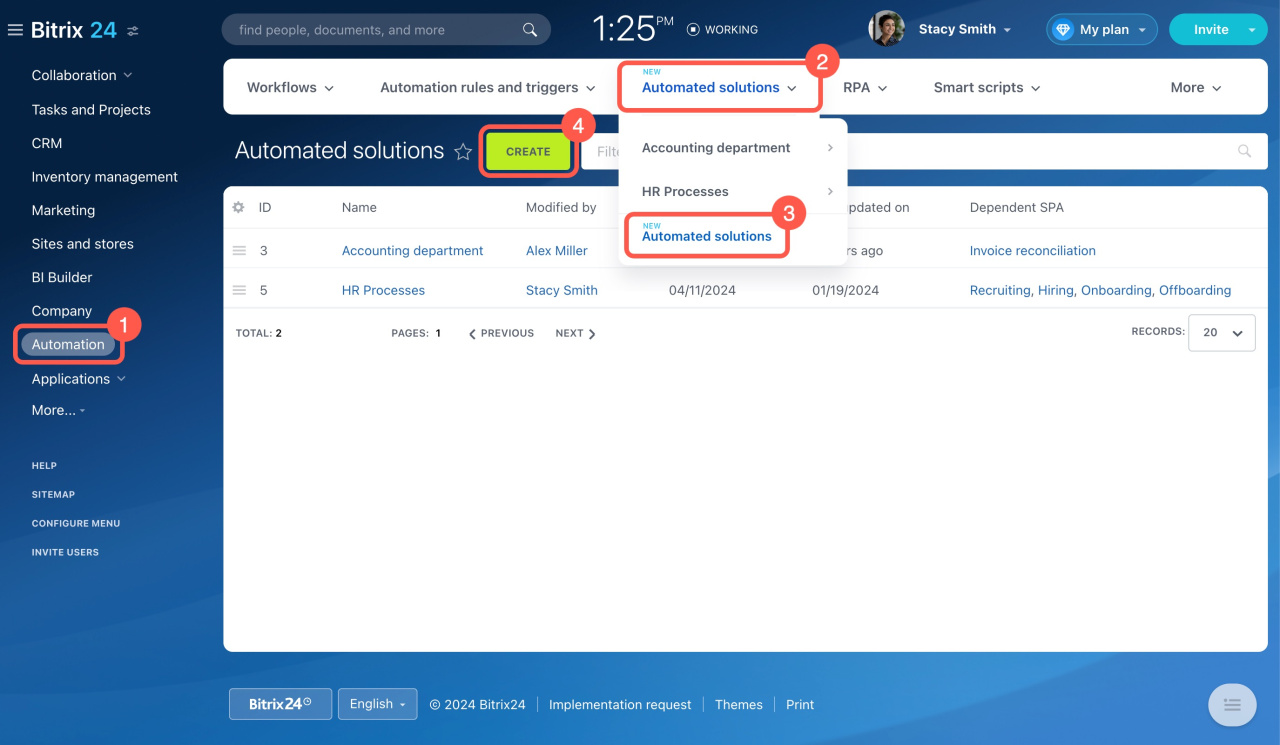
- Go to Automation > Automated solutions.
- Click Create.
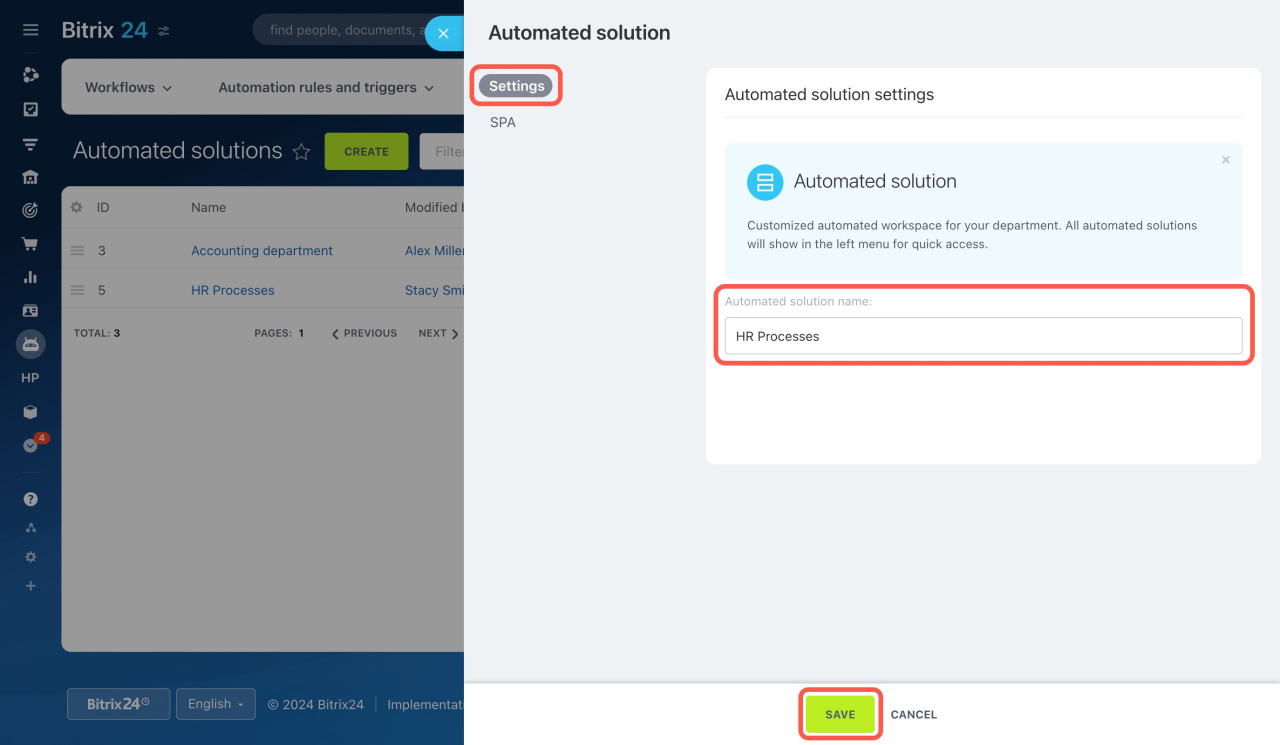
- Open the Settings tab.
- Enter a name.
- Click Save.
Create and link an SPA
Each automated solution can include one or more SPAs. Each SPA can belong to only one solution.
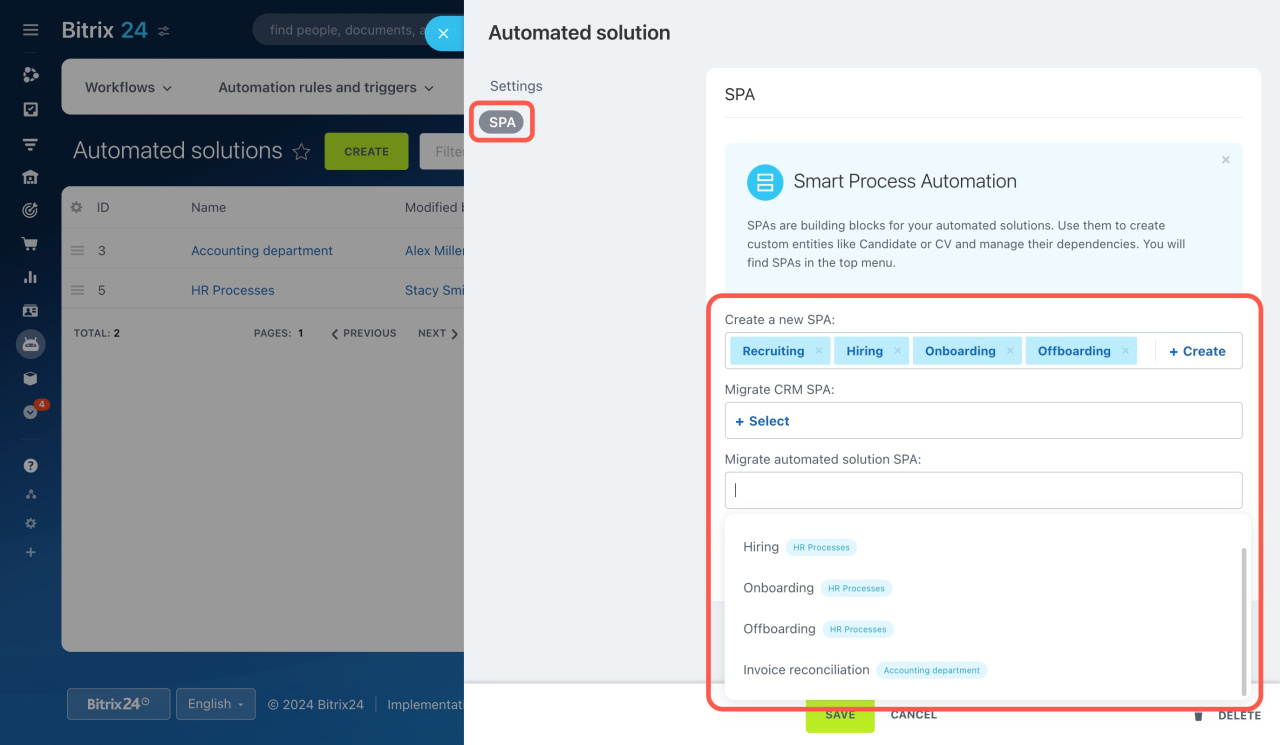
To create a new SPA:
- Open the SPA tab.
- Click Create.
- Choose a preset:
- Essentials only
- All options selected
- Empty SPA
You can customize any preset.
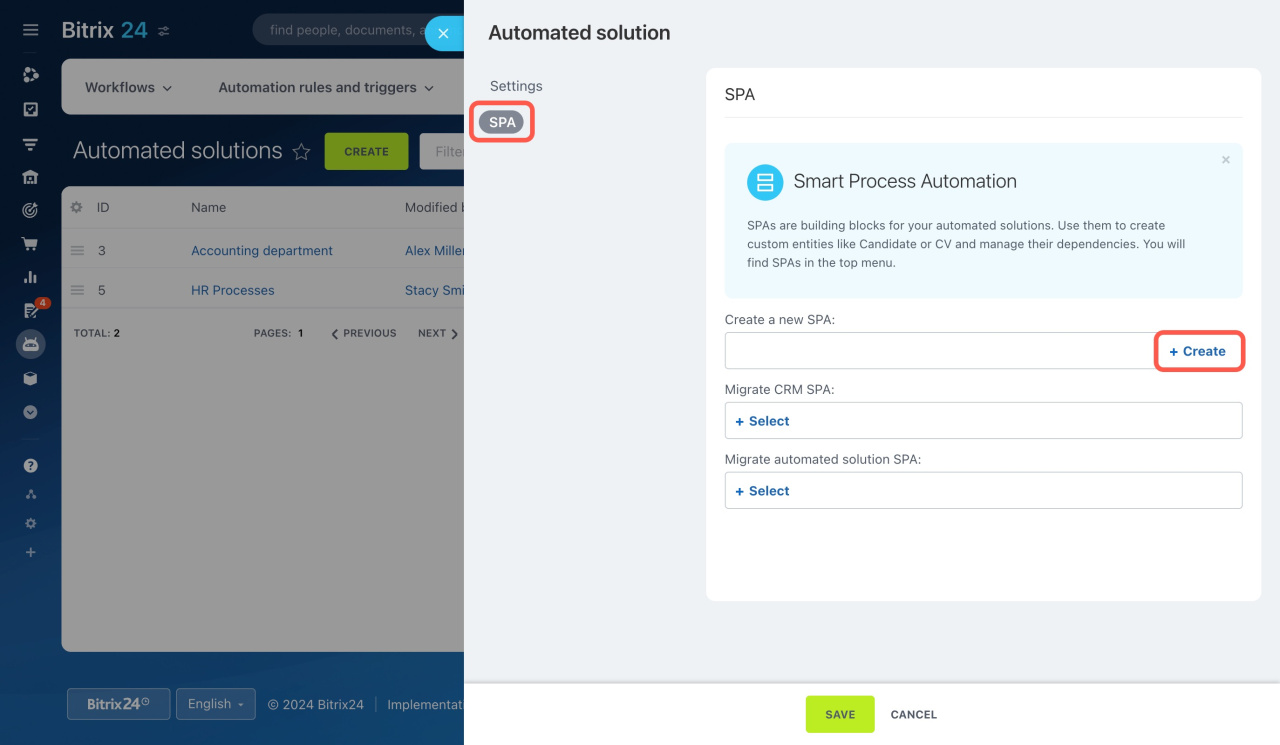
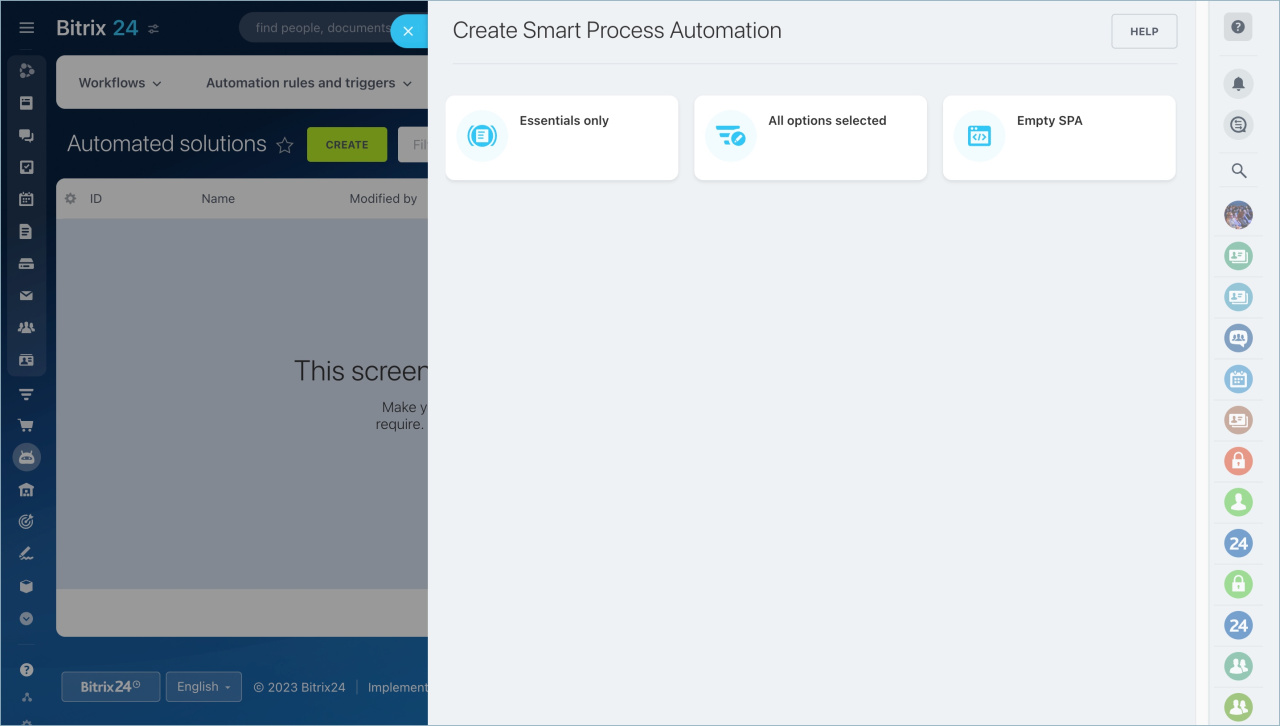
We’ll use the Empty SPA preset to walk through these sections:
SPA components
Choose which tools to use. These tools work the same way as in CRM.
Enter name: Displays in lists and forms.
Use custom pipelines and sales funnels in SPA: Create multiple pipelines and move items between them.
Sales pipelines
Sales tunnels
Use custom stages and kanban in SPA: Manage items visually on a board.
Kanban view in CRM

Use automation rules and triggers in SPA: Automate tasks, notifications, and assignments.
Create automation rules and triggers
Use workflow designer in SPA: Run workflows when items are created or updated.
"Autorun: when added" option in workflow templates
Make new pipelines public: Make pipelines visible to all users or restrict access.
Access Permissions in CRM
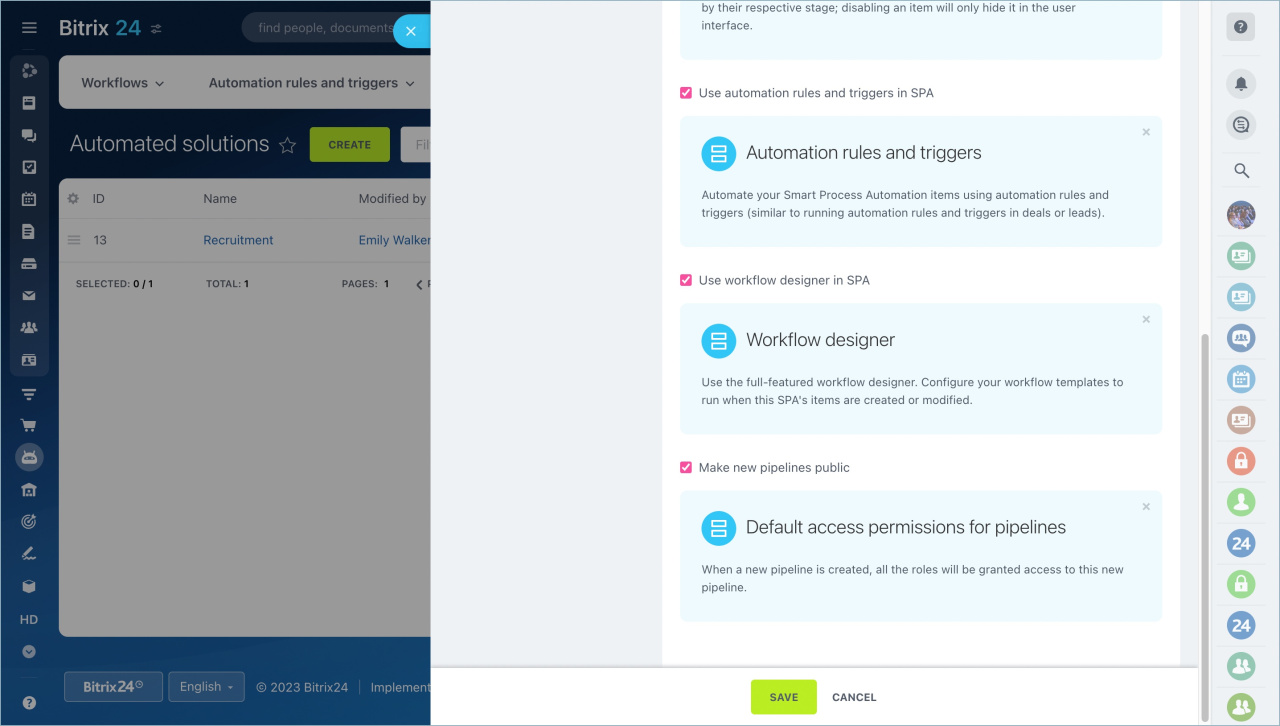
SPA form layout
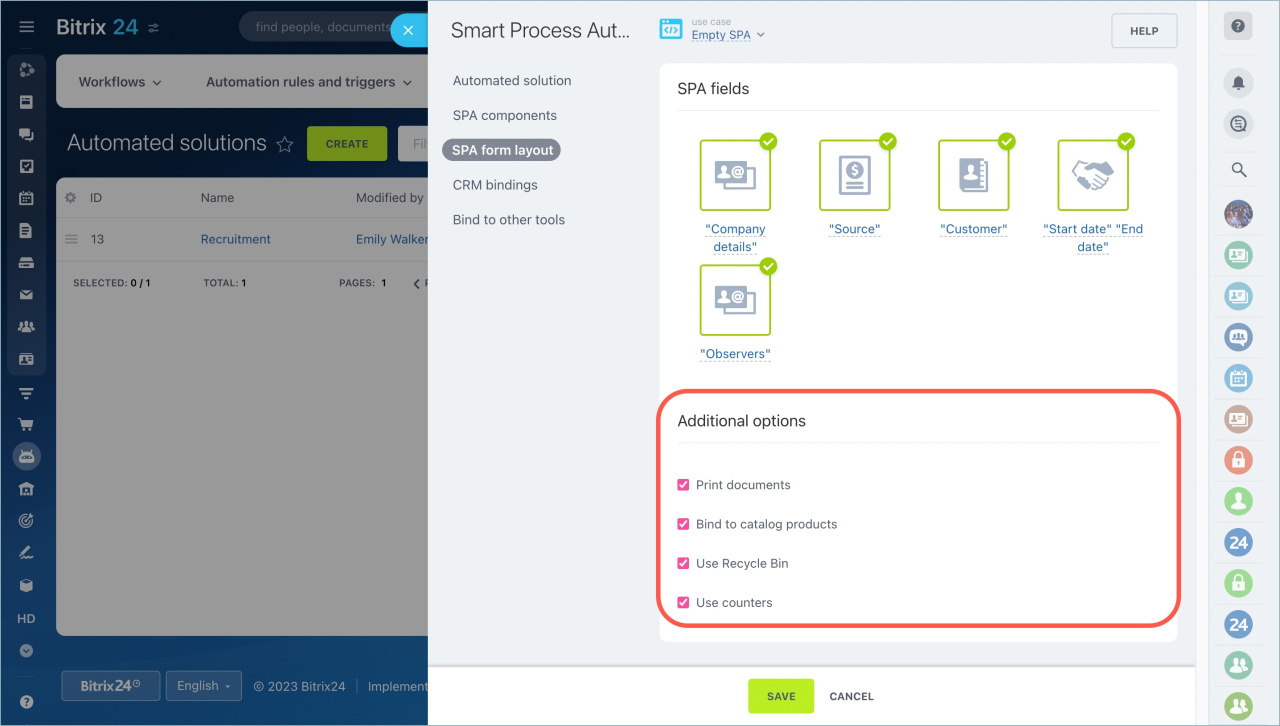
Select the fields you need:
- Company details: Your company information. Use these details in documents.
- Source: Shows how the customer found your company.
- Customer: Use this if the SPA links to CRM contacts or companies.
- Start date, End date: The creation date and planned end date. The system sets the end date to 7 days after creation.
- Observers: Users who can view the item and start a chat for discussion.
Standard fields in CRM

Additional options
Enable the features you need:
- Print documents. Create documents from templates from the SPA form.
Documents in CRM - Bind to catalog products. Add products to the form.
Changes in work with products in leads and deals - Use Recycle Bin. Move deleted items to the CRM Recycle Bin instead of deleting them permanently.
CRM Recycle Bin - Use counters. Track and plan pending activities.
How counters work in CRM
CRM bindings
Use this section to define how the SPA connects to CRM entities.
Bind to this SPA: Enable this option to link items from another process. Then select the items you want to connect.
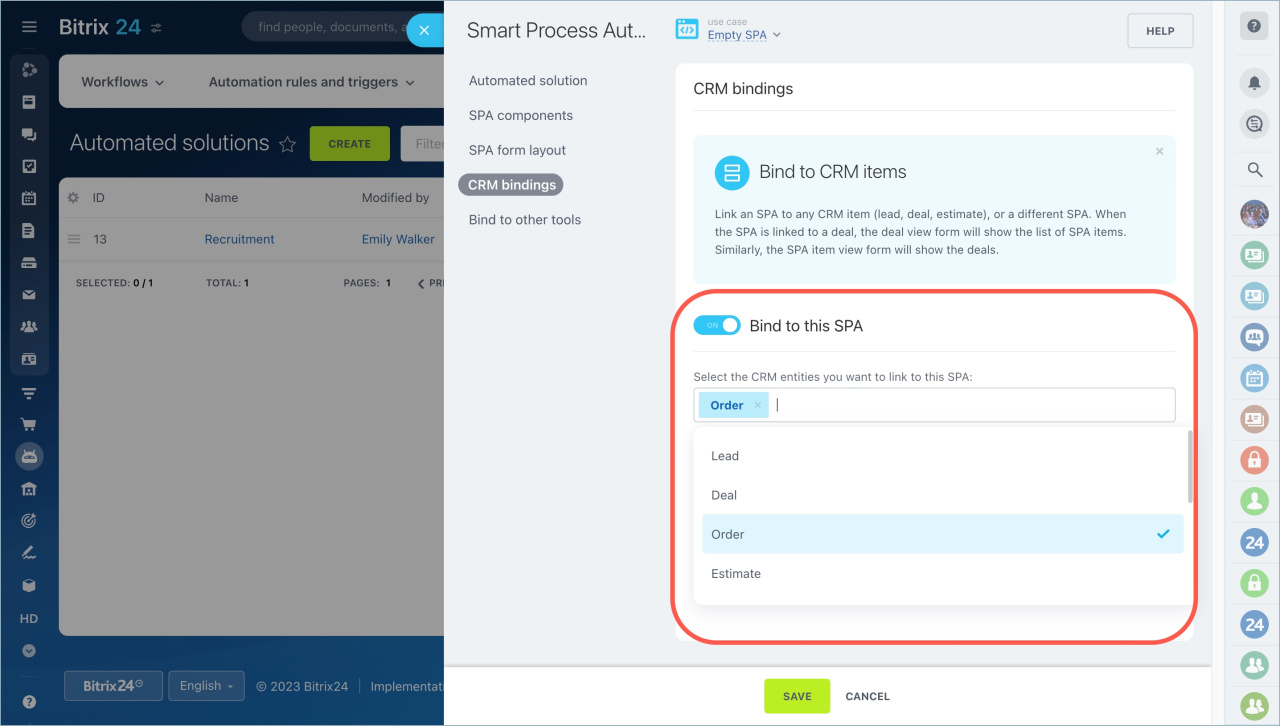
Add linked items list to details form: Adds a tab with this SPA to the linked entity form.

Link this SPA to other CRM entities: Enable this option to connect the SPA to other CRM items, such as leads or deals. Then select the required items.
Add linked items list to details form: Adds a tab with the linked items to the SPA form.

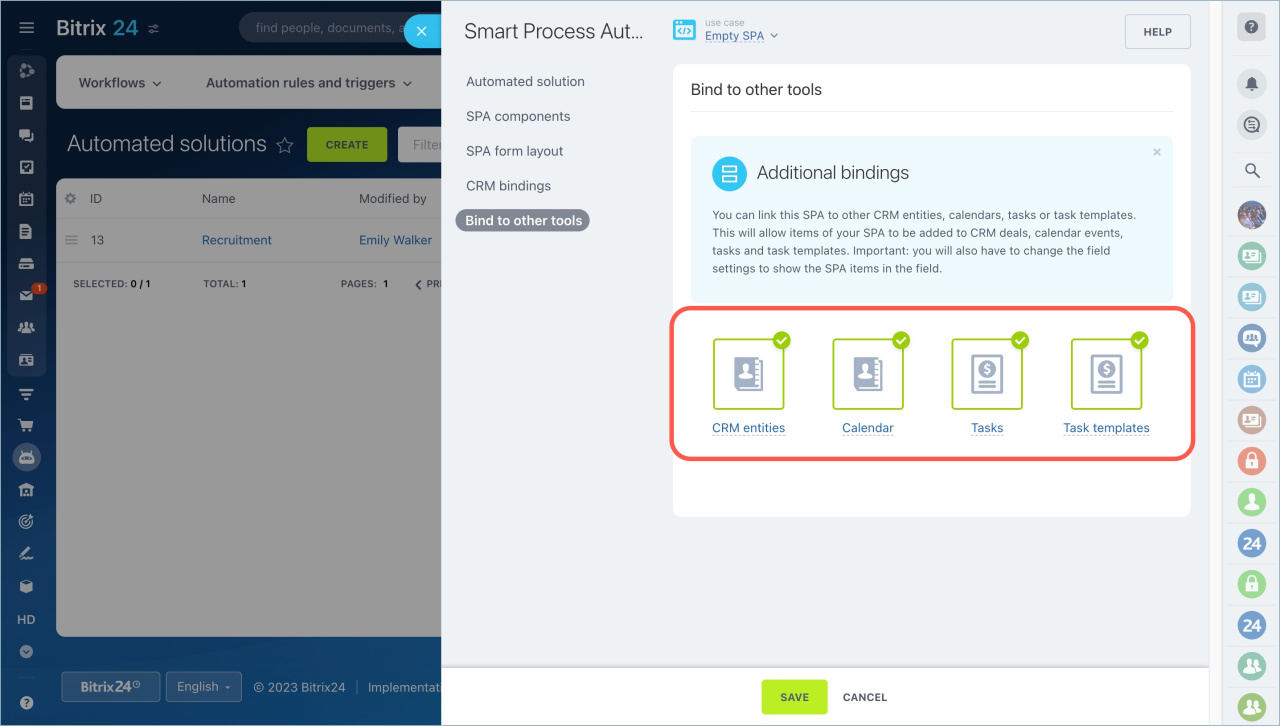
Bind to other tools
You can connect the SPA to:
- CRM items
- Calendar events
- Tasks and task templates
For example, when you create a calendar event, you can link it to a specific SPA item.
Save and continue
Click Save after you finish setup.
The automated solution is created. You can open it from the main menu.
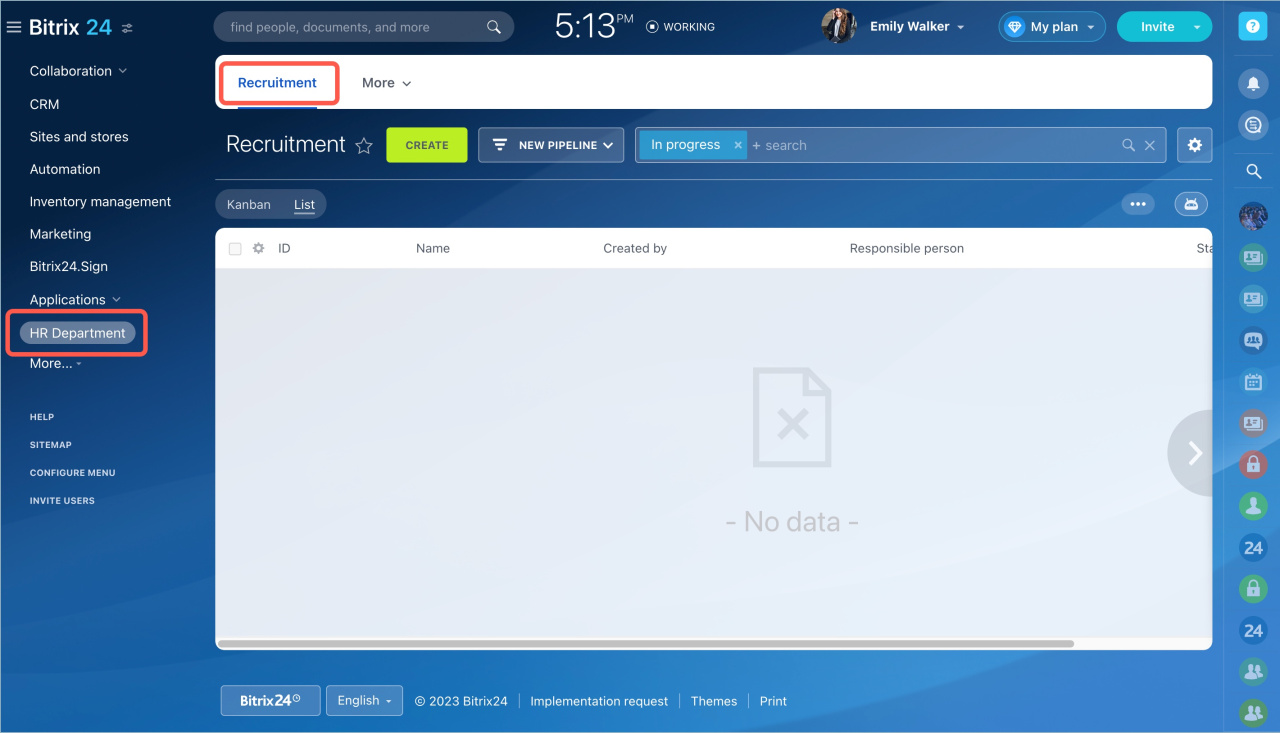
Customize each SPA to match your workflow:
- Adjust the item form.
- Set up kanban stages.
- Configure other features.
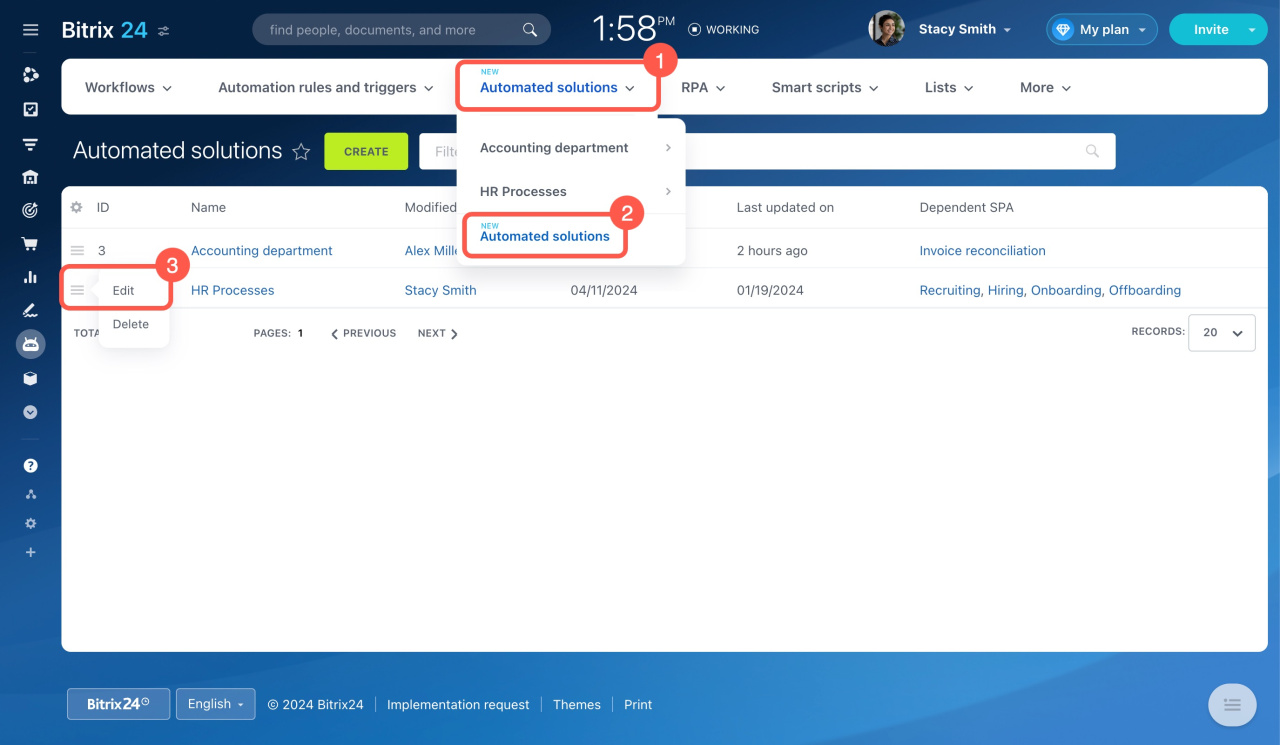
To edit an automated solution:
- Find the solution in the list.
- Open the menu (☰).
- Click Edit.
In brief
- Create automated solutions in Automation > Automated solutions > Automated solutions.
- Add an SPA to the solution. You can create a new one or migrate an existing one from CRM or another solution.
- Each solution can include multiple SPAs.
- Each SPA can belong to only one automated solution.
- Choose which tools to use in the SPA, such as pipelines, kanban, and automation. These tools work the same way as in CRM.
- Select the system fields for the form and enable additional options like counters.
- Link the SPA to CRM items, calendar events, tasks, and task templates.