
View and troubleshoot call logs in Bitrix24
A call log is a text file with detailed information about a call. Bitrix24 records data from the moment a call starts until it ends.
Call logs can help:
- Bitrix24 Support troubleshoot issues
- SIP PBX technicians analyze calls
- users review call details on their own
Open a call log
-
Go to CRM > Add-ons > Telephony.
-
Open the Call Details tab.
-
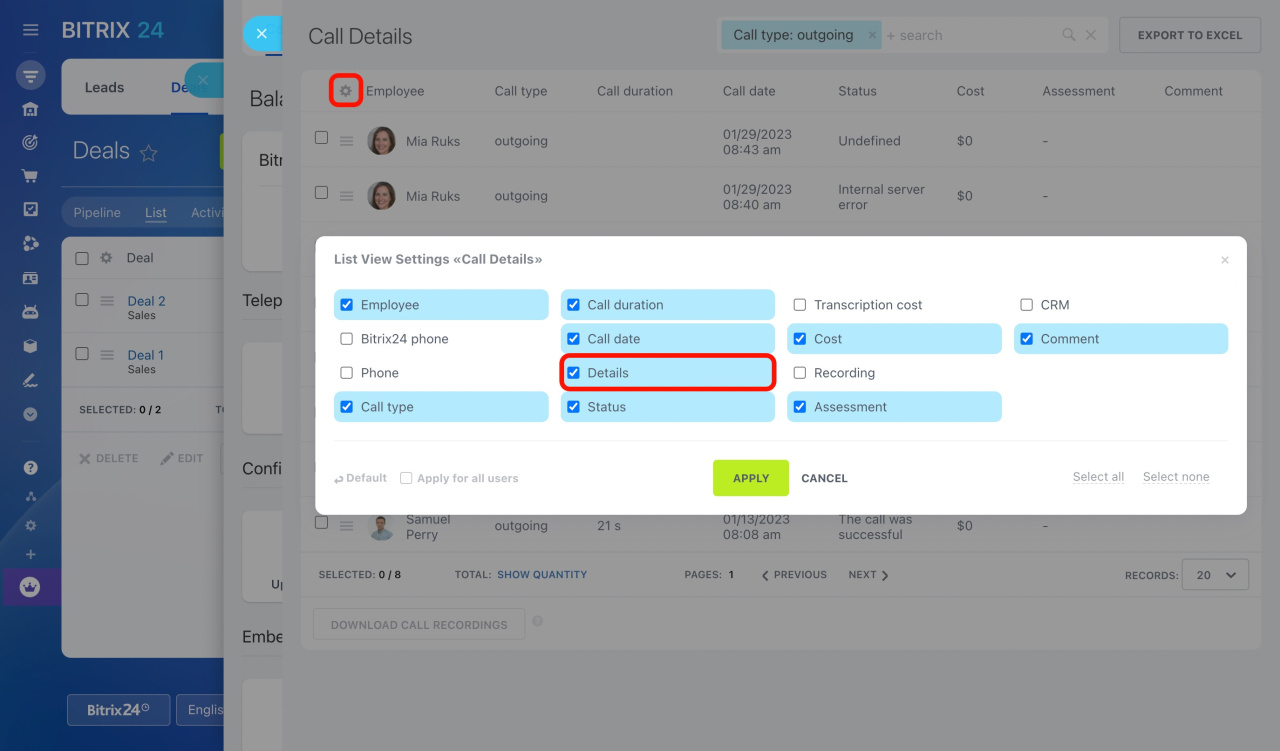
In the Details column, click the book icon.

If you do not see the Details column:
- Click the gear icon ⚙️.
- Select Details in the list view settings.
- Click Apply.
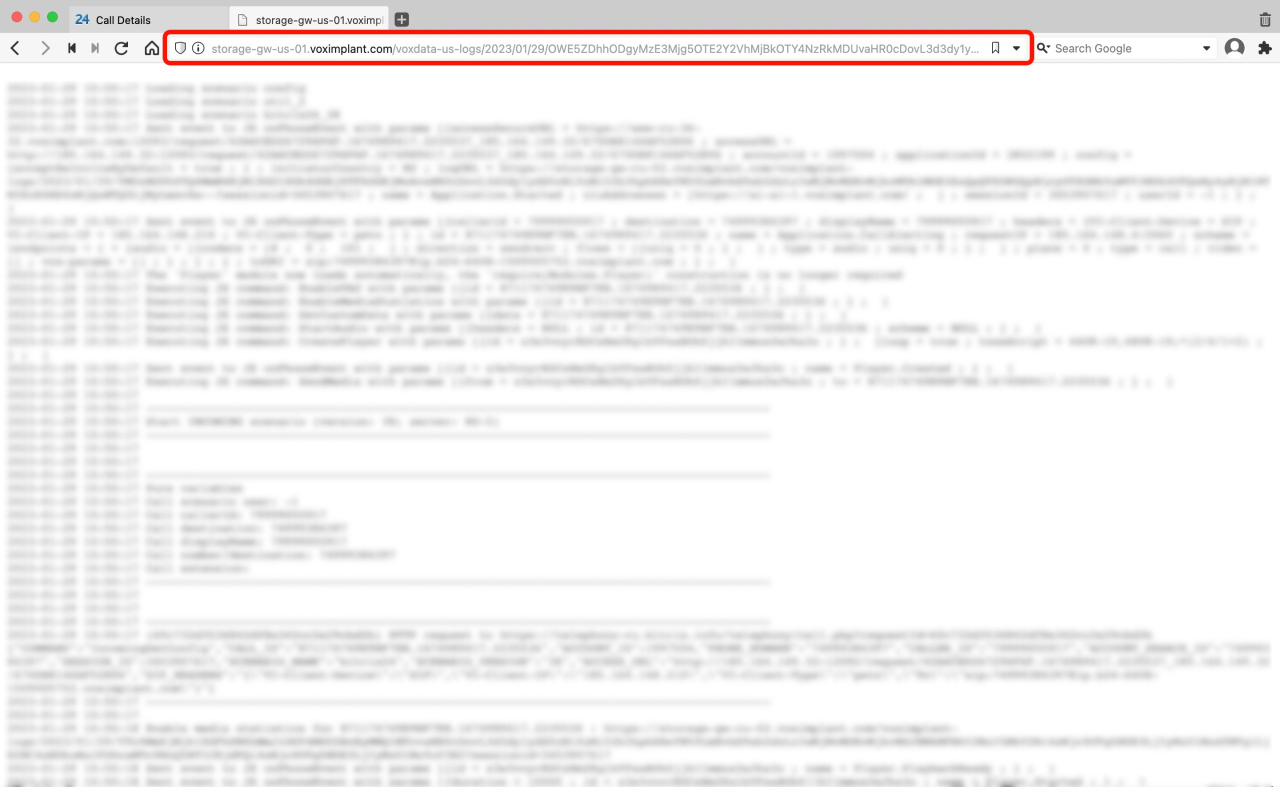
The call log opens in a new browser tab. It contains full call details.
Troubleshooting outbound calls
If the issue is not covered in the article, copy the link from the browser address bar and send it to Bitrix24 Support. You do not need to send the full log text.
How to contact Bitrix24 Support
How long call logs are stored
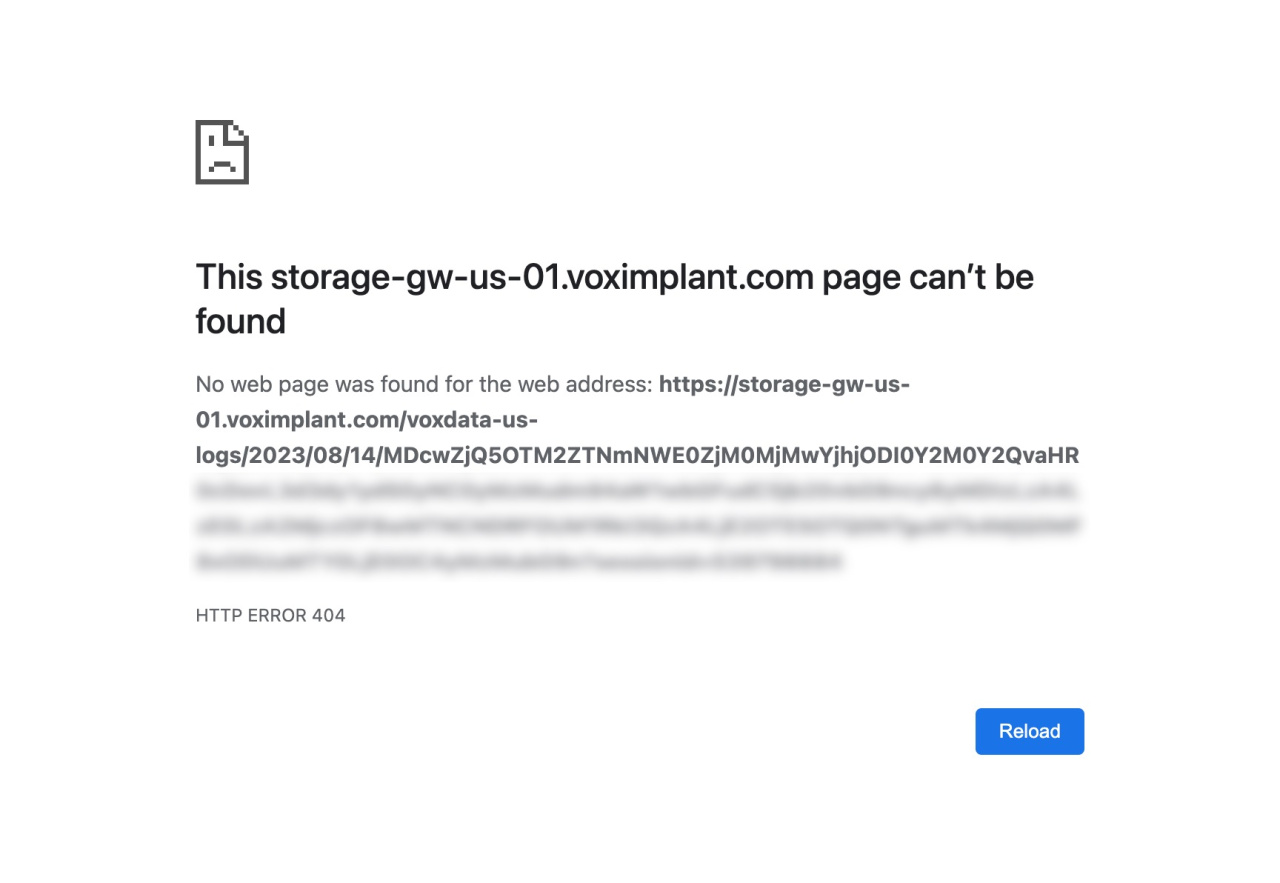
Call logs are stored for up to 1 month by the telephony provider. After that, they are deleted automatically.
If you get an error when opening a call log, the log has already been deleted.
Fix issues when there is no call log
Bitrix24 records logs only for calls made or received through:
- a rented phone number
- a connected SIP PBX
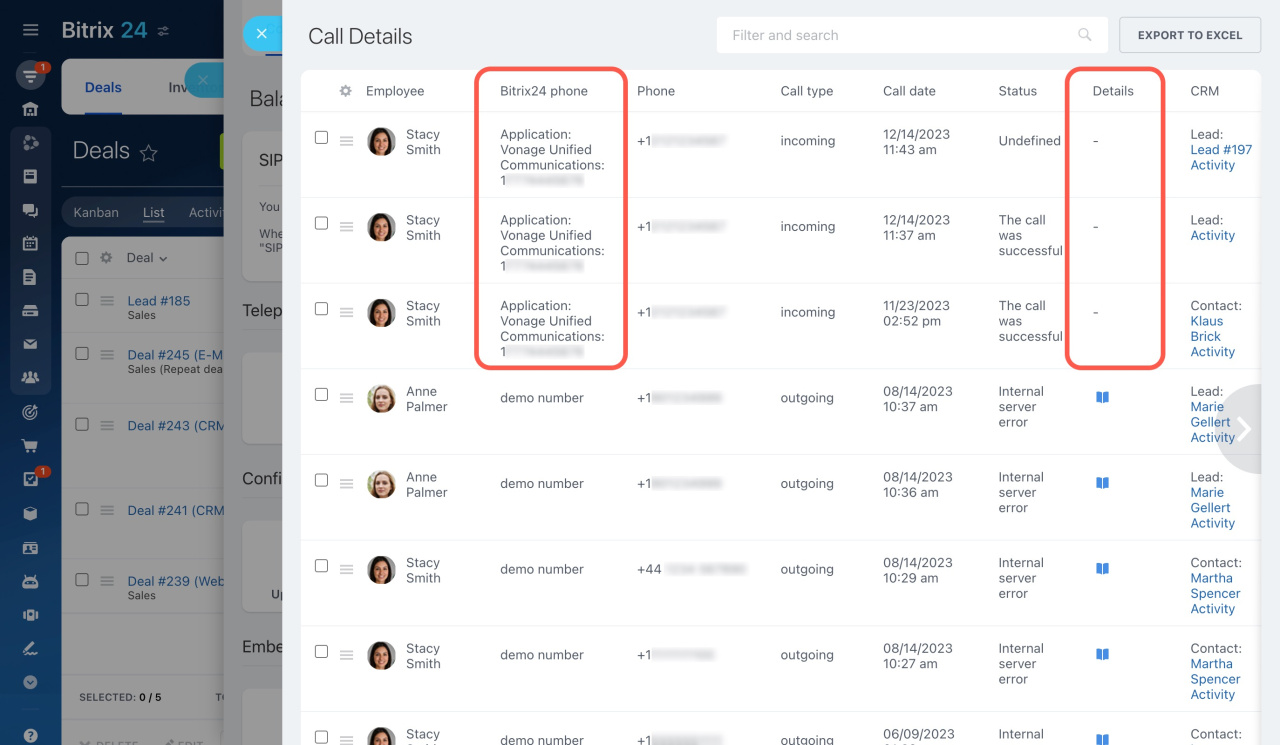
If you use a Bitrix24 Market app for calls, logs are stored on the app side.
To check this:
- Open the call in Call Details.
- Check the Bitrix24 phone column.
If you see the name of an app there, contact the app developer for support.
Support for Bitrix24 Market apps
In brief
- A call log is a text file with detailed call information.
- Use call logs to troubleshoot call issues or share details with Bitrix24 Support.
- Call logs are stored for up to 1 month.
- Logs are available only for rented numbers and connected SIP PBX systems.
- If you use a Bitrix24 Market app for calls, logs are stored by the app developer.