
Learn how to connect and set up your Instagram account for Sales Intelligence.
Set up Instagram in Bitrix24
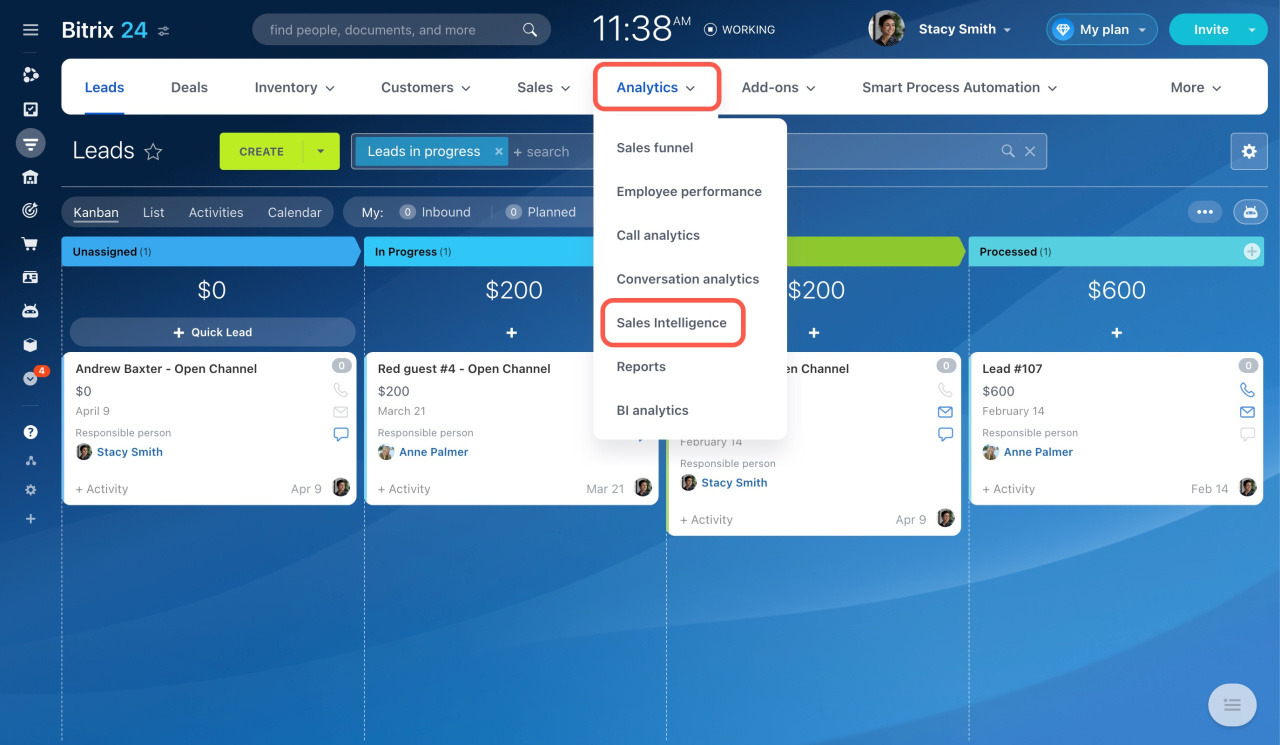
- Go to CRM > Analytics > Sales Intelligence.
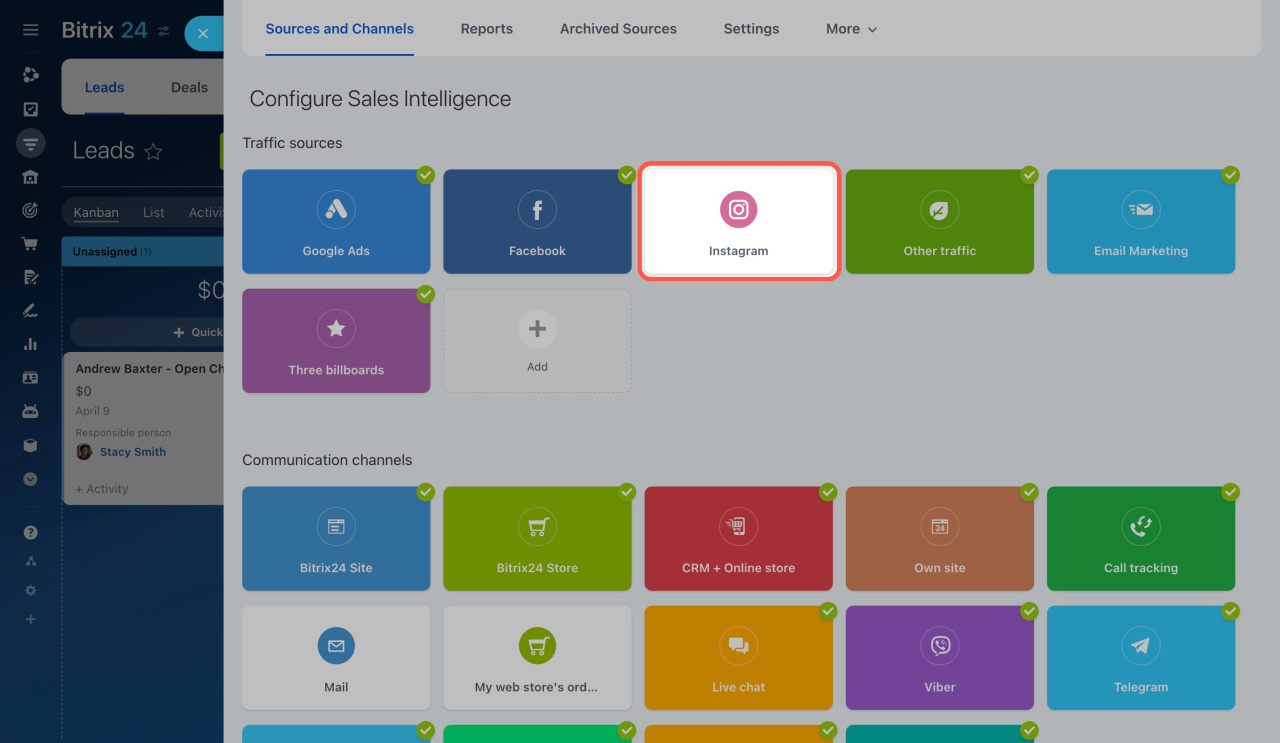
- Select Instagram.
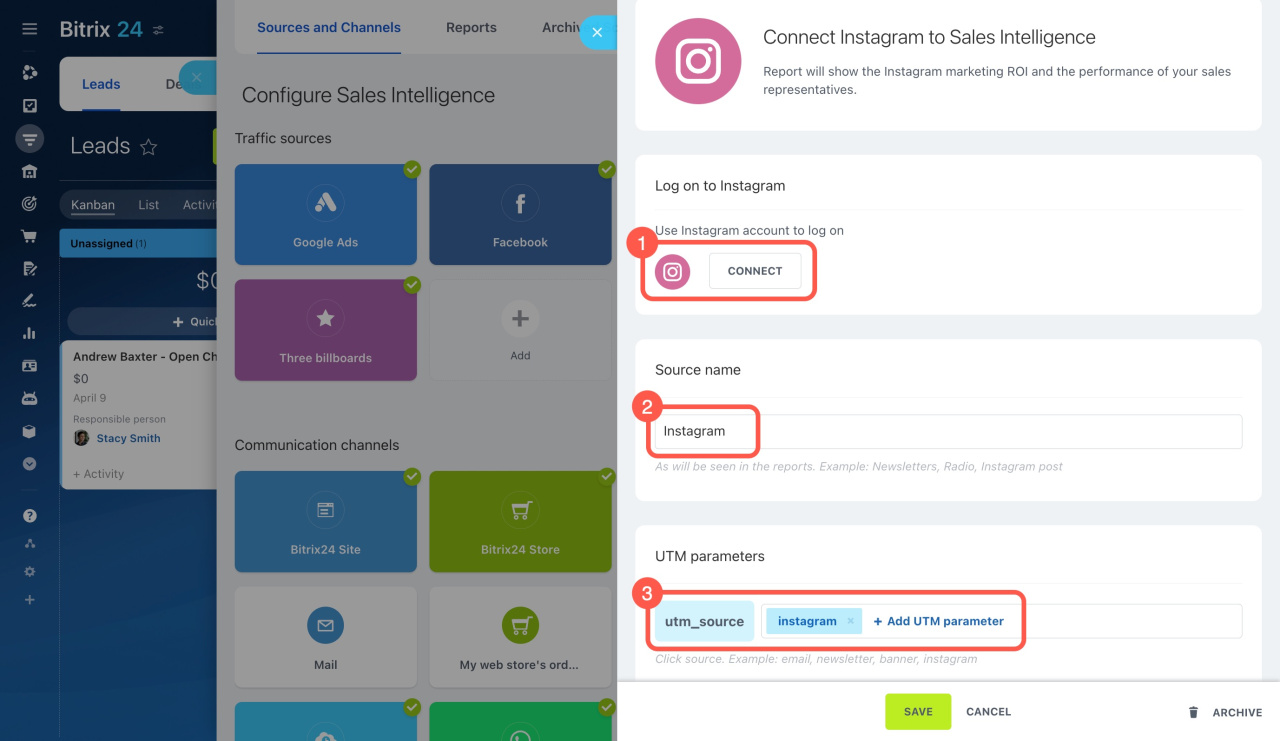
- Sign in to your account.
- Enter a source name.
- Add a UTM code.
Assign a phone number and email to the source.
Assign phone numbers and email addresses to traffic sources
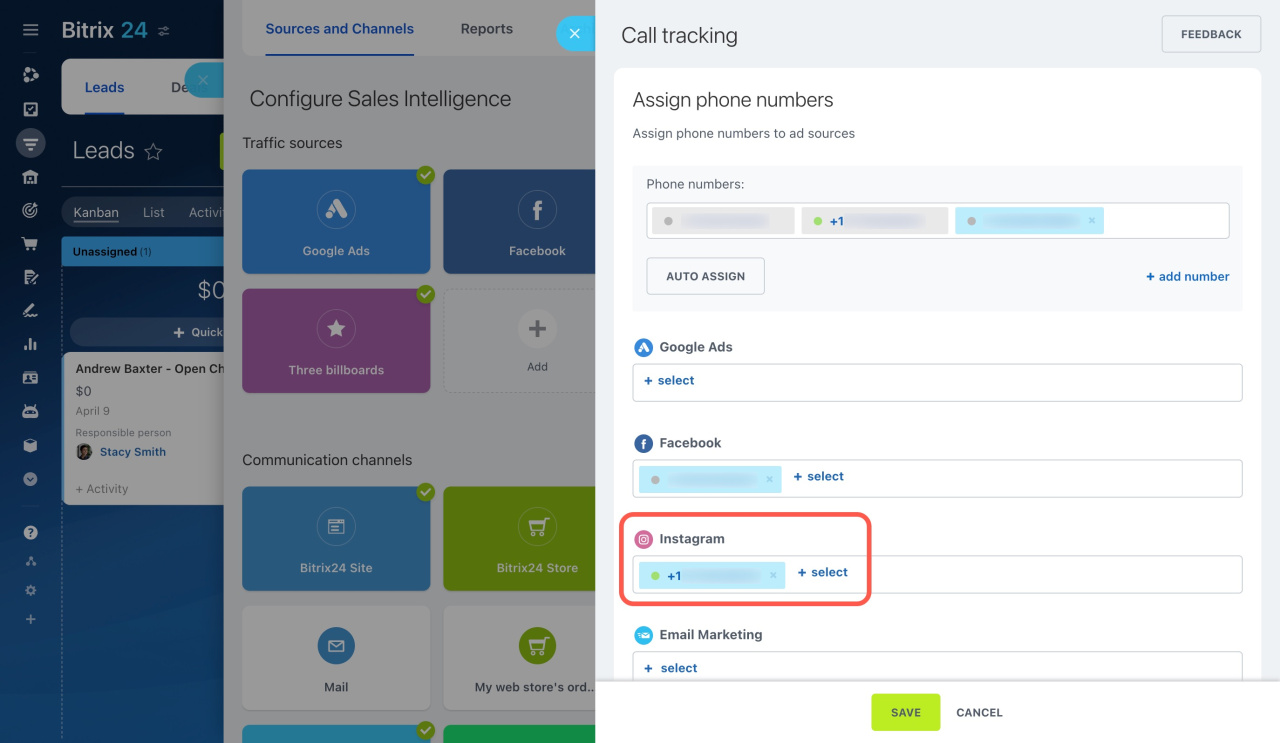
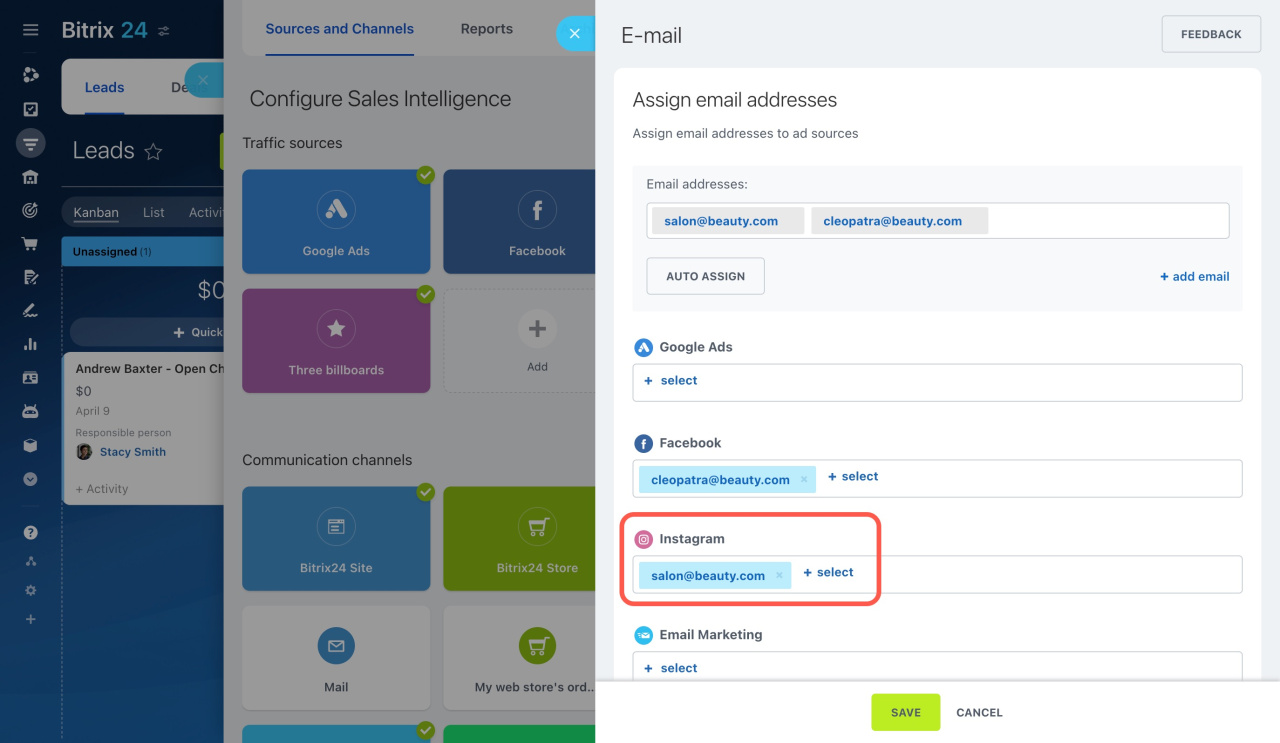
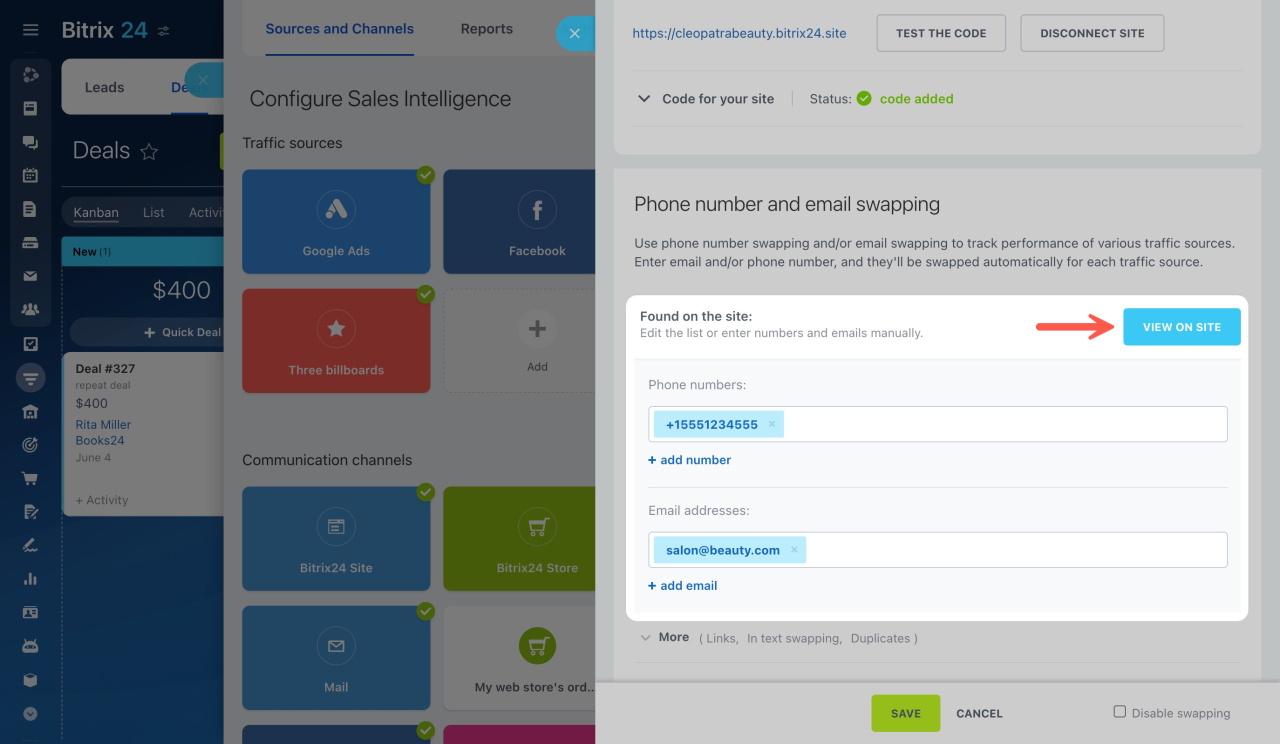
Then set up swapping on your website.
Swap email addresses or phone numbers on the website
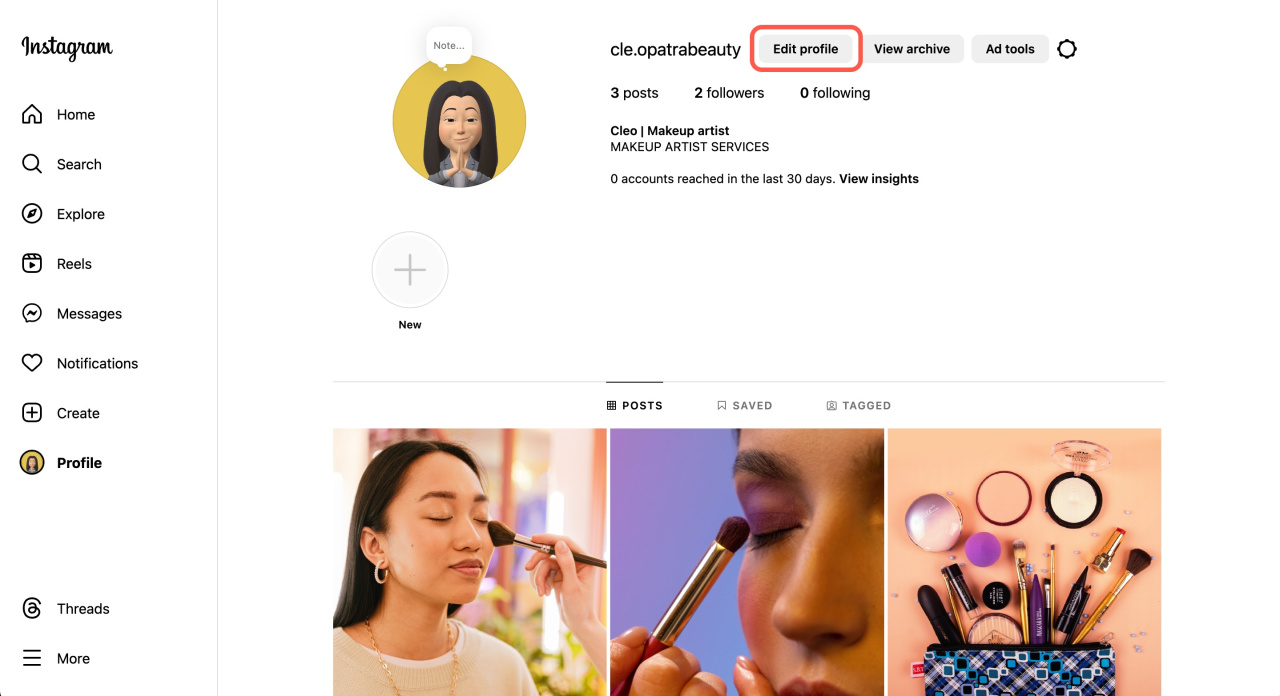
Update your Instagram profile
- Open your Instagram account.
- Click Edit profile.
- Add your email, phone number, and other details in the bio.
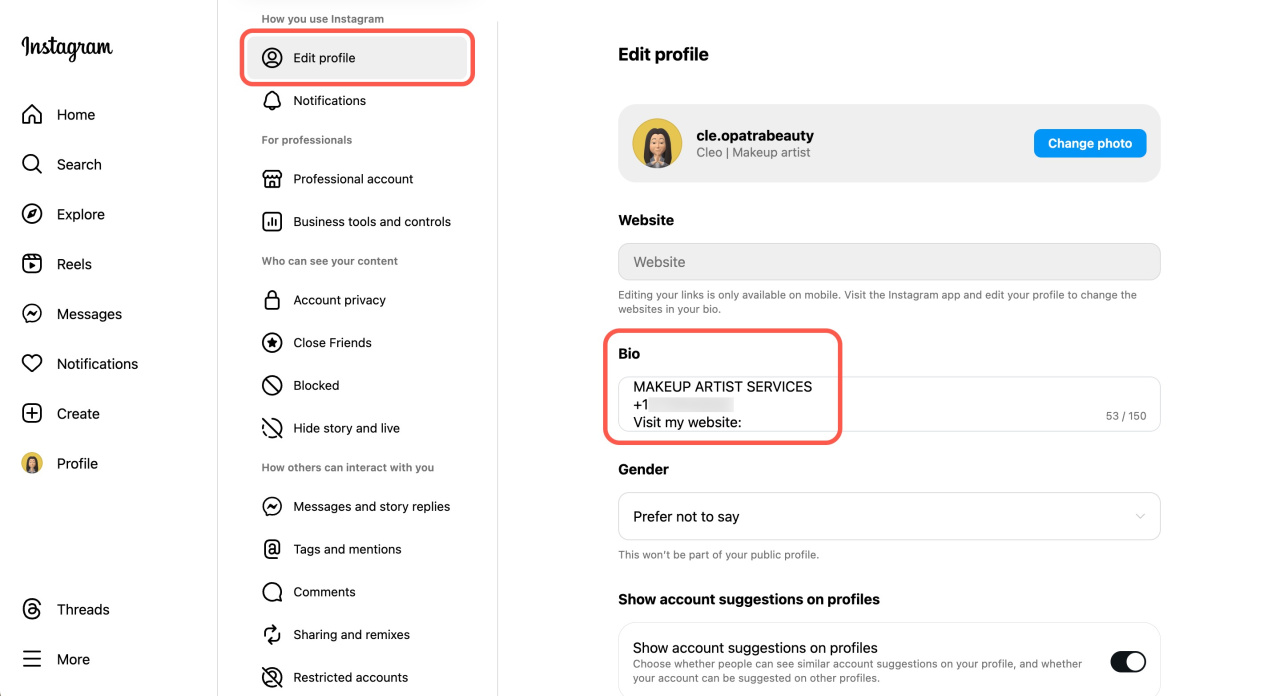
To add a website link with a UTM code:
- Open the Instagram mobile app.
- Tap Edit profile > Links.
- Select Add external link.
- Paste your website URL with the UTM code.
- Tap Done.
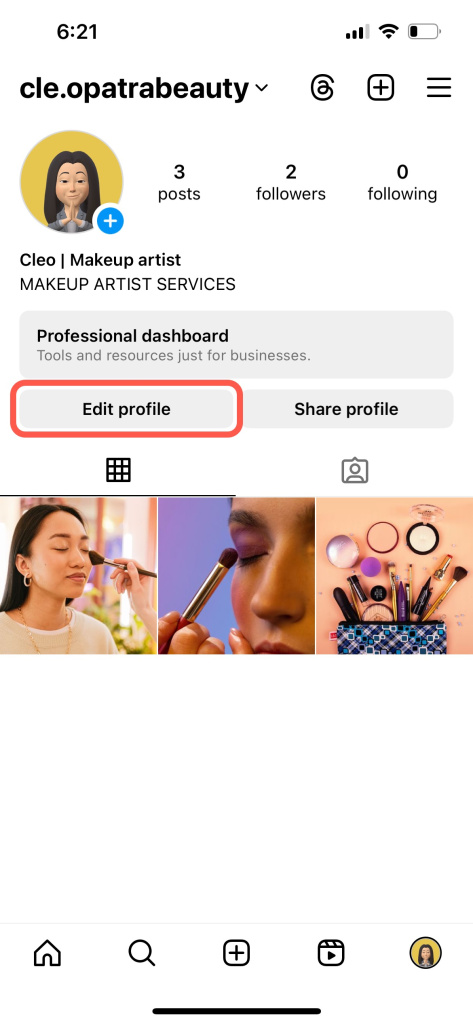
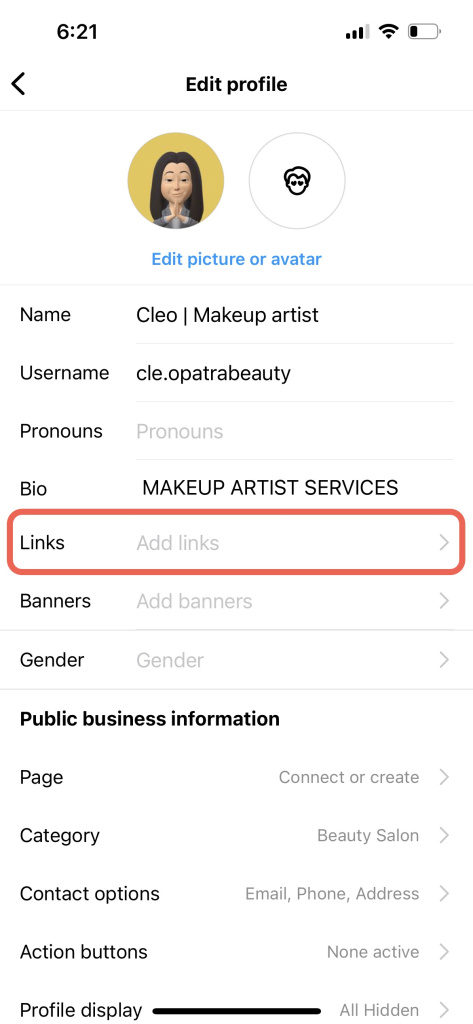

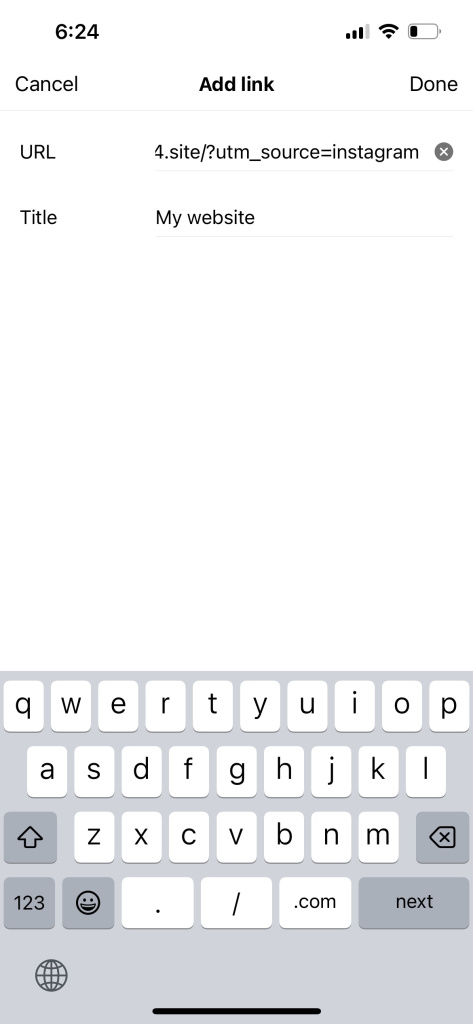
After you update your profile, it will work with Sales Intelligence.
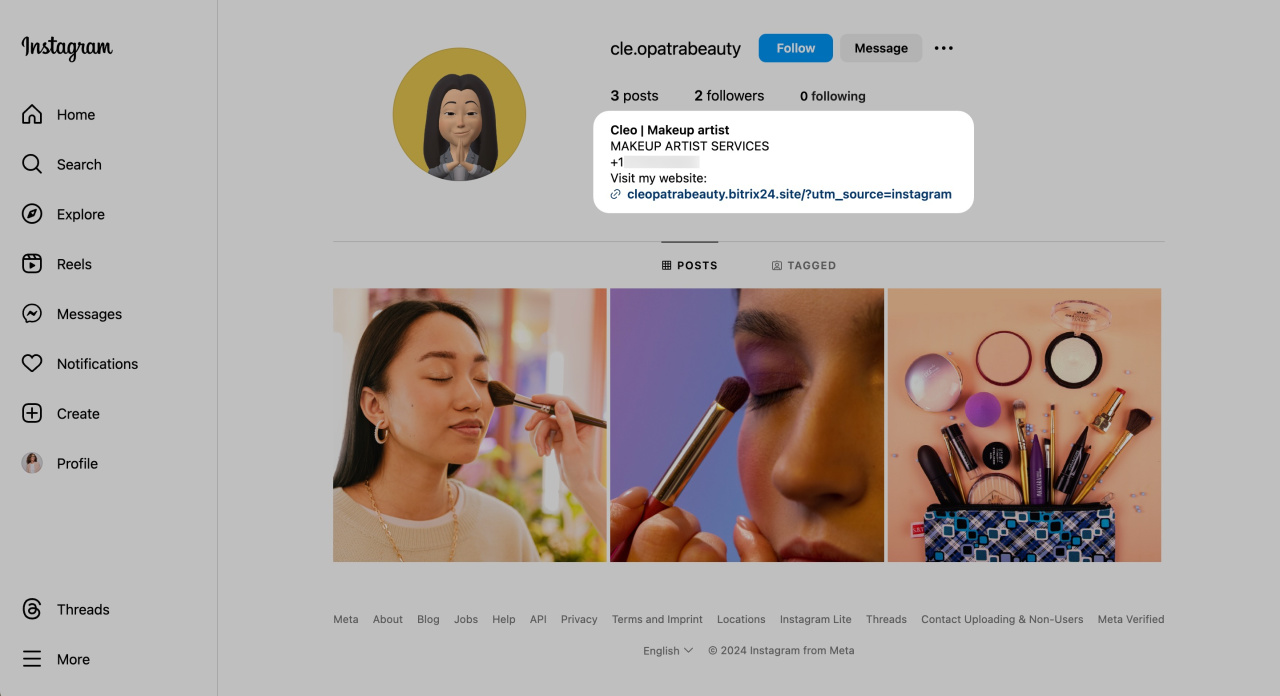
In brief
-
Sign in to your Instagram account in Sales Intelligence. Add a source name and UTM parameters.
-
Assign a phone number and email to the source. Make sure swapping is enabled on your website.
-
Add contact details to your Instagram bio. Include your website link with a UTM code.