
Projects in Bitrix24 help teams work together. You can assign tasks, chat, and share files. Both employees and guests can join a project. Guests are external users who do not have a Bitrix24 account, such as contractors, clients, or vendors.
To let other employees invite members, set up project access permissions first.
Configure access permissions to a collab
Invite an employee
You can add an employee when you create a project or later in an existing project.
When creating a project.
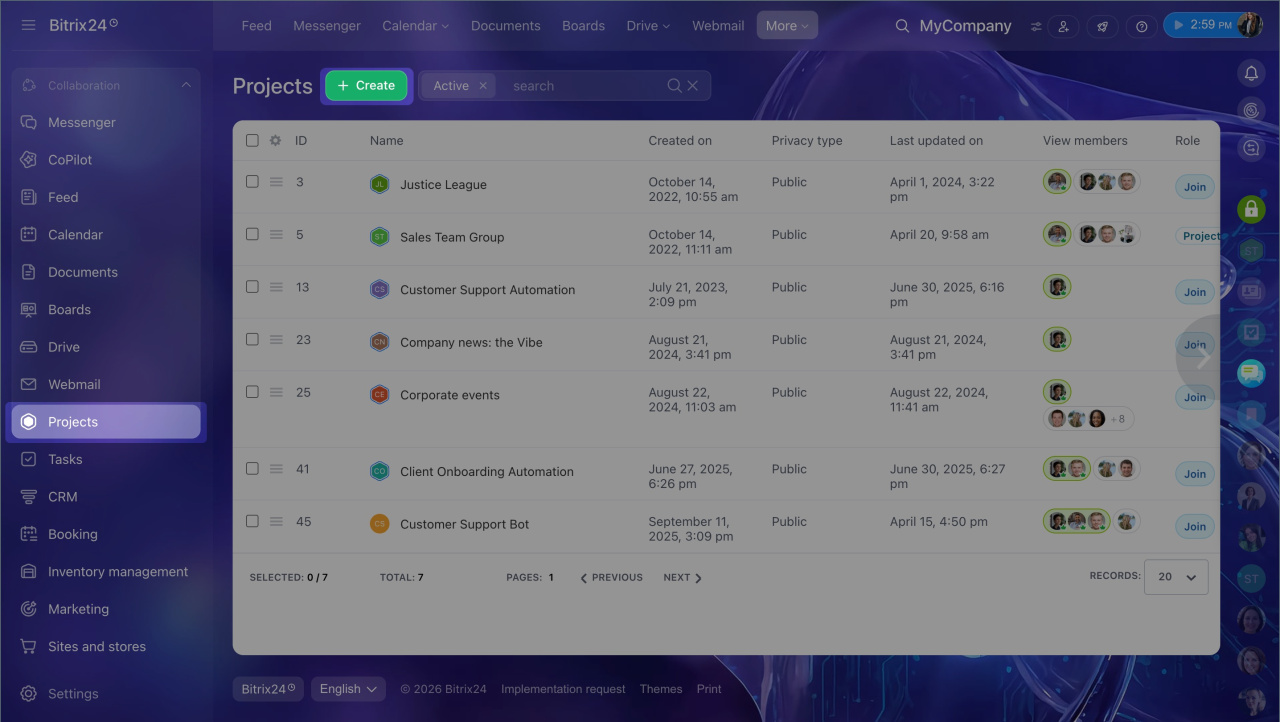
1. Go to Projects and click Create.
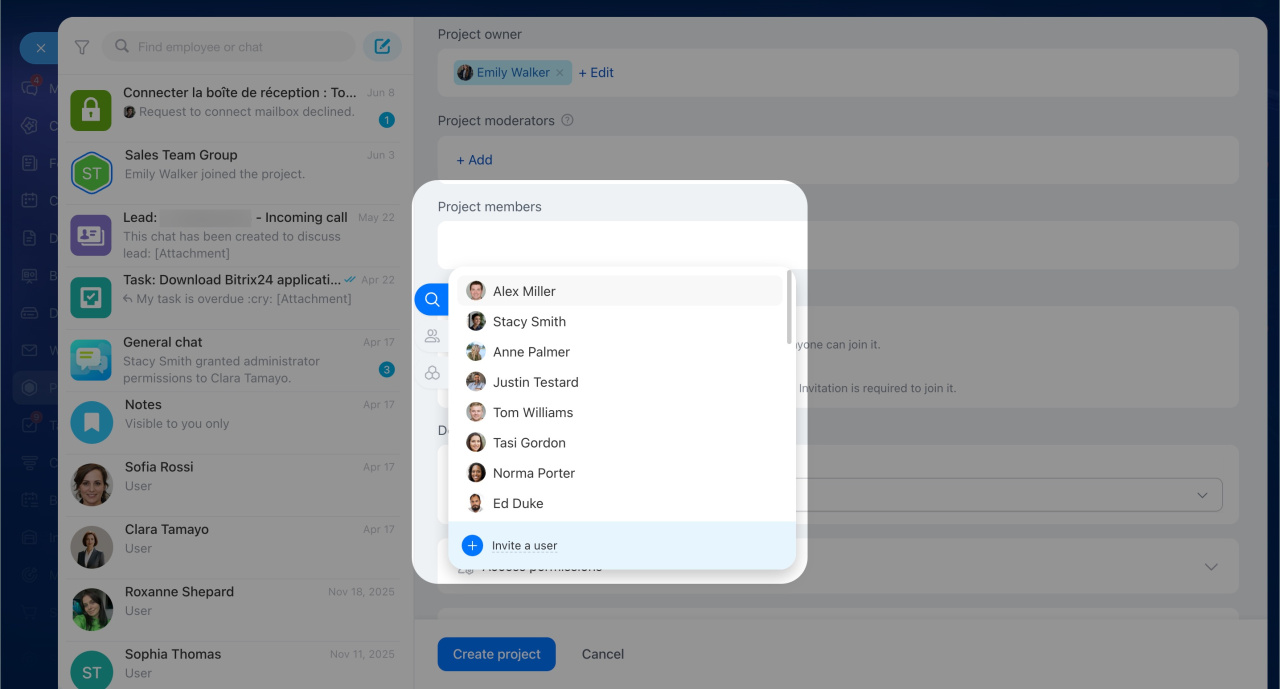
2. In the project form, find the Project members section and click Add. Select the users, department, or workgroup you want to add.
In an existing project.
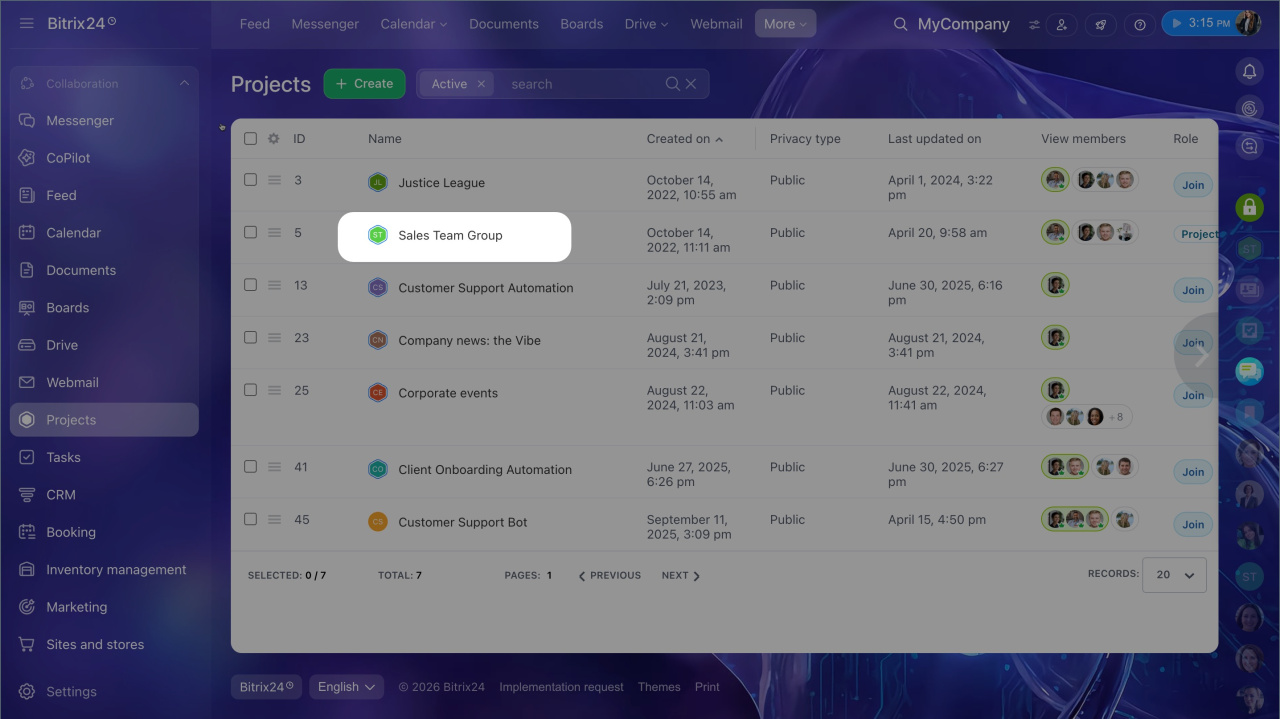
1. Open the project and go to the main chat.
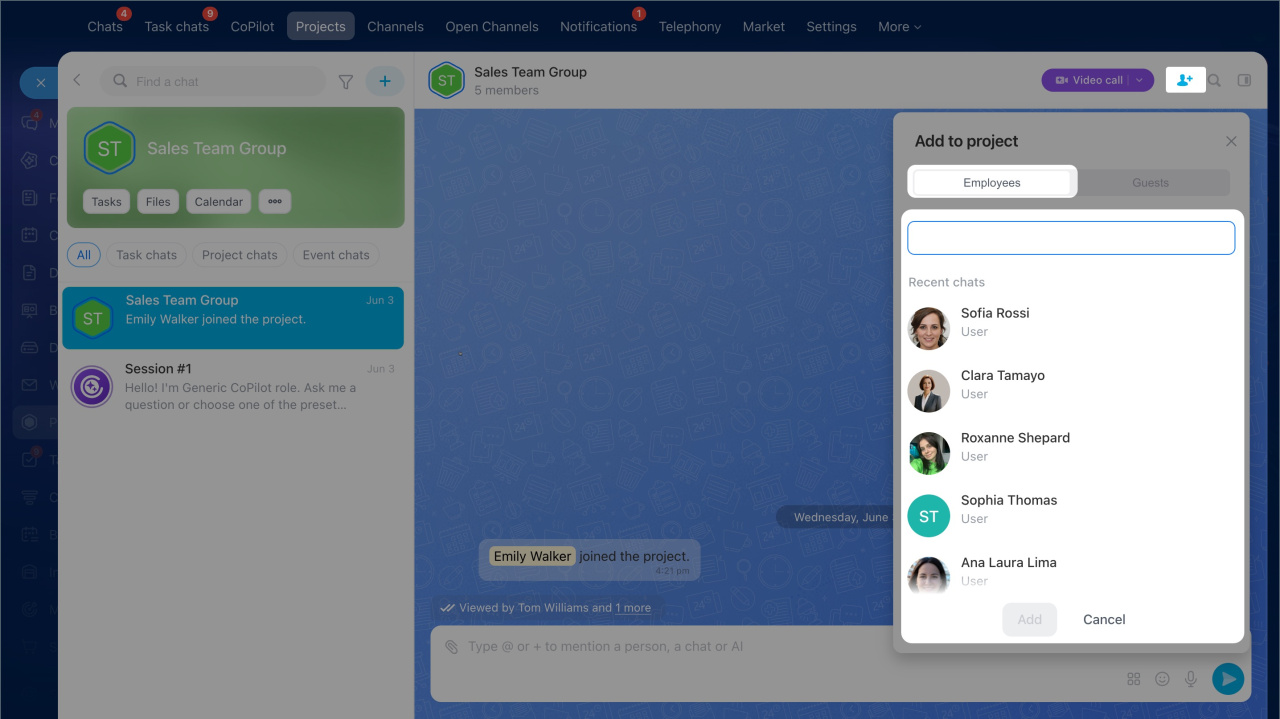
2. Click a special icon and select your coworkers on the Employees tab.
3. Click Invite.
Invite a guest
You can invite guests to a project. Guests are external users who do not have a Bitrix24 account, such as contractors, clients, or partners. Guests can chat, work on tasks, and join meetings. They cannot access other company data. You can invite a guest only after the project is created.
1. Open the project's main chat and click in the top-right corner.
2. Open the Guests tab.
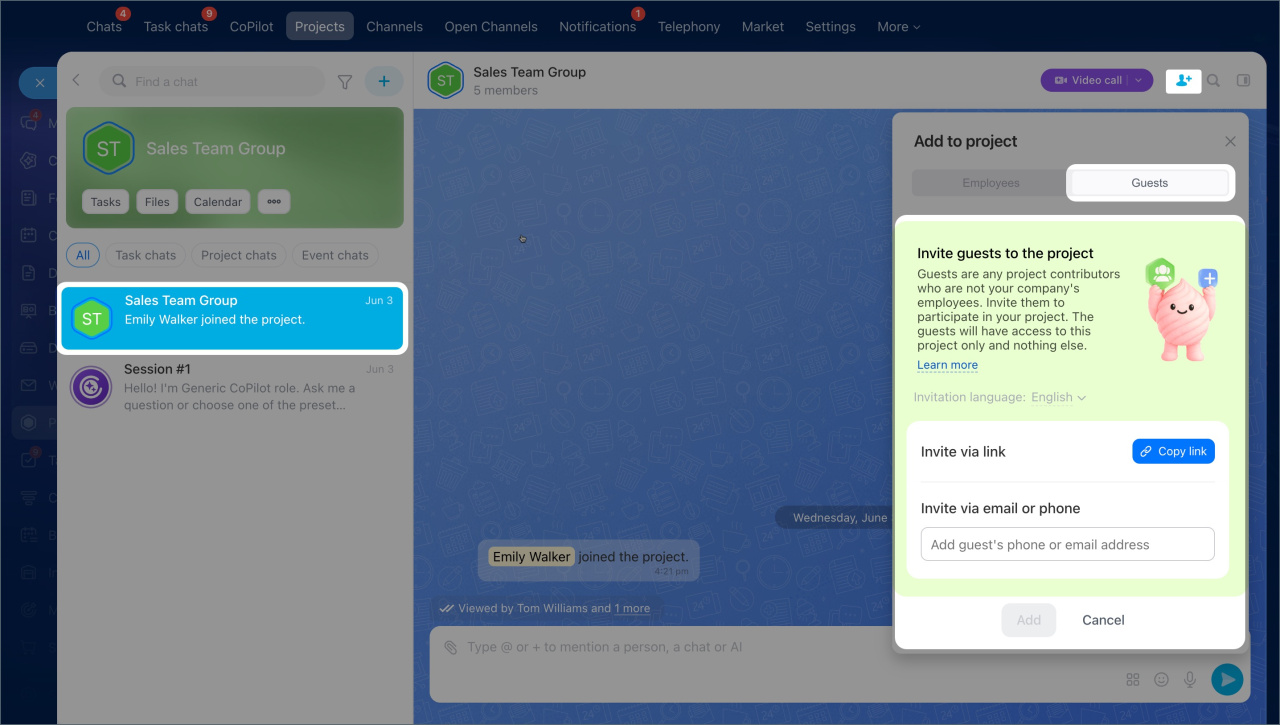
There are two ways to invite a guest.
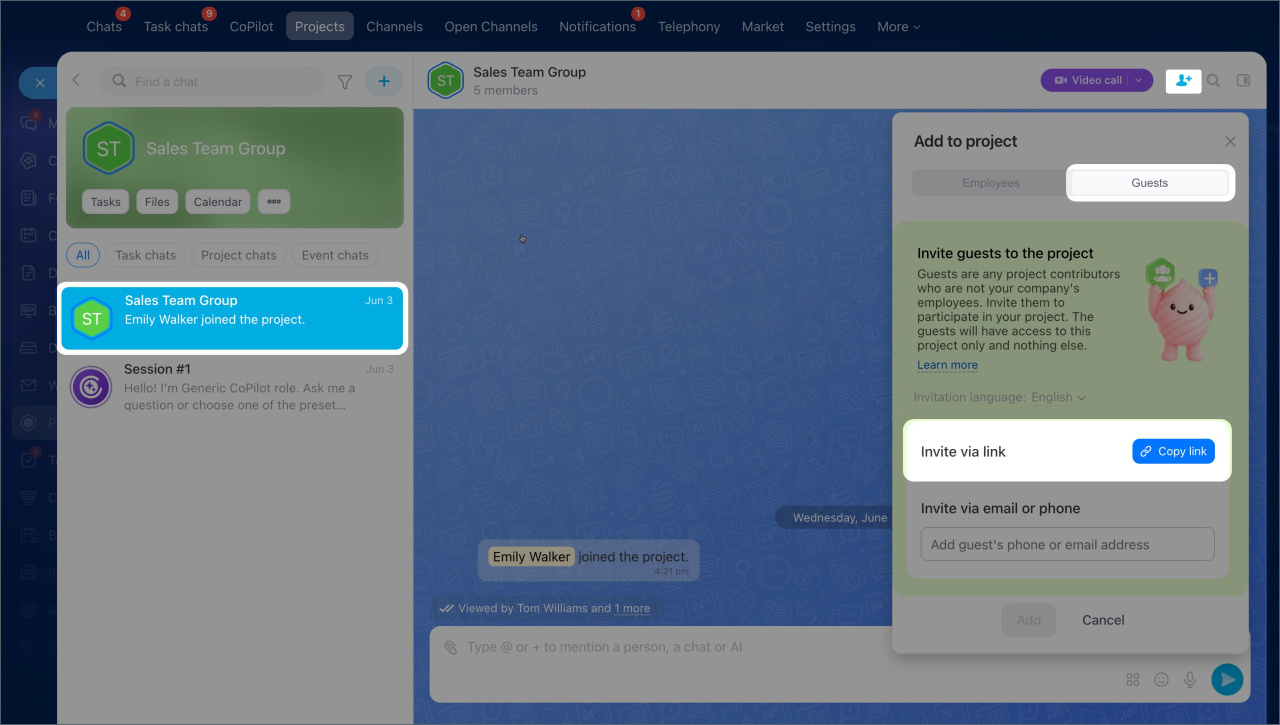
By link. Click Copy link and send the link to the guest in any convenient way, for example, by email or in a messenger.
To revoke a shared link, click the Refresh icon next to Copy link. Bitrix24 creates a new link, and the previous link stops working.
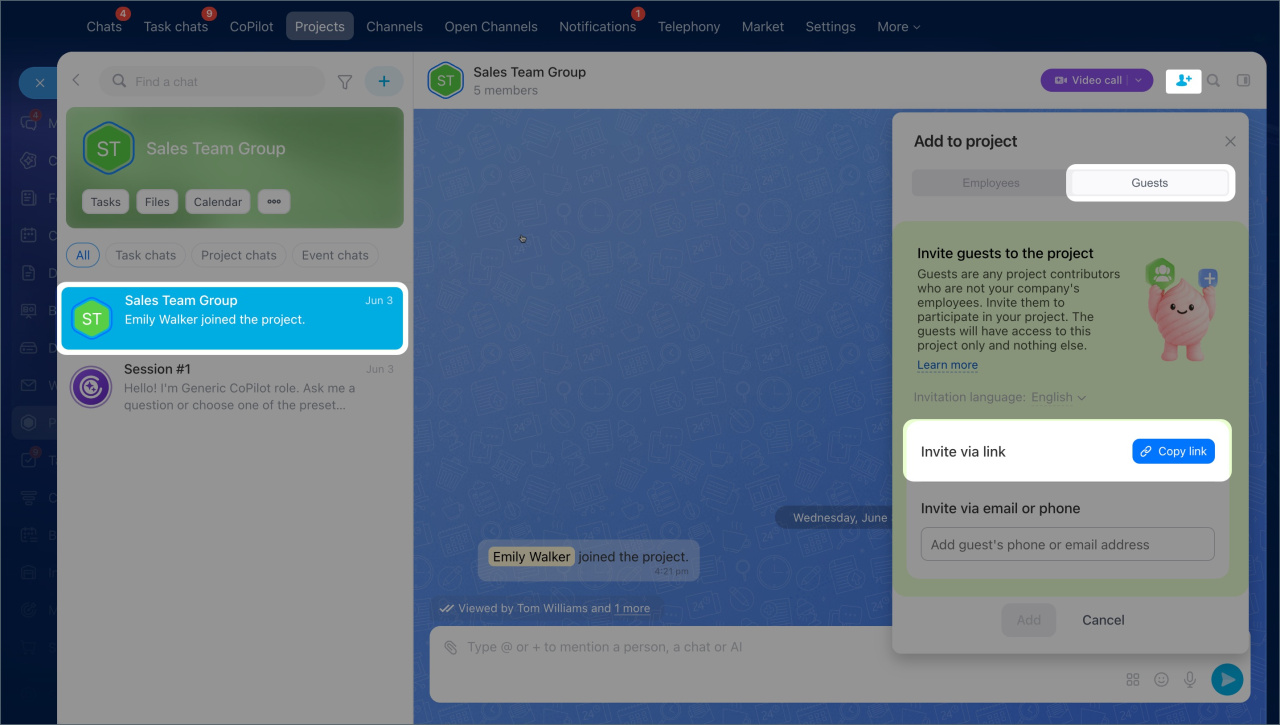
By phone number or email. Enter the guest's phone number or email address and click Invite. The guest will get an SMS or email invitation.
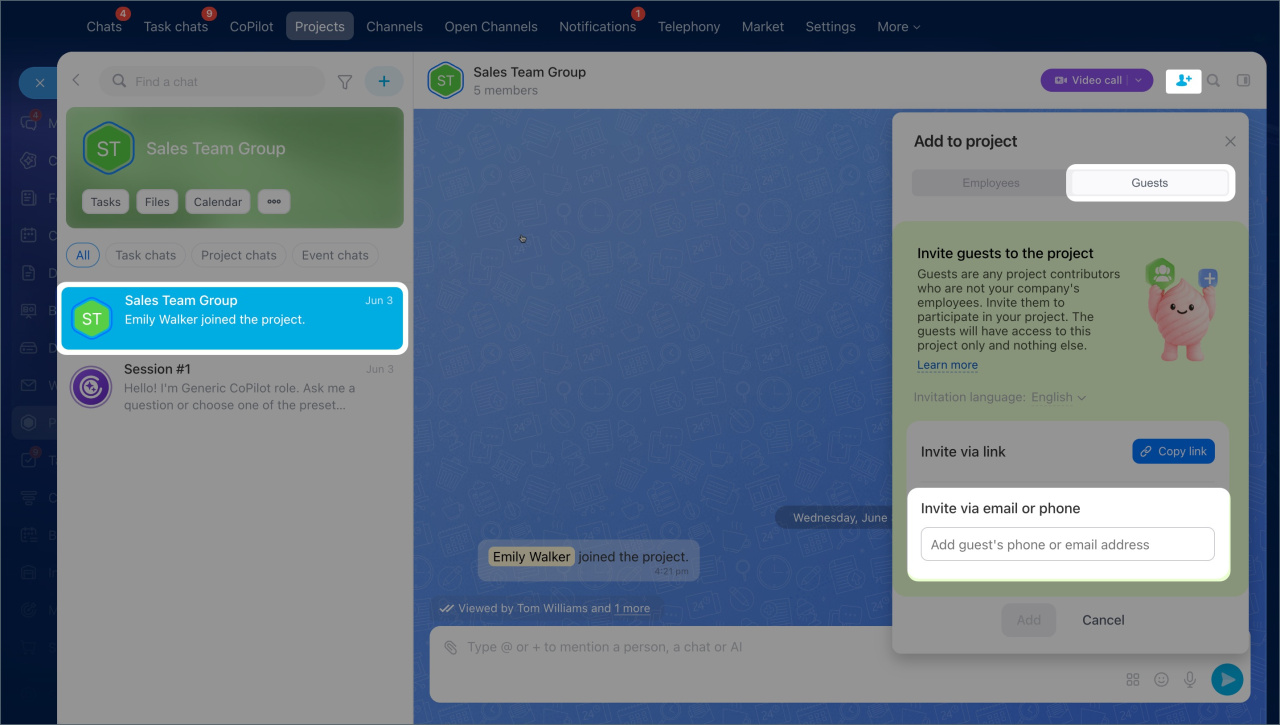
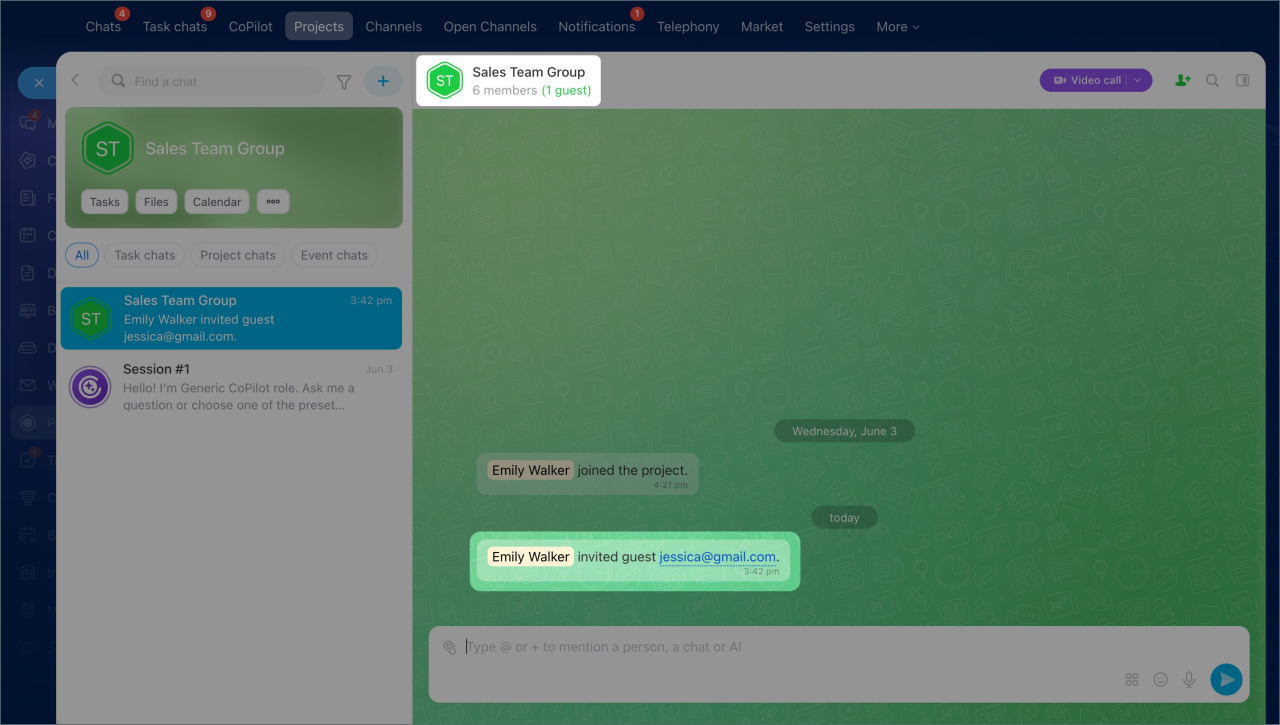
After you send the invitation, the project and its main chat are marked in green. This helps you quickly spot projects that include guests. All invitations are saved in the project's main chat. You can see who sent the invitation and which method they used.
When the guest accepts the invitation, the chat shows a notification. In the member list, the guest's avatar is highlighted in green.
In brief
- Projects can include employees and guests: clients, contractors, and vendors.
- You can add employees when you create a project or later through the project main chat.
- You can invite guests only to an existing project, by link, phone number, or email.
- After you send an invitation, the project and its main chat are marked in green.
- All invitations appear in the project main chat.
- A guest's avatar is highlighted in green in the member list.