
A collab gives you a simple way to work with clients and external teams. It combines chat, tasks, file sharing, and events in one place. You can move from discussion to action without switching tools.
If you are an employee or a collab owner, see how to work with tasks in a collab.
If you are a guest, see how to manage tasks as a guest.
How employees work with tasks in a collab
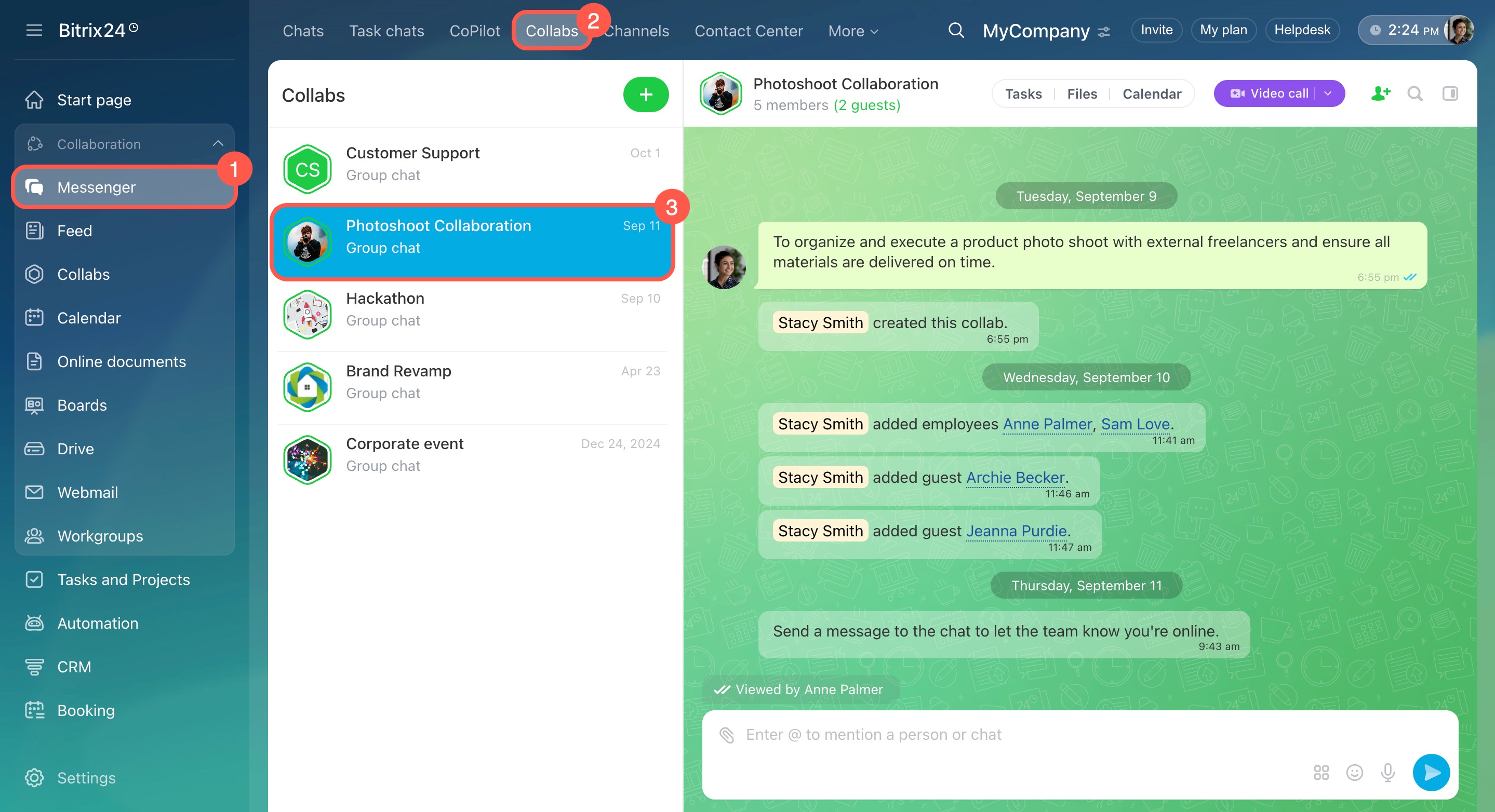
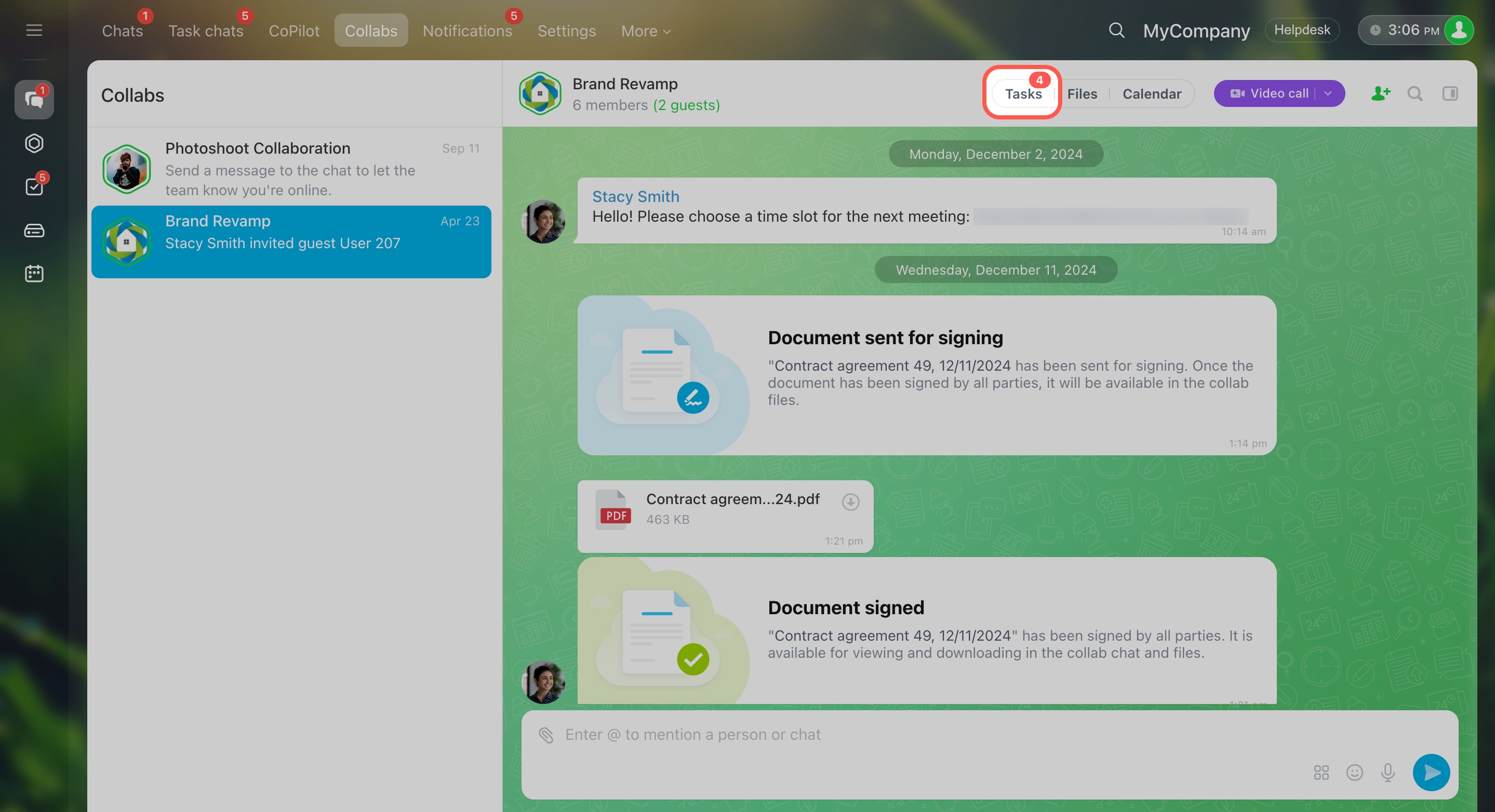
- Go to the Messenger section.
- Click Collabs.
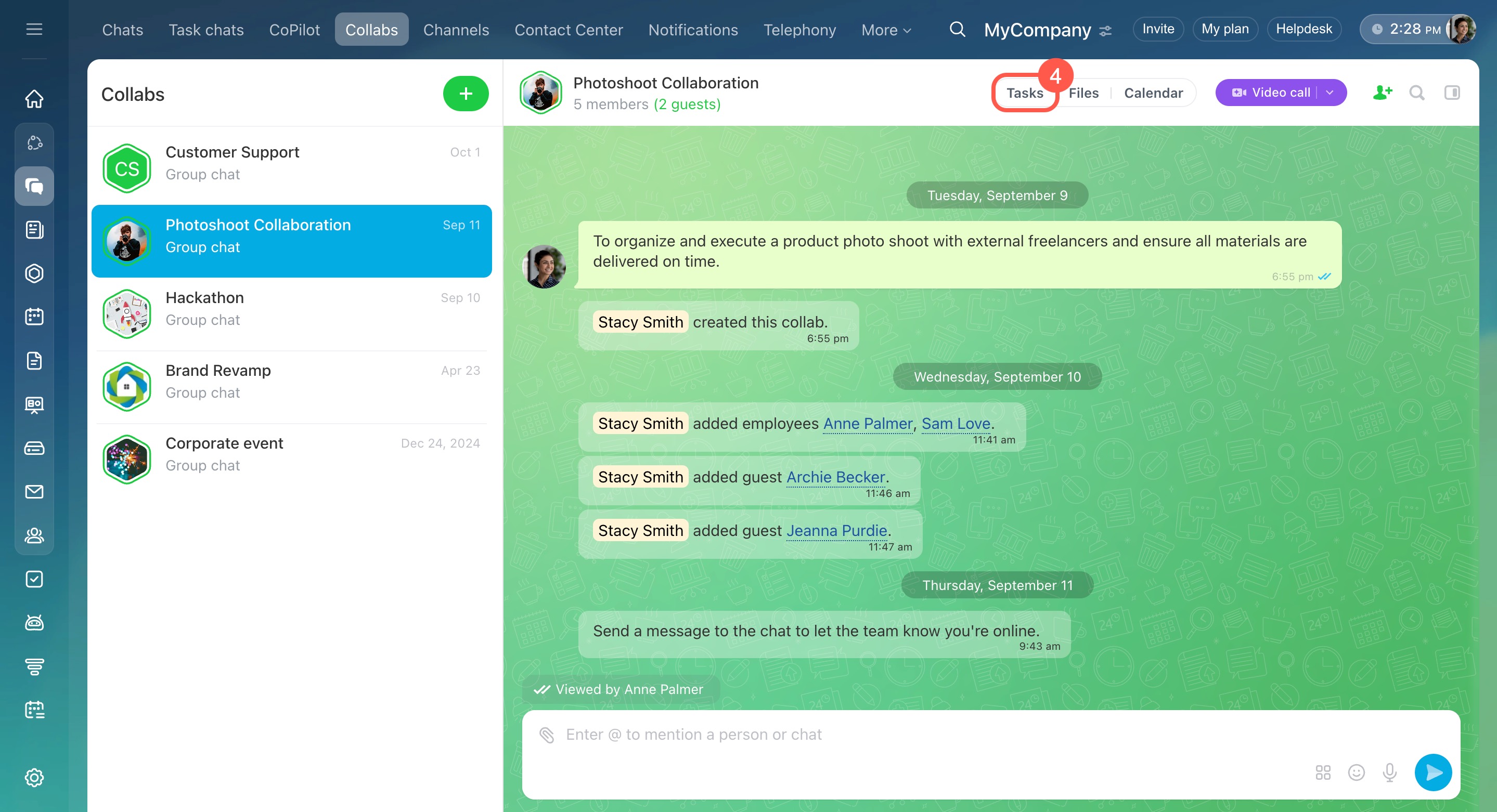
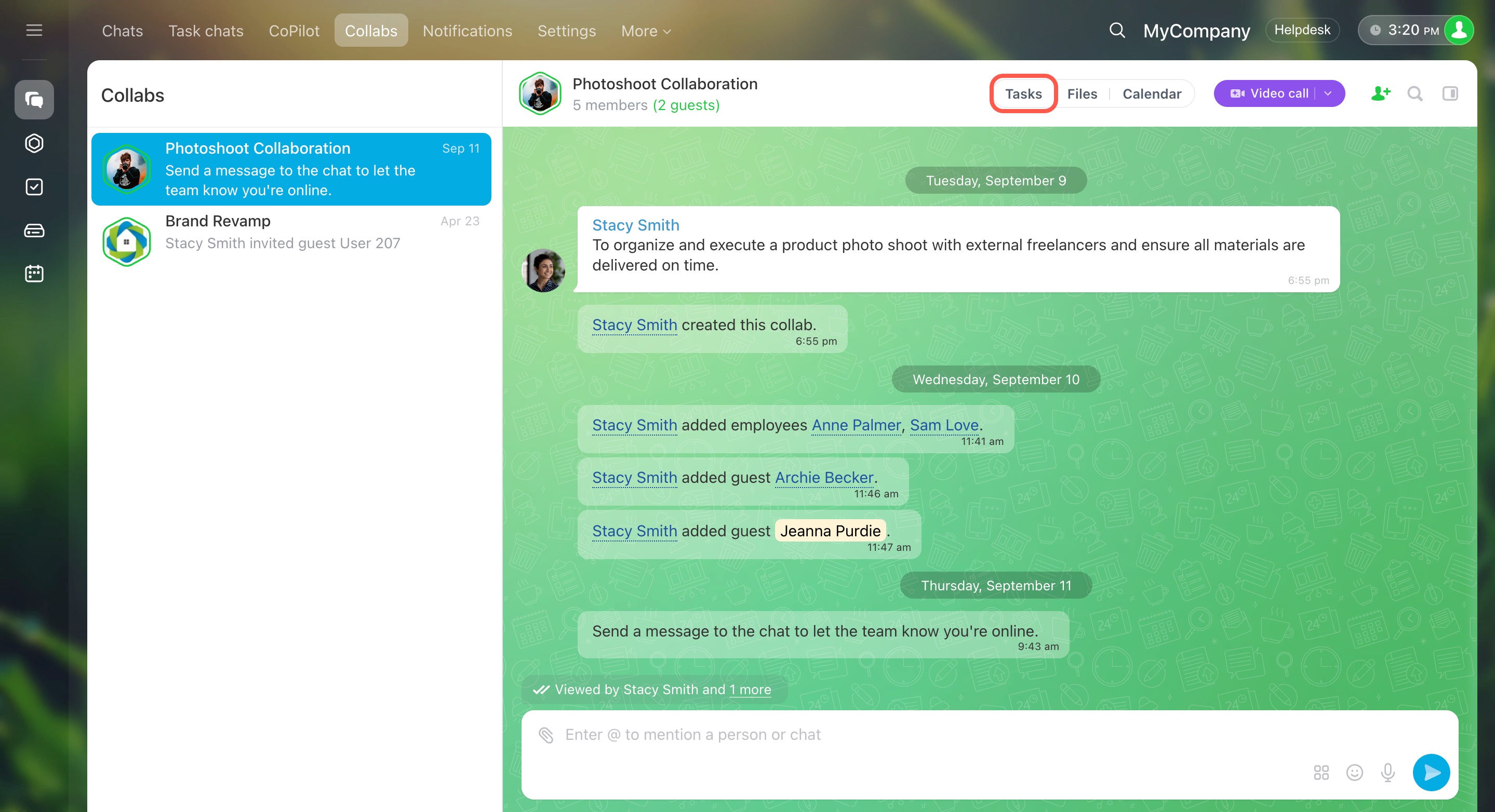
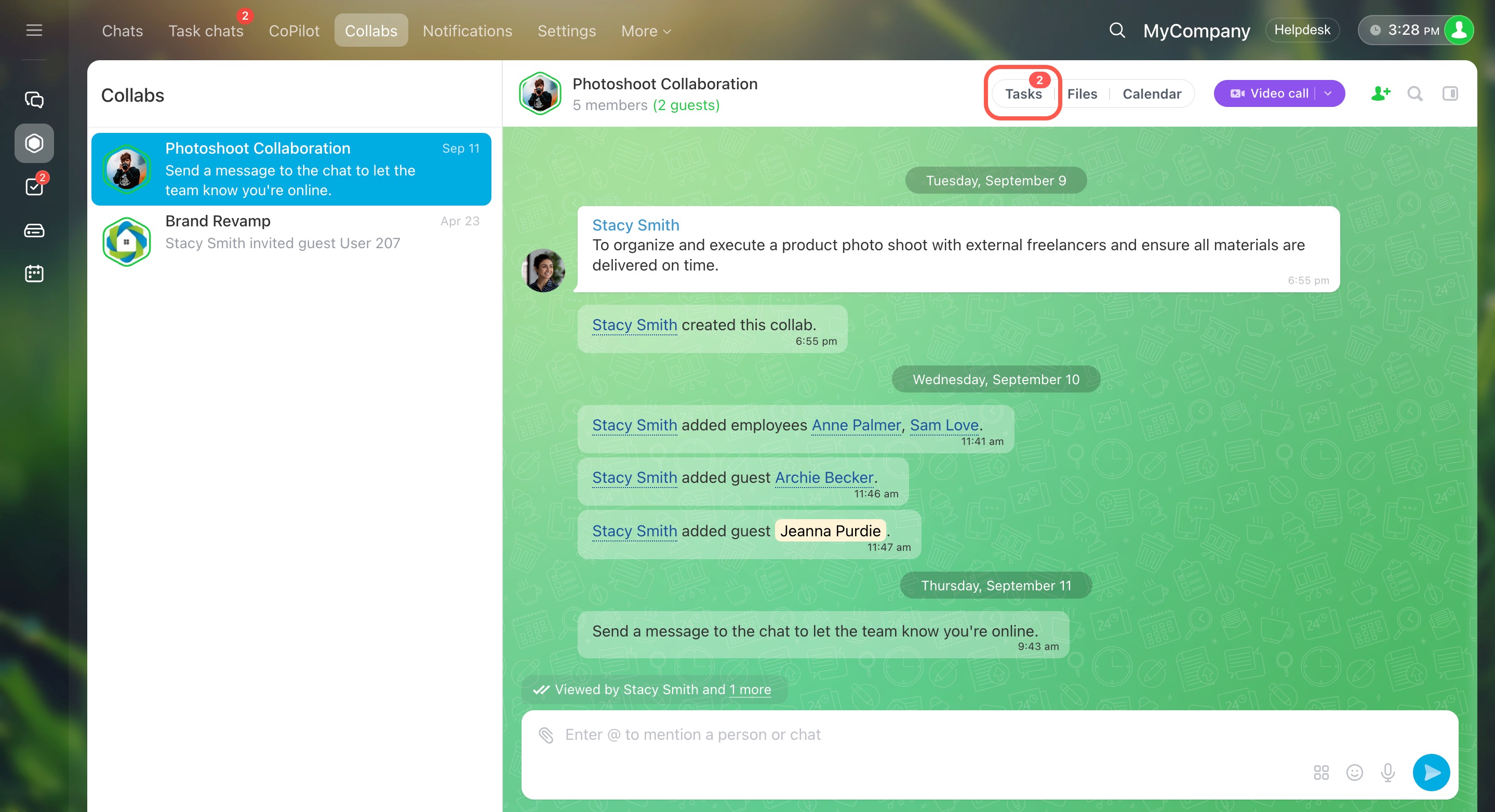
- Select a collab and click Tasks.
Create a task
You can create a task in several ways.
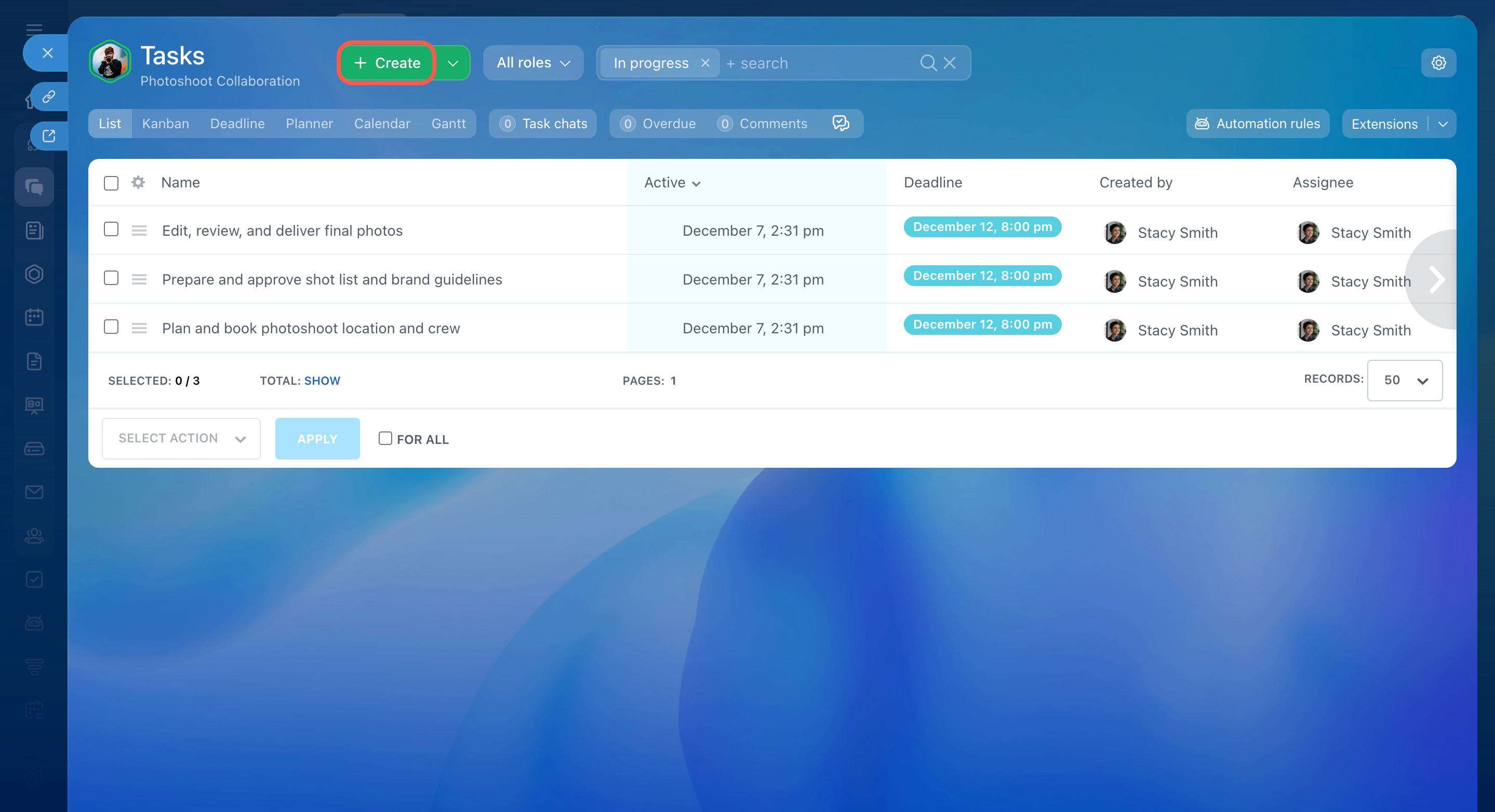
From collab tasks. Open the task list and click Create.
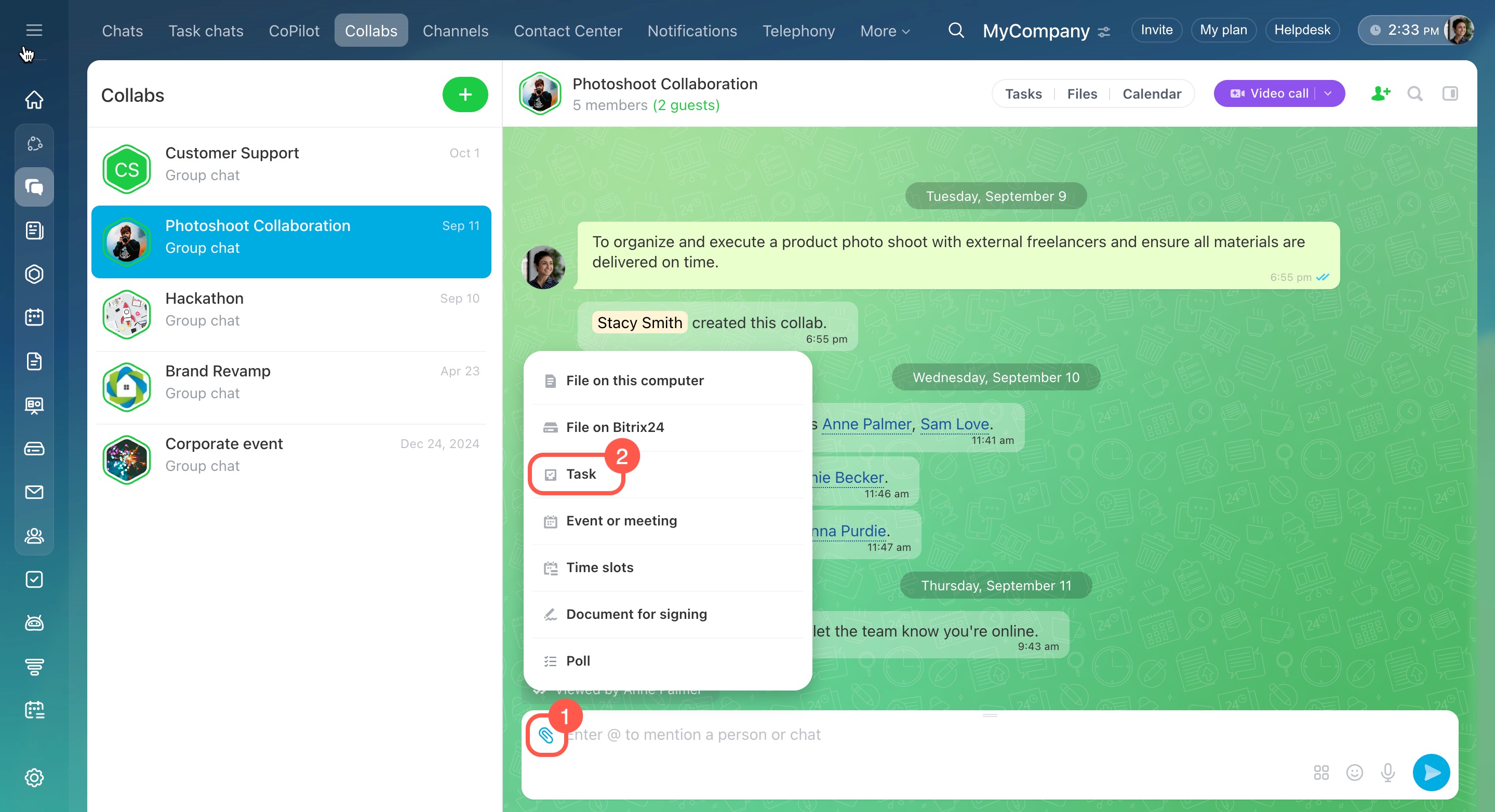
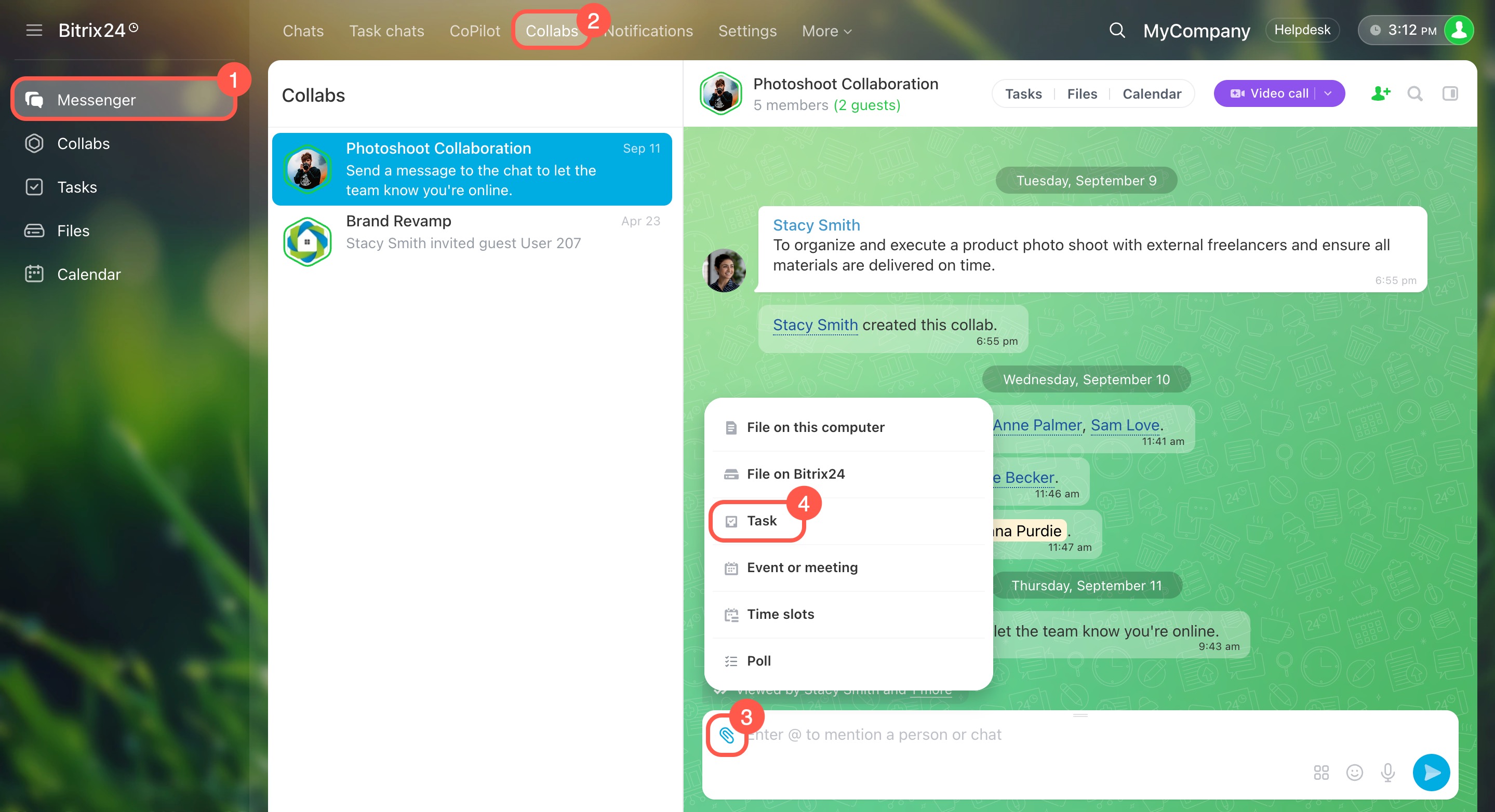
From the chat. Go to the collab chat, click the paperclip, and select Task.
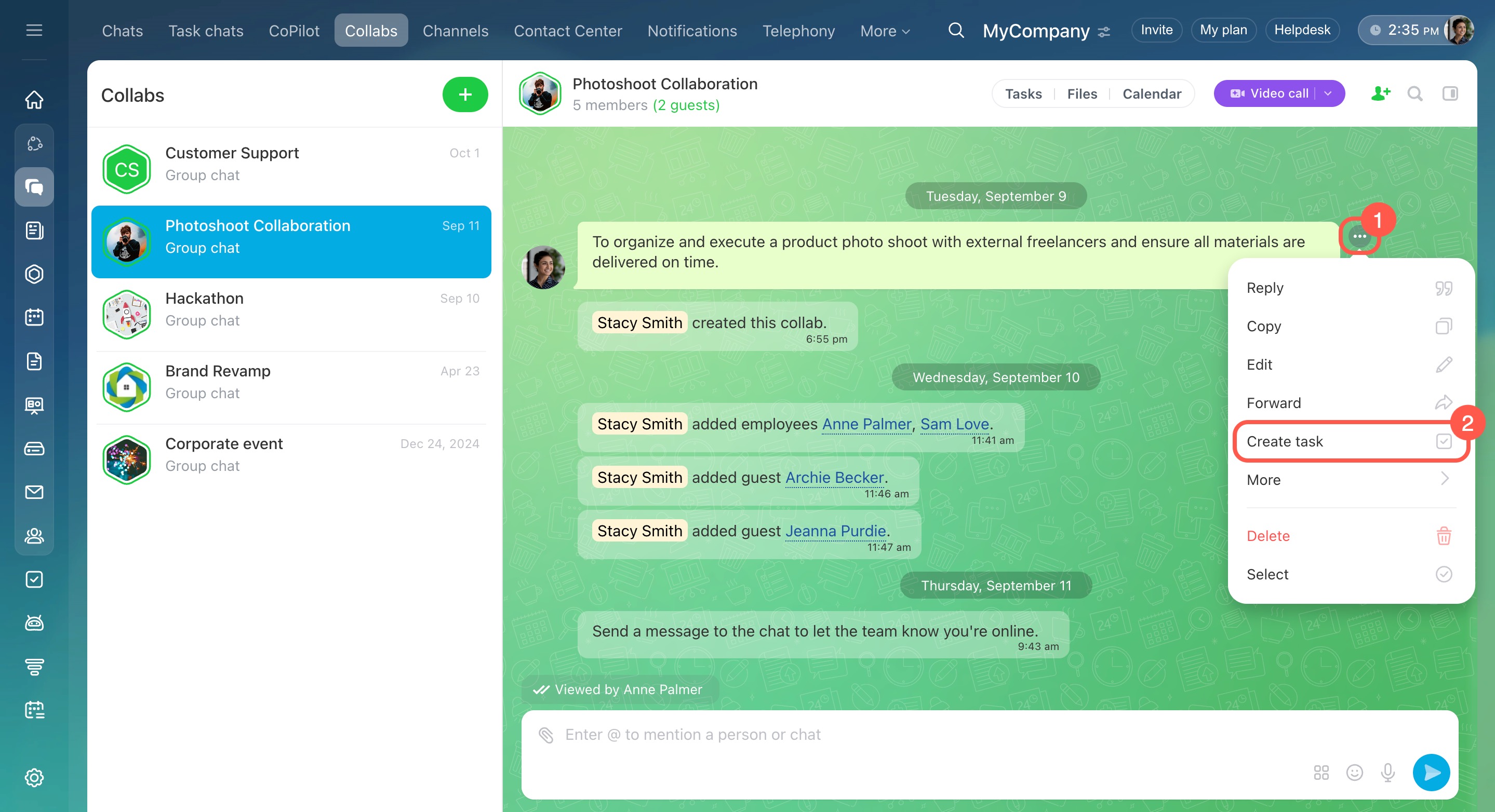
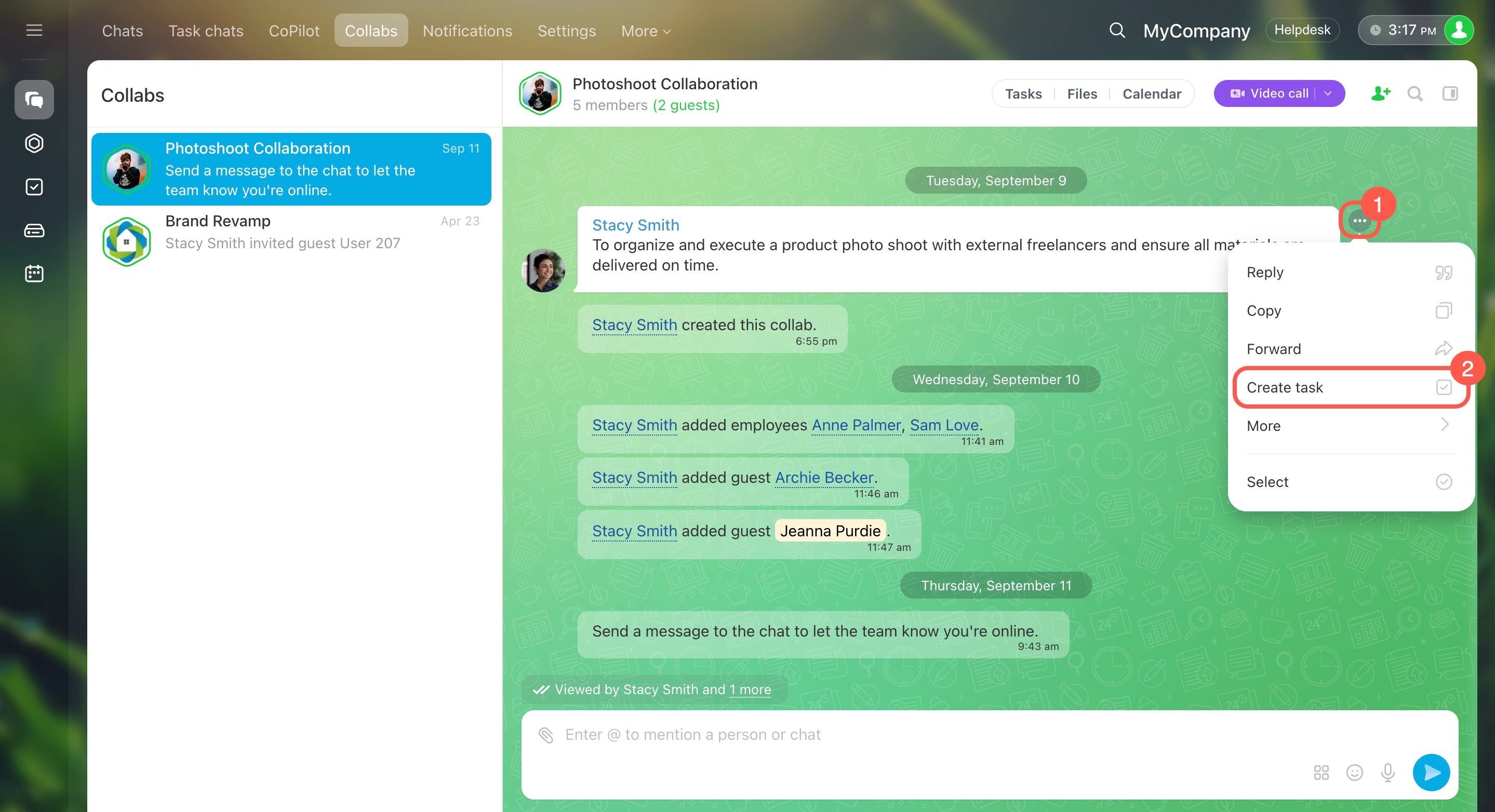
From the message. Select a message in the chat and click Create task. The message text and author appear in the task description.
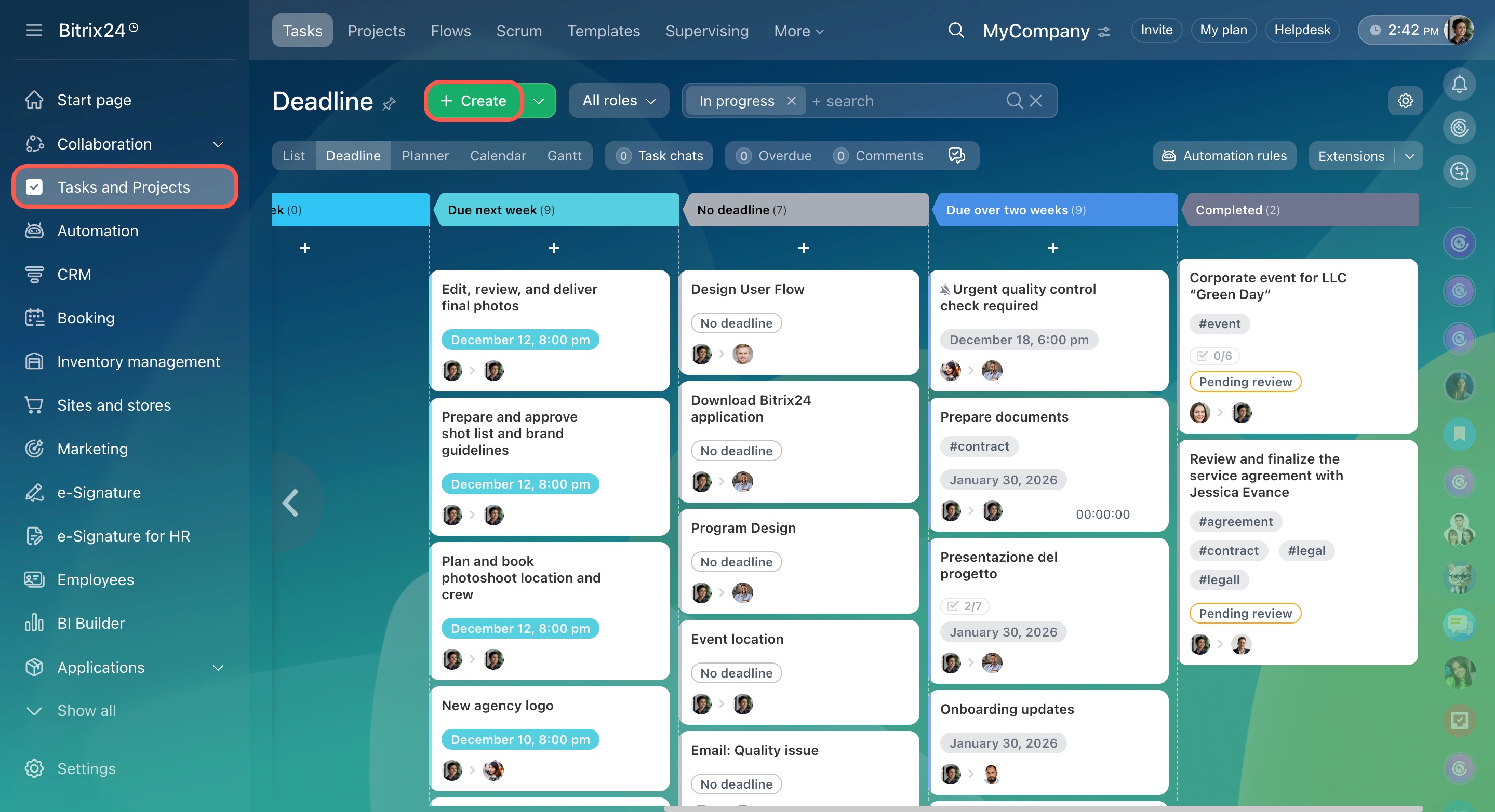
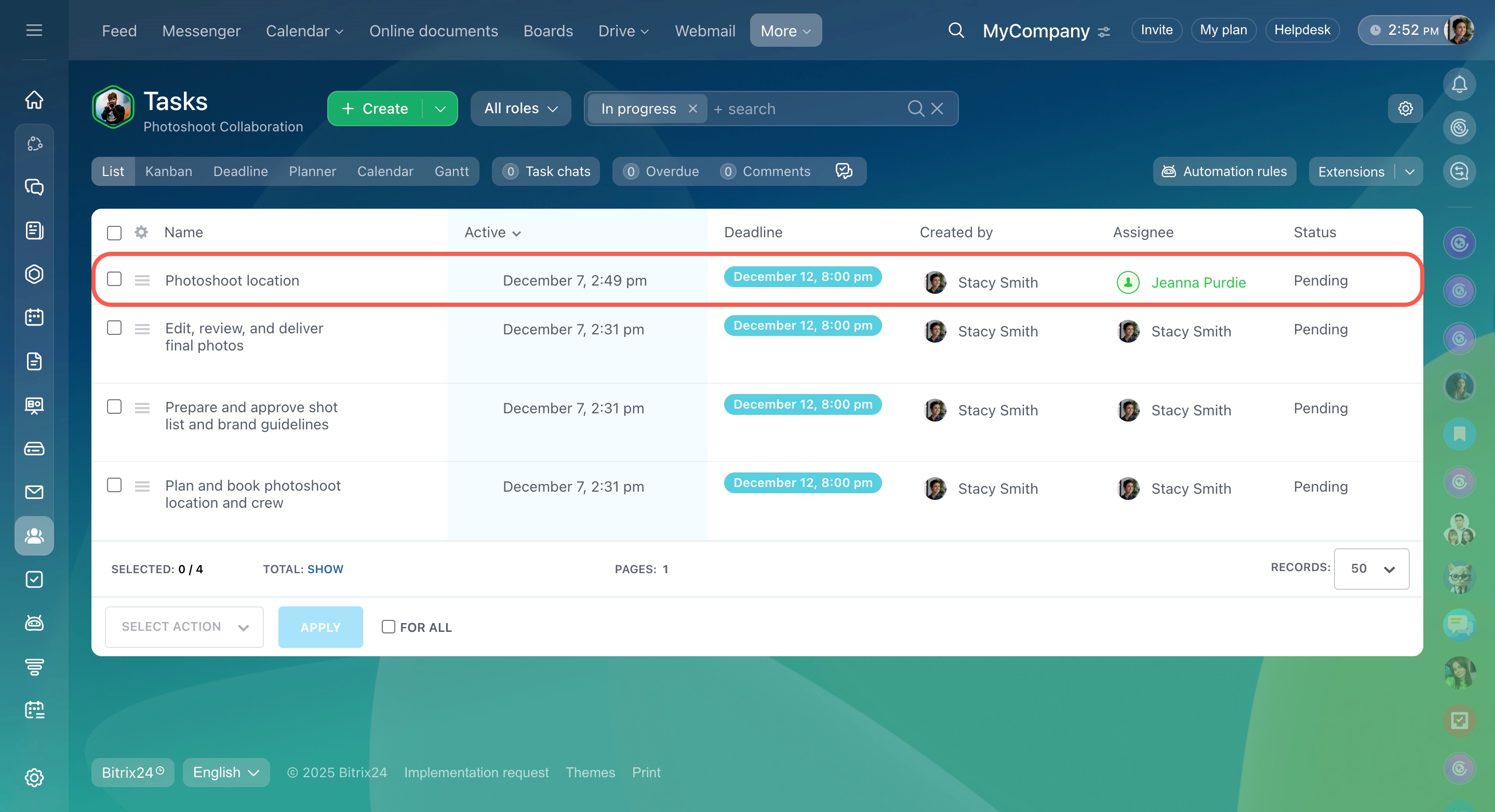
From the general task list. Go to the Tasks and Projects section and click Create. Select a collab in the Project field. The task will link to it automatically.
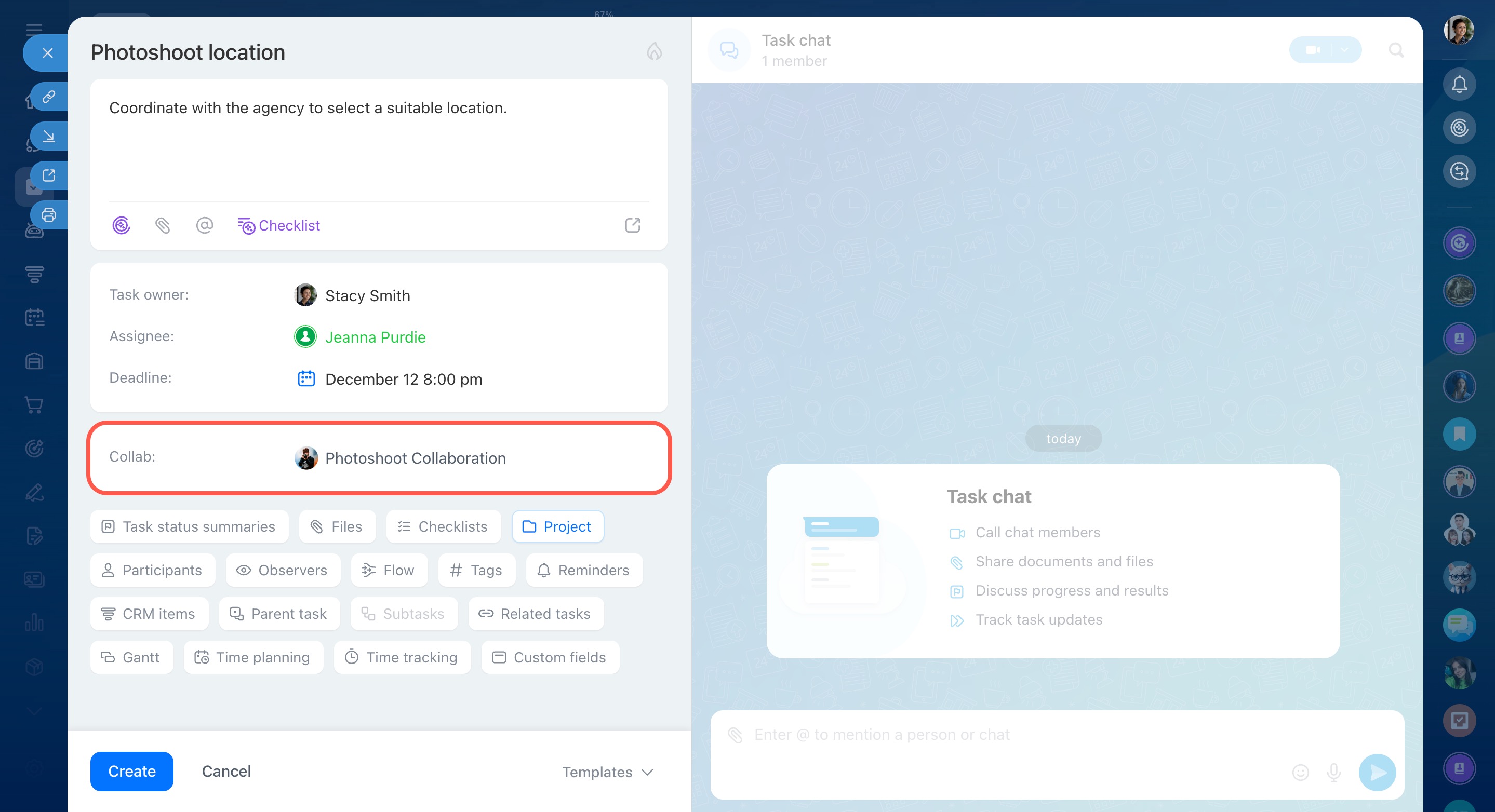
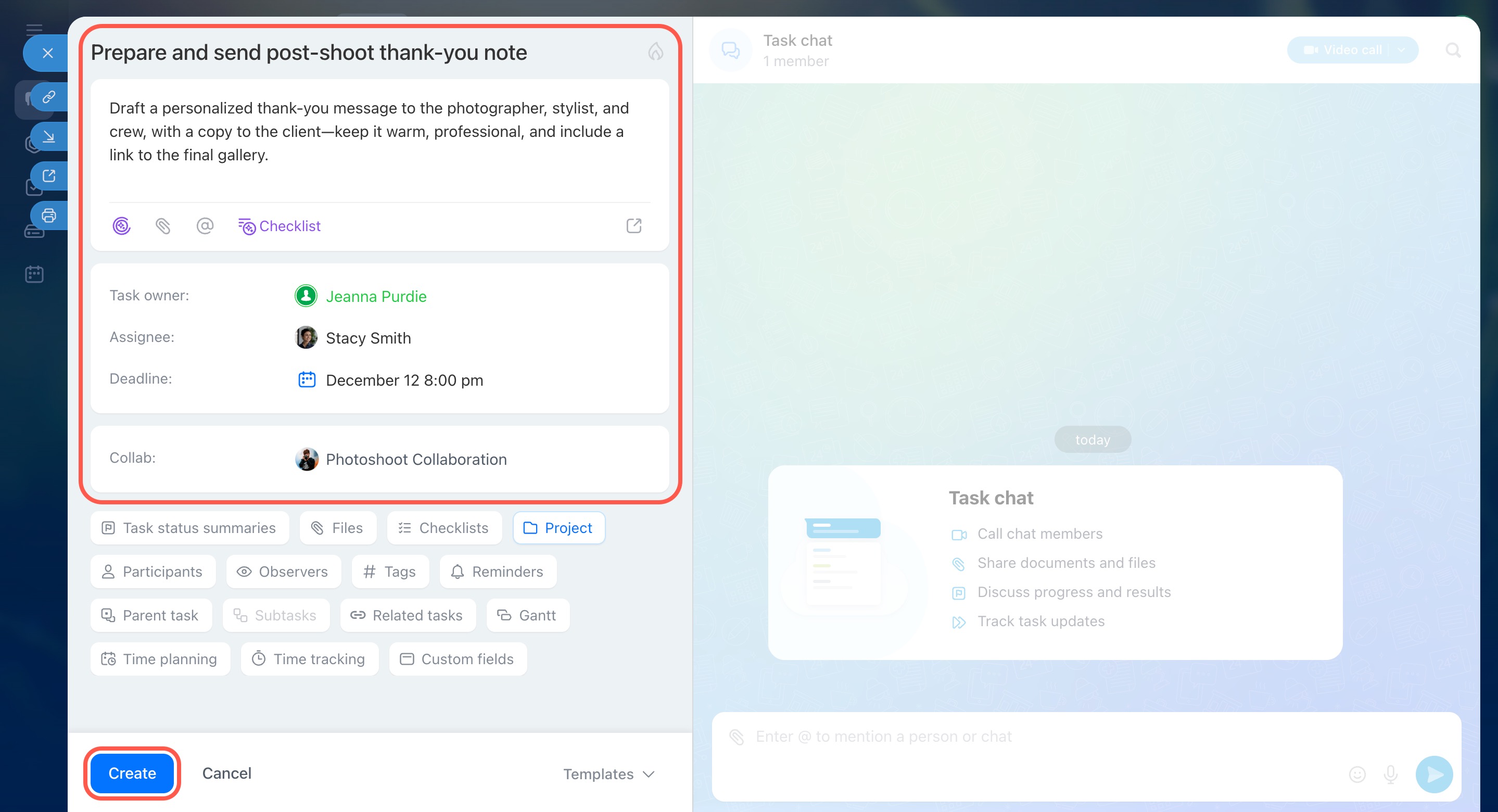
Enter a task name and description. Add details like a deadline, checklist, or tags. By default, you are the assignee, but you can change it. Guests in the collab are marked in green.
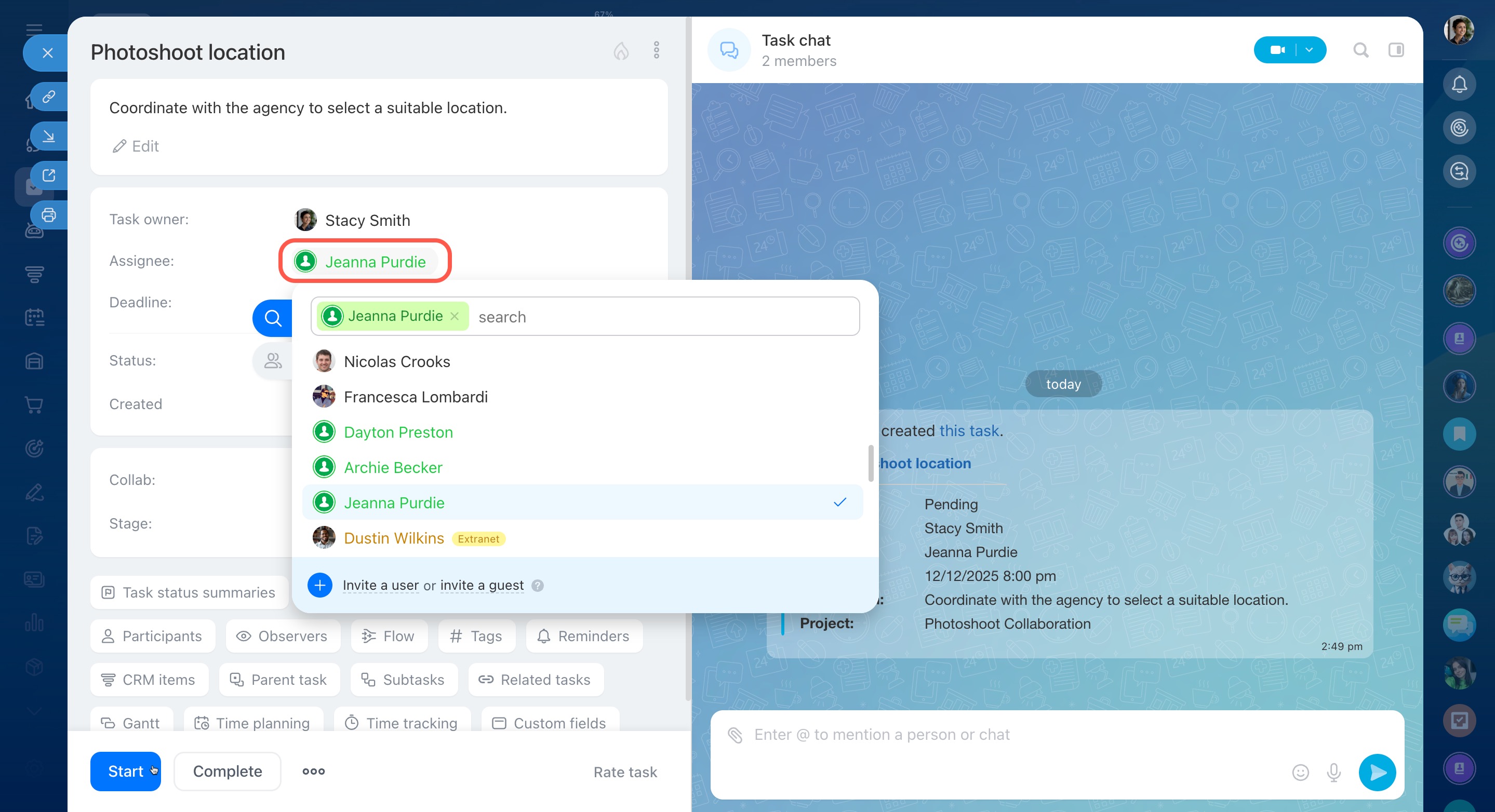
After you create a task, it appears in the collab task list. Tasks created by guests are always linked to a collab.
Create a task
Set access permissions
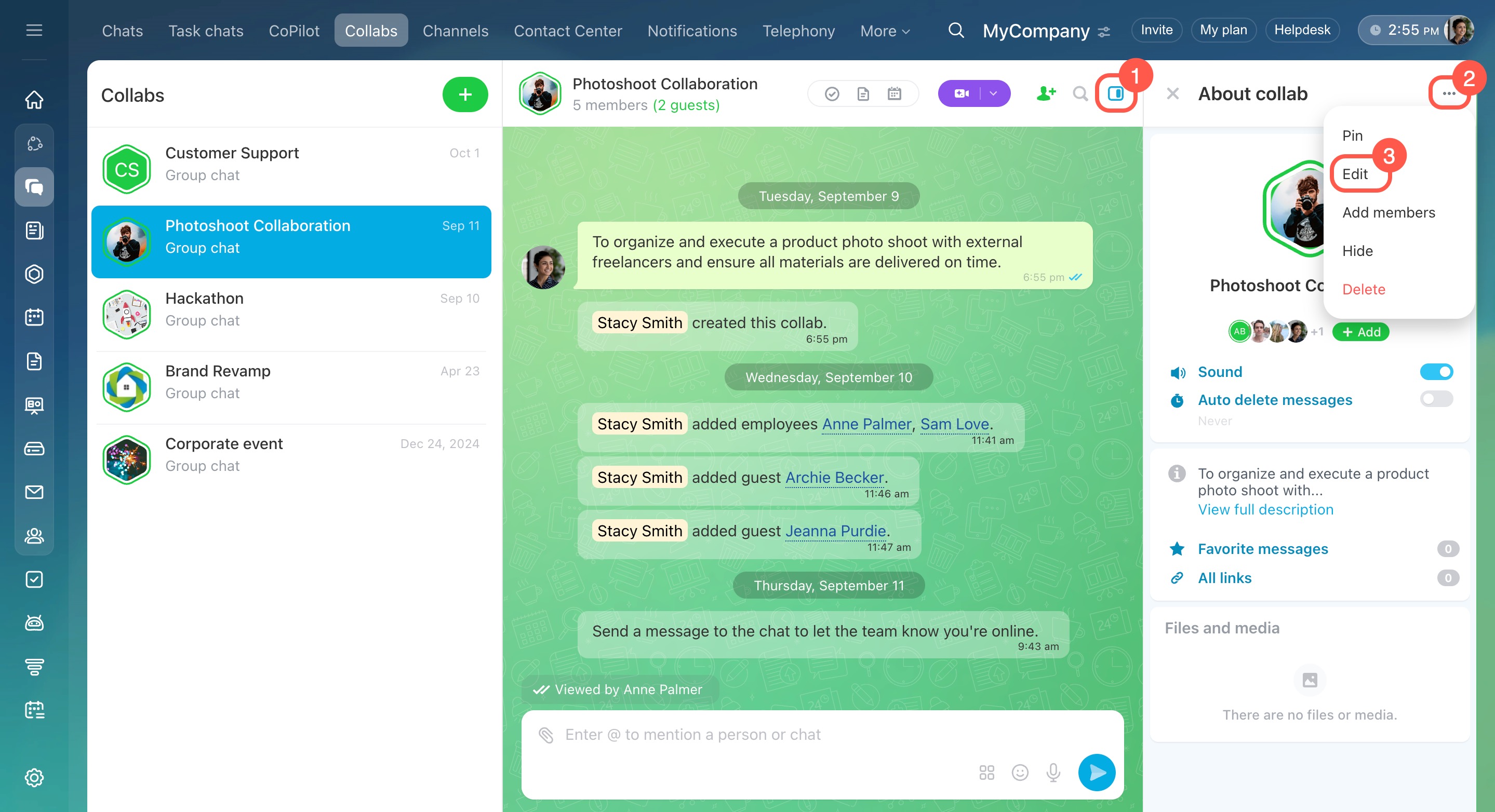
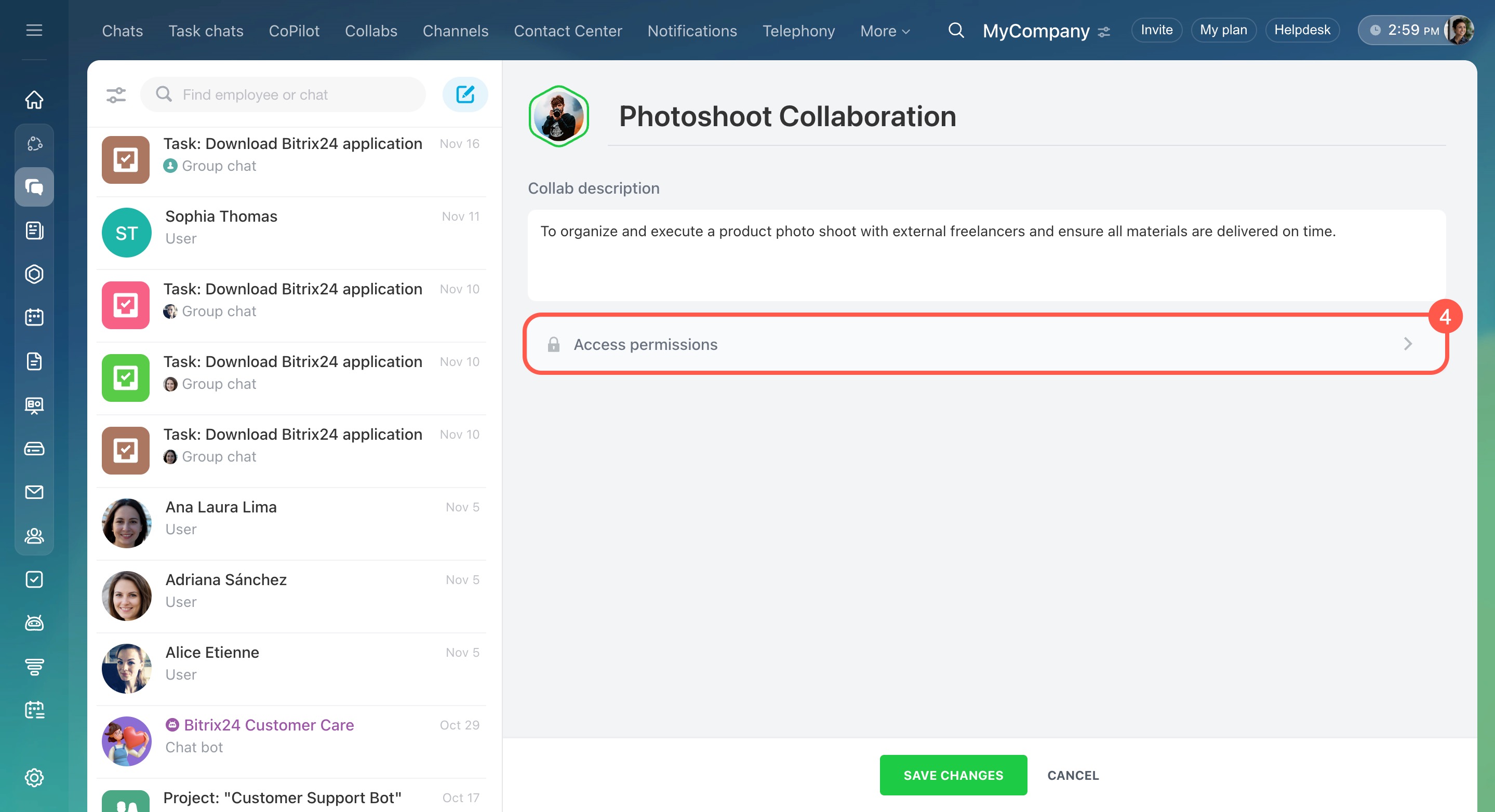
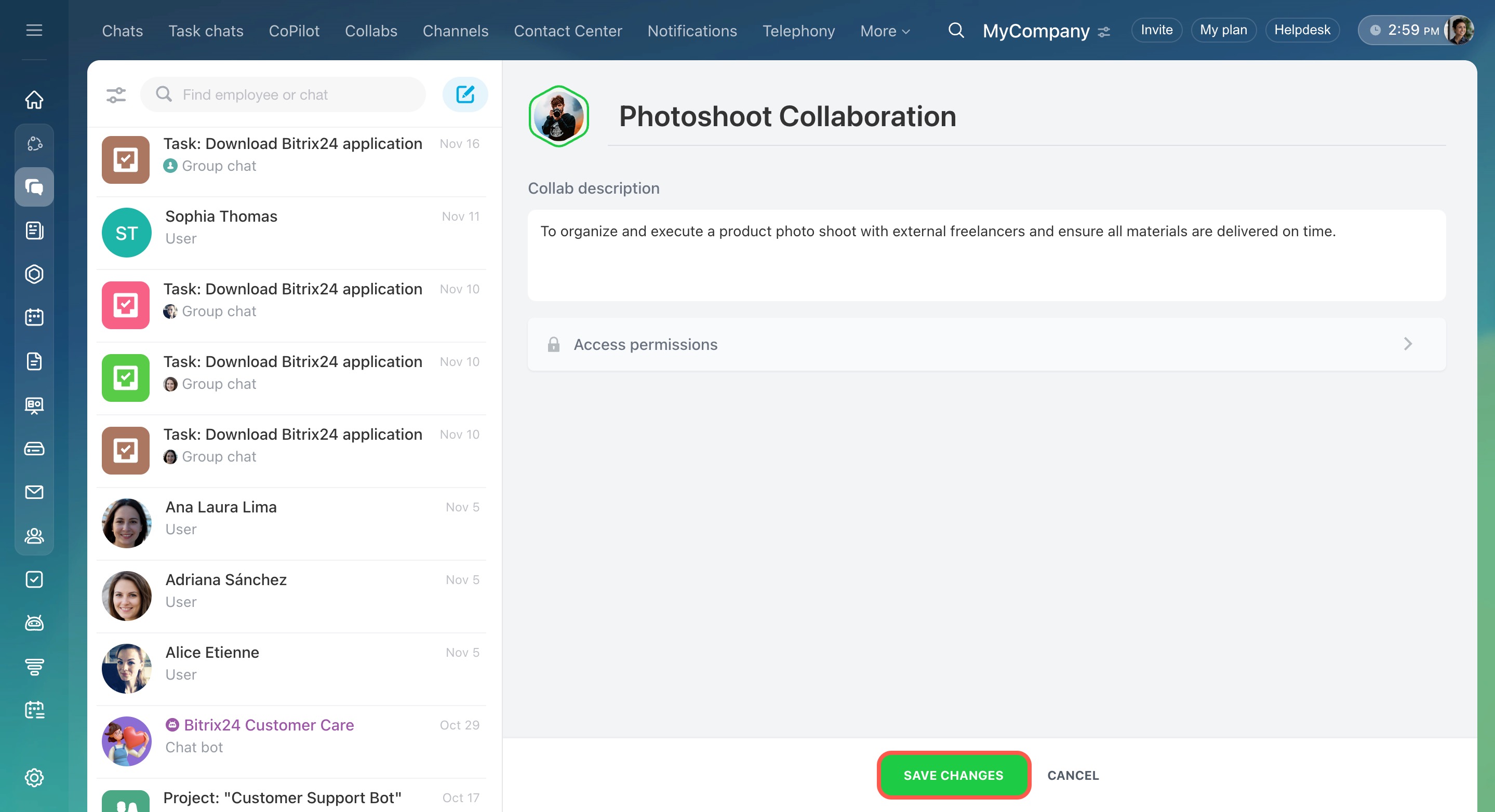
Control who can view, edit, and delete tasks. For example, all members can create tasks, but only employees can edit them. Only the collab owner can change permissions.
- Open the collab and go to the Sidebar.
- Click the three dots (...) > Edit.
- Open Access permissions.
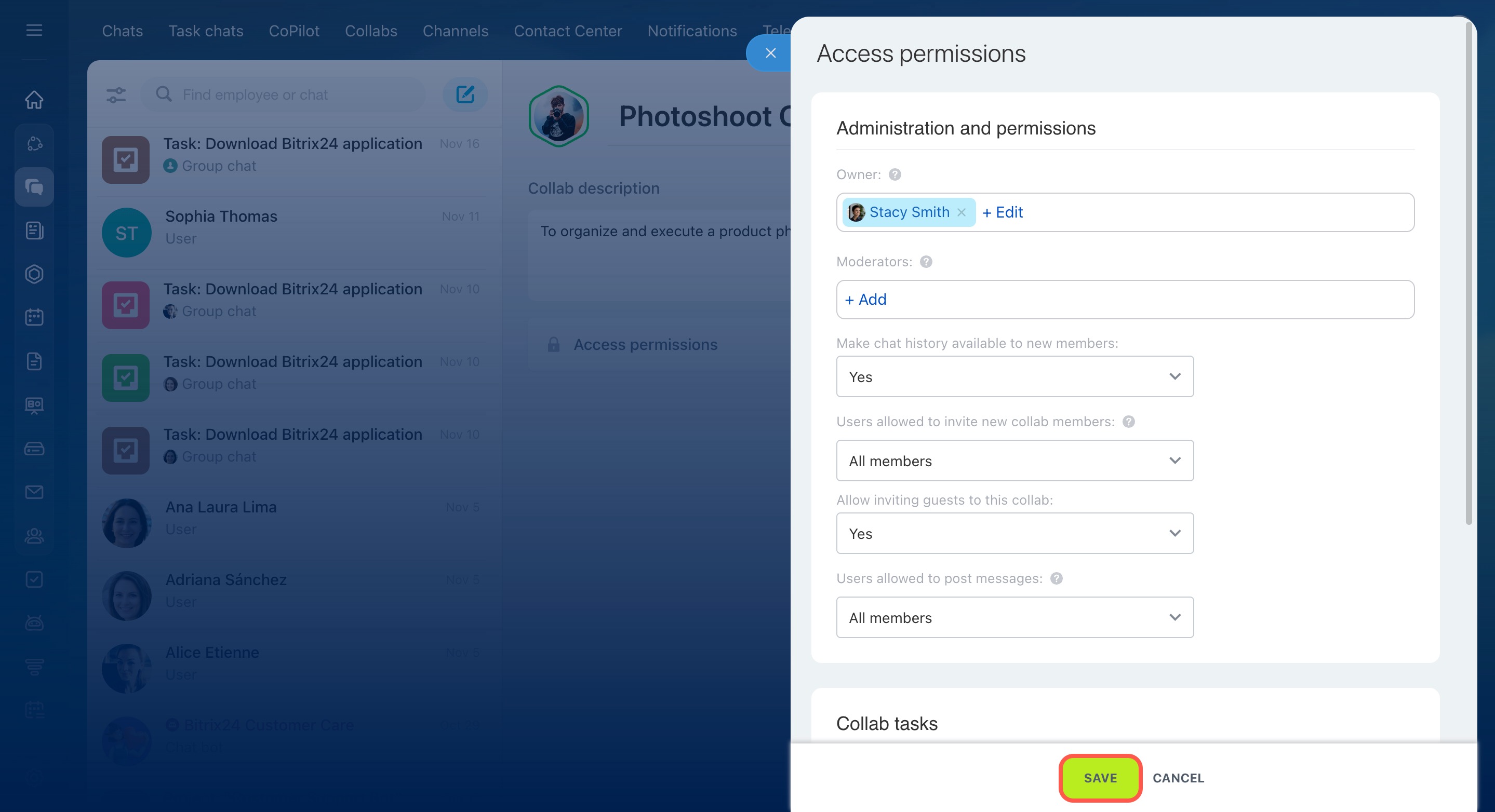
In the Collab Tasks section, choose a role:
- Only the owner
- Owner and moderators
- All members — all users in the collab
- Only employees — all internal collab employees, excluding guests
Set permissions for viewing, editing, and deleting tasks. Click Save, then click Save Changes.
Track task progress
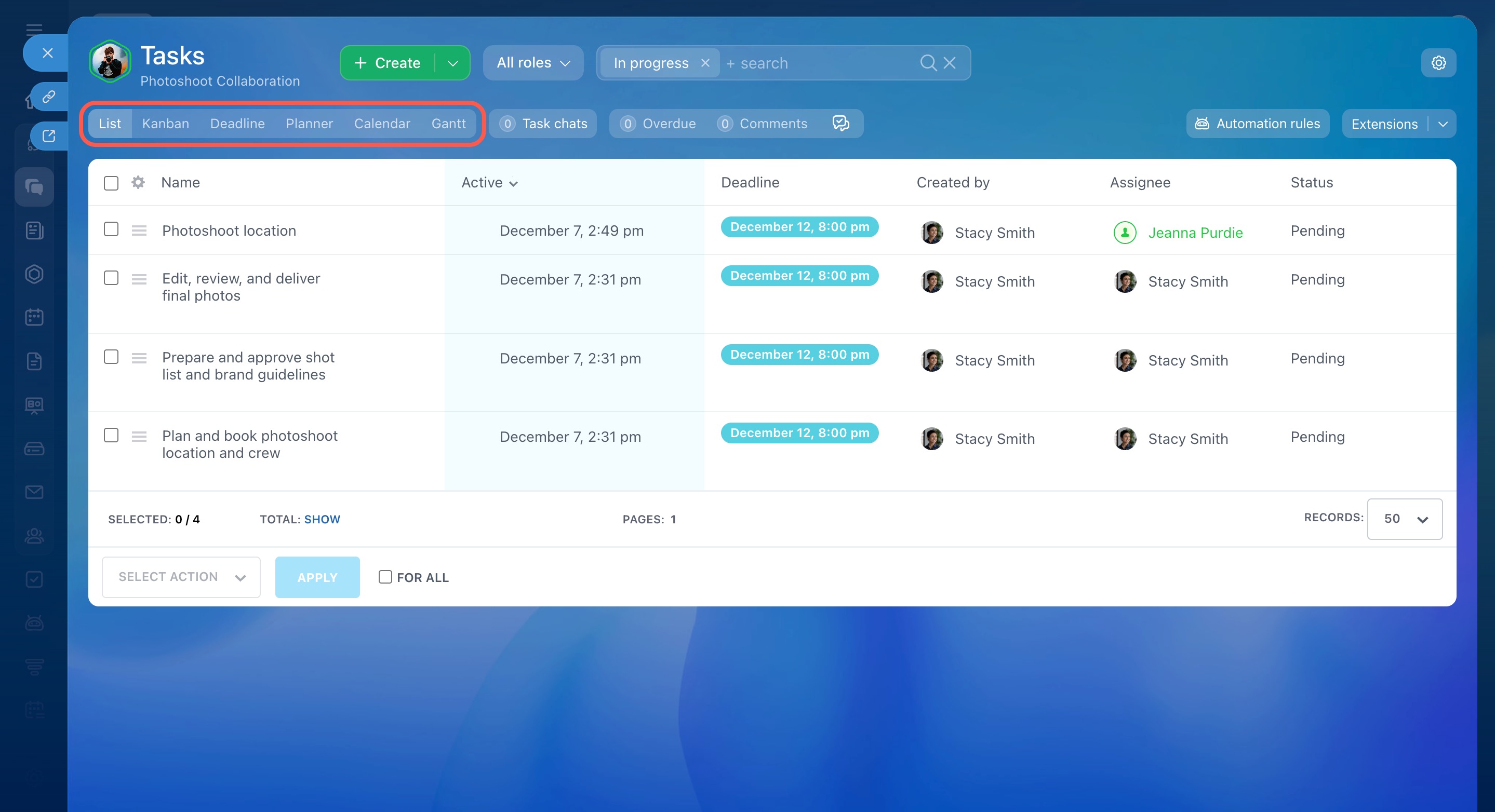
Use different views to track tasks: List, Kanban, Deadlines, My Plan, or Calendar.
Kanban shows tasks as columns. By default, you see three stages: New, In Progress, and Done. New tasks appear in the New column. You can rename stages, add new ones, and move tasks between them. All members see the same stages.
Kanban: how to effectively track tasks in projects
Deadline view in Tasks
List view in tasks
Planner view in Tasks
Calendar view in Tasks
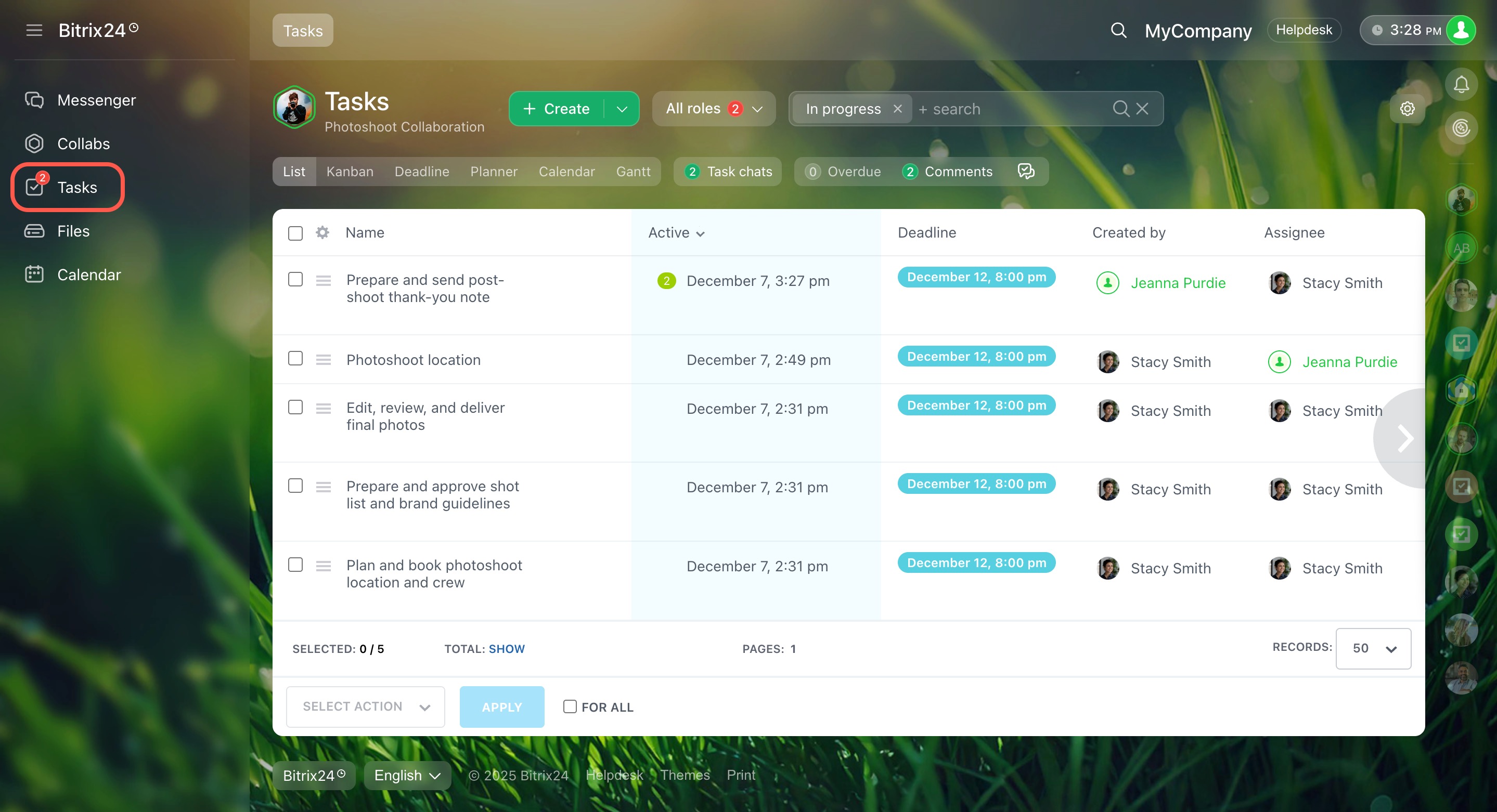
Task counters in the Tasks section show activity such as new comments and status updates.
How guests manage tasks in a collab
You can create tasks in several ways.
From the general task list. Click Tasks > Create. The system selects your collab automatically. If you work with multiple collabs, it selects the last one you used.
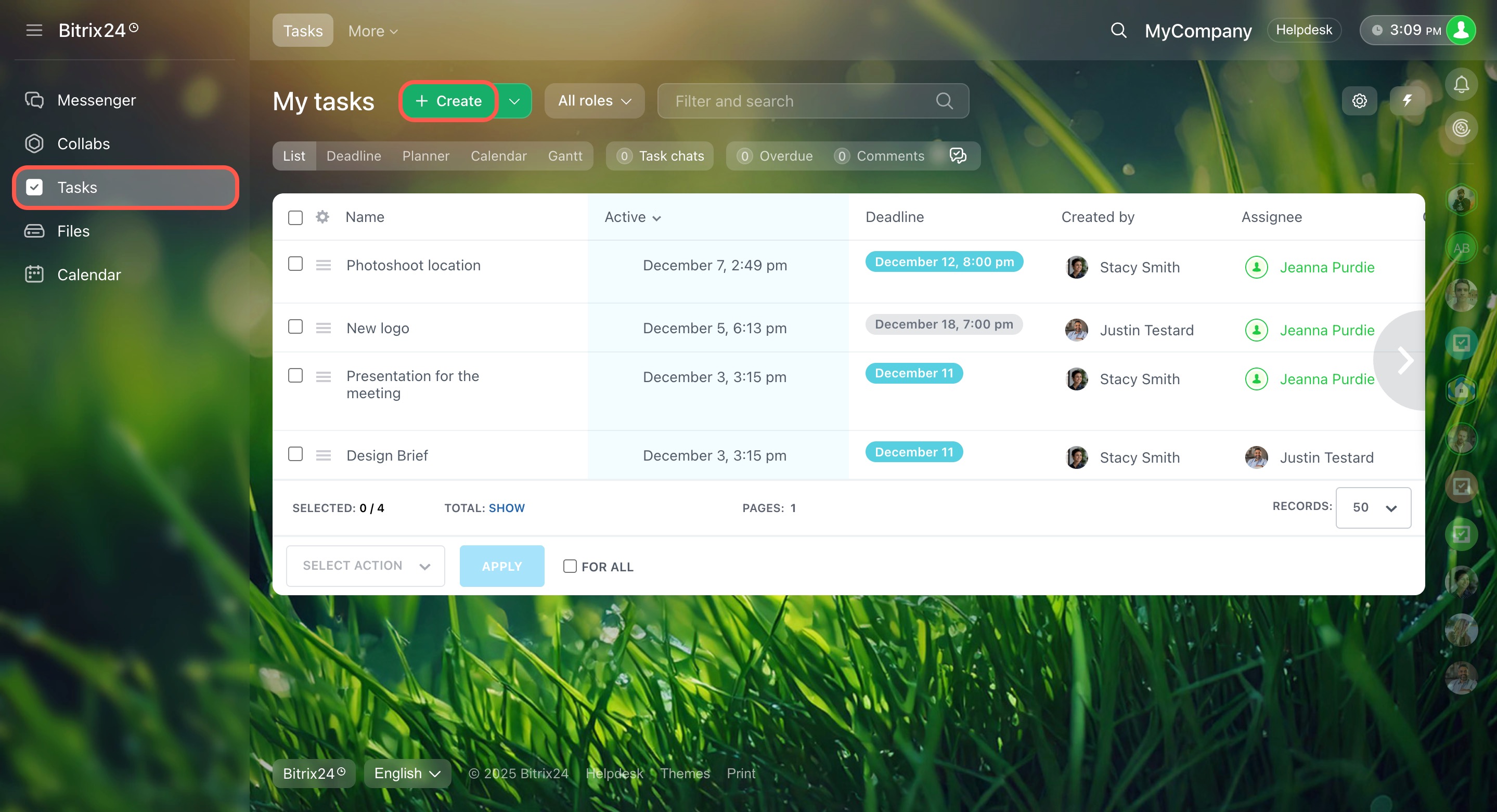
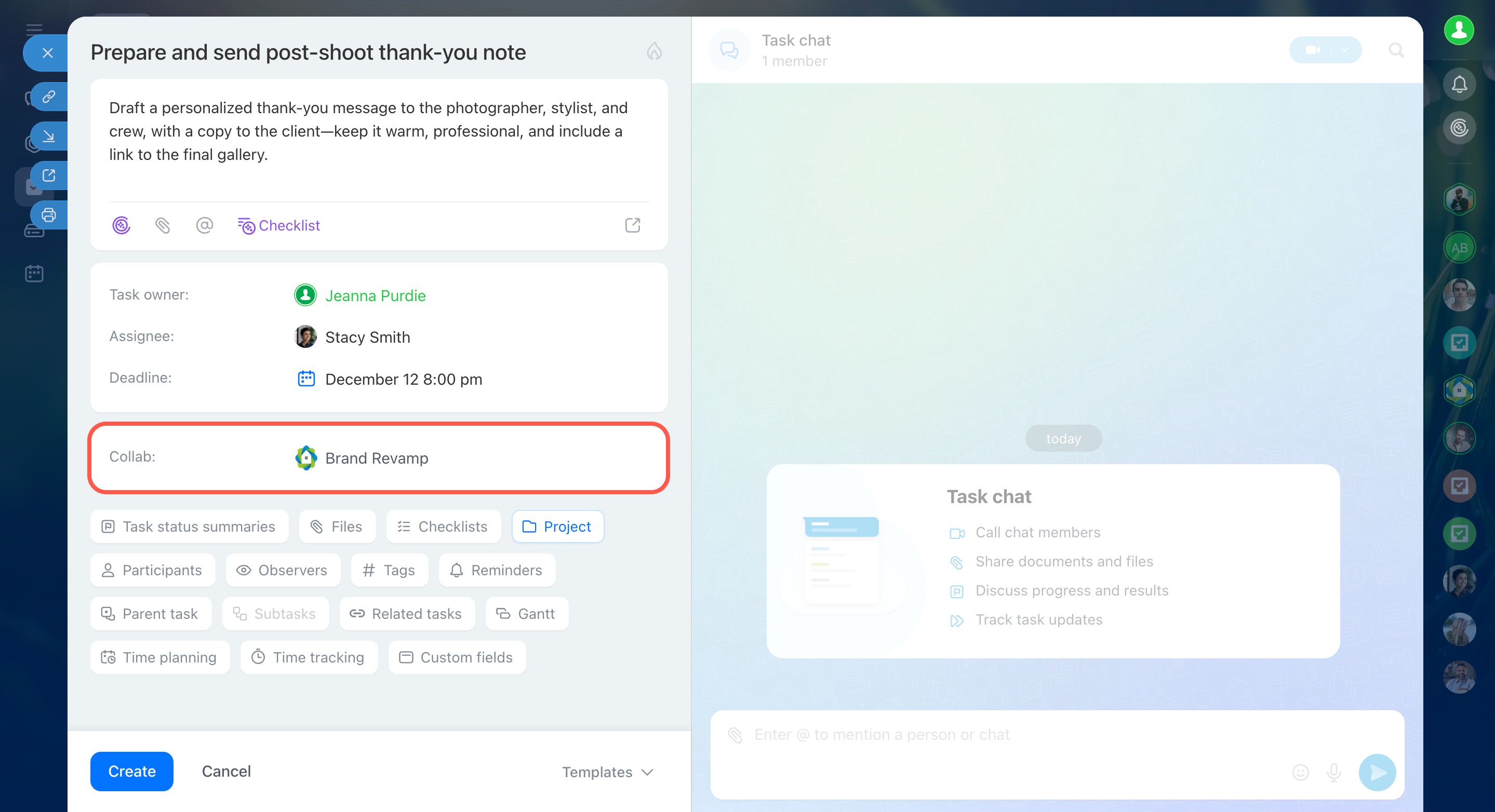
From the collab chat. Go to Messenger > Collabs, open a collab, click the paperclip, and select Task.
From a message. Select a message in the chat and click Create task. The message text and author appear in the task description.
From the collab tasks. Open the collab and click Tasks > Create.
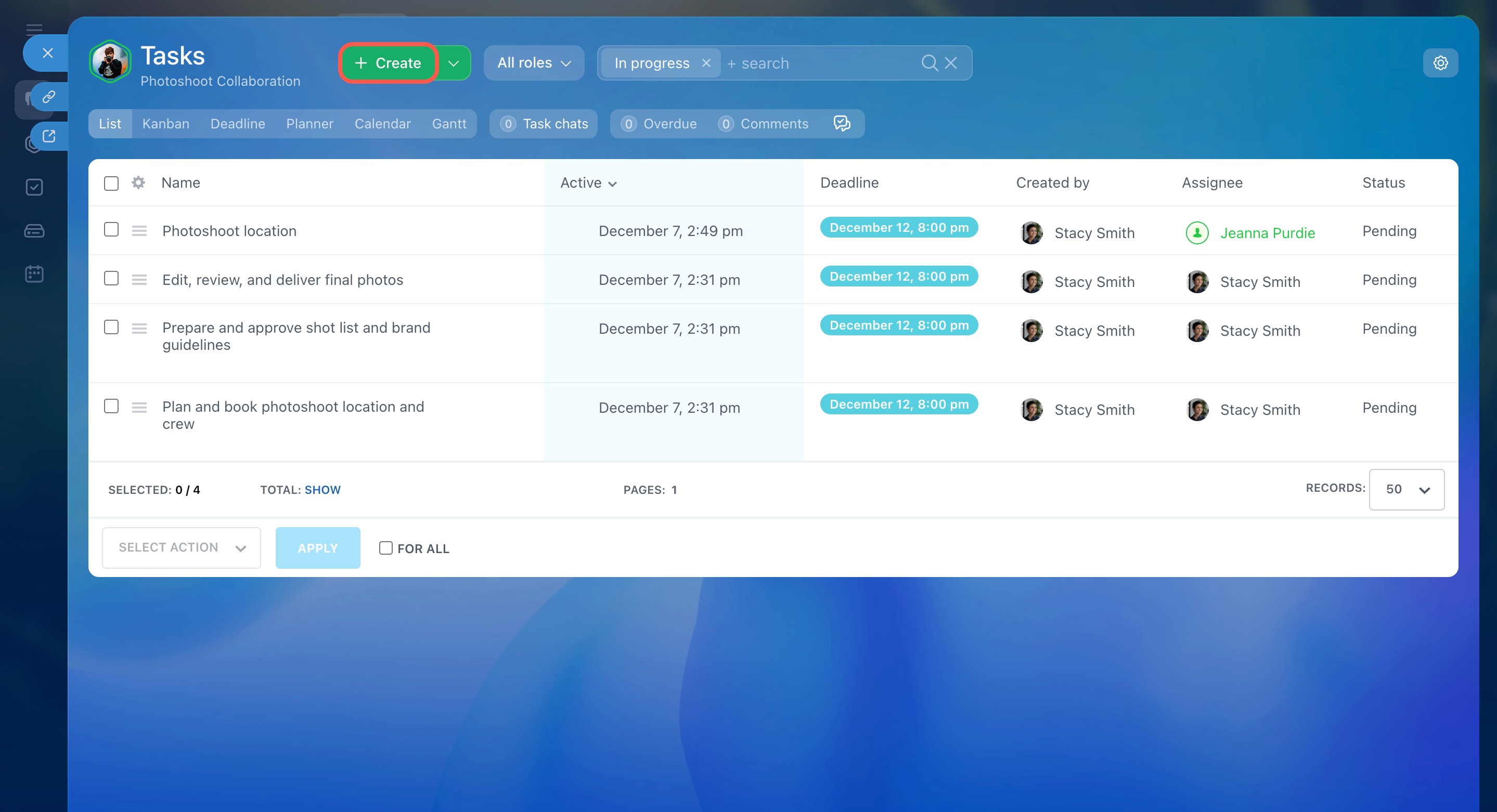
Enter a task name and description. Add details like a deadline or checklist. You can change the assignee and add participants or observers. Click Create. The task appears in the list.
Track task activity
The red counter in the Tasks section shows activity. This includes new comments, status updates, and other changes.
In brief
- A collab brings communication and task management into one place.
- You can control access to keep your workspace secure.
- Task creation is flexible for both employees and guests.