
Bitrix24 provides comprehensive measures to protect data, including connection encryption, two-step authentication, IP restrictions, and more. This article answers frequently asked questions about data security and protection in Bitrix24.
In this article:
Data protection
Bitrix24 uses 8 layers of data protection to ensure security and stable service performance.
Connection encryption. All data is transmitted via SSL encryption, even when connected to public Wi-Fi networks.
Two-step authentication. The Bitrix24 OTP and Google Authenticator apps provide one-time password codes for two-step authorization in Bitrix24 and other Bitrix products. Even if your password is stolen, your account will not be accessible to a would-be hacker.
Enable two-step authentication for Bitrix24 login
File protection. All documents are automatically backed up in the cloud. Files can be restored even in case of hardware failure or virus infection.
Proactive protection. Bitrix24 has over 10 years of experience in providing the highest level of security for web projects. Bitrix24 benefits from all of this experience and technology, including Bitrix' own proactive Web Application Firewall, which categorically blocks the vast majority of attacks on web applications.
Data Hosting
Bitrix24 uses Amazon Web Services to host your data in US (Virginia) or European Union (Frankfurt, Germany). You can purchase on premise editions of Bitrix24 to host it in your country or on your server. AWS also maintains the following certifications: HIPAA, GDPR, ISO 27001, SOC 1/2/3, Directive 95/46/EC and PCI DSS Level 1.
Login history
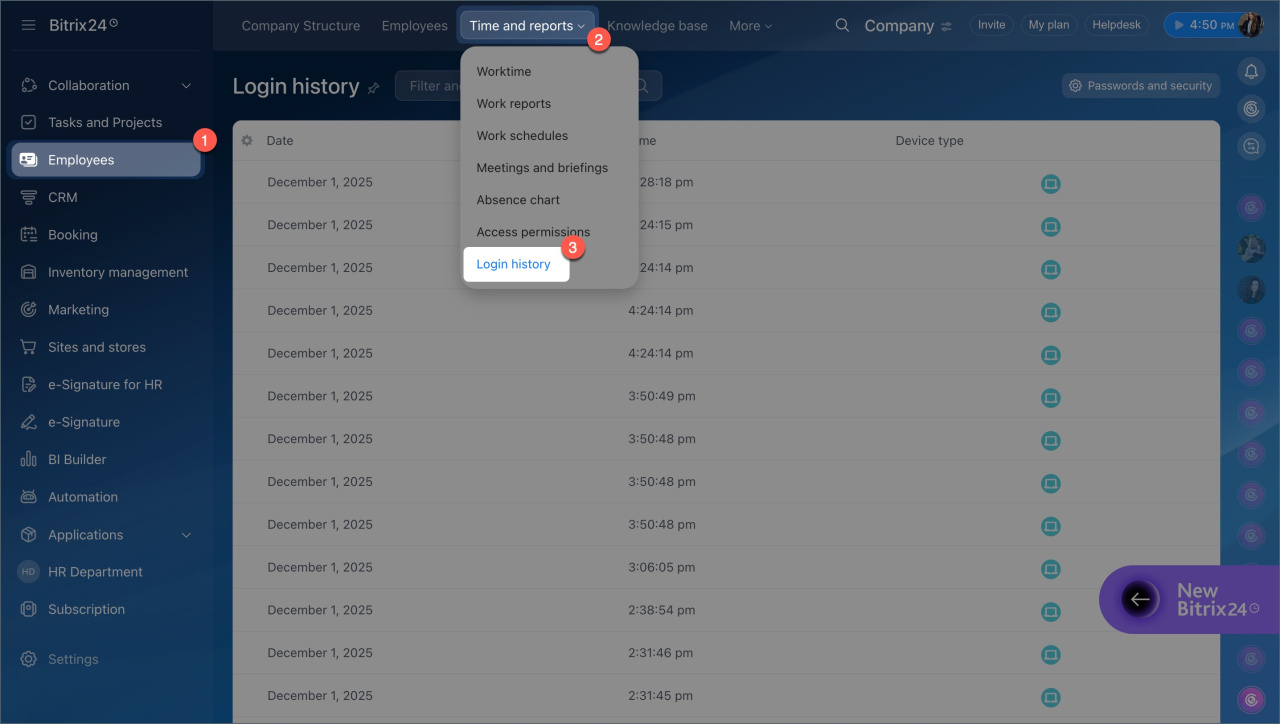
You can view the login history in the Employees > Time and Reports > Login History section. Administrators can see all employees' logins, while employees can only view their own.
Employee login history in Bitrix24
Bitrix24 plans and pricing
Restrict access by IP address
Administrators can set a list of trusted IP addresses and allow access to Bitrix24 only from those addresses. This helps protect corporate data from unknown devices and public Wi-Fi networks.
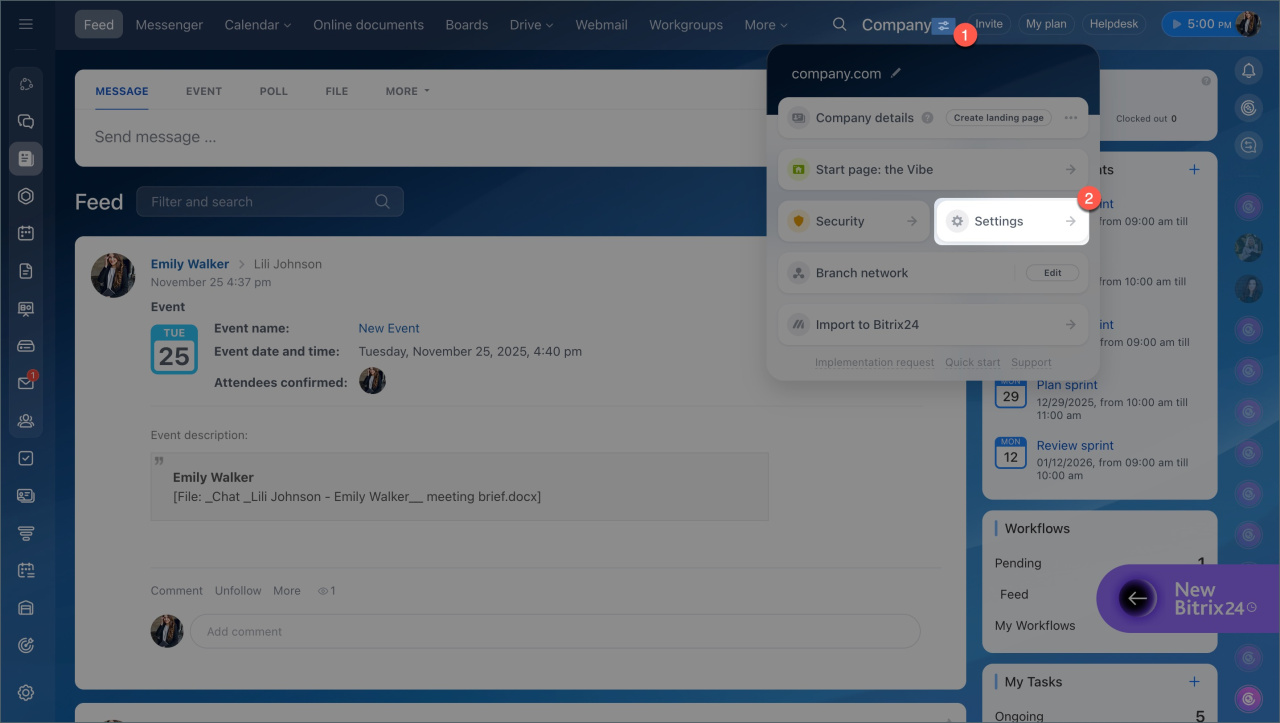
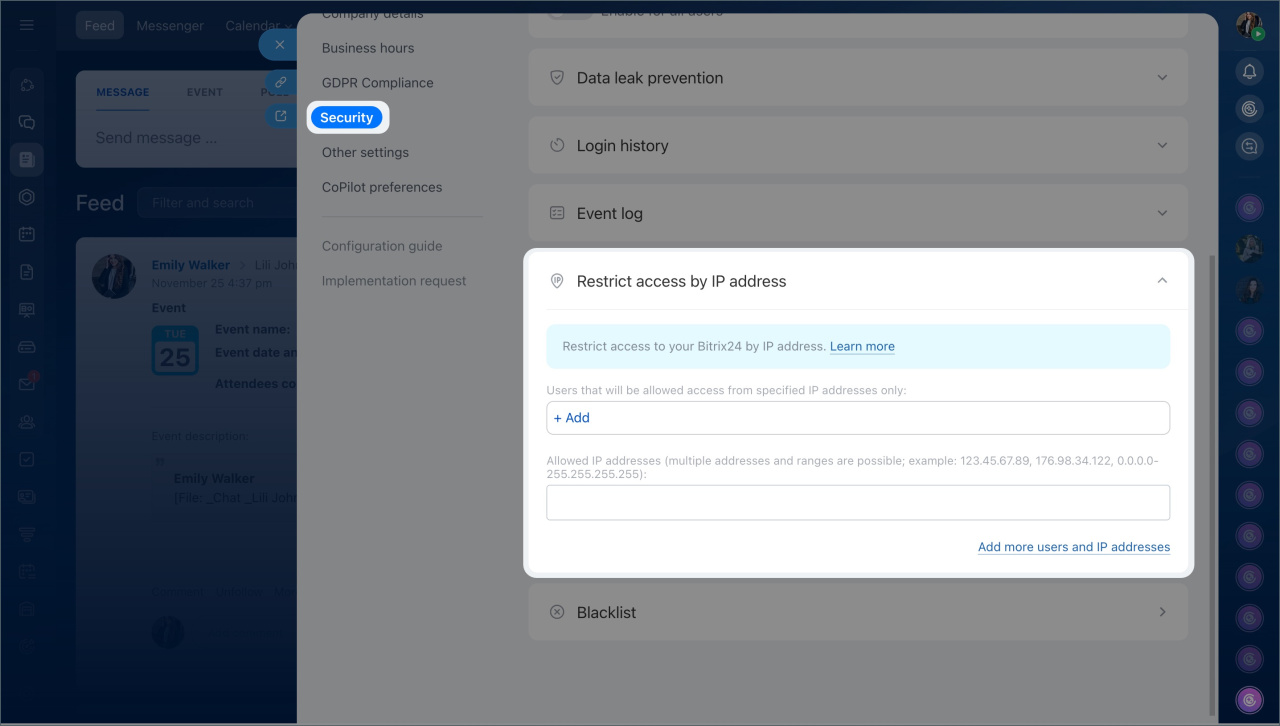
Restrict access to Bitrix24 by IP address
To enable restrictions:
- Go to Settings (⚙️) > Security.
- Select IP address access restrictions.
- Specify the list of allowed IP addresses and the employees for whom the restriction will apply.
After saving the settings, access to Bitrix24 will only be available from these IP addresses.
Forget login or password
If you forget your Bitrix24 login or password, you can recover them.
If you forget your login. There are two ways to recover access:
- Ask the Bitrix24 administrator to send you your login.
- Log in using a QR code via the Bitrix24 mobile app if you are already logged in there.
What to do if you forgot your Bitrix24 login or password
If you forget your password.
- Go to the Bitrix24 login page and click Forgot password.
- Enter your login and click Continue.
- You will receive an email with a password recovery link.
Recover Bitrix24 password
If nothing works, contact Bitrix24 support.

How Bitrix24 protects against DDoS attacks
Bitrix24 uses a web application firewall (WAF) to protect, filter, and control internet traffic between Bitrix24 and the network. WAF operates on the seventh application layer of the OSI model.
To protect Bitrix24 from DDoS attacks, additional filters are automatically applied at all OSI levels up to L7. This ensures a quick response to attacks without performance degradation. Under normal conditions, false positives are absent, and during an attack, their number is minimal — no more than 5%.
How to check if your device's time matches the Bitrix24 server time
For two-step authentication to work correctly, your device's time must match the Bitrix24 server time.
Two-step authentication codes are generated with second-level accuracy. If your device's time is incorrect, Bitrix24 will consider the code invalid, even if entered correctly.
- Real time — the exact Bitrix24 server time.
- Your time — the time shown on your device.
If the times differ, enable automatic time and timezone settings on your device.
