
In Bitrix24, each employee has a personal profile and widget. The profile displays key information about the employee, such as department, position, contacts, and interests. The widget allows employees to manage their account—change their password, check vacation balance, switch themes, and more.
In this article:
- How to find an employee's ID
- Why a new field is not displayed in an employee's profile in the Bitrix24 On-Premise
- Why an employee does not have the "Start workday" button
- Why the Bitrix24 theme has changed
- How to hide the "My plan" widget from employees
- Whether it is possible to hide part of the profile information from other employees
How to find an employee's ID
You can find a user's ID in their profile or the employee list.
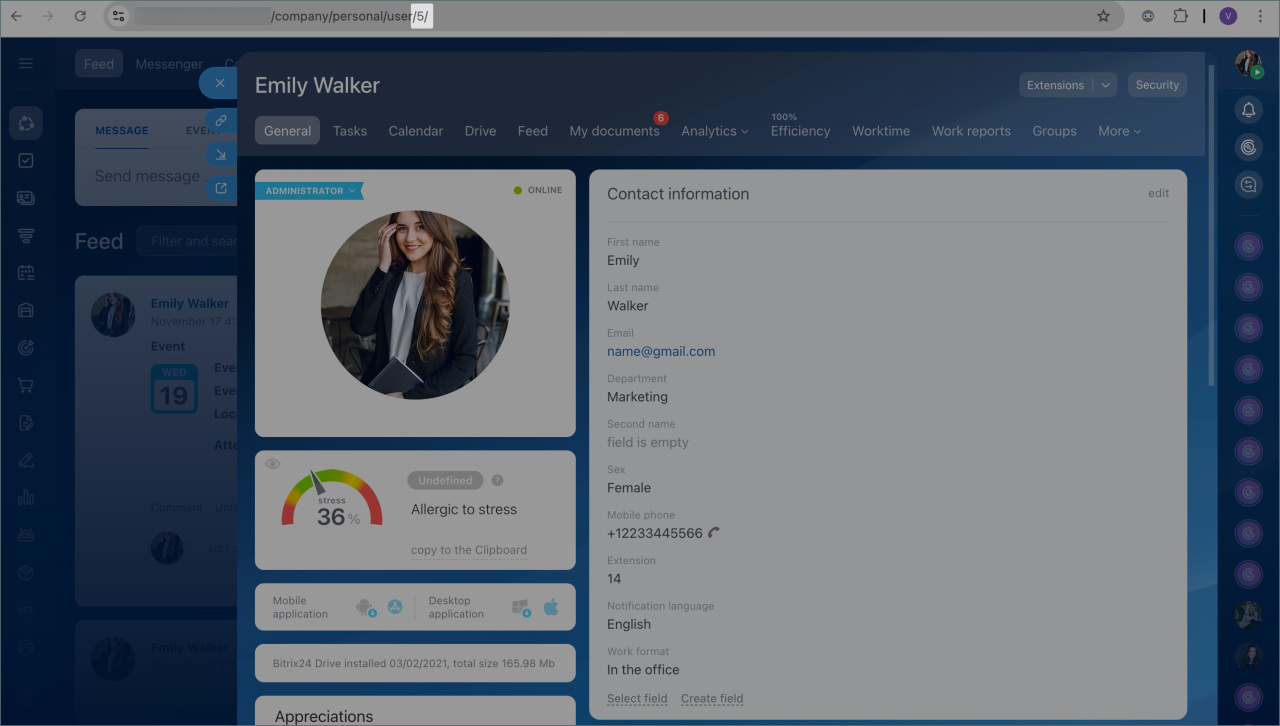
In the employee's profile. If you are using Bitrix24 in a browser, open the employee's profile. The ID will be displayed in the address bar after /user/.
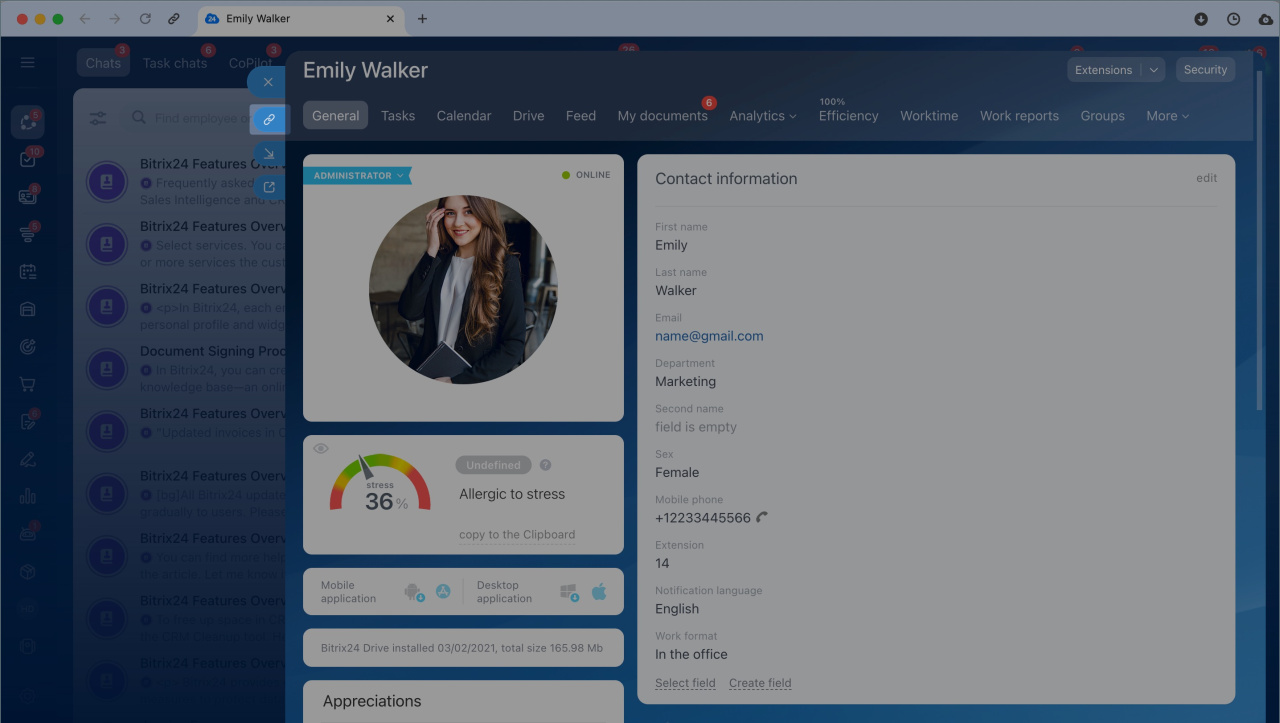
If you are using the Bitrix24 desktop app, open the employee's profile and click the paperclip icon next to the avatar. Paste the link into any text editor to see the ID.
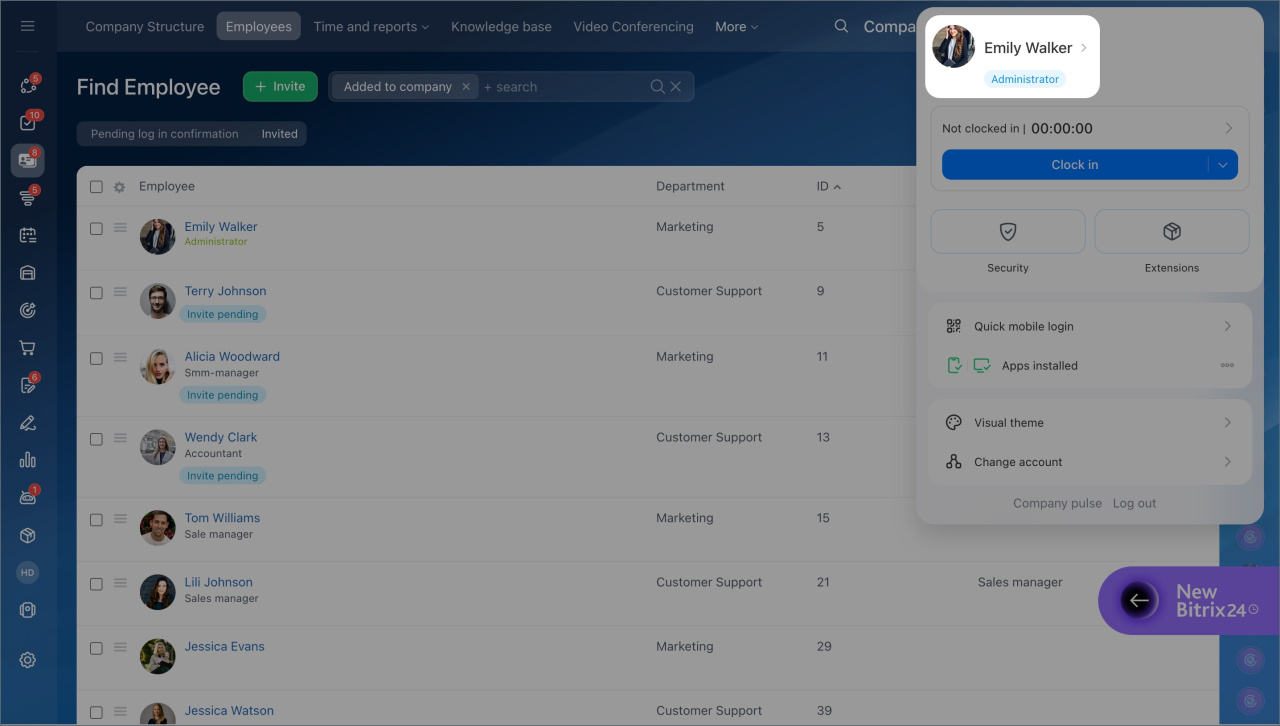
In the employee list. Go to the Employees section. The ID of each user is displayed in the ID column.

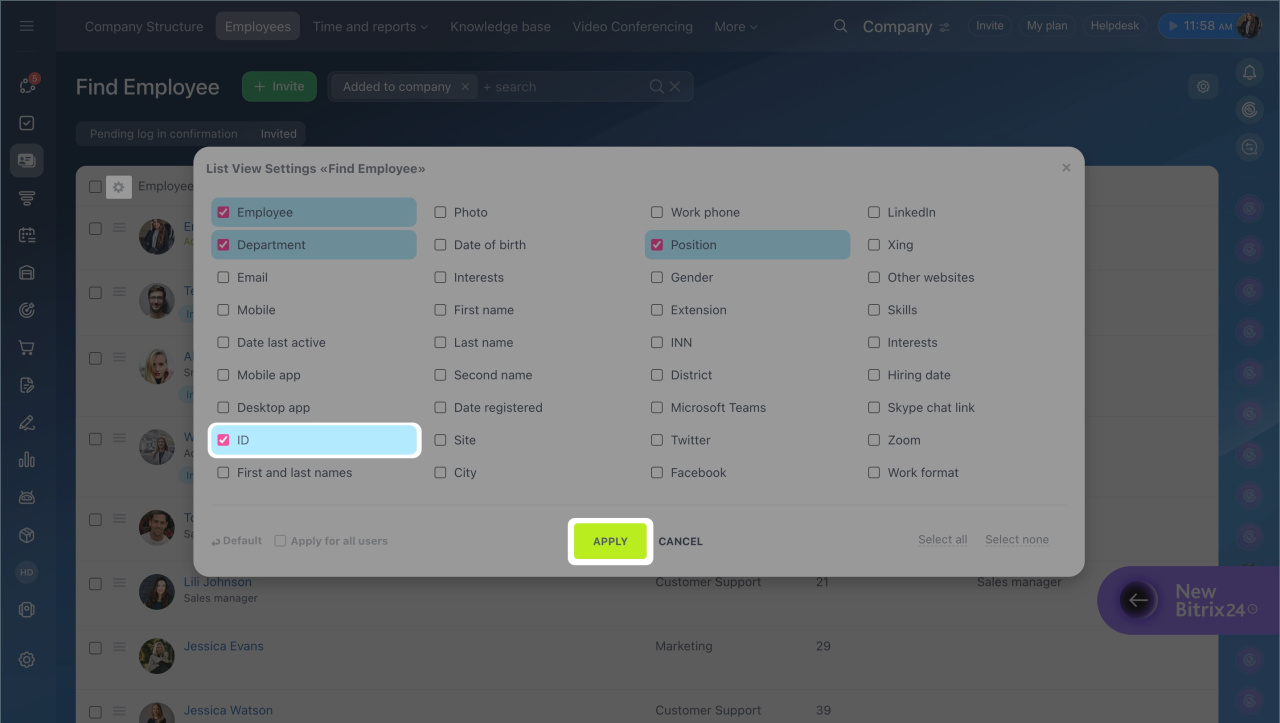
If the ID column is hidden, add it:
- Click Settings (⚙️) in the top-left corner of the table.
- Check the box next to the ID field.
- Save the changes.
Why a new field is not displayed in an employee's profile in the Bitrix24 On-Premise
If a new custom field is not displayed in an employee's profile, it needs to be enabled in the field display settings. Only the Bitrix24 administrator can do this.
- Go to the personal profile.
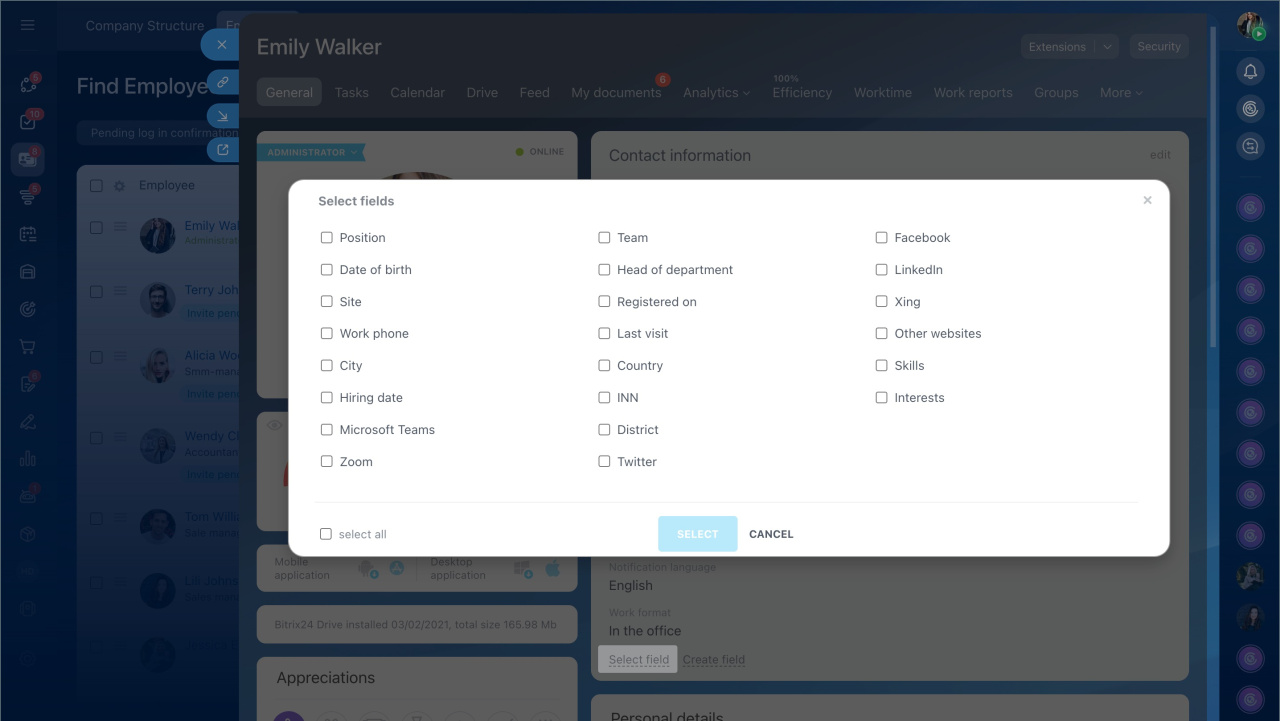
- Click General form view > Field display settings.
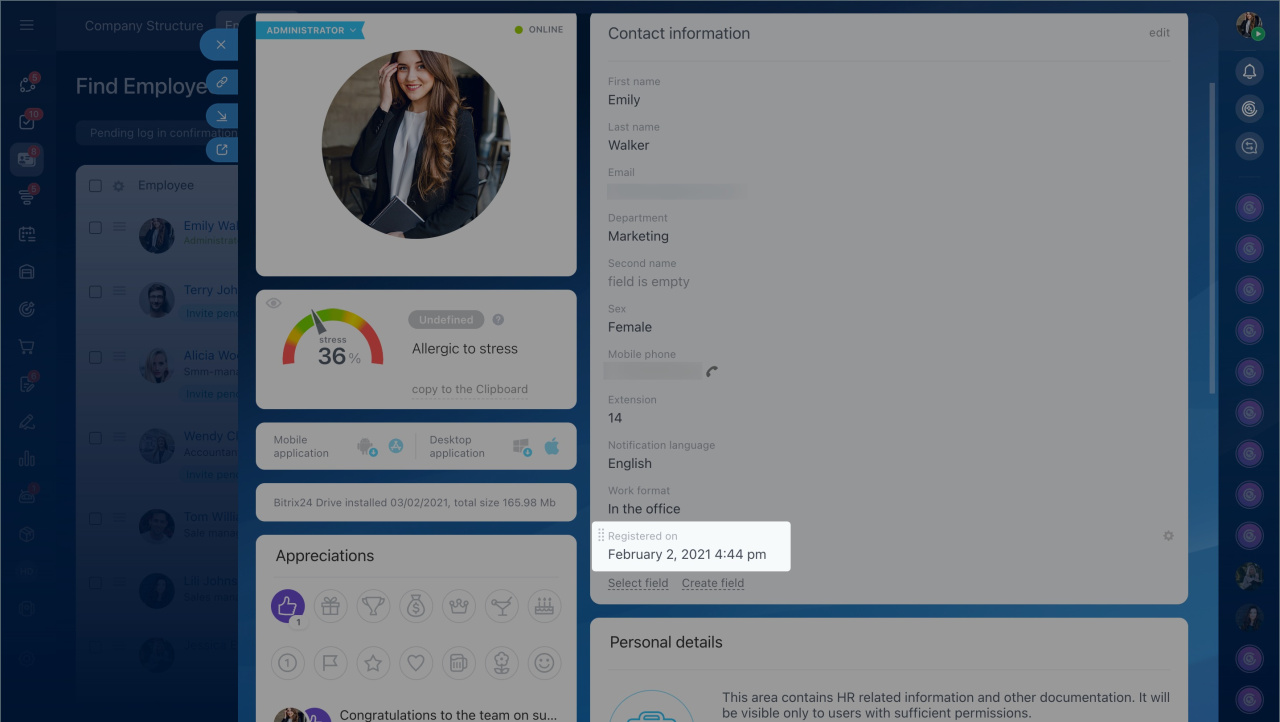
- Open the field list for viewing and check the box next to the required field. Save the changes.
- Click Select field and add the field. Save the changes.


Why an employee does not have the "Clock in" button
Possible reasons:
- The employee's work time tracking is not enabled.
- The employee does not have permissions to use the Work time tracking tool.
Worktime tracking in Bitrix24
Solution. Check if work time tracking is enabled for the employee and if they have permissions to use the tool.
Enable work time tracking for the employee.
- Go to Employees > Time and Reports > Worktime.
- Click the icon next to the employee's name who does not have the Clock in button.
- Select an option:
- Inherit department settings. The employee will use the work time settings of their department. This is suitable if tracking is already enabled for the entire department.
- Enabled — enable work time tracking only for this employee. Use this option for selective tracking.
Save the changes.

Check access permissions. To check the work time tracking permissions for a department or an employee:
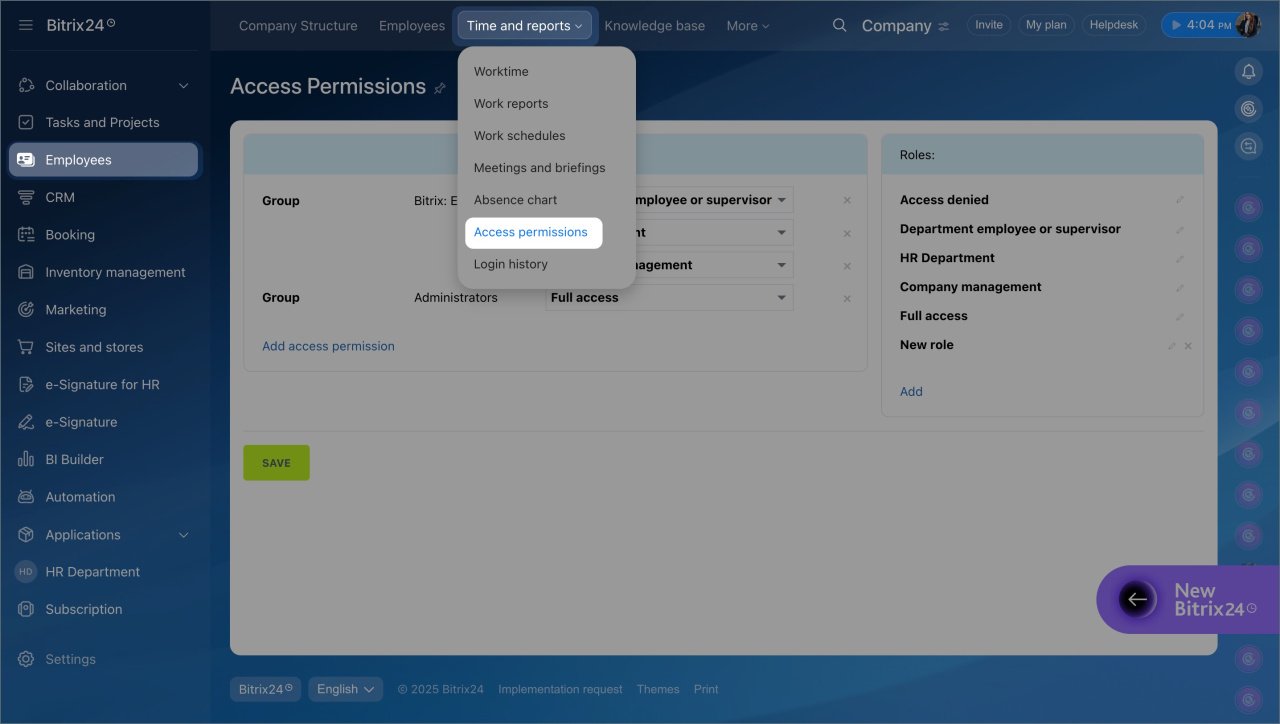
- Go to Employees > Time and Reports > Access permissions.
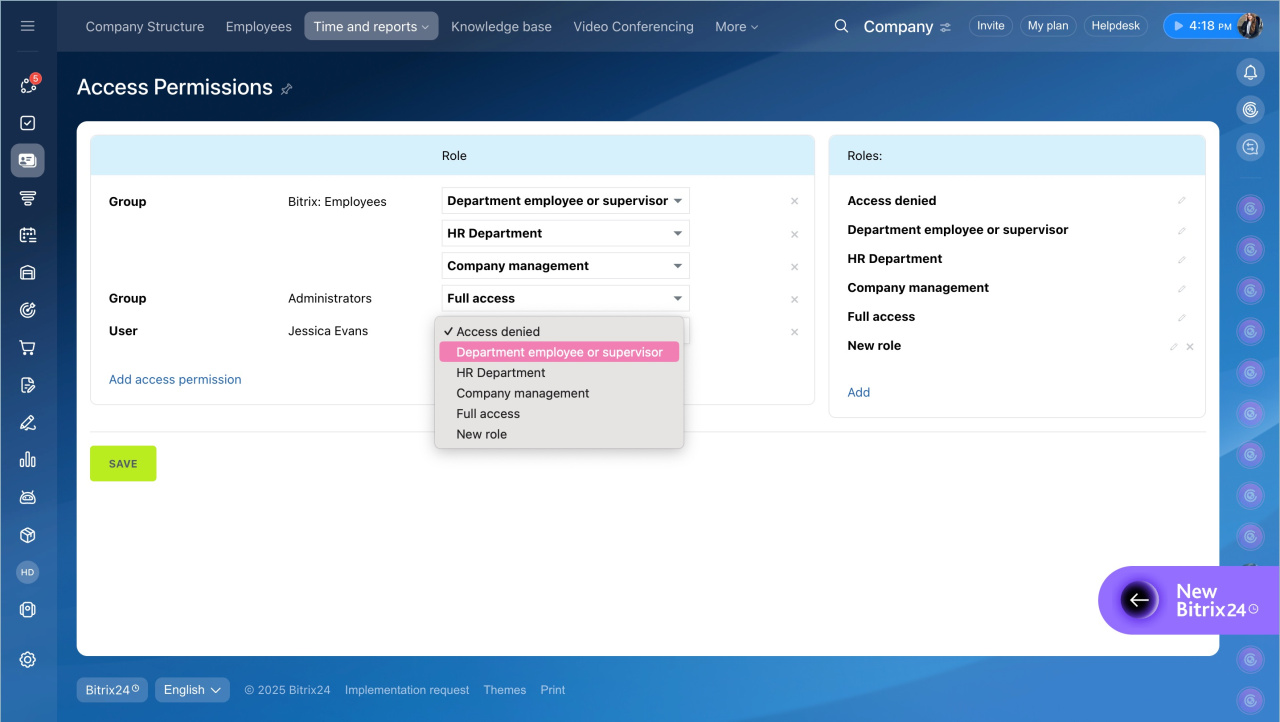
- Select Add access permission.
- Click Users to select an employee.
- Find employees and click on their name.
- Click Select.
- Choose the Employee or department supervisor permission. It works differently depending on the user's role in the company structure:
- Regular employee — can view and edit only their own workday and report.
- Department supervisor— in addition to their own data, can view and edit the workday and reports of subordinates.
Save the changes.

Why the Bitrix24 theme has changed
The Bitrix24 theme may change for two reasons:
Bitrix24 update. Twice a year, we release major updates. Along with them, the theme changes automatically. This makes it easy to notice new features in Bitrix24.
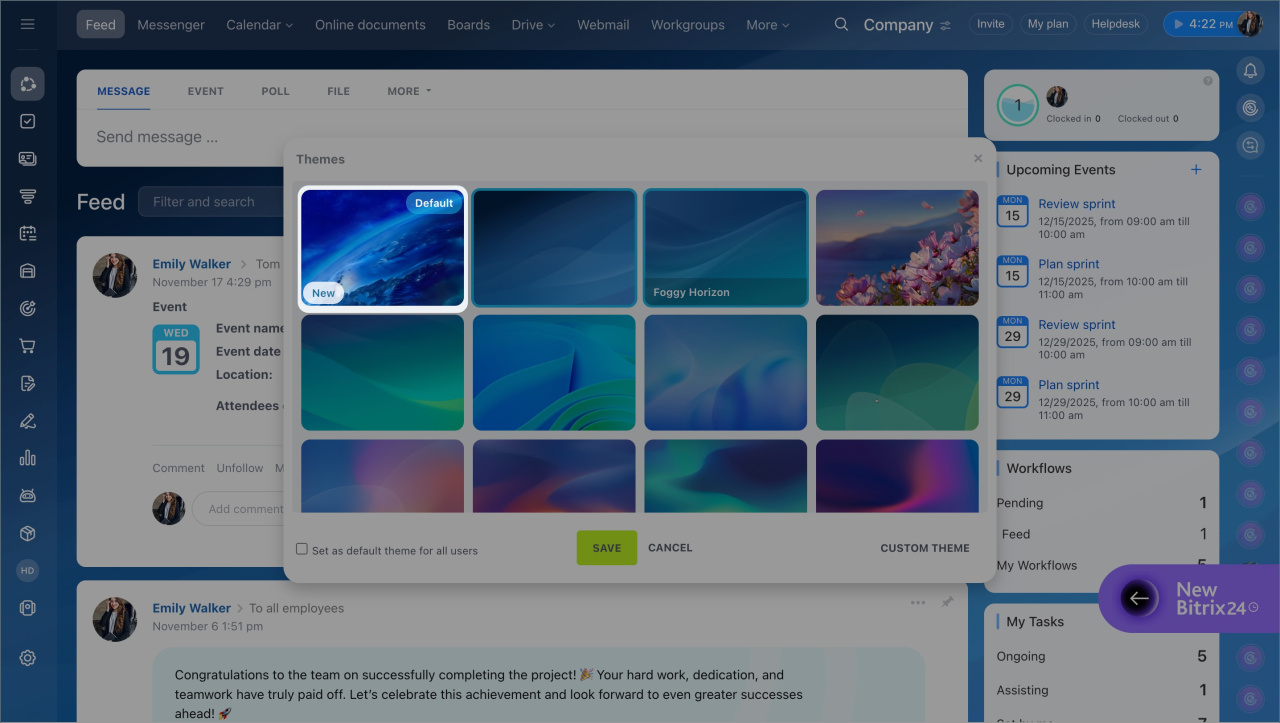
Company theme. The Bitrix24 administrator can enable a common background for all employees. If the administrator updates the theme, it will change for everyone automatically.

You can restore the previous theme or set a new one for yourself. Go to the employee widget and select Theme.
Change account theme
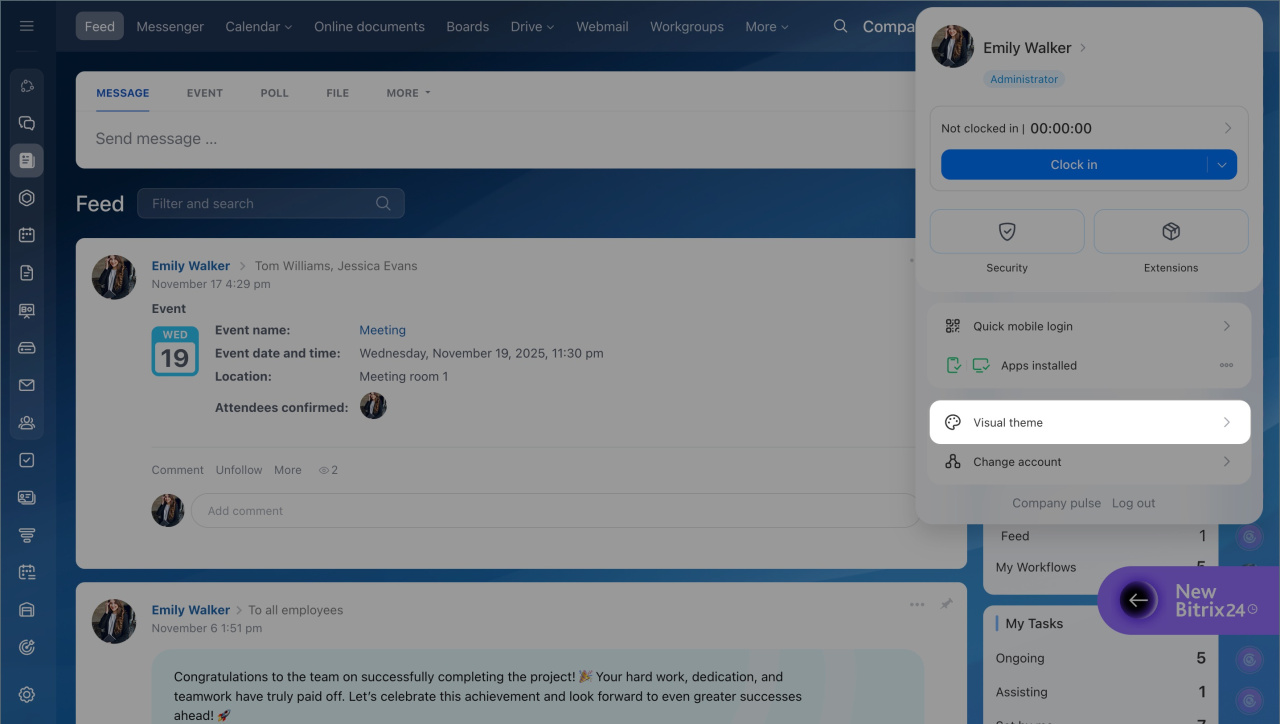
Hide the "My plan" widget from employees
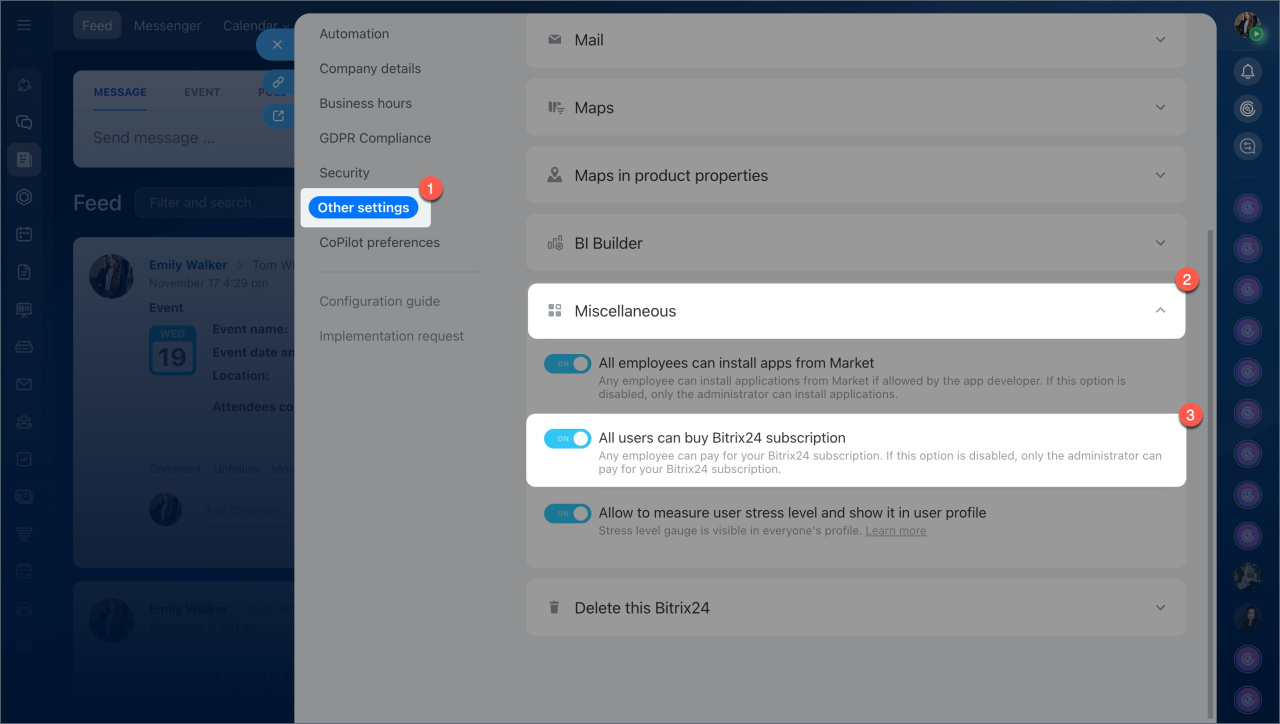
Currently, it is not possible to hide the My plan widget from employees in Bitrix24, but you can restrict access to plan payments. This can be done by the Bitrix24 administrator.
- Go to the company widget and click Settings.
- Select Other > Miscellaneous.
- Toggle the switch next to All users can buy Bitrix24 subscription.
Whether it is possible to hide part of the profile information from other employees
In Bitrix24, it is not possible to hide individual profile fields from only some employees. Display settings are universal for everyone. The administrator determines which fields are visible in the profile. These rules apply equally to all employees.
Change profile details and layout in Bitrix24
