
The list view displays leads, deals, and other CRM items in a table format, allowing you to include necessary data such as name, stage, creation date, and assignee. This format is convenient for quickly reviewing information and making changes to multiple items without opening individual forms.
For example, a sales department manager can open a list of active deals, sort them by date, and reassign them directly in the table without navigating to individual forms.
Customize the list view
We will use deals as an example, but the same steps apply to any CRM items where the list view is available.
Make the list convenient for your work by selecting which fields to display, adjusting column width and order, and sorting data.
Select fields. You can keep only the essential data and hide unnecessary fields.
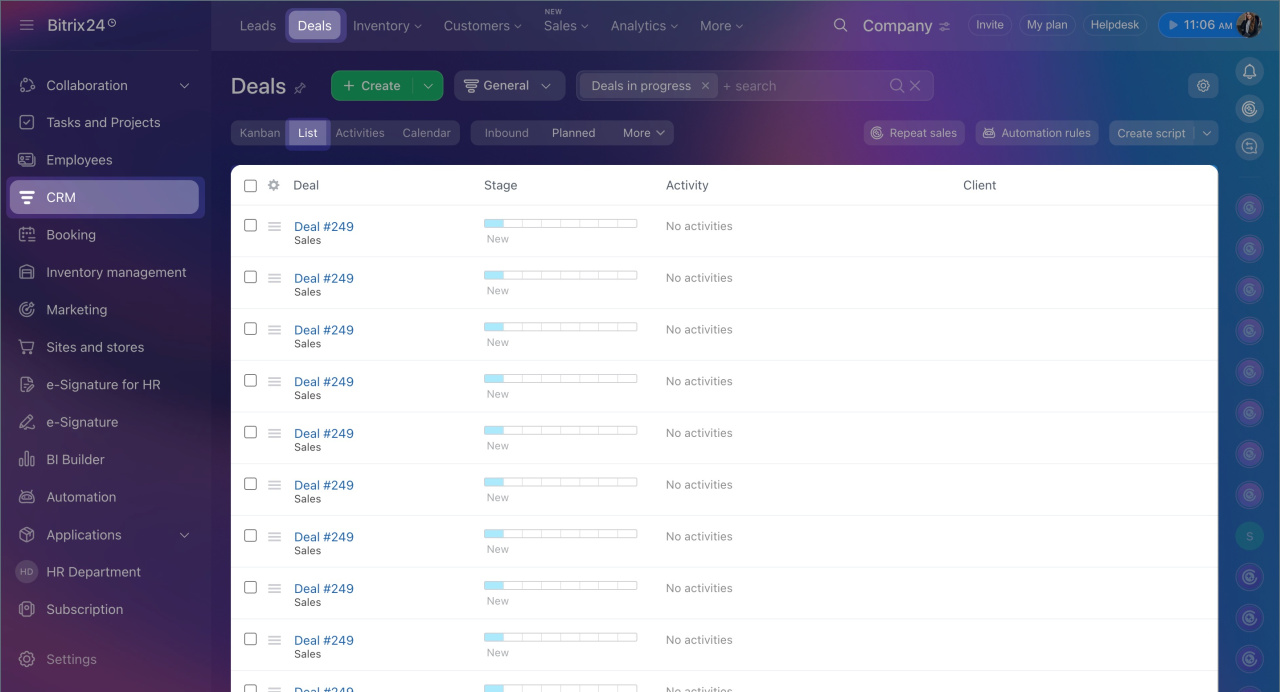
1. Go to CRM > Deals > List.
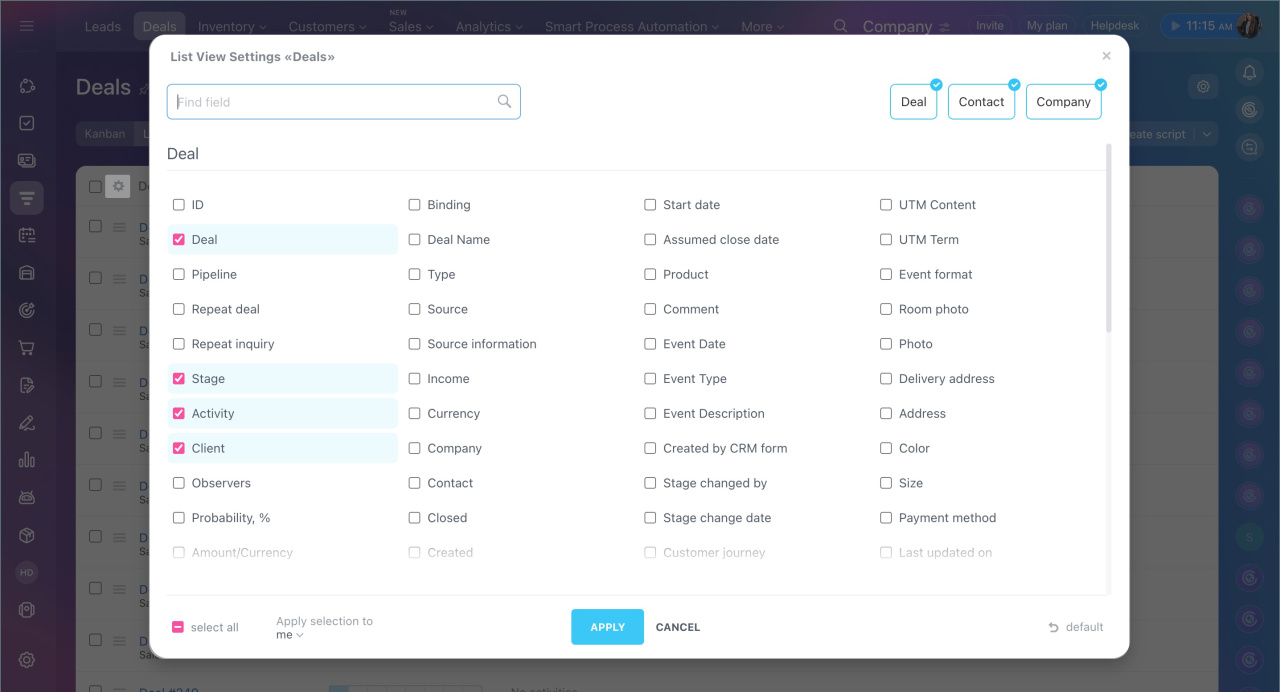
2. Click Settings (⚙️) in the top-left corner of the table.
3. Check the fields you need. Use the search bar to find fields faster.
4. Save the changes.
5. Bitrix24 or CRM administrator can save these settings for all employees by selecting Apply to all. After saving:
- The selected columns and their order will apply to all employees.
- Each employee can adjust the display to suit their tasks.
- If an employee clicks Default, the list will revert to the administrator's settings.
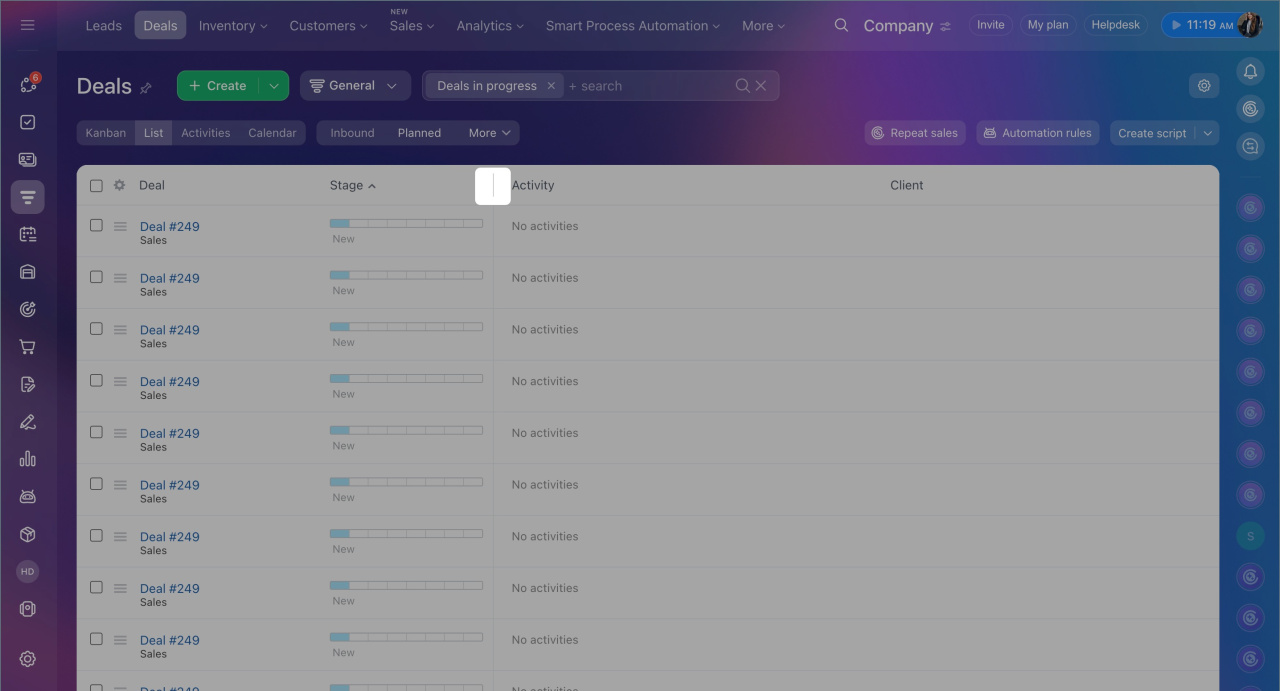
Adjust column width. Modify column widths if data doesn’t fit on the screen or the table looks cluttered.
Hover over the border between column headers and drag it left or right to adjust the width. Changes are saved automatically.
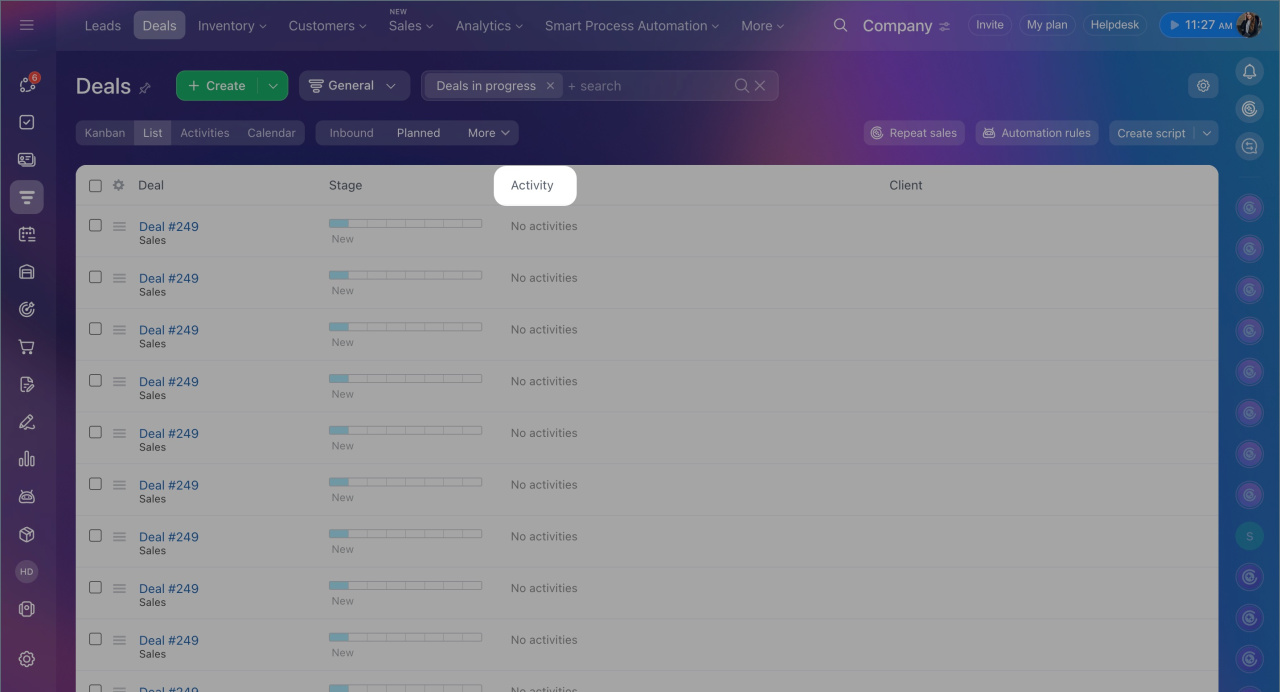
Reorder columns. Arrange columns in a sequence that suits your workflow. For example, if deal amounts are crucial, move the Amount column closer to the beginning of the table.
Click the column header and drag it to a new position. The order is saved automatically.
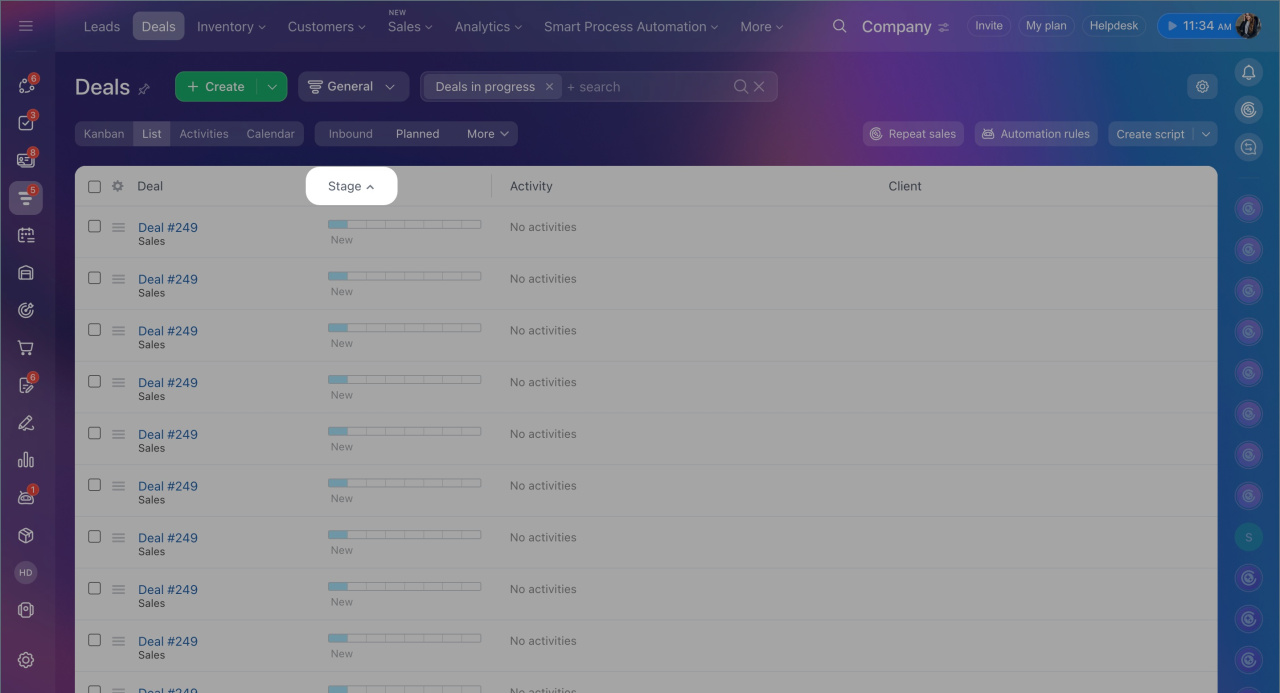
Sort data. Sorting helps you find specific deals and organize data efficiently. For instance, to quickly locate the largest deals, sort the table by the Amount column, displaying the highest amounts at the top.
Click the arrow next to the column name: ⋀ for ascending order, ⋁ for descending order.
Sorting examples:
- Deal amount — from largest to smallest or vice versa.
- Creation date — from newest to oldest or vice versa.
- Deal, Customer, Assignee — alphabetically.
- Stage — from final to initial stages or vice versa.
Work with deals in the list
The list allows you to perform key actions directly in the table without opening individual forms, saving time and streamlining deal processing.
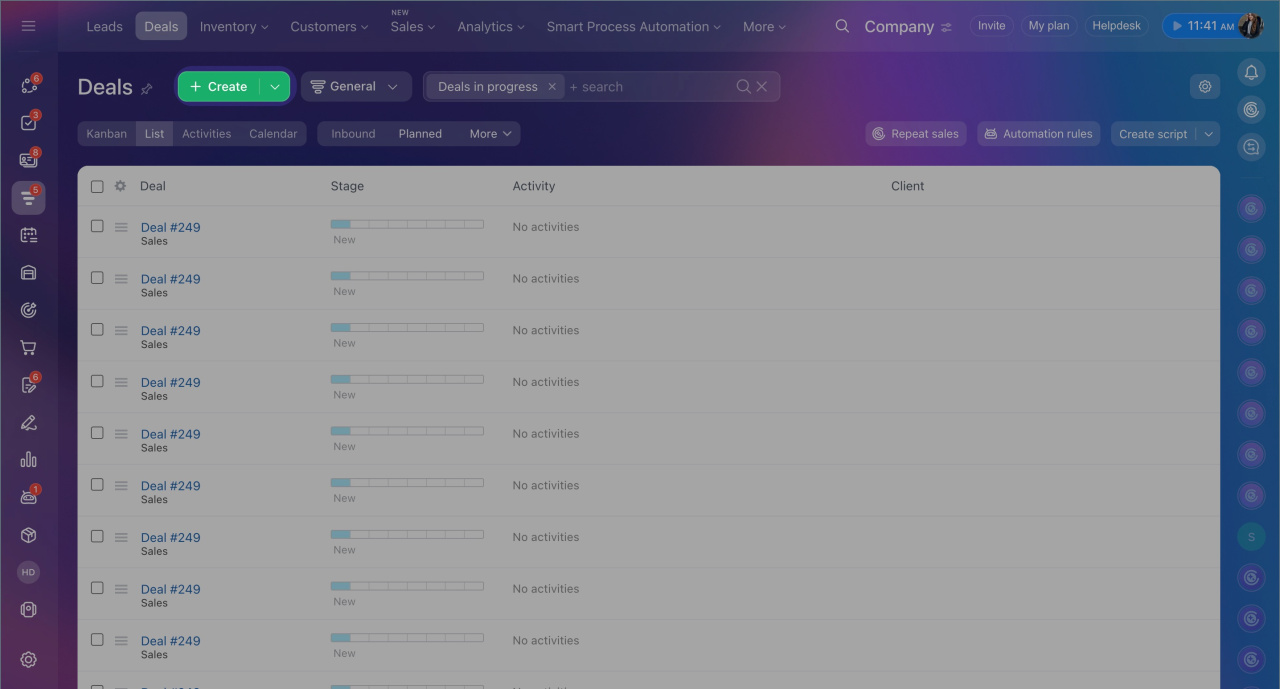
Create a deal. To add a new deal to the CRM:
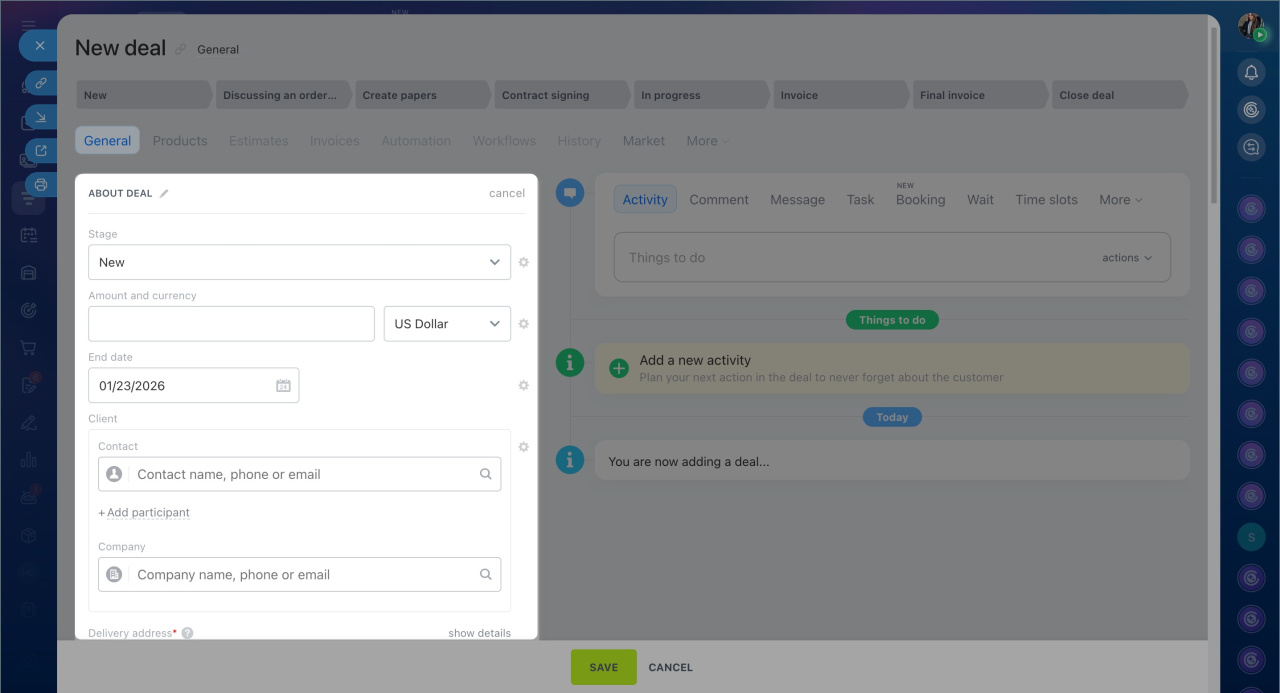
1. Click Create. The deal form will open.
2. Fill in the required fields.
3. Click Save.
The deal will appear in the list and be ready for further work.
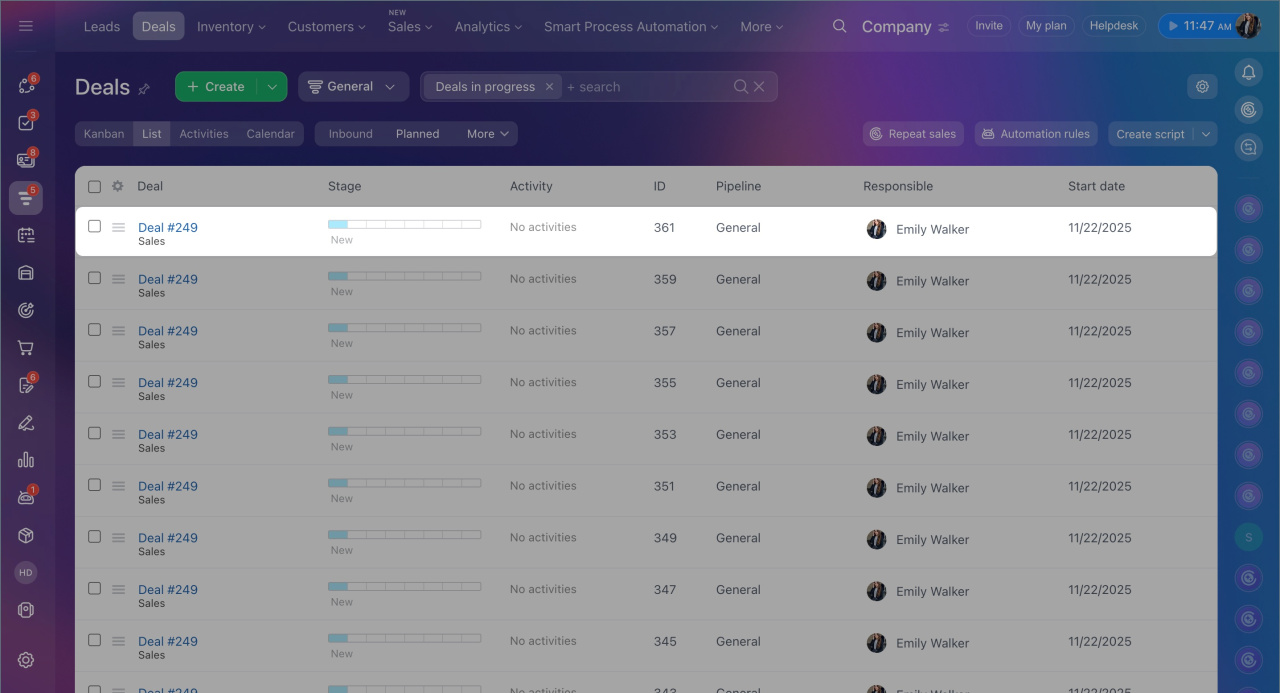
Open a deal form. To view details, double-click the row of the desired deal to open its full form.
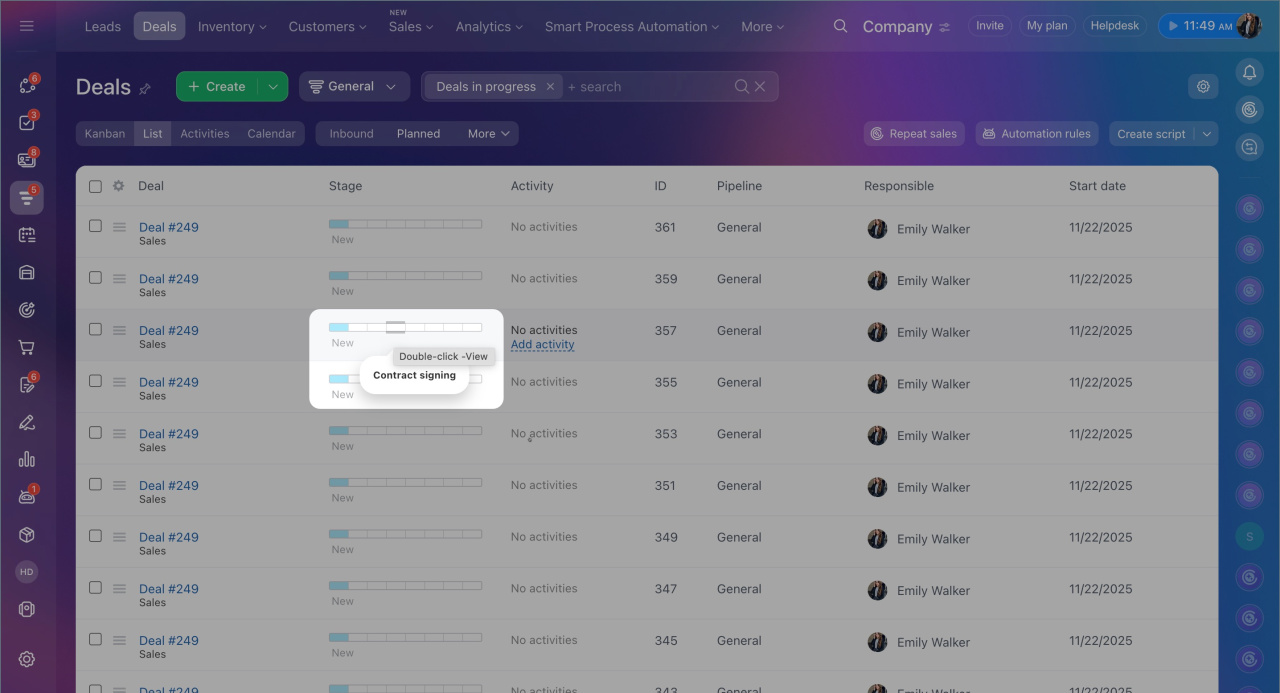
Change the deal stage. The Deal stage column displays the current stage as a bar with pipeline steps. To change the stage, hover over the bar and select the desired step — changes are saved automatically.
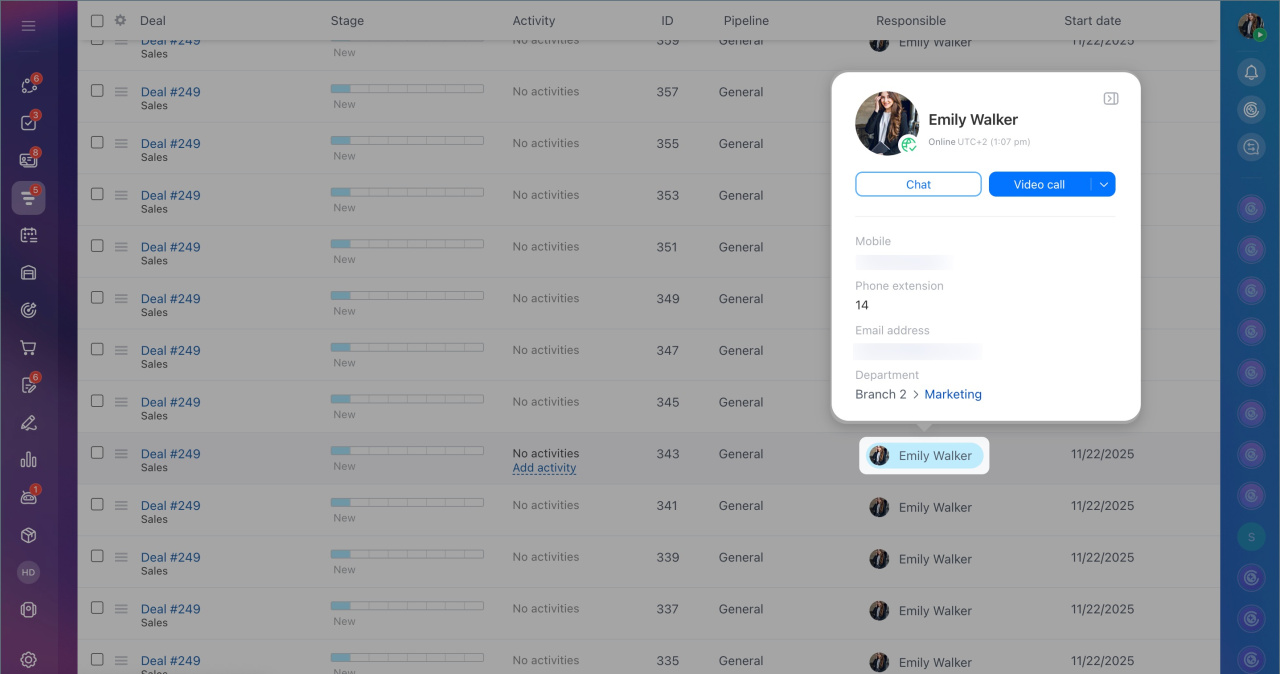
Contact the customer. To quickly view contact details, send a message, or make a call, hover over the customer’s name. A mini CRM form will appear with key information such as customer type, company, phone, and email. From here, you can access the full form to edit details.
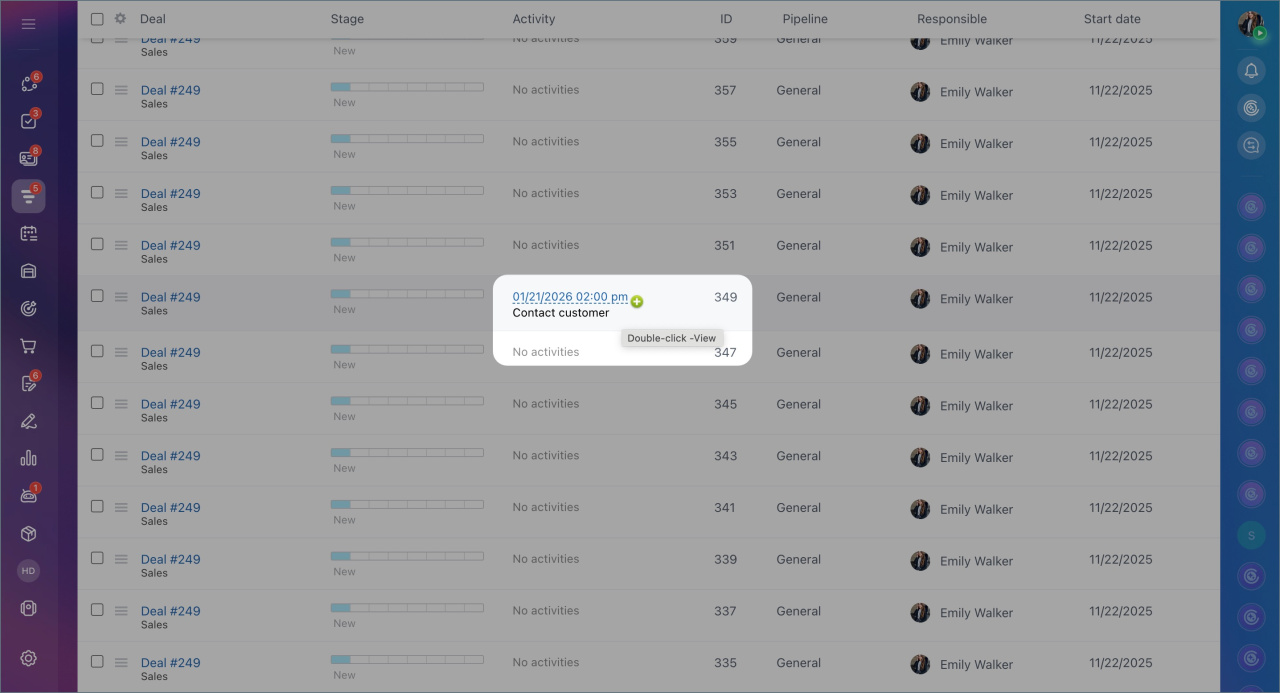
Add an activity. In the Activities column, you can quickly schedule a new action directly from the list.
1. Hover over the Activities column of the desired deal and click Add activity.
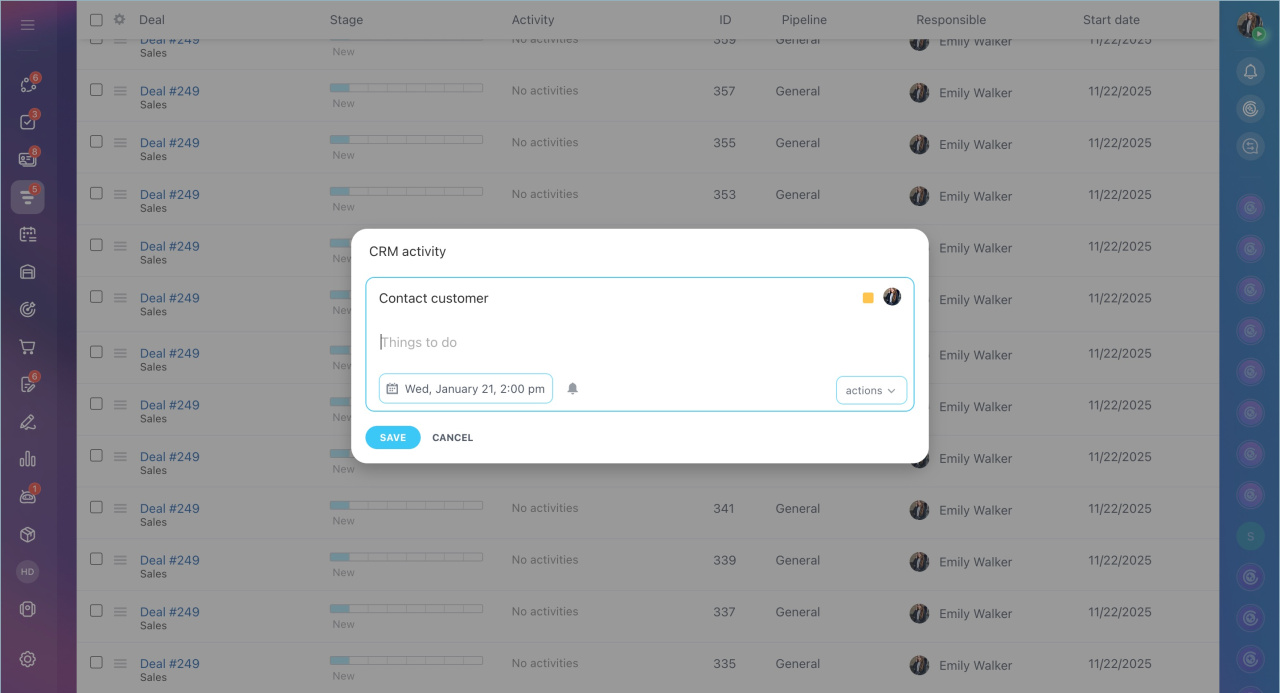
2. Enter the task details. By default, it’s Contact the customer, but you can change the text.
3. Specify the date and time for the activity. The responsible employee will receive a reminder at the set time. Click the Bell icon to choose how far in advance the notification will be sent — for example, 10 minutes or an hour.
4. Click Action to add the event to the calendar, invite colleagues, book a meeting room, and more.
5. Click Save.
Perform actions with a deal. Additional actions are available for each deal in the list.
1. Click Menu (≡) next to the desired deal’s name.
2. Select an action. You can start a workflow, create a task based on the deal, and more.
For example, if a customer requests an invoice, the manager opens the menu, selects Plan > Activity, and specifies “Prepare invoice.” The record will immediately appear in the activity list.

Use filters. When there are many deals, filters help quickly locate the necessary information. For instance, clicking on an assignee’s name will display deals assigned to them.
To manually configure a filter:
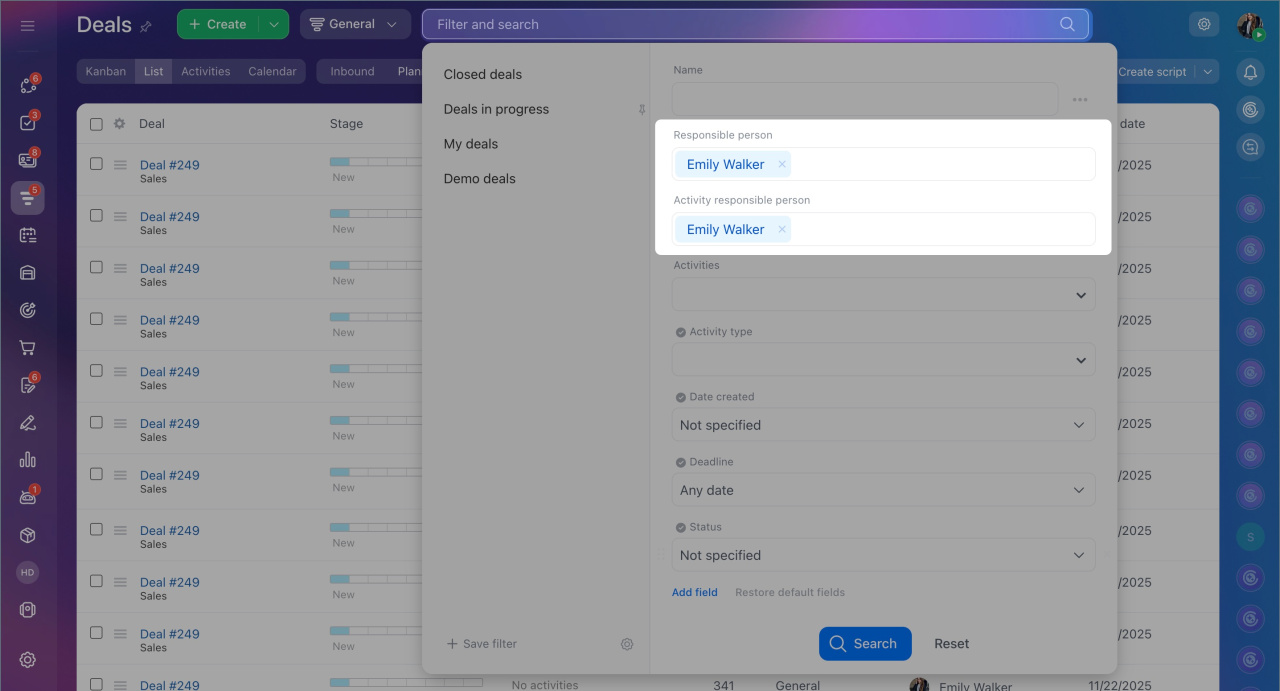
1. Click Filter + Search.
2. Choose parameters for CRM to display only the required deals. For example, a sales manager selects the Under review stage in the filter to view all deals requiring attention.
3. Click Search.
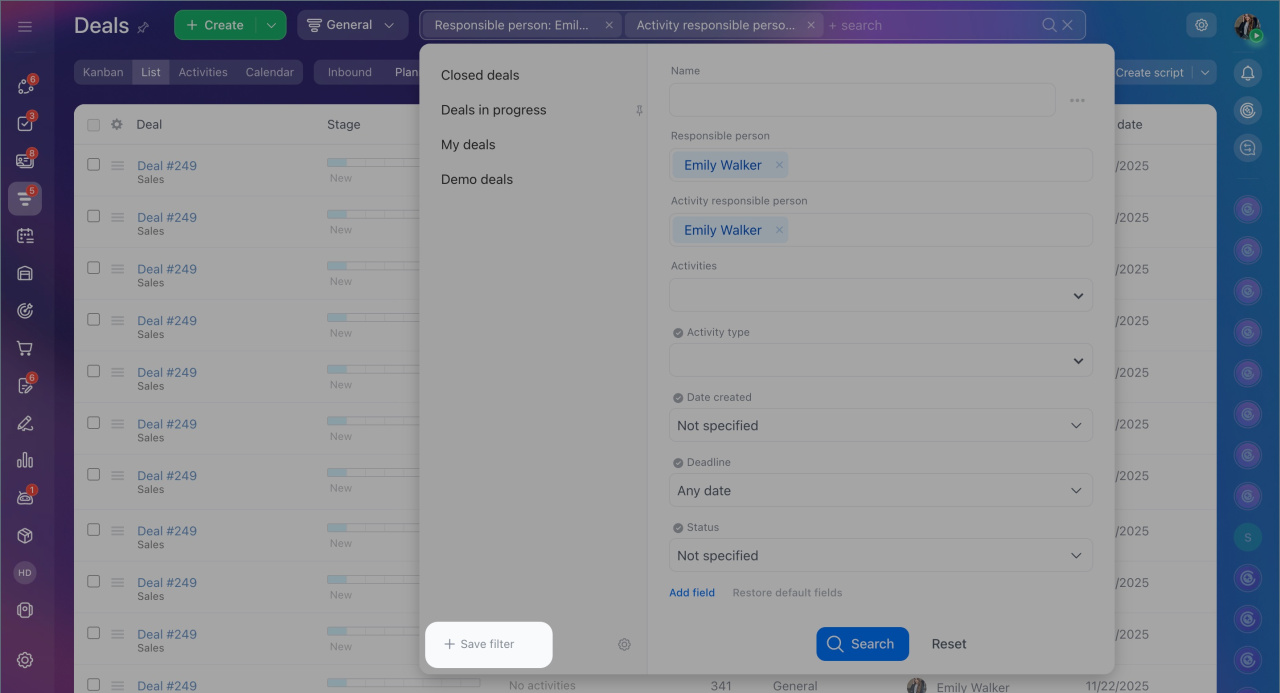
4. To avoid reconfiguring the filter each time, save it as a template.
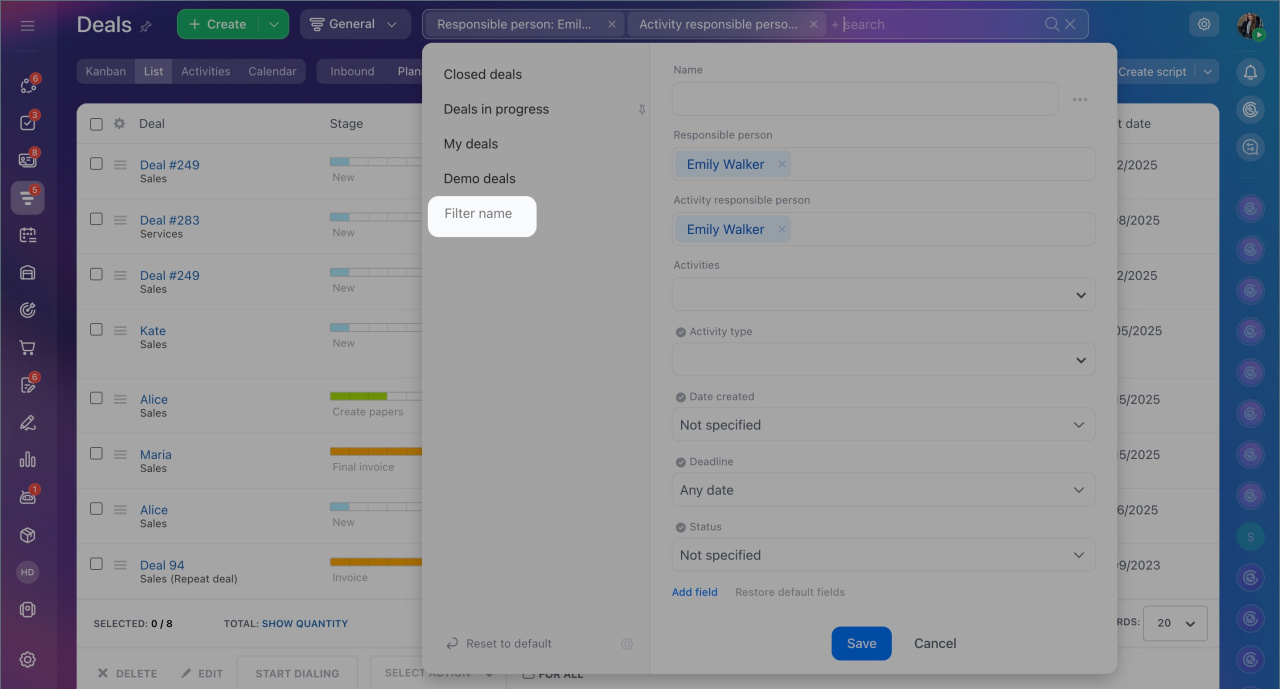
5. Click Save filter, enter a name.
6. Save the changes.
Use search. To quickly find a specific deal or customer, use the search bar above the table. Enter the deal name, customer name, or any part of the data — CRM will display matching results.
Search in CRM

Delete a deal. You can delete one or multiple deals directly from the list.
Role-based access permissions in CRM
Delete a single deal.
1. Click Menu (≡) next to the desired deal’s name.
2. Select Delete and confirm the action.
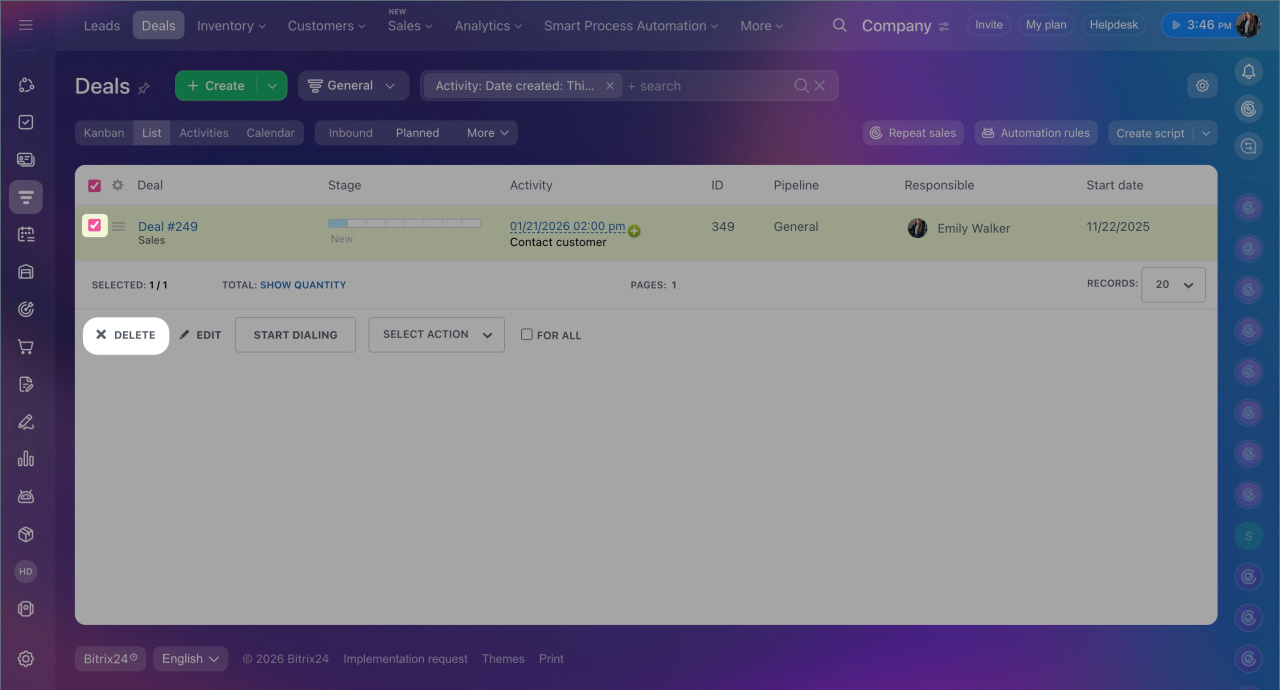

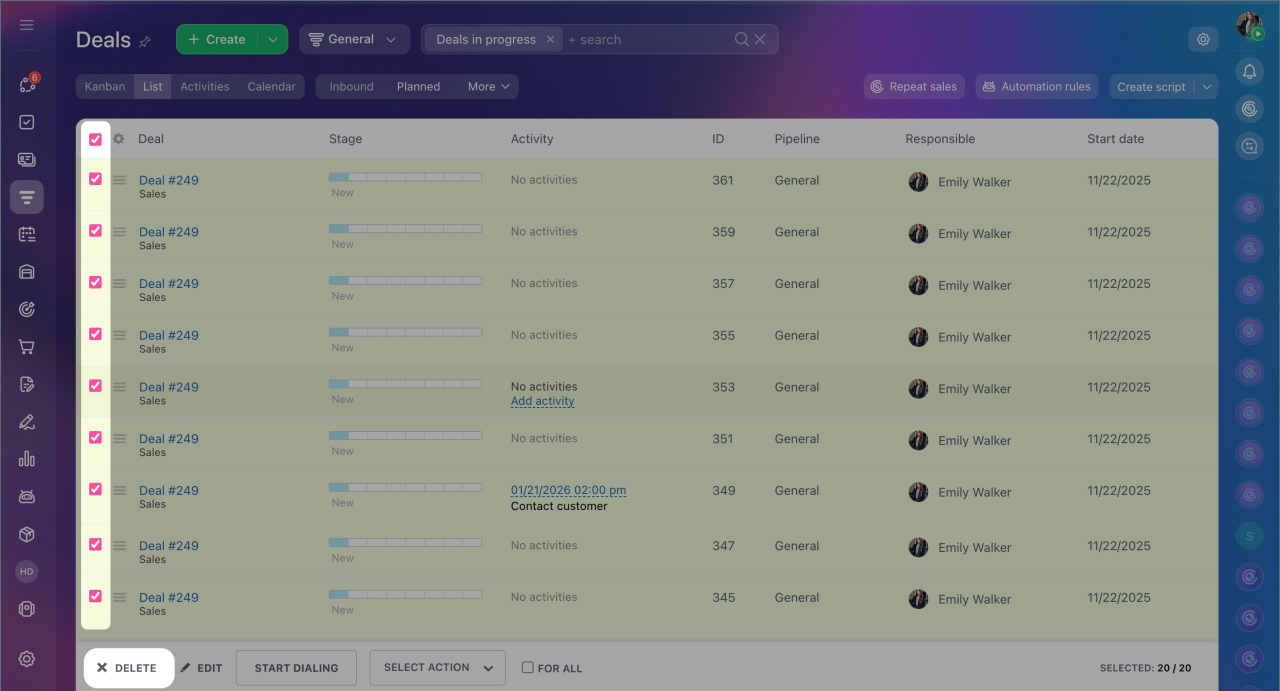
Delete multiple deals.
1. Select the desired deals in the list by checking the boxes.
2. Click Delete in the bottom panel.
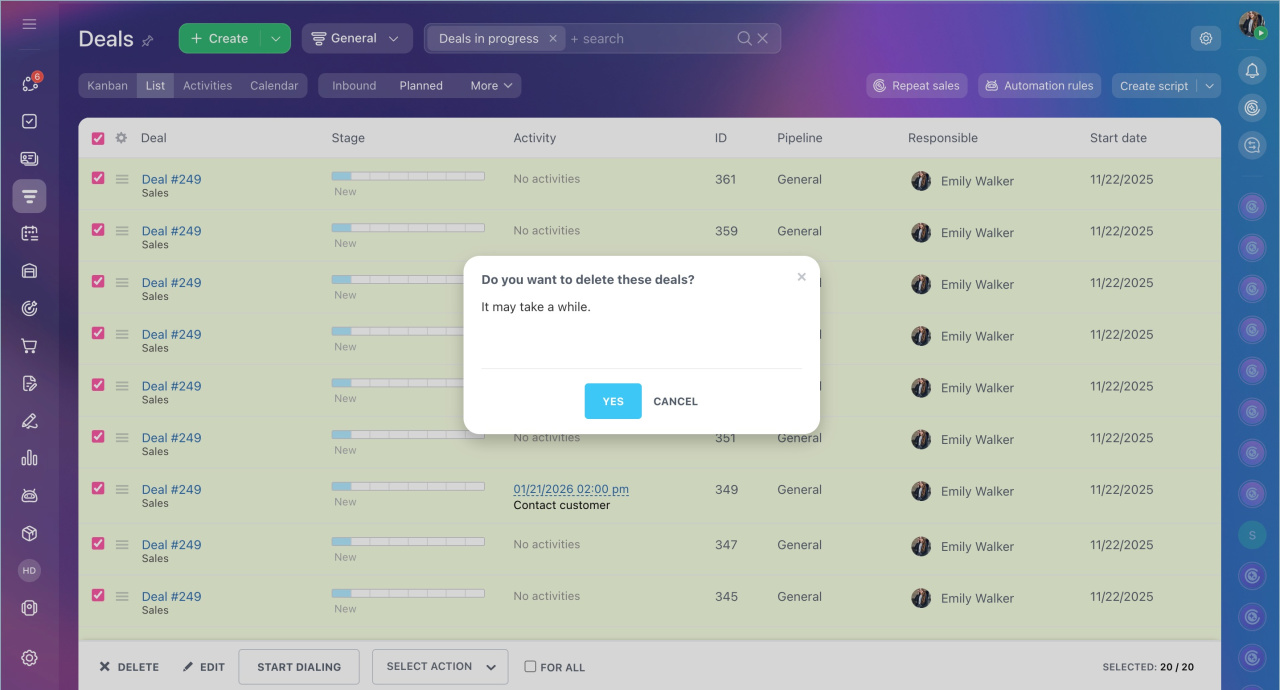
3. Confirm the deletion.
After confirmation, the selected deals will move to the recycle bin.
Recycle bin in CRM
Edit multiple deals in the list
You can update data for multiple deals at once in the list — change the stage, reassign the responsible person, or delete outdated records.
For example, if a manager leaves the company, the supervisor selects all their deals and chooses the Change assignee action. From the dropdown menu, they select a new employee — all deals are automatically reassigned.
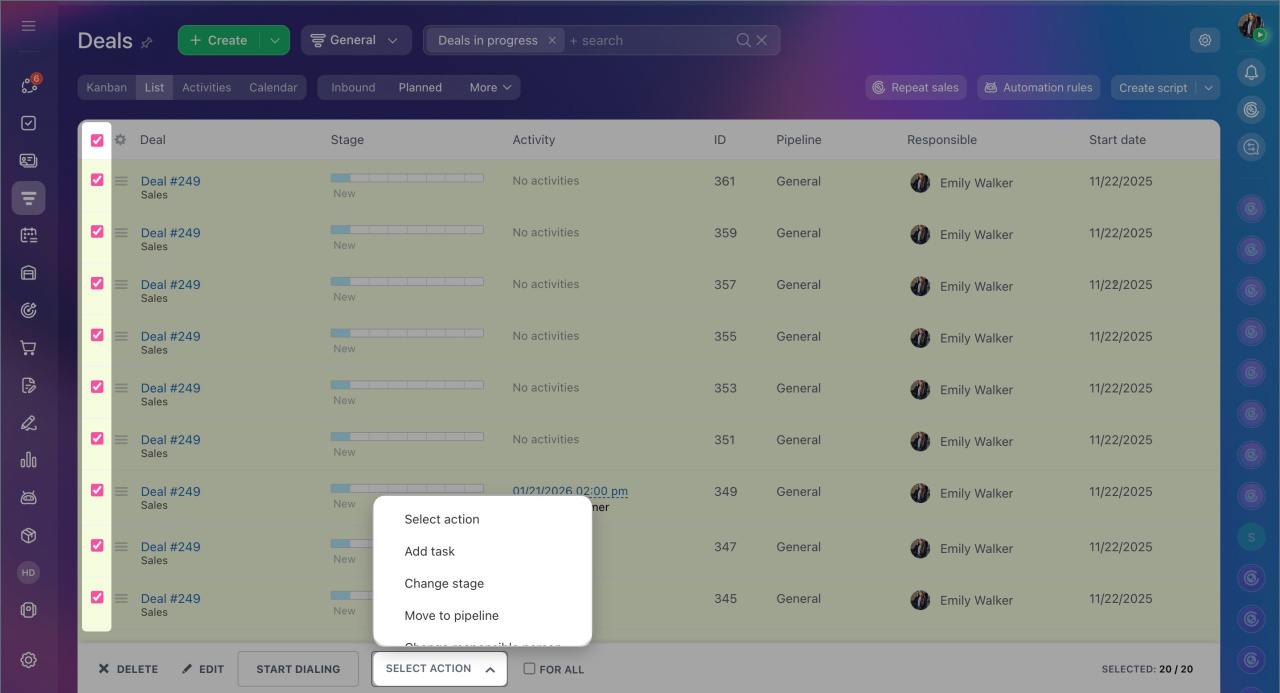
1. Select the desired deals.
2. Click Select action and choose the action.
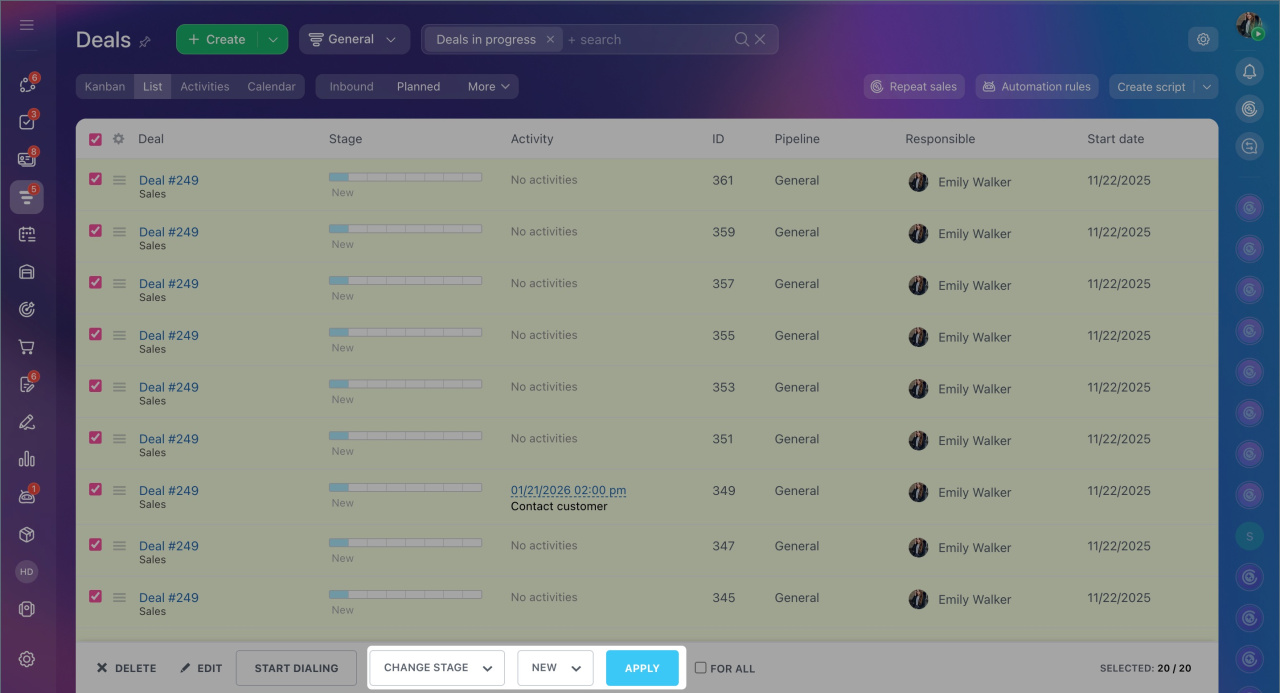
3. Set the change parameters. For example, if you selected Change stage, specify the new stage.
4. Click Apply.
In brief
- The list view displays leads, deals, and other CRM items in a table format, allowing you to include necessary data such as name, stage, creation date, and assignee.
- The list is convenient for quickly reviewing information and making changes to multiple items without opening individual forms.
- Bitrix24 or CRM administrator can configure the list view for everyone, while each employee can adjust it for their needs.
- You can edit field values, sort data, and use filters and search in the list.
- The list allows you to perform actions with multiple items at once: change stages, assign responsible persons, delete items, and more.
