This article explains how to use deal reports.
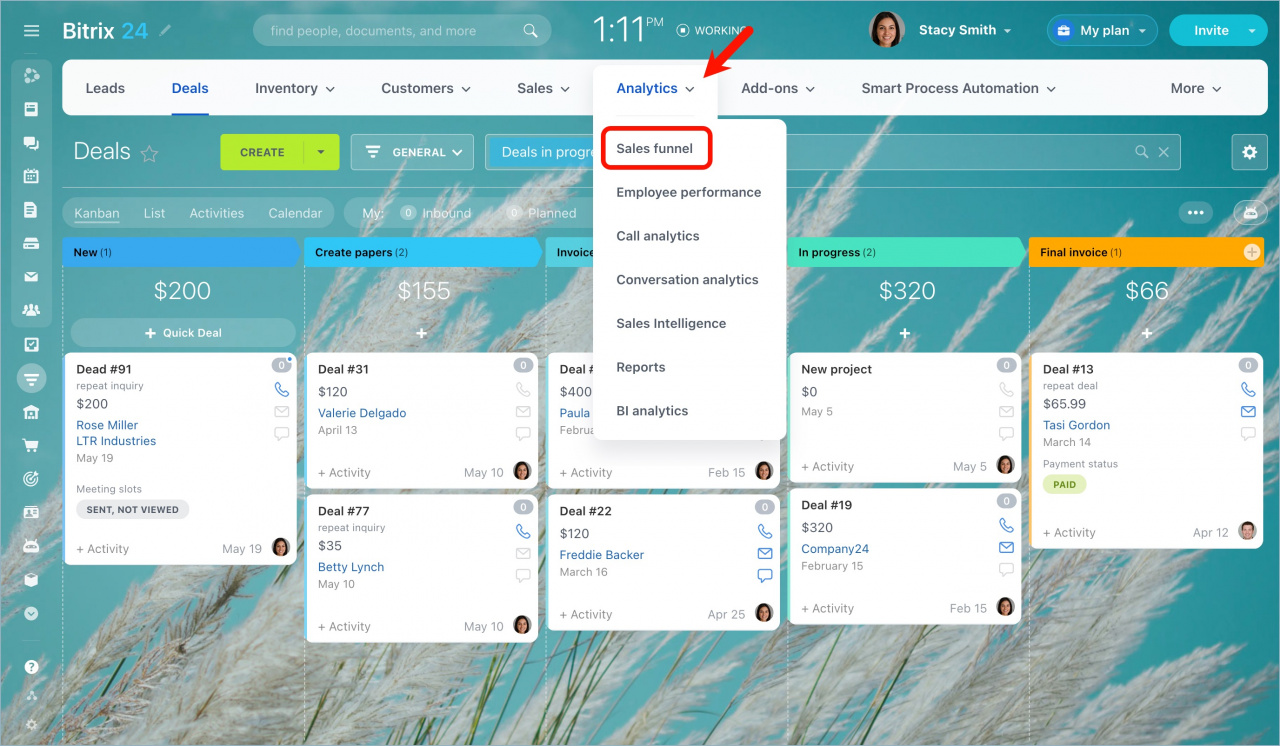
Go to CRM > Analytics > Sales funnel.
Expand the My reports section and select Deals.
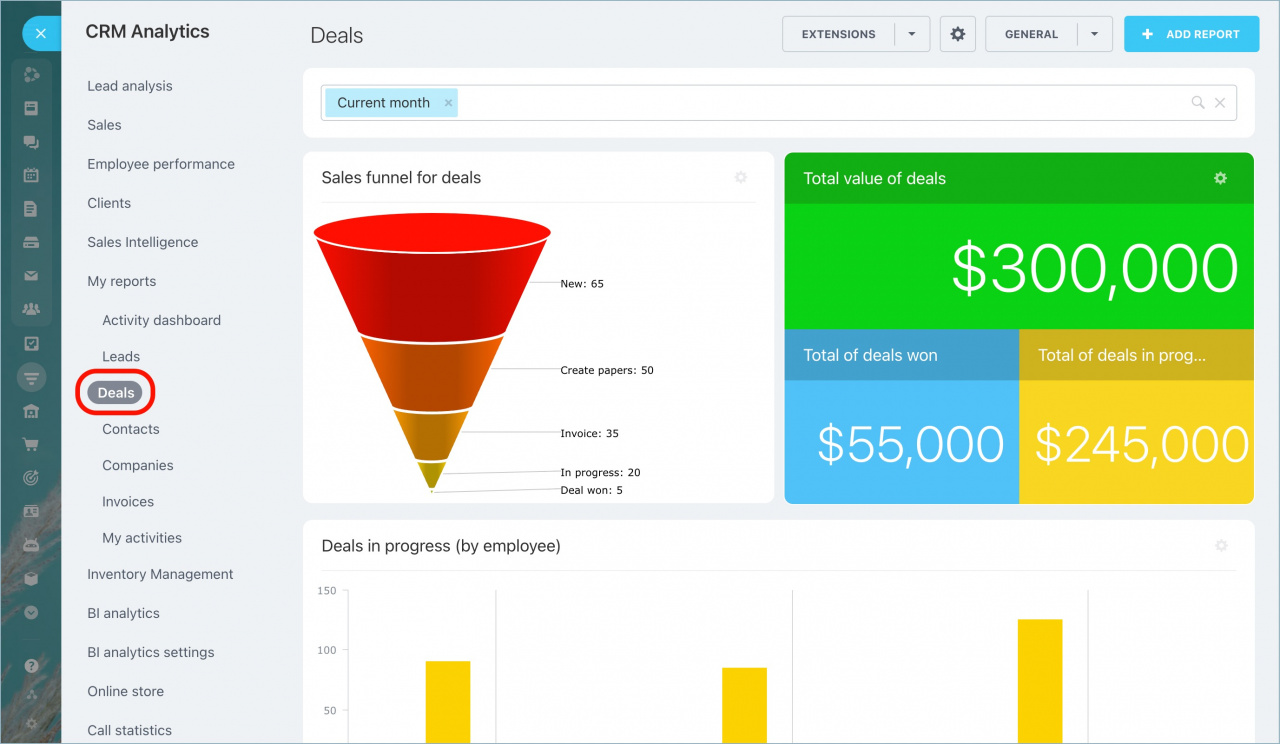
When you open the report for the first time, you’ll see demo data. Close the demo view to display real data from your deals.
You can switch between deal pipelines using the button in the top-right corner. You can also use filters to change the reporting period.
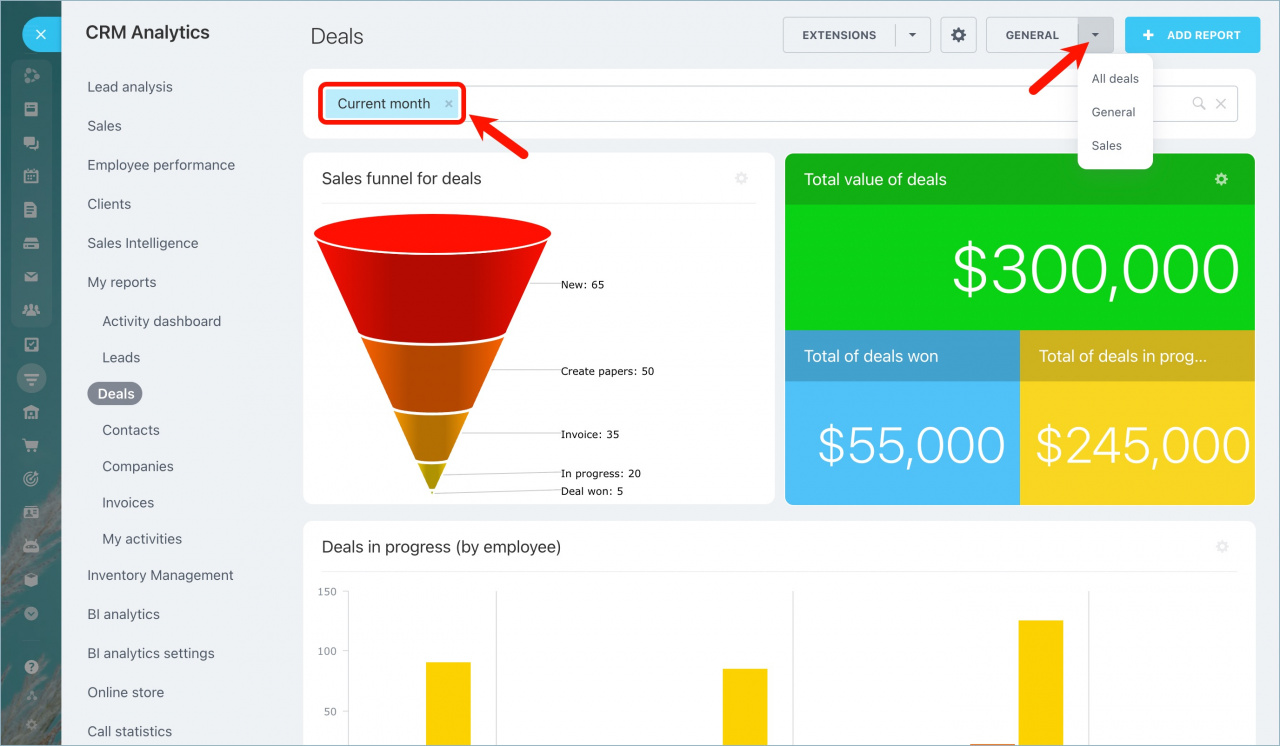
Deals are grouped into the following categories instead of individual stages:
Deals in progress: Deals that have not reached a final stage.
Deals won: Deals that closed successfully.
Deals lost: Deals that closed unsuccessfully.
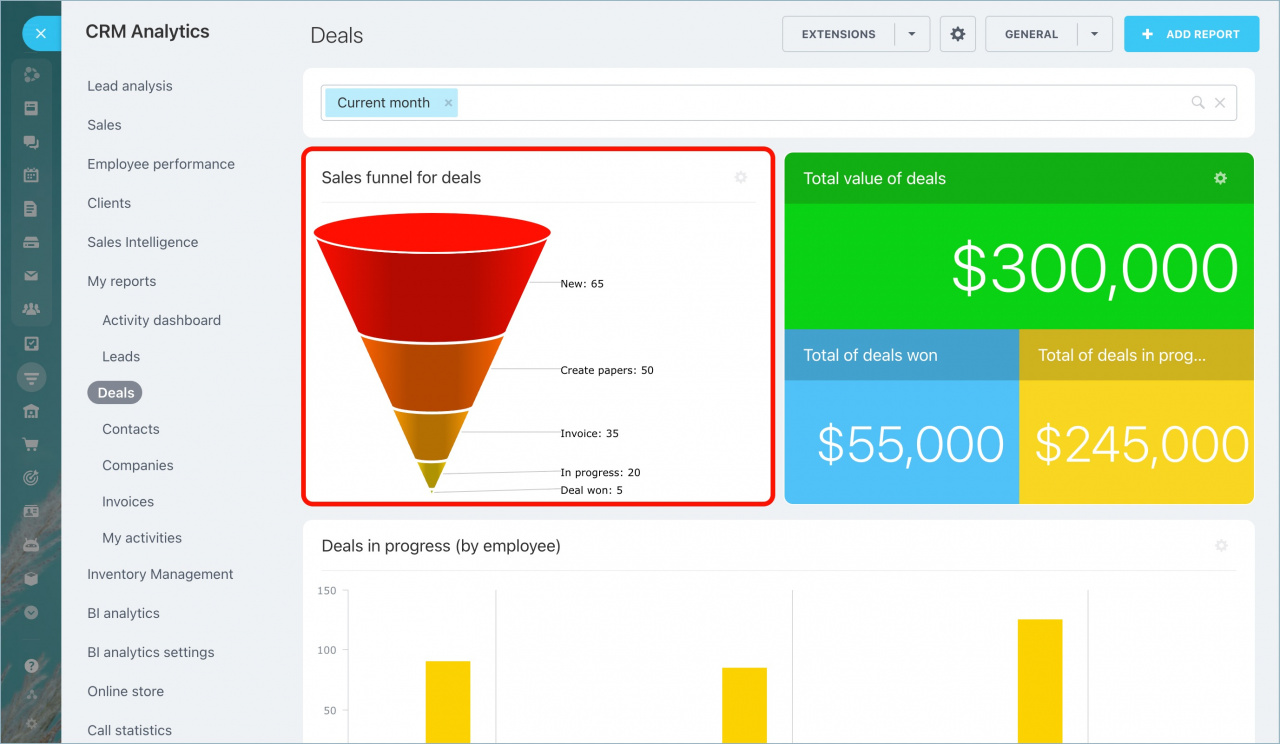
The Sales funnel for deals report shows how many deals moved through each stage during the selected reporting period.
Use this report to:
- Analyze your sales process
- Identify stages where deals are lost
- Track potential revenue loss
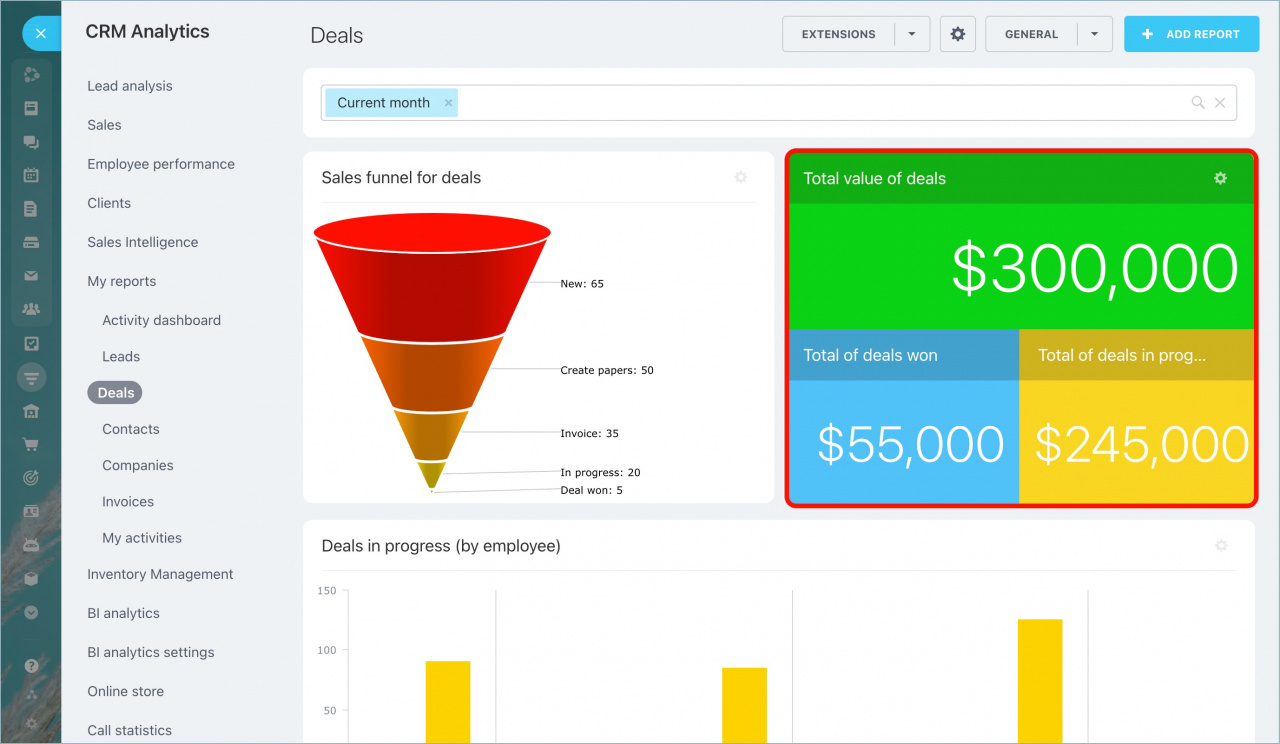
When you review sales performance, revenue is the key metric.
The Total value of deals report includes three sections:
- Total value of all deals
- Total value of won deals
- Total value of deals in progress
The value of deals in progress equals the difference between total deals and won deals.
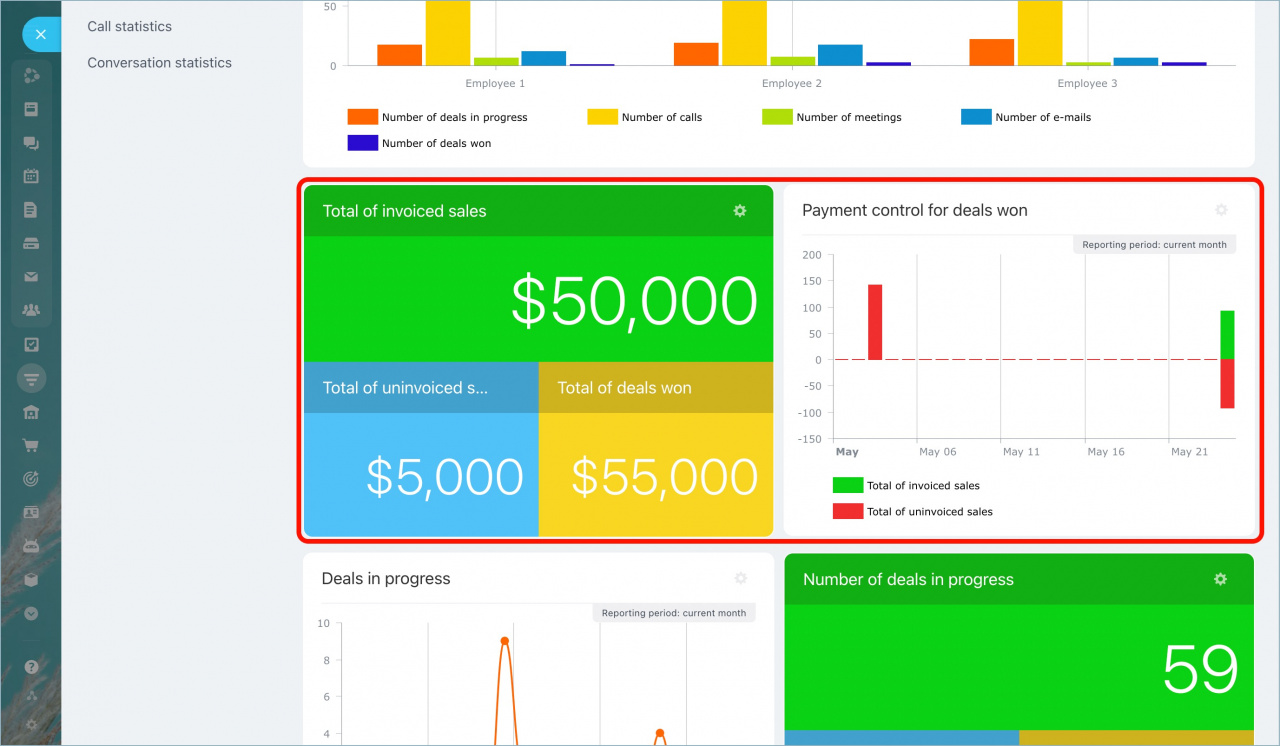
Closing a deal does not always mean the payment was received.
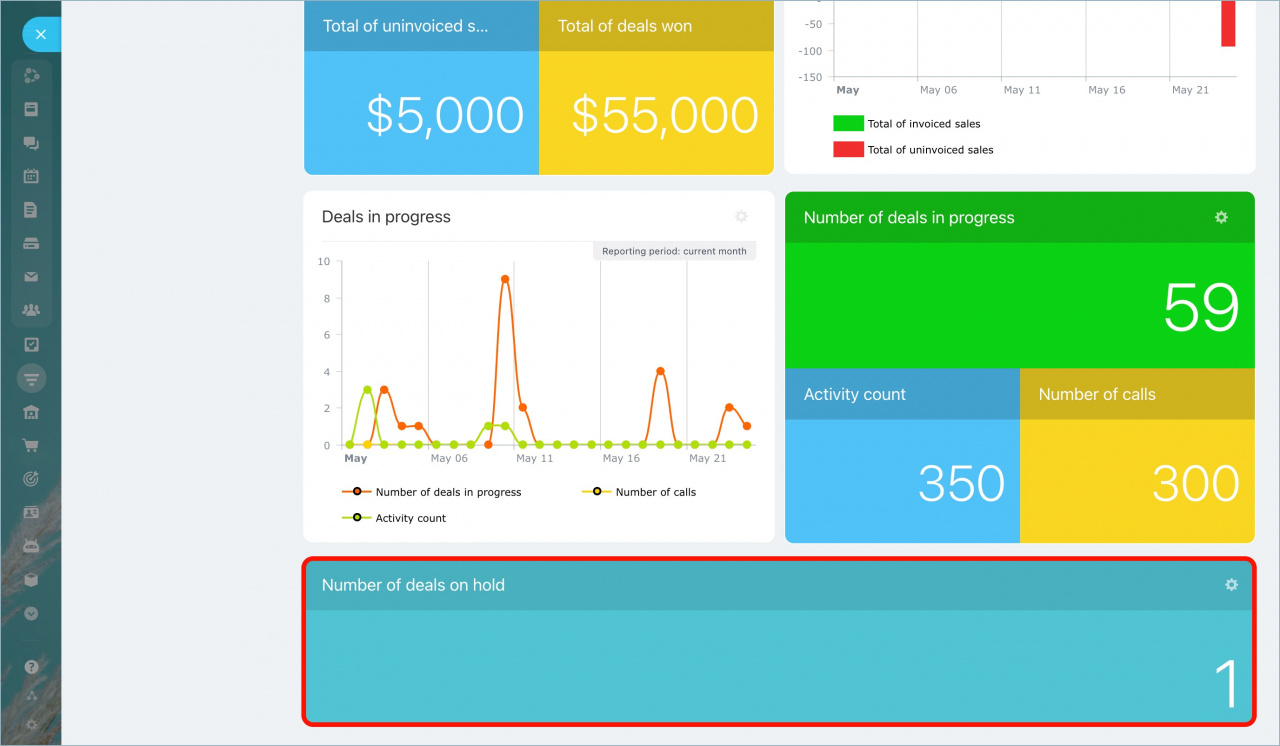
The Payment control for deals won report helps you identify won deals that have not been invoiced.
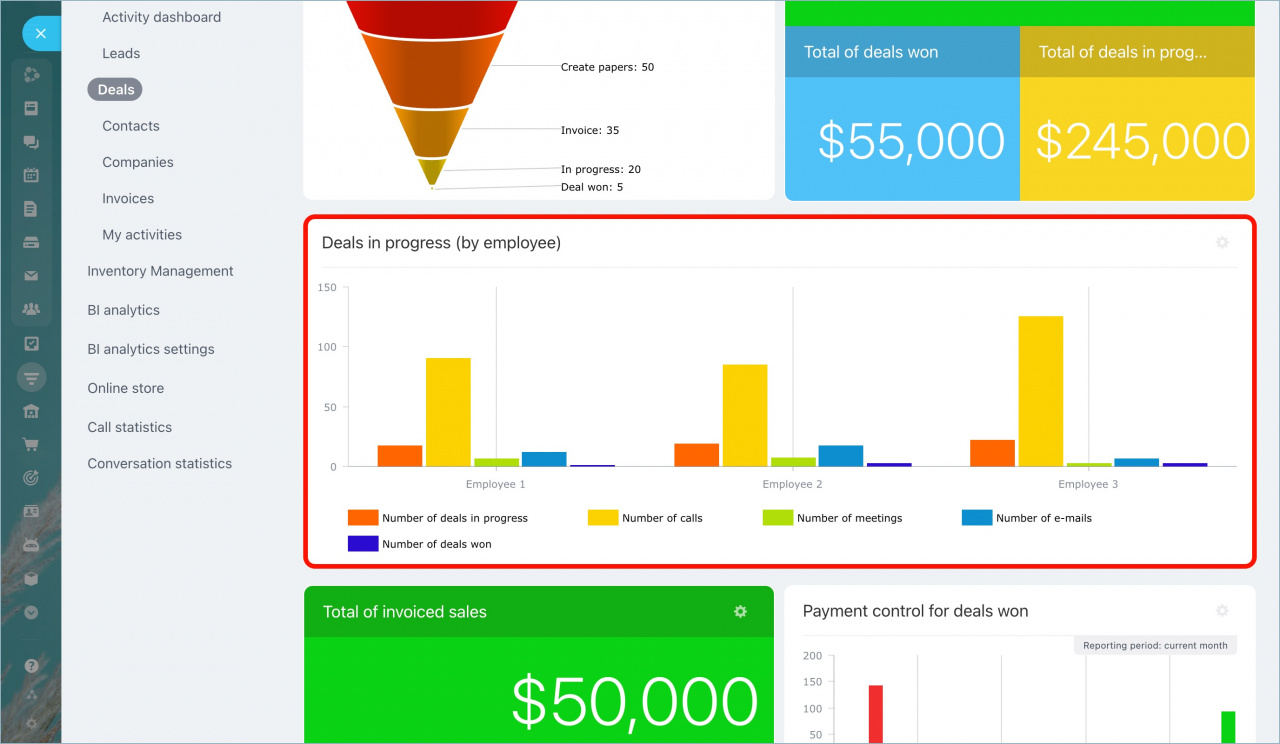
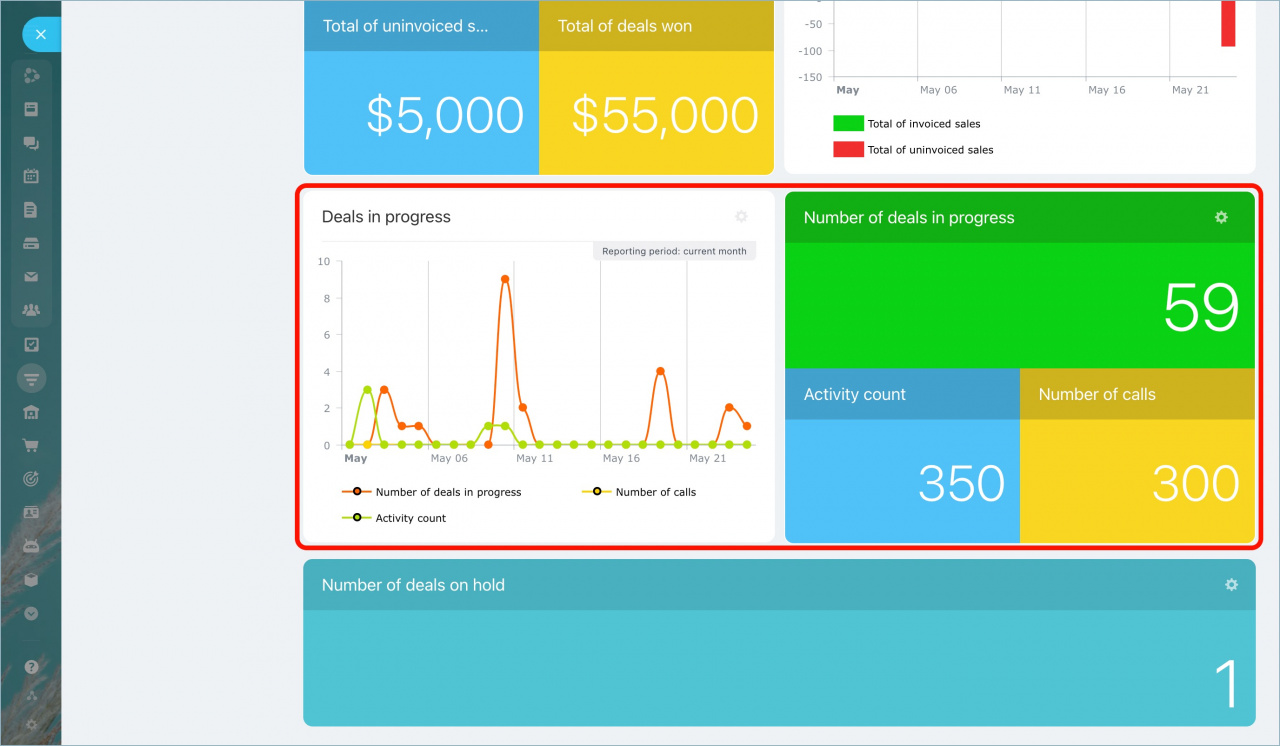
Use the Deals in progress reports to review manager workload.
These reports show:
- Number of active deals for each manager
- Number of calls completed
- Number of activities
When you manage many deals, some may be left without follow-up.
The Number of deals on hold widget helps you find inactive deals. A deal is considered on hold if nobody worked on it during the selected reporting period.
Click the number in the widget to open the list of deals on hold.