After you create a task, the next steps depend on your role. This article explains how to work with tasks on the web and in the mobile app.
Work with a task as an assignee
Open the task by clicking its name. Review the description and deadlines to understand the scope of work.
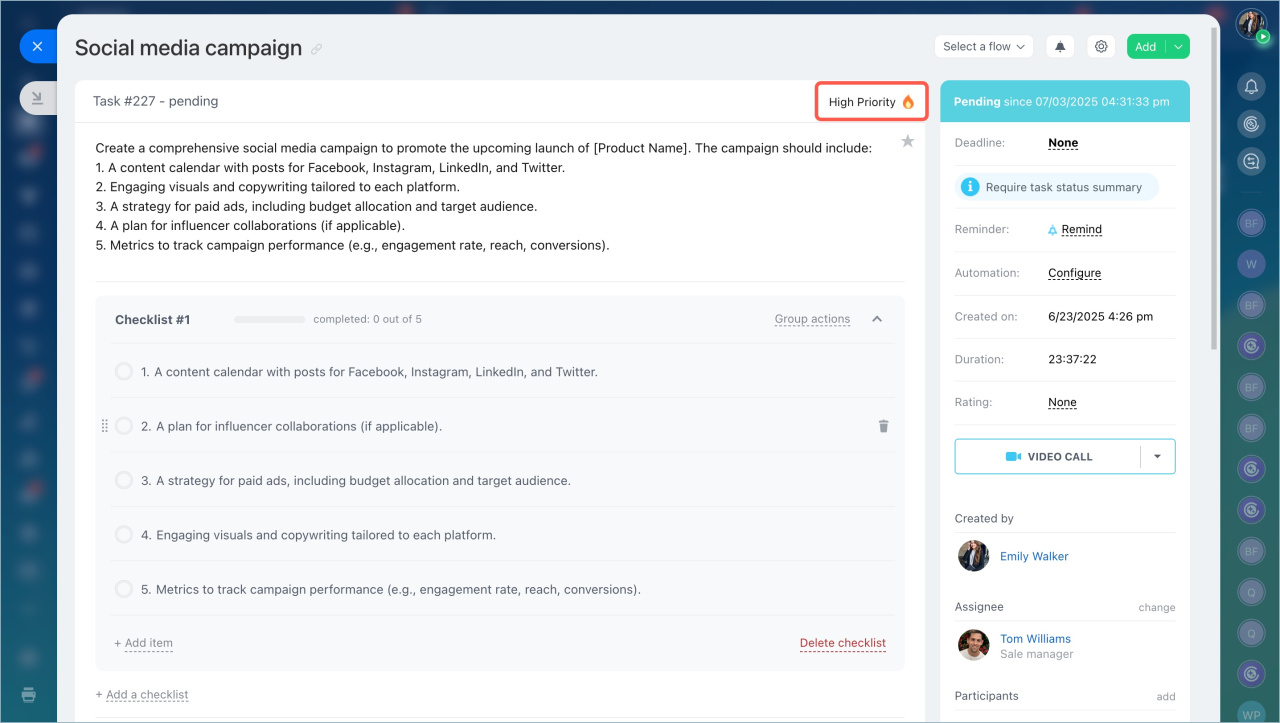
Check whether the task has the High Priority label in the upper-right corner. This helps you identify tasks that need immediate attention.
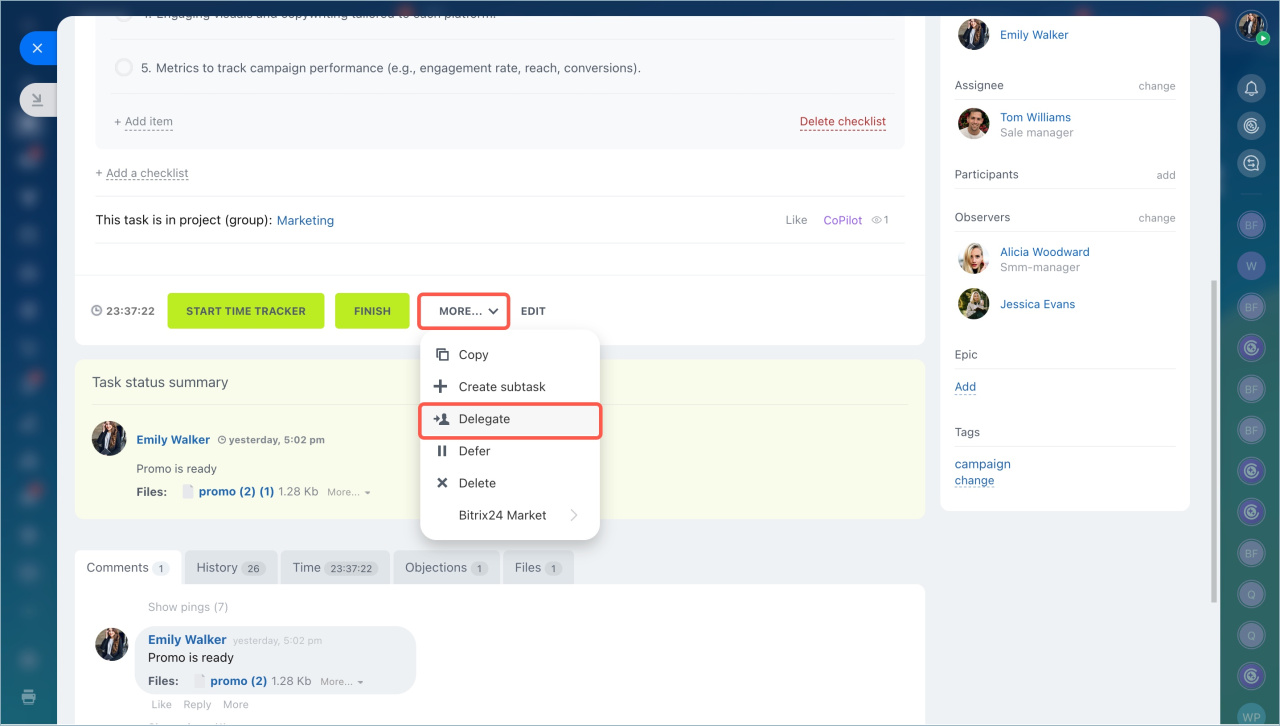
If you manage a department, you can delegate the task to another employee to balance the workload.
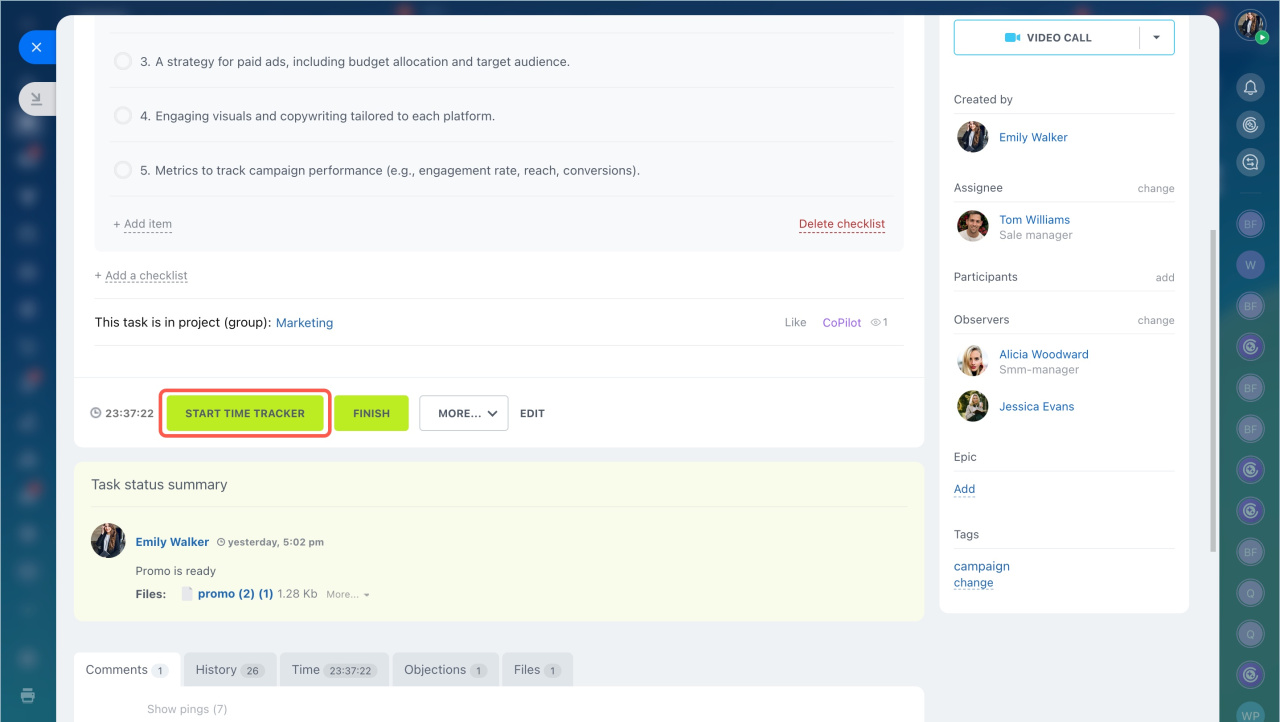
Click Start to begin working on the task. If time tracking is enabled, click Start time tracker instead.
Time tracking option in tasks
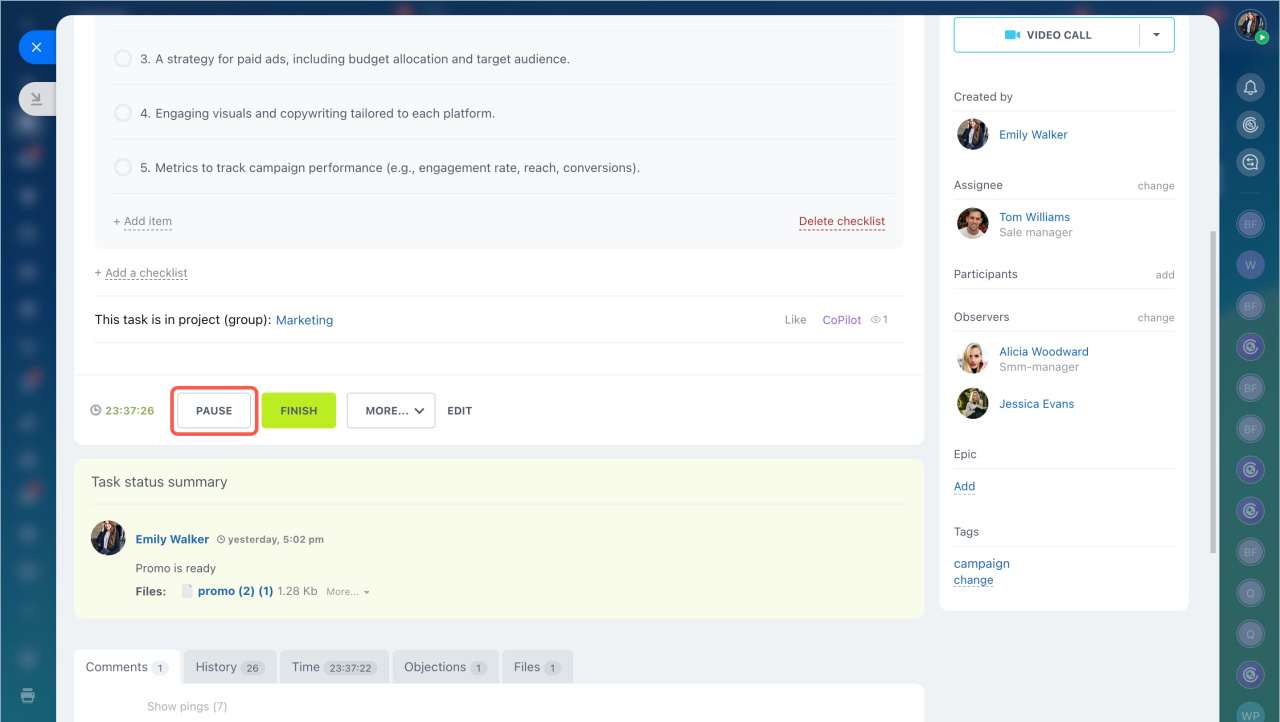
You can pause the task or postpone it if you need to continue later.
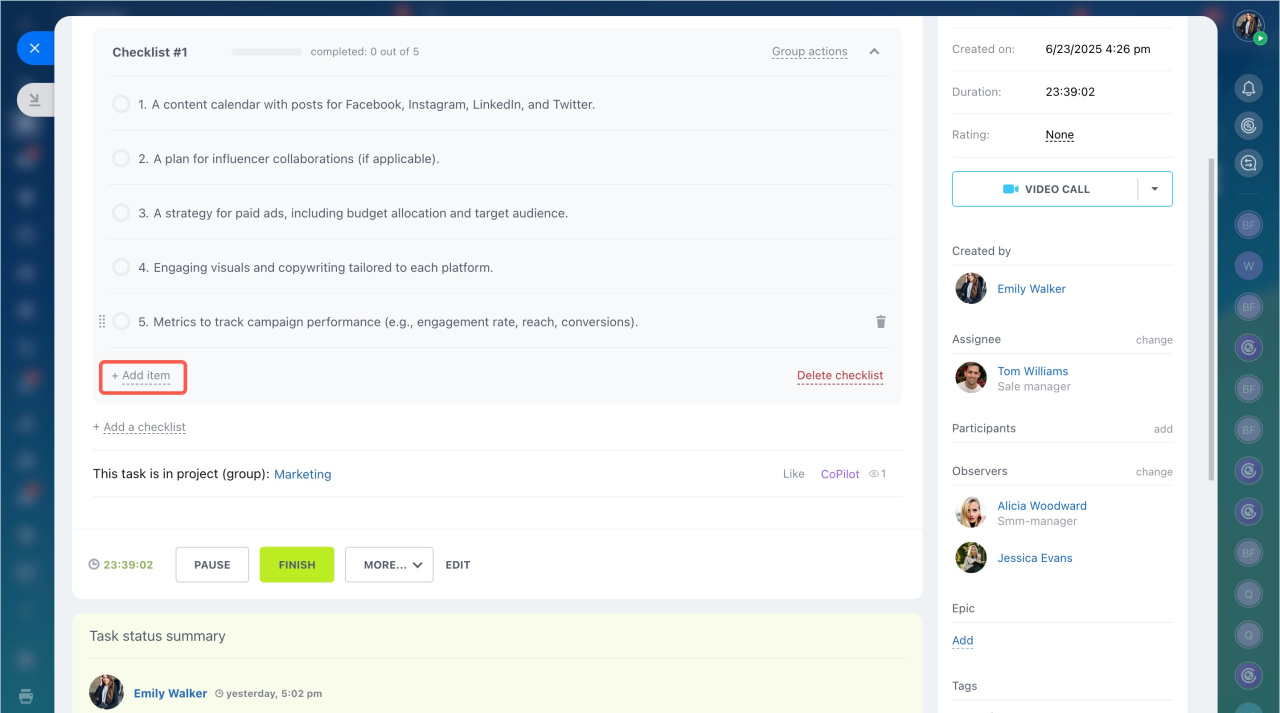
If the task includes a checklist, mark items as complete as you finish them. You can also add new checklist items if needed.
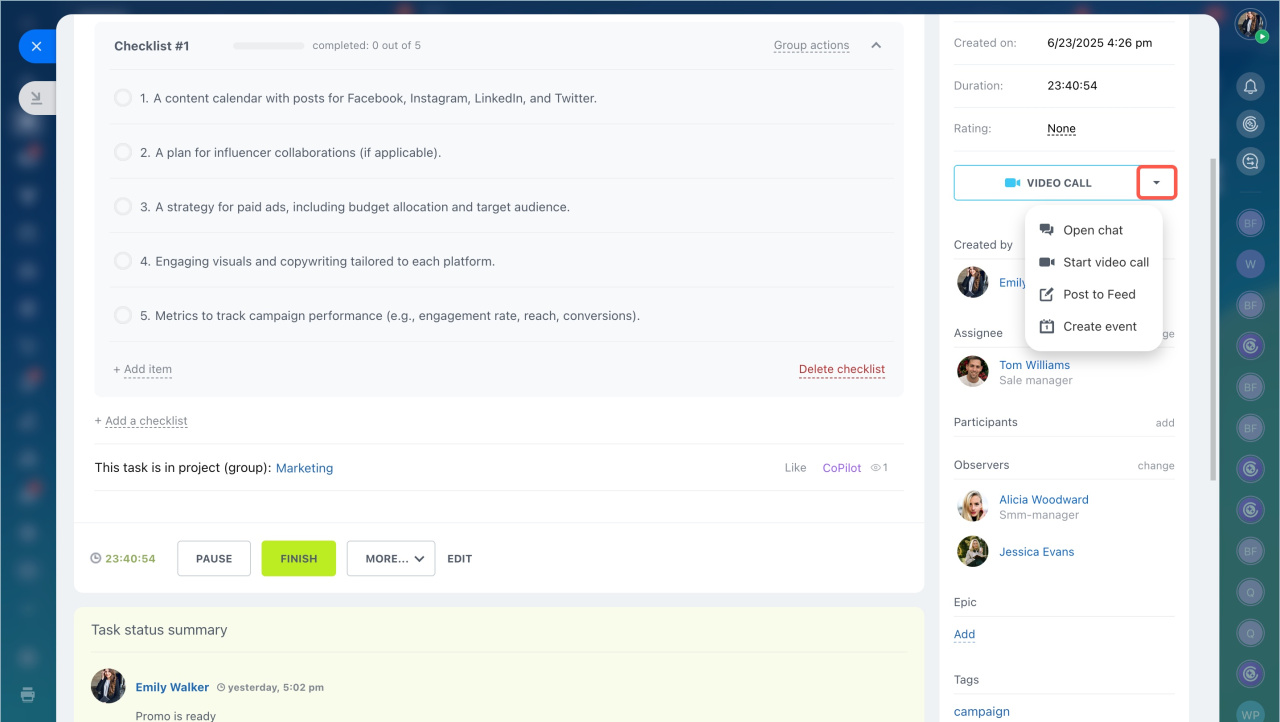
Use comments to discuss task-related questions. You can also use these communication options:
-
Open chat: Create a separate chat for the task. By default, the chat name uses the format Task: *task name*.
-
Start video call: Create a chat with all task participants and start a video call.
-
Post to Feed: Create a Feed post based on the task. All task participants receive the post.
-
Create event: Schedule a meeting for the task. Add the location, date, and time. All task participants receive an invitation.
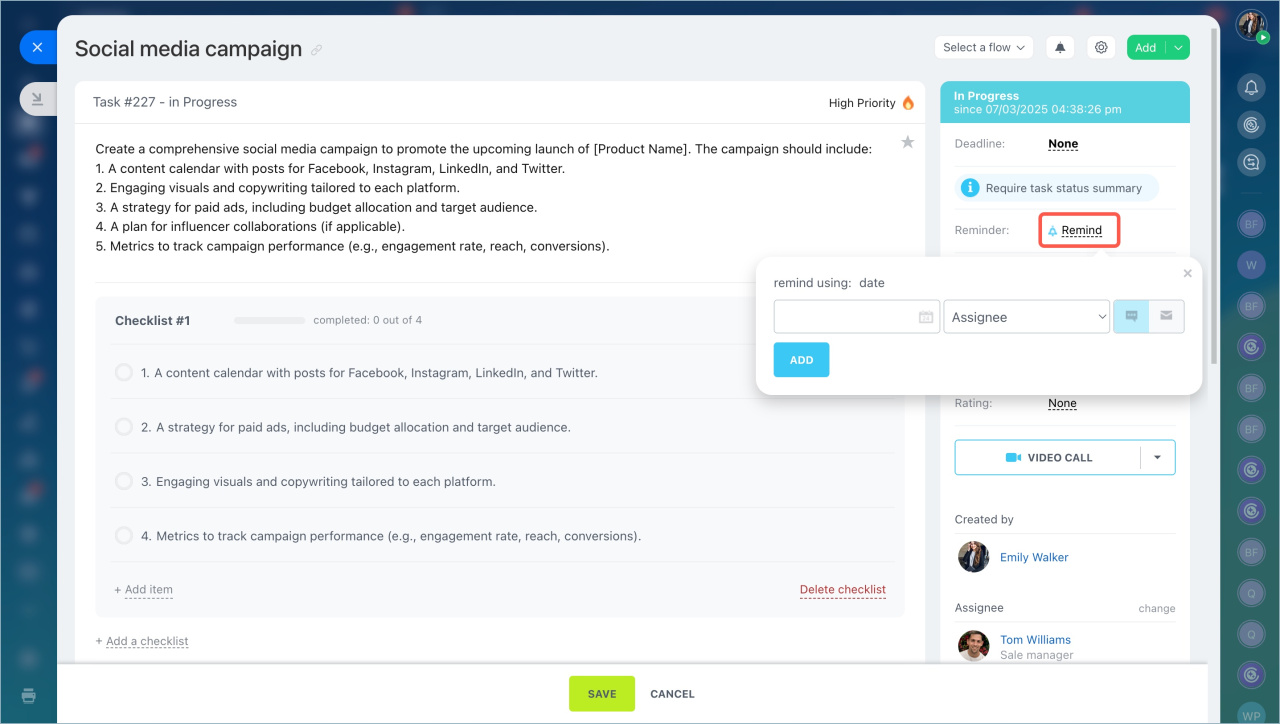
Set reminders so you do not miss important deadlines.
Task reminders
When you finish the task, add the results in the comments and click Finish.
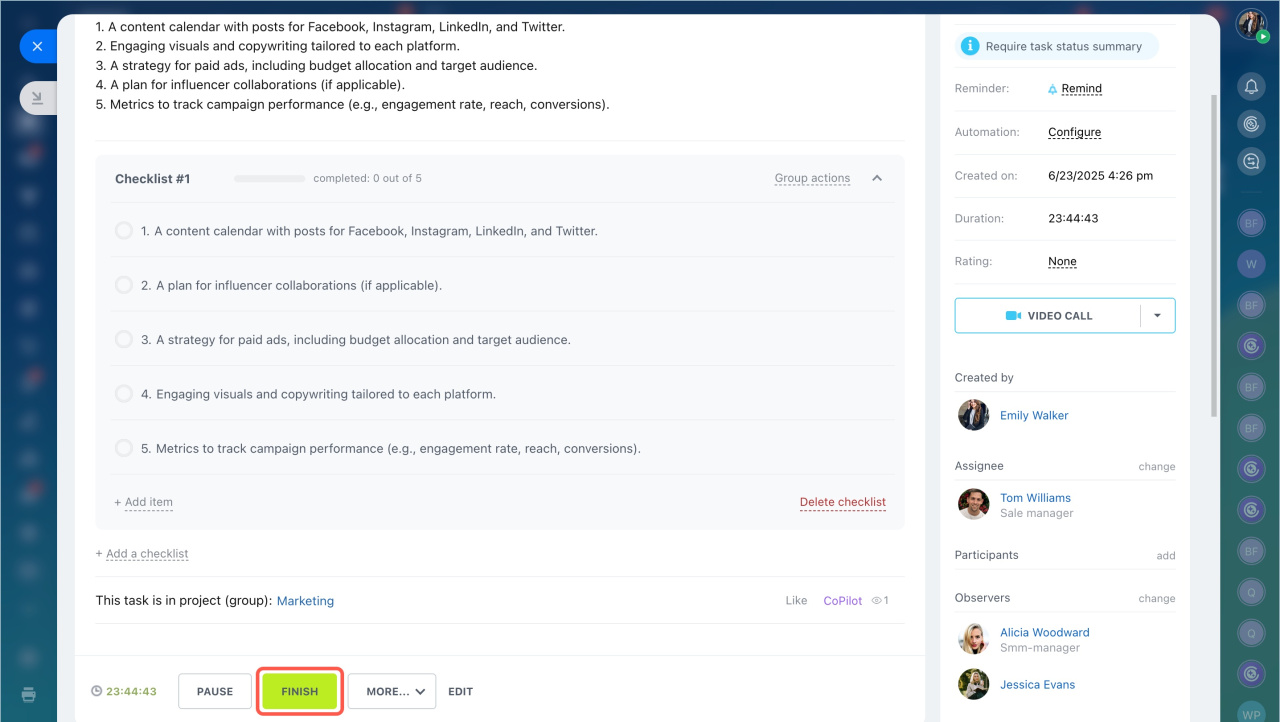
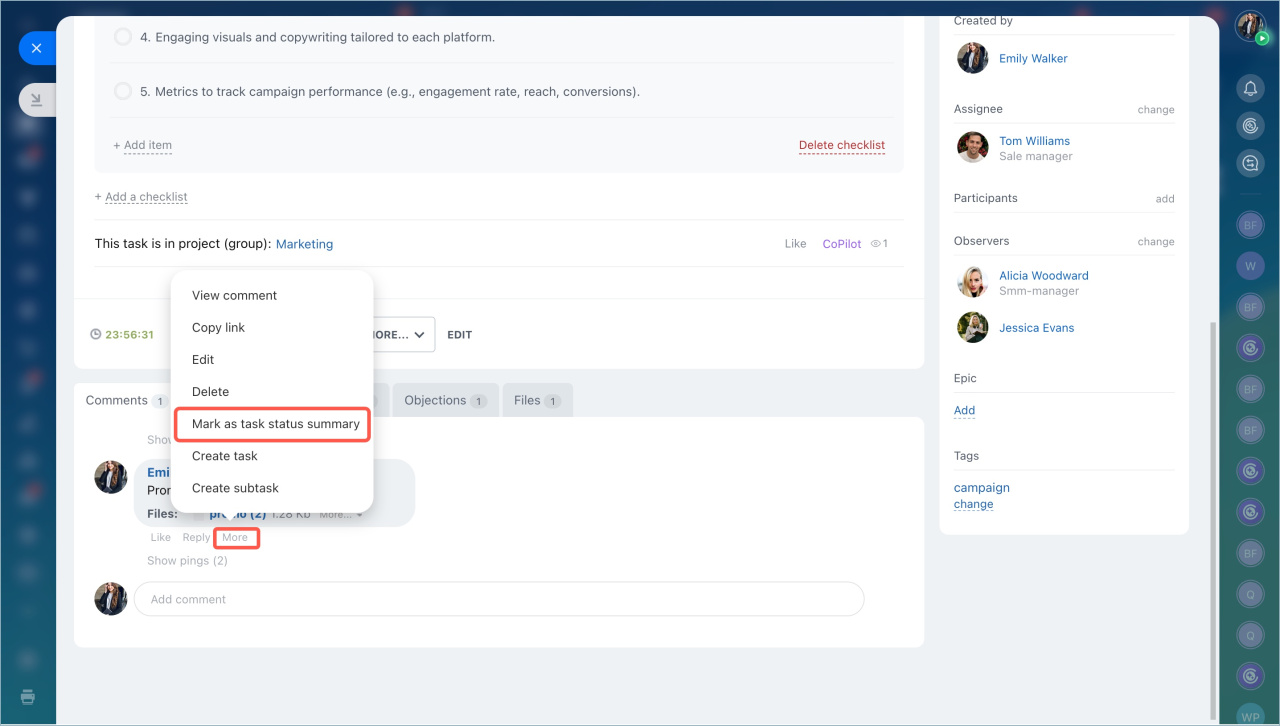
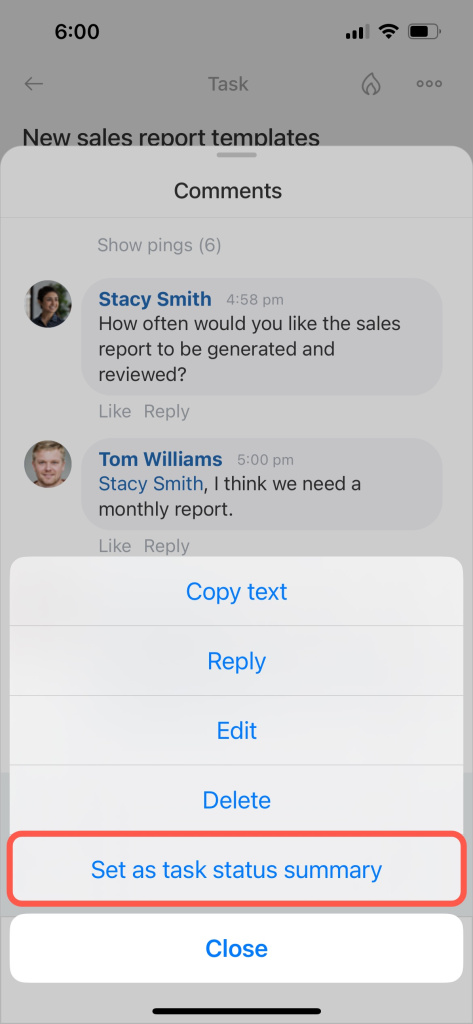
If the task requires a status summary, select a comment and mark it as the task summary.
Open the task in the mobile app. Review the description and deadlines to understand the scope of work.
Check whether the task has the High Priority label in the upper-right corner. This helps you identify tasks that need immediate attention.
If you manage a department, you can delegate the task to another employee to balance the workload.
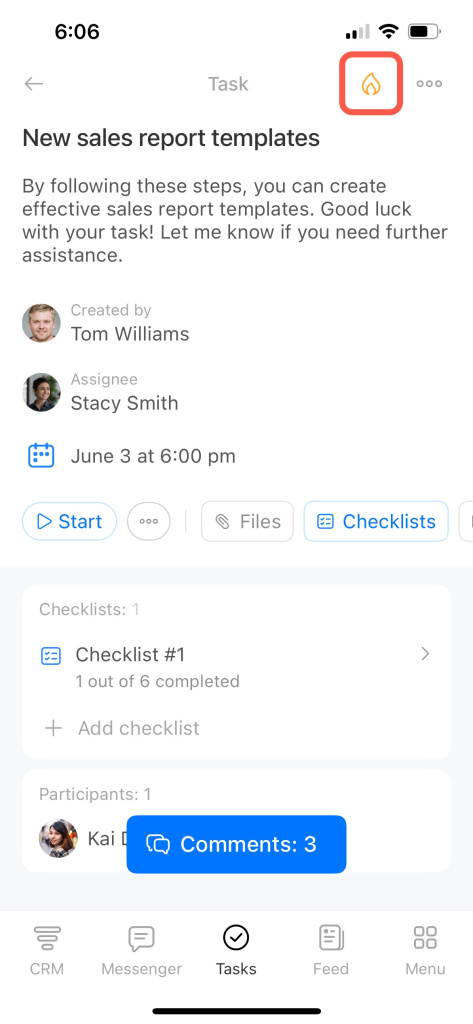
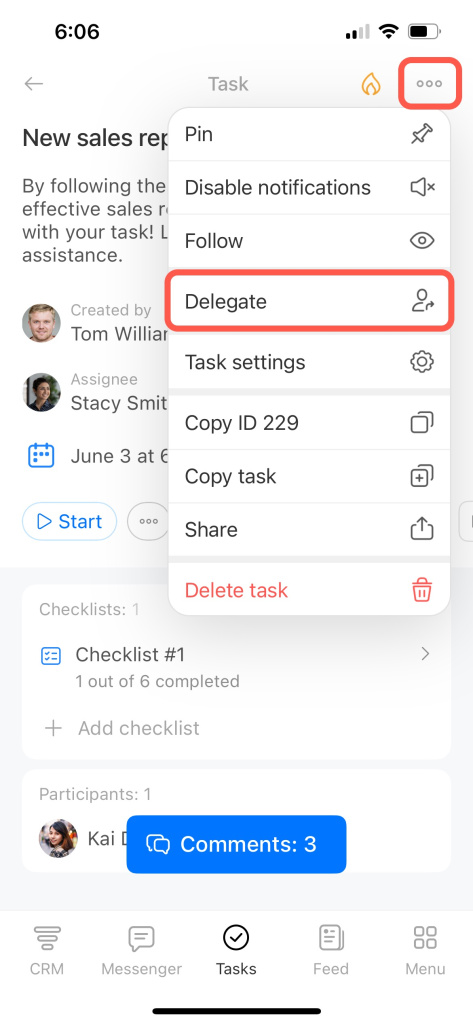
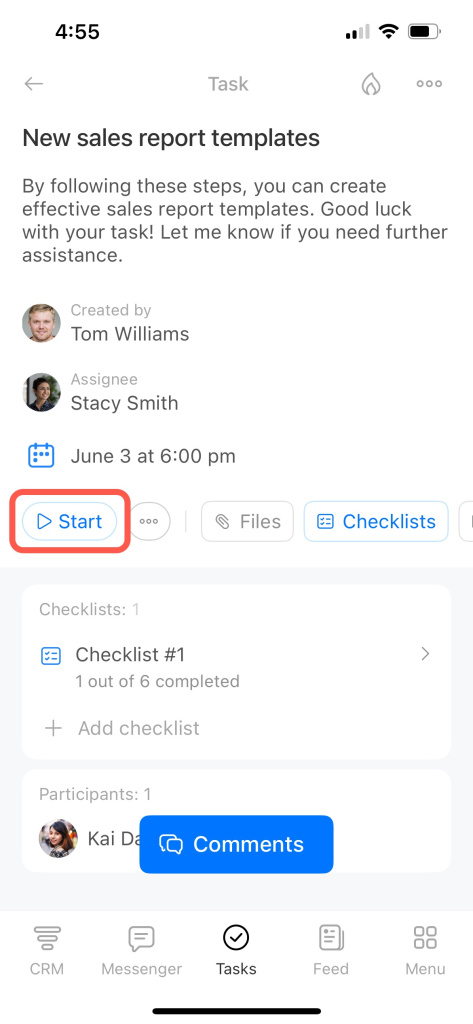
Tap Start to begin working on the task. This helps task participants quickly see the current status.
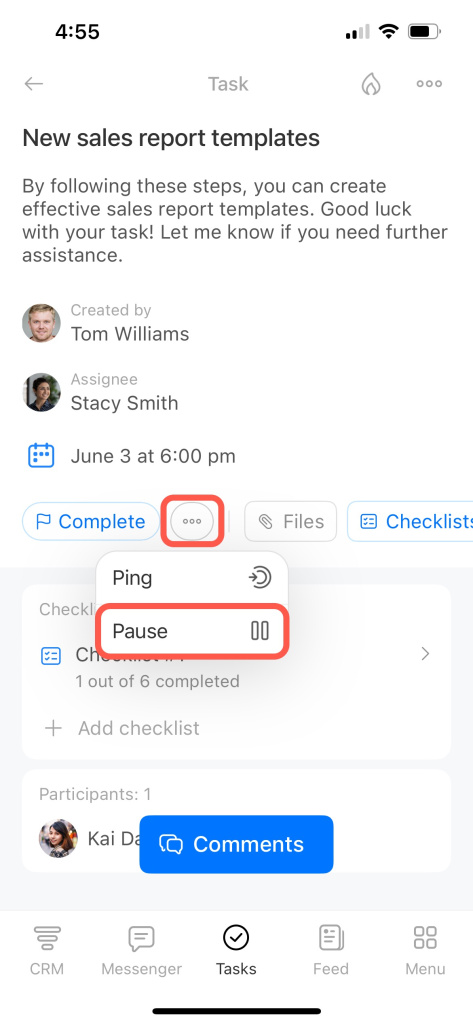
If you want to continue the task later, tap the three-dot menu (...) and select Pause.
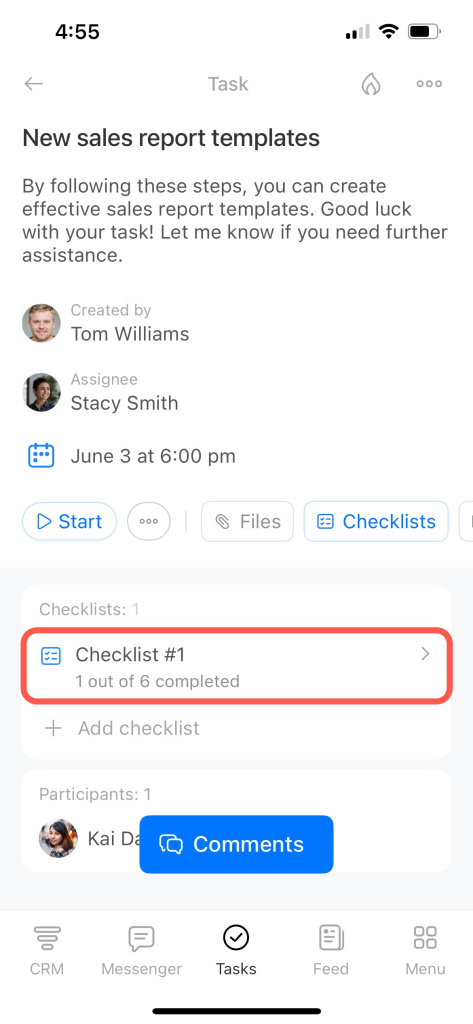
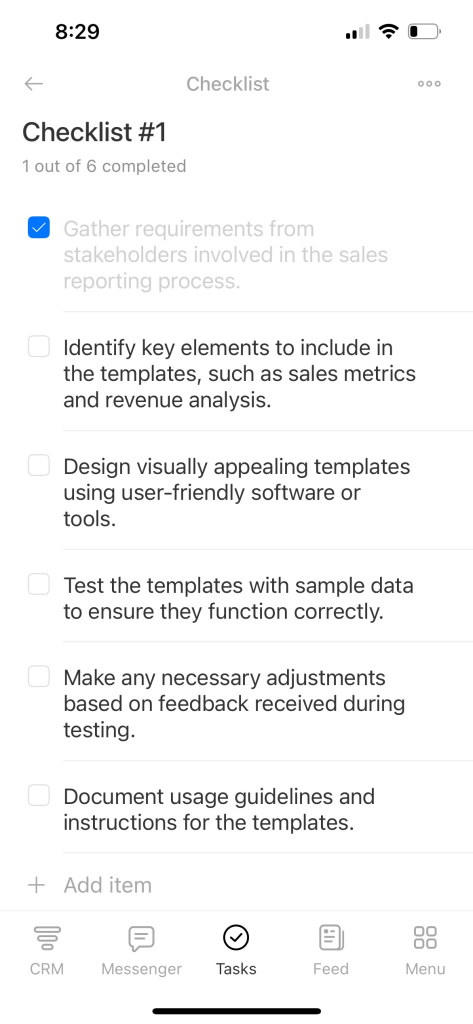
If the task includes a checklist, mark items as complete as you finish them. You can also add new checklist items if needed.
Open the Comments section to discuss task-related questions.
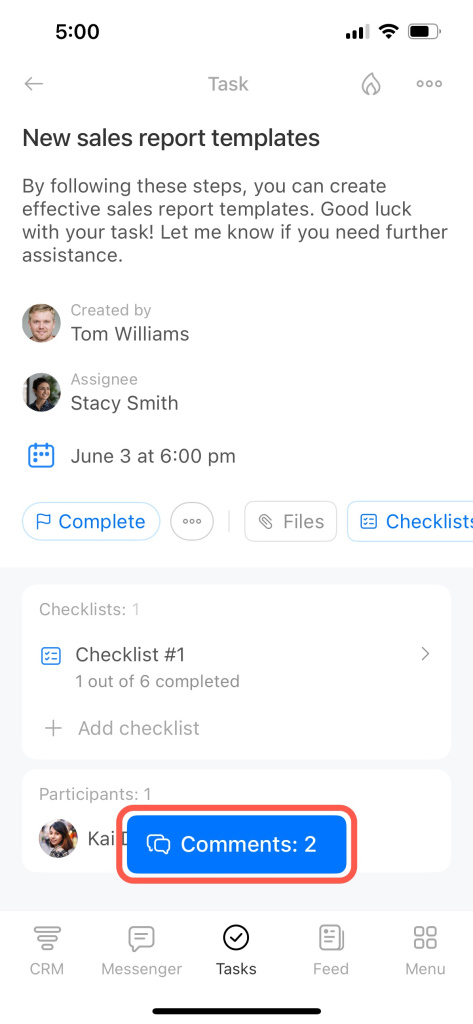
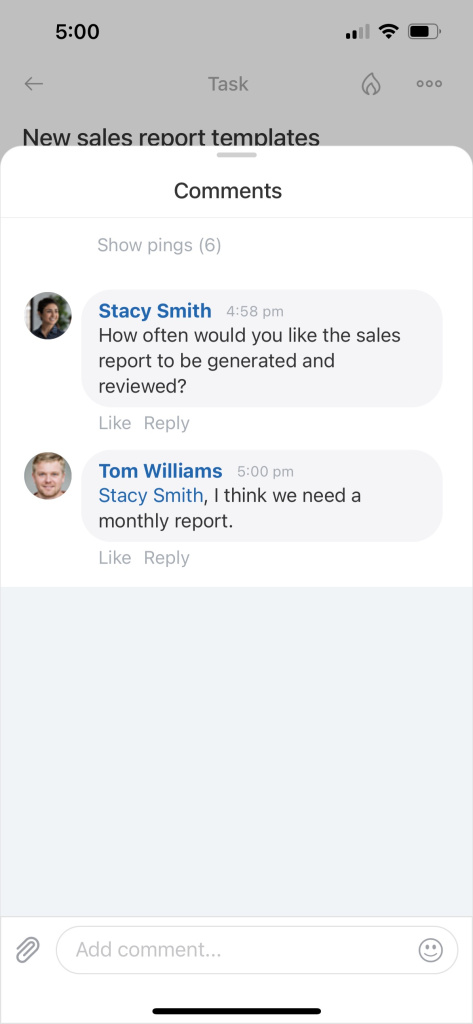
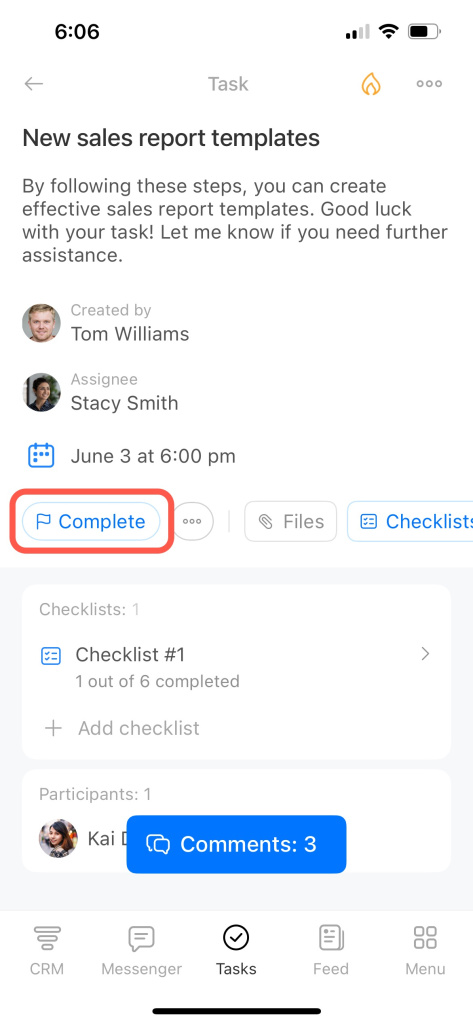
When you finish the task, add the results in the comments and complete the task.
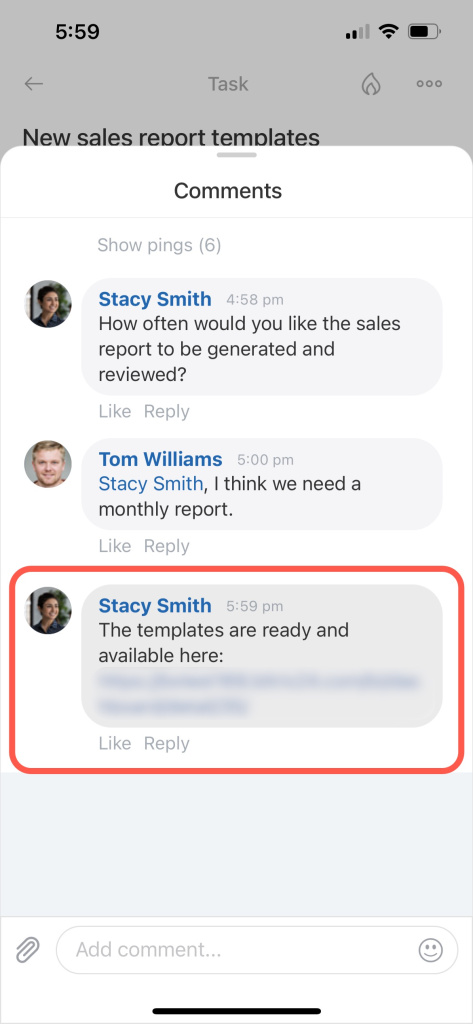
If the task requires a status summary, tap and hold a comment, then mark it as the task summary.
Work with a task as a creator
As the task creator, you can track progress and update the task when needed. For example, you can add more details or invite additional participants.
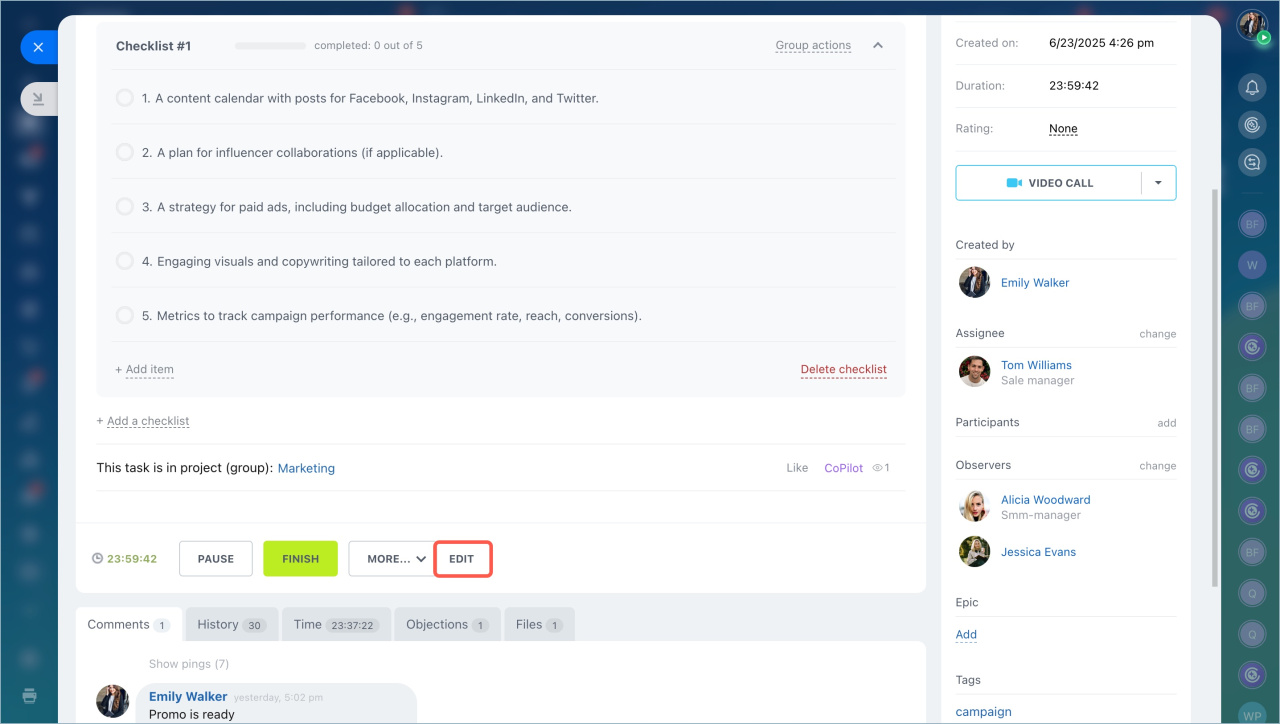
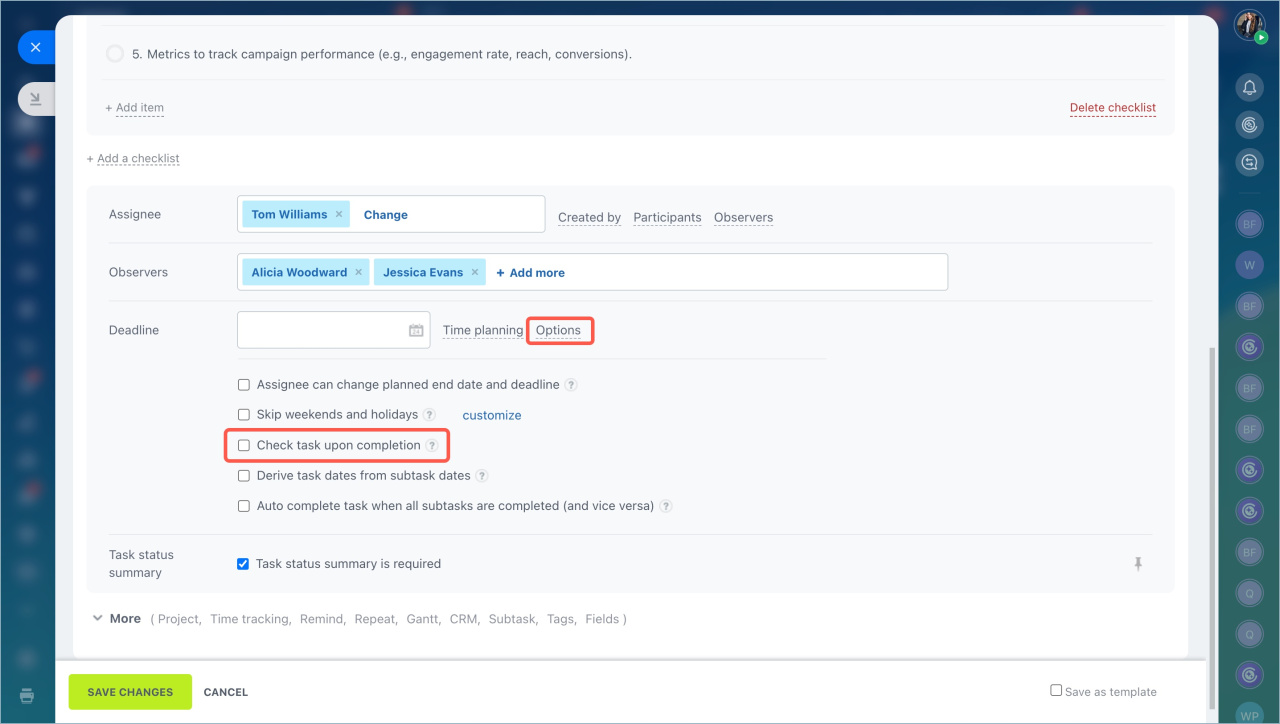
Enable the Check task upon completion option so the task moves to the Pending review status after the assignee finishes it. The task stays open until you review the result.
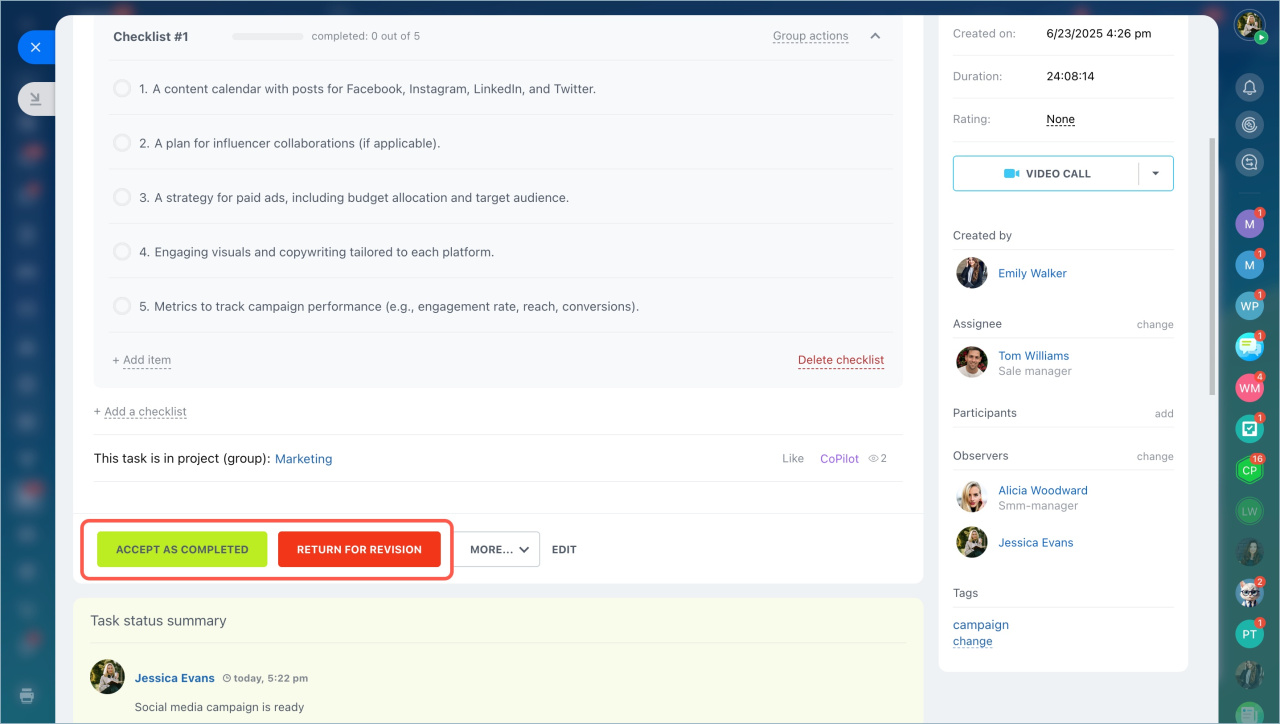
After the review, you can either accept the task or return it for revisions.
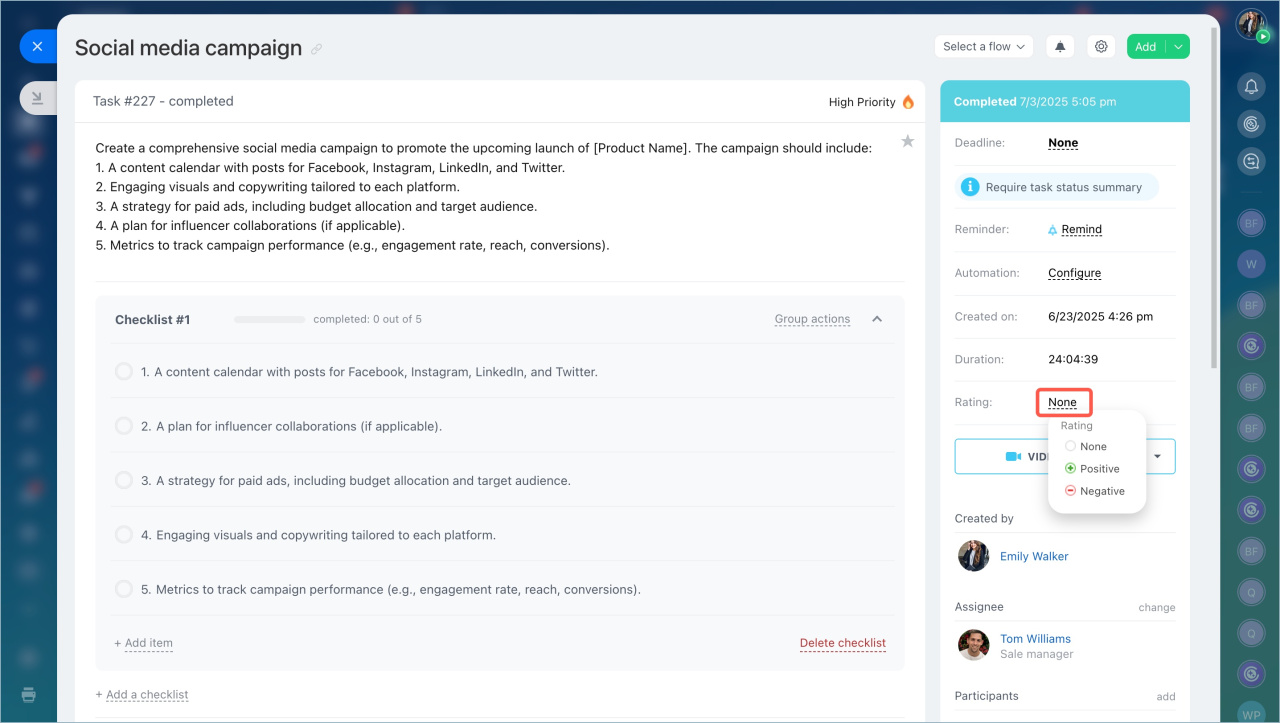
You can also leave feedback for the assignee. Choose a positive or negative rating, or leave the task unrated.
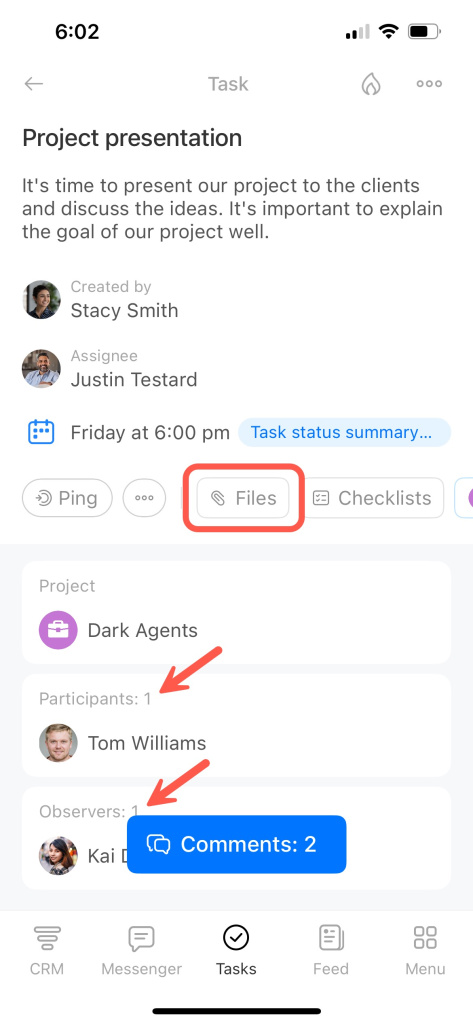
As the task creator, you can track progress and update the task when needed. For example, you can add participants or attach files.
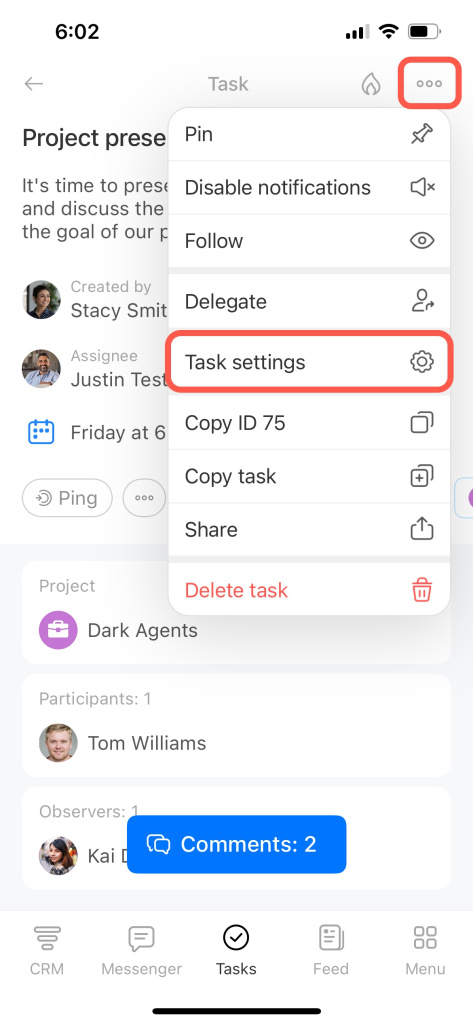
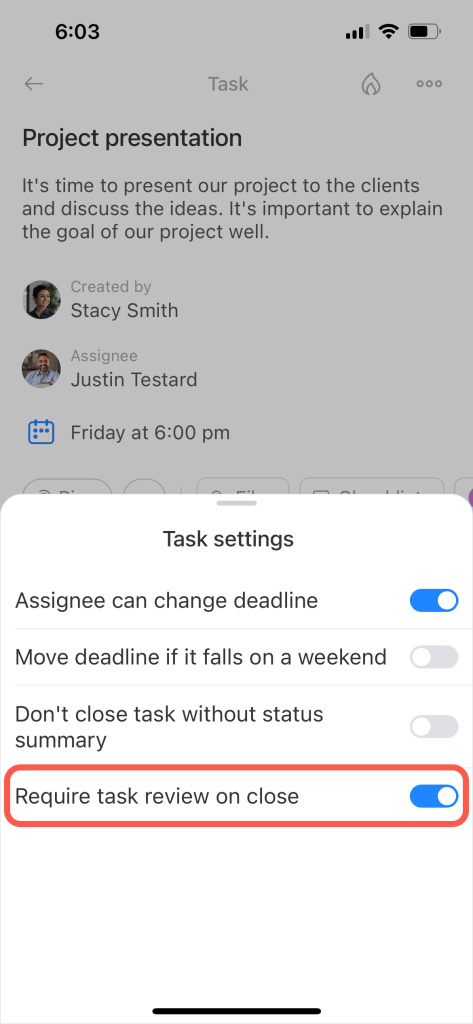
Enable the Require task review on close option in the task settings. After the assignee completes the task, it moves to the Pending review status and stays open until you review it.
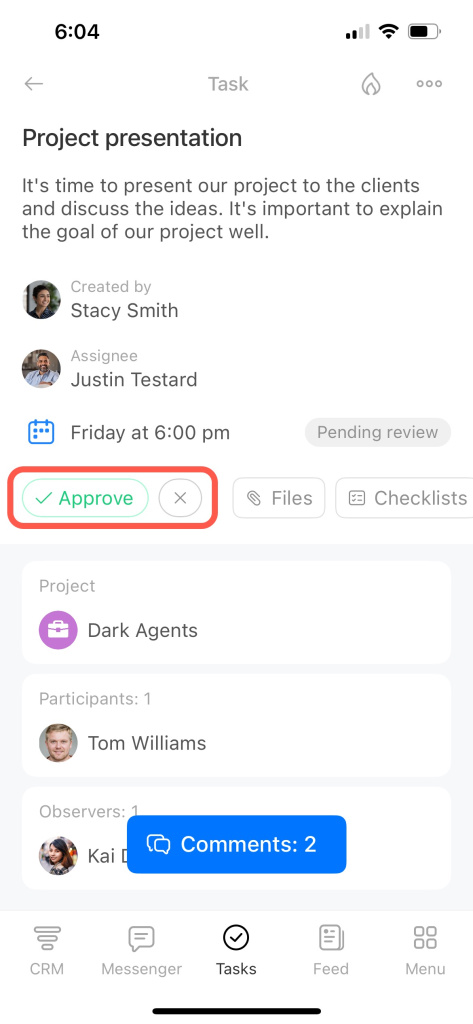
After the review, tap Approve to accept the task as completed, or tap the X icon to send it back for revision.