Create CRM items from leads, deals, and estimates in Bitrix24.
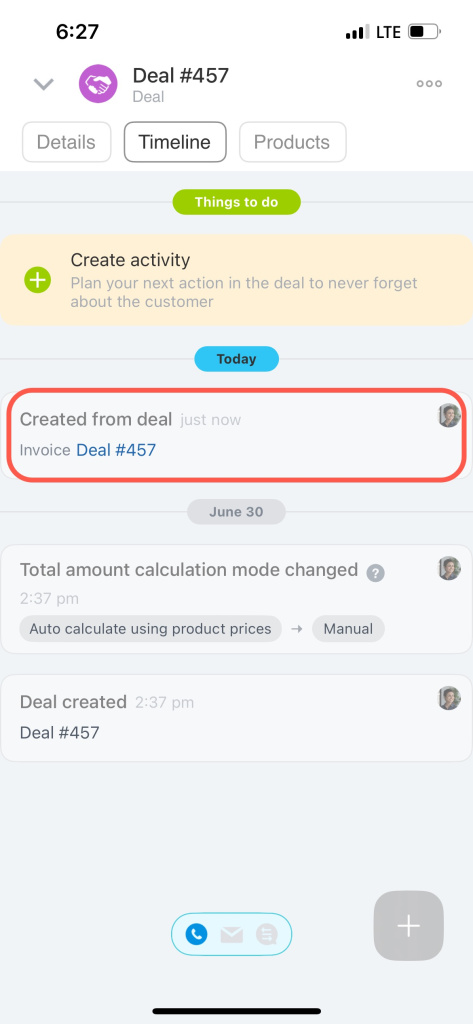
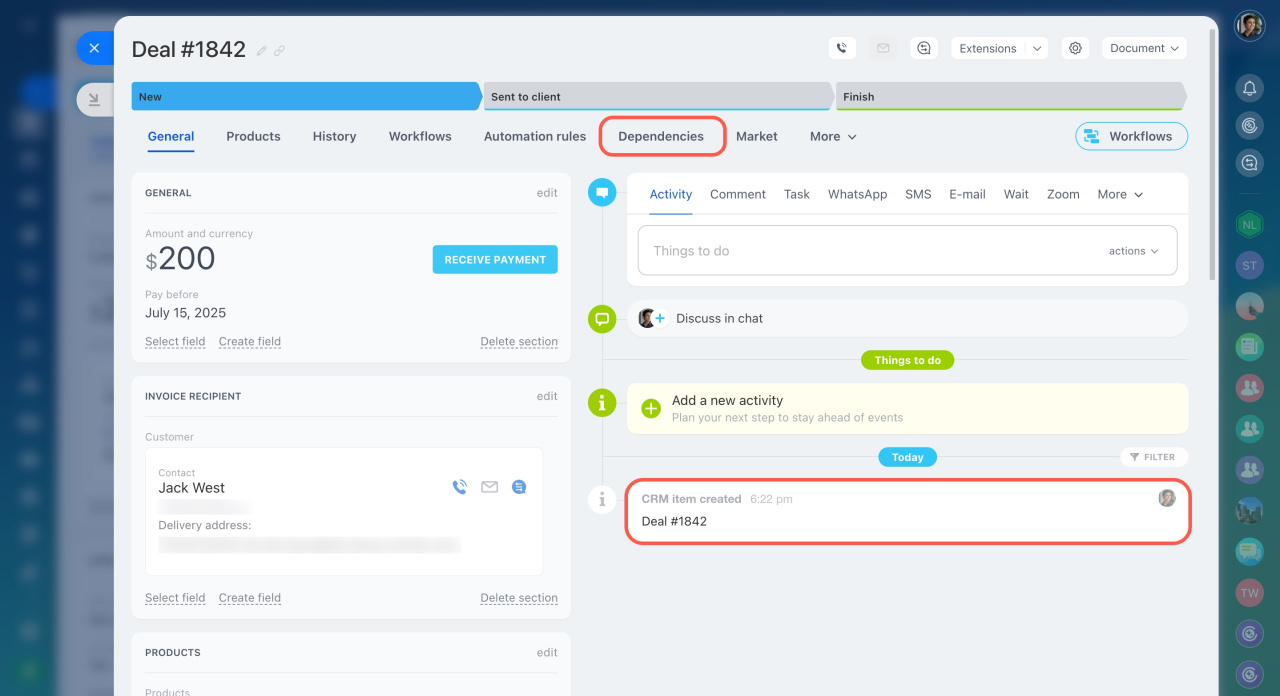
These items are linked automatically. You can see the links in the timeline. This approach is faster and easier than creating items one by one and linking them manually.
Creating a new CRM item from a lead is called lead conversion. When you convert a lead, it moves to a successful status and is marked as closed.
Create CRM items based on a lead:
- Deal
- Deal + Contact
- Deal + Company
- Contact
- Company
- Contact + Company
You can also link a lead to an existing contact or company. Select Select from list.
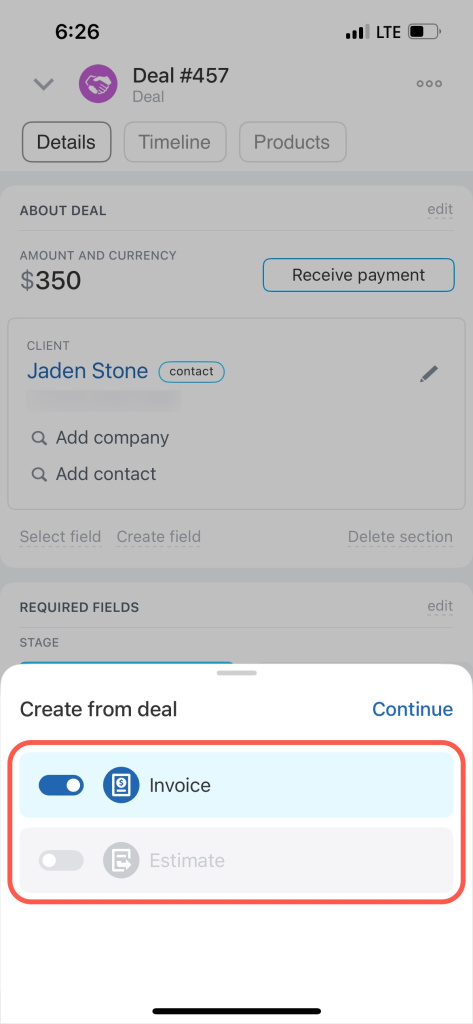
You can create the following items from a deal:
- Estimate
- Invoice
You can create the following items from an estimate:
- Deal
- Invoice
Create CRM items from a source
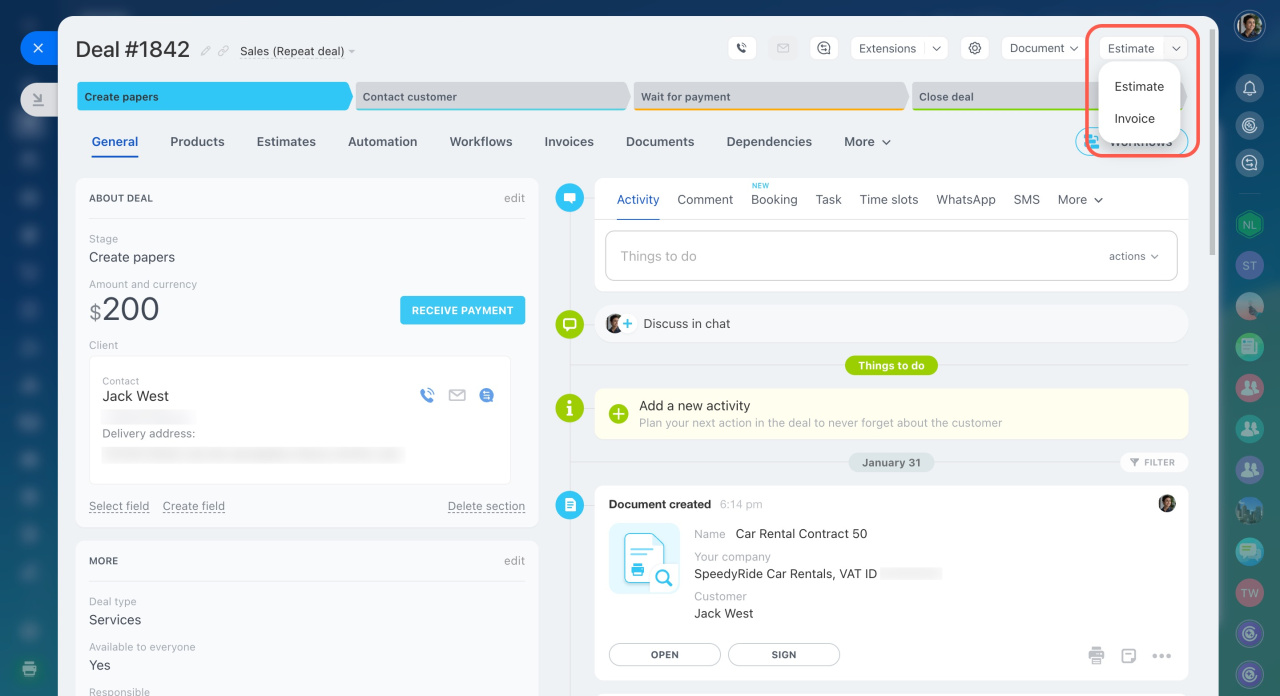
To create a new CRM item:
- Open a CRM item form.
- Click the arrow in the top right corner.
- Select the item you want to create.
You can view linked items in the Dependencies tab.
To create a new CRM item:
- Open a CRM item form in the Details tab.
- Tap the + button in the bottom right corner.
- Tap Create from source.
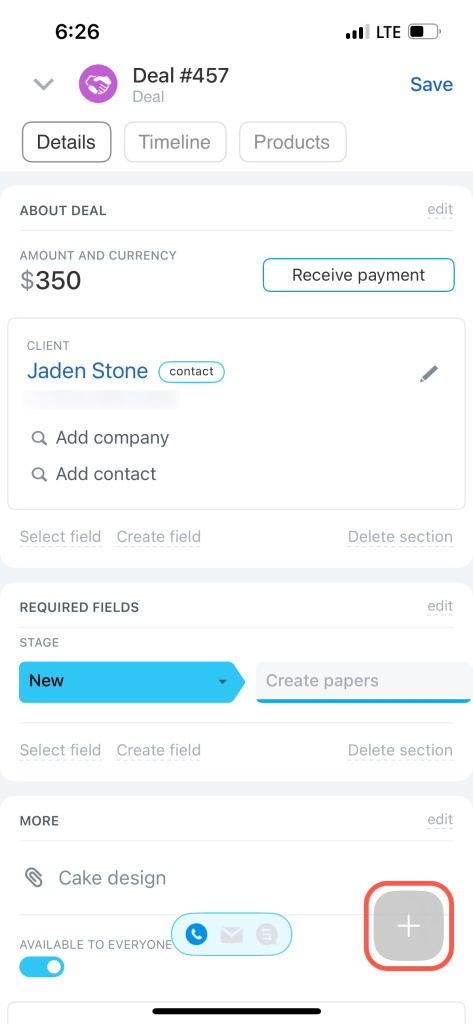
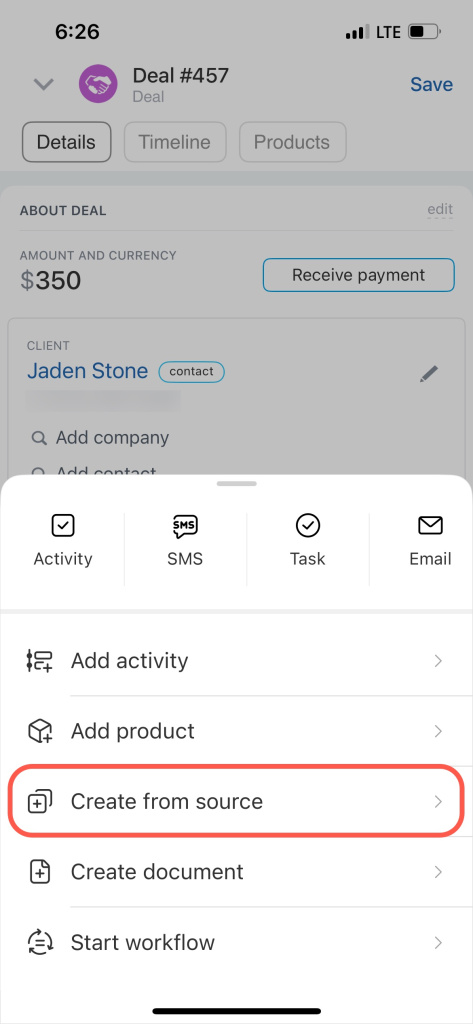
Select the CRM item you want to create. You can then find it in the Timeline tab.