A lead is a potential customer. Save their contact details in your CRM as a lead to grow your customer base. Leads can be created automatically from CRM forms, emails, open channels, telephony, and third-party apps.
You need permission to create leads.
Role-based access permissions in CRM
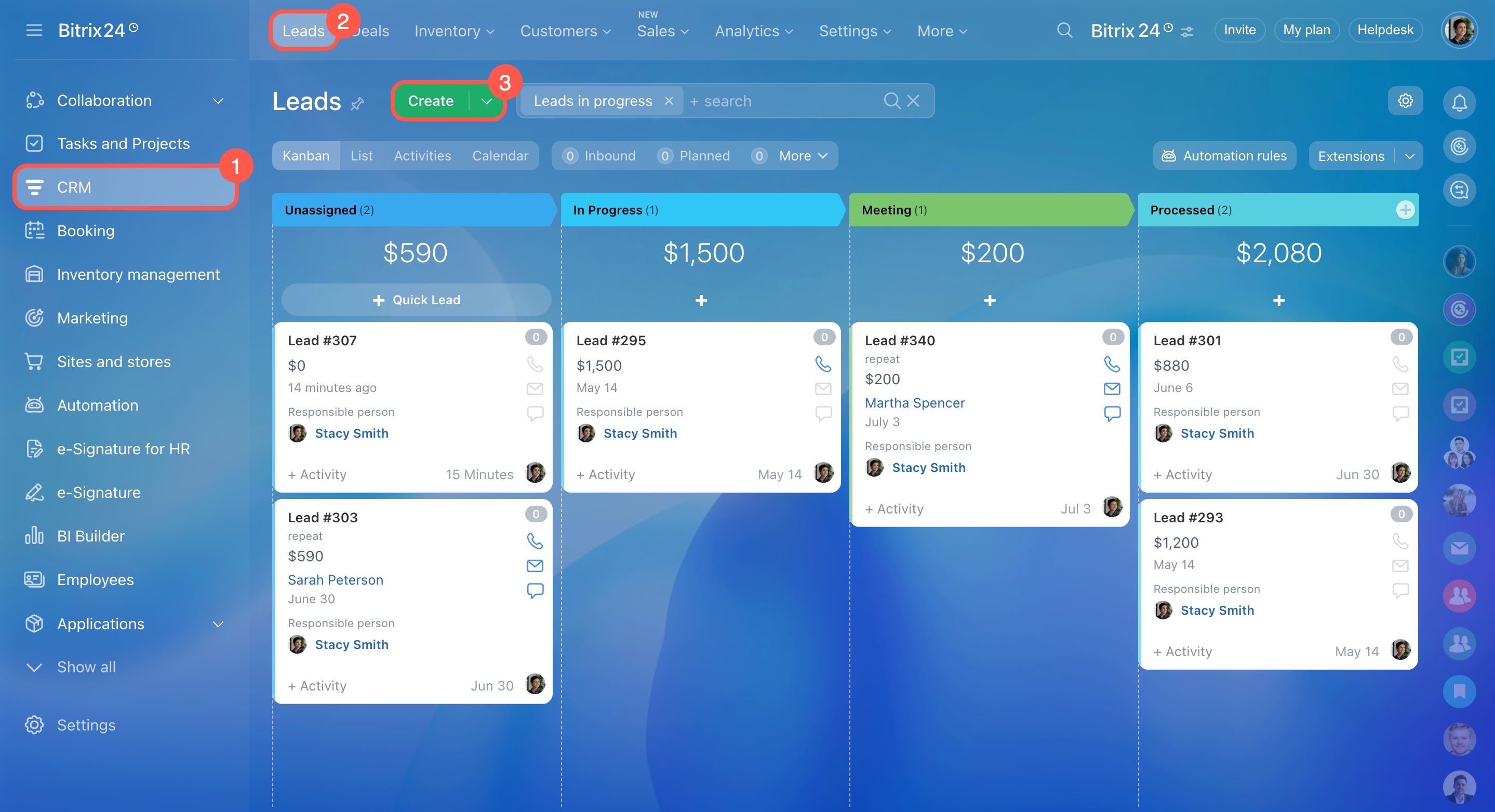
- Go to CRM.
- Open Leads.
- Click Create.
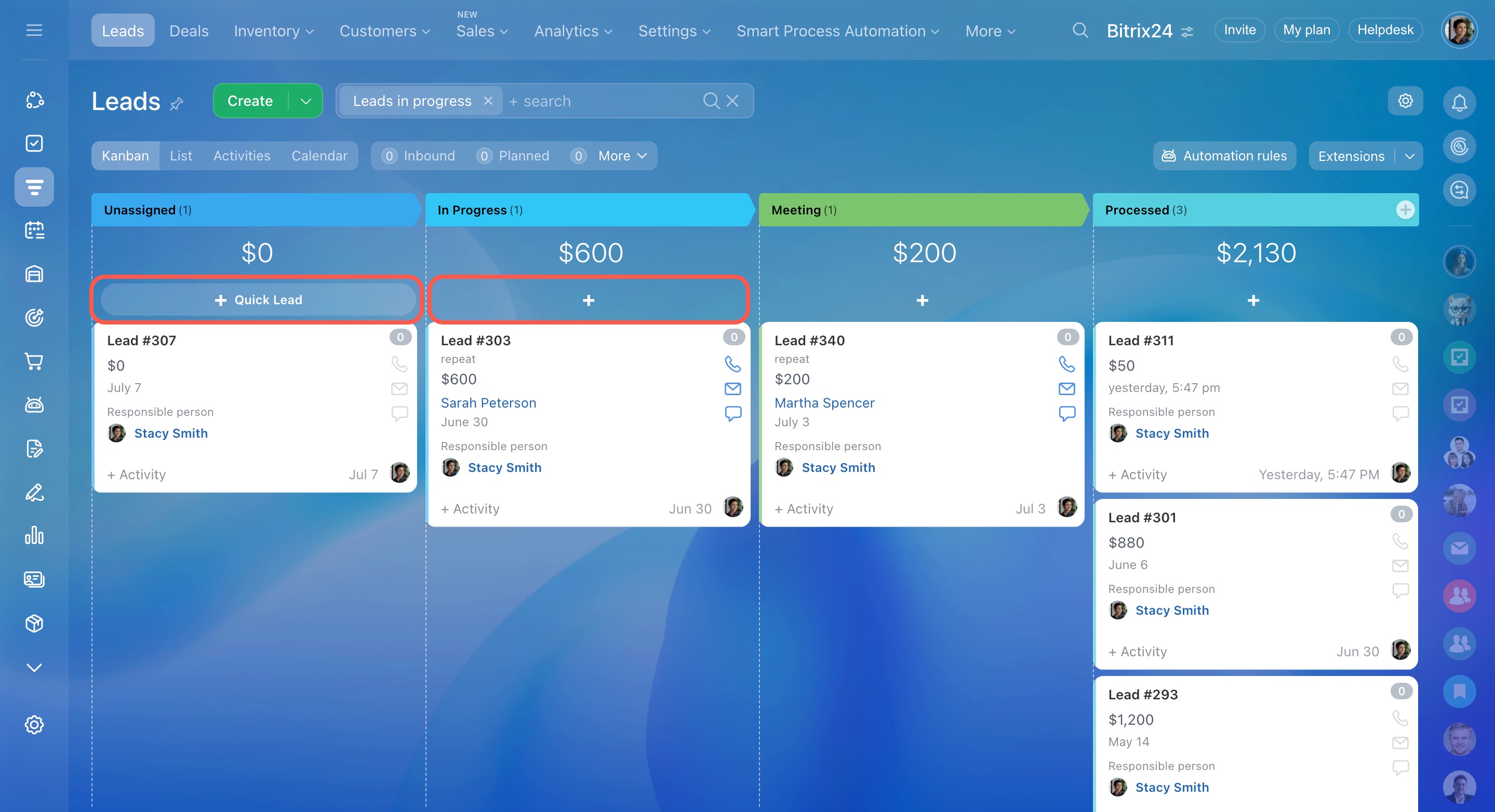
You can also create a quick lead. Click the Plus (+) button under a column name.
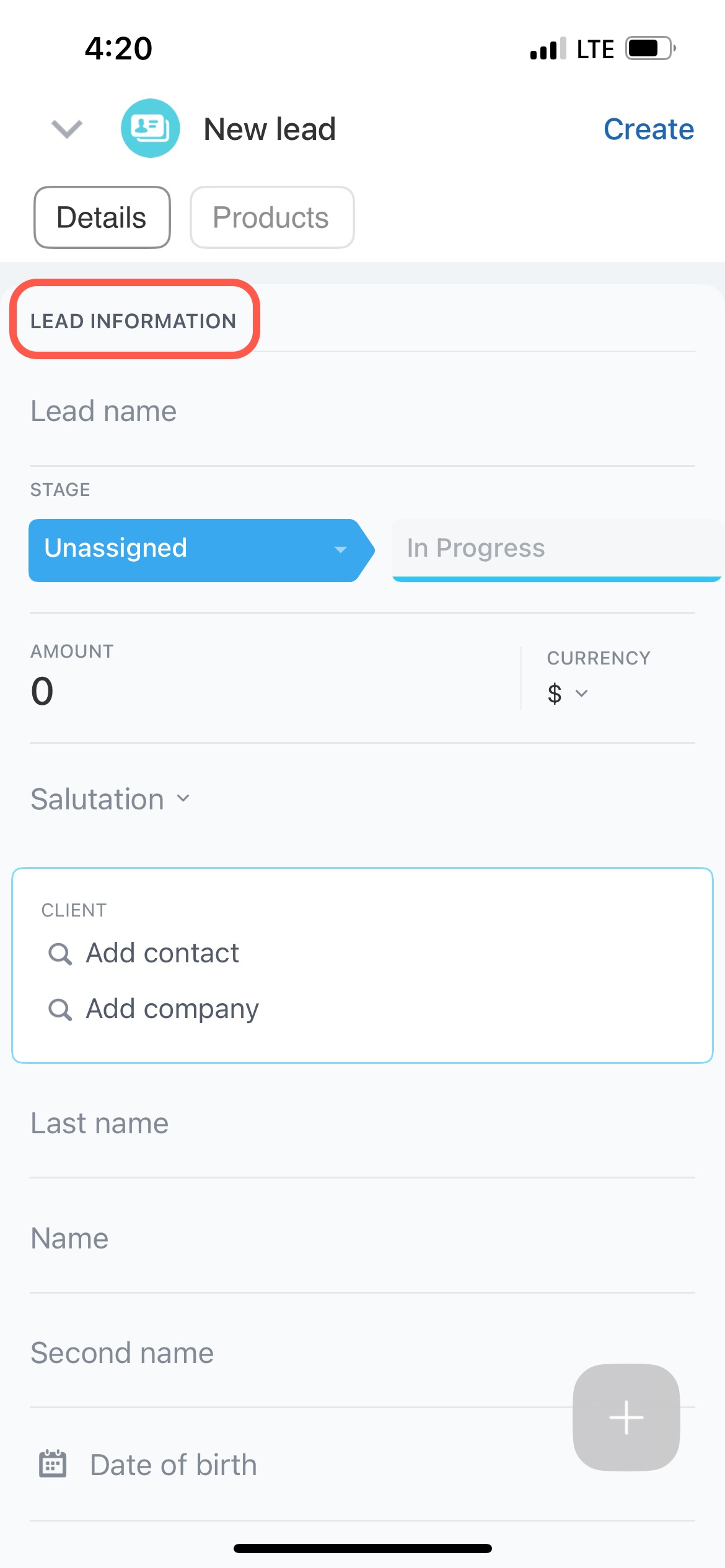
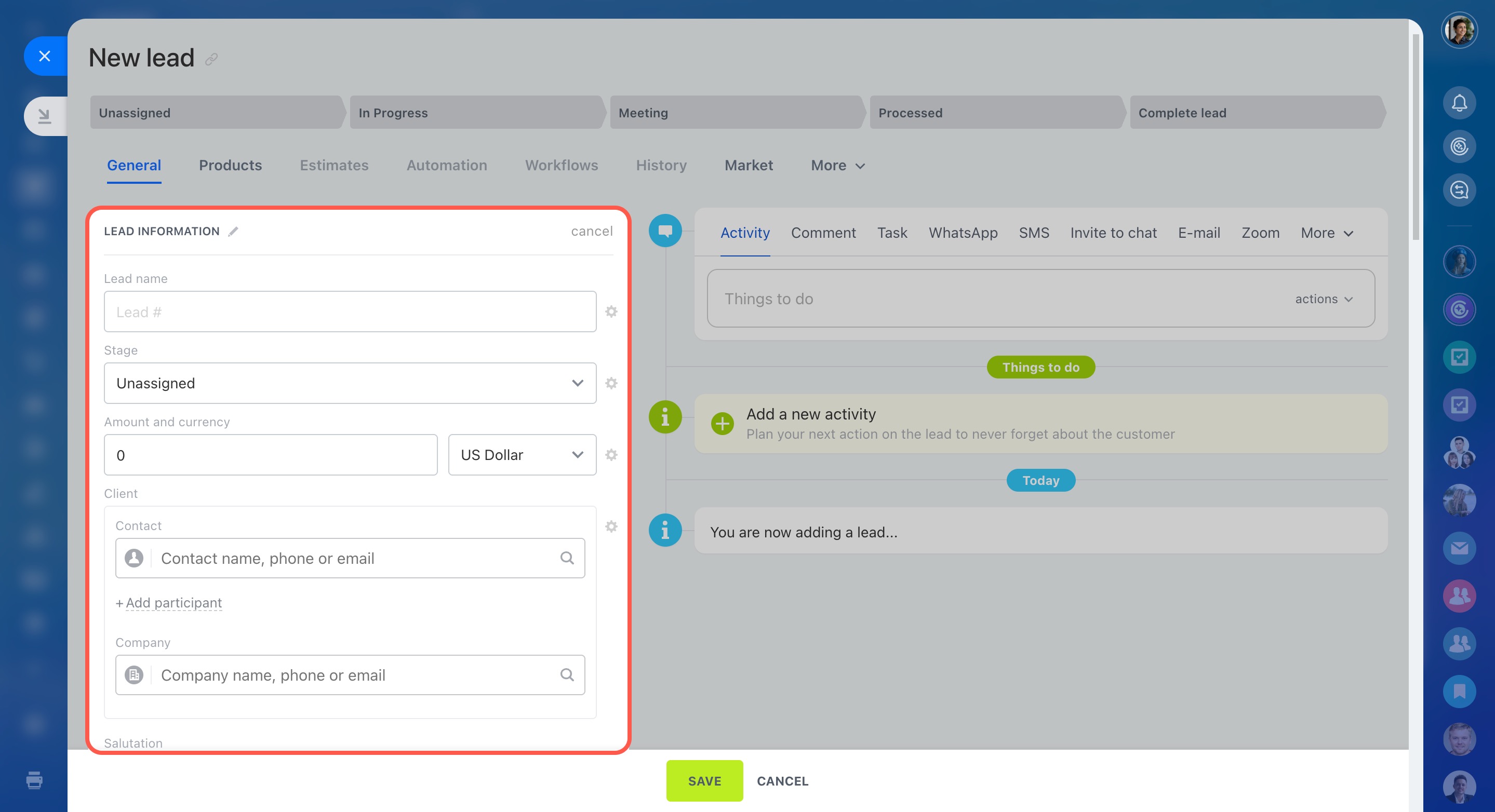
In the Lead information section, enter a name for the lead. This can be the customer name or the service name.
In the Client field, select a contact or a company. The lead will be marked as a repeat lead automatically.
Repeat leads and deals
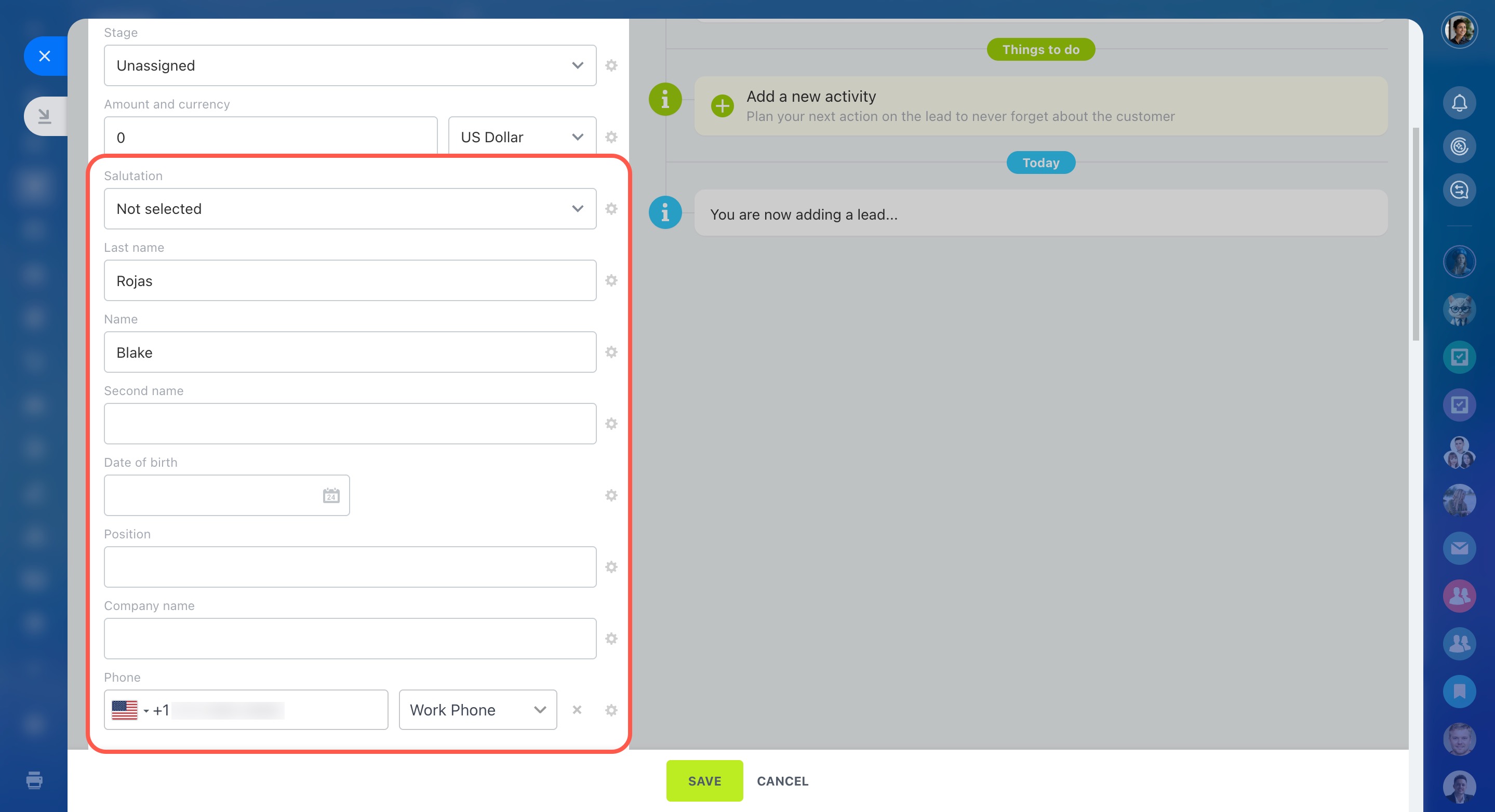
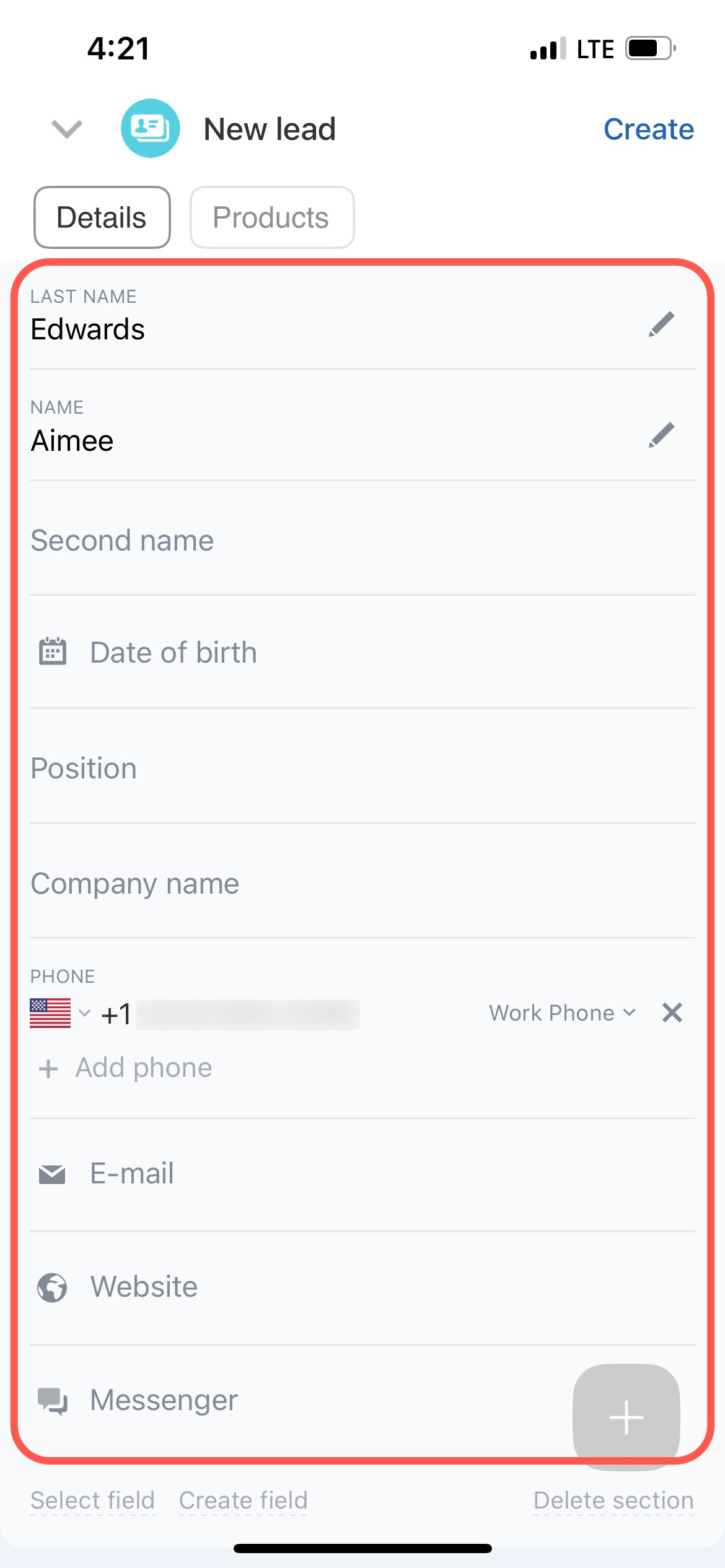
Fill in the required fields such as Last name, Name, and Phone.
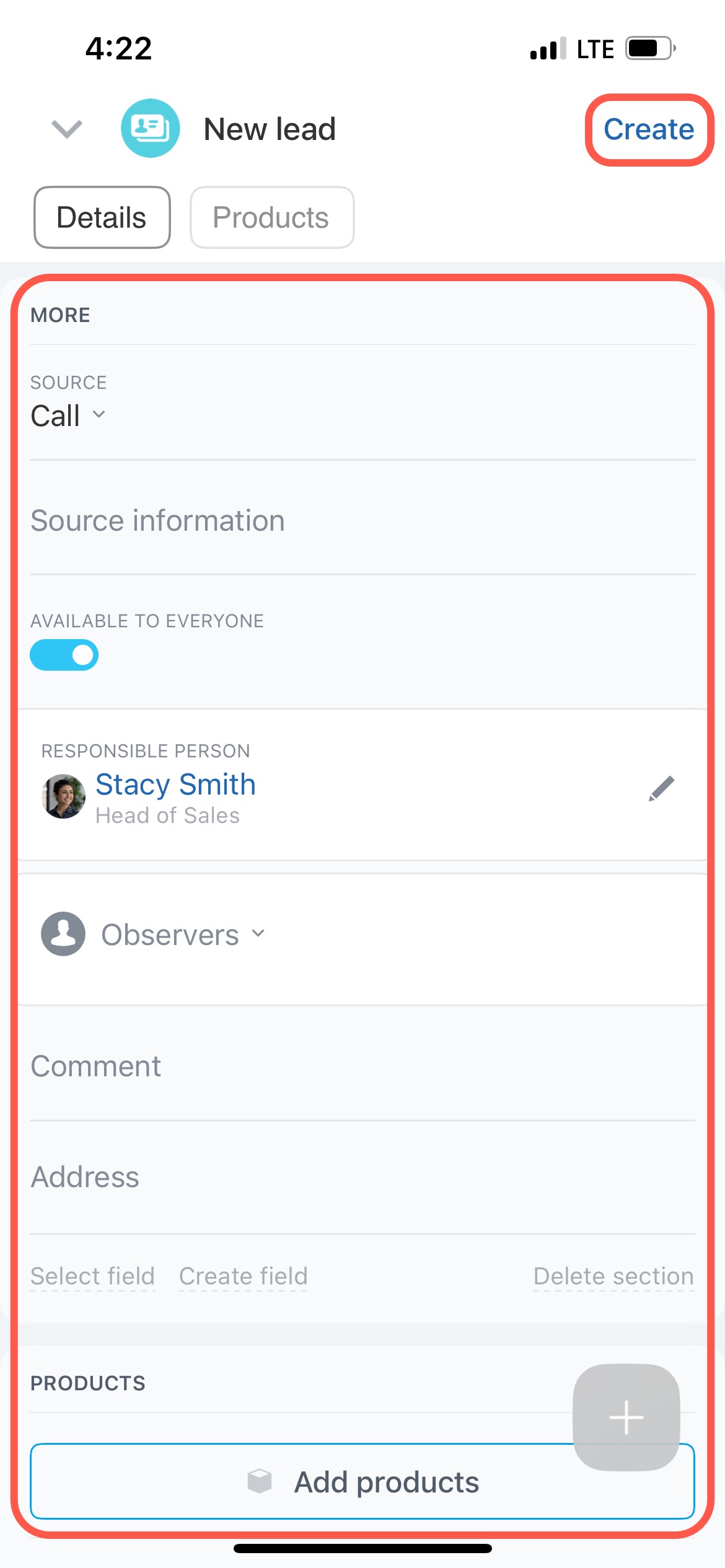
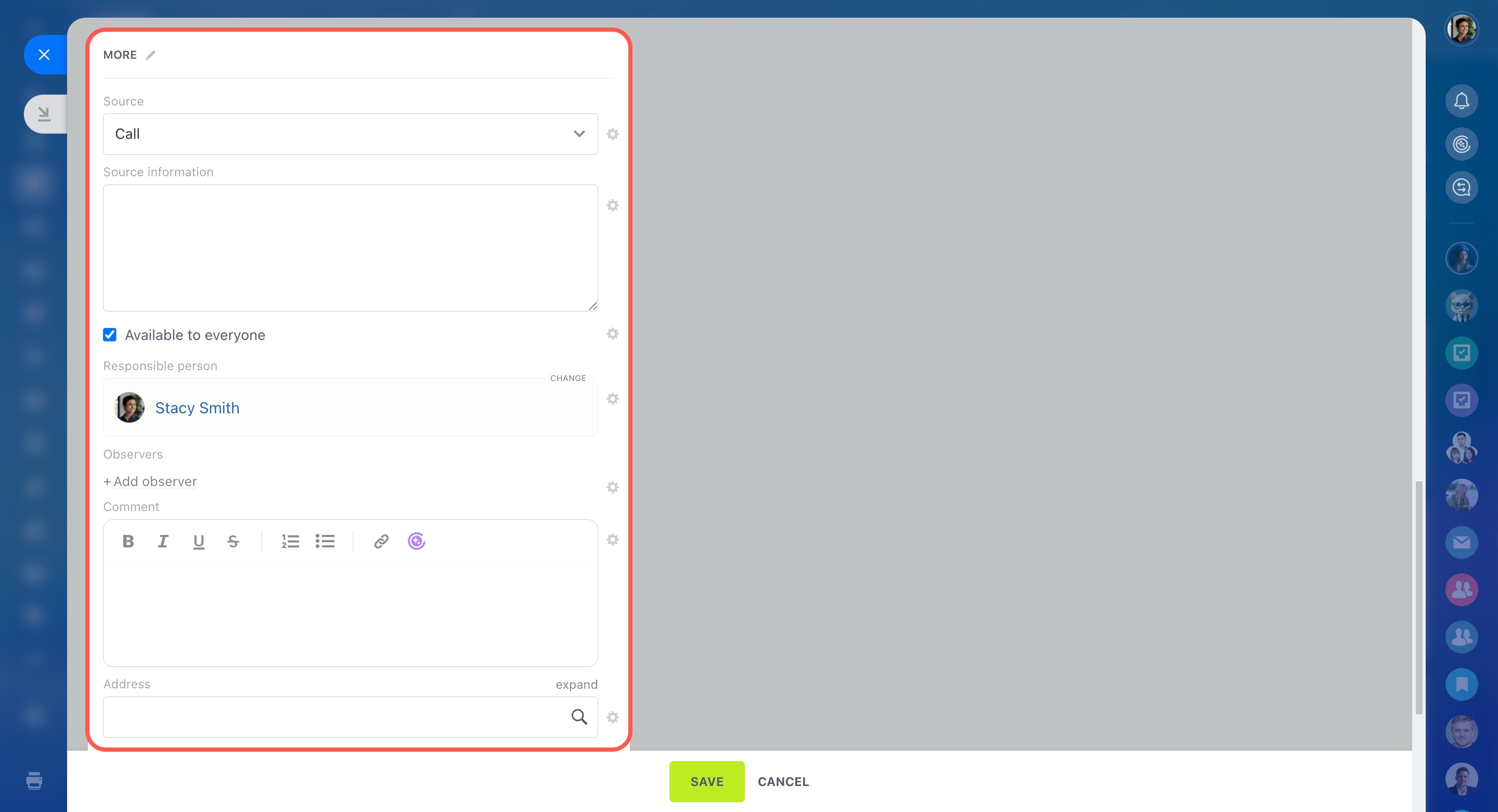
Open the More section to:
- set the lead source
- assign a responsible person
- add observers
Turn on Available to everyone if other employees should have access to the lead.
Add products or services the customer is interested in to the Products section.
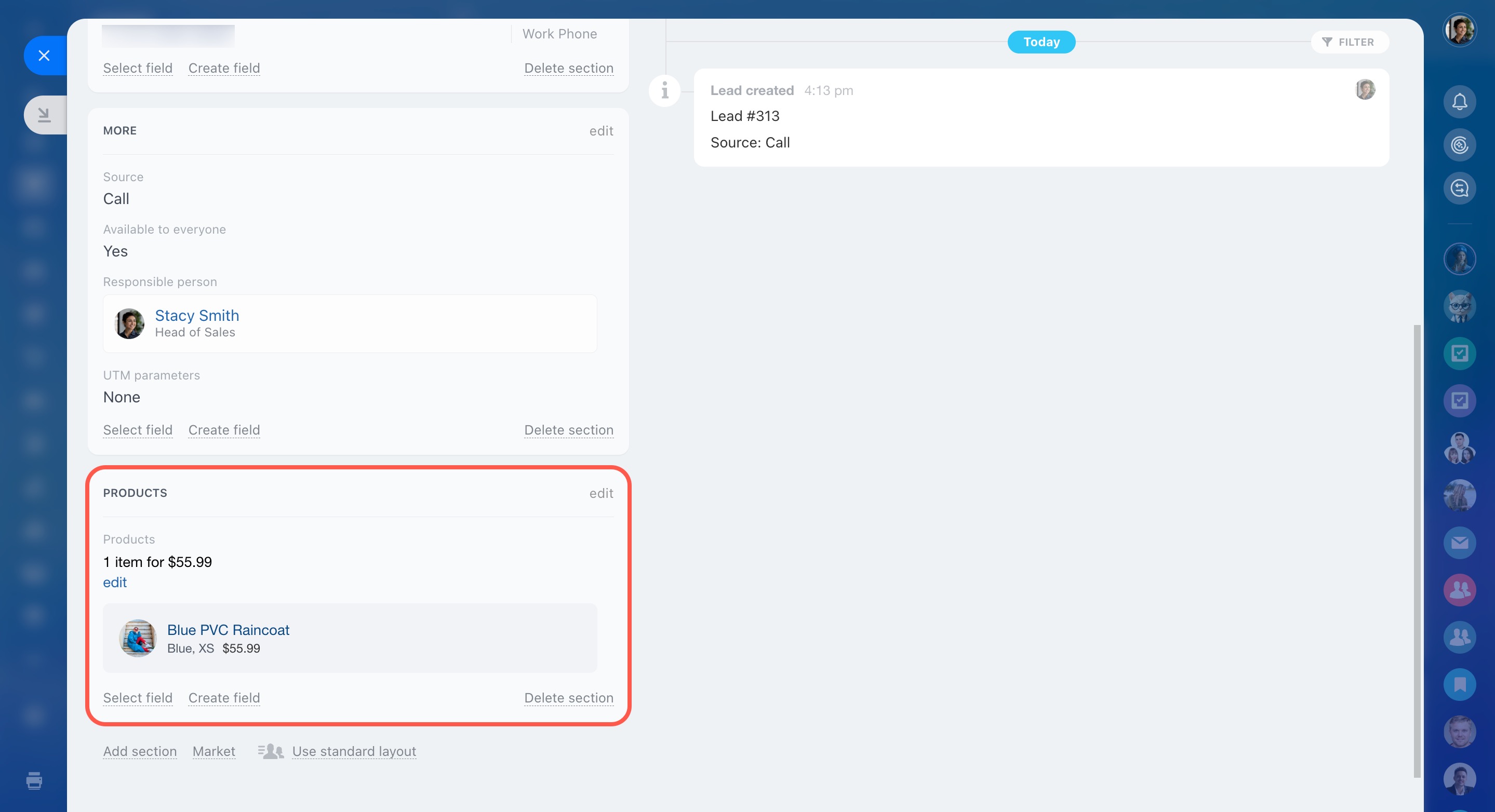
You can also customize the form and add new sections.
CRM item form features and settings
To create a lead:
- Open the Bitrix24 mobile app.
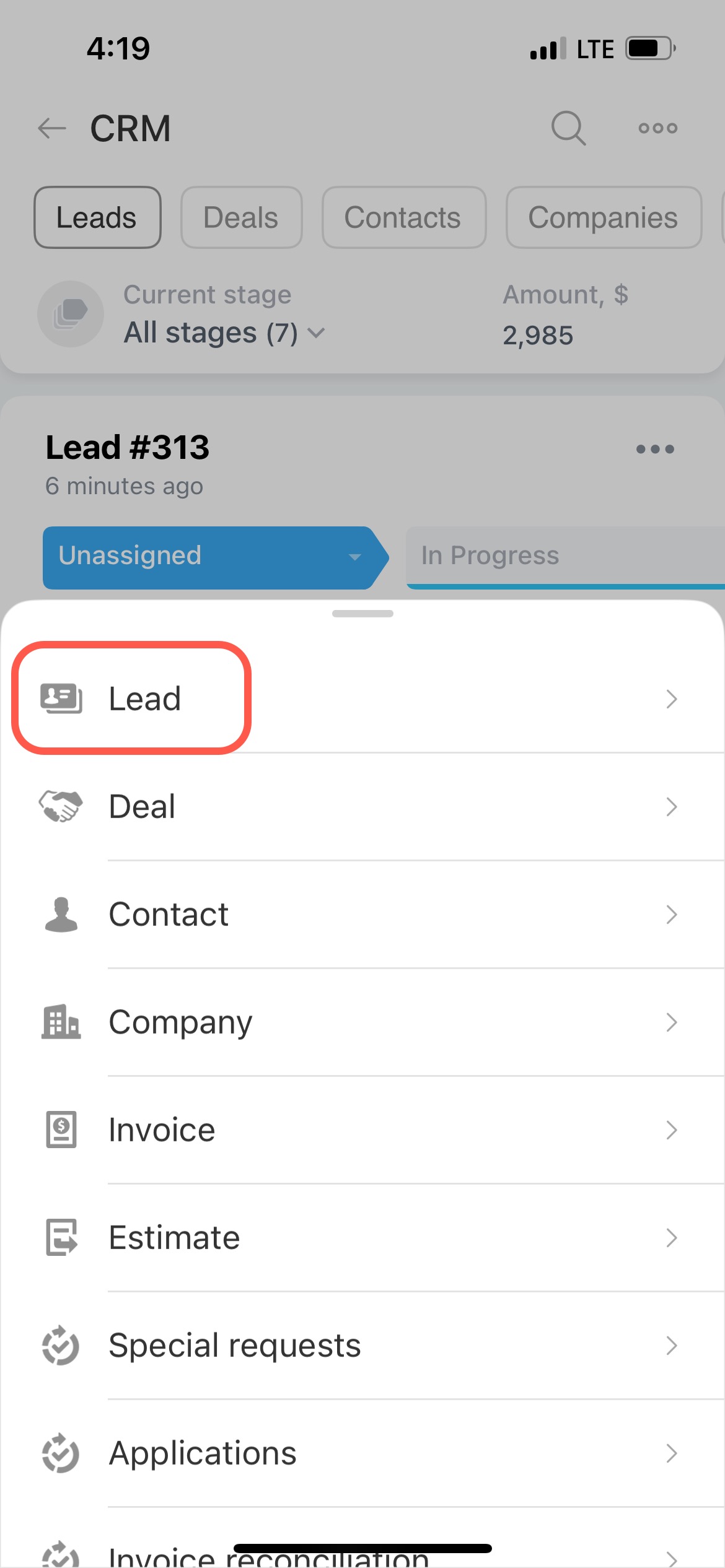
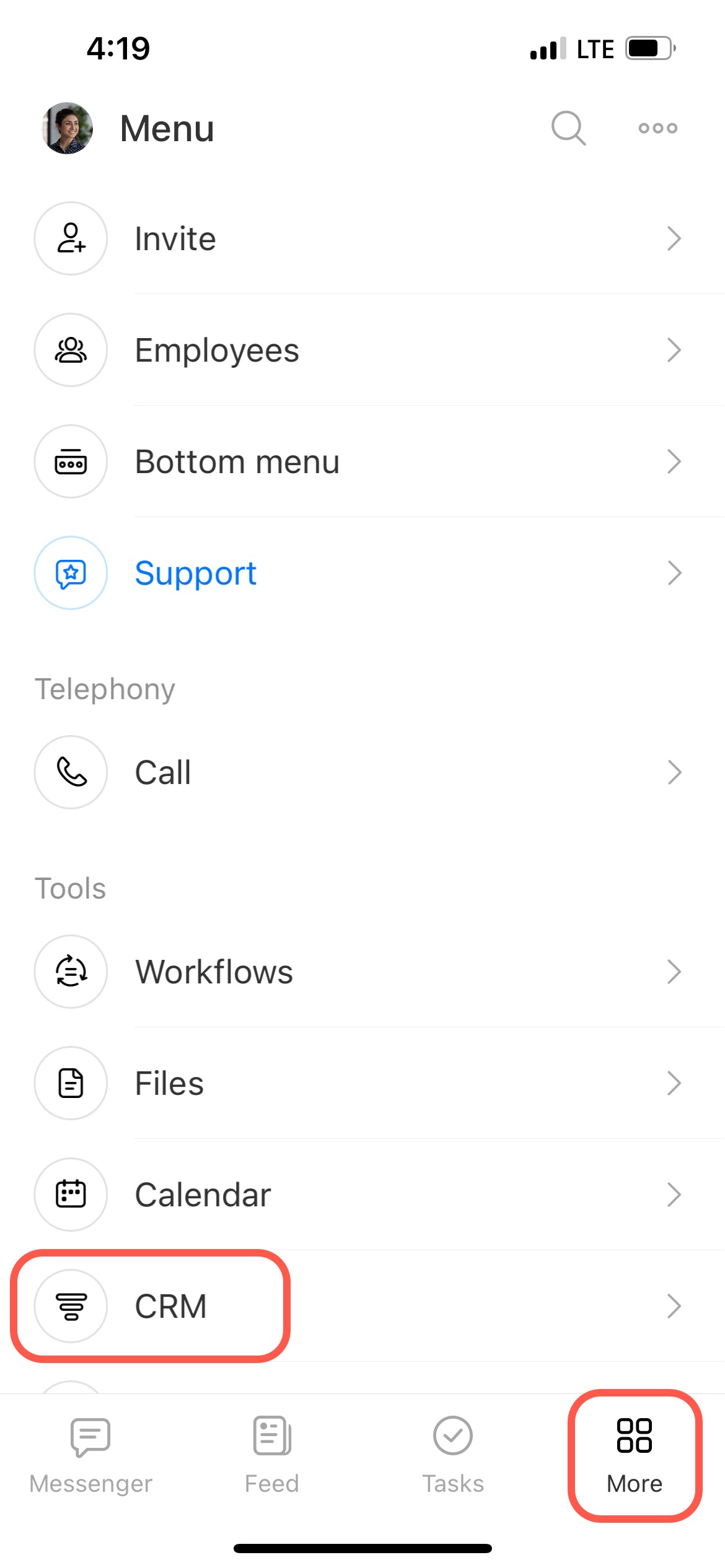
- Tap Menu - CRM - the + button.
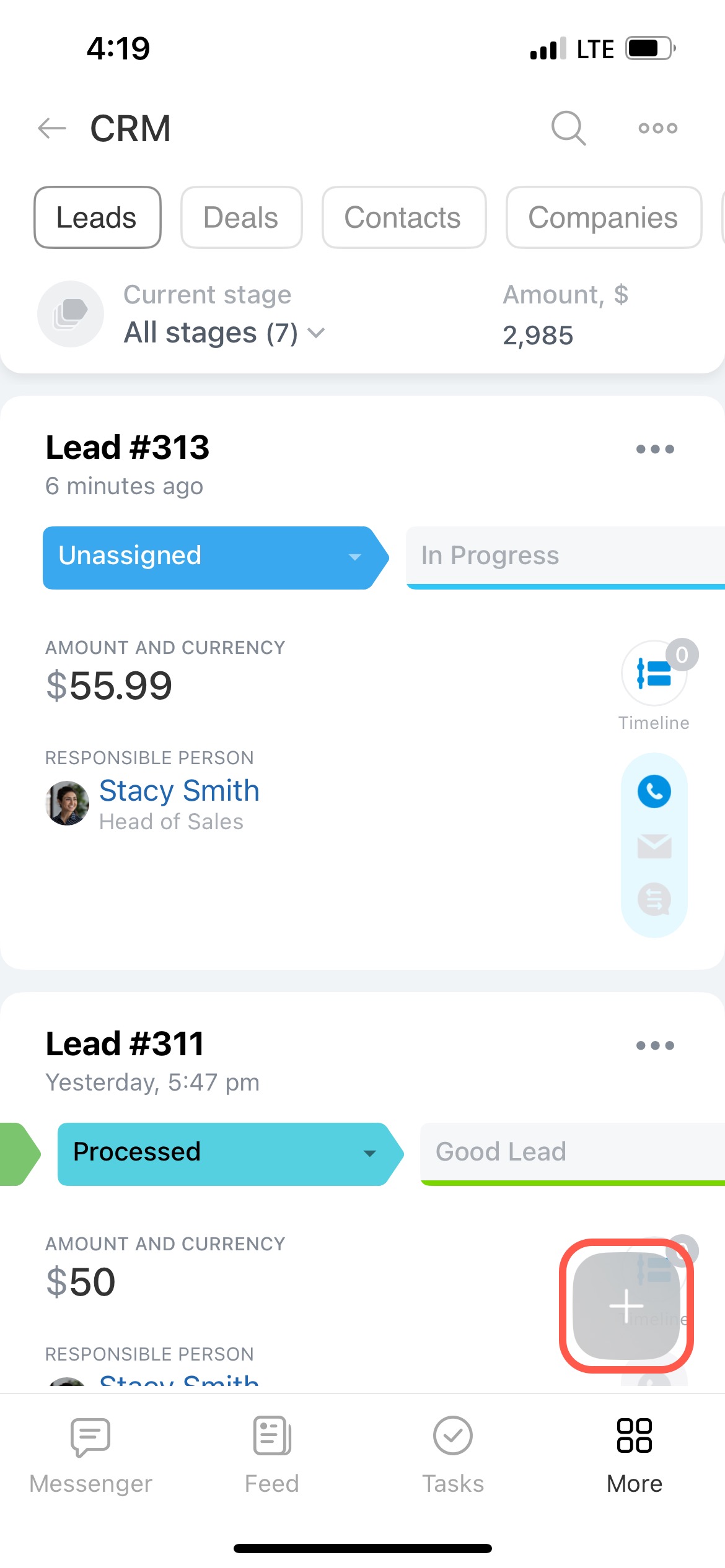
Select Lead in the list. Specify the lead name and fill in the basic information about the customer in the Details tab. Add the phone number, select the responsible person and the product. Once you have entered all the data, tap Create.