
Connect SIP phones to Bitrix24 so your team can make and receive calls directly from the system.
Managers can answer calls on a SIP phone and view customer details on their computer at the same time.
Connect a SIP phone
- Open the Telephony users page.
- Select a user.
- Connect a SIP phone for that user.
You will see the settings required to configure the device:
- Server address
- Login
- Password
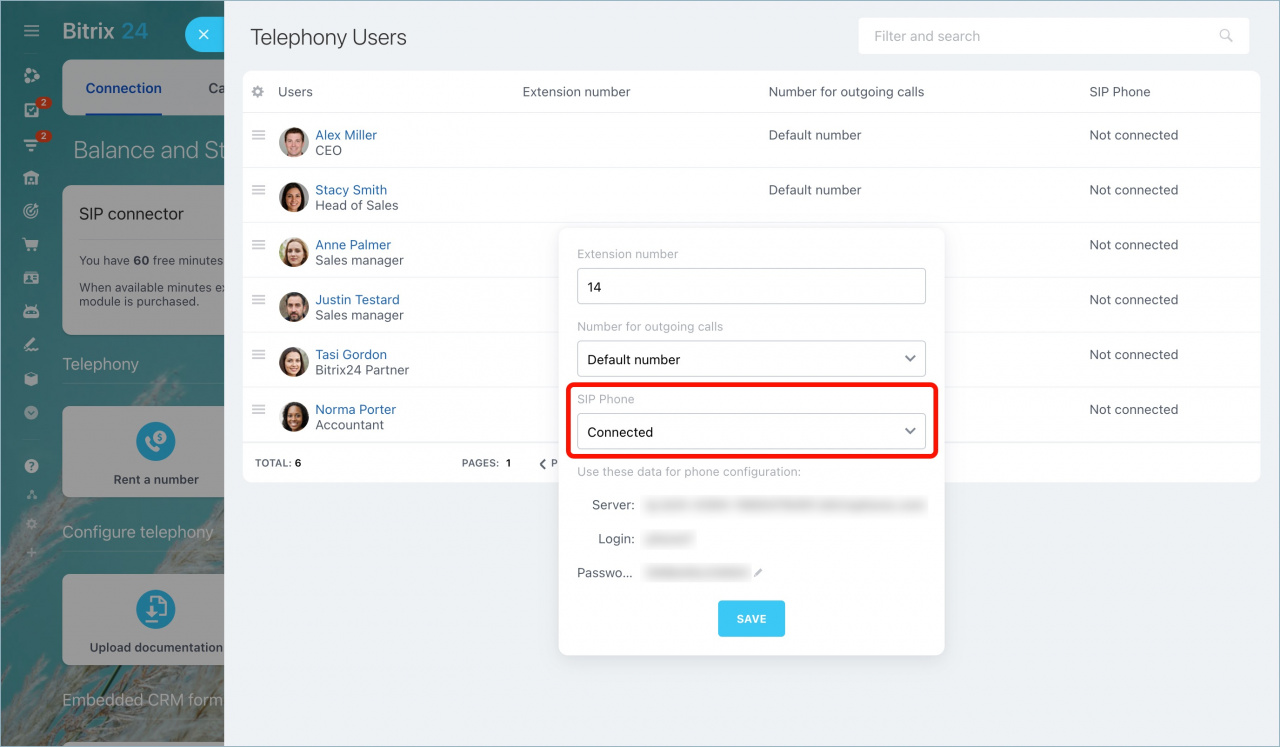
After you save the settings, the phone is ready to use with Bitrix24.
You can connect:
- Any compatible SIP phone
- A DECT landline phone connected through a SIP gateway
- A softphone app such as Zoiper on a computer or mobile device
Additional resources:
SIP phone use cases
You can use SIP phones for incoming and outgoing calls, with or without a computer.
Incoming calls
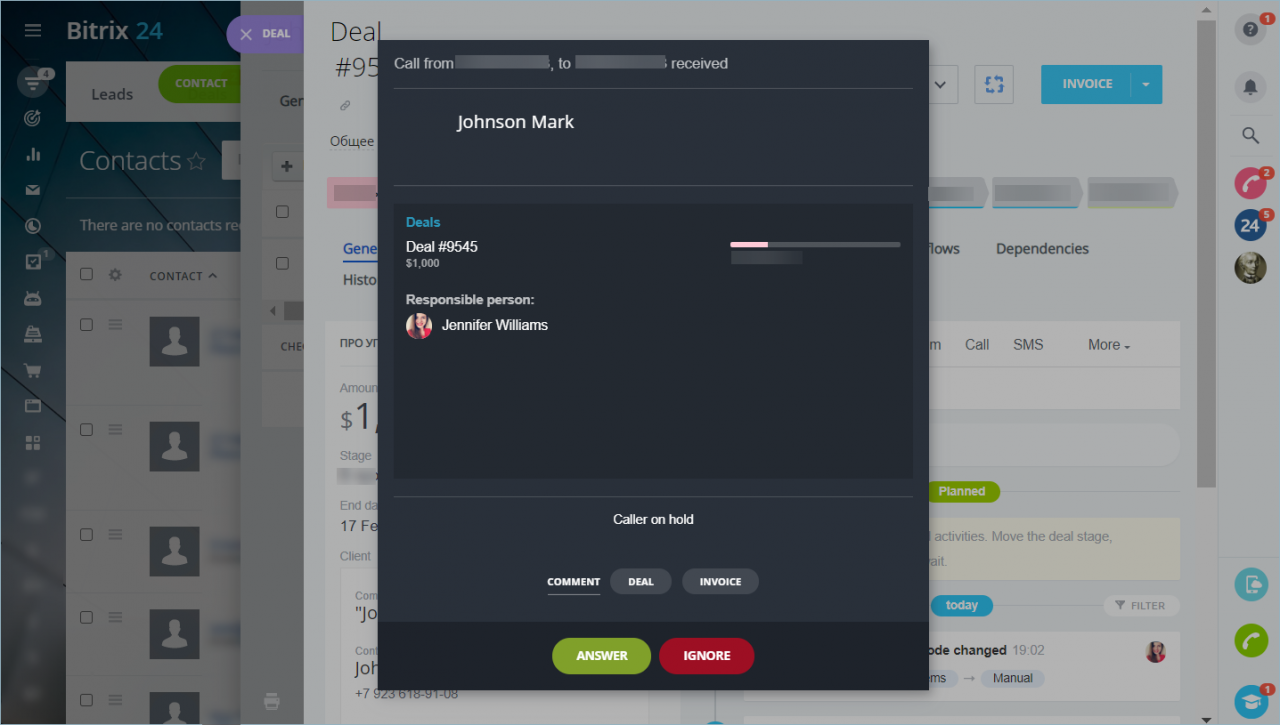
Incoming calls ring both in Bitrix24 Messenger and on the SIP phone. Users can answer from either device.
Bitrix24 saves the call recording and call history no matter which device was used to answer the call.
While the call is active, users can manage it from the active call window in Bitrix24. Available actions include:
- Hold
- Mute
- Transfer
Learn more: Active call form
Outgoing calls from Bitrix24 CRM
Users do not need to dial numbers manually on the phone.
To call a customer:
- Open the customer record in the CRM.
- Click the call icon.
The SIP phone will ring first. After the user answers, Bitrix24 starts the call with the customer automatically.
The call window stays open on the computer screen and shows:
- Basic customer details
- Access to the full CRM record
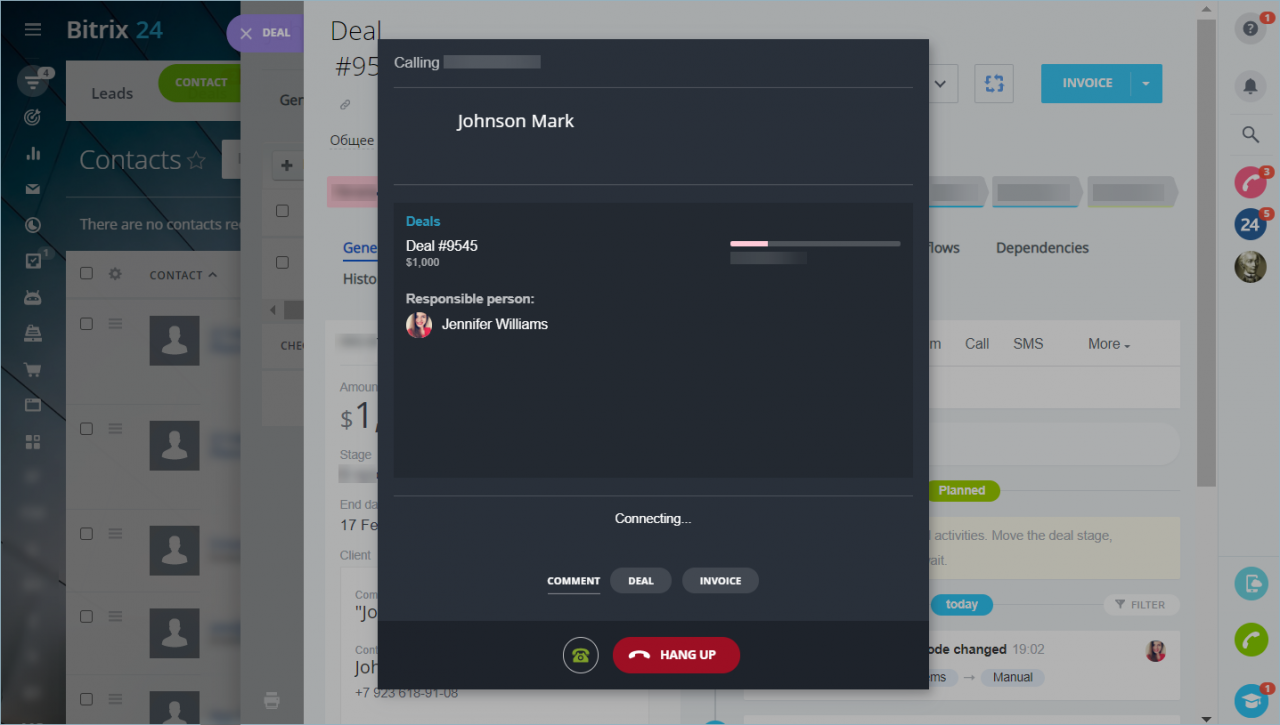
Users can also dial a number manually on the SIP phone. In this case, Bitrix24 still opens the customer card and call window automatically.
If a SIP phone is connected, Bitrix24 routes all outgoing calls through that device by default.
If a user is away from the office, they can temporarily disable calls through the SIP phone and continue working from the browser or Bitrix24 Messenger instead.
Learn more: Route an outgoing call from the phone to the browser