
To sign a document in e-Signature for HR, you need to choose a company representative. In Bitrix24, the company representative is the person authorized to sign documents on behalf of the company. This can be the CEO or another authorized employee.
The company representative signs the document first. After that, Bitrix24 automatically sends the document to the employee for signing.
If you are the company representative, follow these steps.
-
Start the signing process
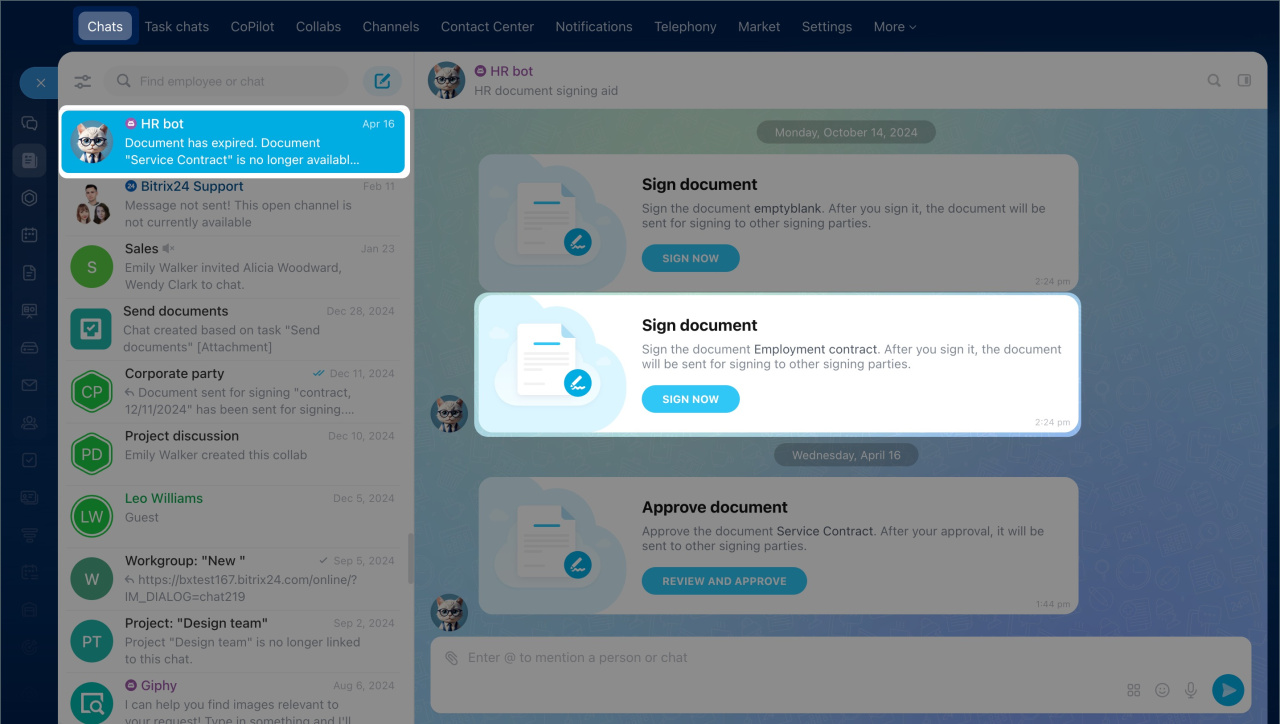
You will receive a message in Bitrix24 Messenger when a document is ready for signing. Click Sign now in the message to open the side panel.
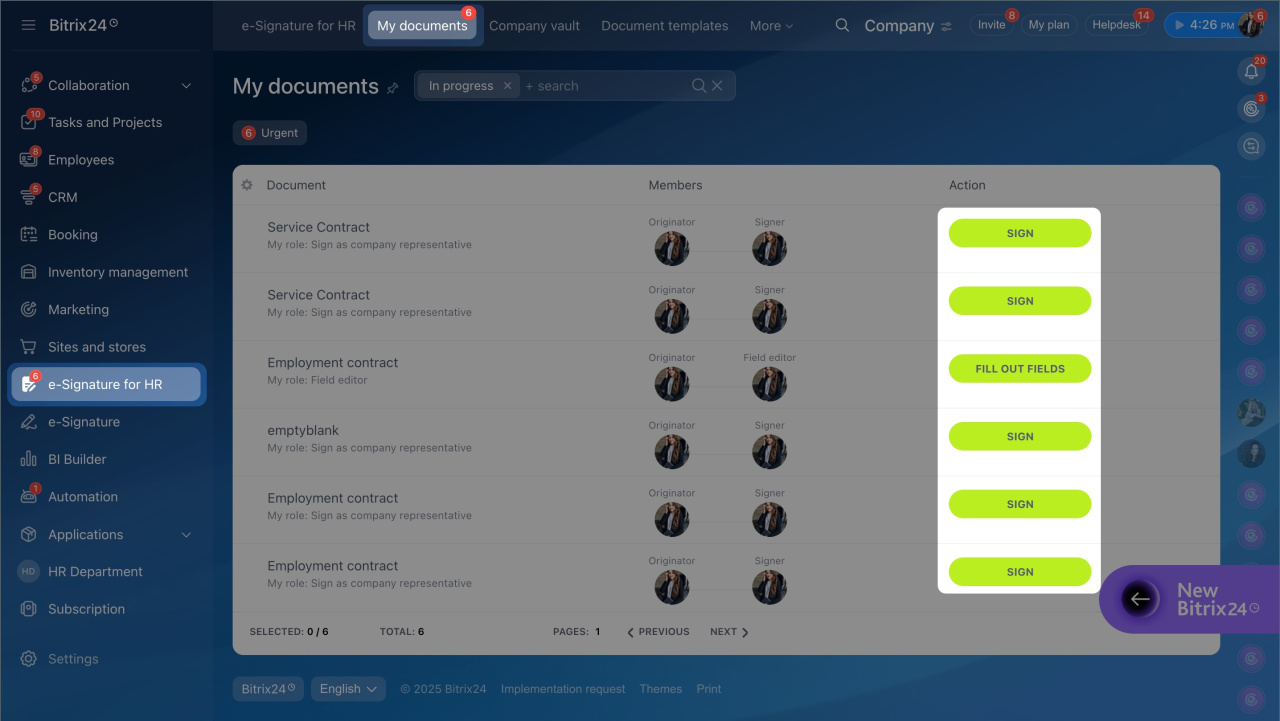
When a document requires your signature, a counter appears in e-Signature for HR > My documents > Urgent. The counter shows how many documents are waiting for your signature. After you sign a document, it disappears from the list.
-
Select employees
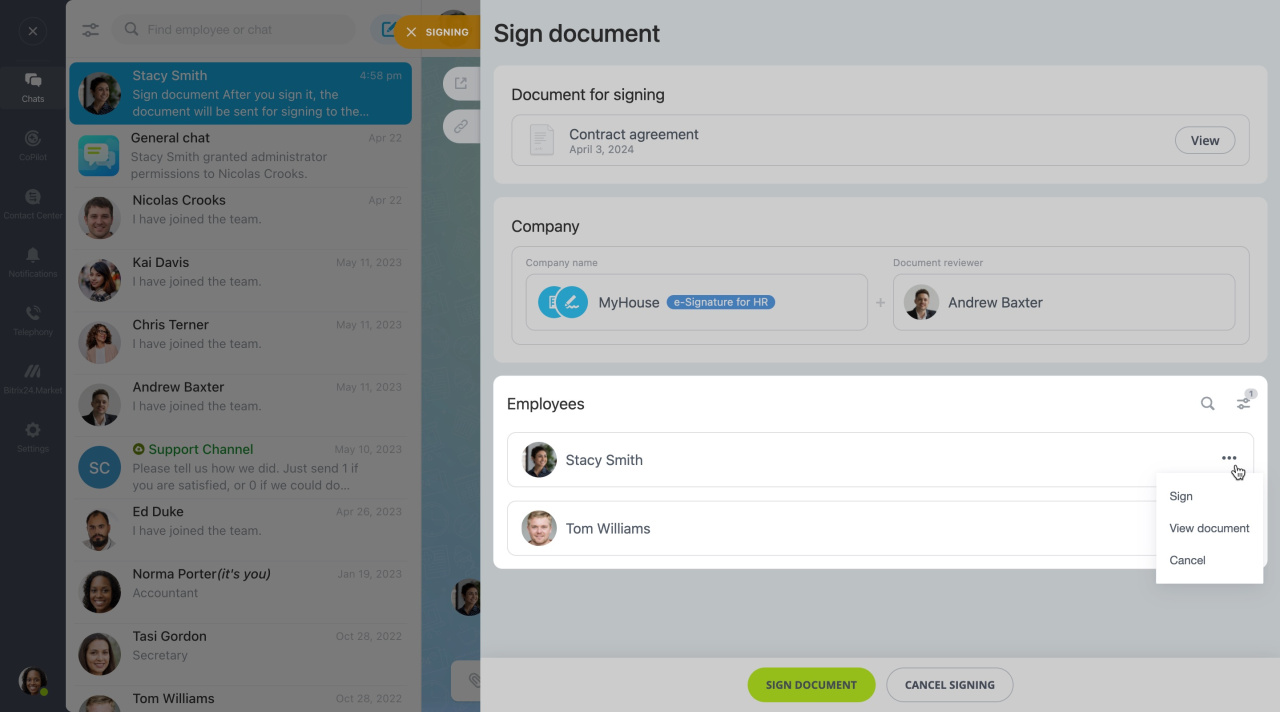
You can sign the document for all employees at once or for one employee only.
To find an employee:
- Click the search icon.
- Enter the employee’s last name.
- Open the menu (...) on the right.
- Select Sign.
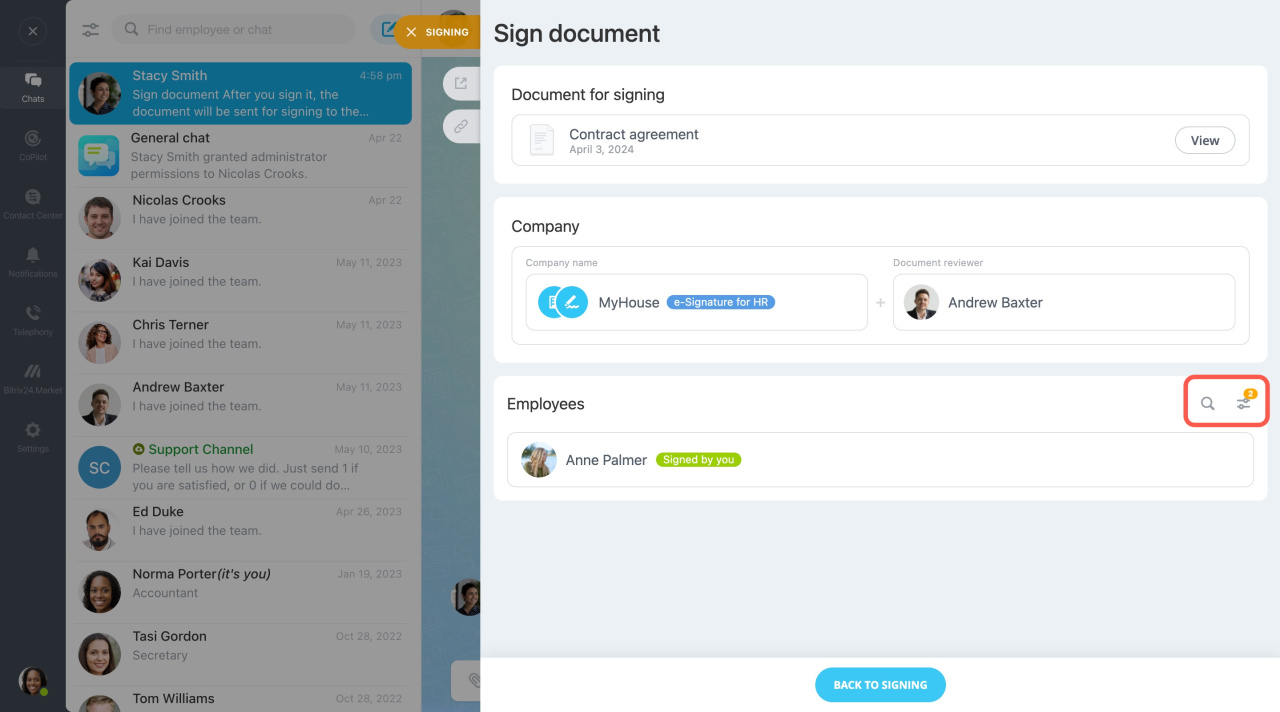
To see which employees already signed the document, use the filter option.
-
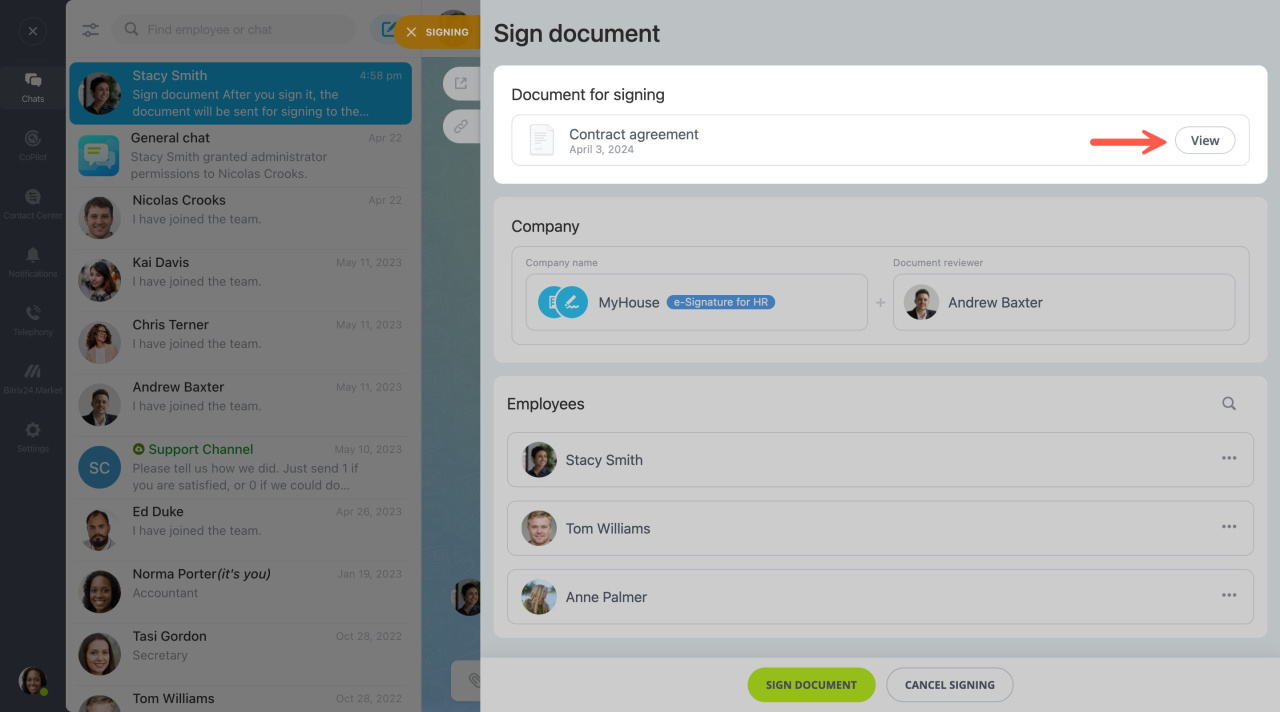
Review the document
In the Document for signing section, click View and review the document details.
If you find an error, cancel the signing process.
-
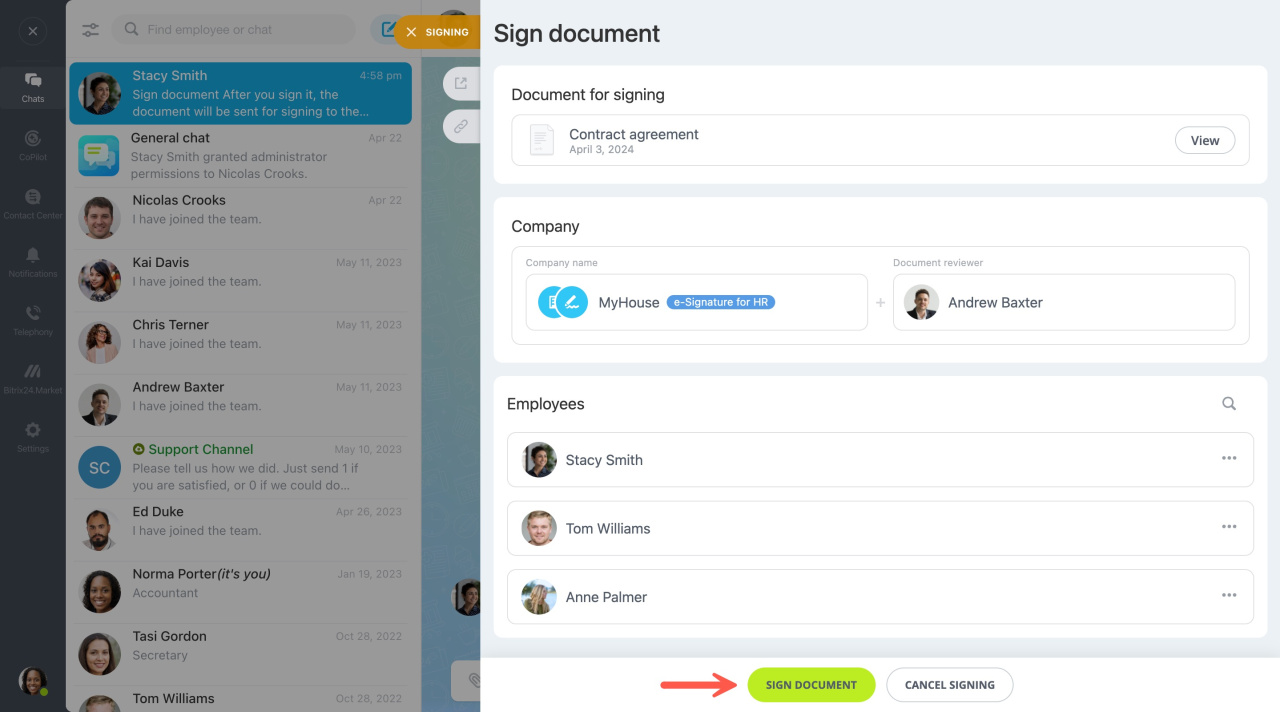
Sign the document
If the document is correct, click Send document at the bottom of the page.
-
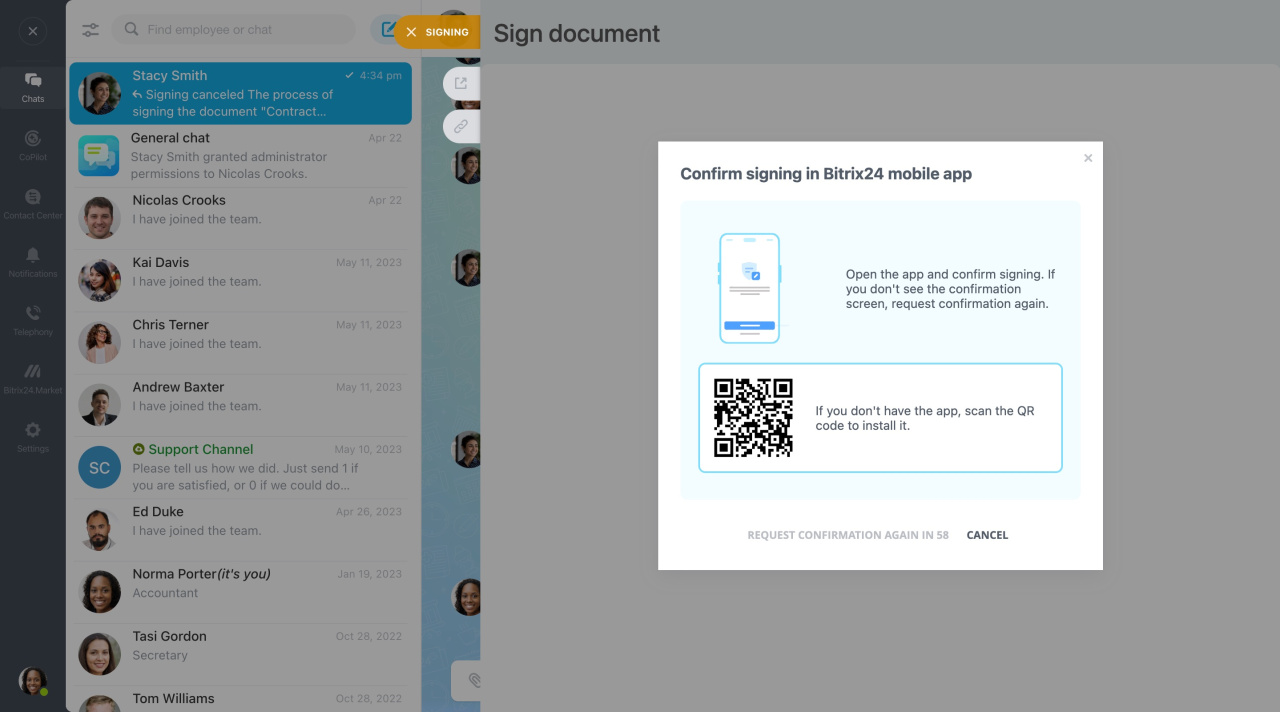
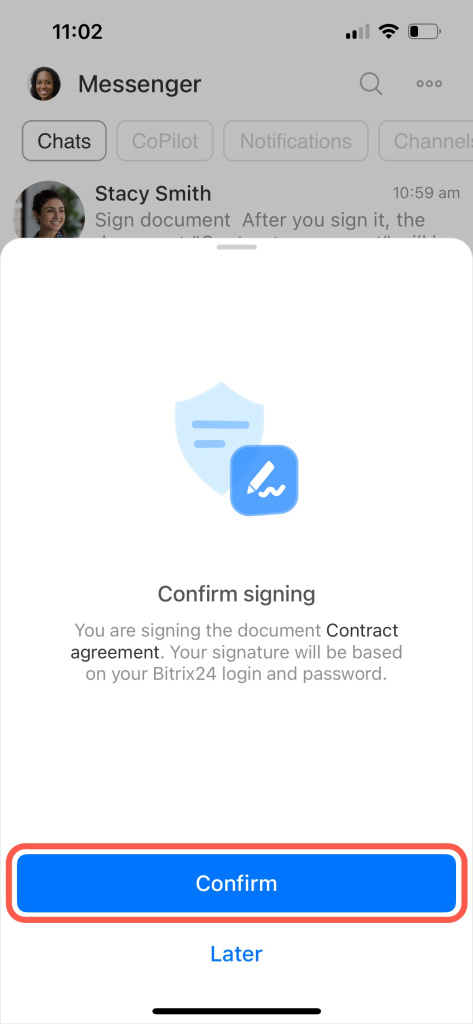
Confirm the signature
Open the Bitrix24 mobile app to confirm the signature. If you do not have the app installed, scan the QR code to download it.
Tap Confirm to complete the process.
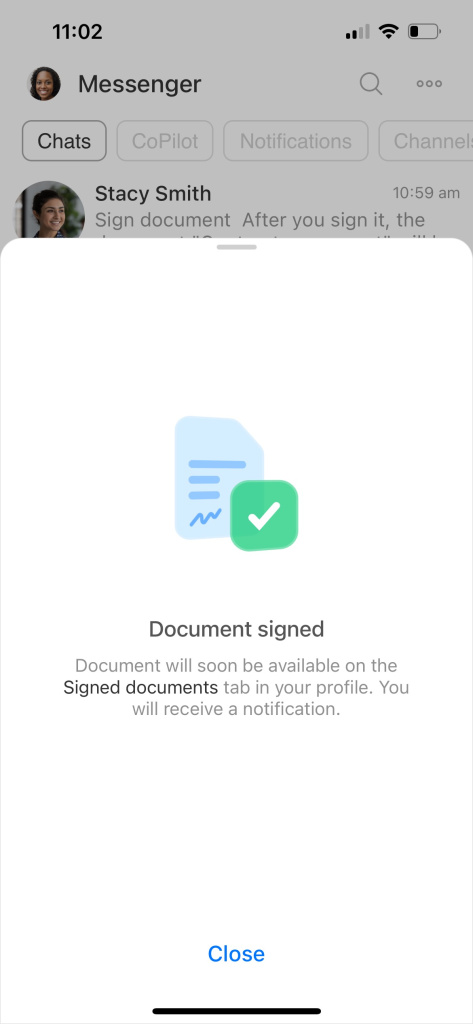
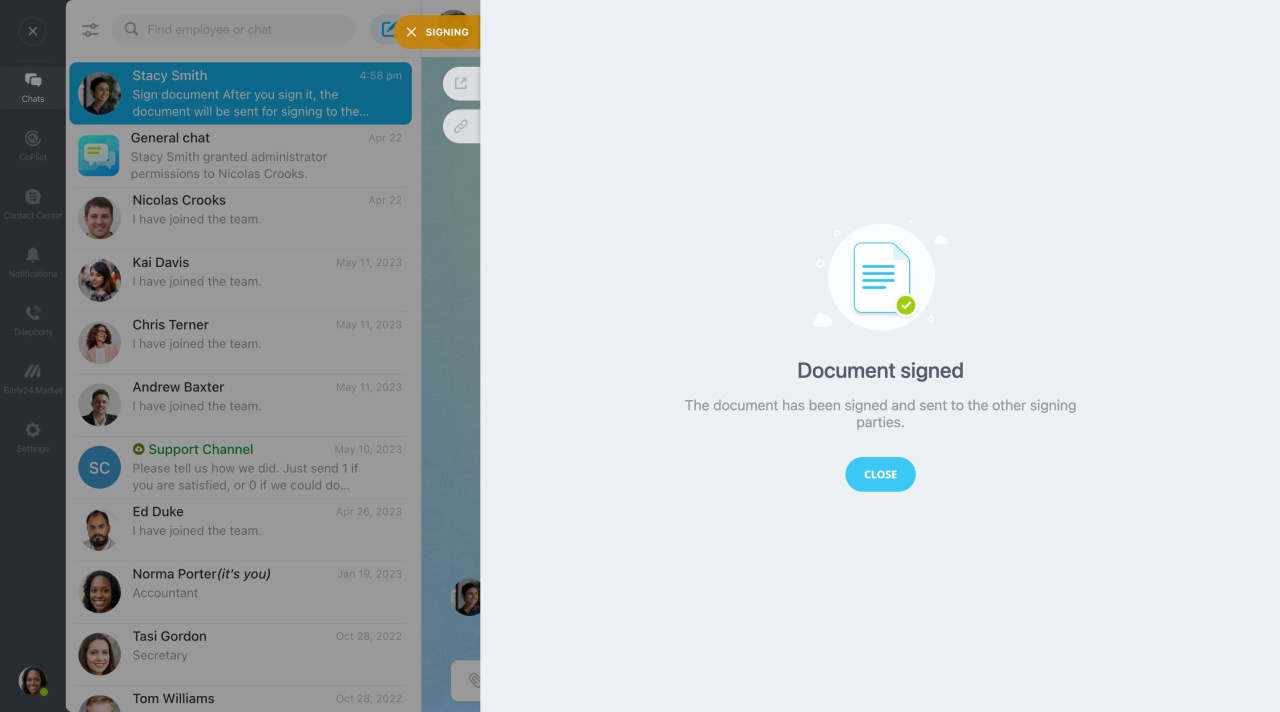
After you sign the document, Bitrix24 immediately sends it to the employee for signing.
In brief
- The CEO or another authorized employee can sign HR documents on behalf of the company as the company representative.
- The company representative signs the document first. Then Bitrix24 sends the document to the employee.
- You receive a message in Bitrix24 Messenger when a document is ready for signing.
- To complete the process, confirm the signature in the Bitrix24 mobile app.
- You can sign documents for all employees or for one employee only.
- Always review the document before signing. If you find an error, you can cancel the signing process.