
Automation rules and triggers help you automate routine work with employees and customers. Automation rules handle actions like assigning tasks, sending notifications, and creating documents. Triggers track user actions, such as opening an email or signing a document. When a specific action happens, the trigger moves the item to the next stage.
Automation rules and triggers in Bitrix24
You can use automation rules and triggers to manage the document signing process.
Automated solutions: automate work of company departments
In this article:
Add automation rules and triggers
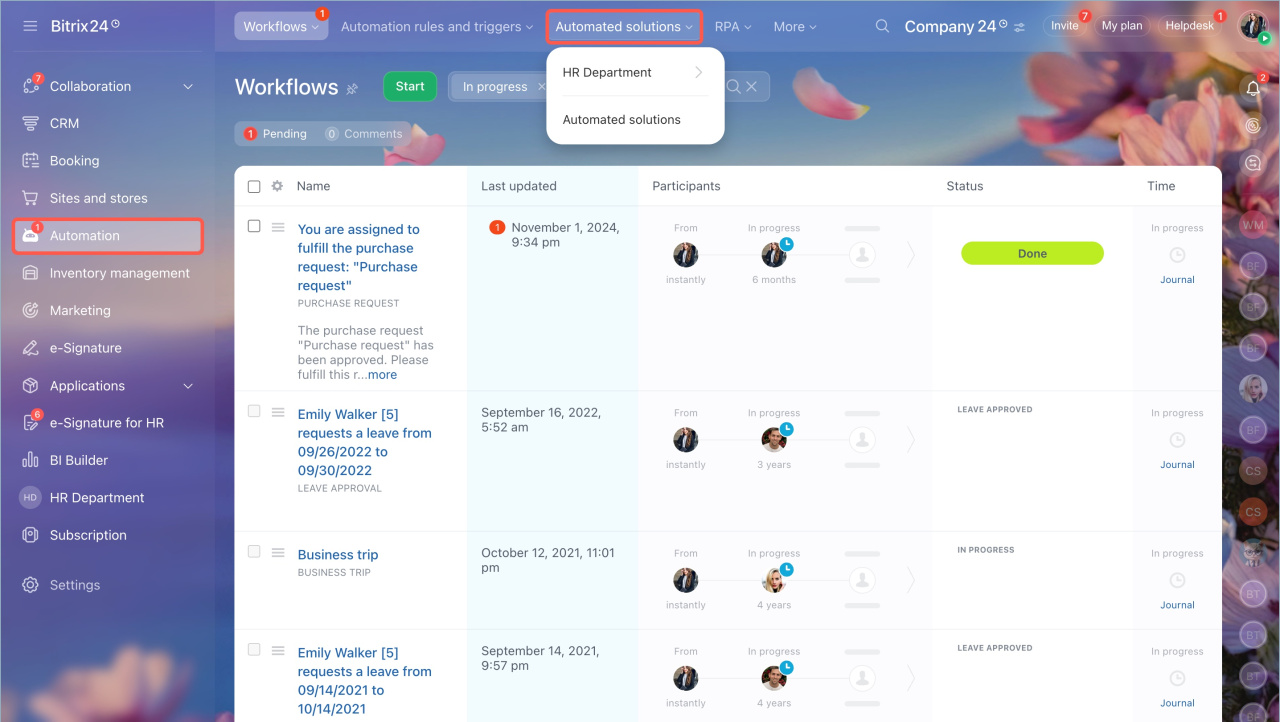
- Go to Automation > Automated solutions.
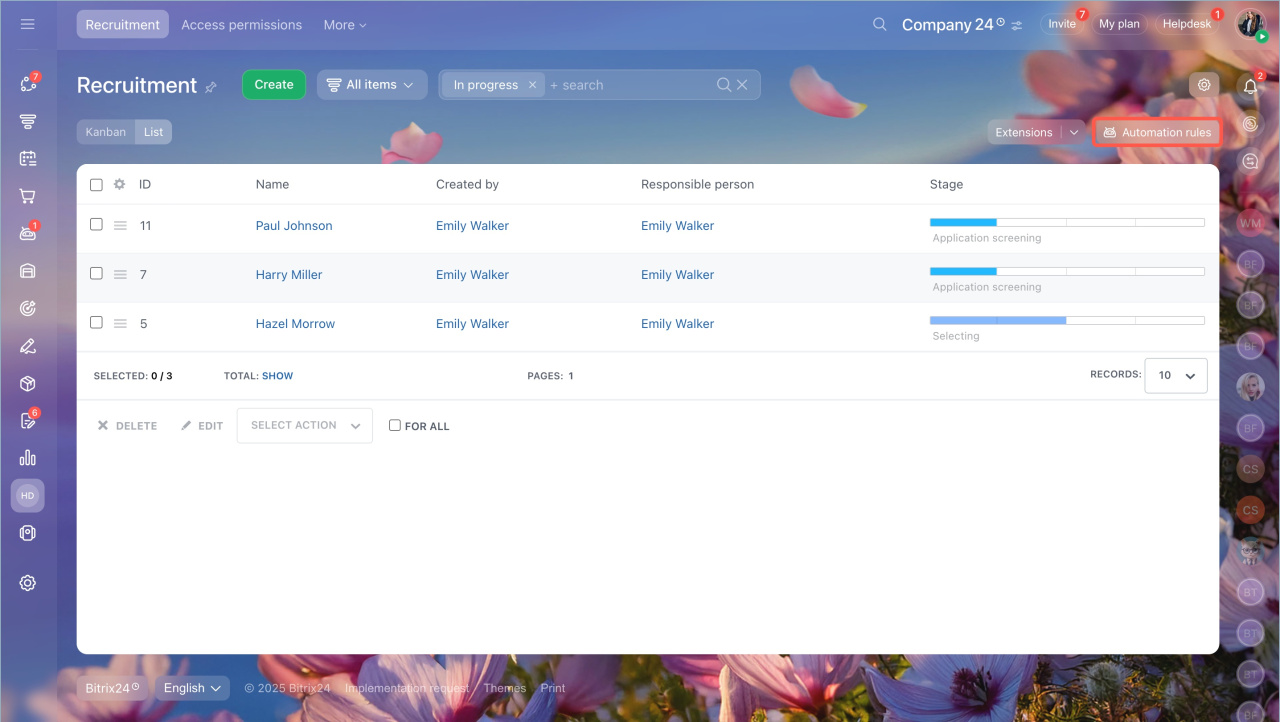
- Select the required automated solution and SPA.
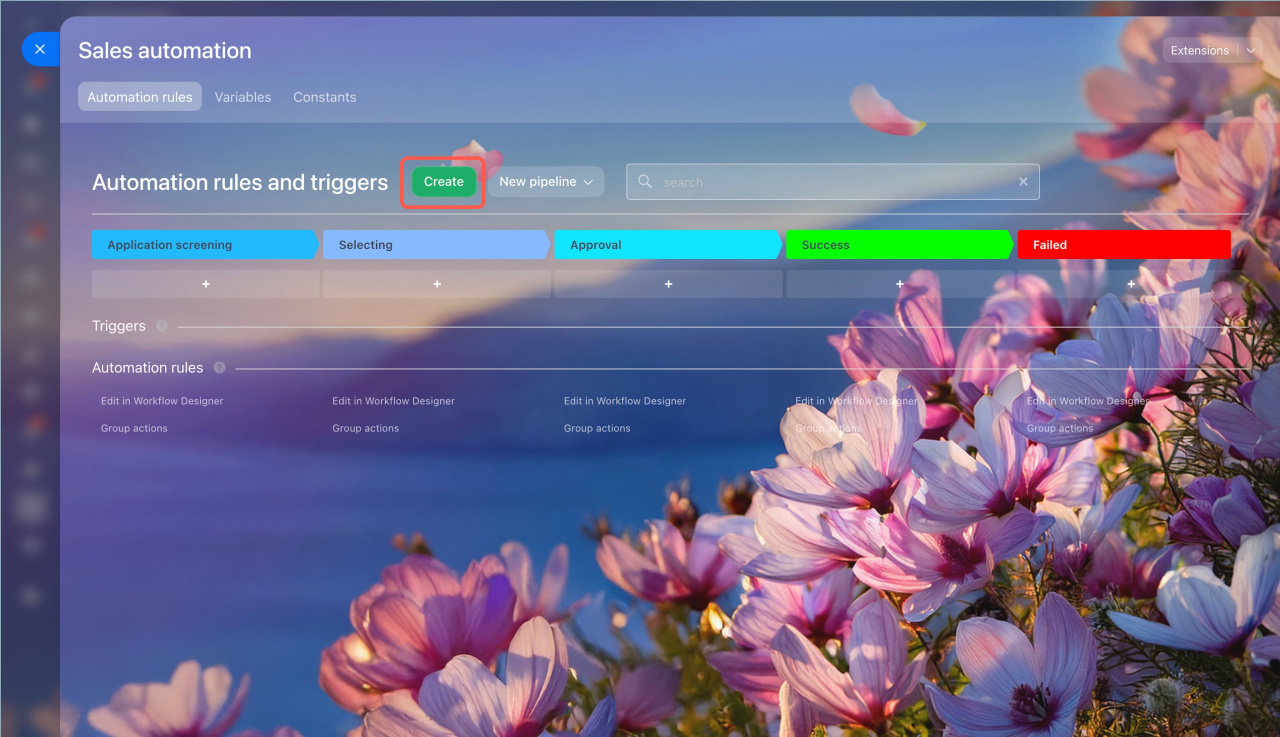
- Click Automation rules > Create.
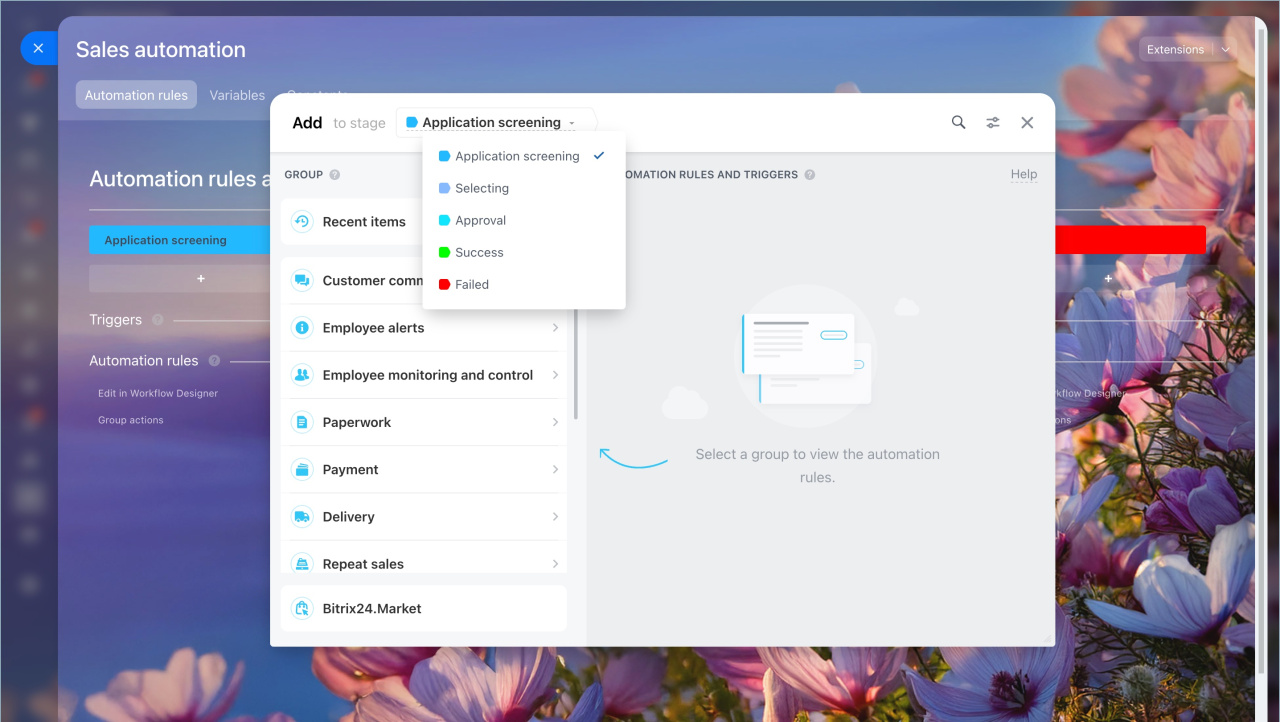
- Choose the stage where you want to add the rule.
- Click Document processing.
- Select the rule or trigger you need.
Add automation rules and triggers
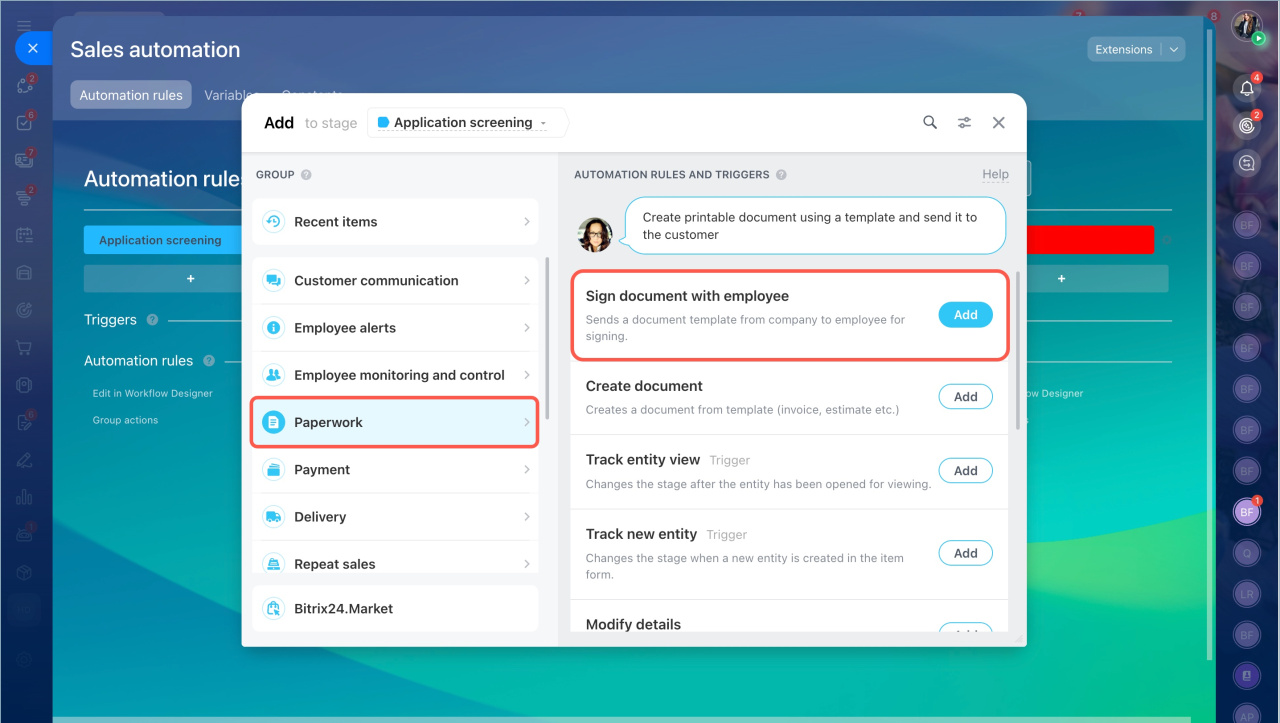
Sign document with employee
What it does
When an item reaches a specific stage, this rule creates a document from a template. It sends the document first to a company representative, then to the employee for signing.
Why use it
Use this rule to automatically send documents for signing. For example, training agreements or remote work contracts.
Automation rule settings
Use this rule to automatically send documents for signing. For example, training agreements or remote work contracts.
How to set it up
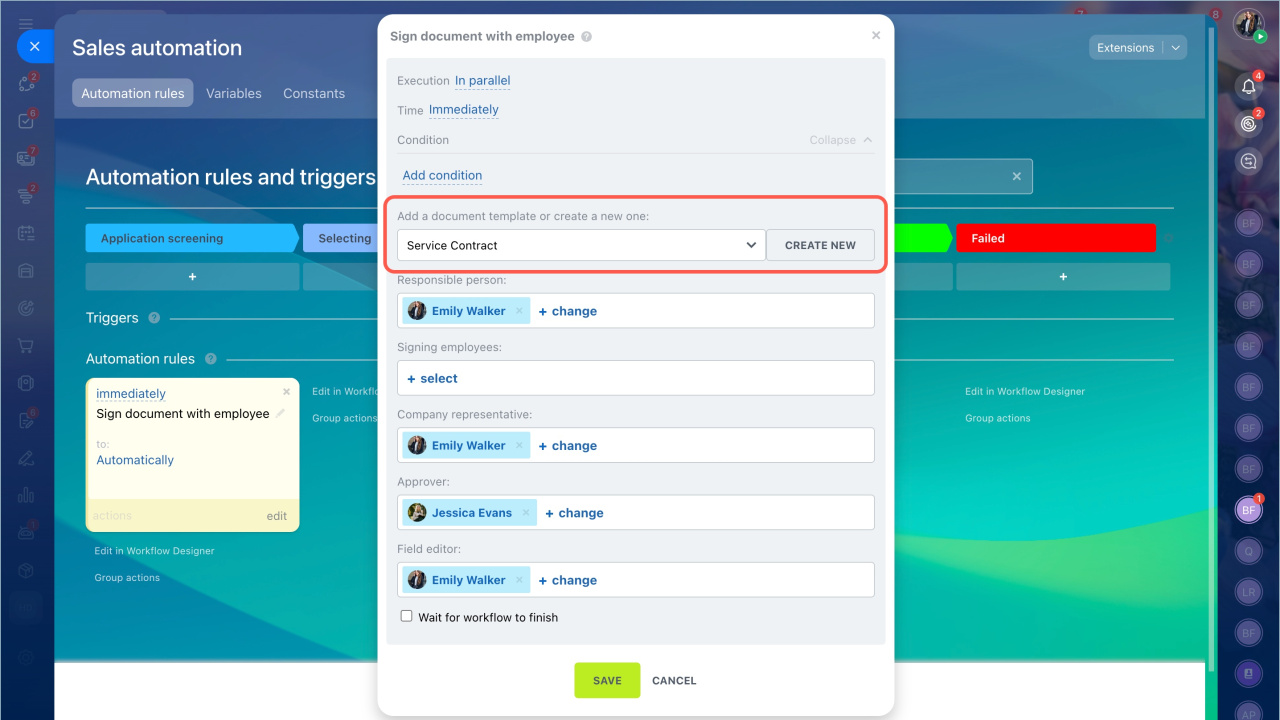
Add a ready-made document template or create a new one. Choose a document from the template list or create a new one.
e-Signature for HR: Create a document template
Signing employee
- Document template. Select an existing template or create a new one.
- Signing employee.
- Click Select.
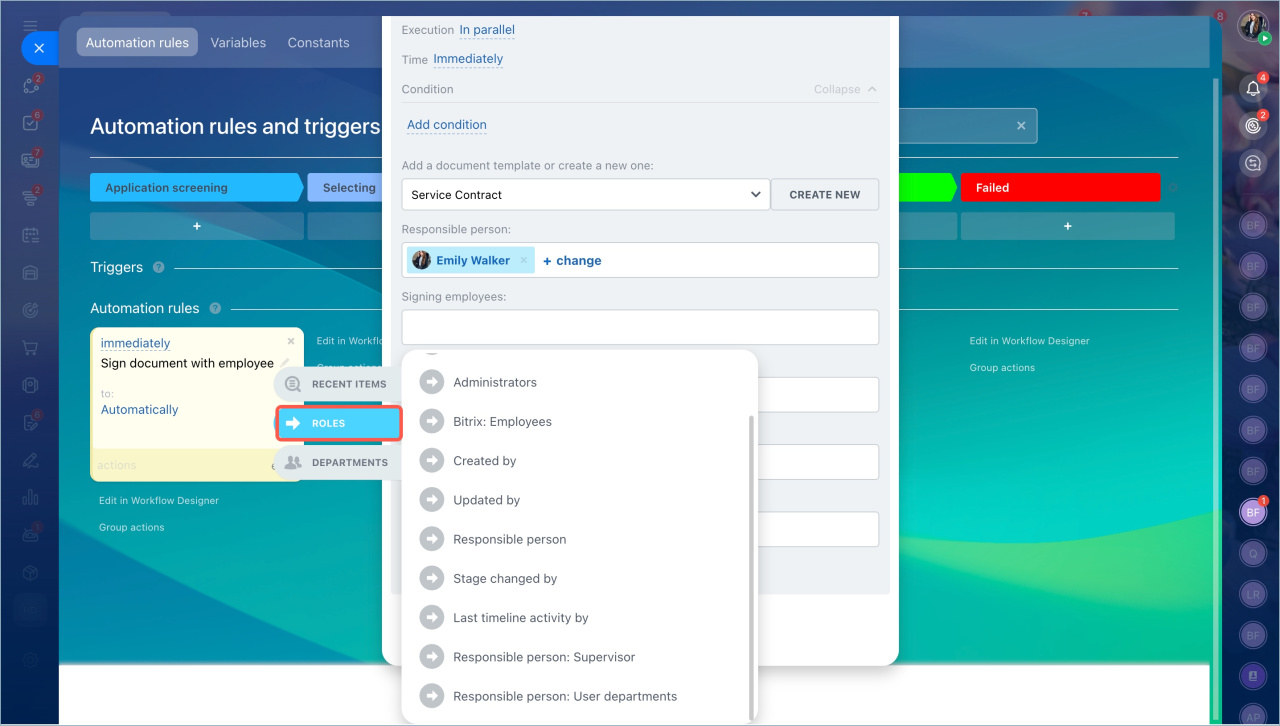
- Open the Roles tab.
- Choose a role linked to an employee field.
- If needed, create a field with the Employee binding type in SPA settings.
- Company signer. Choose who signs on behalf of the company, such as a supervisor or HR manager.
- Approver. Select who checks the document, for example, the employee’s manager.
- Responsible for completion. Choose who fills in missing data, such as an HR specialist.
- Wait for workflow completion. Enable this option to pause other automation rules until the signing process is complete.
Custom fields in invoices and Smart Process Automation
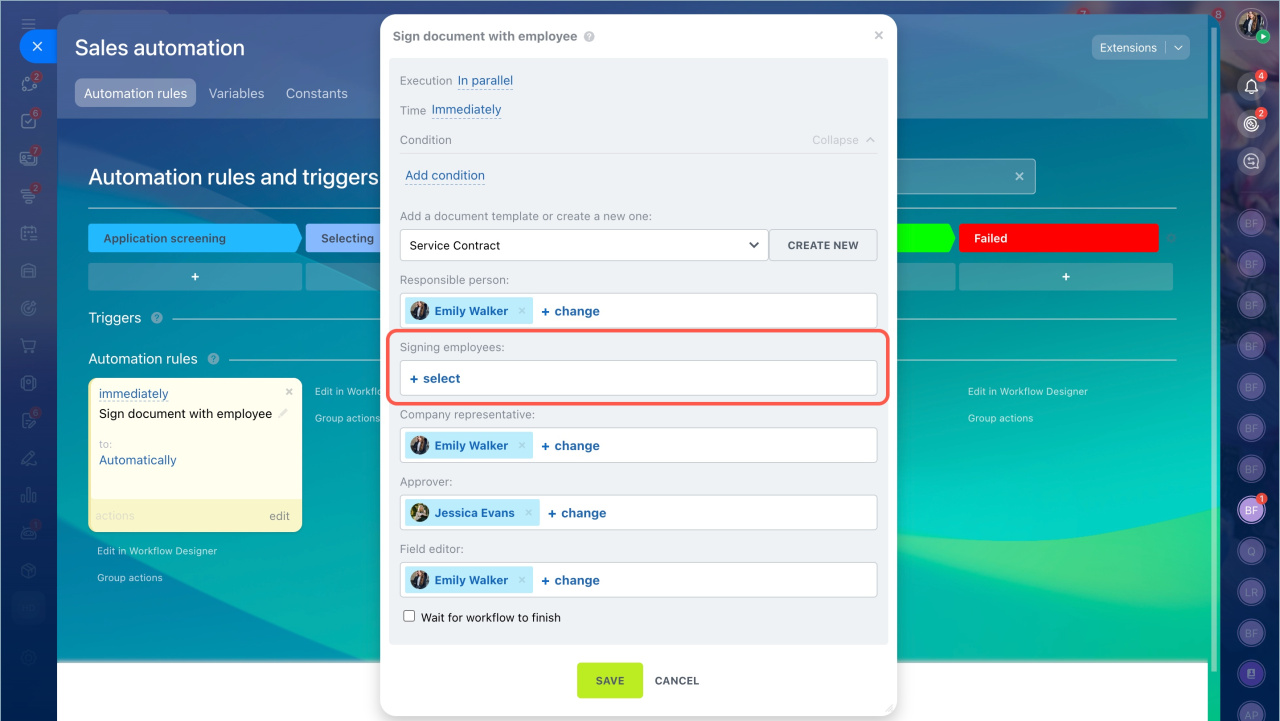
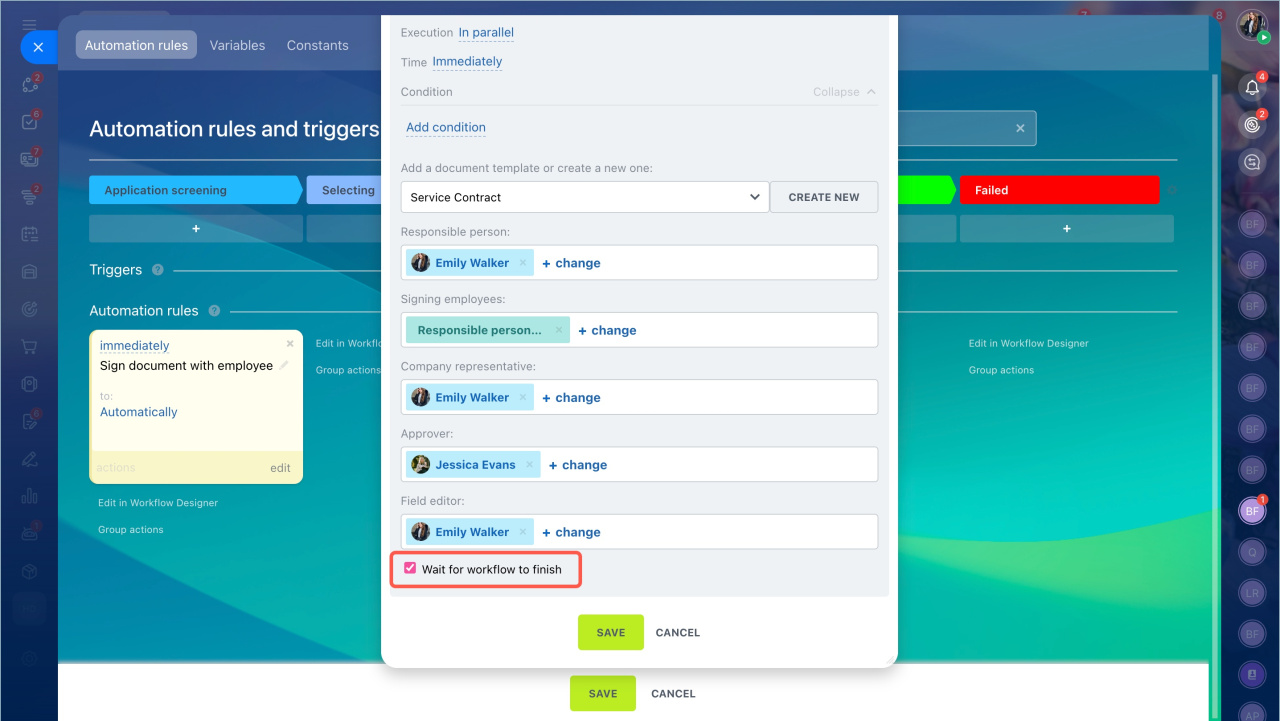
The system automatically fills in participants based on the selected template. You can change them without editing the template.
When the rule runs, the document form appears in the e-Signature for HR section.
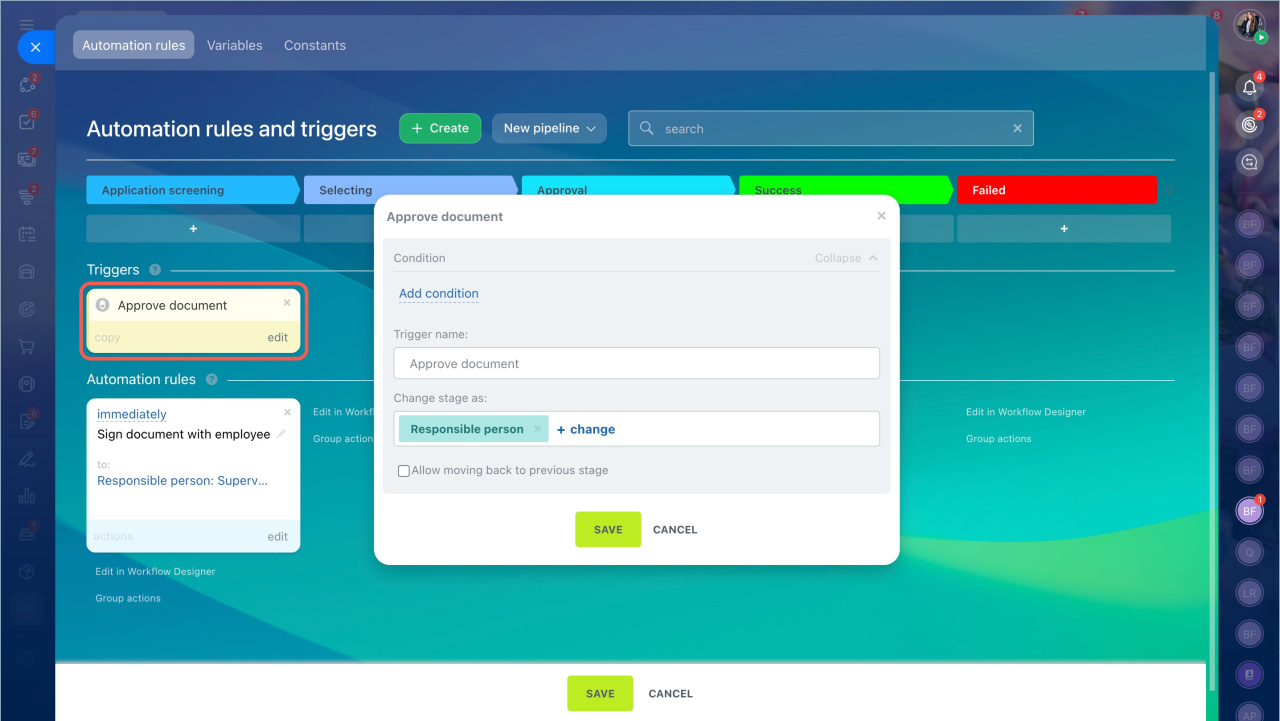
Document approval trigger
What it does. Moves the item to another stage when document approval starts.
Approve documents in Bitrix24 e-Signature for HR
Why use it. Helps track when a document is under review. For example, when a manager approves training.
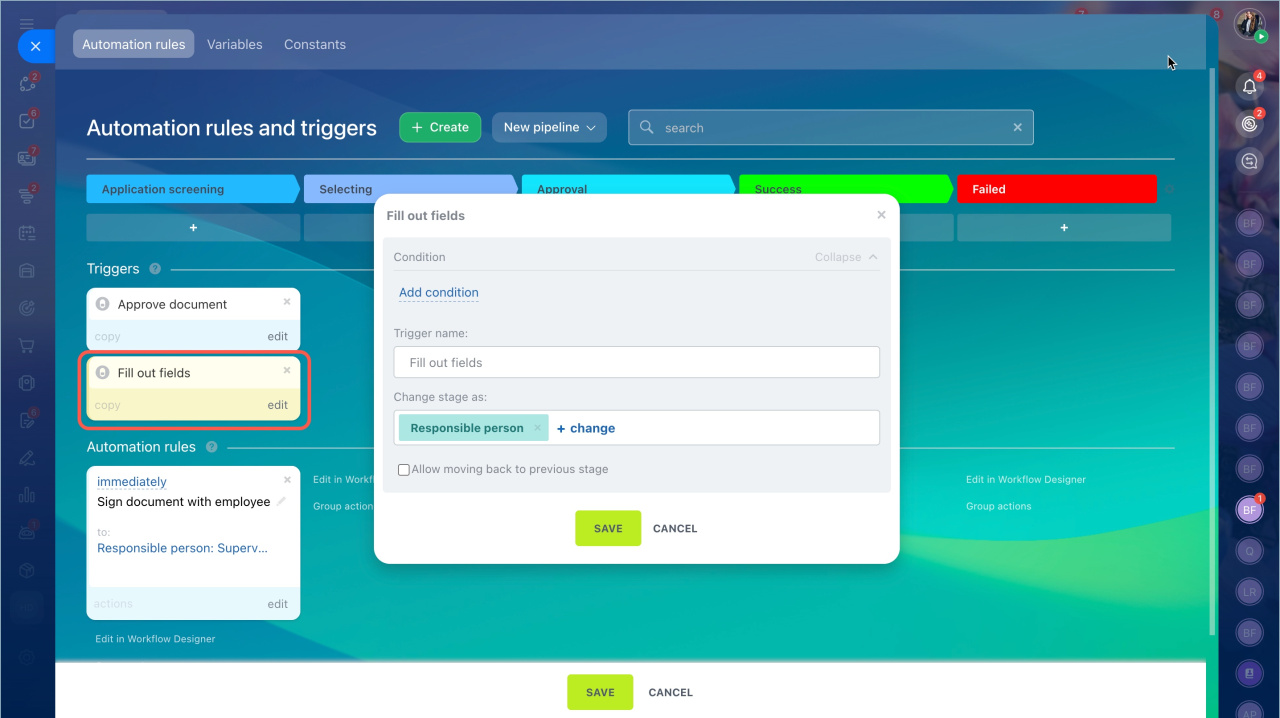
Document completion trigger
What it does
Moves the item when document completion starts.
Fill out documents in Bitrix24 e-Signature for HR
Why use it
Shows that the document is being filled in or verified.
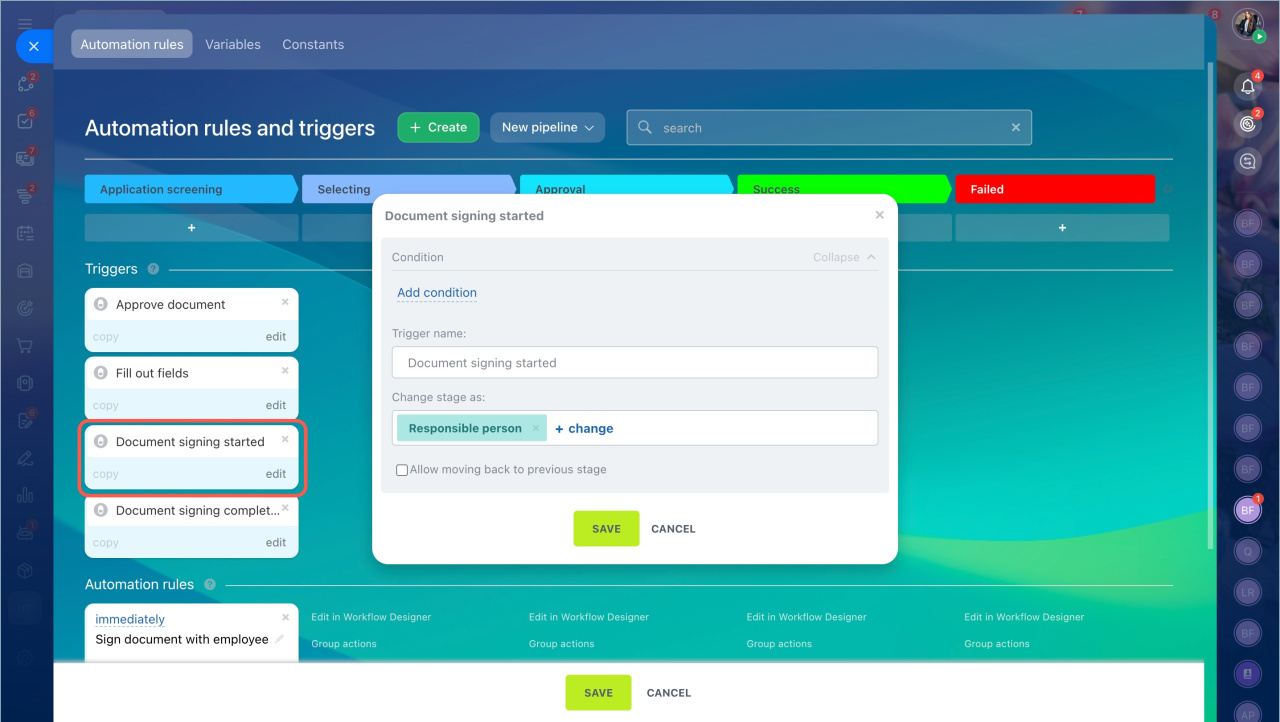
Document signing started trigger
What it does
Moves the item when the document is sent to the company representative for signing.
Why use it
Shows that the signing process has started.
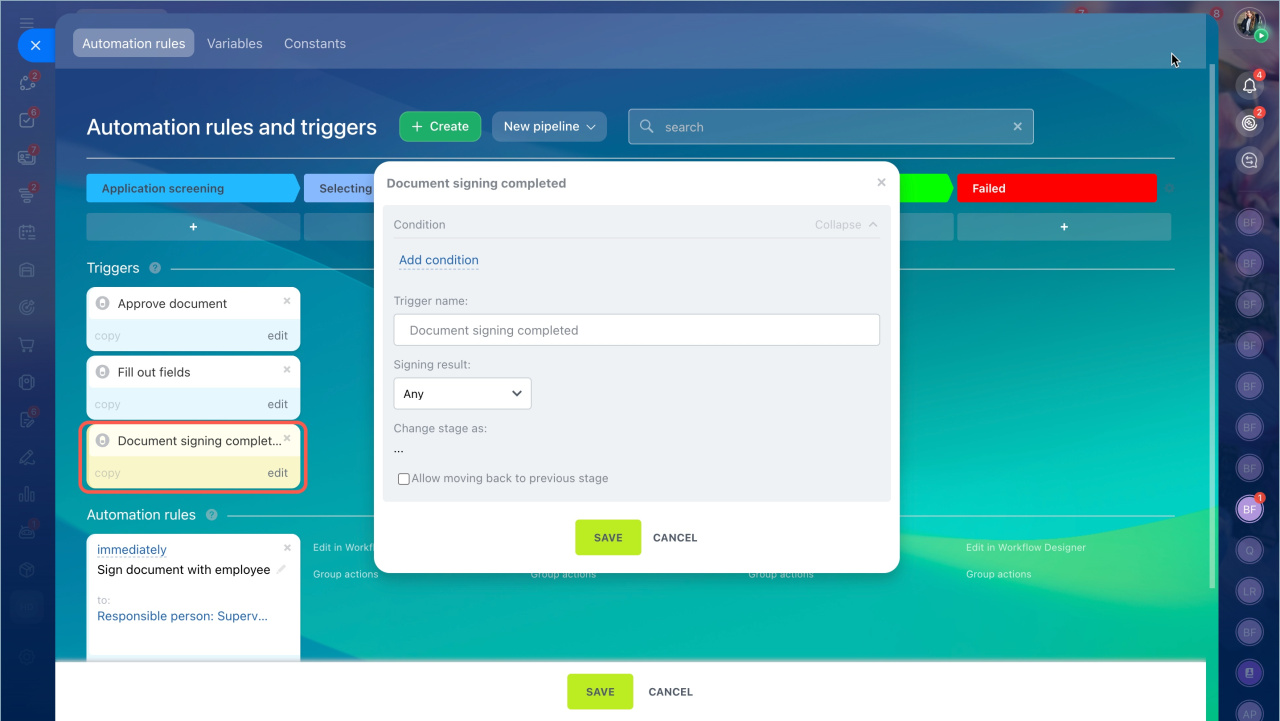
Document signing completed trigger
What it does
Moves the item when signing is finished or declined.
Why use it
Lets you track the final result. For example, confirm that an agreement is signed before proceeding.
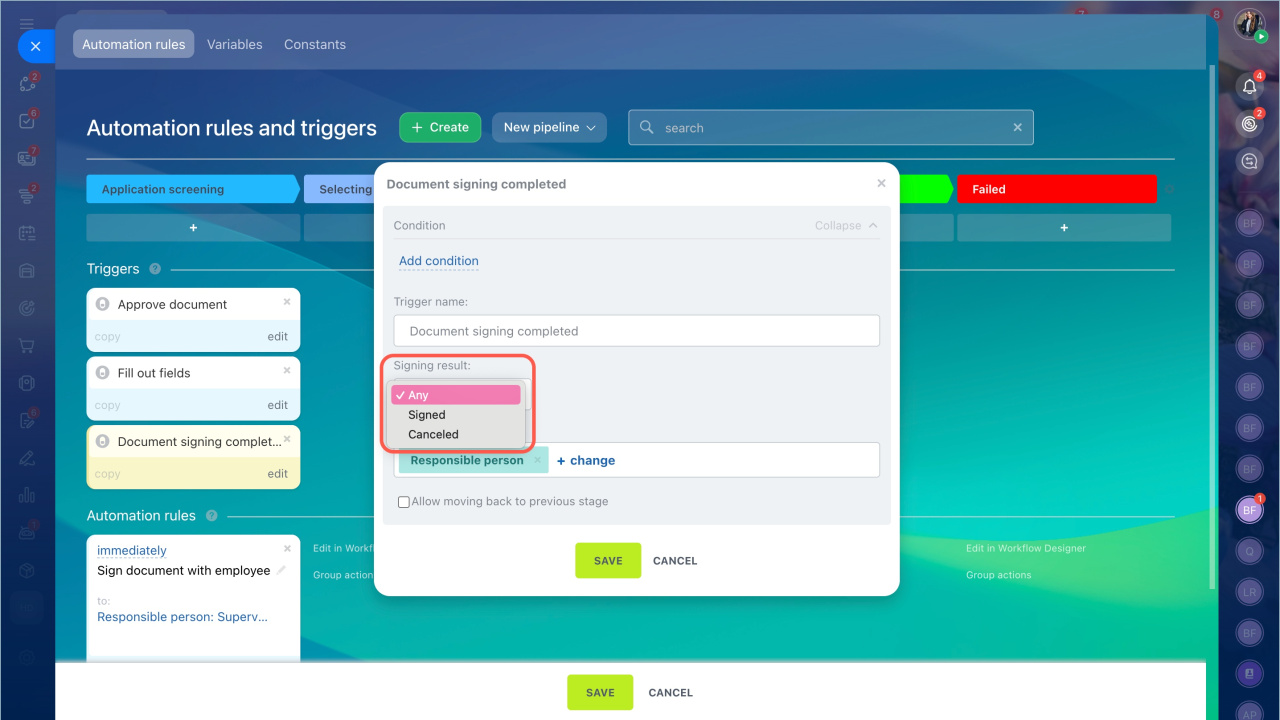
Features
Choose which result to track: any result, signed, or canceled.
In brief
- Automation rules and triggers help automate document signing with employees.
- The Sign document with employee rule creates and sends documents for signing.
- When the rule runs, the document appears in the e-Signature for HR section.
- Triggers track key steps: approval, completion, and signing.