
A sequential workflow consists of multiple activities. Each activity has its own role and settings.
To configure an activity, double-click its name or click the gear icon (⚙️).
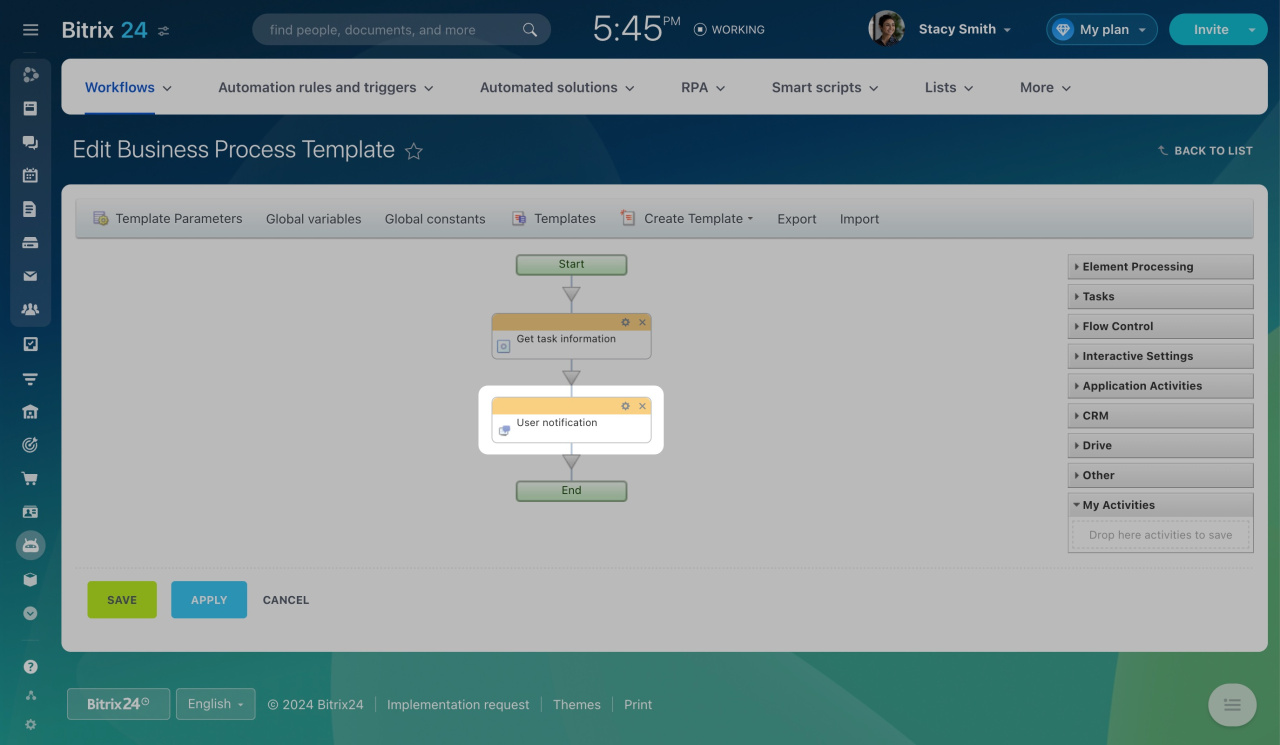
This opens the activity settings window. Most activities include a standard set of fields.
Title
Use this field to name the activity. The name appears in the visual designer.
Insert Value Form
Next to the title, you will see two options: [ID] and [Comment]. Click them to display hidden fields.
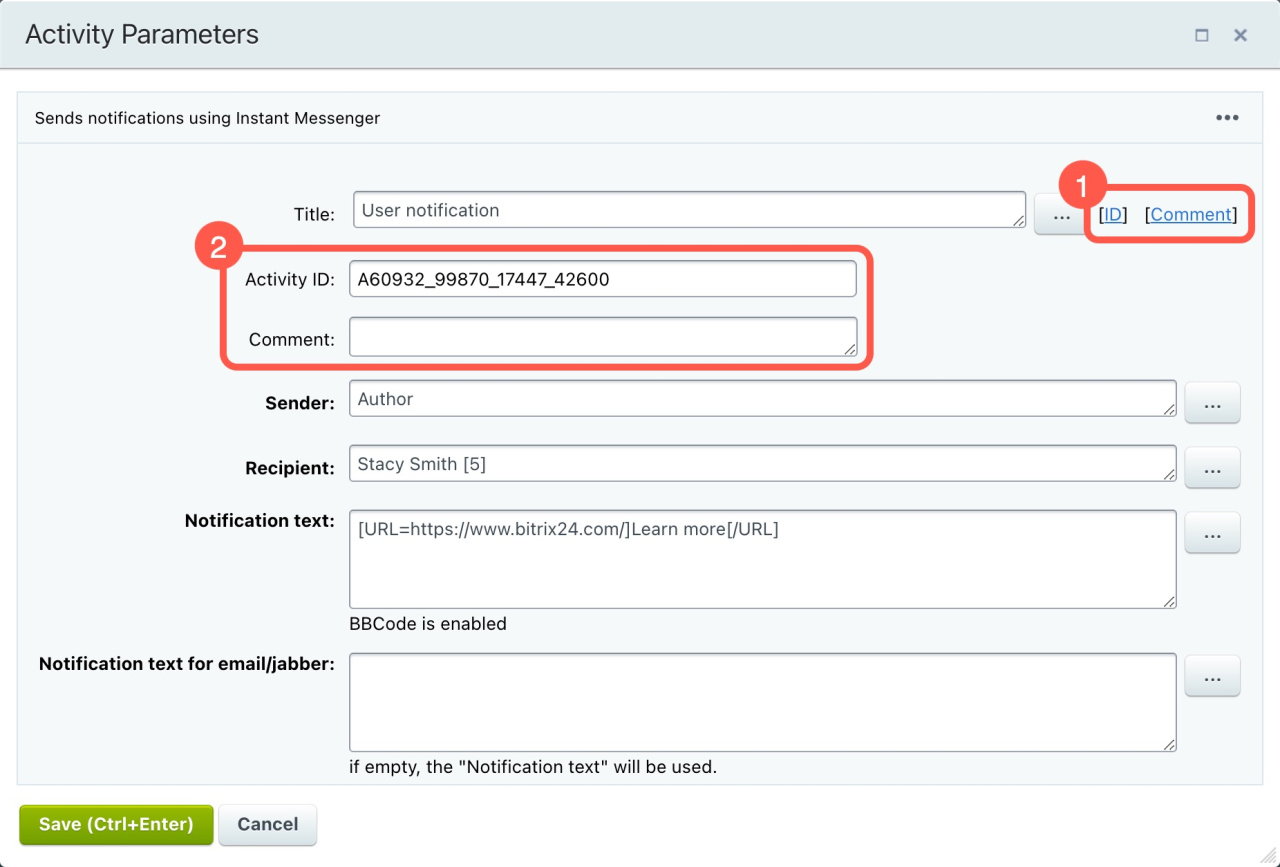
Activity ID
View or edit the unique ID of the activity. This ID helps you track the workflow history in the admin section.
Comment
Add notes that may help you configure or maintain the workflow later.
User or group fields
To select a user, enter the user ID in brackets, for example: [1].
For groups, enter the group name without brackets.
Text fields (for example, Assignment description or Notification text)
These fields support the following BBCode tags: [img], [url], [b], [i], [s], [u].
Learn more
Activities are grouped into these sections:
- Element Processing
- Tasks
- Flow Control
- Interactive Settings
- CRM
- Drive
- Other
- My Activities