
Datasets store information about leads, deals, companies, and other CRM items. Each item includes multiple datasets with both standard and custom fields. Use these datasets to build charts and analyze performance.
This article covers datasets for activities, CRM stages, and activity associations. It also shows how to combine datasets and create charts.
Datasets:
Examples:
Datasets
To analyze data in a dashboard, select a dataset and create a chart.
Activity — crm_activity. This dataset stores details about activities in CRM items. Use it to see which activities are linked to deals, contacts, or companies. It also shows activity types, deadlines, and responsible users.
Activity — crm_activity
| Field | Description | Field type |
|---|---|---|
| ID | Unique key | Number |
| SUBJECT | Activity name (e.g., Contact customer) | String |
| ASSOCIATED_ENTITY_ID | ID of the Bitrix24 entity associated with the activity. | Number |
| TYPE_ID | Activity type ID: 2 (call), 4 (email), 6 (user action). Values 1 (meeting) and 3 (task) are outdated. Now, the system uses 6 (user action) instead. | Number |
| PROVIDER_ID | Specifies the activity type in CRM. For example, a CRM form is marked as CRM_WEBFORM. | String |
| PROVIDER_TYPE_ID | Specifies the activity category in CRM. For example, for a CRM form, it shows the form ID. | String |
| TYPE_NAME | Activity type name, like "Meeting" or "Call" | String |
| OWNER_ID | ID of the CRM entity to which the activity is linked | Number |
| OWNER_TYPE_ID | CRM entity type code: 1 - lead, 2 - deal, 3 - contact | Number |
| OWNER_TYPE_NAME | CRM entity type name | String |
| PRIORITY_ID | Priority code: 1 - low, 2 - normal, 3 - high | Number |
| PRIORITY_NAME | Priority level | String |
| DIRECTION_ID | Pipeline ID | Number |
| DIRECTION_NAME | Pipeline name | String |
| STATUS_ID | Status code: 1 - pending, 2 - completed, 3 - completed automatically | Number |
| STATUS_NAME | Status name | String |
| COMPLETED | Shows whether the activity is completed ("Y") or not ("N") | String |
| DATE_CREATE | Activity creation date and time | Date |
| START_TIME | Activity start time | Date |
| END_TIME | Activity completion time | Date |
| DEADLINE | Activity deadline | Date |
| DATE_MODIFY | Last change date and time | Date |
| AUTHOR | ID and name of the user who created the activity | String |
| AUTHOR_ID | ID of the user who created the activity | Number |
| AUTHOR_NAME | Name of the user who created the activity | String |
| EDITOR | ID and name of the user who last modified the activity | String |
| EDITOR_ID | ID of the user who last modified the activity | Number |
| EDITOR_NAME | Name of the user who last modified the activity | String |
| RESPONSIBLE | Activity responsible person name and ID | String |
| RESPONSIBLE_ID | Activity responsible person ID | Number |
| RESPONSIBLE_NAME | Activity responsible person name | String |
| DESCRIPTION | Activity description | String |
| DESCRIPTION_TYPE_ID | Description type code | Number |
| DESCRIPTION_TYPE_NAME | Description type | String |
| ORIGINATOR_ID | External system where the activity was created | String |
| ORIGIN_ID | Activity external ID | String |
Some activities are labeled as user actions, such as tasks (type_id=6). To identify the exact activity type, use the PROVIDER_ID and PROVIDER_TYPE_ID fields. These fields define the activity category in CRM.
PROVIDER_ID and PROVIDER_TYPE_ID values
| Field | PROVIDER_ID | PROVIDER_TYPE_ID |
|---|---|---|
| Call list | CALL_LIST | CALL_LIST |
| App activity (added using REST API) | CONFIGURATION_REST_APP |
CONFIGURABLE by default, can be any subtype registered via REST. Methods for handling a configurable activity Method for registering an activity subtype |
| Open slots | CRM_CALENDAR_SHARING | CALENDAR_SHARING |
| Delivery | CRM_DELIVERY | DELIVERY |
| Document for signing | CRM_SIGN_DOCUMENT | SIGN_DOCUMENT |
| CRM_EMAIL | EMAIL or EMAIL_COMPRESSED | |
| App activity (added using REST API) | CRM_EXTERNAL_CHANNEL |
ACTIVITY (old version) External Channels |
| Meeting | CRM_MEETING | MEETING (old version) |
| WhatsApp message | CRM_NOTIFICATION | NOTIFICATION (all messages, except the ones from Sales center), SALESCENTER_PAYMENT_SENT (messages from Sales center) |
| Payment | CRM_PAYMENT | PAYMENT |
| Workflow assignment | CRM_REQUEST | REQUEST |
| SMS message | CRM_SMS | SMS |
| Task | TASKS | TASK |
| Task (new version) | CRM_TASKS_TASK | TASKS_TASK |
| Task comments | CRM_TASKS_TASK_COMMENT | TASKS_TASK_COMMENT |
| Activity | CRM_TODO | TODO |
| Submitted CRM form | CRM_WEBFORM | ID of the submitted form |
| Open Channel chat | IMOPENLINES_SESSION | ID of the open channel conversation |
| App activity (added using REST API) | REST_APP |
Any subtype registered via REST. Method for registering an activity subtype |
| Inventory document | STORE_DOCUMENT | STORE_DOCUMENT_PRODUCT or STORE_DOCUMENT_SERVICE |
| Visit | VISIT_TRACKER | VISIT |
| Call | VOXIMPLANT_CALL | CALL |
| Zoom meeting | ZOOM | ZOOM_CONF_START |
| HR document signing activity | CRM_SIGN_B2E_DOCUMENT | SIGN_B2E_DOCUMENT |
| Booking activity | CRM_BOOKING | BOOKING |
| Workflow activity | CRM_BIZPROC_WORKFLOW | BIZPROC_WORKFLOW |
CRM activity associations — crm_activity_relation. This dataset shows how activities link to leads, deals, contacts, and companies. Use it to identify which activities are connected to specific CRM items.
CRM activity associations — crm_activity_relation
| Field | Description | Data type |
|---|---|---|
| ACTIVITY_ID | Activity ID | Number |
| OWNER_ID | Item ID activity is associated with | Number |
| OWNER_TYPE_ID | Item type ID activity is associated with. CRM item code: 1 — lead, 2 — deal, 3 — contact, 4 — company | Number |
CRM stages — crm_stages. This dataset stores information about CRM stages. Use it to track the current stages of deals or SPAs, including their names and order.
CRM stages — crm_stages
| Field | Description | Field type |
|---|---|---|
| ID | Record ID | Number |
| ENTITY_TYPE_ID | Entity type ID | Number |
| STATUS_ID | Stage ID | String |
| NAME | Stage name | String |
| CATEGORY_ID | Pipeline ID | Number |
| CATEGORY_NAME | Pipeline name | String |
| SORT | Sort order | Number |
| SEMANTICS | Stage type: "null" for intermediate stages, "S" for success, and "F" for failure. | String |
Create a chart
Use datasets to build charts and track business performance. Charts help you see trends in completed activities, monitor deal progress, and analyze links between CRM items.
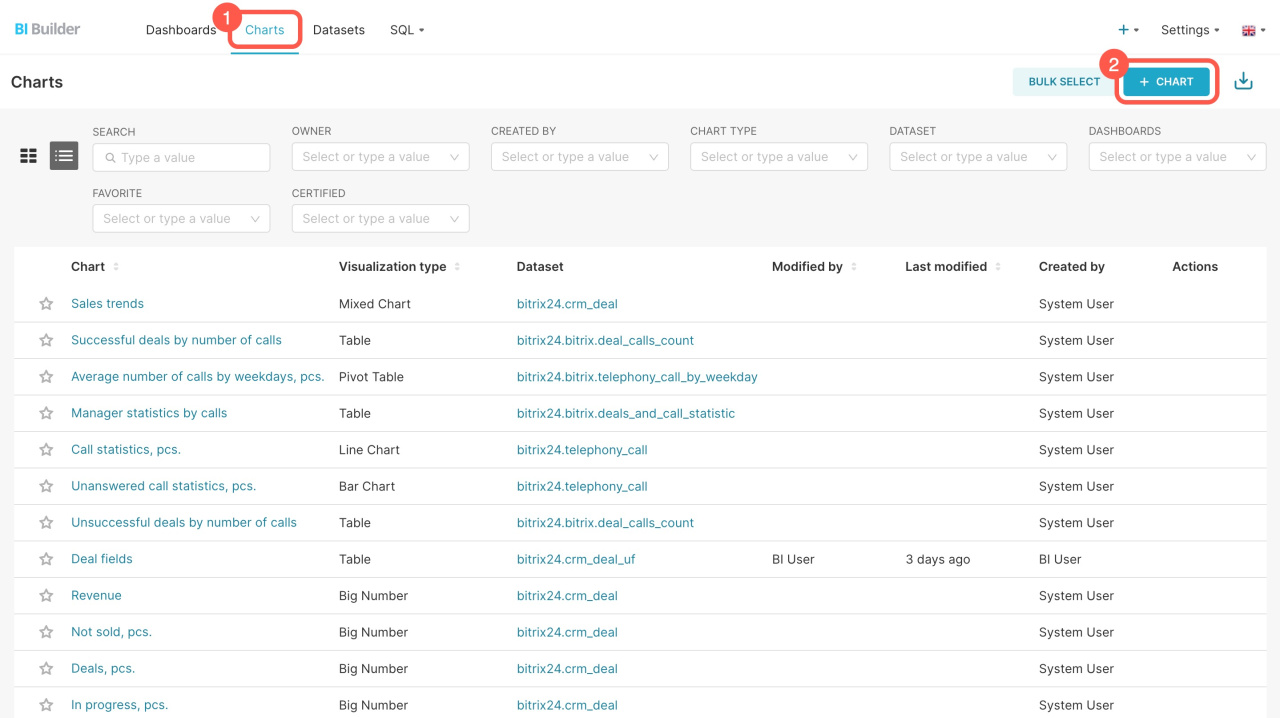
To create a chart in BI Builder:
- Open the Charts tab.
- Click + Chart.
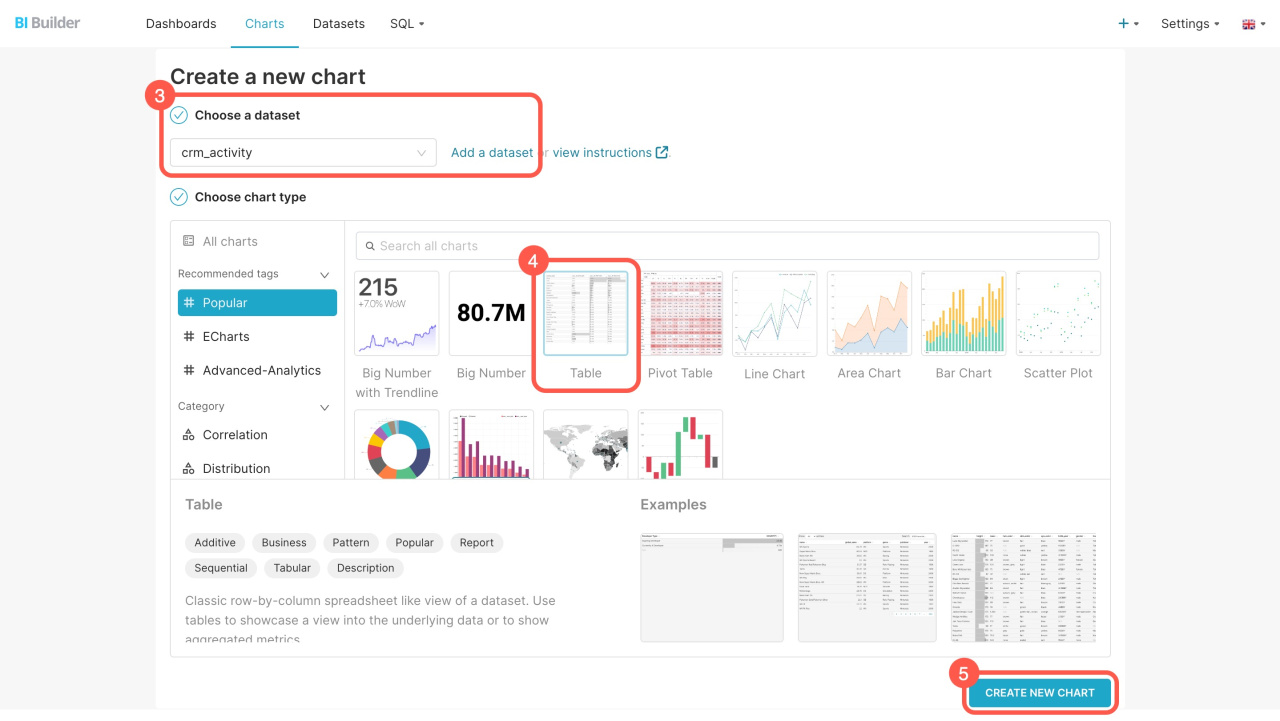
- Select a dataset. If the dataset is not available, click Add a dataset.
How to create a dataset - Choose a chart type (big number, table, line chart, or others)
- Click Create new chart.
Combine datasets
Combine datasets to see how activities relate to deals in your reports.
To combine datasets in BI Builder:
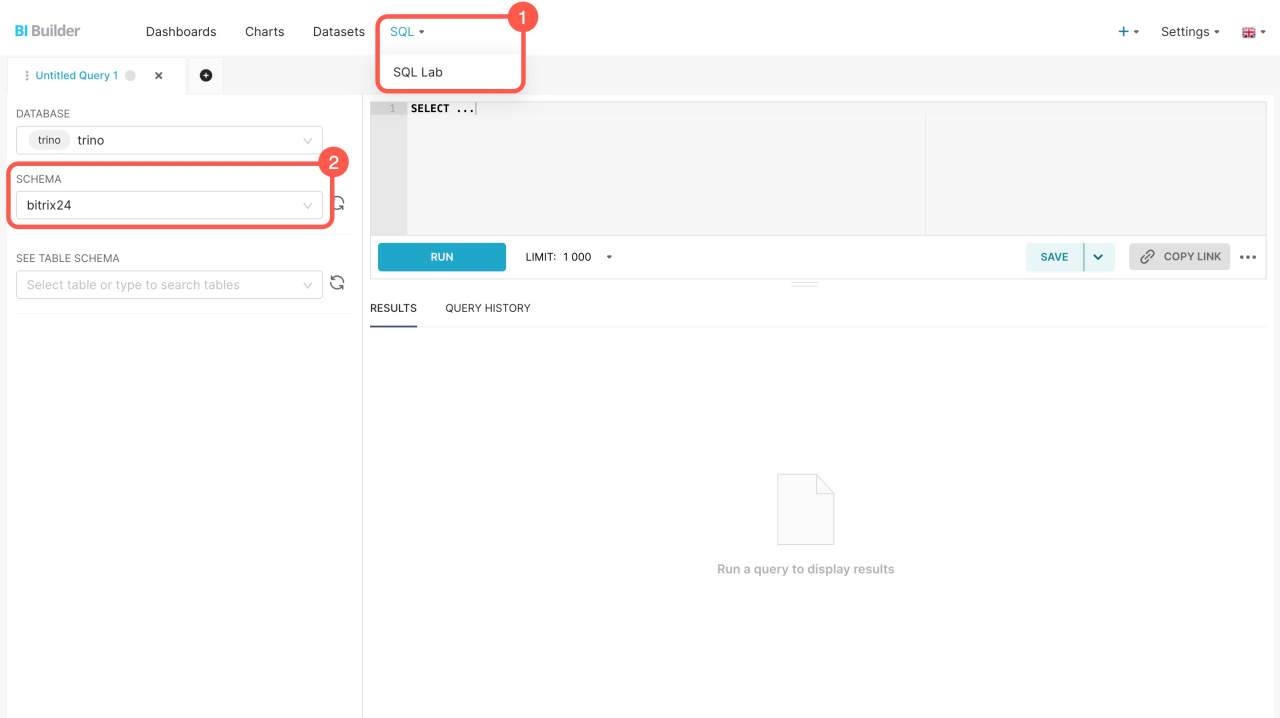
- Go to SQL > SQL Lab.
- Select the bitrix24 schema.
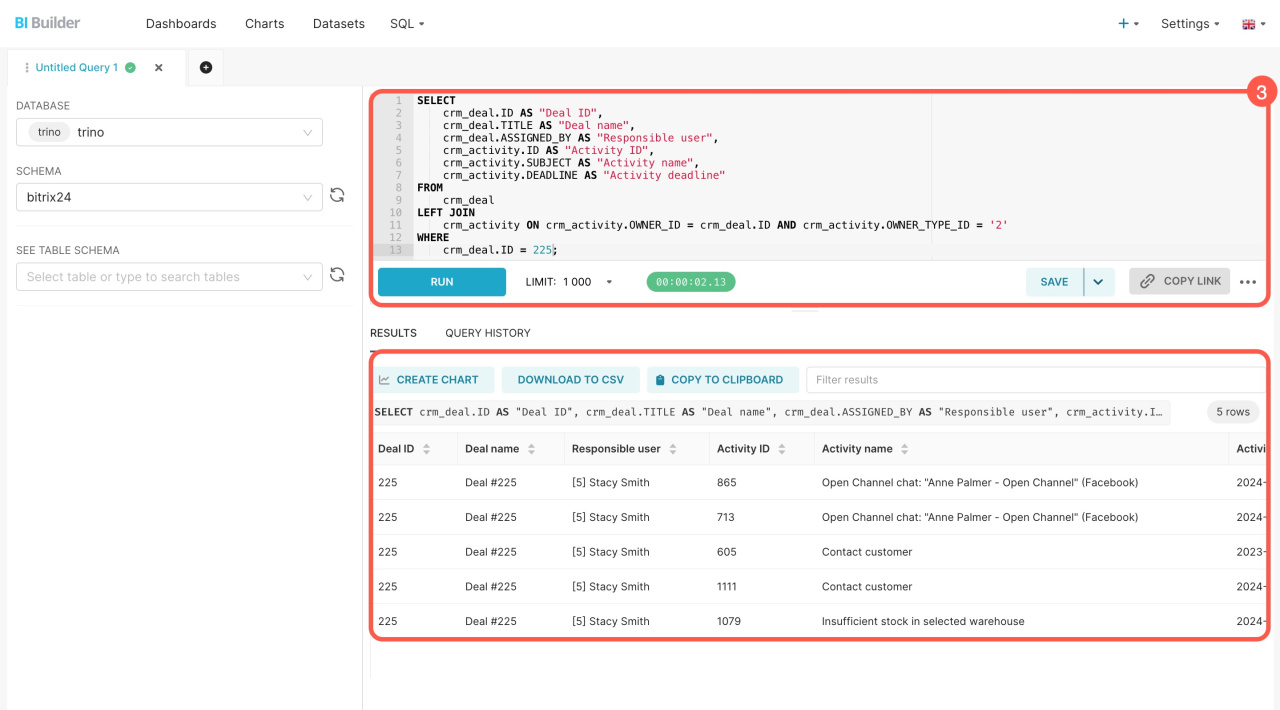
- Enter the SQL query and click Run.
The result includes the fields defined in your query. Save it as a dataset and use it to create charts on your dashboard.
Create a chart based on a virtual dataset
If you are new to combining datasets, start with a sample query.
Example SQL query
This example pulls data from two datasets: deals (crm_deal) and activities (crm_activity). You can copy the query and run it to see how it works.
The query selects a deal with ID 225 and shows:
- Deal details
- Responsible user
- Linked activities
Replace 225 with the ID you need before running the query.
SELECT
  crm_deal.ID AS "Deal ID",
  crm_deal.TITLE AS "Deal name",
  crm_deal.ASSIGNED_BY AS "Responsible user",
  crm_activity.ID AS "Activity ID",
  crm_activity.SUBJECT AS "Activity name",
  crm_activity.DEADLINE AS "Activity deadline"
FROM crm_deal
LEFT JOIN crm_activity
  ON crm_activity.OWNER_ID = crm_deal.ID
  AND crm_activity.OWNER_TYPE_ID = '2'
WHERE crm_deal.ID = 225;
How the query works
SELECT: Defines which data to return. For example, the SELECT crm_deal query.ID AS "Deal ID":
- Selects the deal
IDfrom thecrm_dealdataset - Renames it to
Deal ID - Displays it as a separate column
FROM: Specifies the main dataset, such as crm_deal, which contains deal data.
LEFT JOIN: Links the crm_deal dataset with crm_activity. The query connects deals to their activities. Use LEFT JOIN to ensure no deals are missed, even if they don't have linked activities.
WHERE: Filters the results to show only a specific deal and its activities. To get data for a different deal, replace 225 with the desired ID. To see all deals and their activities, remove the WHERE condition.
In brief
- Datasets store data about leads, deals, companies, and other CRM items.
- Each item includes multiple datasets with both standard and custom fields.
- There are three datasets for activities, CRM stages, and CRM item links: activities (crm_activity), CRM stages (crm_stages), and CRM activity associations (crm_activity_relation).
- Use datasets to build charts and analyze performance. Charts can show the trends in completed activities, progress across various deal stages, and the links between CRM items.
- Combine datasets to see how activities relate to deals. To do this, write an SQL query, save the result as a dataset, and create a chart.