
Datasets and charts in BI Builder
Datasets store data about employees, company structure, calls, and other items. Each item includes multiple datasets with both standard and custom fields. Use these datasets to build charts and analyze performance metrics.
This article covers datasets for employees, company structure, and calls. It also explains how to combine datasets and build charts.
Datasets:
Examples:
Datasets
To start analyzing data on a dashboard, select a dataset and create a chart based on it.
Employees — user: This dataset provides information about employees, including their activity status, departments, and positions within the company. Use it to calculate the number of employees and analyze the company structure.
Employees — user
| Field | Description | Data type |
|---|---|---|
| ID | Unique key | Number |
| ACTIVE | Shows whether the user is on staff ("Y") or dismissed ("N") | String |
| NAME | User name | String |
| DEPARTMENT |
Department position in the company hierarchy is shown as [ID] Company name / Company department, starting with the root department, which is the company name.
|
String |
| DEPARTMENT_IDS | IDs of all departments the employee is in | String |
| DEPARTMENT_ID | ID of the department the employee is in | String |
| DEPARTMENT_NAME | Name of the department the employee is in | String |
| DEPARTMENT_ID_NAME | ID and name of the department the employee is in | String |
| DEP1 | Name of the first level department in the structure | String |
| DEP2 | Name of the second level department in the structure | String |
| DEP3 | Name of the third level department in the structure | String |
| DEP1_ID | ID of the first level department in the structure | String |
| DEP2_ID | ID of the second level department in the structure | String |
| DEP3_ID | ID of the third level department in the structure | String |
| DEP1_N | ID and name of the first level department in the structure | String |
| DEP2_N | ID and name of the second level department in the structure | String |
| DEP3_N | ID and name of the third level department in the structure | String |
Company structure — org_structure: This dataset contains data about company departments, such as their names, types, statuses, and links to other departments. You can view active and inactive departments, identify their supervisors, and track changes in the company structure.
Company structure — org_structure
| Field | Description | Data type |
|---|---|---|
| ID | Department ID in the company structure | Number |
| ACTIVE | Shows whether the department is active ("Y") or not ("N") | String |
| NAME | Department name | String |
| ID_NAME | Department ID and name | String |
| TYPE | Type in the structure: DEPARTMENT - department, COMPANY - company, TEAM - cross-functional team | String |
| PARENT_ID | Parent department ID | Number |
| ID_PARENT_NAME | Parent department ID and name | String |
| HEAD_ID | Department supervisors' IDs | String |
org_structure_relation — department hierarchy in a company. The set includes data on relationships between company departments, such as identifiers of parent and subordinate divisions, their names, and nesting levels. It helps analyze the structure and visualize the department hierarchy.
org_structure_relation
| Field | Description | Data type |
|---|---|---|
| ID | Department ID in the company structure | Number |
| ACTIVE | Department activity: Y — active, N — disabled | String |
| NAME | Department name | String |
| ID_NAME | Department ID and name | String |
| TYPE | Structure type: department, company, team | String |
| PARENT_ID | Parent department ID | String |
| ID_PARENT_NAME | Name of the department the employee is in | String |
| Parent department ID and name | ID and name of the department the employee is in | String |
| HEAD_ID | List of department manager IDs | String |
Calls — telephony_call: This dataset includes information about calls, such as agent IDs, customer phone numbers, and call types. You can analyze each call's duration and link calls to customers, deals, and leads.
Calls — telephony_call
| Field | Description | Data type |
|---|---|---|
| CALL_ID | Unique key | String |
| PORTAL_USER_ID | Agent ID | Number |
| PORTAL_USER | Agent ID and name | String |
| PORTAL_USER_DEPARTMENT | Agent's department in the company structure | String |
| PORTAL_NUMBER | Agent's extension number linked with the call | String |
| PHONE_NUMBER | Customer's phone number | String |
| CALL_TYPE | Call type: 1 - outgoing, 2 - incoming, 3 - forwarded incoming, 4 - callback | Number |
| CALL_DURATION | Call duration in seconds | Number |
| CALL_START_TIME | Call start time | Date |
| CALL_STATUS_CODE | Call code | String |
| CALL_STATUS_CODE_ID | Call result code | String |
| CALL_STATUS_CODE_NAME | Call result description | String |
| CALL_STATUS_REASON | Call code description | String |
| RECORD_FILE_ID | Call recording file ID | Number |
| CALL_VOTE | Call rating (available only for internal calls) | Number |
| COST | Call cost | Number |
| COST_CURRENCY | Call currency | String |
| CRM_ENTITY_ID | ID of the CRM item to which the activity is bound | Number |
| CRM_ENTITY_TYPE | Type of CRM item to which the activity is bound, like lead or deal | String |
| CRM_ACTIVITY_ID | ID of the CRM activity created based on the call | Number |
| REST_APP_ID | External telephony integration application ID | Number |
| REST_APP_NAME | External telephony integration application name | String |
| TRANSCRIPT_PENDING | Shows whether the transcript is ready ("N") or still in progress ("Y") | String |
| TRANSCRIPT_ID | Call transcript ID | Number |
| REDIAL_ATTEMPT | Number of dial attempts | Number |
| COMMENT | Call comment | String |
Create a chart
Use datasets to track metrics like the number of calls per employee and average call duration.
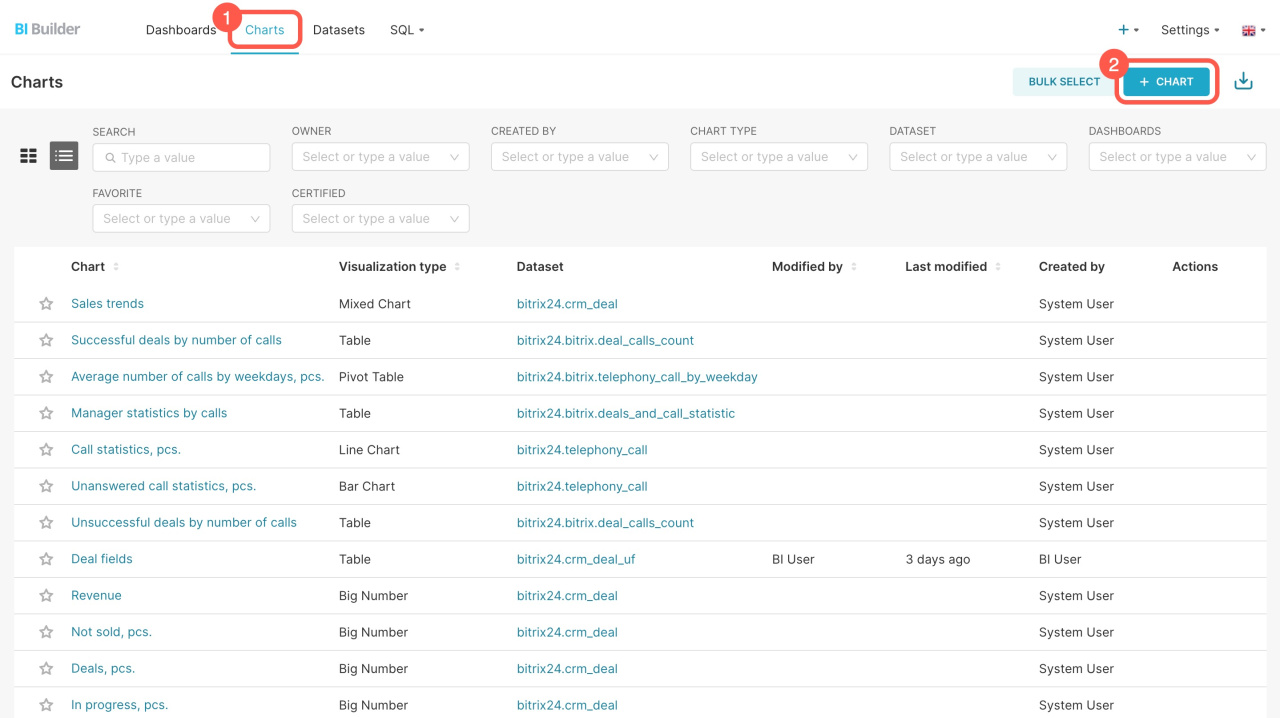
- Open BI Builder.
- Go to the Charts tab.
- Click + Chart.
- Select a dataset. If it is not listed, click Add a dataset.
- Choose a chart type, such as table or line chart.
- Click Create new chart.

Combine datasets
Combine datasets to analyze related data. For example, connect employees with their calls to see who makes the most calls and how long they last.
- Open BI Builder.
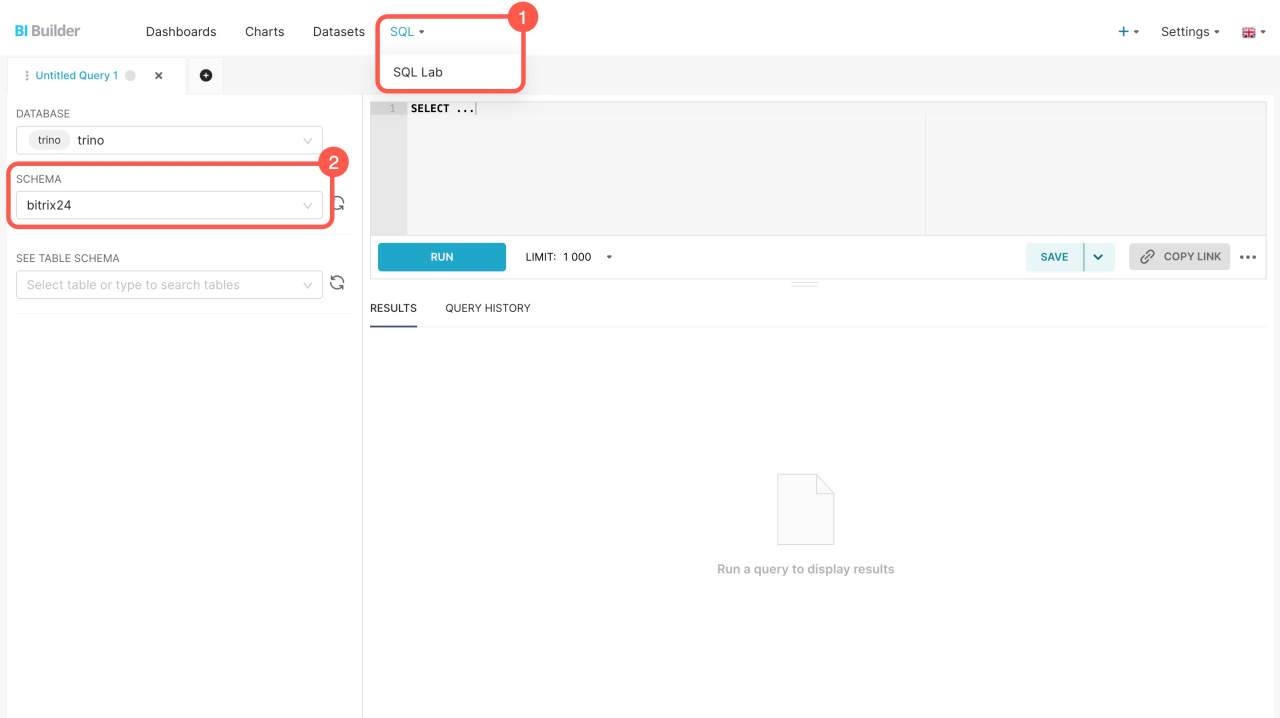
- Go to SQL > SQL Lab.
- Select the bitrix24 schema.
- Enter your SQL query and click Run.
The new set includes information from the fields that you specified in the SQL query. You can save it as a dataset to create a chart for the dashboard.
Create a chart based on a virtual dataset
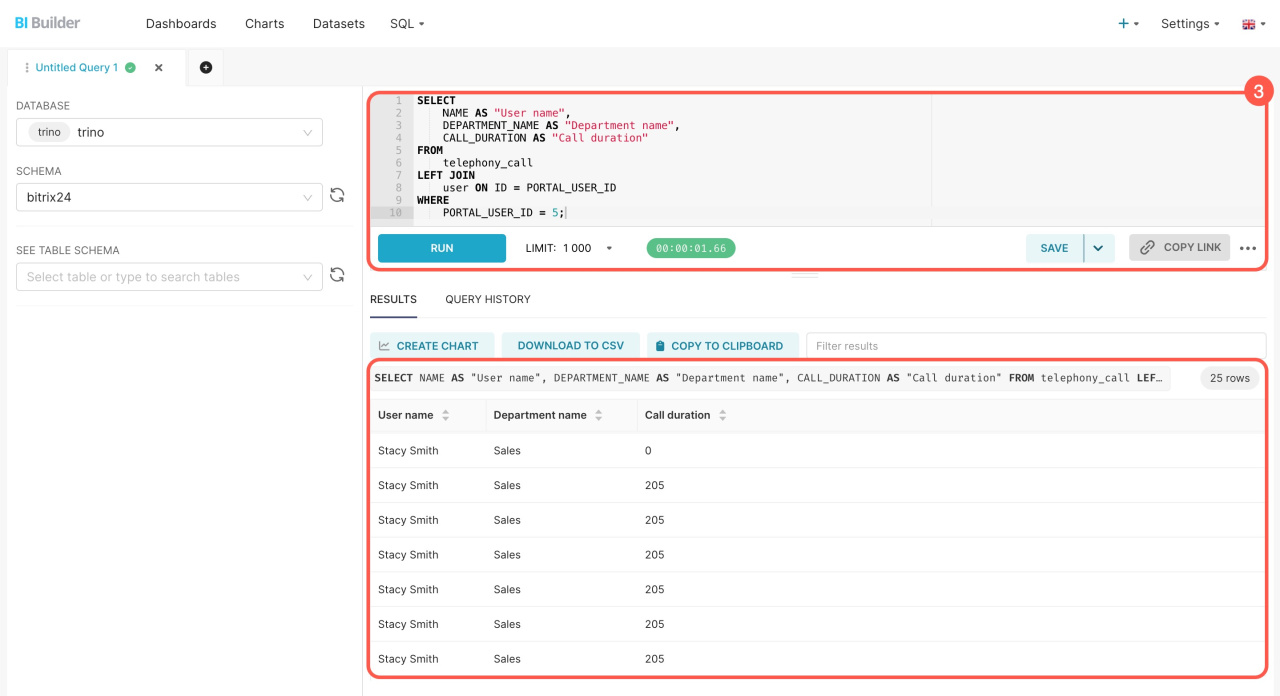
If you're blending datasets for the first time, refer to the sample query.
Example of an SQL query
Here's an SQL query to extract data from two datasets: employees (user) and calls (telephony_call). The query will show data about the employee's calls, including their name, department, and each call duration. Replace the employee ID with the needed one before running the query.
SELECT NAME AS "User name", DEPARTMENT_NAME AS "Department name", CALL_DURATION AS "Call duration" FROM telephony_call LEFT JOIN user ON ID = PORTAL_USER_ID WHERE PORTAL_USER_ID = 5;
SELECT: Chooses which data to extract. For example, the SELECT NAME AS "User name" part does the following:
- Selects the user name
NAMEfrom theuserdataset - Assigns it the name
User name - Displays the result in a separate column
FROM: Specifies the main table for the query, such as the telephony_call table containing information about calls.
LEFT JOIN: Connects the telephony_call table to user. The query connects calls to employees' data.
WHERE: Filters the query results to show only a specific employee's calls. The condition WHERE PORTAL_USER_ID = 5; shows calls made by the employee with that ID. To view calls from all employees, remove the WHERE condition.
In brief
- Datasets store data about employees, company structure, calls, and other items.
- Each item includes datasets with standard and custom fields.
- Use datasets to build charts and track call activity.
- Combine datasets with SQL to analyze related data.