
In BI Builder, you can create datasets from CSV files. Import errors may occur if the file uses incorrect separators, data formats, or encoding. These issues can break the data structure and prevent data from loading into the dataset.
This article covers common CSV import errors and how to fix them.
Possible errors include:
- Different separators
- Extra separators in a line
- Different date formats
- Incorrect file encoding
- Extra characters in number fields
- Incorrect column data types
To create a dataset from a CSV file, refer to the article:
Create a dataset from a CSV file in BI Builder
To you set up formats and data types correctly for CSV file import, see this article:
Configure data formats and types for CSV file import
Different separators in the CSV file
Using different separators in one file can cause import errors. For example, part of the data uses a semicolon (;) and another part uses a comma (,). This breaks the file structure and leads to incorrect data parsing.
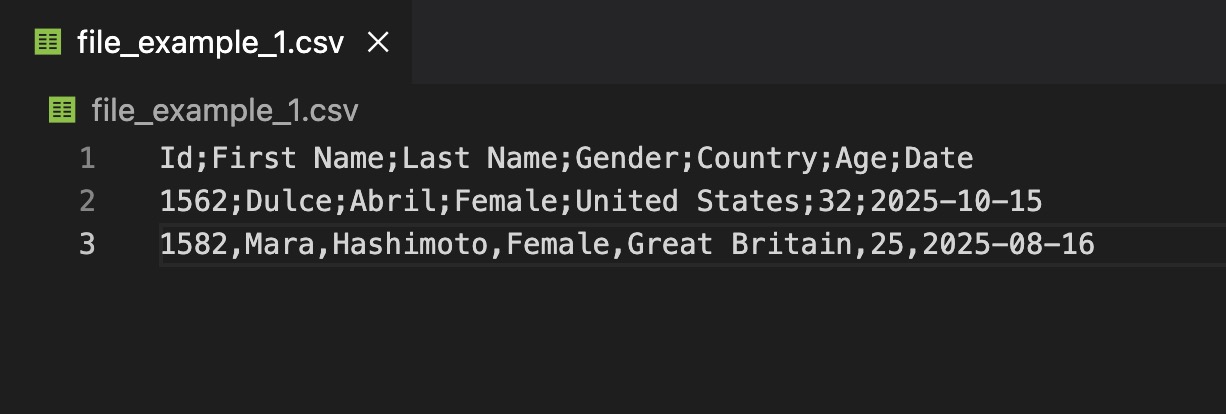
BI Builder may show an error or load all data into a single column.
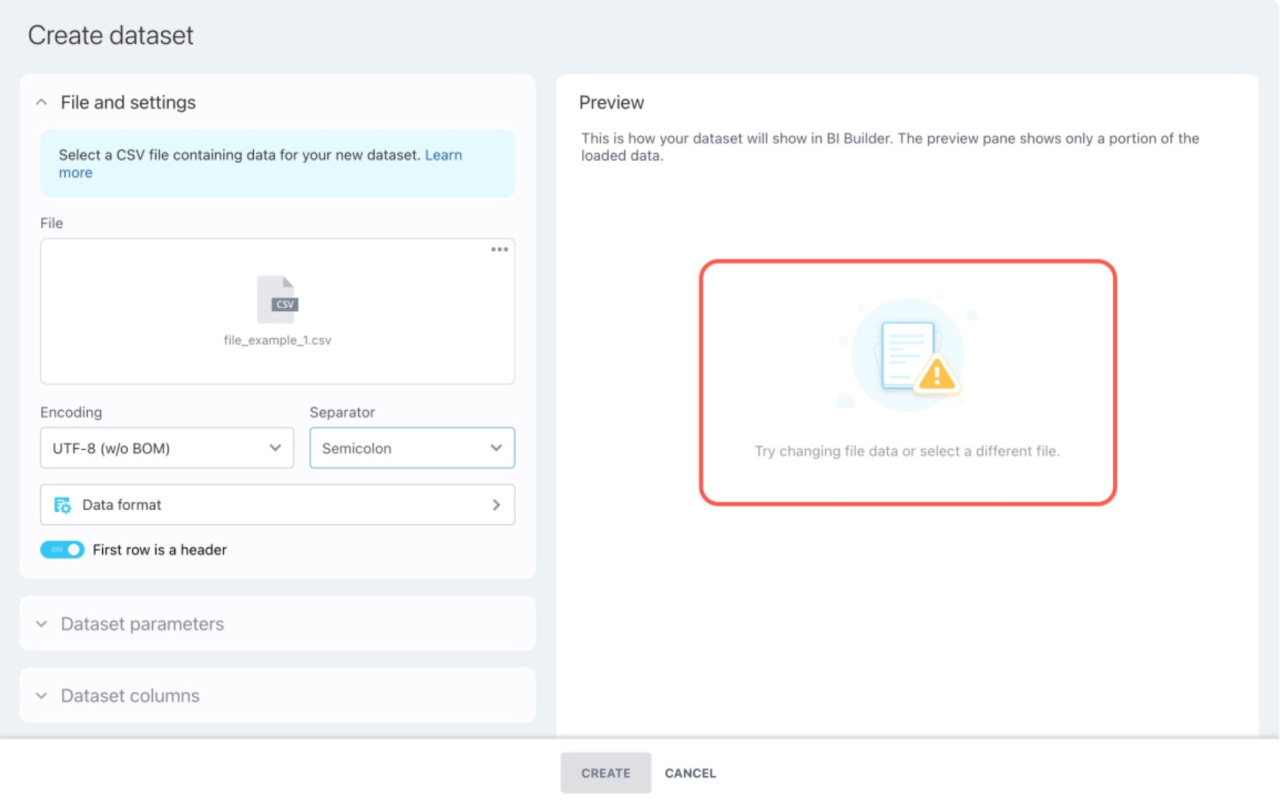
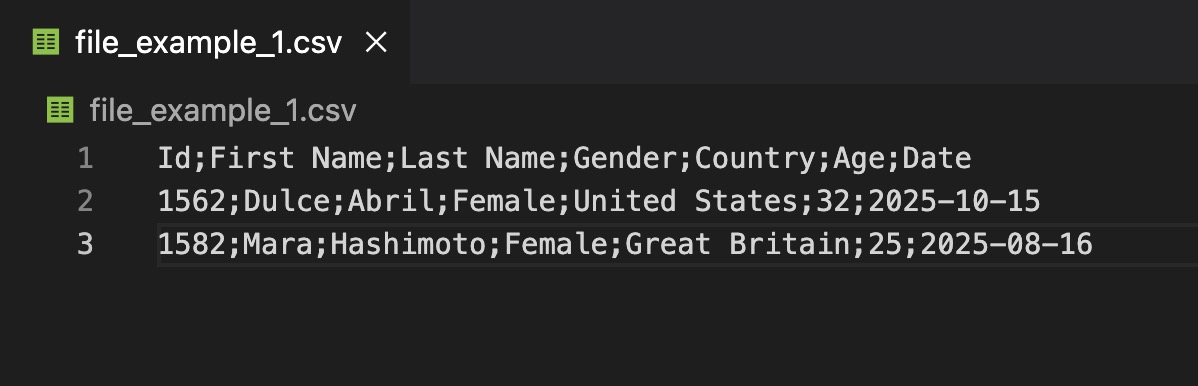
Solution. Use one separator across the entire file. For example, use only semicolons.
Extra separators in the CSV file line
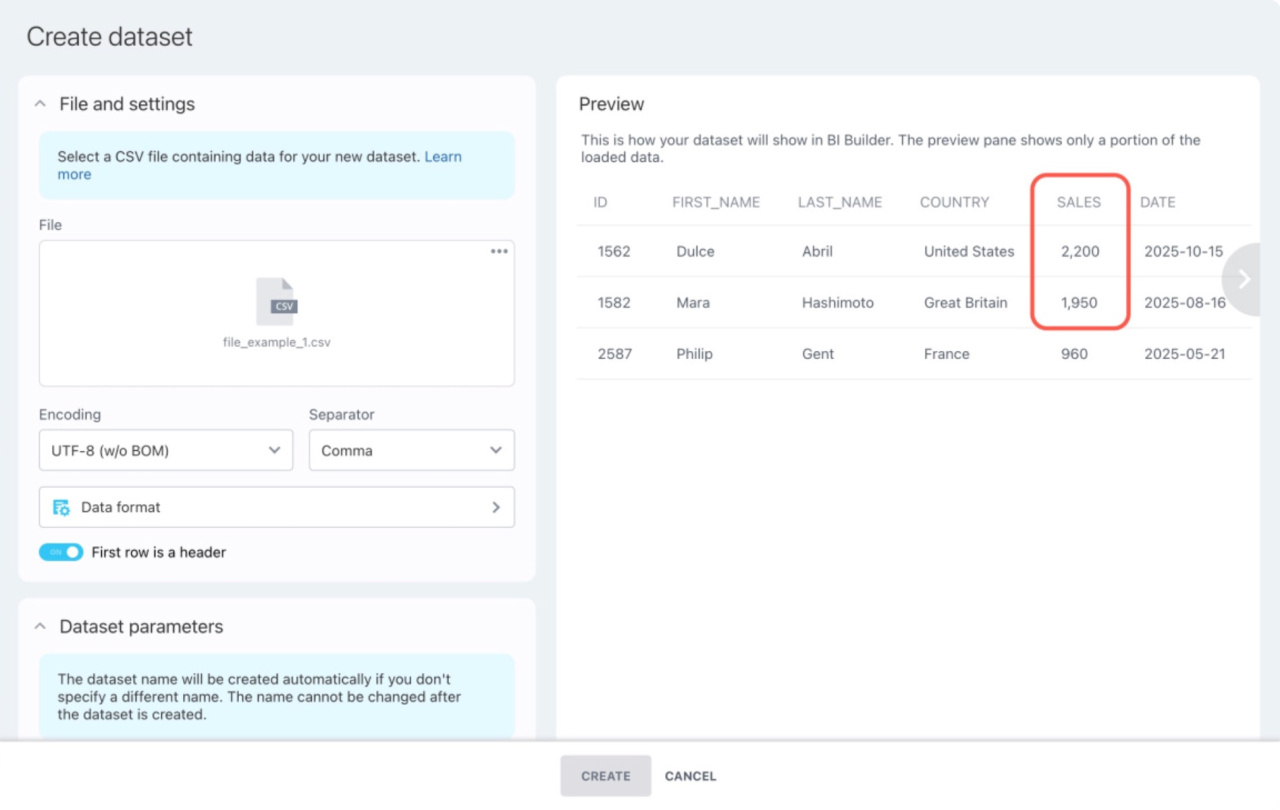
If text includes the same character as the column separator, BI Builder treats it as a delimiter. This shifts values into the wrong columns.
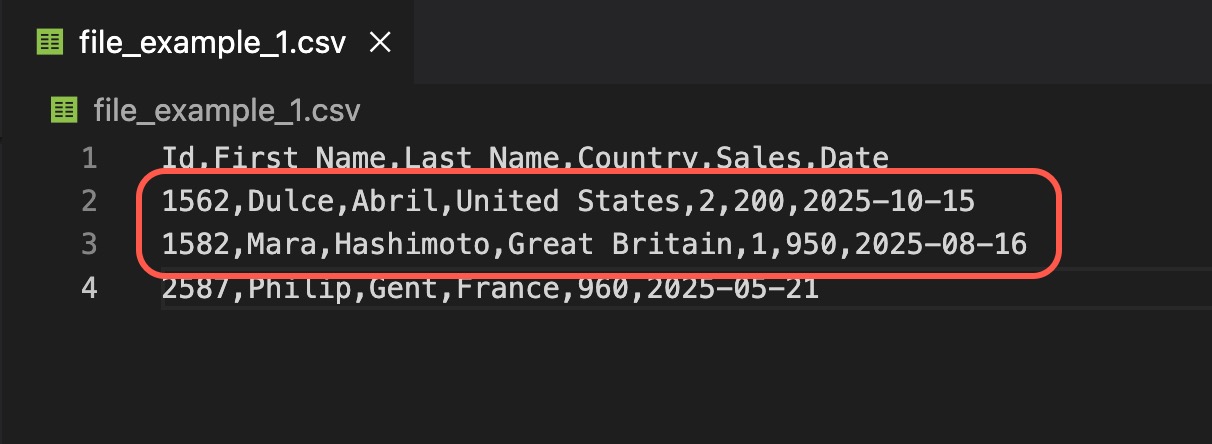
BI Builder will show an error during import.
Solution. Remove extra separators or wrap text values in double quotes. For example, format the line as 2025-08-16,Mara,Hashimoto,Great Britain,"1,950". This ensures the dataset displays information correctly.
Before import, review the full file in a text editor.
Different date formats
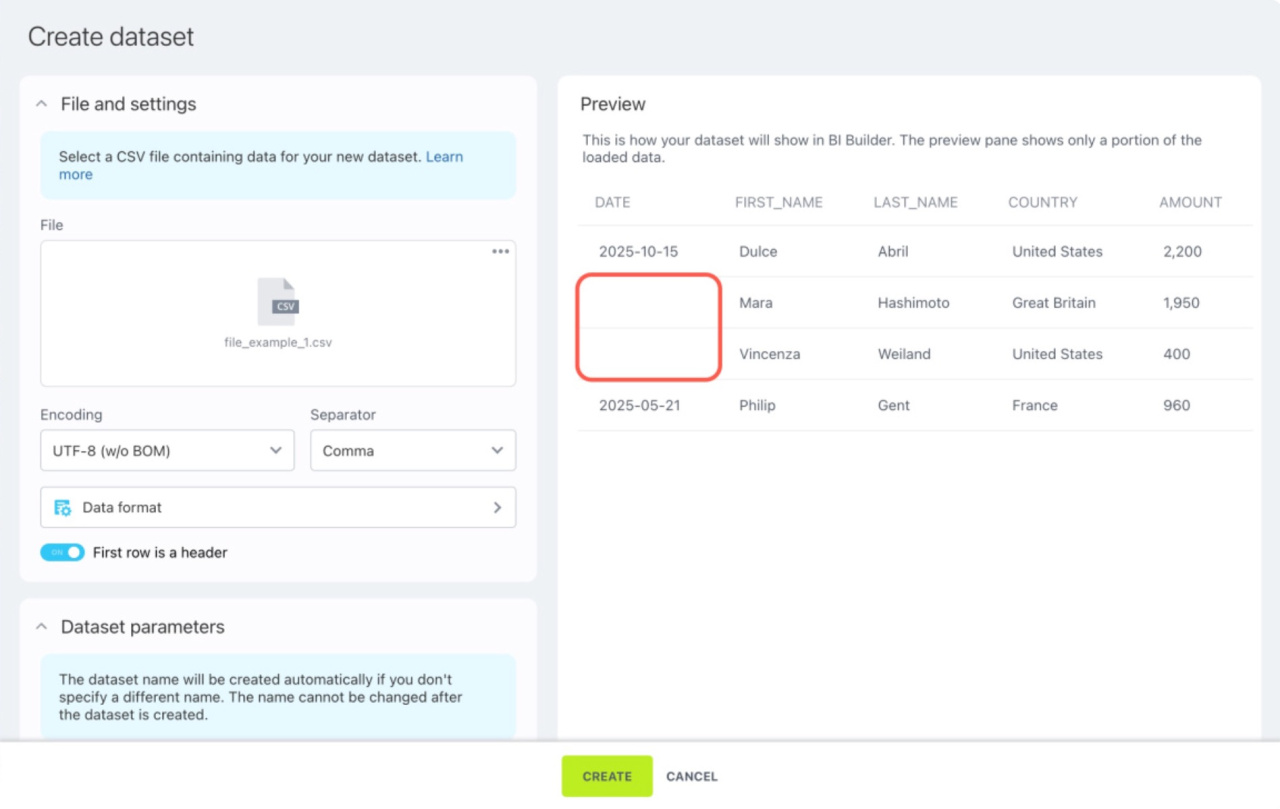
If the file uses multiple date formats, BI Builder may not recognize them. For example, dates like 2025-03-01 may not match a DD/MM/YYYY setting.
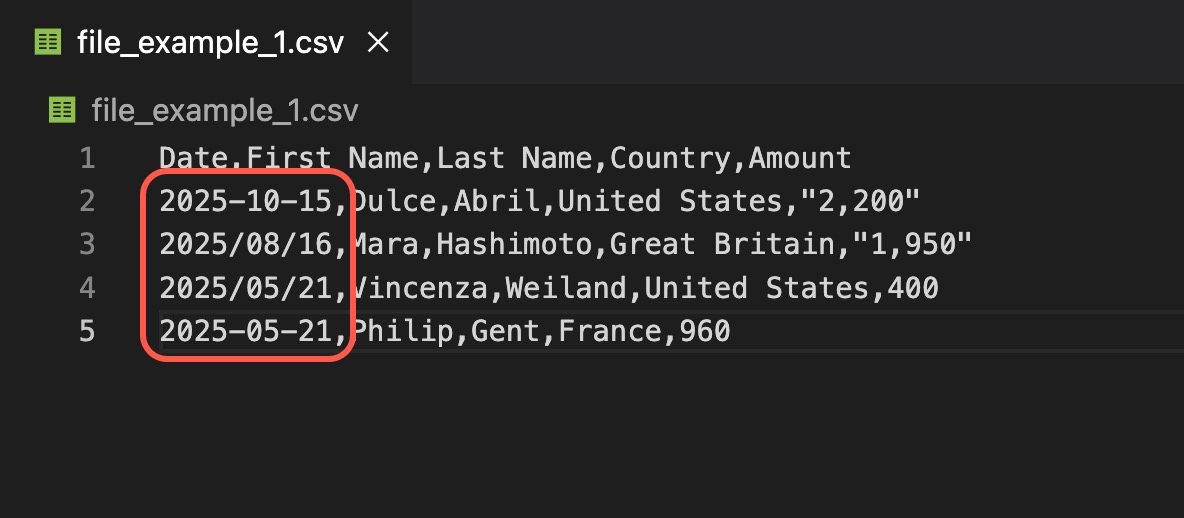
Fields may stay empty or appear as text.
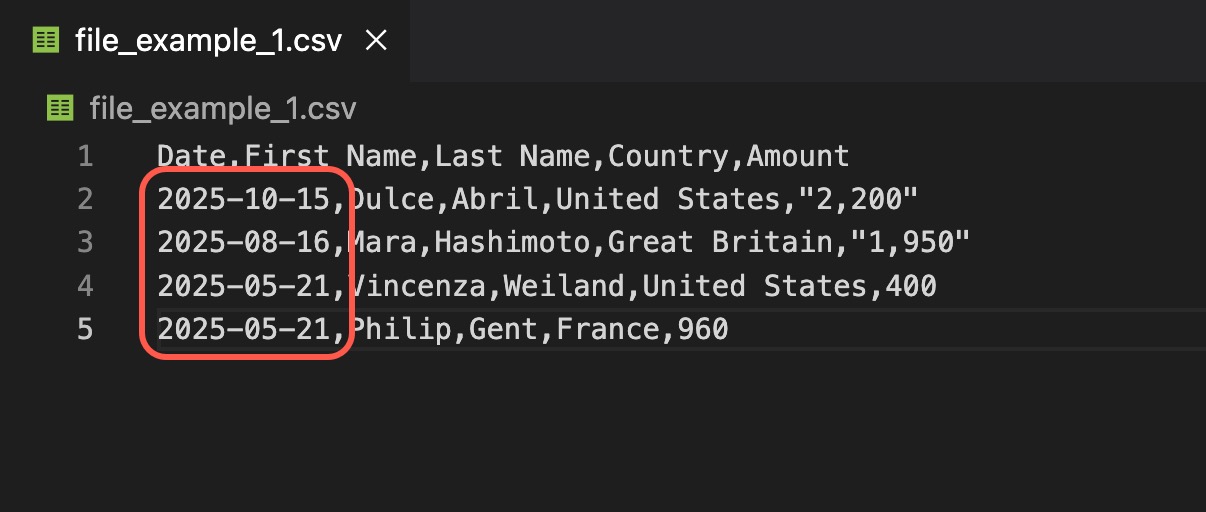
Solution. Use one date format across the file. For example, MM/DD/YYYY or YYYY-MM-DD. Keep separators consistent.
Incorrect file encoding
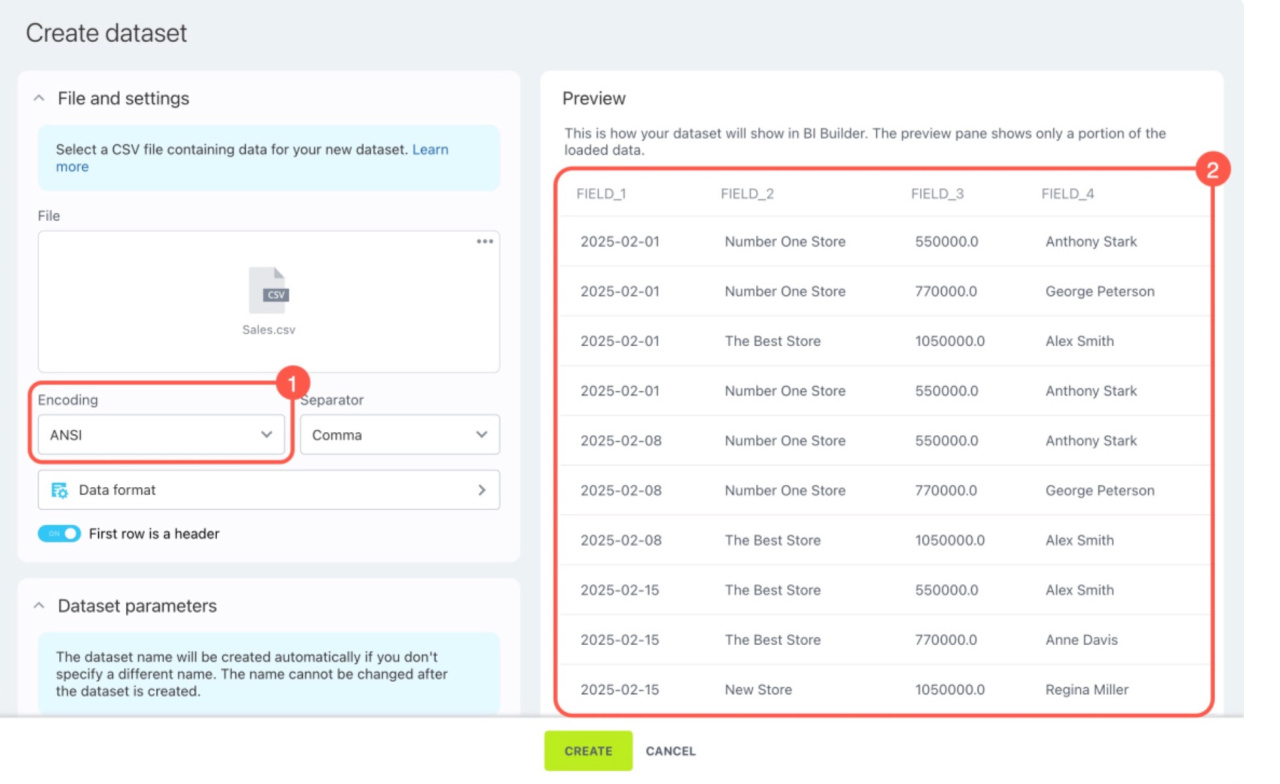
If you select the wrong encoding, text may appear as unreadable characters.
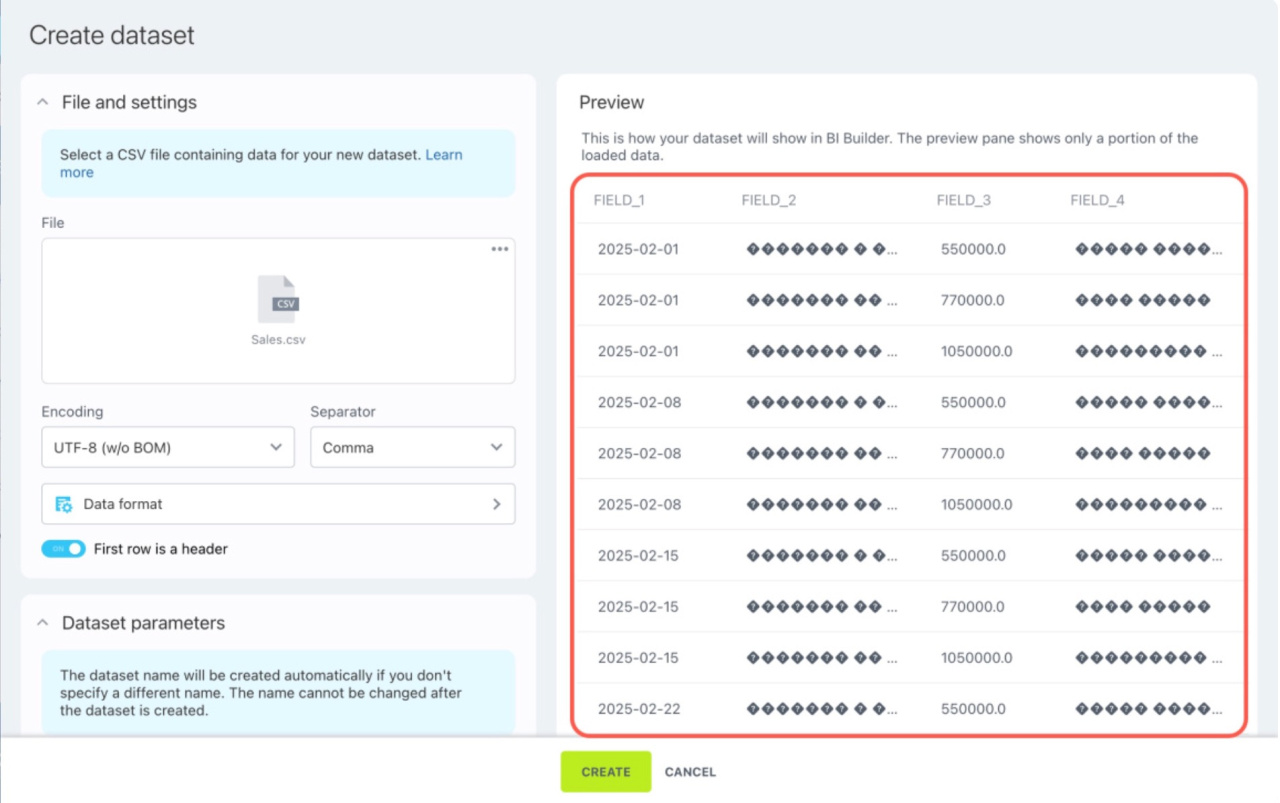
Solution. Choose a different encoding during import or save the file in UTF-8.
Extra characters in number fields
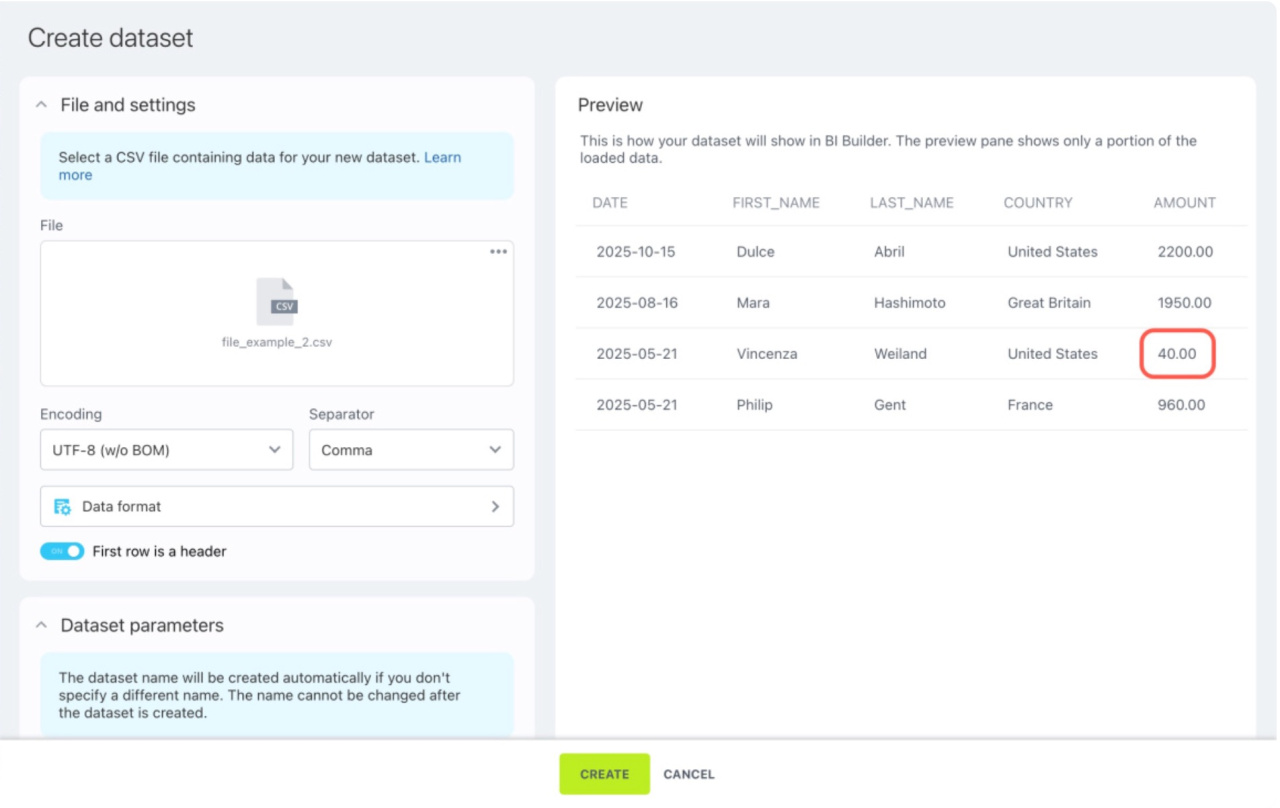
If number fields contain text or typos, BI Builder may import incorrect values. For example, using the letter “O” instead of zero.
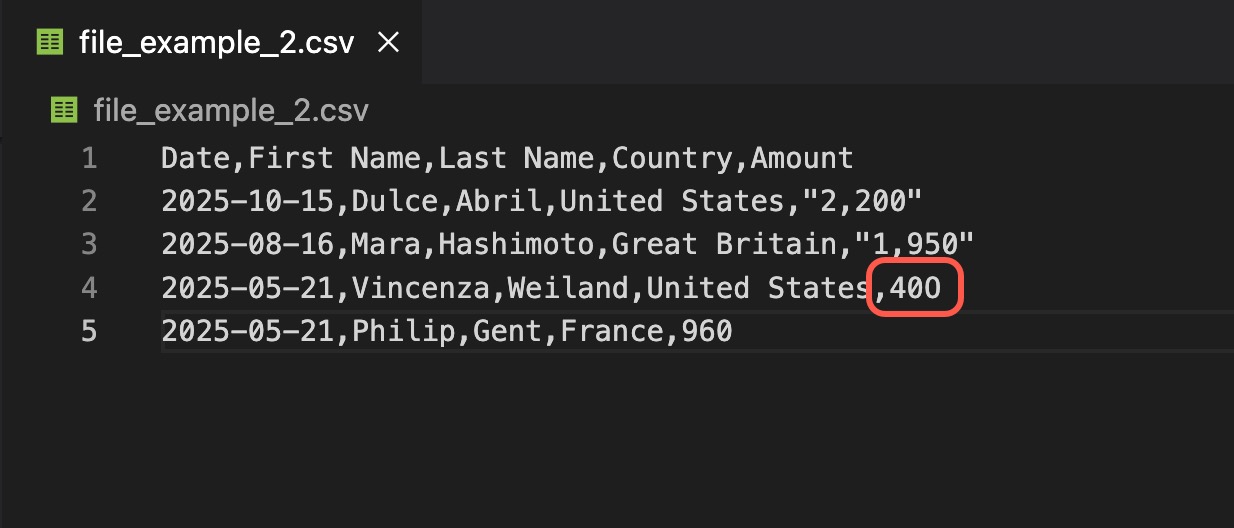
When importing a file, BI Builder won't show an error, but the data will be recorded incorrectly in the dataset.
Solution. Correct the characters and ensure all values in number fields are recorded correctly.
Incorrect column data types
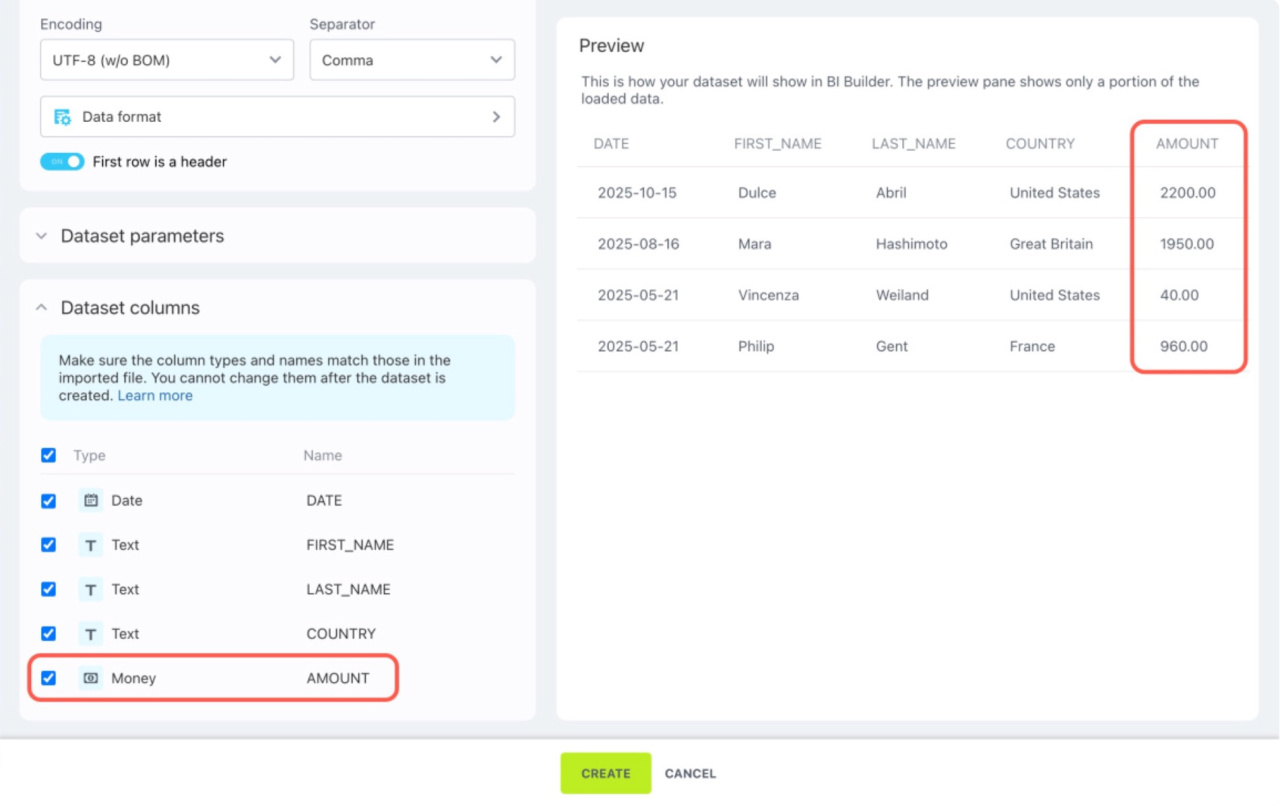
If a column type does not match the data, values may display incorrectly or not at all. For example, setting a numeric column as a date.
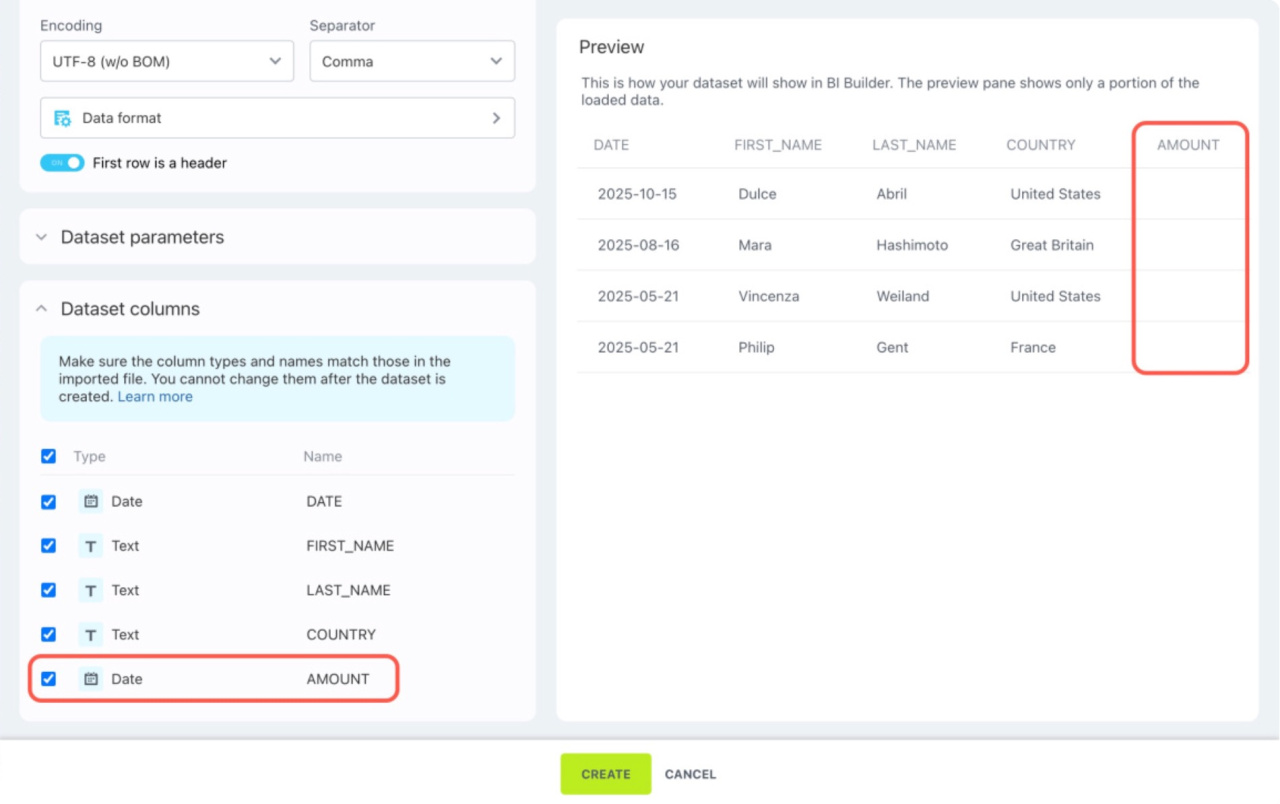
Solution. Assign the correct data type to each column based on the file content.
In brief
-
CSV import errors can break dataset structure.
-
Use one consistent separator across the file.
-
Avoid extra separators in text values. Use quotes if needed.
-
Keep all dates in the same format.
-
Use the correct file encoding, preferably UTF-8.
-
Remove typos and text from numeric fields.
-
Match column data types to the actual data.