
A dataset contains information about signed documents, e-Signature for HR, invoices, and other Bitrix24 items. Each item has several datasets that automatically receive data from system and custom fields. Use datasets to create charts and analyze business efficiency metrics.
In this article, you'll learn about datasets for e-Signature and e-Signature for HR, how to merge them, and how to create charts.
Datasets:
- crm_dynamic_items_36 — customer documents (e-Signature)
- crm_dynamic_items_39 — HR documents (e-Signature for HR)
Examples:
Choose a dataset
To analyze information in a dashboard, choose a suitable dataset and create a chart.
crm_dynamic_items_36 — customer documents (e-Signature). This dataset contains data from system fields of documents created for signing. Use this dataset to track statuses, deadlines, and how documents move through stages.
crm_dynamic_items_36
| Field | Description | Data type |
|---|---|---|
| ID | Document ID | Number |
| XML_ID | External document ID | String |
| TITLE | Document name | String |
| CREATED_BY_ID | ID of the employee who created the document | Number |
| CREATED_BY_NAME | Name of the employee who created the document | String |
| CREATED_BY | ID and name of the employee who created the document | String |
| UPDATED_BY_ID | ID of the employee who last updated the document | Number |
| UPDATED_BY_NAME | Name of the employee who last updated the document | String |
| UPDATED_BY | ID and name of the employee who last updated the document | String |
| MOVED_BY_ID | ID of the employee who changed the document stage | Number |
| MOVED_BY_NAME | Name of the employee who changed the document stage | String |
| MOVED_BY | ID and name of the employee who changed the document stage | String |
| CREATED_TIME | Date and time the document was created | Date and time |
| UPDATED_TIME | Date and time the document was last updated | Date and time |
| MOVED_TIME | Date and time the document stage was changed | Date and time |
| CATEGORY_ID | ID of the pipeline the document is in | Number |
| CATEGORY_NAME | Name of the pipeline the document is in | String |
| CATEGORY | ID and name of the pipeline the document is in | String |
| OPENED | Shows whether the document is available to everyone: Y — yes, N — no |
String |
| STAGE_ID | Document stage code | String |
| STAGE_NAME | Document stage name | String |
| STAGE | Document stage code and name | String |
| PREVIOUS_STAGE_ID | Previous document stage code | String |
| BEGINDATE | Date and time document signing started | Date and time |
| CLOSEDATE | Date and time document signing ended | Date and time |
| COMPANY_ID | ID of the company linked to the document | Number |
| COMPANY_NAME | Name of the company linked to the document | String |
| COMPANY | ID and name of the company linked to the document | String |
| CONTACT_ID | ID of the contact linked to the document | Number |
| CONTACT_NAME | Name of the contact linked to the document | String |
| CONTACT | ID and name of the contact linked to the document | String |
| CONTACTS | IDs and names of all contacts linked to the document | String |
| OPPORTUNITY | Expected amount for the document | Number |
| IS_MANUAL_OPPORTUNITY | Shows whether the expected amount was entered manually: Y — yes, N — no |
String |
| TAX_VALUE | Tax amount for the document | Number |
| CURRENCY_ID | Document currency code | String |
| OPPORTUNITY_ACCOUNT | Expected amount for the document in the reporting currency | Number |
| TAX_VALUE_ACCOUNT | Tax amount for the document in the reporting currency | Number |
| ACCOUNT_CURRENCY_ID | Reporting currency code | String |
| MYCOMPANY_ID | ID of your company | Number |
| MYCOMPANY_NAME | Name of your company | String |
| MYCOMPANY | ID and name of your company | String |
| SOURCE_ID | Document source code | String |
| SOURCE_NAME | Document source name | String |
| SOURCE | Document source code and name | String |
| SOURCE_DESCRIPTION | Document source description | String |
| ASSIGNED_BY_ID | ID of the employee responsible for the document | Number |
| ASSIGNED_BY_NAME | Name of the employee responsible for the document | String |
| ASSIGNED_BY | ID and name of the employee responsible for the document | String |
| WEBFORM_ID | ID of the CRM form the document was created from | Number |
UF_CRM_"field number" |
Data from the document custom field with the specified number, for example UF_CRM_123456789 |
Depends on the field type |
crm_dynamic_items_39 — HR documents (e-Signature for HR). This dataset contains data from system fields of HR documents. Use this dataset to track statuses, signing deadlines, and how HR documents move through stages.
crm_dynamic_items_39
| Field | Description | Data type |
|---|---|---|
| ID | HR document ID | Number |
| XML_ID | External HR document ID | String |
| TITLE | HR document name | String |
| CREATED_BY_ID | ID of the employee who created the HR document | Number |
| CREATED_BY_NAME | Name of the employee who created the HR document | String |
| CREATED_BY | ID and name of the employee who created the HR document | String |
| UPDATED_BY_ID | ID of the employee who last updated the HR document | Number |
| UPDATED_BY_NAME | Name of the employee who last updated the HR document | String |
| UPDATED_BY | ID and name of the employee who last updated the HR document | String |
| MOVED_BY_ID | ID of the employee who changed the HR document stage | Number |
| MOVED_BY_NAME | Name of the employee who changed the HR document stage | String |
| MOVED_BY | ID and name of the employee who changed the HR document stage | String |
| CREATED_TIME | Date and time the HR document was created | Date and time |
| UPDATED_TIME | Date and time the HR document was last updated | Date and time |
| MOVED_TIME | Date and time the HR document stage was changed | Date and time |
| CATEGORY_ID | ID of the pipeline the HR document is in | Number |
| CATEGORY_NAME | Name of the pipeline the HR document is in | String |
| CATEGORY | ID and name of the pipeline the HR document is in | String |
| OPENED | Shows whether the HR document is available to everyone: Y — yes, N — no |
String |
| STAGE_ID | HR document stage code | String |
| STAGE_NAME | HR document stage name | String |
| STAGE | HR document stage code and name | String |
| PREVIOUS_STAGE_ID | Previous HR document stage code | String |
| BEGINDATE | Date and time HR document processing started | Date and time |
| CLOSEDATE | Date and time HR document processing ended | Date and time |
| COMPANY_ID | ID of the company linked to the HR document | Number |
| COMPANY_NAME | Name of the company linked to the HR document | String |
| COMPANY | ID and name of the company linked to the HR document | String |
| CONTACT_ID | ID of the contact linked to the HR document | Number |
| CONTACT_NAME | Name of the contact linked to the HR document | String |
| CONTACT | ID and name of the contact linked to the HR document | String |
| CONTACTS | IDs and names of all contacts linked to the HR document | String |
| OPPORTUNITY | Expected amount for the HR document | Number |
| IS_MANUAL_OPPORTUNITY | Shows whether the expected amount was entered manually: Y — yes, N — no |
String |
| TAX_VALUE | Tax amount for the HR document | Number |
| CURRENCY_ID | HR document currency code | String |
| OPPORTUNITY_ACCOUNT | Expected amount for the HR document in the reporting currency | Number |
| TAX_VALUE_ACCOUNT | Tax amount for the HR document in the reporting currency | Number |
| ACCOUNT_CURRENCY_ID | Reporting currency code | String |
| MYCOMPANY_ID | ID of your company | Number |
| MYCOMPANY_NAME | Name of your company | String |
| MYCOMPANY | ID and name of your company | String |
| SOURCE_ID | HR document source code | String |
| SOURCE_NAME | HR document source name | String |
| SOURCE | HR document source code and name | String |
| SOURCE_DESCRIPTION | HR document source description | String |
| ASSIGNED_BY_ID | ID of the employee responsible for the HR document | Number |
| ASSIGNED_BY_NAME | Name of the employee responsible for the HR document | String |
| ASSIGNED_BY | ID and name of the employee responsible for the HR document | String |
| WEBFORM_ID | ID of the CRM form the HR document was created from | Number |
UF_CRM_"field number" |
Data from the HR document custom field with the specified number, for example UF_CRM_123456789 |
Depends on the field type |
Create a chart
Add information from a dataset to charts and track document stages and responsible employees. Charts show how many documents are signed and who handles them.
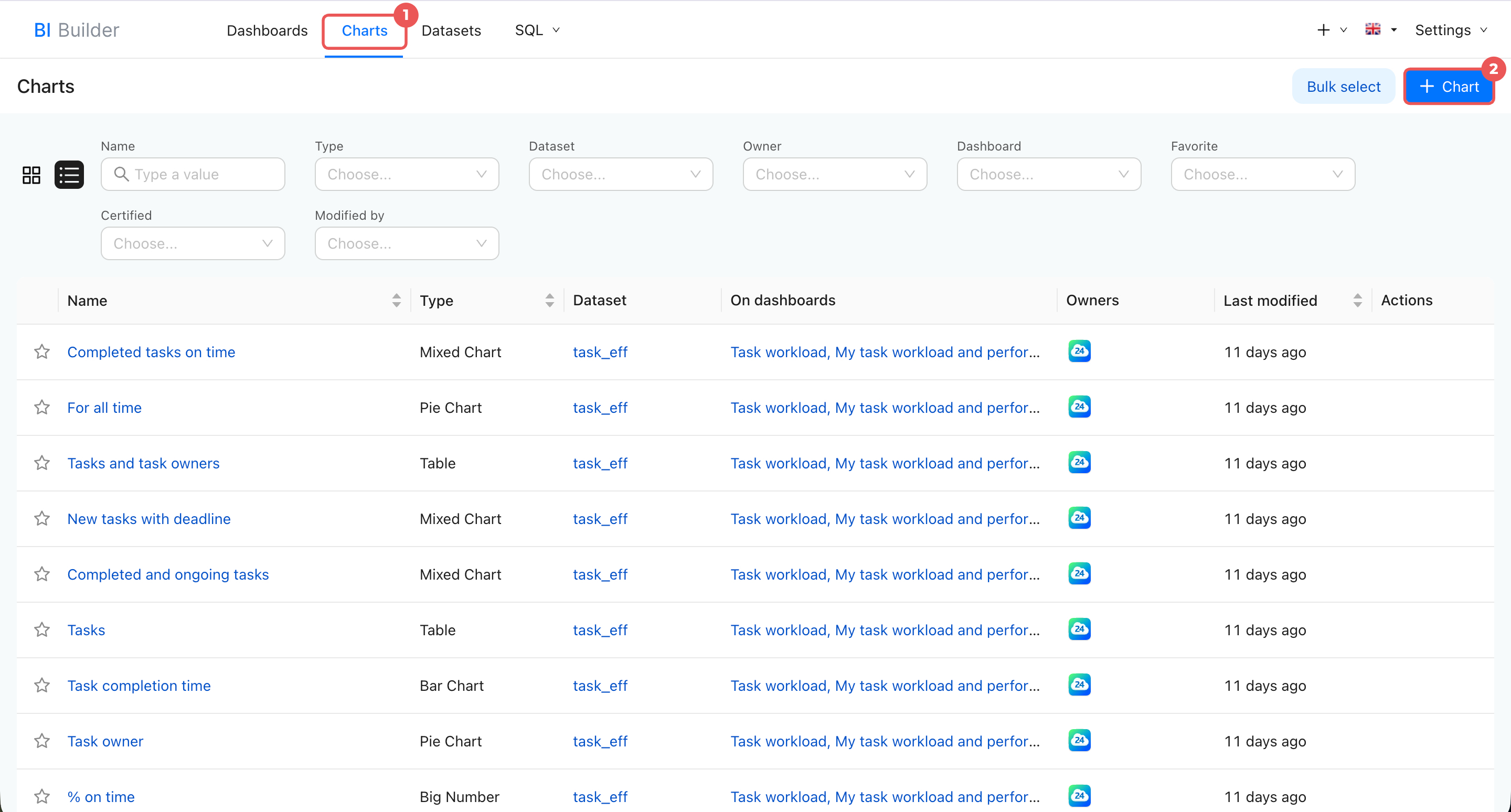
- Open BI Builder > Charts.
- Click + Chart in the top-right corner.
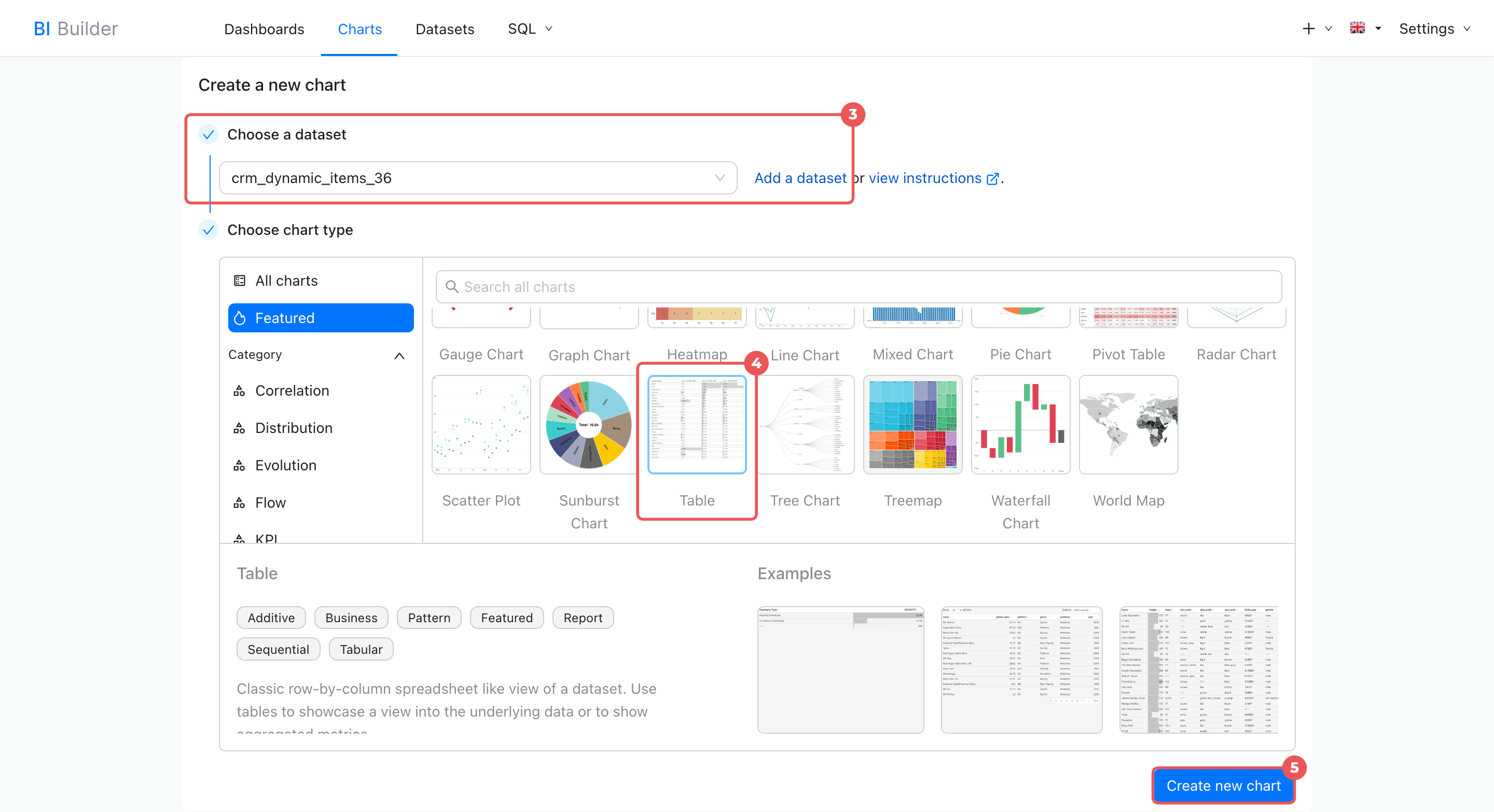
- Choose a dataset from the list. If you do not see the dataset you need, click Add a dataset.
Create a dataset - Choose a chart type — the format for viewing the information, such as a card, table, line chart, or another option.
- Click Create new chart.
Merge datasets
Merge HR documents and customer documents for signing into one table to see which documents a specific employee created.
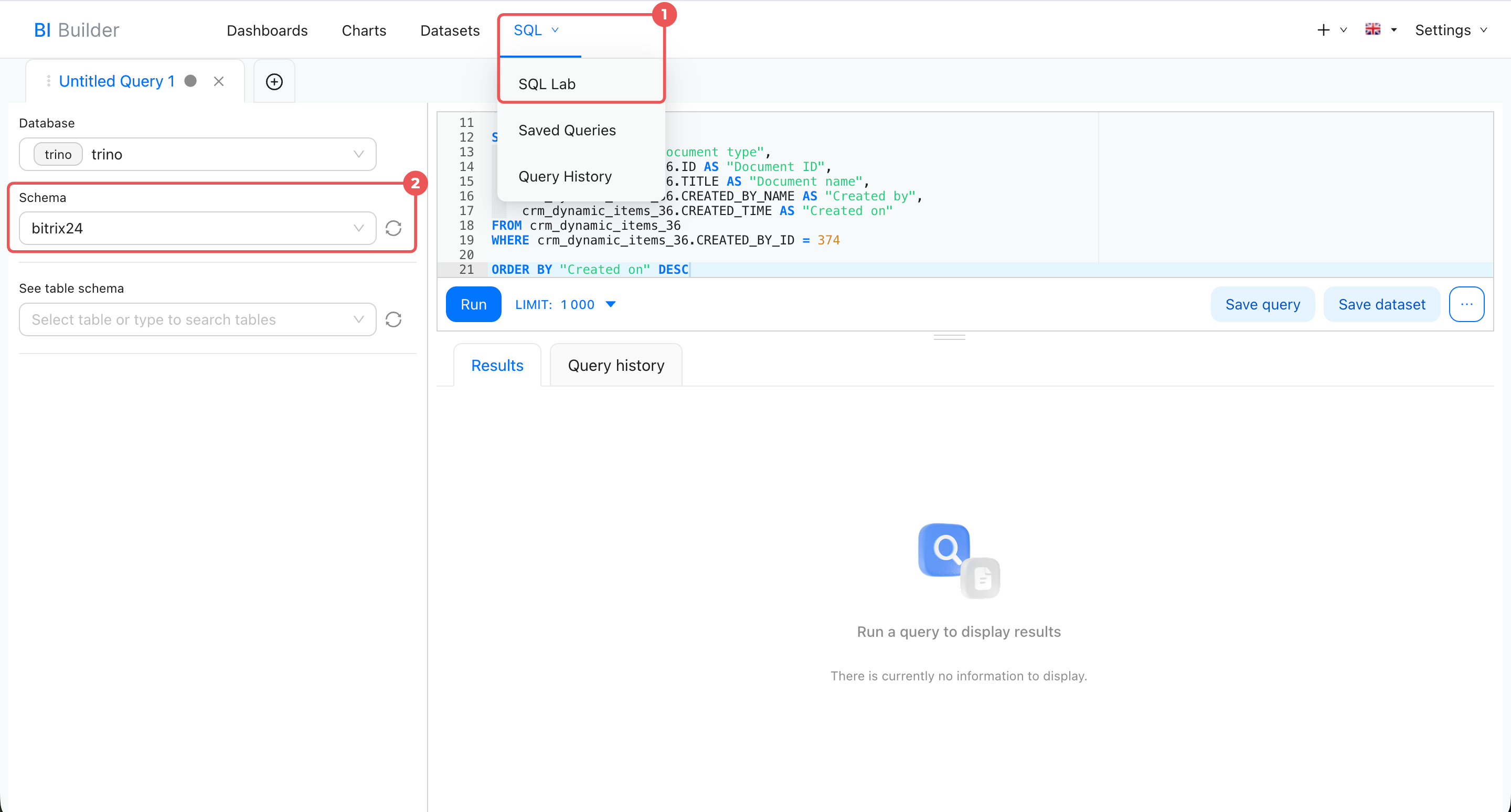
- Open BI Builder > SQL > SQL Lab.
- Make sure
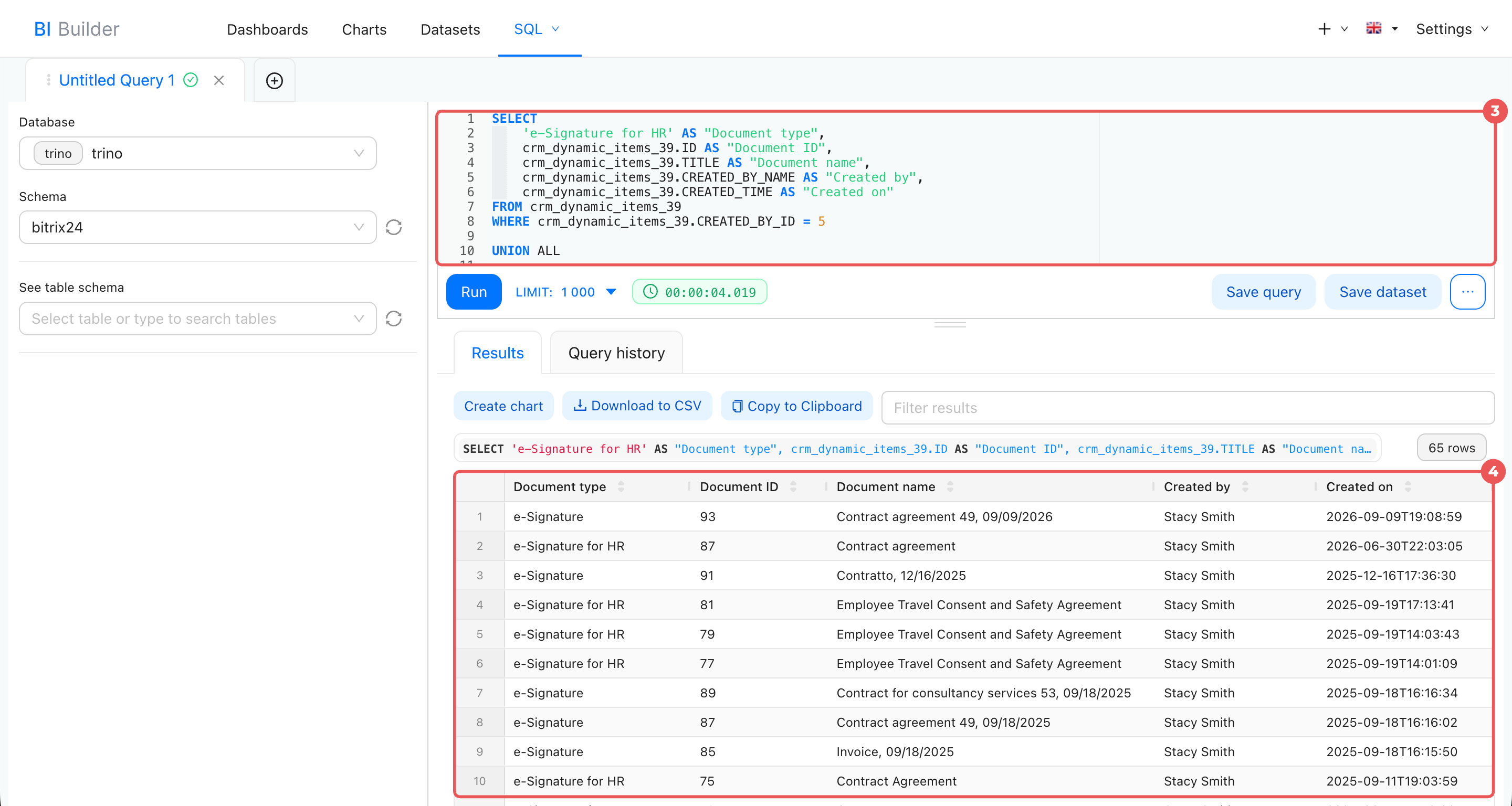
bitrix24is selected in the Schema field. - Enter the SQL query and click Run.
- Review the query results. To create a chart for a report, save the query as a dataset. The dataset receives data from the fields specified in the SQL query.
Create a chart from a virtual dataset
If this is your first time merging datasets, see the sample query.
Example SQL query
This SQL query extracts documents from two datasets: HR documents (crm_dynamic_items_39) and customer documents (crm_dynamic_items_36). You can copy it to see how the query works. The query shows all documents created by a specific employee. Replace 374 with the employee ID before running the query.
SELECT
    'e-Signature for HR' AS "Document type",
    crm_dynamic_items_39.ID AS "Document ID",
    crm_dynamic_items_39.TITLE AS "Document name",
    crm_dynamic_items_39.CREATED_BY_NAME AS "Created by",
    crm_dynamic_items_39.CREATED_TIME AS "Created on"
FROM crm_dynamic_items_39
WHERE crm_dynamic_items_39.CREATED_BY_ID = 374

UNION ALL

SELECT
    'e-Signature' AS "Document type",
    crm_dynamic_items_36.ID AS "Document ID",
    crm_dynamic_items_36.TITLE AS "Document name",
    crm_dynamic_items_36.CREATED_BY_NAME AS "Created by",
    crm_dynamic_items_36.CREATED_TIME AS "Created on"
FROM crm_dynamic_items_36
WHERE crm_dynamic_items_36.CREATED_BY_ID = 374

ORDER BY "Created on" DESC;
SELECT determines which information to extract from the dataset. For example, SELECT 'e-Signature for HR' AS "Document type" adds the value e-Signature for HR and names the column Document type.
FROM specifies the dataset that the data comes from. In the first part of the query, it is crm_dynamic_items_39 with HR document data.
WHERE filters documents created by a specific employee. The condition CREATED_BY_ID = 374 appears in both parts of the query, so the result includes only that employee's e-Signature for HR and e-Signature documents.
UNION ALL combines the results of the two queries into one table. Each document appears as a separate row: HR documents are not linked to customer documents for signing.
ORDER BY sorts the combined list by creation date in descending order.
In brief
- A dataset contains information about signed documents, e-Signature for HR, and other Bitrix24 items.
- Each item has several datasets that automatically receive data from system and custom fields.
- There are two datasets for documents: customer documents (crm_dynamic_items_36) and HR documents (crm_dynamic_items_39).
- Use datasets to create charts and analyze metrics, such as signed documents and processing times.
- Merge datasets to see which documents a specific employee created. Write an SQL query, save the result as a dataset, and create a chart.