
BI Builder supports external MySQL and PostgreSQL databases. This helps when some of your data lives outside Bitrix24: in an e-commerce platform, an internal service, or another company database.
For example, if your company stores orders in PostgreSQL, you can connect that database to BI Builder, select the sales table, create a dataset, and build a chart based on order totals. This gives supervisors one report that combines sales trends with Bitrix24 data.
In this article:
Prepare for the database connection
Go to BI Builder > Analytics hub > Connections > Create and select MySQL or PostgreSQL.
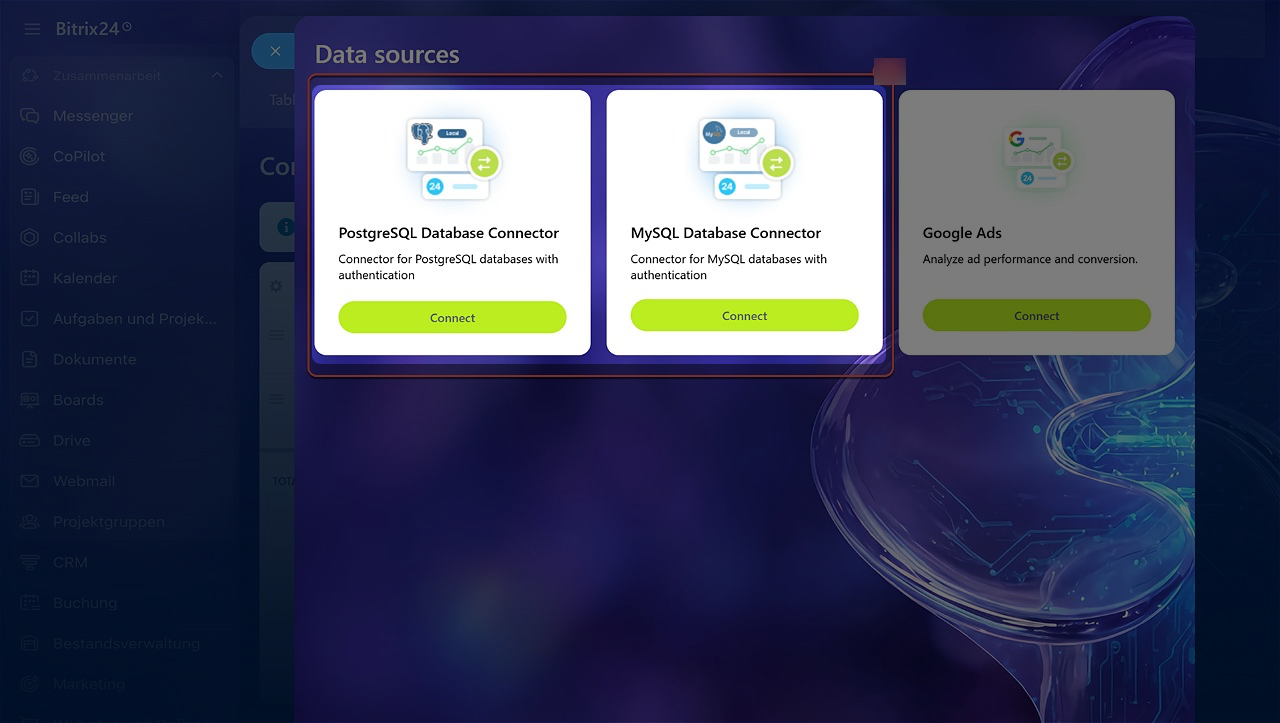
The next steps depend on your Bitrix24 version.
Cloud Bitrix24. External databases connect through a server-side app. Set up the app first, then return to create the connection.
The app works as a bridge between Bitrix24 and the database. It receives requests, connects to MySQL or PostgreSQL, reads the list of tables and field structures, and sends the data to BI Builder.
Server-side local application without user interface
Before you set up the app, prepare the following:
- A server — a physical server or a virtual machine to host the app. It stores the app files and runs the app. You can use a company virtual server or a dedicated server in your infrastructure.
- Docker and Docker Compose — install them on the server to run the app in a container. Docker creates an isolated environment for the app. Docker Compose starts it with the required settings. See the Docker docs for your operating system:
Docker Desktop on Windows
Docker Desktop on Linux
Docker Desktop on Mac - App build files — download the files from the repository and upload them to the server.
Bitrix24 BI Connector Extension - Access to the external MySQL or PostgreSQL database — you need the database address, port, database name, and the username and password of a user with read access to the tables.
- A public HTTPS address for the server-side app — Bitrix24 must be able to reach the app at this address. An address like
localhostwill not work because it is only available inside the server. Use an address likehttps://bi-connector.company.com.
On-premise Bitrix24. You do not need a server-side app. After you select MySQL or PostgreSQL, enter the connection settings and start working with the database. Before you configure the connection, prepare the database address, port, database name, username, and password. Make sure the Bitrix24 server can reach the database over the network.
Check table and field names in the external database. They must follow these rules:
- Table names must start with a Latin letter and contain only lowercase Latin letters, digits, and underscores. Examples:
users,order_items,customer_data_2024. - Field names must start with a Latin letter and contain only uppercase Latin letters, digits, and underscores. Examples:
ID,USER_ID,ORDER_DATE.
Install the app on a server
The server-side app connects Bitrix24 to the external database. It does four things:
- Verifies the database connection
- Gets the list of tables
- Gets the table structure and field types
- Sends data to BI Builder
Users do not need to run these actions manually. The app does this automatically when someone checks a connection, selects a table, or builds a report. To install the app, complete these six steps:
1. Open the app folder on the server. Run all commands on the server where the app will run. Open Terminal and go to the folder with the app files. Make sure the folder contains a docker-compose.yml file. If you see it in the file list, you are in the right folder. Run all Docker Compose commands from this folder.
2. Create the settings file. The app folder contains a file named .env.example. This is a settings template. Use it to create a working .env file. The file stores the app settings, including the public address, logging settings, cache settings, and Bitrix24 local app credentials. Run:
cp .env.example .env
3. Set the public app address. Open the .env file and enter the address Bitrix24 will use to reach the server-side app. Example:
APP_DOMAIN=https://bi-connector.company.com
APP_ENV=production LOG_LEVEL=INFO
APP_DOMAIN is the public HTTPS address of the app. It must be available from the internet so cloud Bitrix24 can send requests to it. An address like localhost will not work because it is only available inside the server or container. For example, if the app runs on a server in Docker and is exposed externally through a domain, the scheme might look like this:
https://bi-connector.company.com → server with app → Docker container
Use a valid SSL certificate. Bitrix24 must be able to open the app address over HTTPS without any security warnings.
4. Check the Docker network. The app uses an external network called shared_db_network. This network lets the app reach databases running in Docker or available through a shared network. If you start the app with make start, the network is created automatically. If you start containers directly through Docker Compose, create the network manually:
docker network create shared_db_network
If Docker says the network already exists, that is not an error. It was created earlier.
5. Start the app. Build and start the app on the server. Run:
make build make start
The make build command builds the Docker image of the app. The make start command starts the container.
6. Check that the app is running. Run the following command to check the container status:
docker compose ps
If the app is running, the container status will show Up. Then check that the app responds at its public address:
curl -i https://bi-connector.company.com/
If the app responds, you can move on to creating a local app in Bitrix24. The response may look like an error message with no action, for example: {"error":"Unknown action: "}. This appears when the request is sent without an action parameter. Bitrix24 will send valid requests when checking the connection, selecting a table, or creating a dataset.
Create a local app in Bitrix24
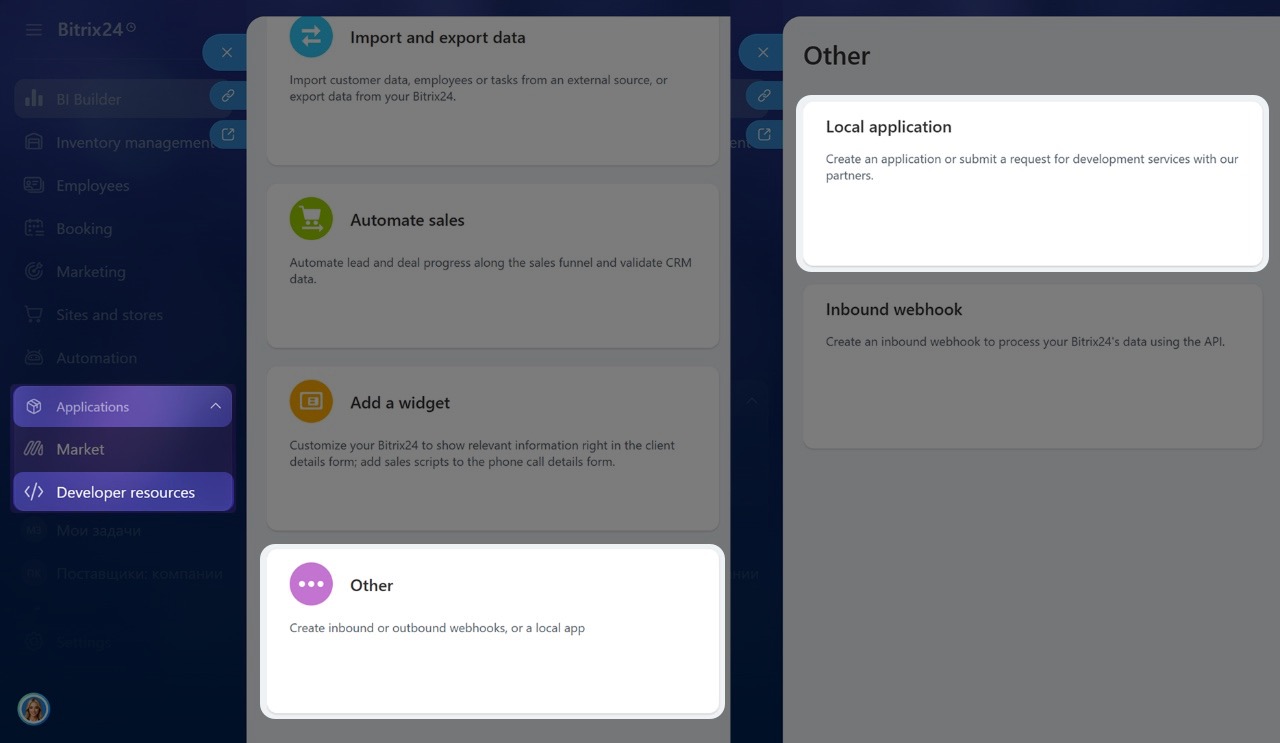
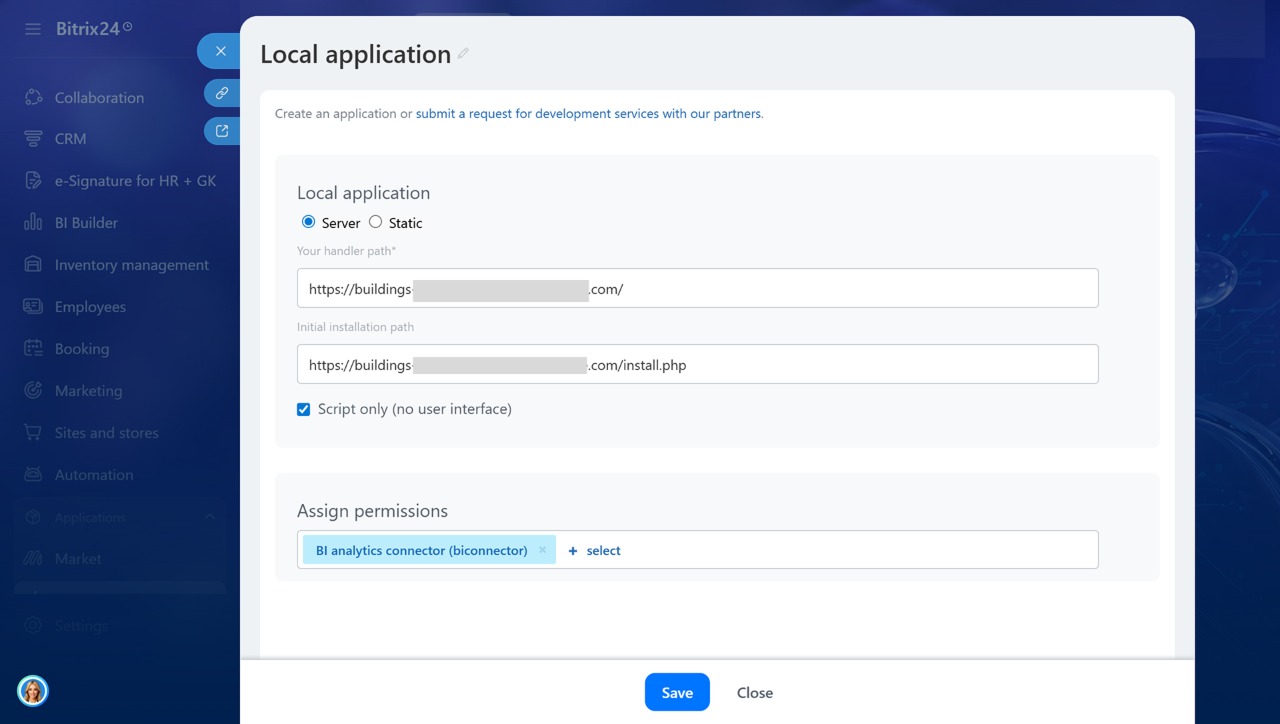
Go to Applications > Developers > Other > Local app. Fill in the parameters:
- Local app — set the type to Server-side. This type is for apps that run on a server and exchange data with Bitrix24 through REST API.
- Handler path — the public HTTPS address of the server-side app. Bitrix24 will send requests to this address. For example:
https://bi-connector.company.com/. - Initial installation path — the address of the app's installation file. It is called when the local app is installed in Bitrix24. For example:
https://bi-connector.company.com/install.php. - Uses API only — enable this option. It is for apps without a separate interface in Bitrix24. Users will not open the app as a page. BI Builder will call it automatically through REST API.
- Permissions — add the BI analytics connector (biconnector) permission. This permission allows the app to work with BI Builder data sources.
When you have filled in the parameters, click Save.
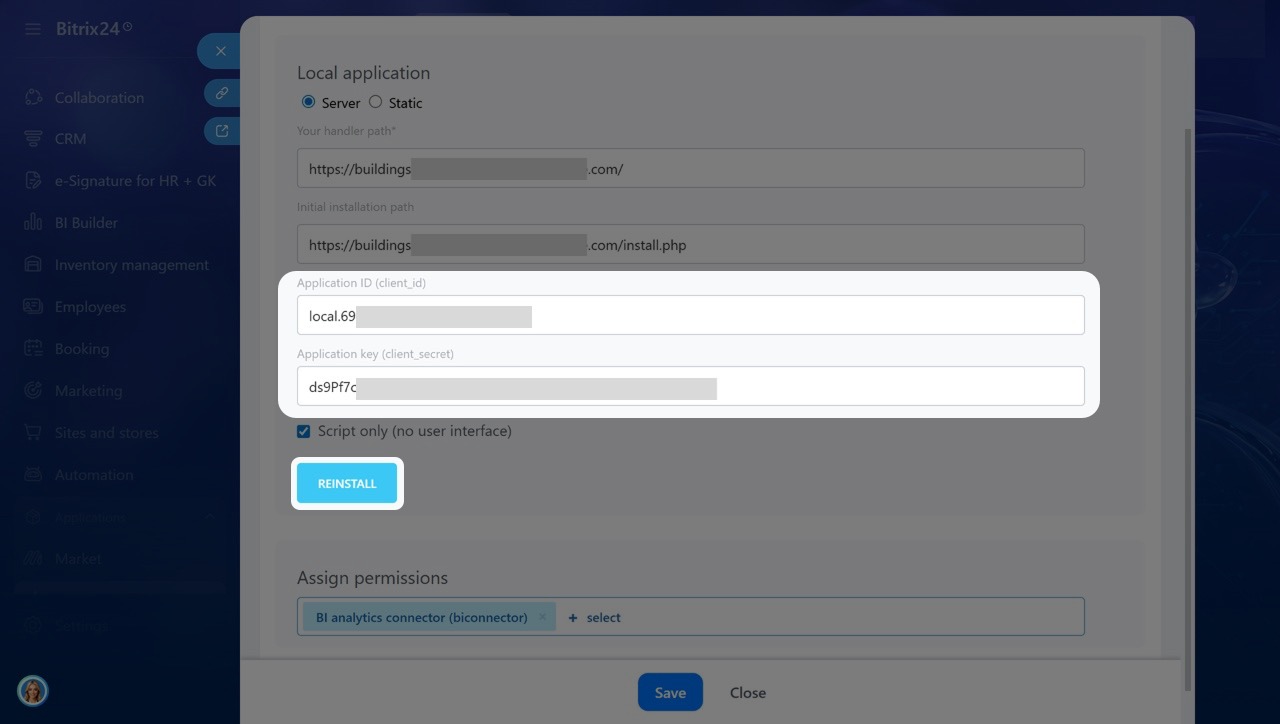
After saving, Bitrix24 will show the service fields:
- Application code (client_id) — the identifier of the local app. The server-side app needs it to communicate with Bitrix24.
- Application key (client_secret) — the secret key of the local app. It confirms that requests come from your app.
Copy client_id and client_secret. Go back to the server and fill in the parameters in the .env file:
BITRIX24_PHP_SDK_APPLICATION_CLIENT_ID=your_client_id BITRIX24_PHP_SDK_APPLICATION_CLIENT_SECRET=your_client_secret BITRIX24_PHP_SDK_APPLICATION_SCOPE=biconnector
Save the .env file in UTF-8 encoding without any extra characters at the beginning of the file. Otherwise, the app may not read the settings correctly. Then restart the app on the server:
docker compose restart app
Go back to the local app card in Bitrix24 and click Reinstall app. After that, you can set up a database connection in BI Builder.
Connect an external database
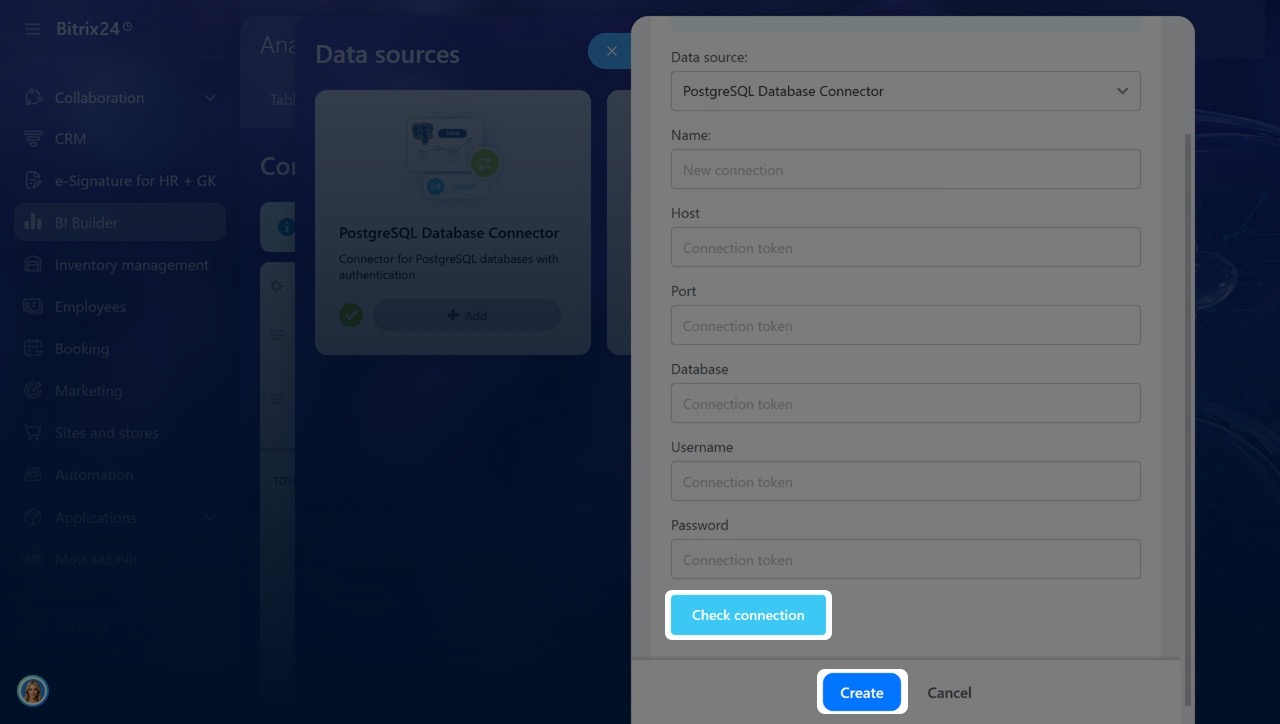
Go to BI Builder > Analytics hub > Connections > Create. Select a data source: MySQL Database Connector or PostgreSQL Database Connector.
Fill in the connection parameters:
- Name — enter a clear name for the connection. It will appear in the BI Builder connections list.
- Host — the address of the server where the database is located. Do not use
localhostif the database is on a different server, as the app will look for the database within its own environment. Use an address likedb.company.local,10.10.20.15, or the container name if the database runs in Docker and is connected to the same network. - Port — the port for the database connection. PostgreSQL uses port 5432, MySQL uses 3306. If your infrastructure uses a different port, enter it here.
- Database — the name of the database to use for reports.
- Username — the database user login.
- Password — the database user password.
When you have filled in the parameters, click Test connection. If the test passes, click Create. After the connection is created, Bitrix24 will prompt you to create a table from the external database. Click Create table.
Create a table and dataset
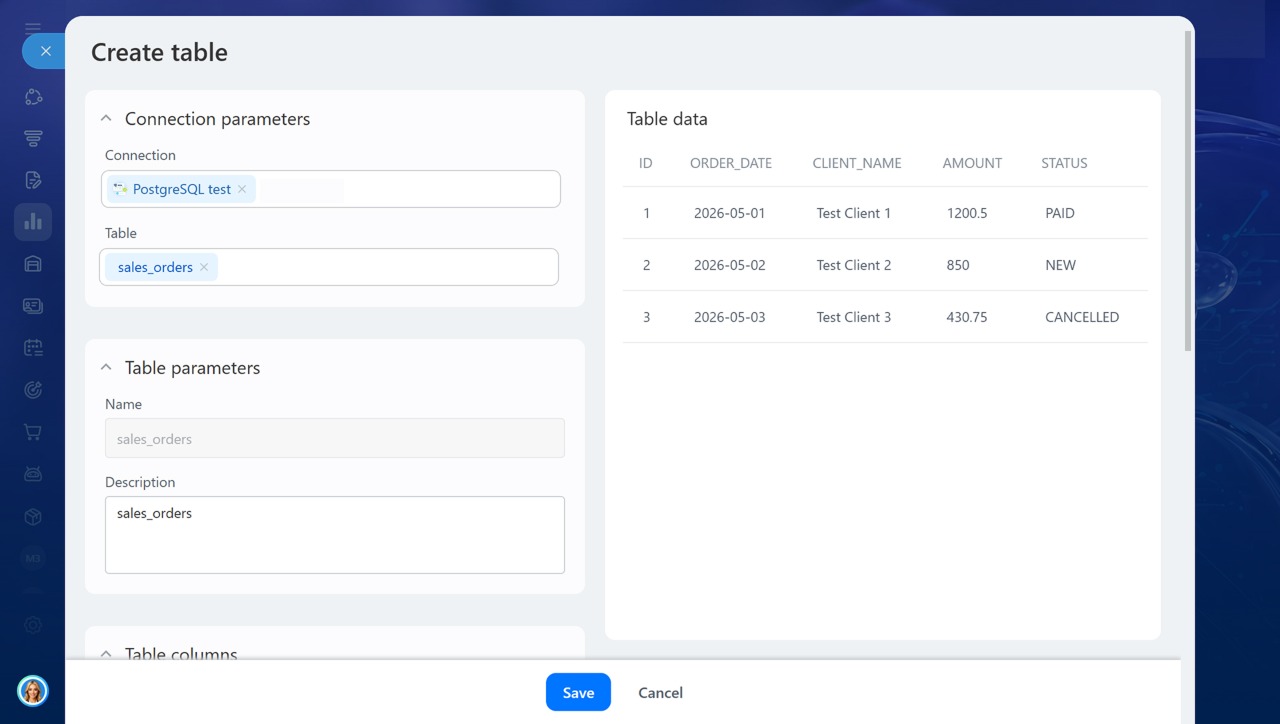
In the table creation form, select the spreadsheet you need from the external database.
A Data preview panel appears on the right. Use it to check which fields and rows BI Builder pulled from the external database. The preview shows only part of the data.
In the Table properties section, check the name and description. Bitrix24 fills in the name automatically based on the table name in the external database. You can change it before you create the table.
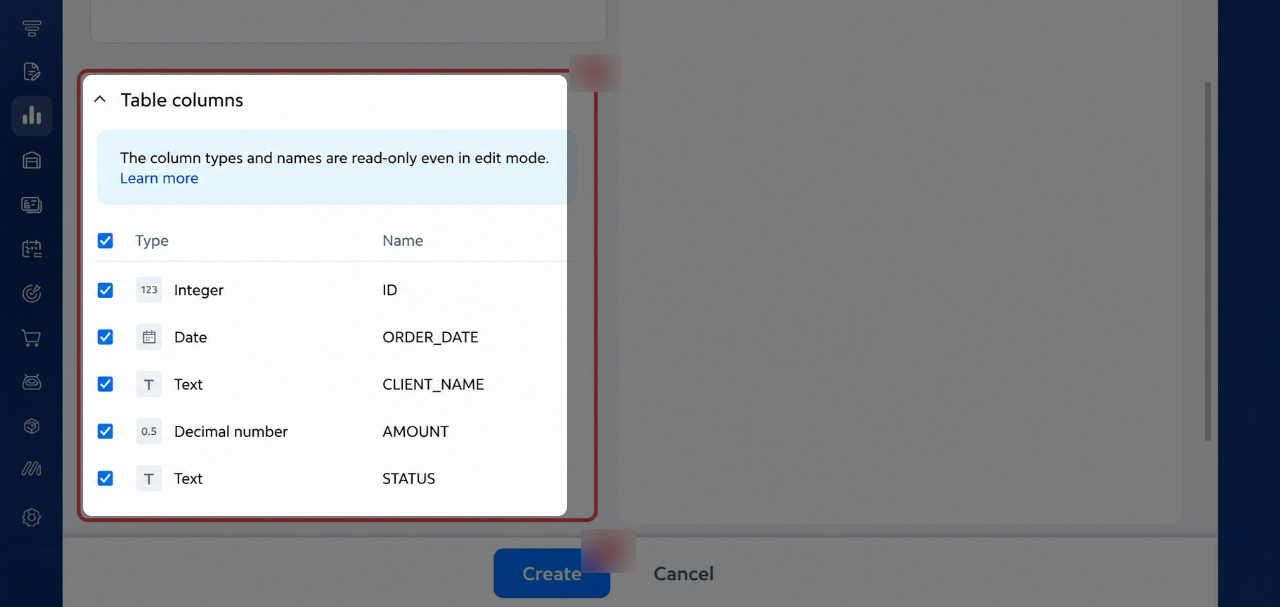
In the Table column settings section, make sure Bitrix24 detected the fields and data types correctly. If everything looks correct, click Create.
BI Builder: Create a dataset from a CSV file
Configure data formats and types for CSV file import
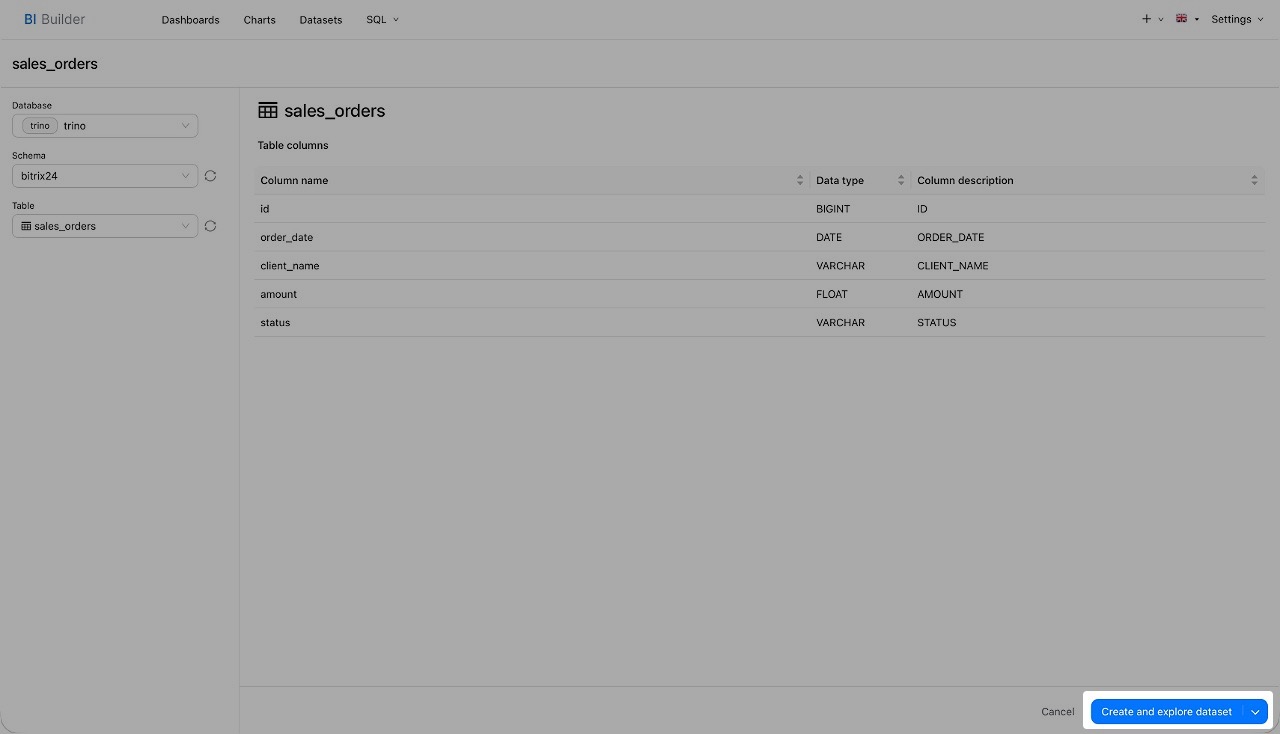
Bitrix24 then shows a confirmation message that the table is ready. Click Create dataset. You need a dataset to use the data in BI Builder reports and charts.
After you create the dataset, you can build a chart and add it to a dashboard. For example, you can create an Orders dataset from the table, build a chart for total sales, and add it to a manager report.
Create dashboards in BI Builder
In brief
- BI Builder supports connections to external MySQL and PostgreSQL databases.
- In Bitrix24 Cloud, you need to install a server app, create a local app, and add its credentials to the
.envfile. - In the on-premise version, you do not need a server app. You can enter the database connection settings directly.
- Before you connect, check the database address, port, username, password, and the user's read permissions for the tables.
- After you connect, you can create a table, dataset, and chart, then use external database data in BI Builder reports.