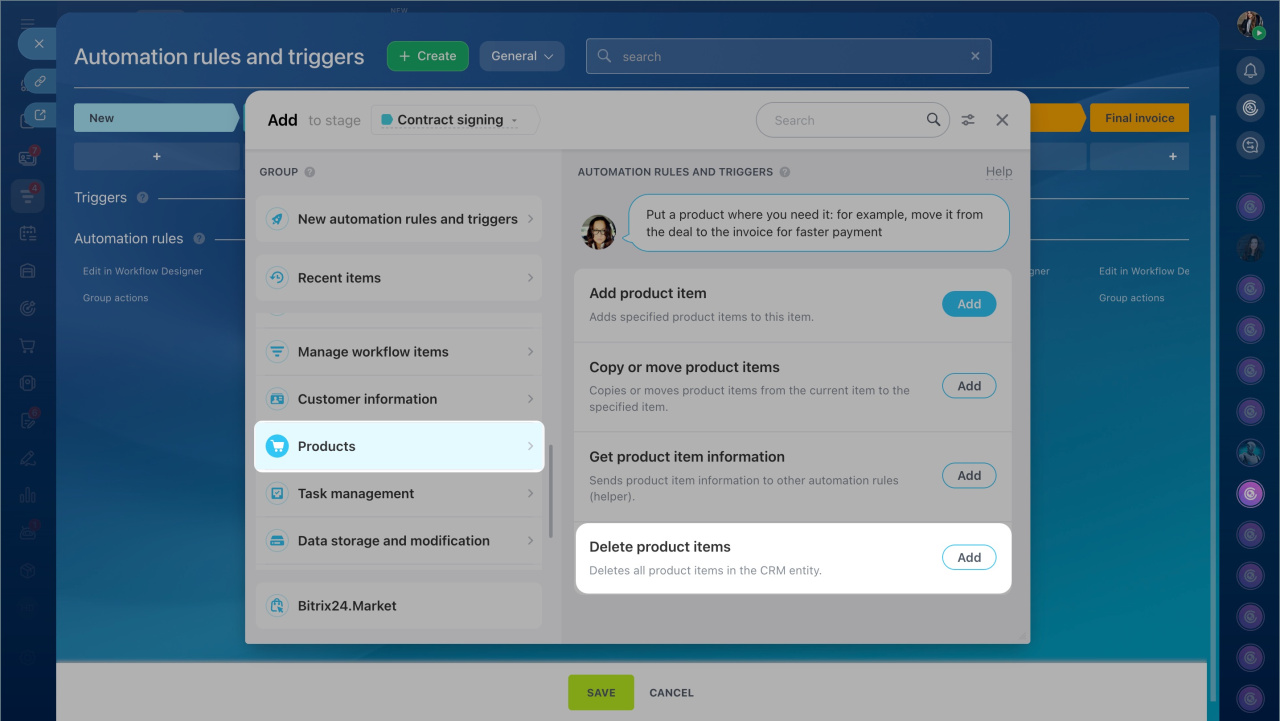
Automation rules help you automate customer workflows. You can use them to create estimates, send emails, schedule calls or meetings, and more.
Automation rules are grouped by function. This article explains the Work with products group:
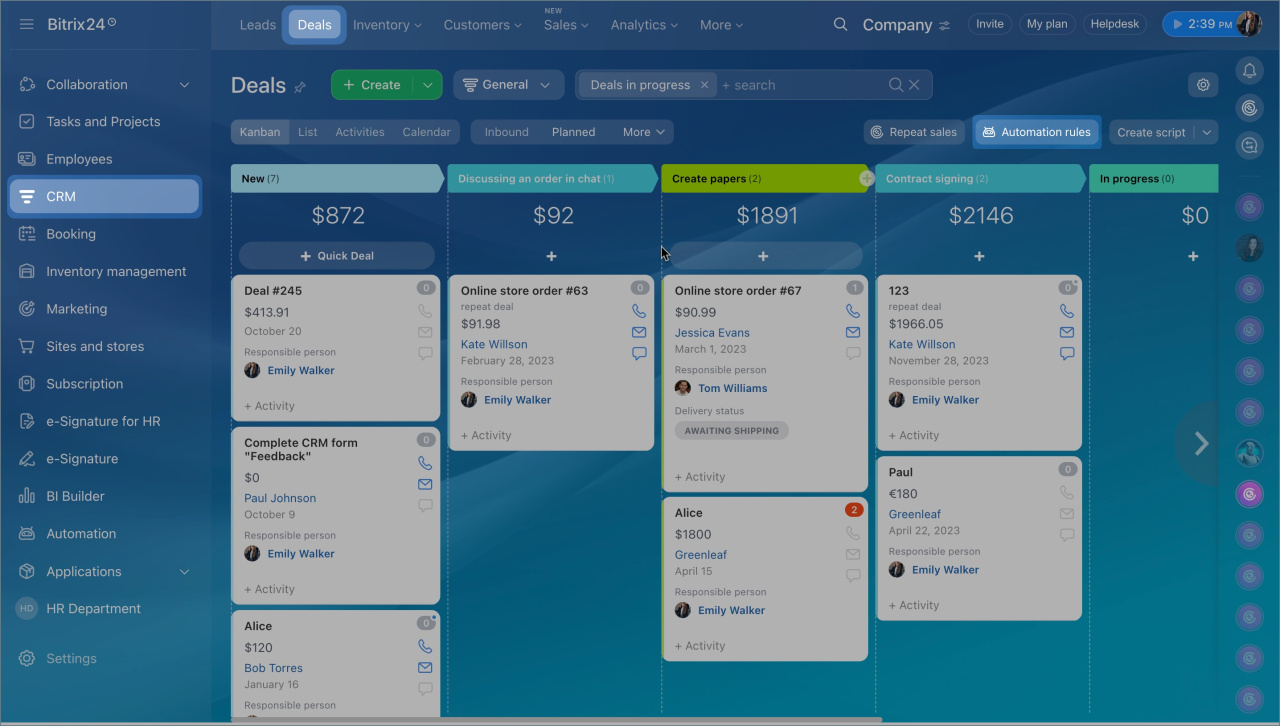
- Go to the CRM section, select an item and click on the Automation rule icon.
- Click Create.
- Select a stage where you want to configure an automation rule.
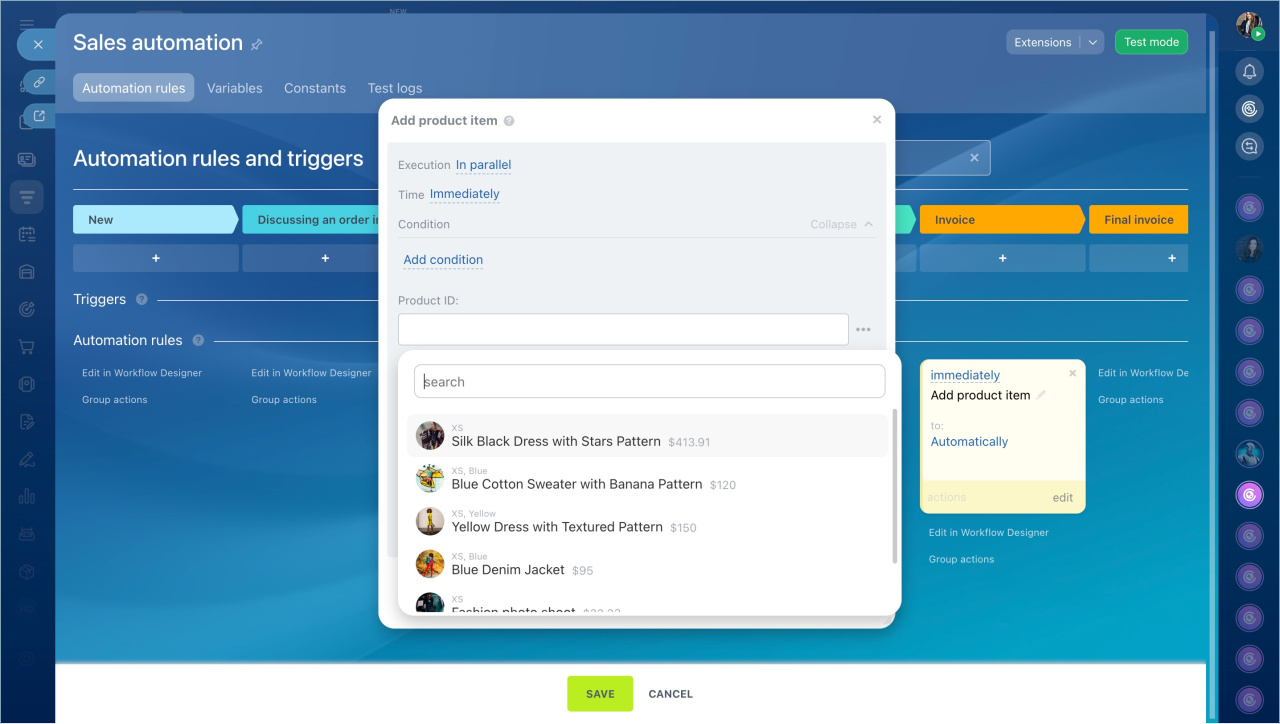
- Navigate to the Products group of automation rules.
Add automation rules and triggers
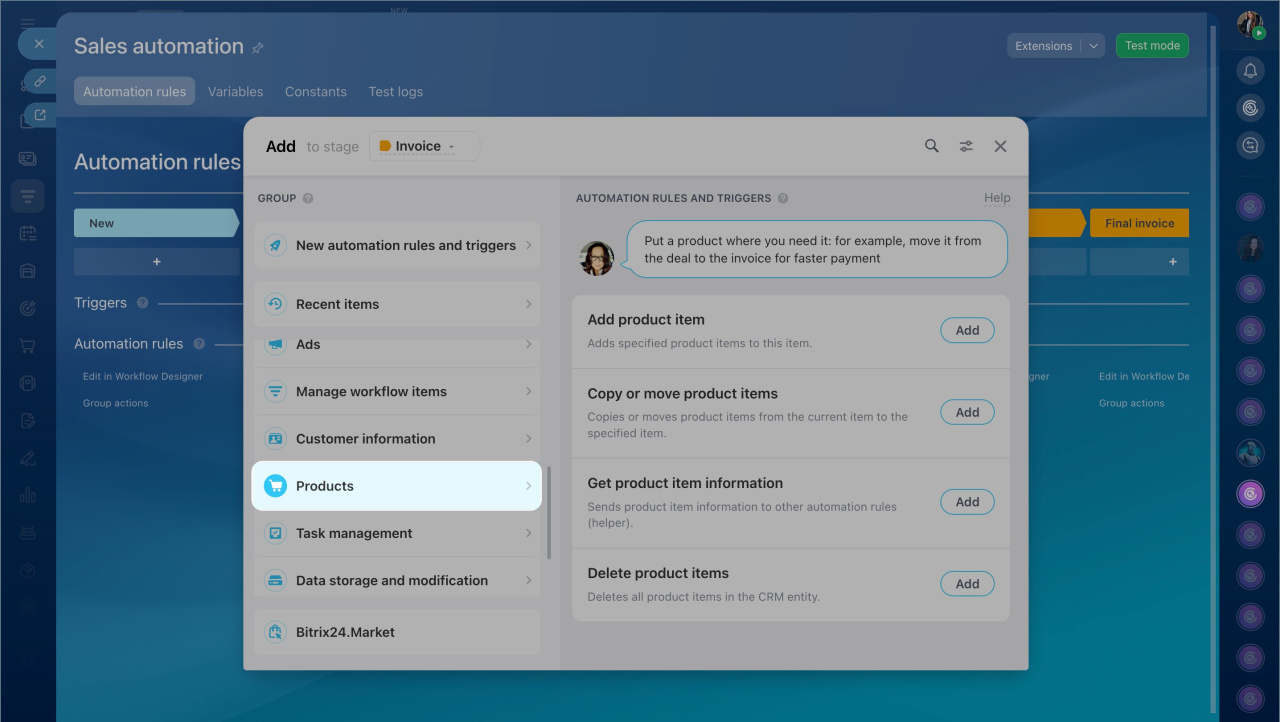
Add a product item
This rule adds a product when a CRM item reaches a specific stage. For example, when you create a new deal, the system can automatically add a default product or service.
Add products to lead, deal, estimate and invoice forms
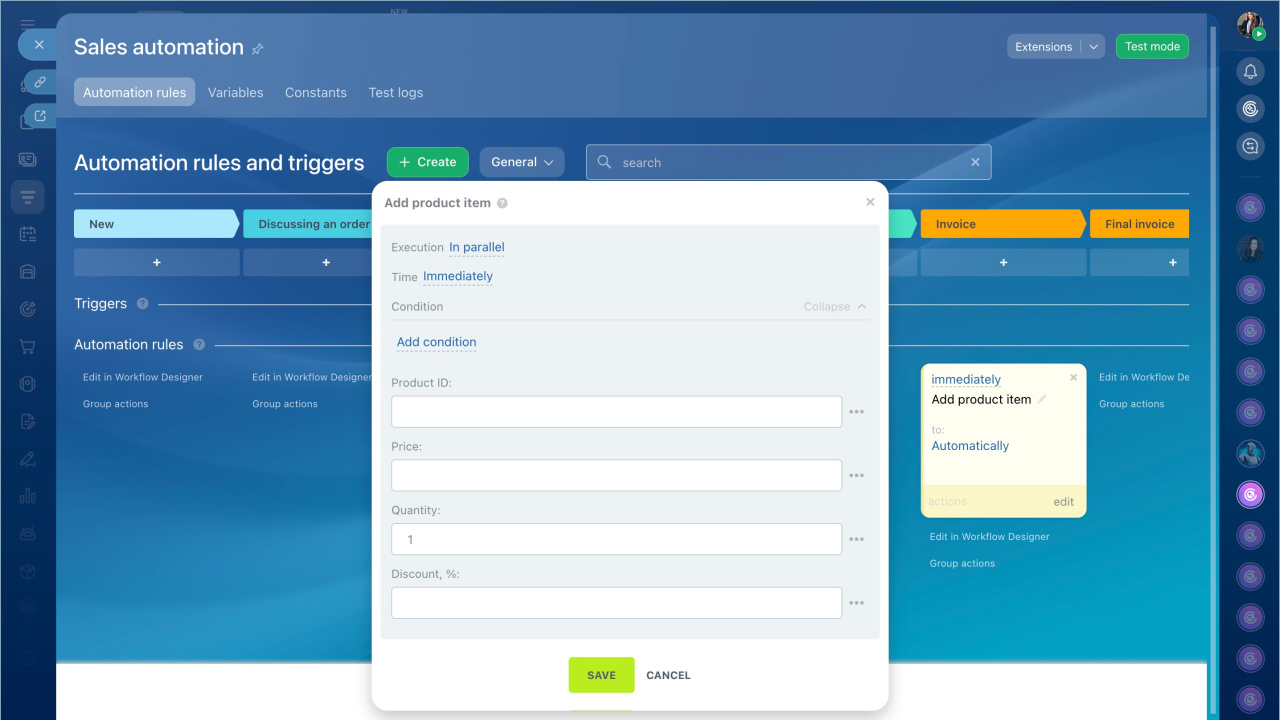
Configure the Add product item automation rule
Example: add a product when a deal enters the New stage.
Product ID. Select a product from the list. The ID fills in automatically.
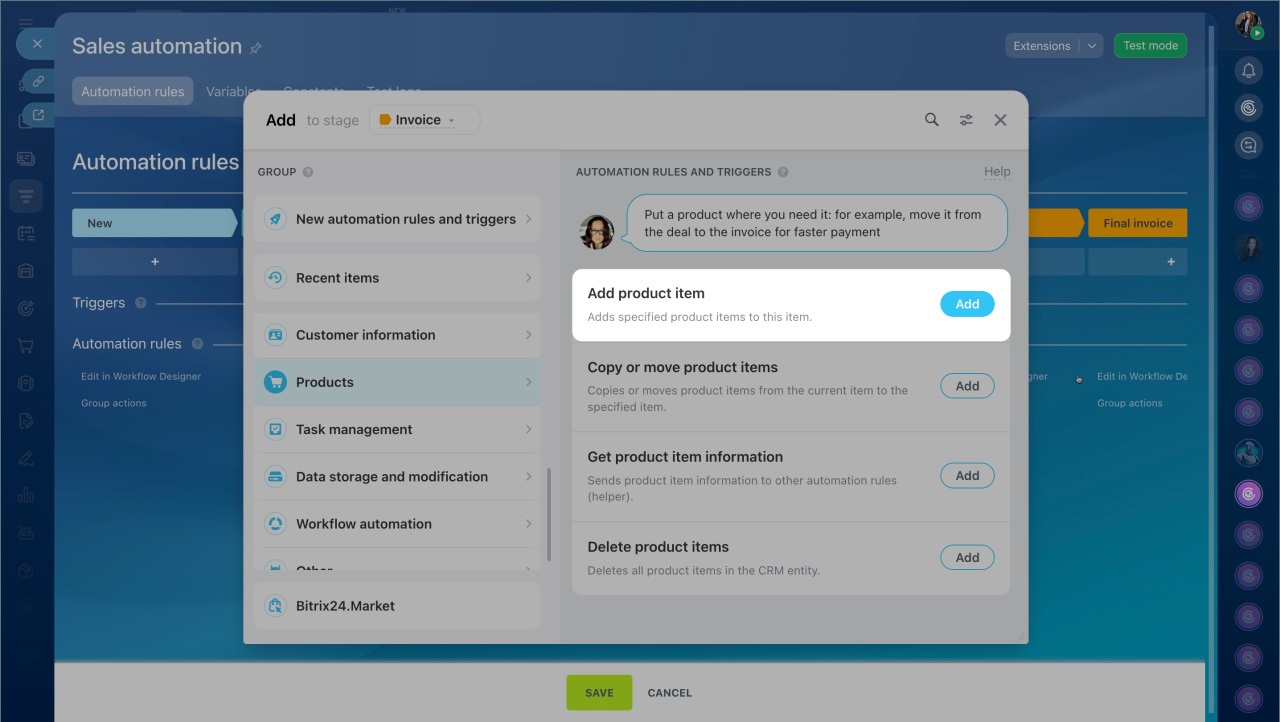
Price. Enter the product price. You can type it manually or insert a value from a constant, variable, or CRM field. Click on Three dots (...) and select a value.
Quantity. Enter how many units of the product to add to the deal.
Discount, %. Enter a discount percentage, or leave the field empty if there is no discount. You can type the discount manually or insert a variable value. Click on Three dots (...) and select a value.
When the deal reaches the selected stage, the product is added automatically.
Copy or move product items
This rule copies or moves products from one CRM item to another. For example, when a deal is completed, you can copy its products to a deal in another pipeline.
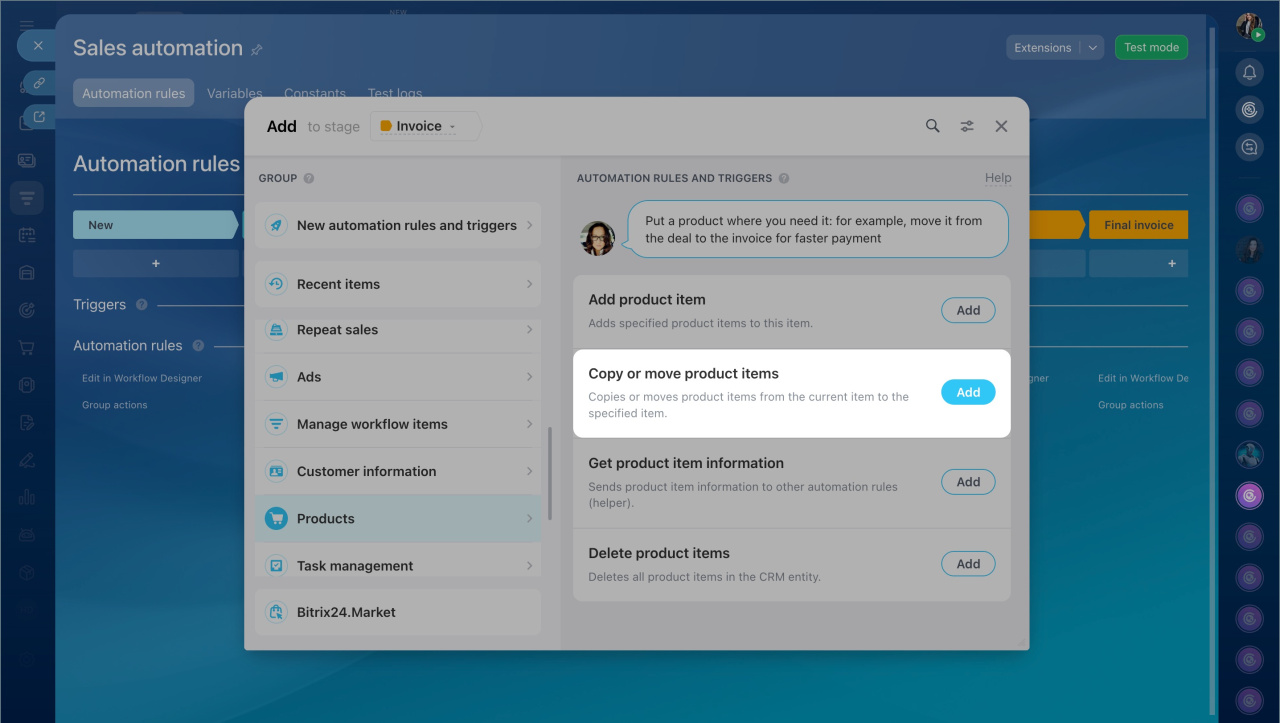
Configure the Copy or move product items automation rule
Create two automation rules: "Create CRM item" and "Copy or move product items". When the first automation rule creates a deal in another sales pipeline, the second will copy products into it.
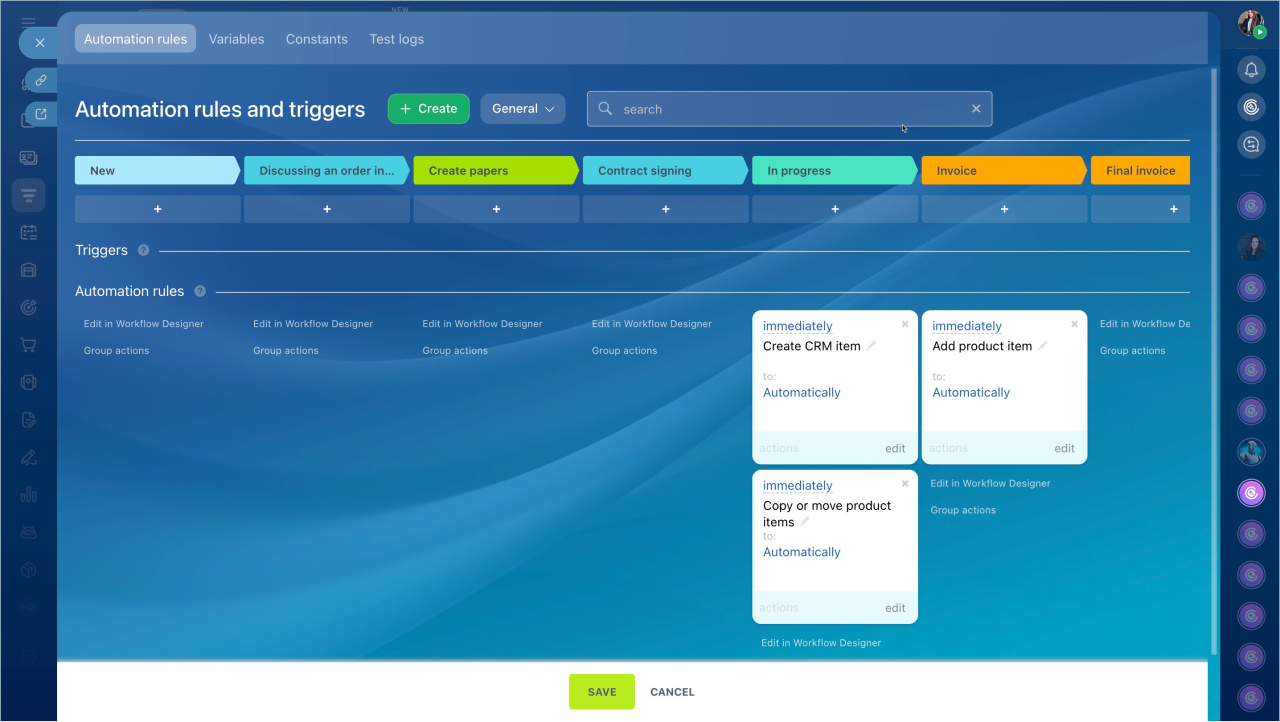
Let's consider the settings for the "Create CRM item" automation rule.
CRM item type. Select the item the automation rule will create. In this example, it is a deal.
Pipeline. Select the pipeline where the automation rule will create the new deal.
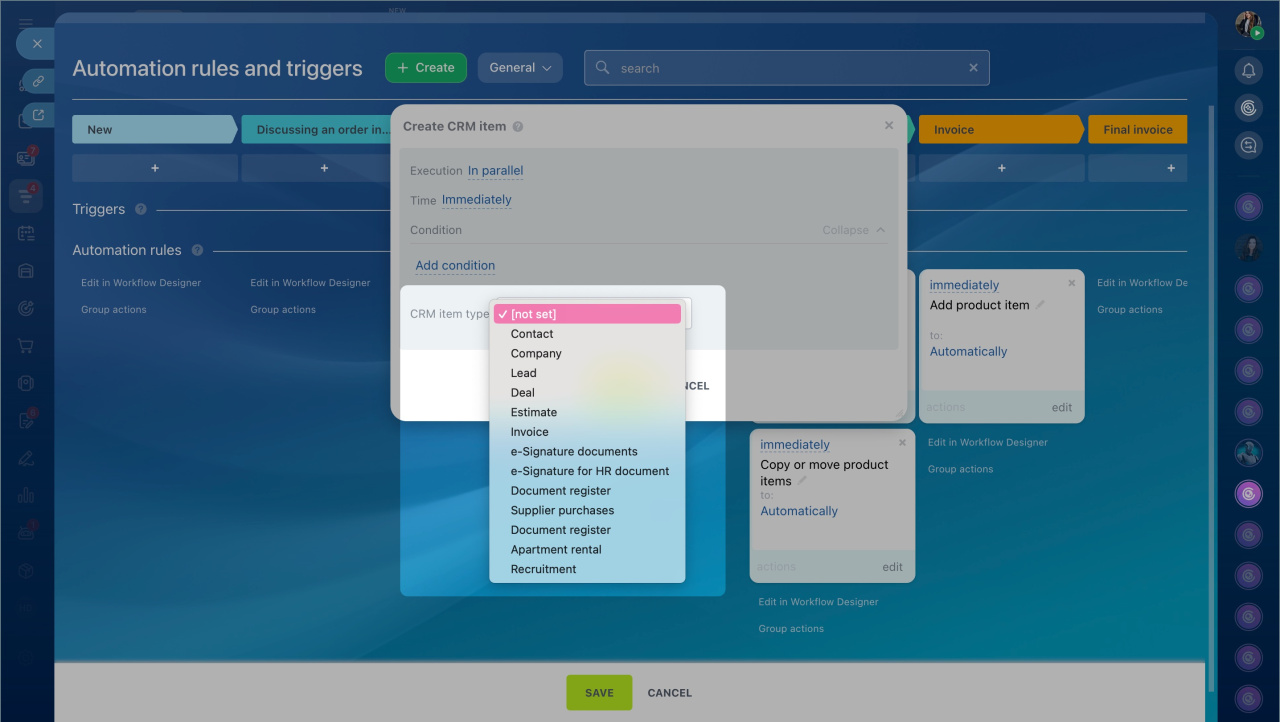
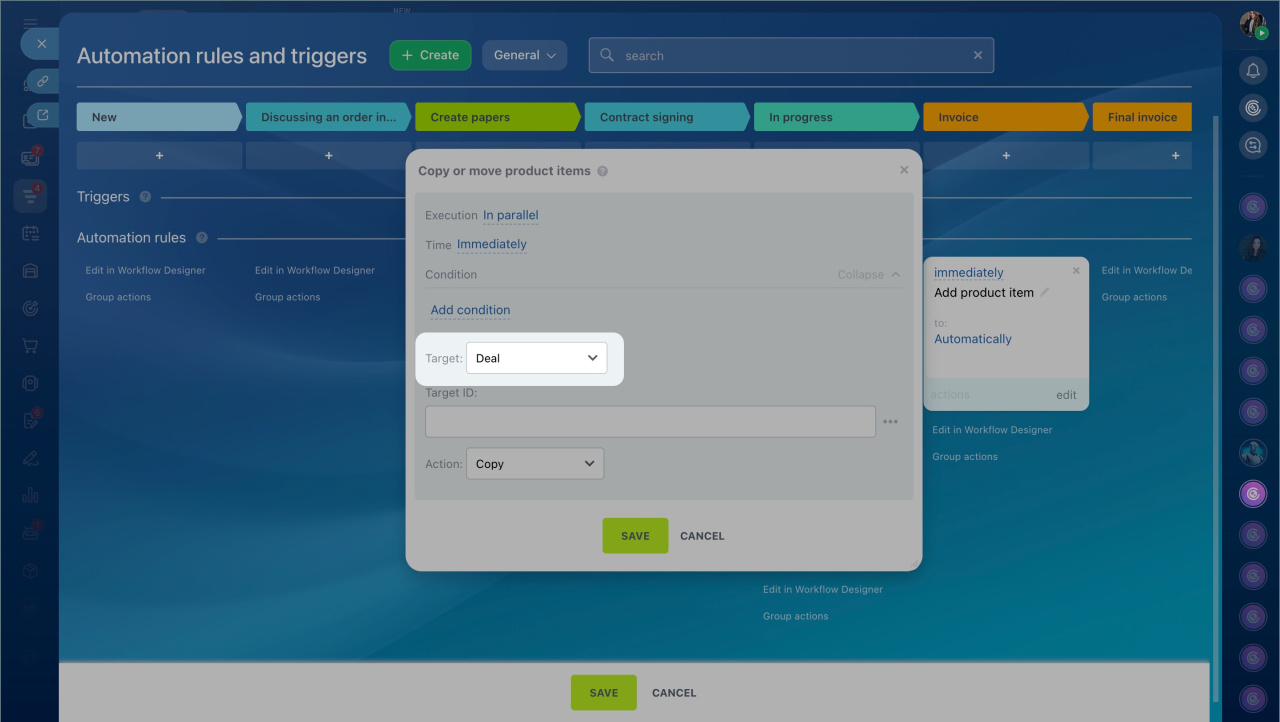
Let's consider settings for the "Copy or move product items" automation rule.
Target. Select the CRM item that will receive the products. You can choose a deal, invoice, document, order, or SPA.
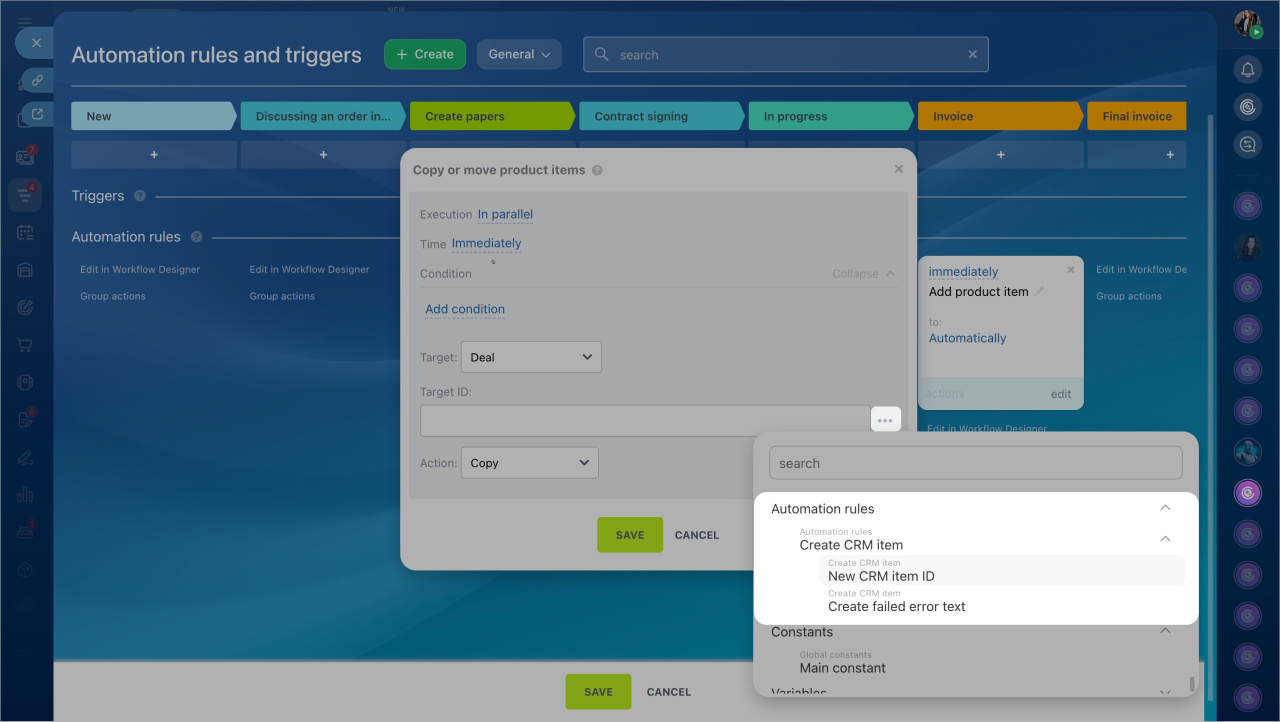
Target ID. Enter the ID of the CRM item where the automation rule will copy or move the products. To copy products to the deal created by another automation rule, click Three dots (...) > Automation rules > Create CRM item > New CRM item ID.
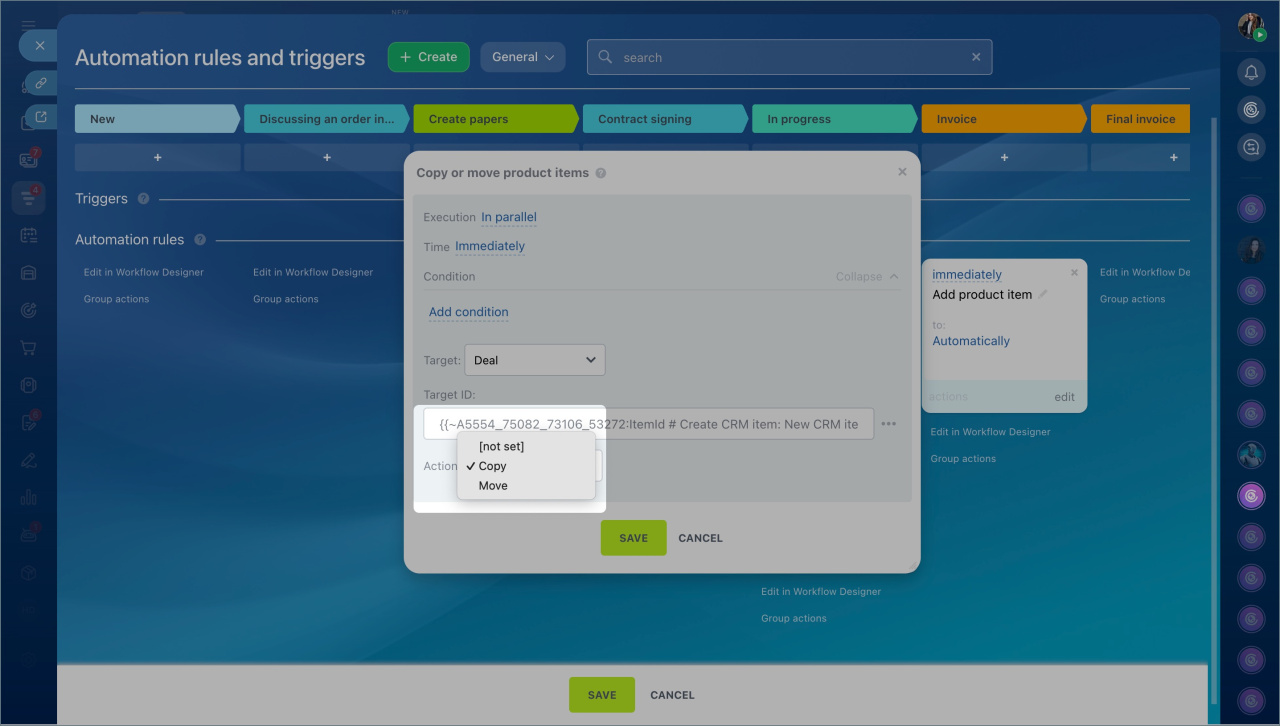
Action. Select what to do with the products: copy or move.
- Move — the products are removed from the original deal and added to the new CRM item.
- Copy — the products are copied to the new CRM item and stay in the original deal.
When the deal reached the Additional services stage, the automation rule copied the products to the new deal card.
Get product item information
This is a helper automation rule. It gets information from a product card and passes it to other automation rules. For example, it can get the product name and price, and another automation rule can send that information to the client by email.
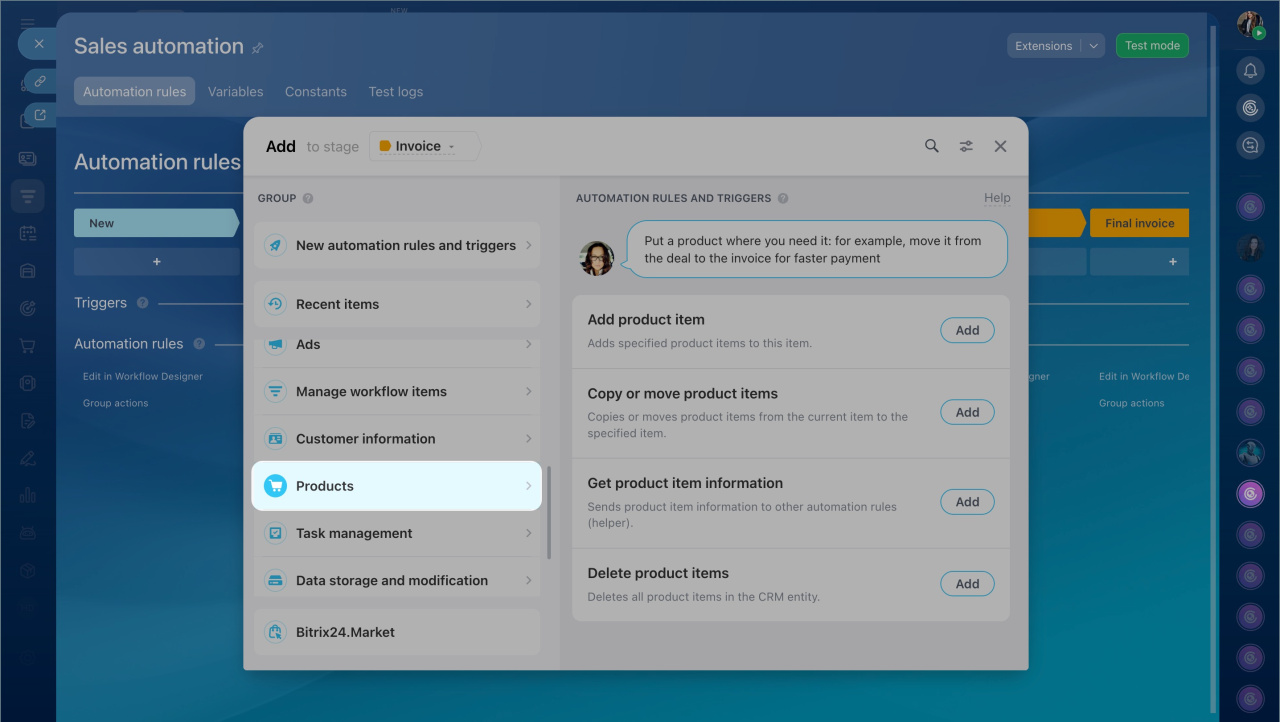
Configure the "Get product item information" automation rule
Product item ID. Click Three dots (...) next to the field, find Product items, and select it.
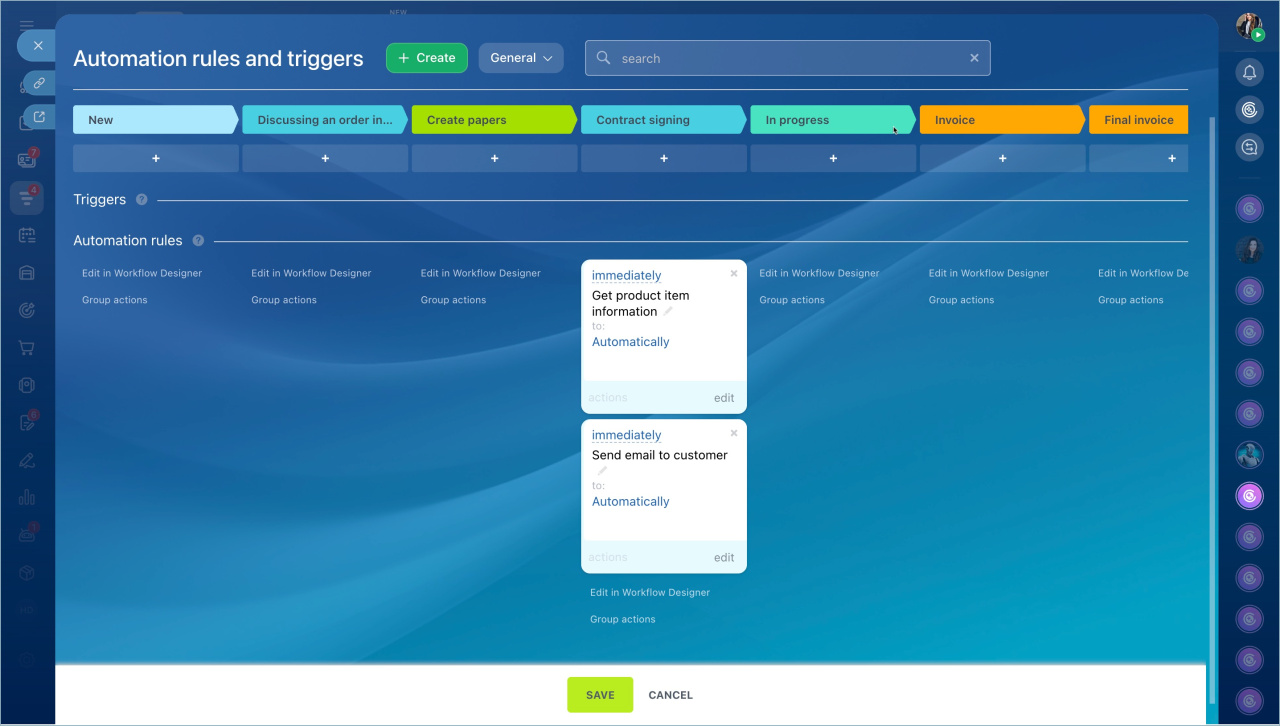
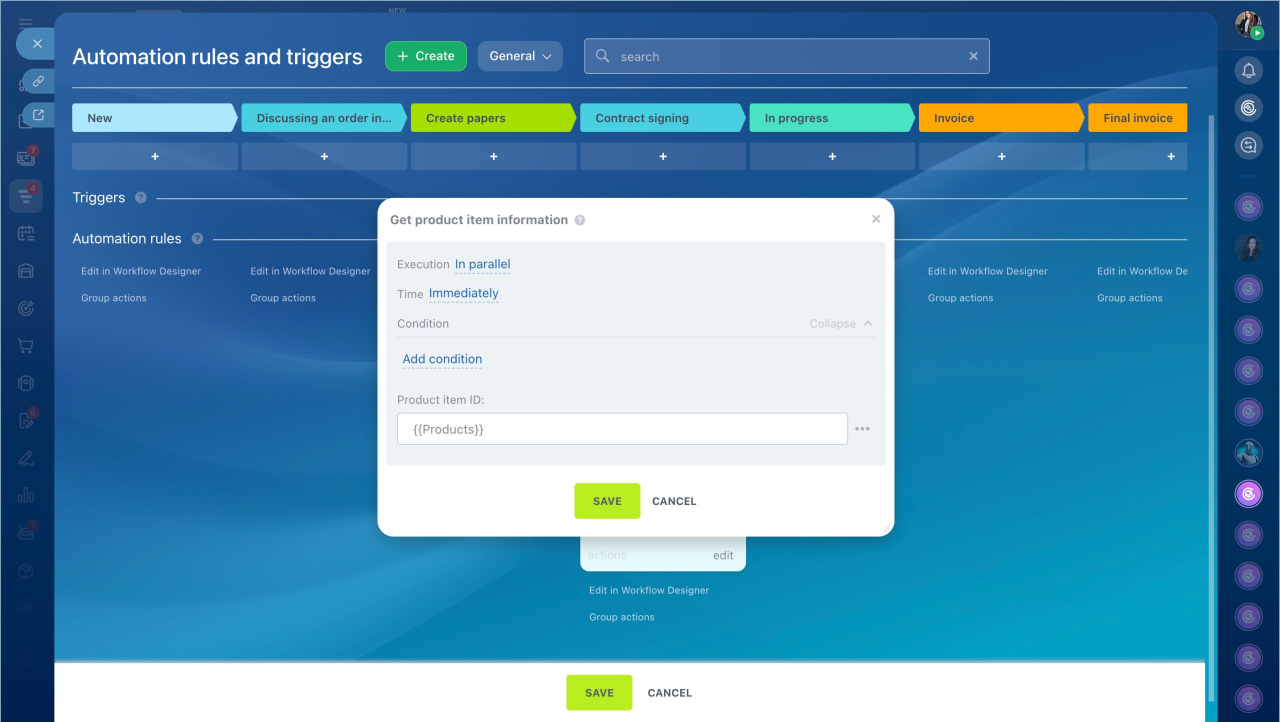
Let's consider the settings for the "Get product item information" automation rule.
Product item ID. Click Three dots (...) next to the field, enter Product items in the search, and select it.
Next, set up the automation rule that sends the client an email with the product name and price. Place it at the same stage as the Get product item information automation rule.
Automation rules: Customer communication
When the deal moved to the certain stage, the first automation rule gets the product information, and the second one sends an email to the client.
Delete product items
When a CRM item reaches a specific stage, this automation rule deletes all products in the card. For example, use it when a client decides not to buy a product. This automation rule has only basic settings: run order and conditions. No additional setup is required.