Automation rules let you automate client interactions. You can send an SMS for order confirmation, email an estimate, or schedule a call or meeting with a client.
Automation rules in CRM
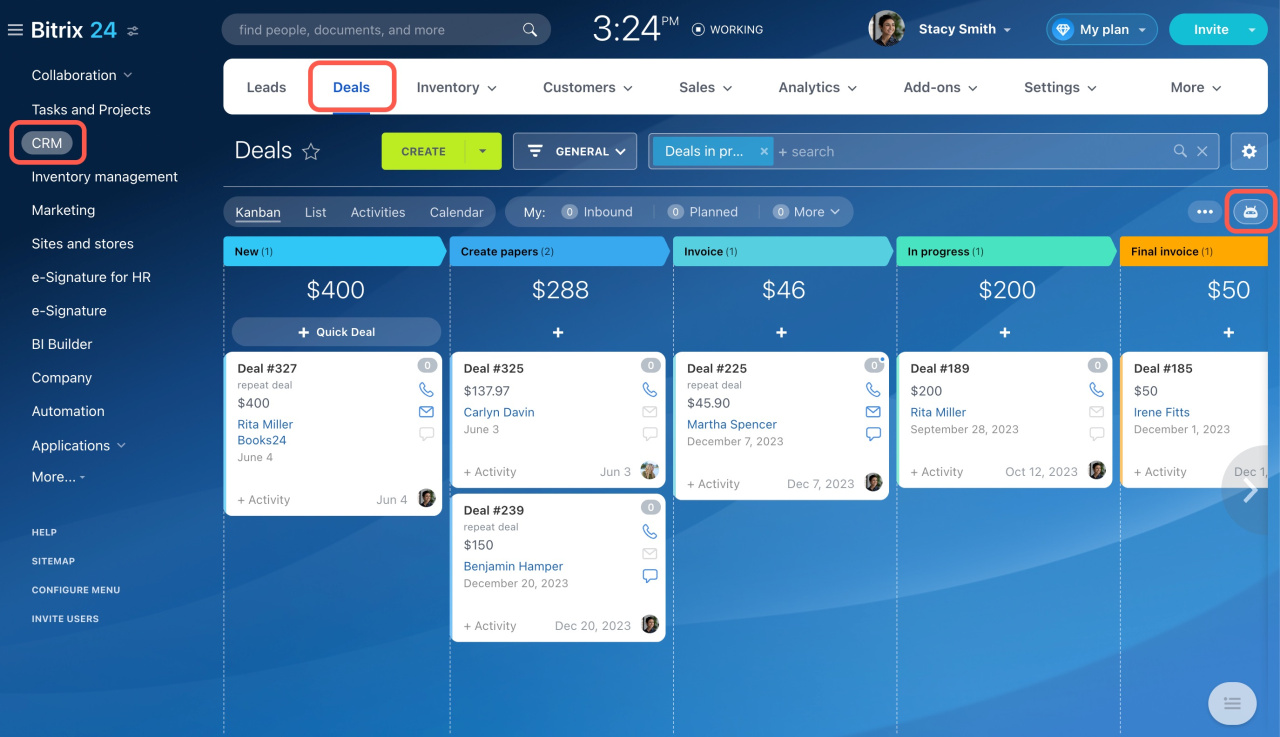
To configure automation rules, go to the CRM section, select the desired item, and open the Automation rules tab.
Interface for adding automation rules and triggers
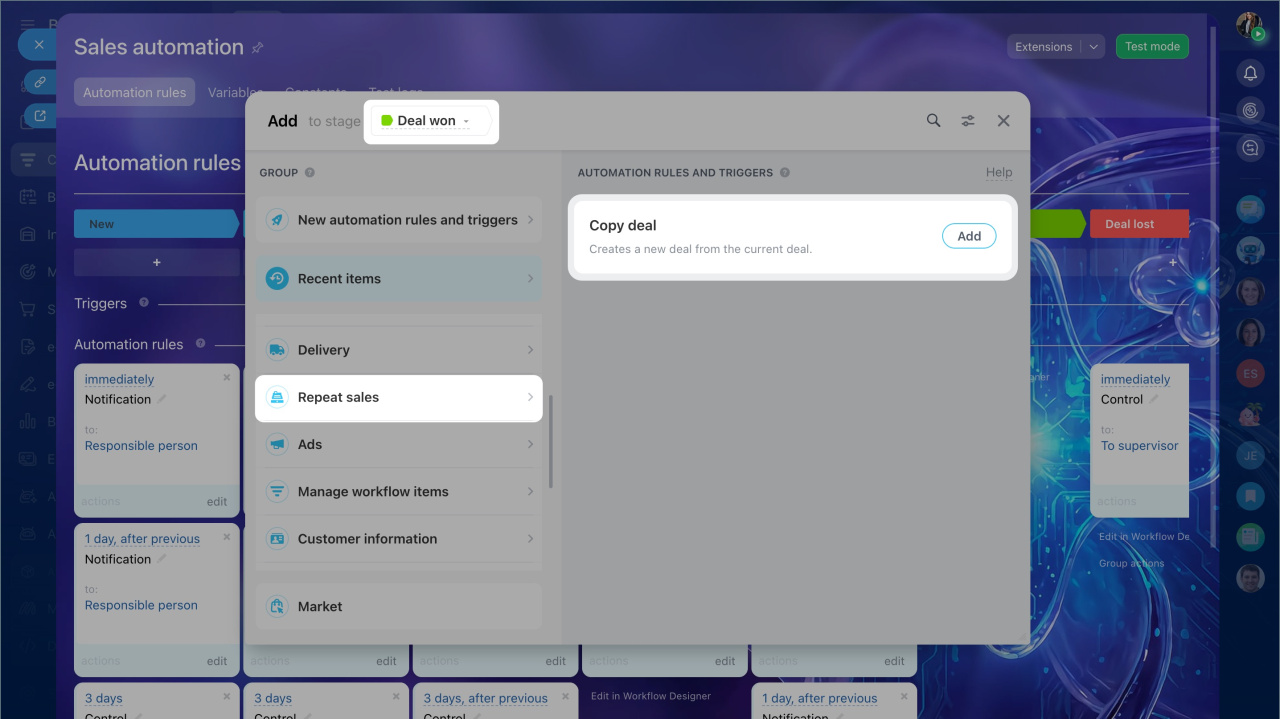
Automation rules are grouped by the tasks they solve. In this article, we focus on the Repeat sales group:
Create repeat lead
When a deal reaches a certain stage, the automation rule creates a repeat lead. For example, after completing a deal, you can offer additional services or remind the client about the end of a service contract.
Repeat leads
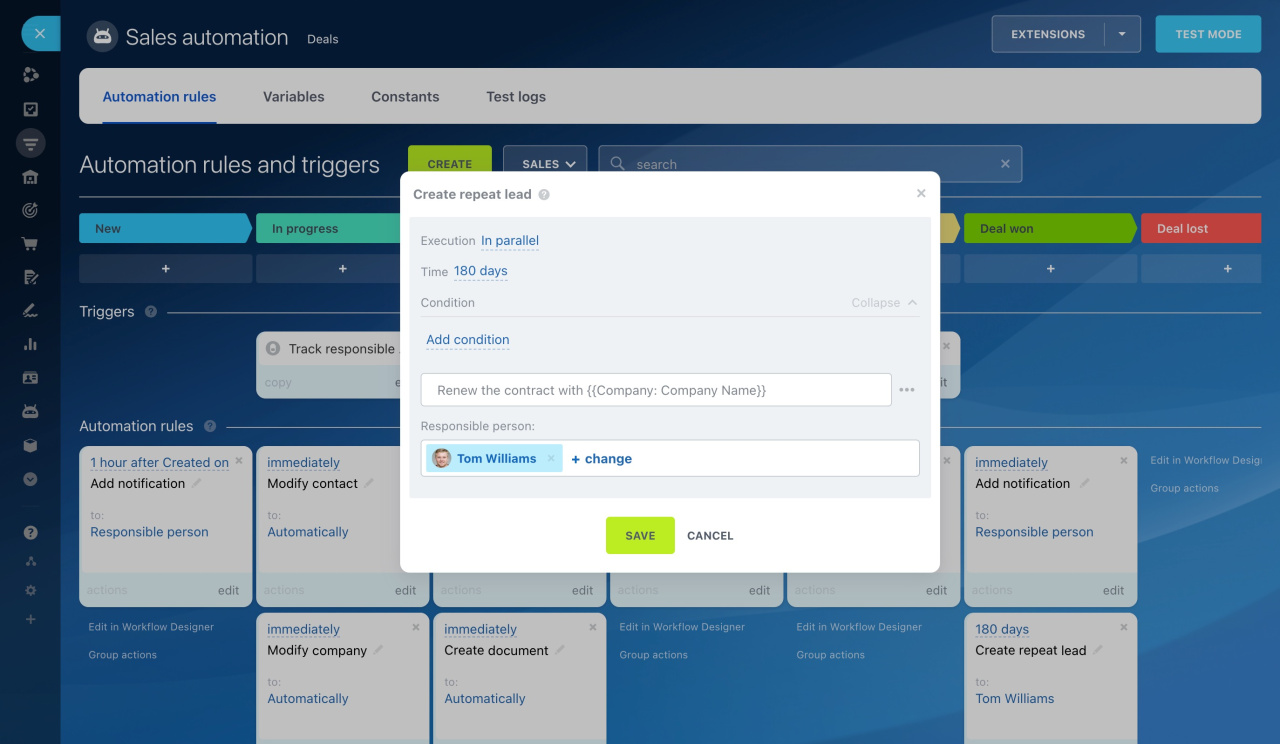
Configure "Create repeat lead" automation rule
Create a rule at the Deal won stage, and it will create a repeat lead six months later to remind the client about renewing the service contract.
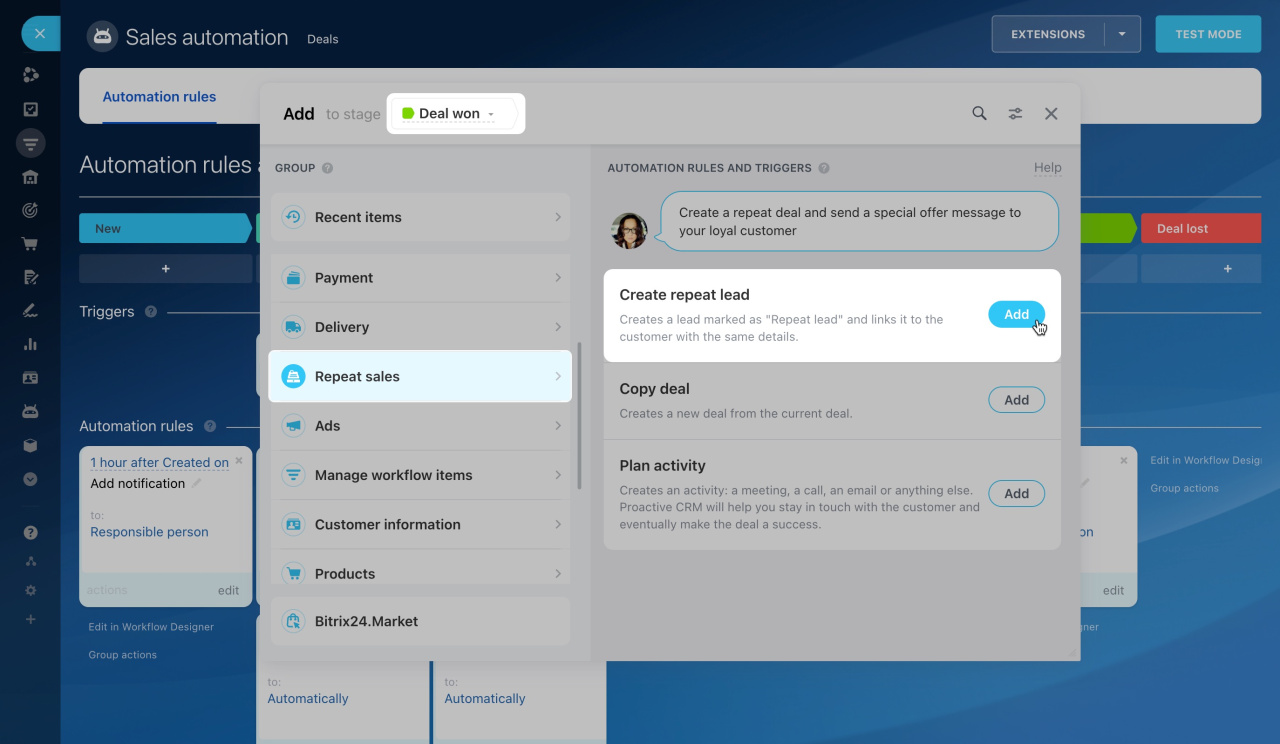
Lead name: Specify the new lead's name. You can insert values from various CRM fields, like the customer or company name.
Responsible person: Choose an employee to be responsible for the new lead.
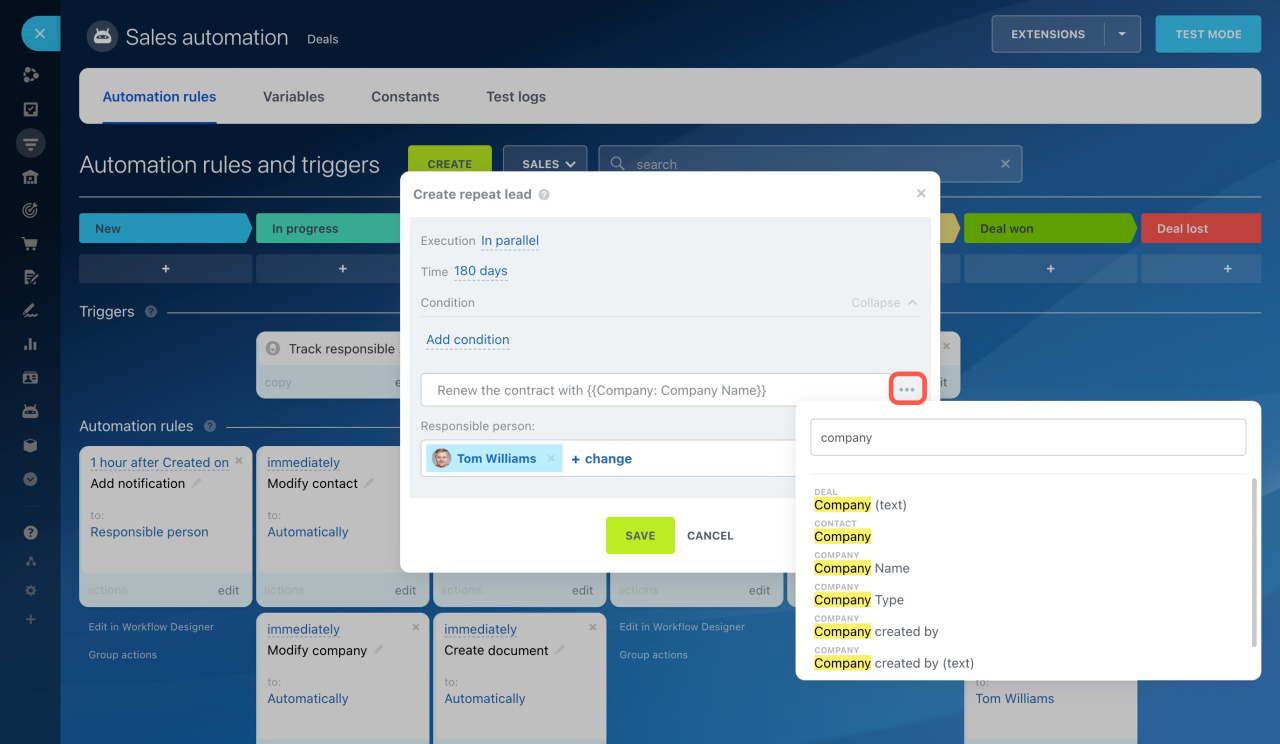
When moving a deal to the Deal won stage, the automation rule starts, but the action is postponed for six months.
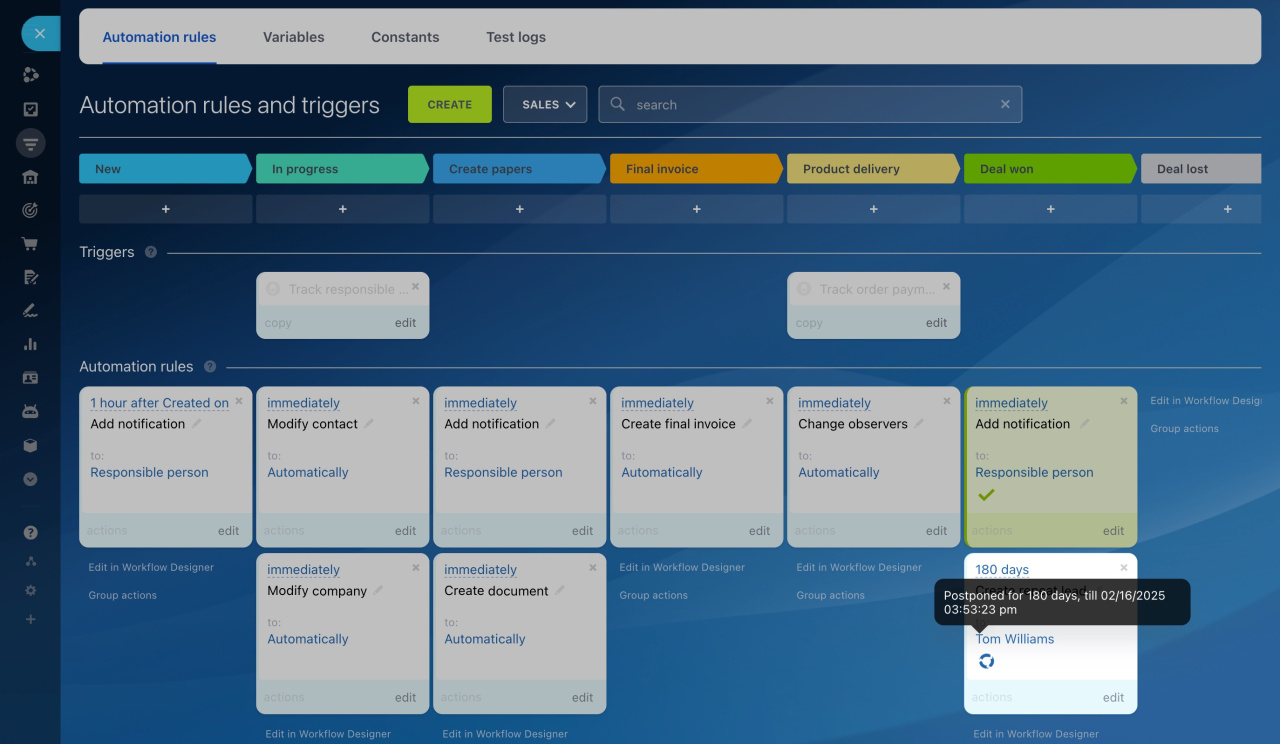
Copy deal
When a deal reaches a specific stage, this automation rule creates a copy of the deal in another stage or another pipeline. It transfers all field data to the new deal.
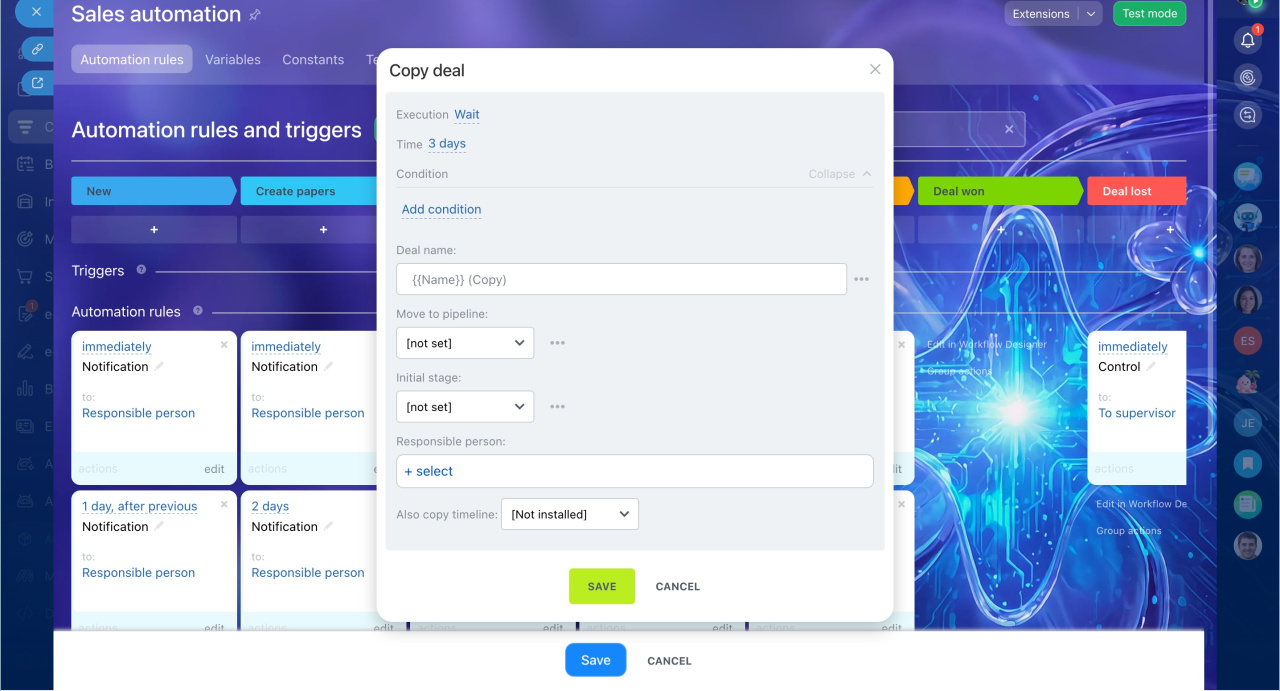
Copy deal automation rule settings
In this example, we will create an automation rule at the Deal won stage. When a deal reaches this stage, the rule will copy it to the first stage of the next pipeline. The new deal will include the client and order details.
Deal name. Enter a name for the new deal. By default, Bitrix24 copies the original deal name and adds the word "Copy." You can enter any name.
Move to pipeline. Select the pipeline where you want to copy the deal. You can also keep it in the current pipeline.
Initial stage. Select the stage in the selected pipeline where the copied deal should appear.
Responsible person. Select the person responsible for the new deal.
Copy Timeline. Choose whether to copy Timeline entries from the original deal to the new one.
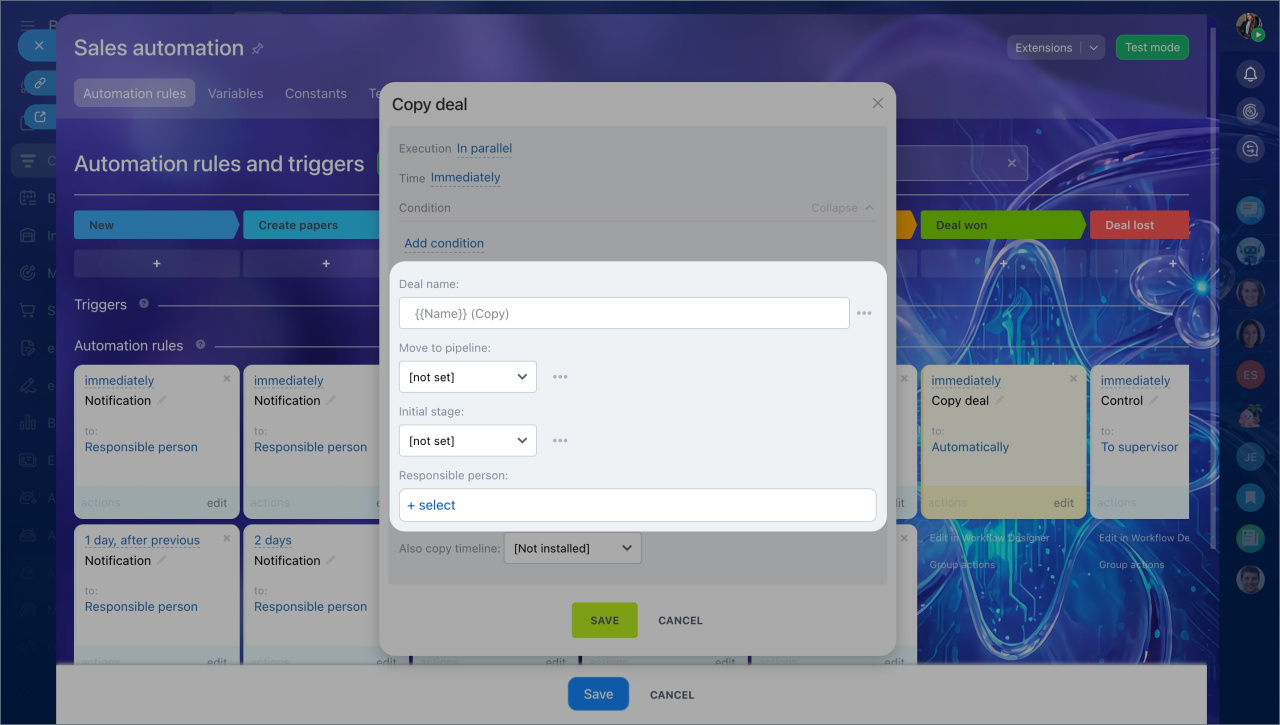
When the deal moves to the Deal won stage, the automation rule copies it to the first stage of the next pipeline. All data from the original deal is transferred to the fields in the new deal.
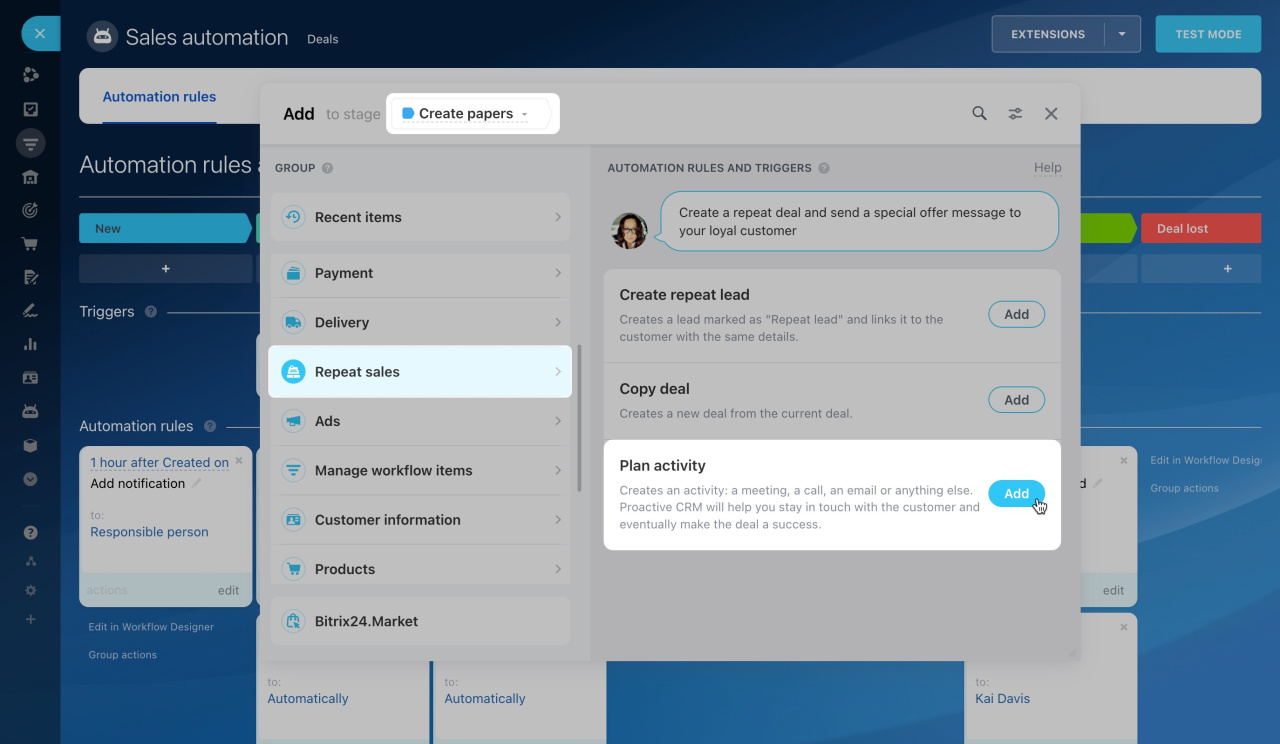
Plan activity
When a CRM item reaches a certain stage, this rule creates an activity like a meeting, call, or document preparation. This can help users remember to contact the client.
Universal activity in CRM
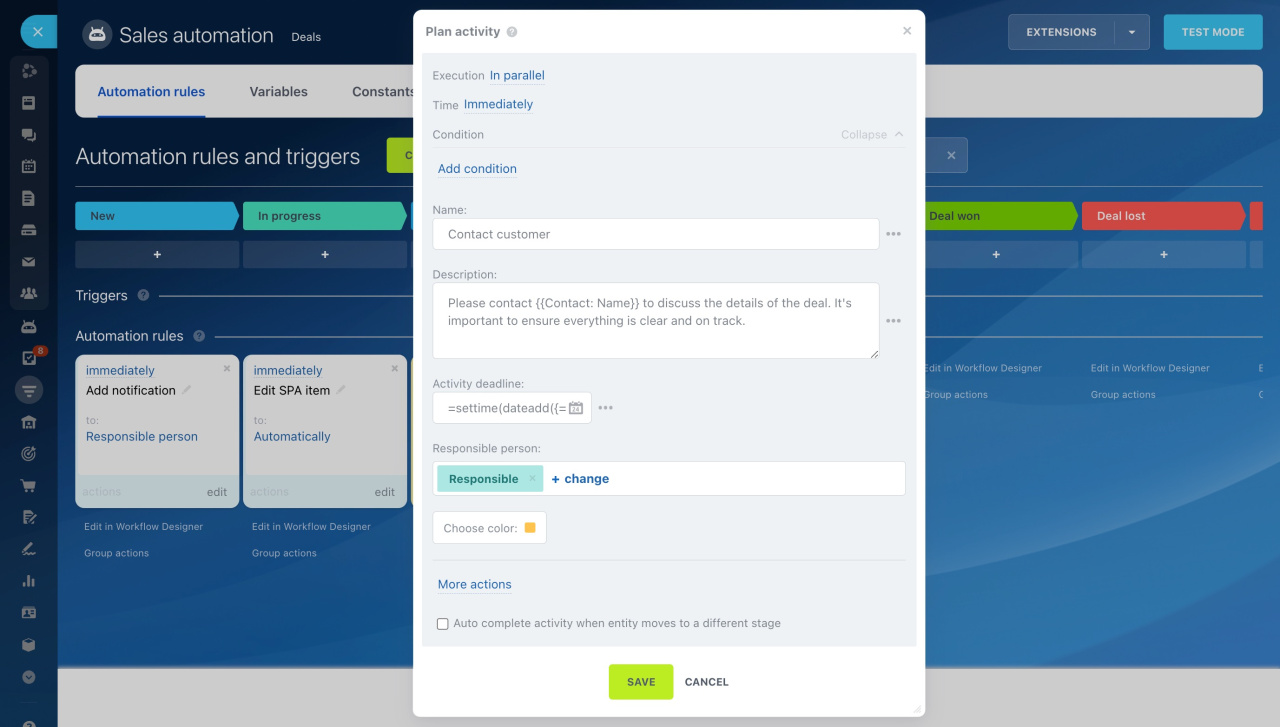
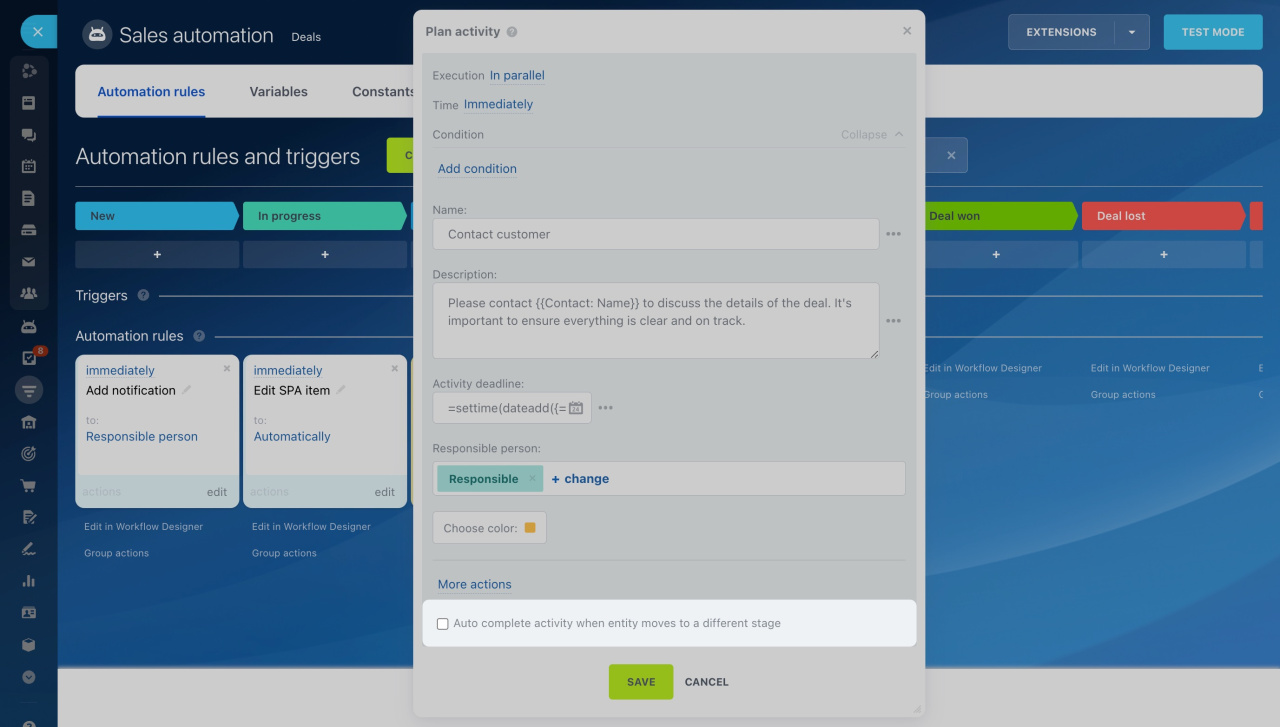
Configure "Plan activity" automation rule
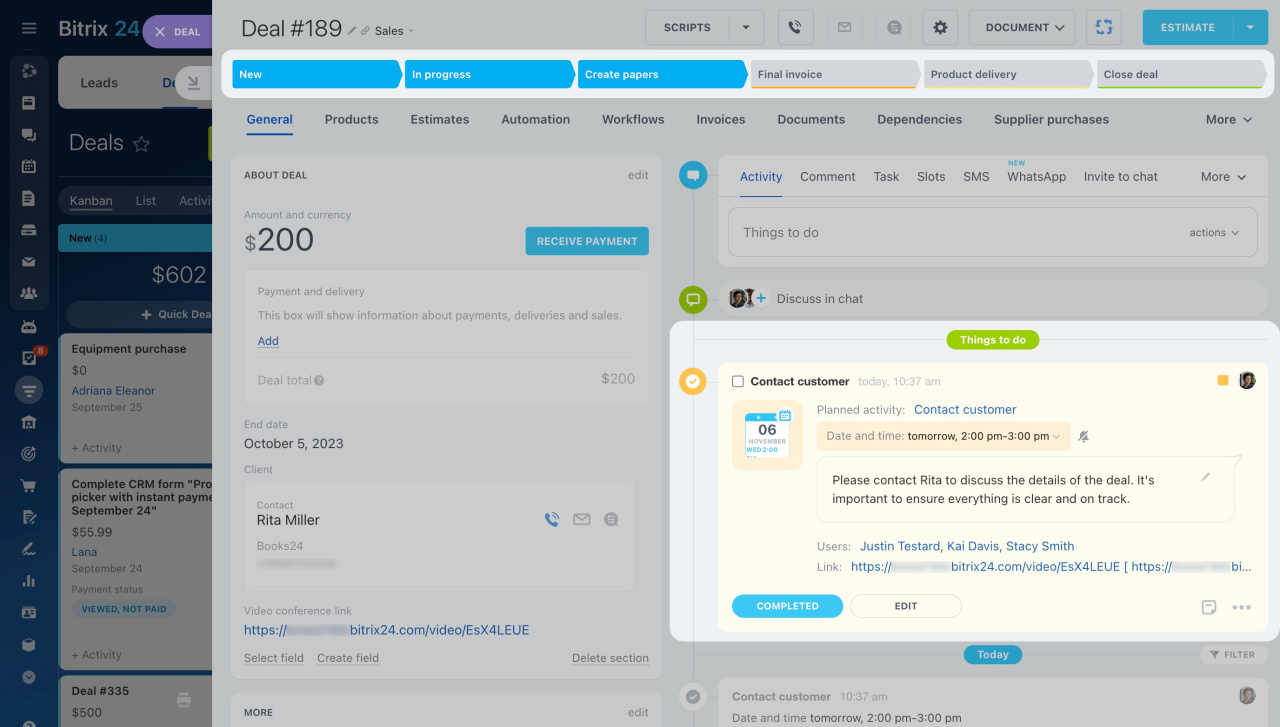
Create a rule for deals at the Create papers stage, and it will plan an activity for the sales manager to contact the client and discuss contract terms.
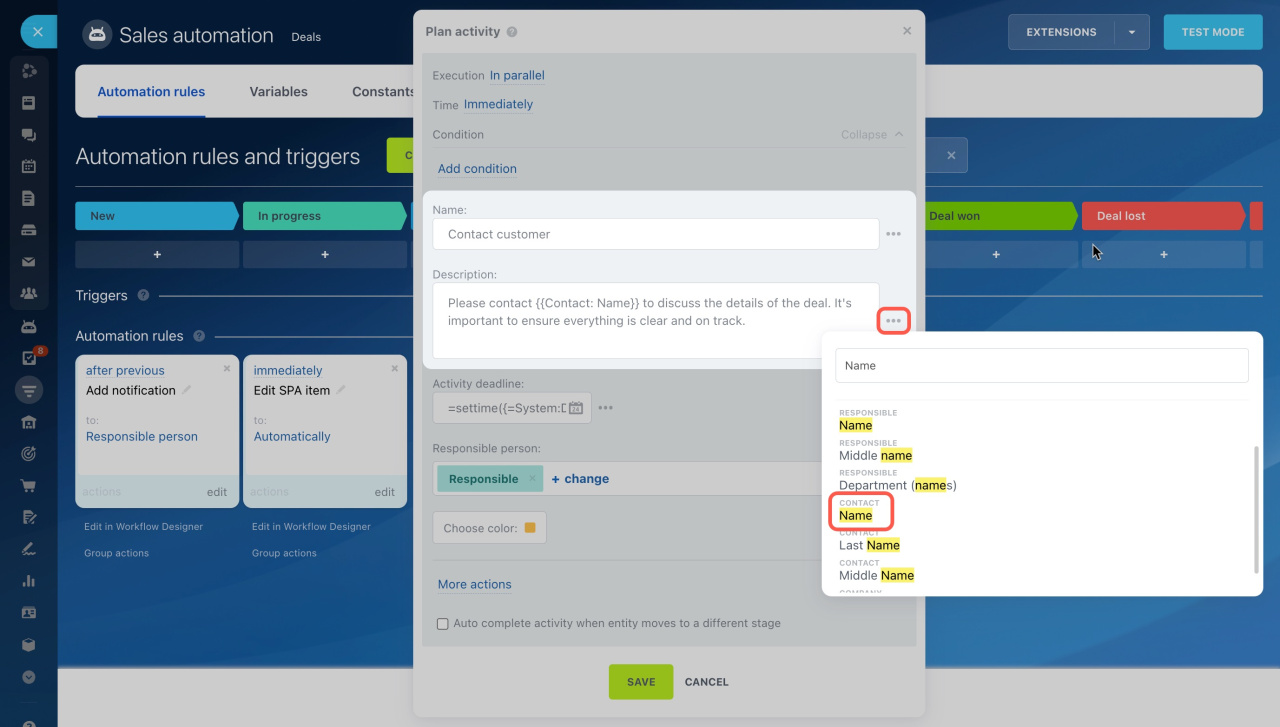
Name. Specify the activity name, like Contact customer.
Description: Specify what the sales manager needs to do. You can insert values from various CRM fields, like the name, client address, or comment. To do this, click the three dots (...) and select the desired field.
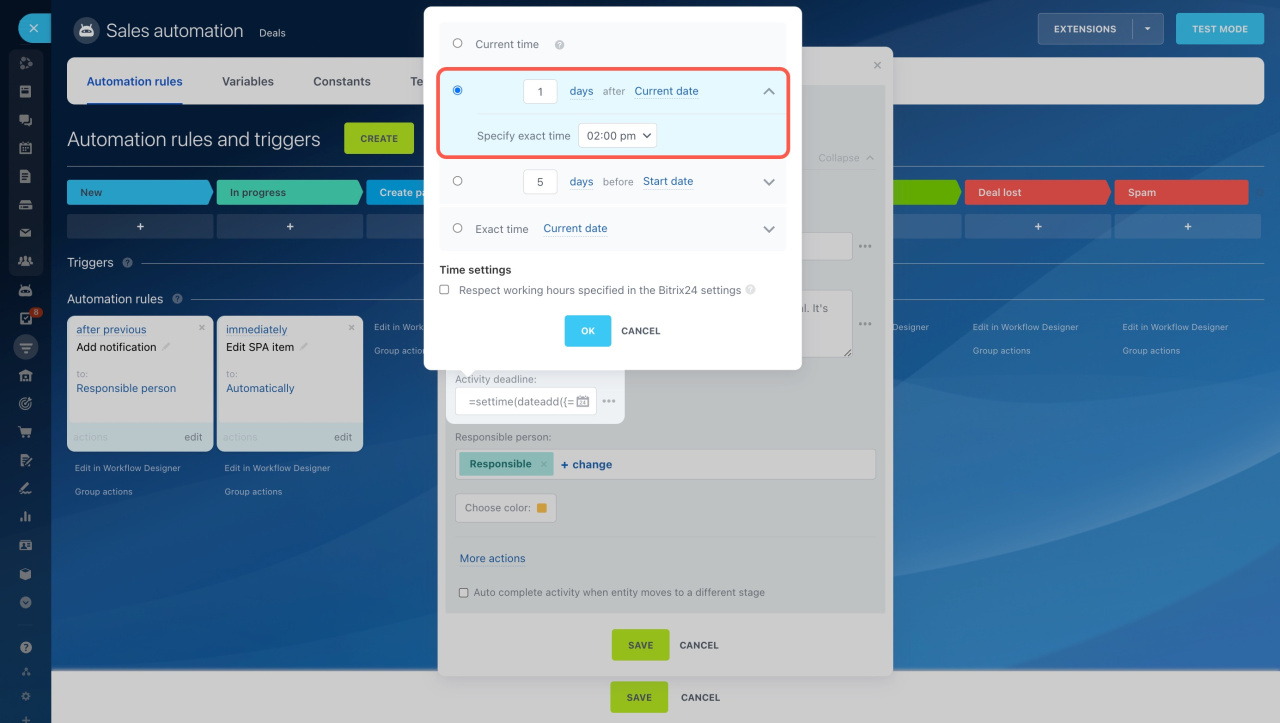
Activity deadline: Choose a date to complete your activity. For example, schedule it for tomorrow at 2:00 pm.
Time settings in automation rules
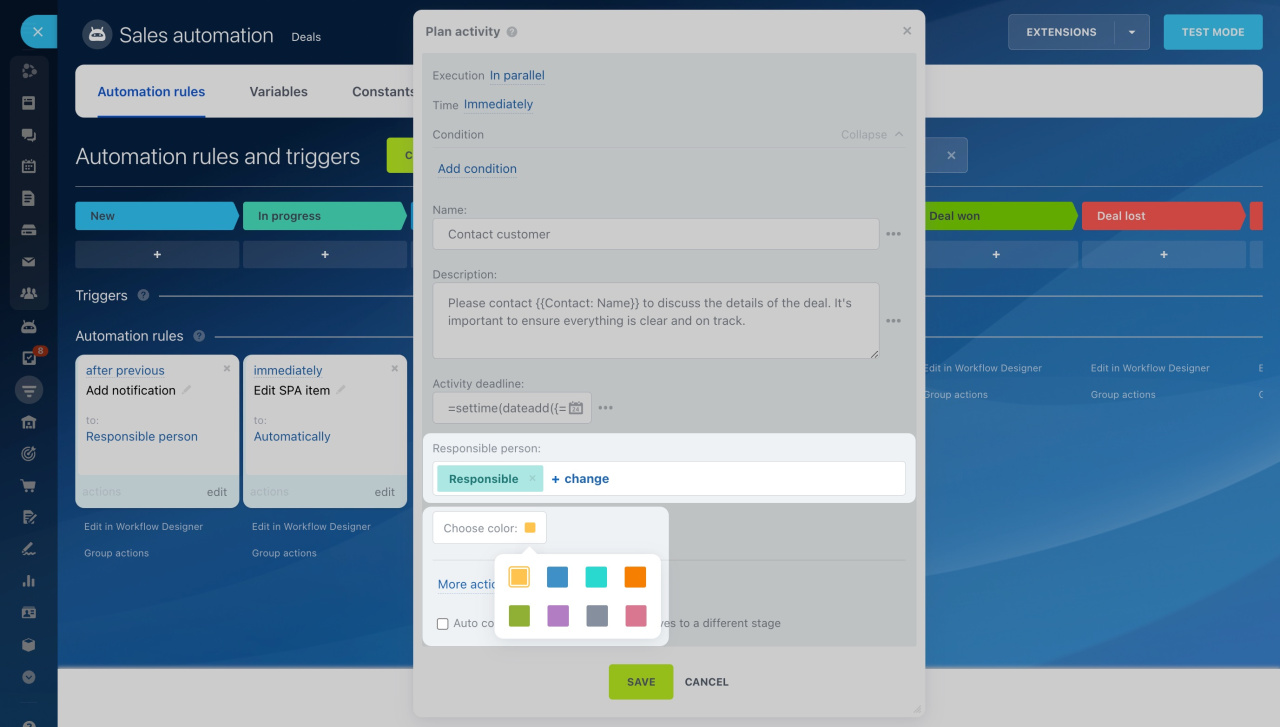
Responsible person: Choose an employee for the activity. By default, this is the deal's responsible person, but you can select another user.
Choose color: Use colors to separate activities by type: yellow for calls and green for meetings. If an activity is scheduled in an employee's calendar, the form's color in the calendar will match the activity's color in CRM.
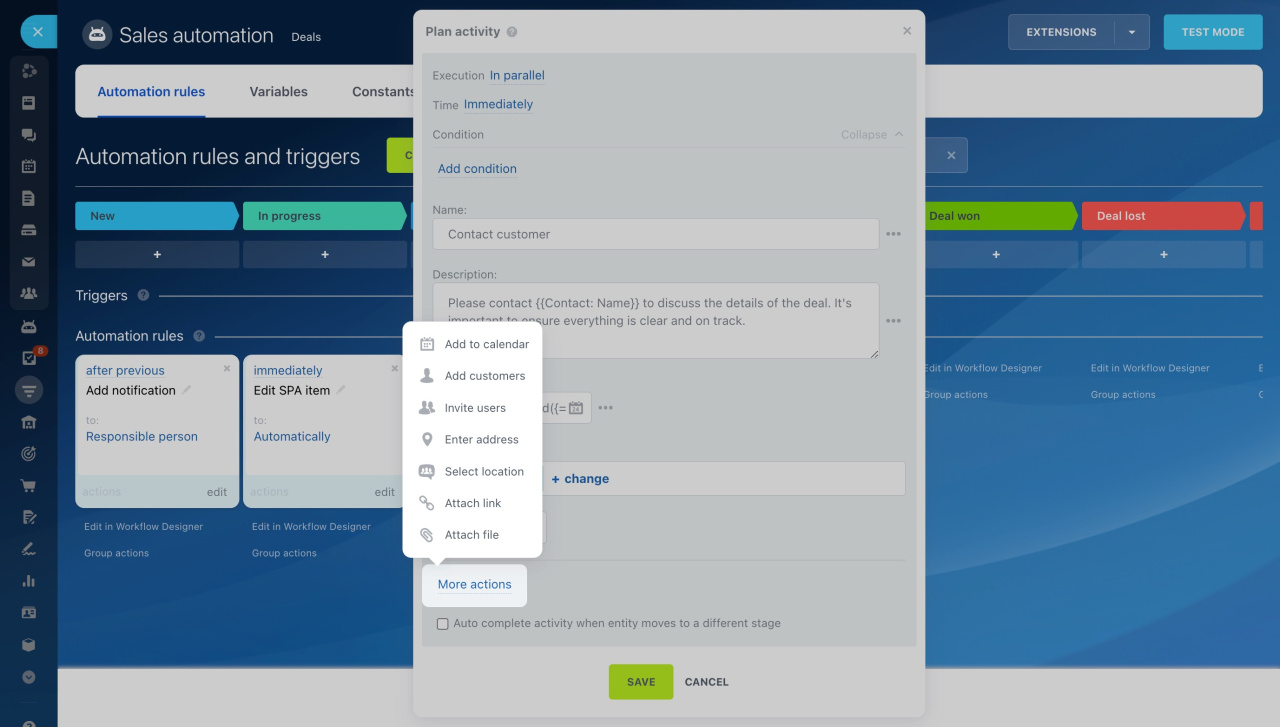
More actions. You can select one or more actions:
- Add to calendar: The activity will appear in the calendar.
- Select customer: If there are several clients in the item form, you can add one or all of them to the activity. This will help the responsible user to contact the right client.
- Invite users: Add colleagues to the activity if you are working in teams.
- Enter address: Specify an address if the meeting is out of the office.
- Select location: Book a meeting room to hold the meeting in the office.
- Attach link: Attach a link to a Bitrix24 video conference if you have arranged an online meeting. You can insert values from CRM item fields.
- Attach file: Add a document or any other file.
Auto complete activity when entity moves to a different stage: If enabled, the activity will be automatically completed if a deal moves from the Create papers stage to the Final invoice stage. Disable this option if you want the sales manager to complete the activity manually.
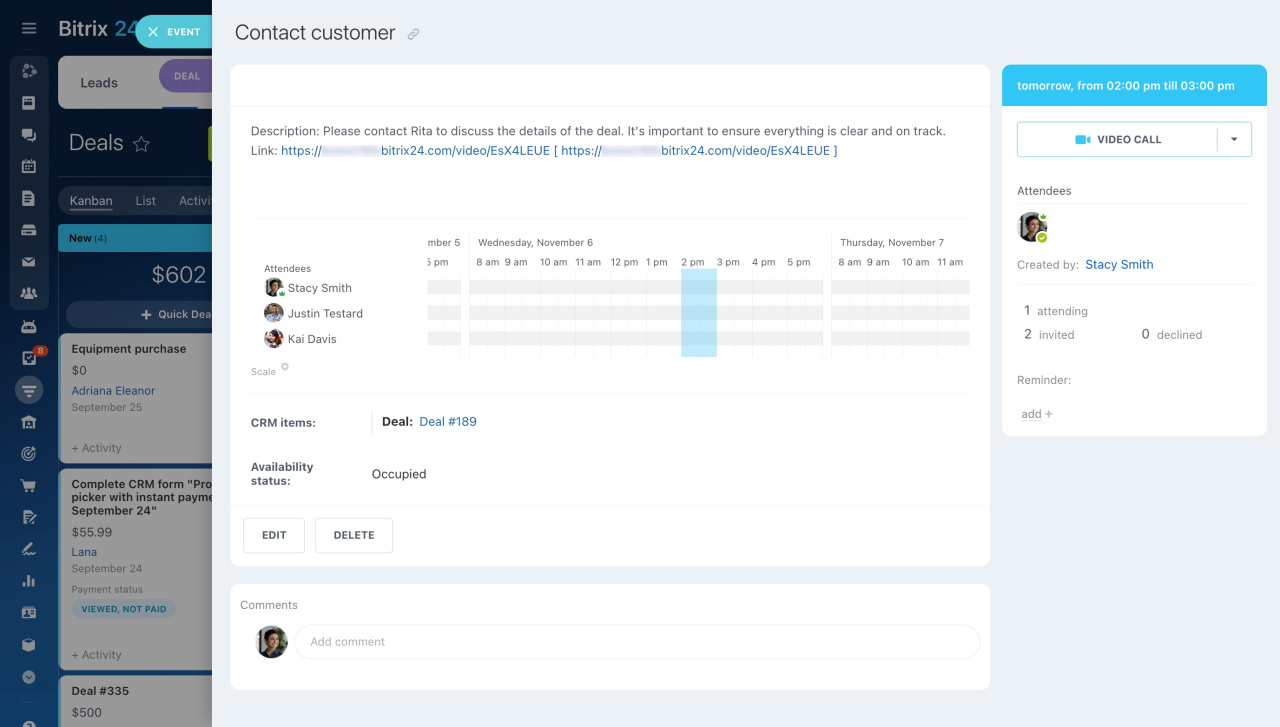
When a deal reaches the Create papers stage, the automation rule adds an activity for the sales manager. It is displayed in the CRM item form and the employee's calendar.