
Bitrix24 CRM includes a full set of tools to automate and manage customer workflows. You can assign orders to employees, send personalized emails and SMS, generate documents, and more.
On the Sales automation page, you can:
- Add and configure automation rules and triggers
- Set up variables and constants
- Test and validate your automation setup
Before you start, make sure Sales automation is available on your plan.
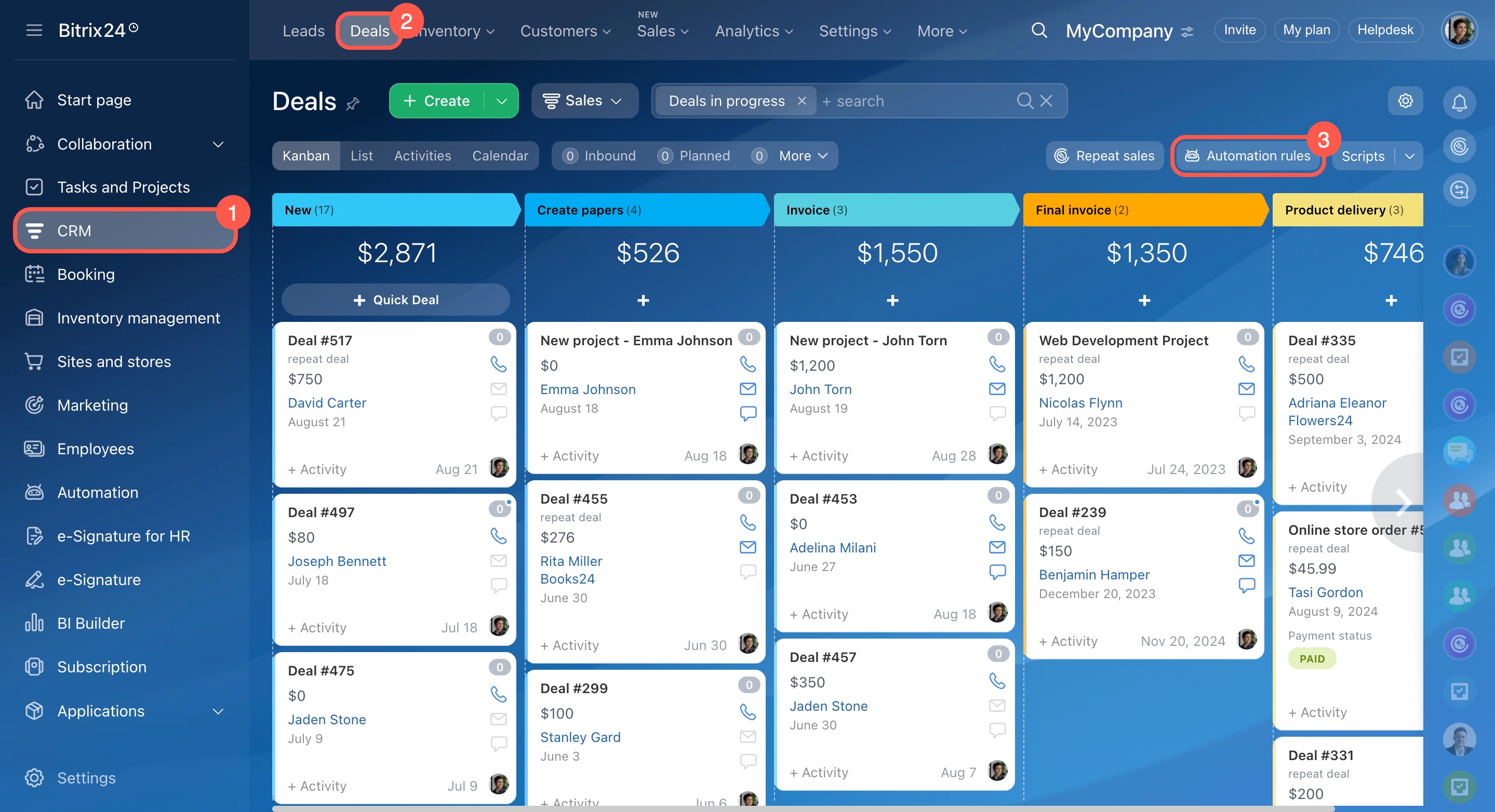
Open the Sales automation page
- Go to CRM.
- Select an item, such as leads or deals.
- Open the Automation rules tab.
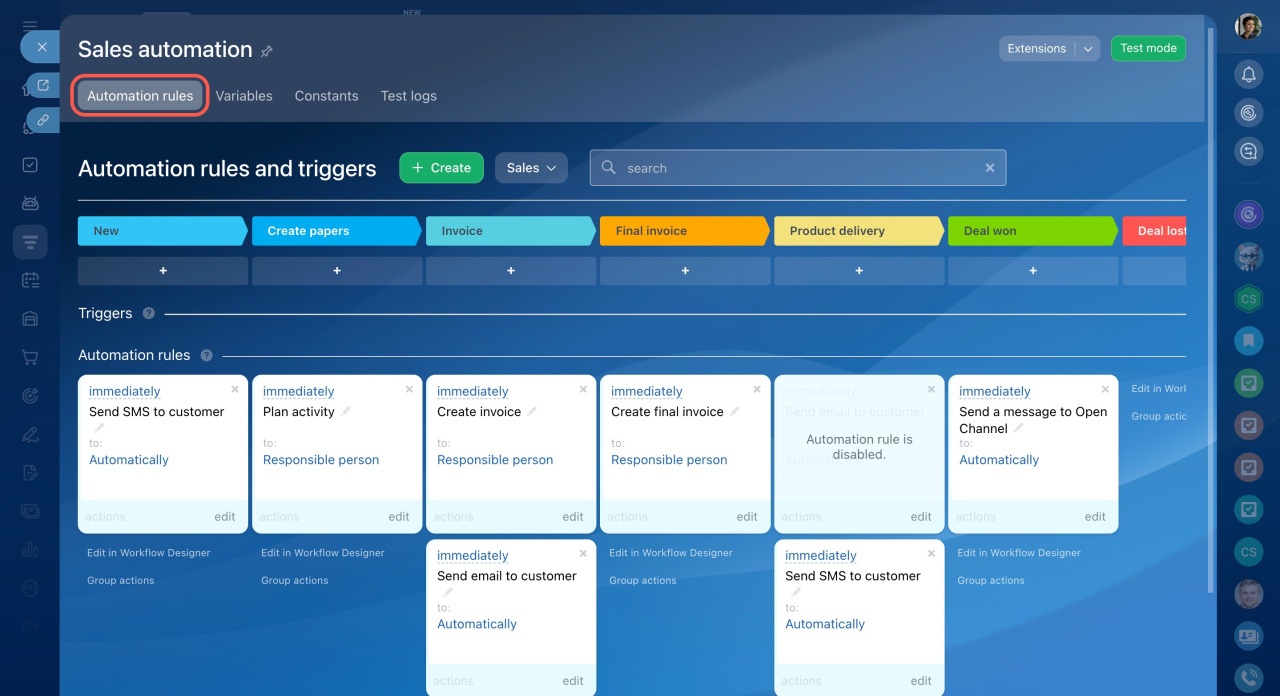
Automation rules and triggers
Use this tab to configure automation for each stage.
- Automation rules run actions when an item reaches a stage. For example, send emails, create documents, or assign tasks.
- Triggers track customer actions and CRM changes, such as email clicks, calls, or payments. When triggered, they move the item to another stage.
Automation rules in CRM
Triggers in CRM
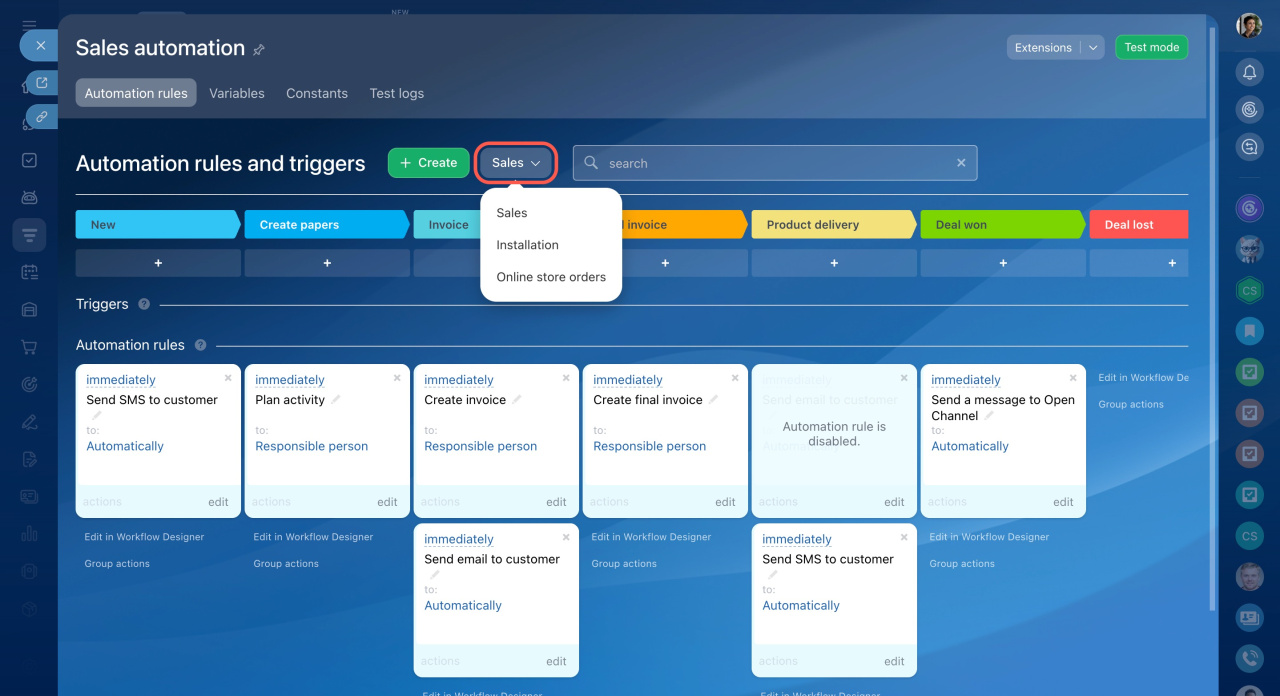
Select a pipeline
For deals, you can configure automation separately for each pipeline.
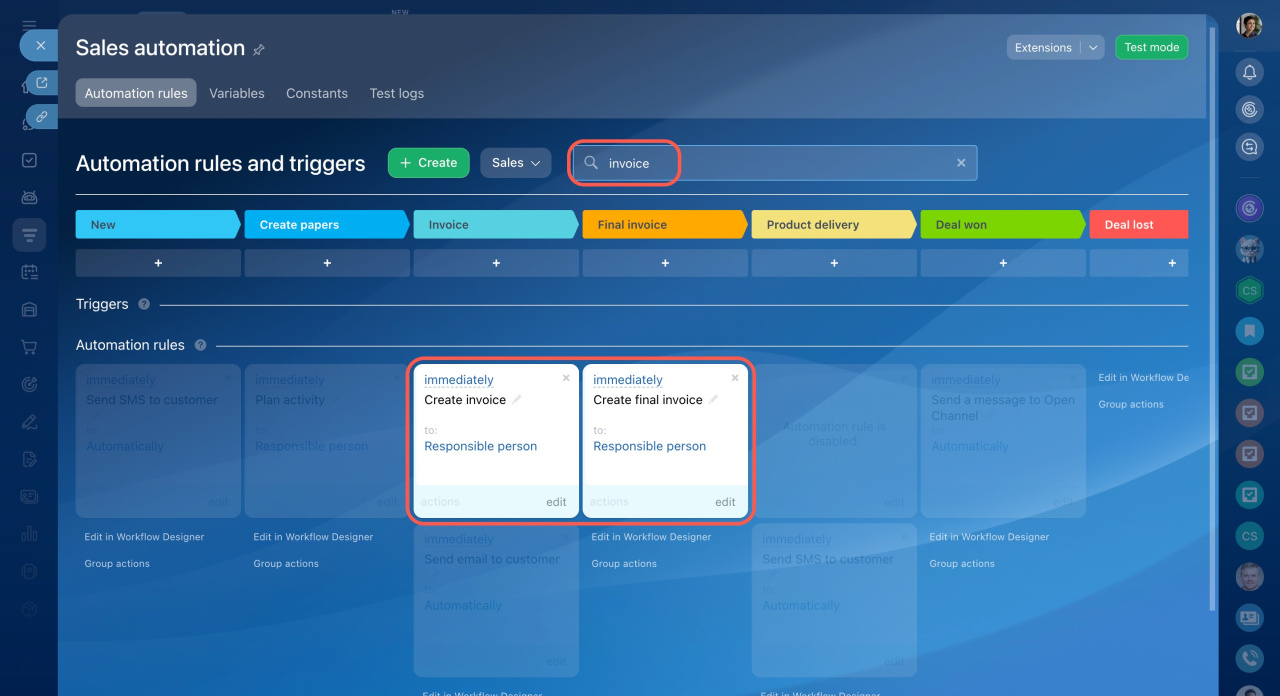
Search rules and triggers
Use the search bar to quickly find items by name.
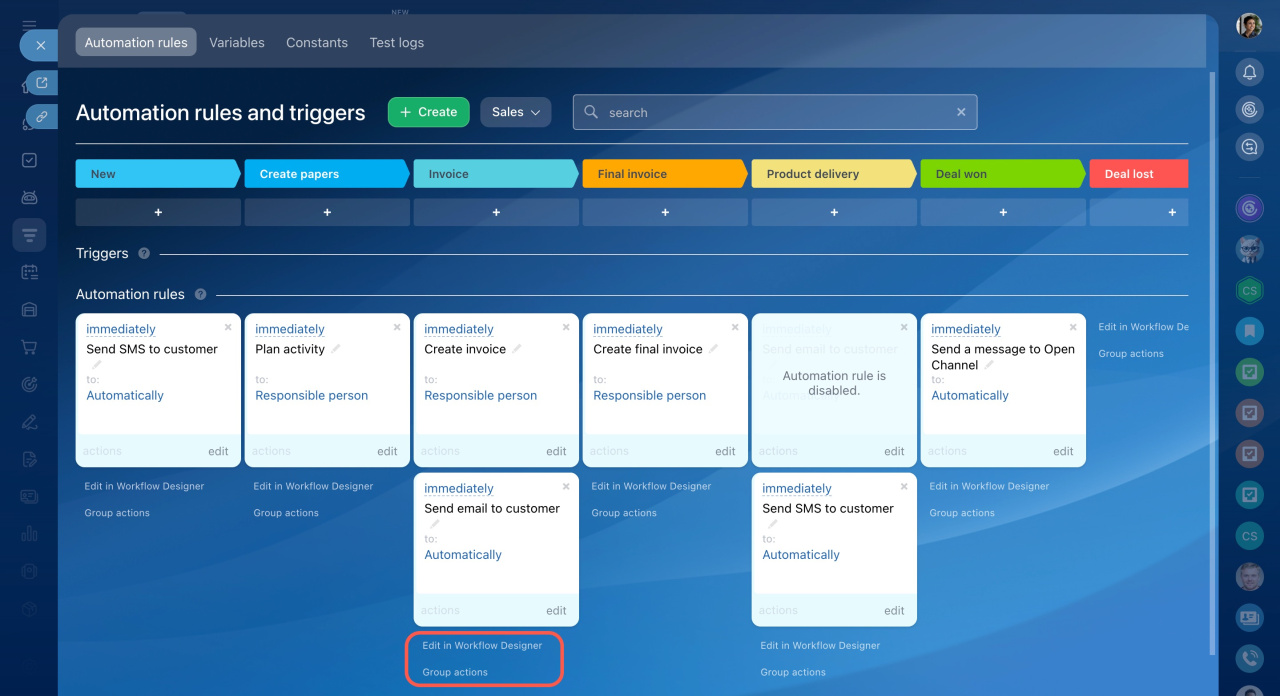
Edit in Workflow Designer
Use this tool to add advanced actions not available in the standard interface, such as loops or repeated checks.
In Workflow Designer, you can edit both a single rule and a chain of rules at one stage.
Workflow designer
Group actions. Use this option to apply changes to multiple or all rules and triggers at a stage. For example, you can transfer all automation rules from deals to leads.
Group actions for automation rules
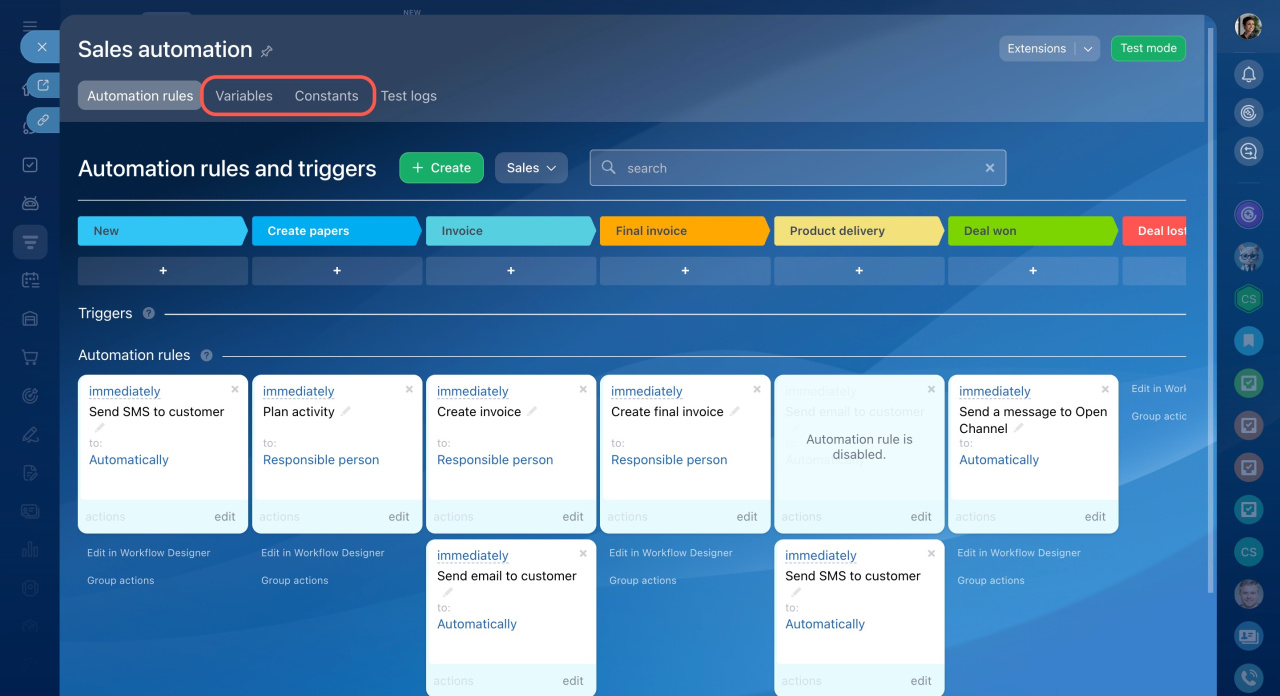
Variables and constants
Use these tabs to store values for conditions, fields, and calculations.
- Constants
Fixed values that rarely change, such as a tax rate or a specific role.
Example: assign a “Chief Accountant” role to a specific employee. - Variables
Values that change during the process.
Example: a commission percentage that varies based on deal amount. Automation rules can use this value to calculate payments.
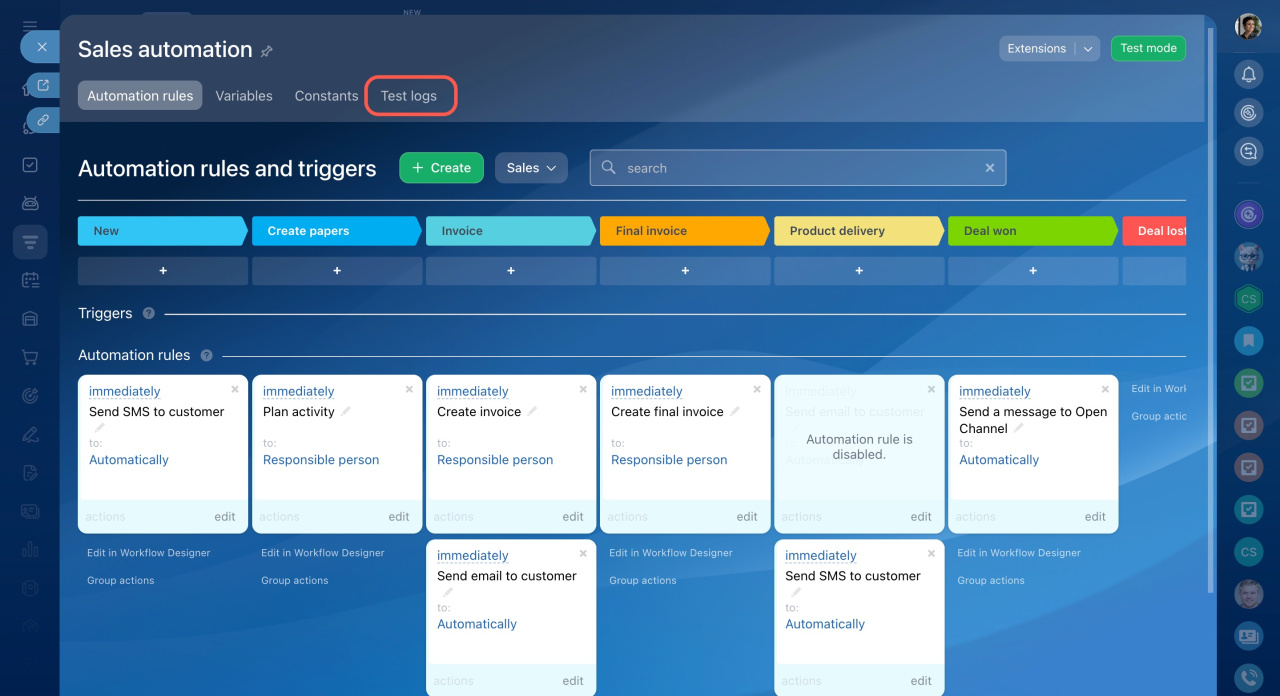
Automation rule test mode
Use test mode to check how your automation works.
- Run tests with demo or real deals
- Review each step of the automation
- Fix errors as needed
Test results are saved in the Test logs section.
In brief
- Bitrix24 CRM helps automate customer workflows and routine actions.
- Use the Sales automation page to manage rules, triggers, variables, and tests.
- Configure automation for each stage of your CRM items.
- Store reusable values in variables and constants.
- Use test mode to verify and troubleshoot automation.