
Automation rules and triggers in CRM help you automate routine workflows. Automation rules perform actions such as sending emails or chat messages, creating tasks, and generating documents. Triggers track customer actions and changes in CRM, such as opening an email, paying an invoice, or updating a field value. When the specified action occurs, the trigger moves the CRM item to another stage.
Automation rules in CRM
Triggers in CRM
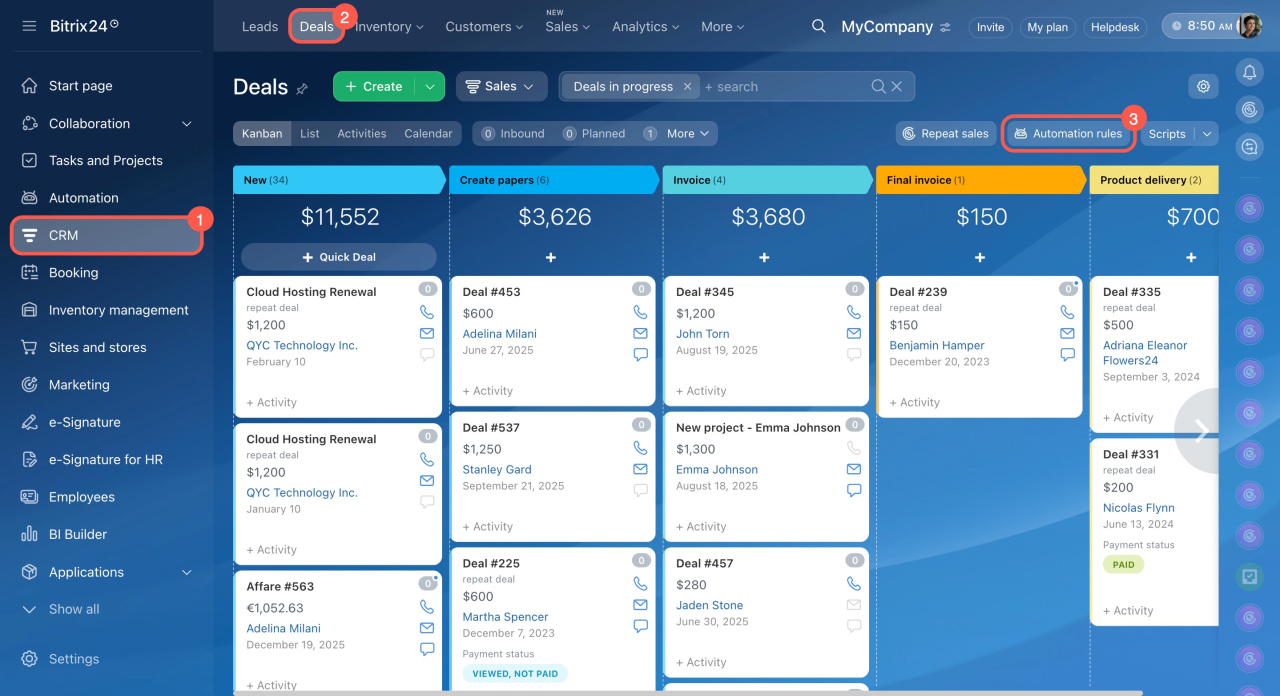
To set up automation rules and triggers, go to the CRM section, select the item, and open the Automation tab.
Add automation rules and triggers
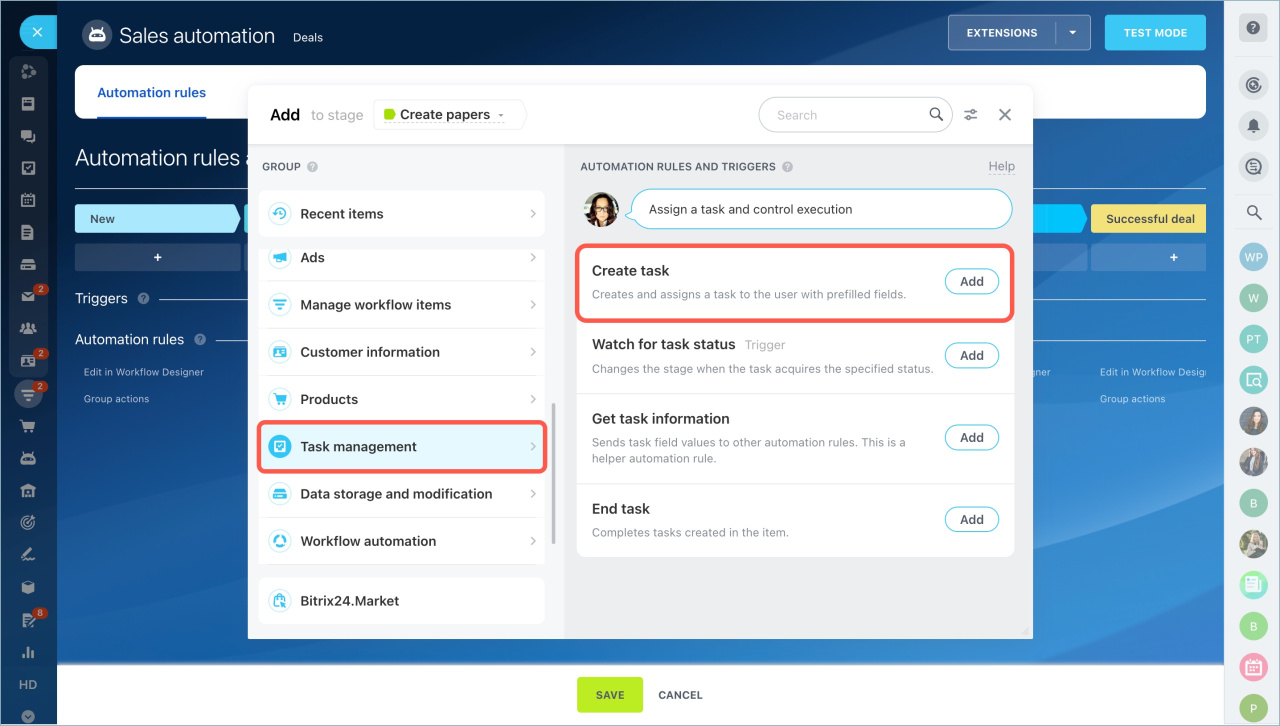
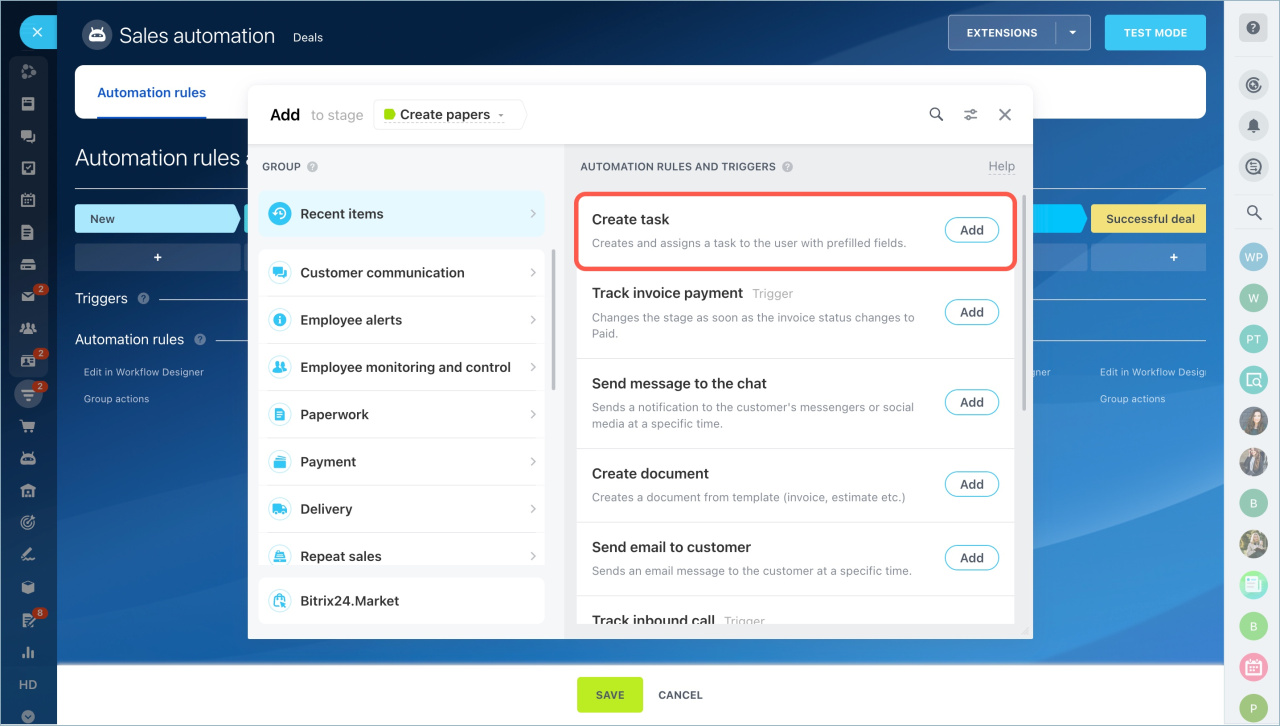
Automation rules and triggers are grouped by use case. Below is the Task Management group.
Create task
When a CRM item reaches a specific stage, this automation rule creates a task. It sets the description, participants, deadline, and other parameters.
“Create task” settings
Example: Create a rule in deals. When a deal reaches a certain stage, the system creates a task to prepare a project for the client.
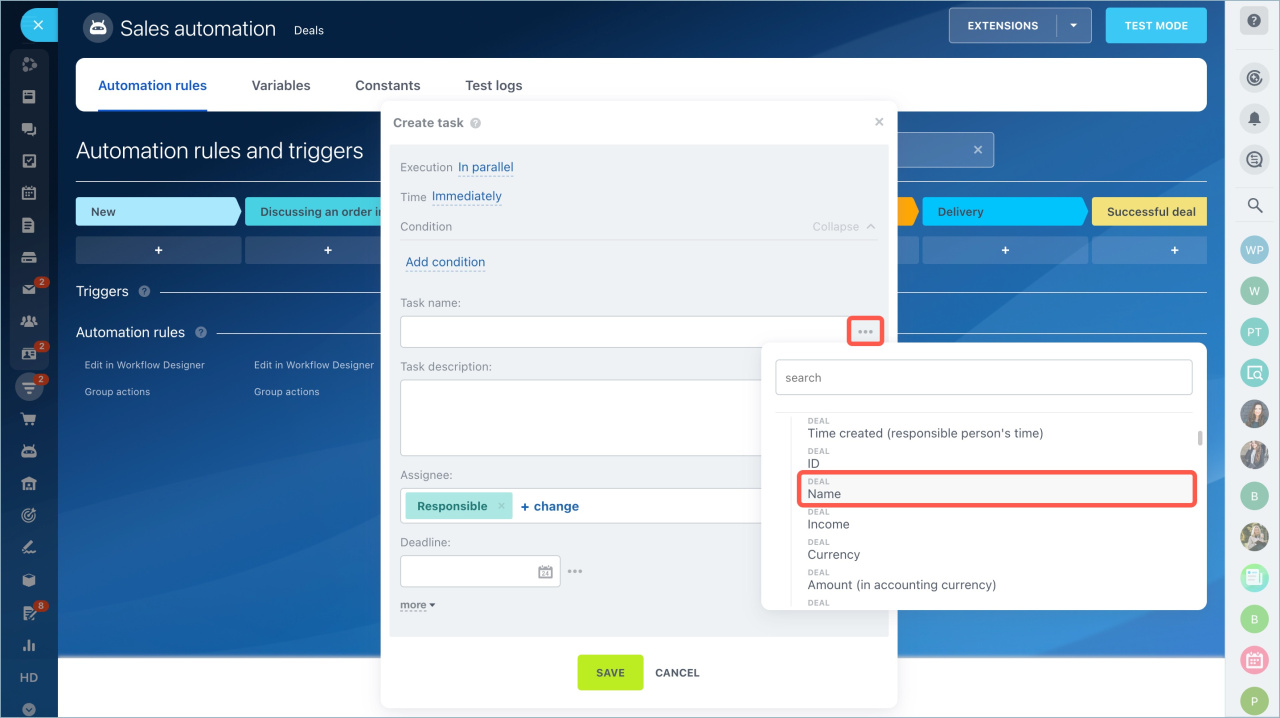
Task name
Include key details from the CRM item. For example: deal name, customer name, or order date.
Task description
Add relevant details such as deal information or amount.
Assignee
Select the employee responsible for the task.
Deadline
Set when the task must be completed.
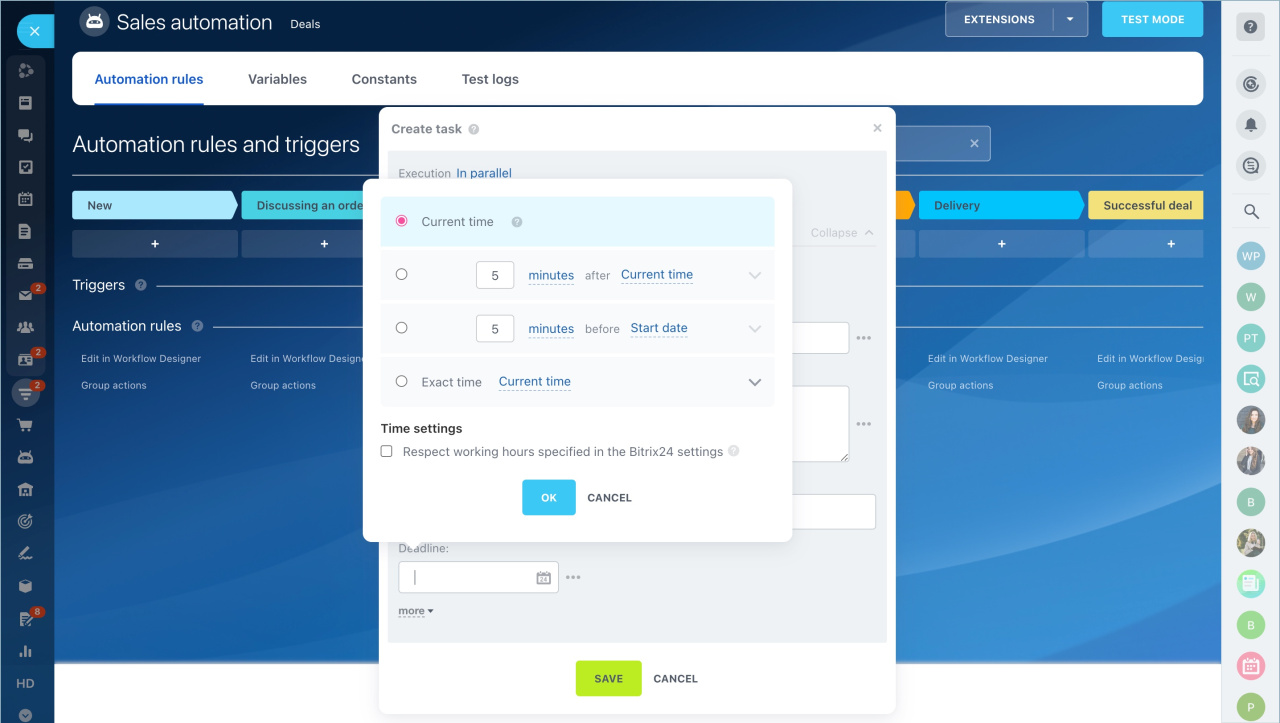
Time settings in automation rules
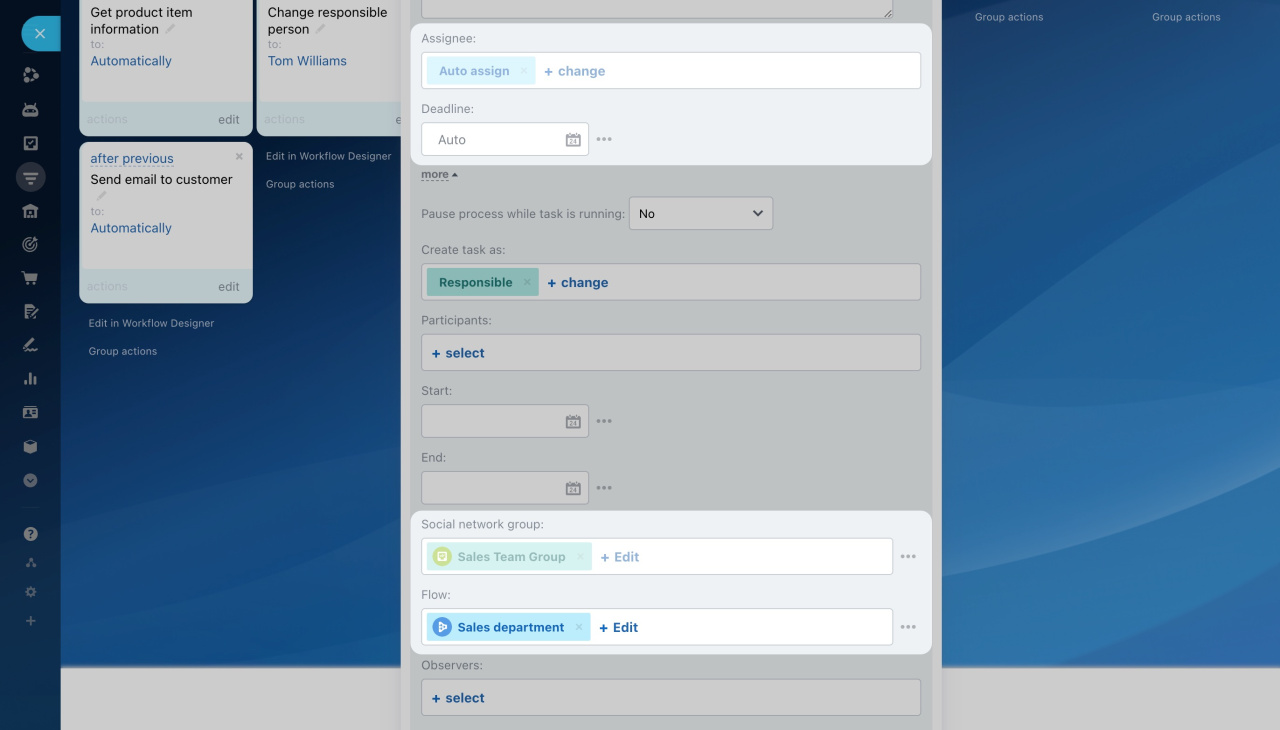
More
Configure additional options. You can add participants, a checklist, link the task to a workgroup, enable time tracking, or assign it to a flow.
Create a task
Bitrix24 Flows: Get started
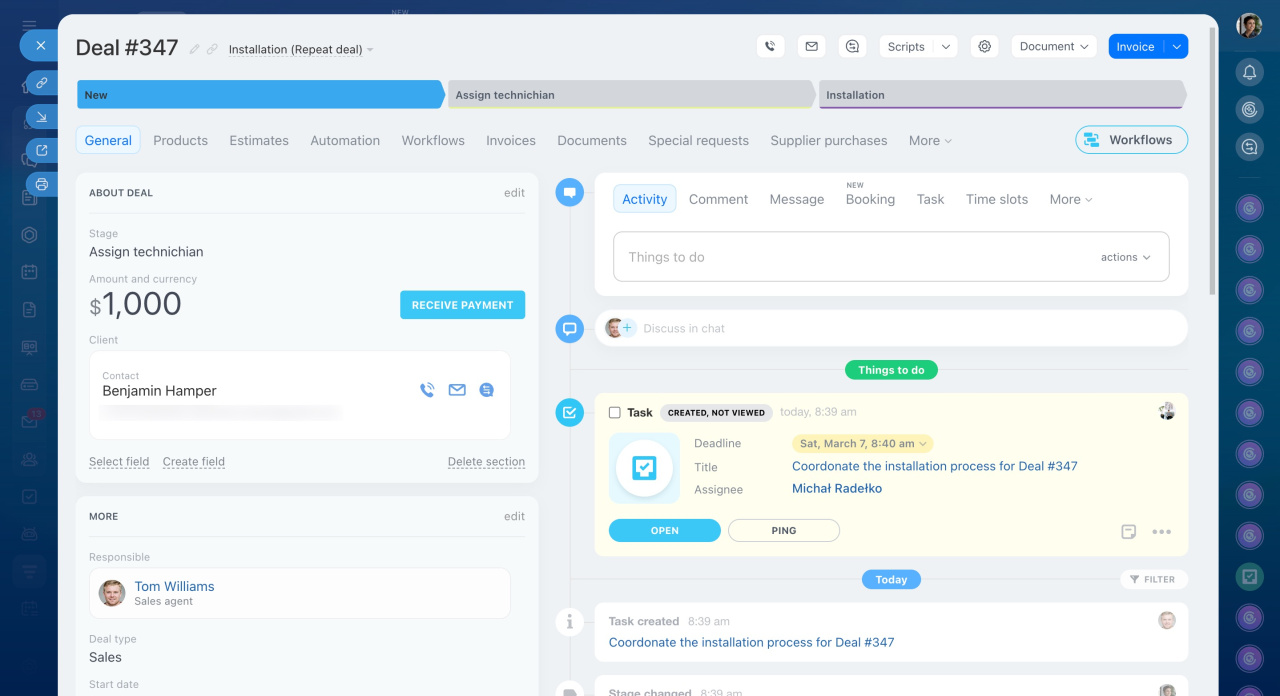
When a deal reaches the New stage, the system creates a task. You can open it from the deal timeline. The assignee is set based on the flow, and the deal name appears in the task title.
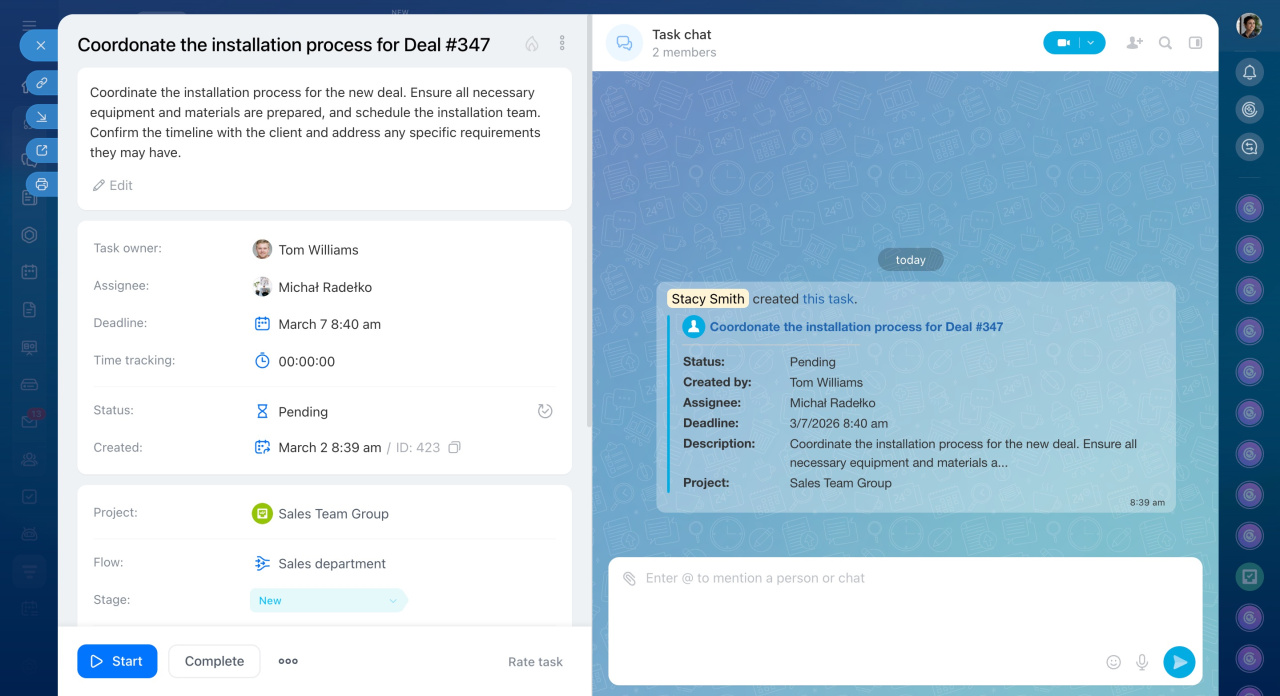
The task assignee is chosen based on the flow settings, and the deal name automatically appears in the task name.
Watch for task status
This trigger moves a CRM item to another stage when a linked task reaches a specific status.
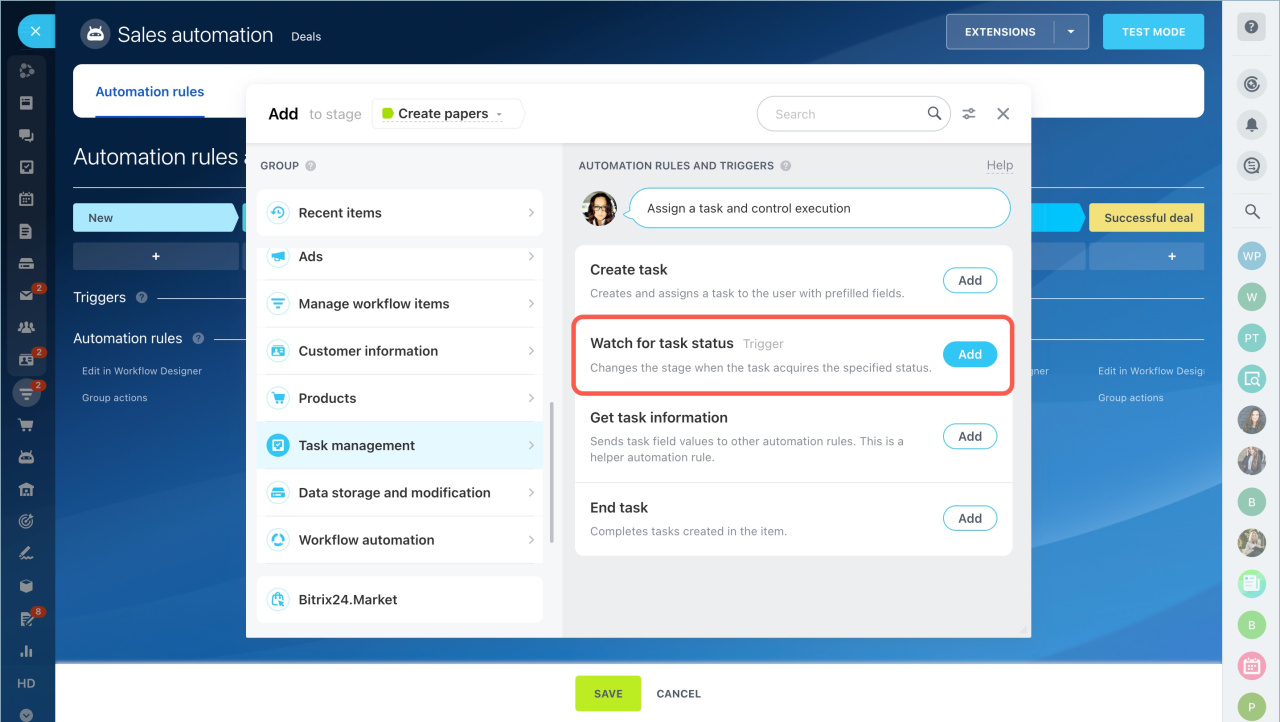
"Watch for task status" trigger settings
Trigger name
Rename it if you use multiple triggers. This helps you find it faster.
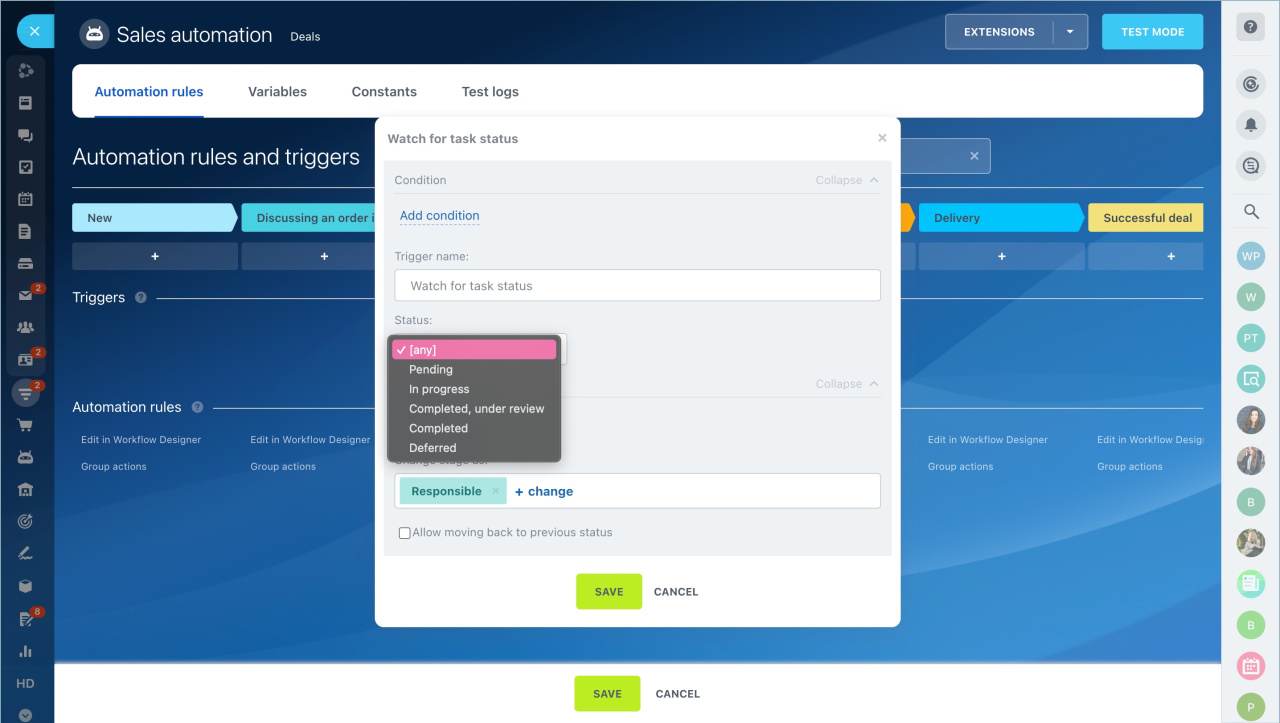
Status
Select the task status that will trigger the stage change.
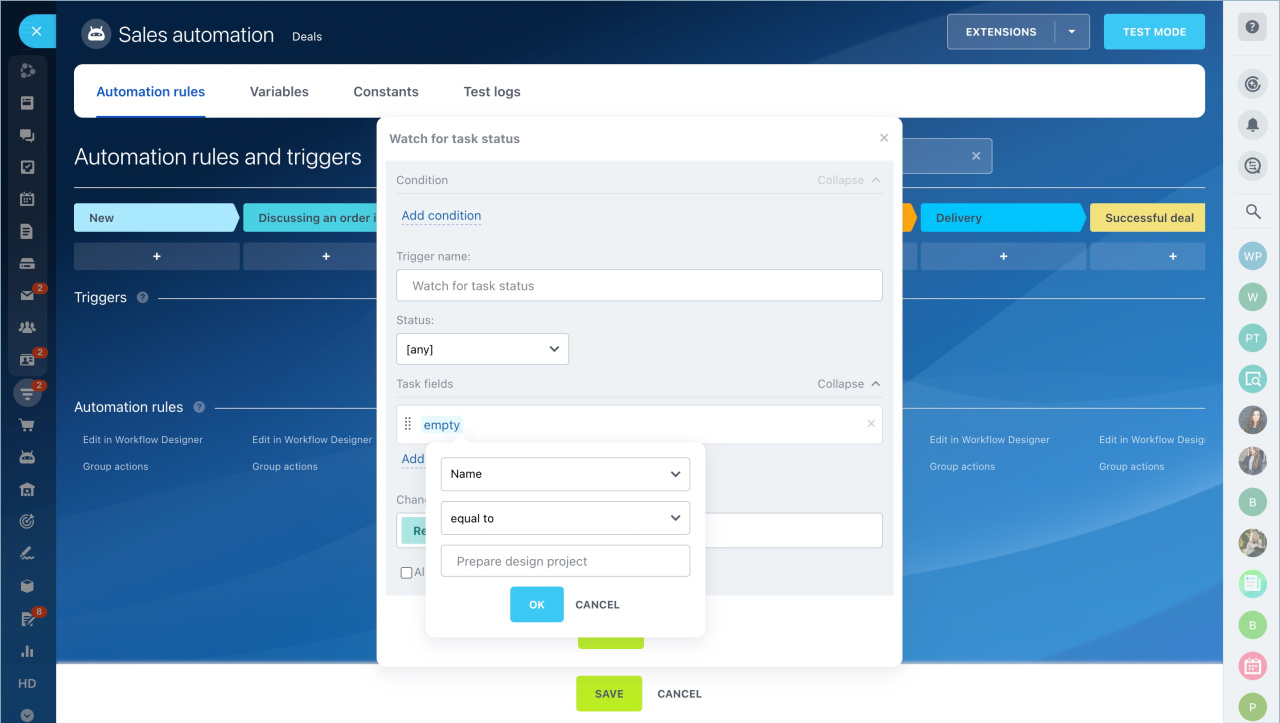
Task fields
Set filters to apply the trigger only to specific tasks. For example, tasks with certain words in the title.
Change stage as
Select a user. The system records the stage change in the timeline on behalf of this user.
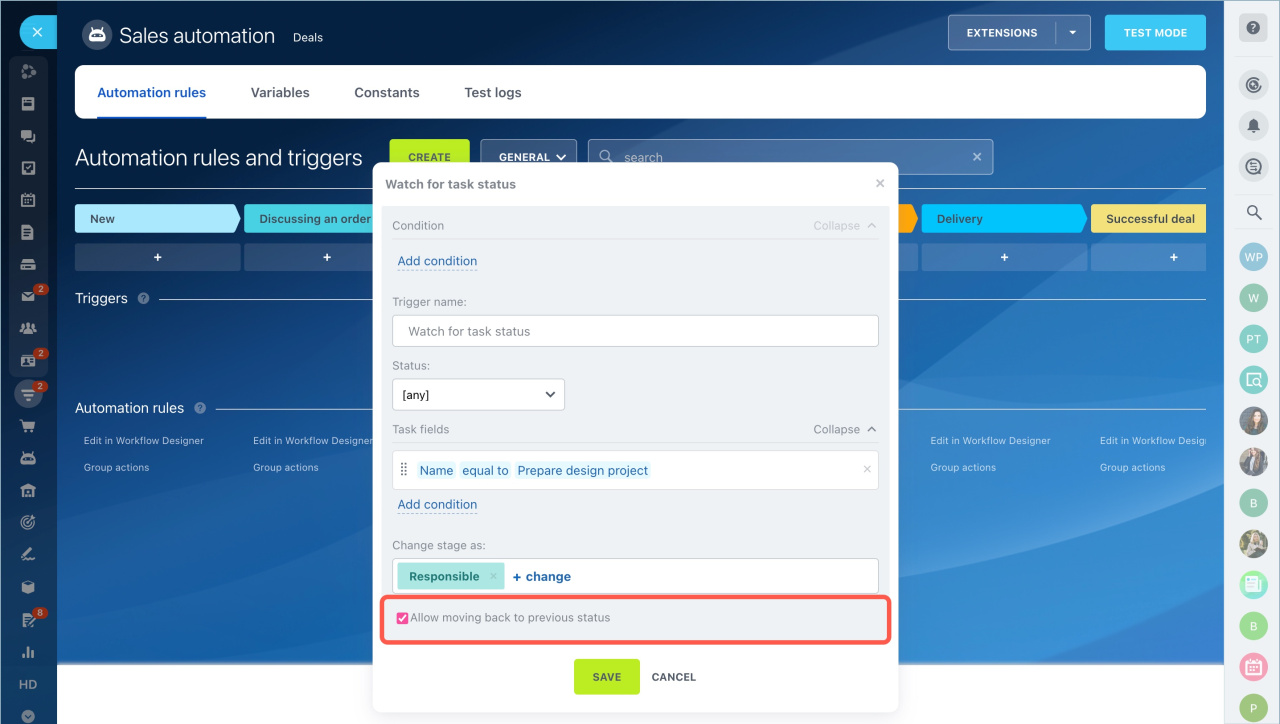
Allow moving back to previous status
Enable this option to move items back to earlier stages if needed.
Get task information
This helper automation rule pulls data from a task and passes it to other automation rules.
Helper automation rules
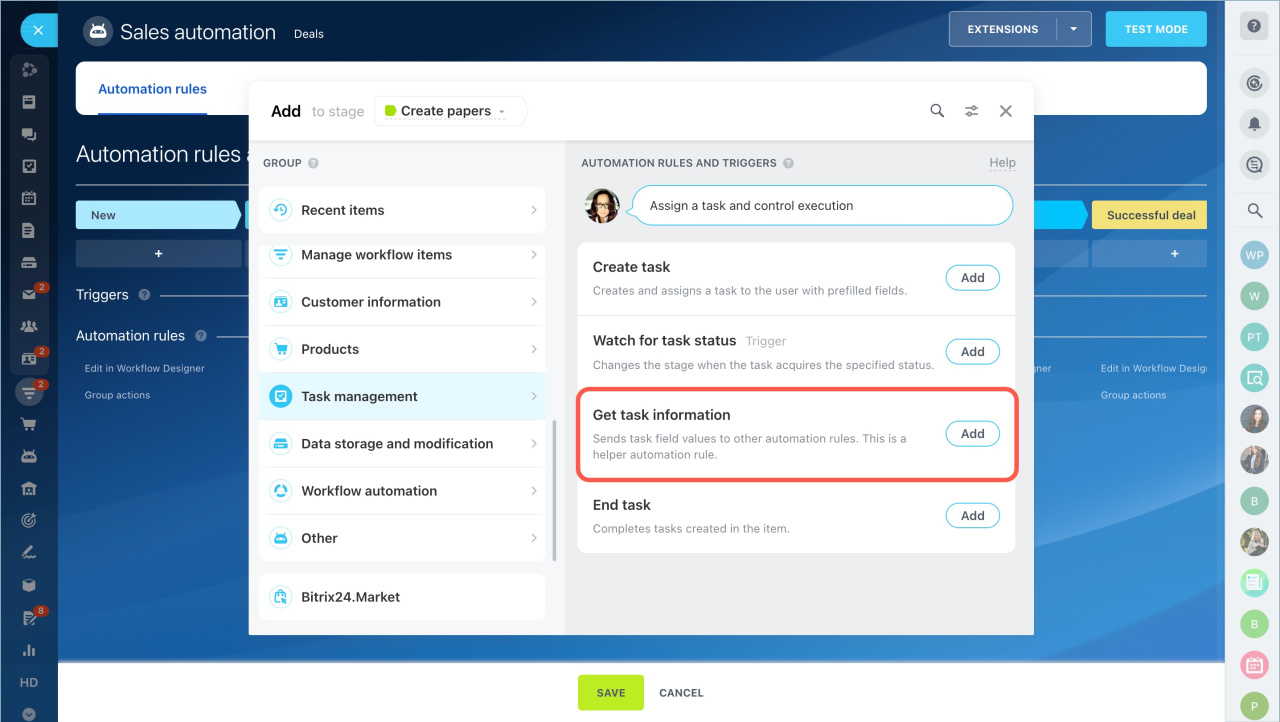
"Get task information" automation rule settings
- Create task — when the deal reaches the stage, the automation rule will create a task for the lawyer to prepare the contract.
- Get task information — the automation rule will receive the task deadline information and pass it to the Modify details automation rule.
- Modify details - the automation rule will record the task deadline in the custom deal field.
Automation rules: Manage workflow items
Task ID. Specify the task ID that was previously created by another automation rule at the same stage.
Select fields. Check the fields in the list that the automation rule will receive information about.
End task
The automation rule automatically completes tasks created by other automation rules. For example, when a deal moves to a successful stage, the automation rule completes tasks created by automation rule in other stages.
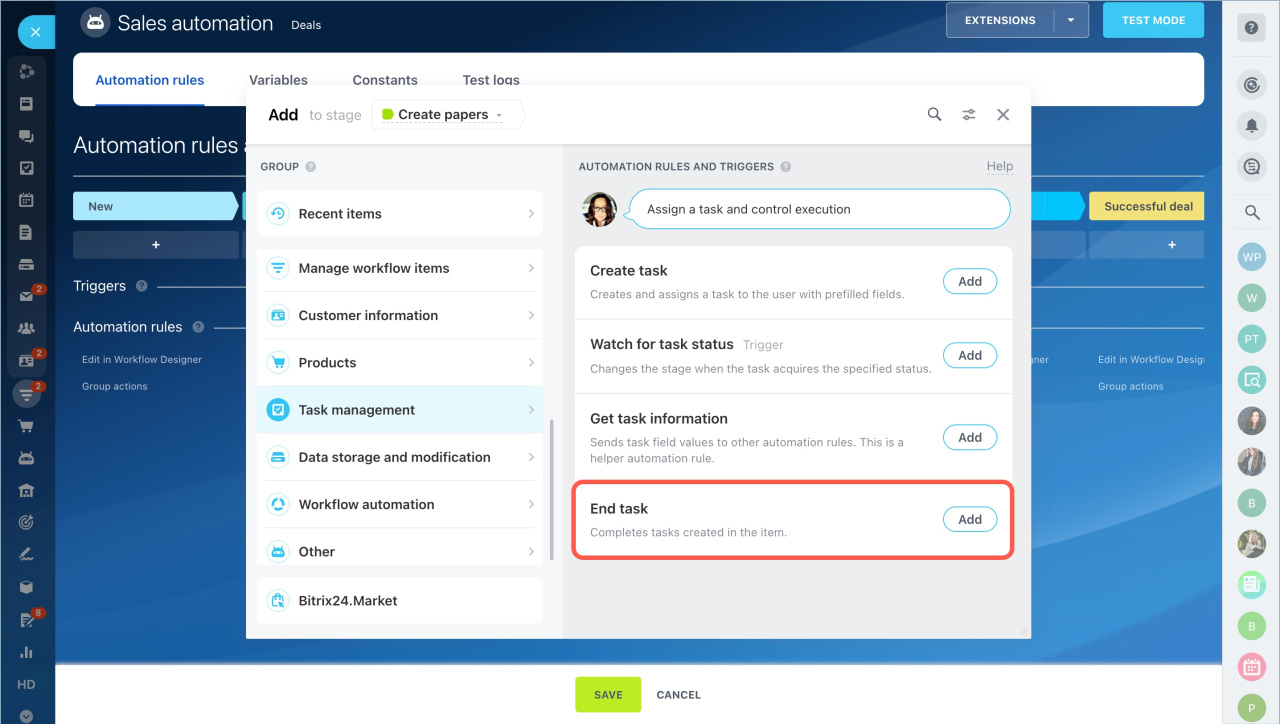
"End task" automation rule settings
Complete tasks created in pipeline. Select a deal pipeline. The automation rule will complete tasks created by another automation rules in this pipeline.
End tasks created while in stage. Select a deal stage. The automation rule will complete tasks created by another automation rules in this stage.