
In Bitrix24, it's easy to track how much time is spent completing a task. Using the built-in timer, employees can log the periods they work on specific assignments. For example, they can start it in the morning and pause it during a meeting or a lunch break.
All data is automatically saved in the task form. This eliminates the need for participants to track time manually and allows the creator to see how long the team has worked on the task and evaluate each participant's contribution.
Bitrix24 plans and pricing
In this article:
- Configure time tracking for a task
- Log time spent working on a task
- View the time tracking history and total time
- Add or edit time manually
Enable time tracking
The creator can enable time tracking when creating or editing a task.
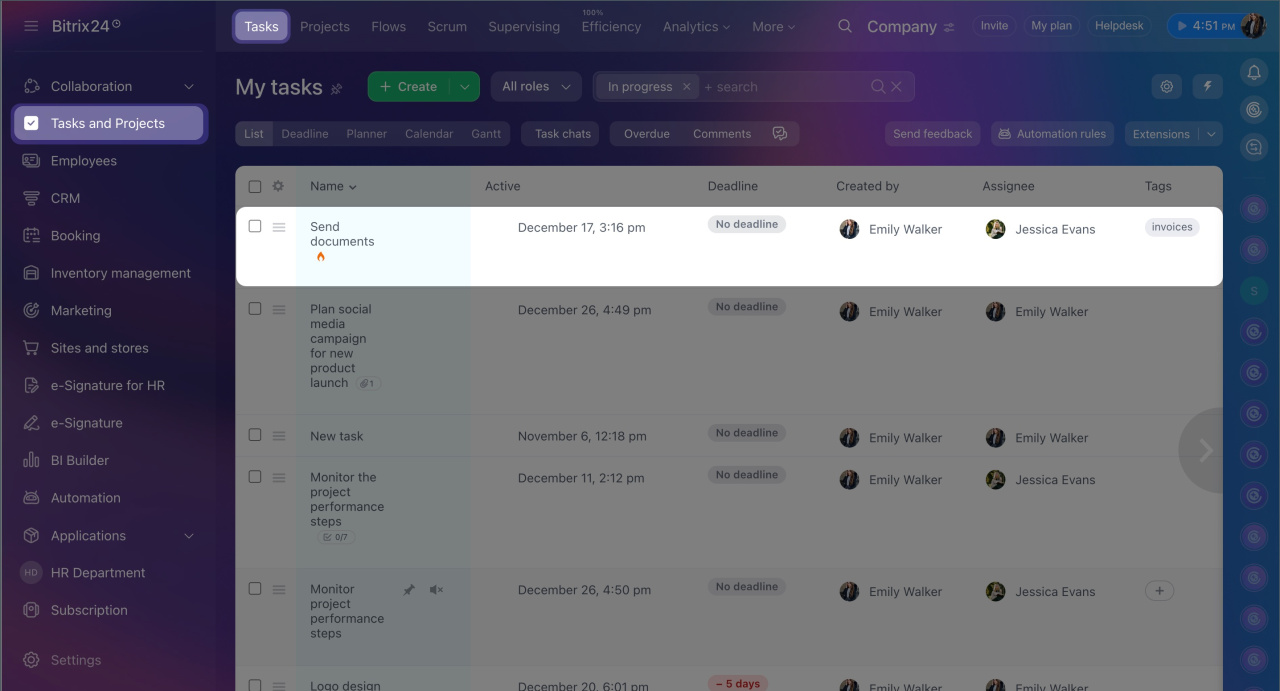
- Go to the Tasks and Projects section, create a new task, or open an existing one.
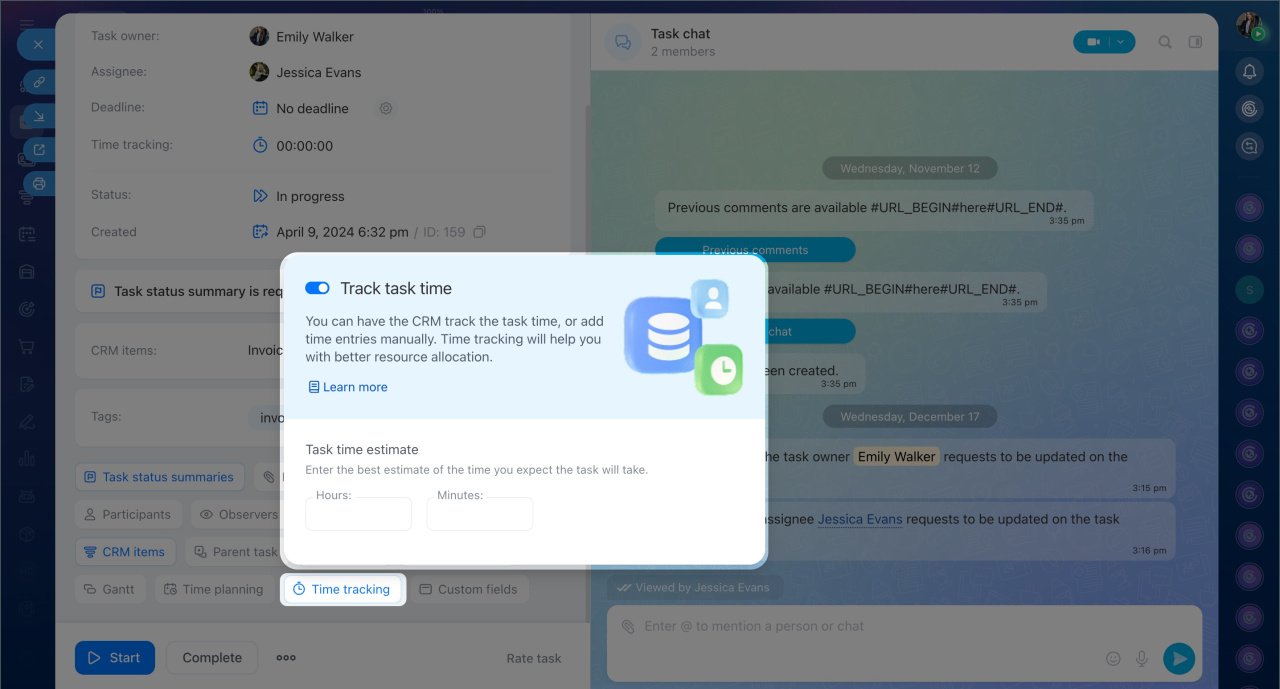
- Click Time tracking.
- Specify the time required to complete the task. This helps the assignee plan their work and allows you to compare planned versus actual time.
- Disable the Time tracking for the task option if tracking the duration is unnecessary.
Log time spent working on a task
The assignee and participants can enable time tracking from the task form or the list.
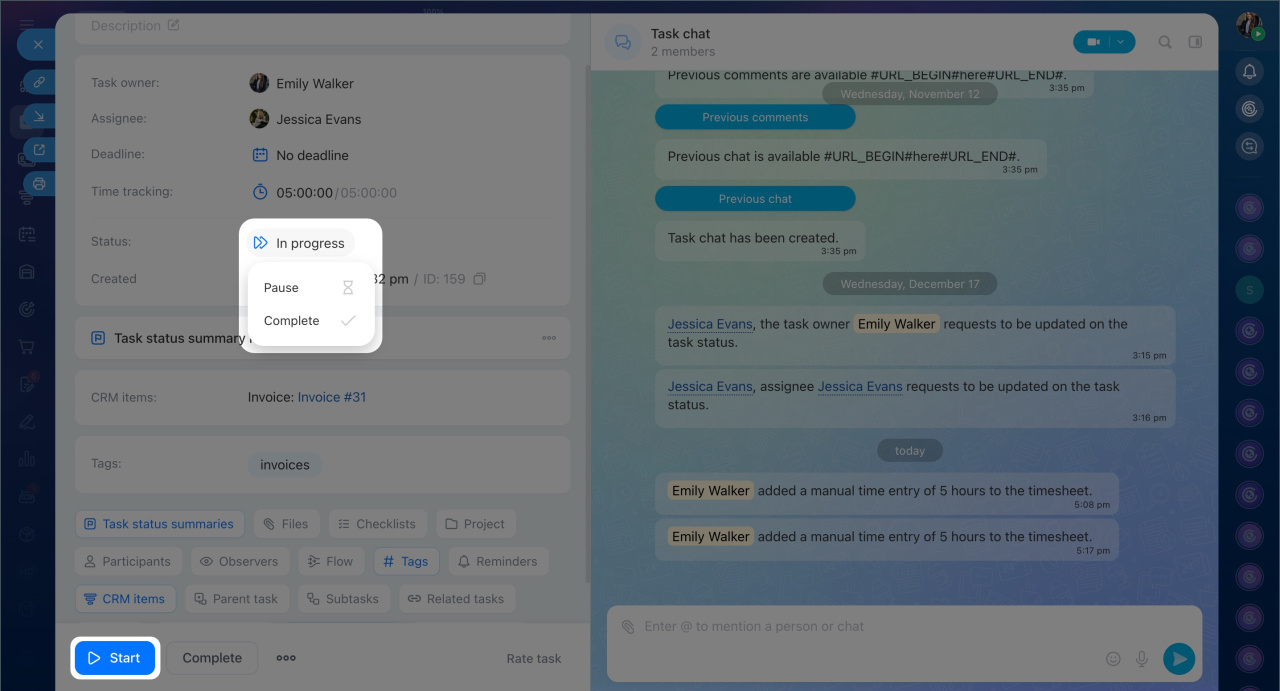
From the task form. This is convenient if you need to review the assignment and clarify details with the creator in the task chat before starting. Use the following buttons to track time:
- Start — begin tracking time. The time spent by the team on the task is displayed in the tracker.
- Pause — stop tracking time temporarily.
- Complete — the task will be closed, and time tracking will stop.
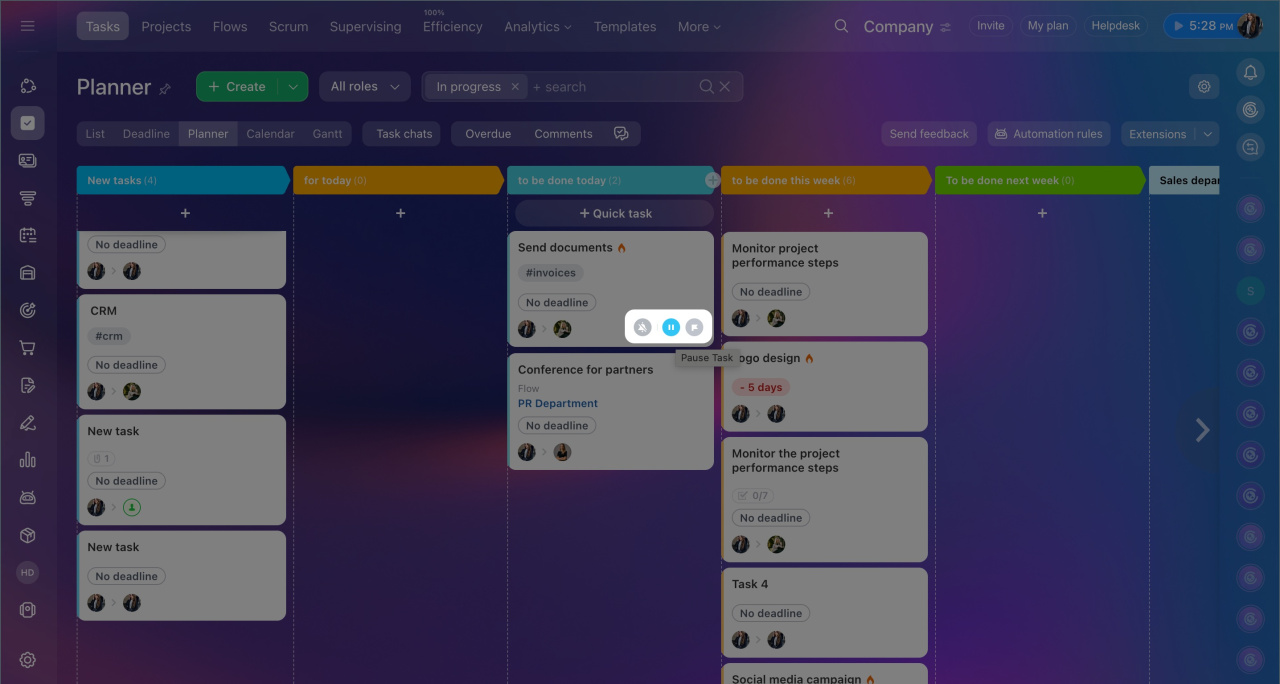
From the task list. Start and pause time tracking in the Deadlines, List, or Planner views. This is useful if you're already working on a task and want to start the timer without opening the task form.
To manage the timer, hover over the task form and click to start the task or to pause the timer.
View time tracking history
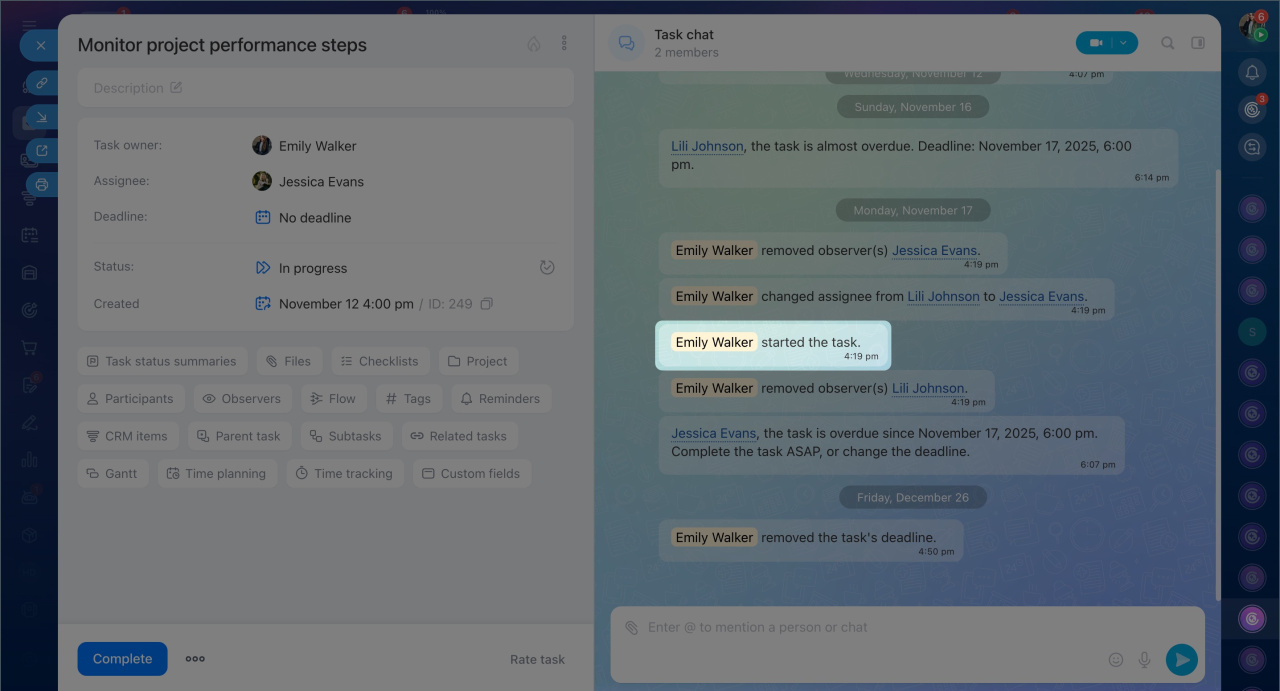
The time tracking history shows who worked on the task, when, and for how long. You can view the records in the task chat or the task form.
In the task chat, system messages display the history. When a participant starts the timer, a notification appears. When paused, a message shows the time spent on the task during that period.
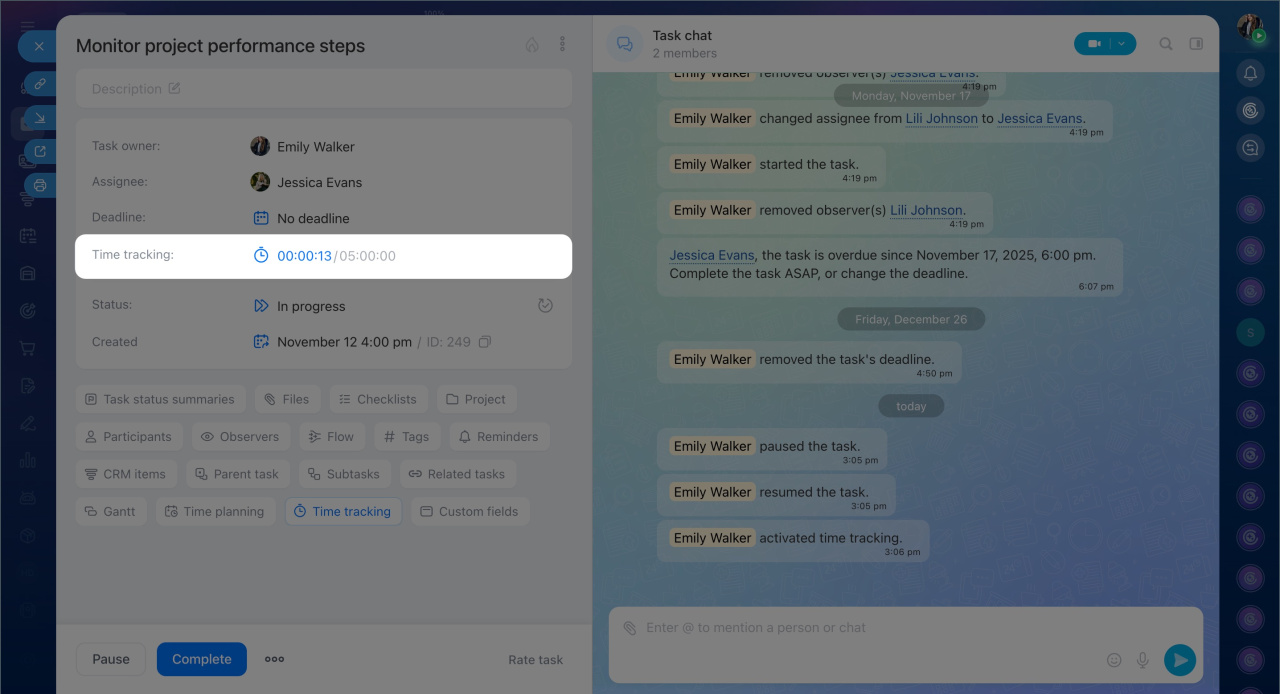
In the task form, you can see how much time the entire team and each participant spent on the task.
- Click the tracker — the block displays the total time spent on the task.
- View the time tracking history — records are displayed chronologically.
- Click the icons in the Total time block to see how much time each participant worked on the task.
Add or edit time manually
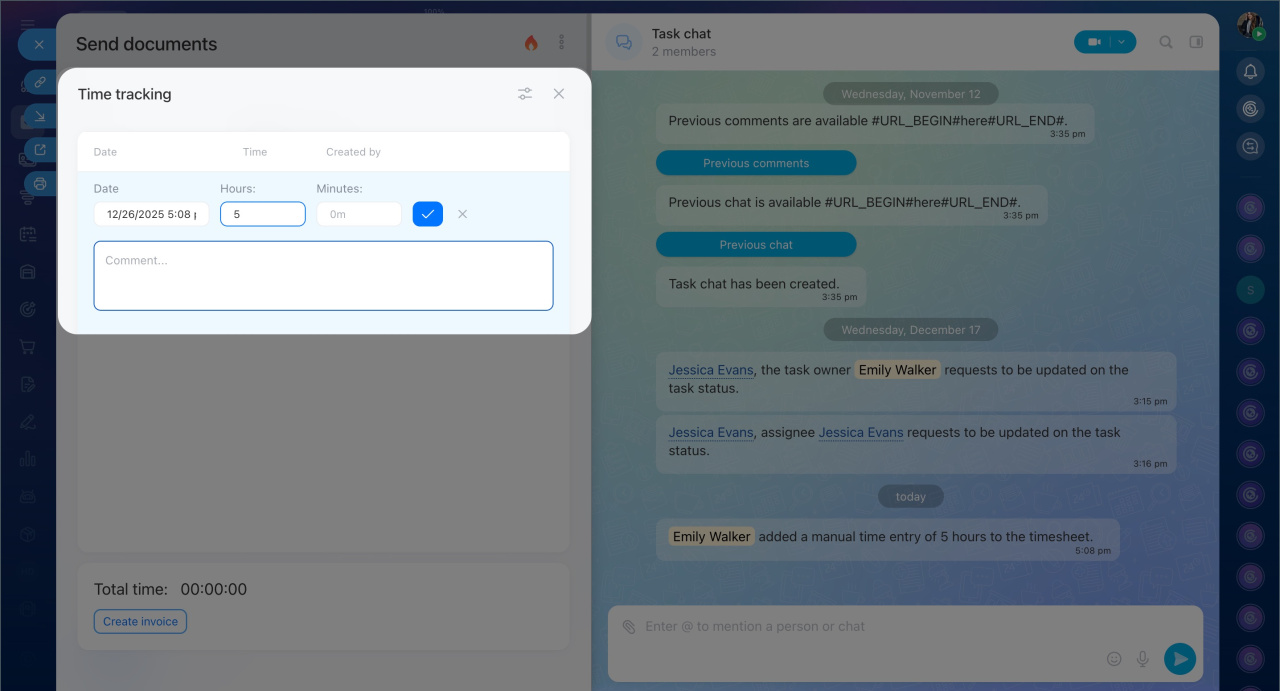
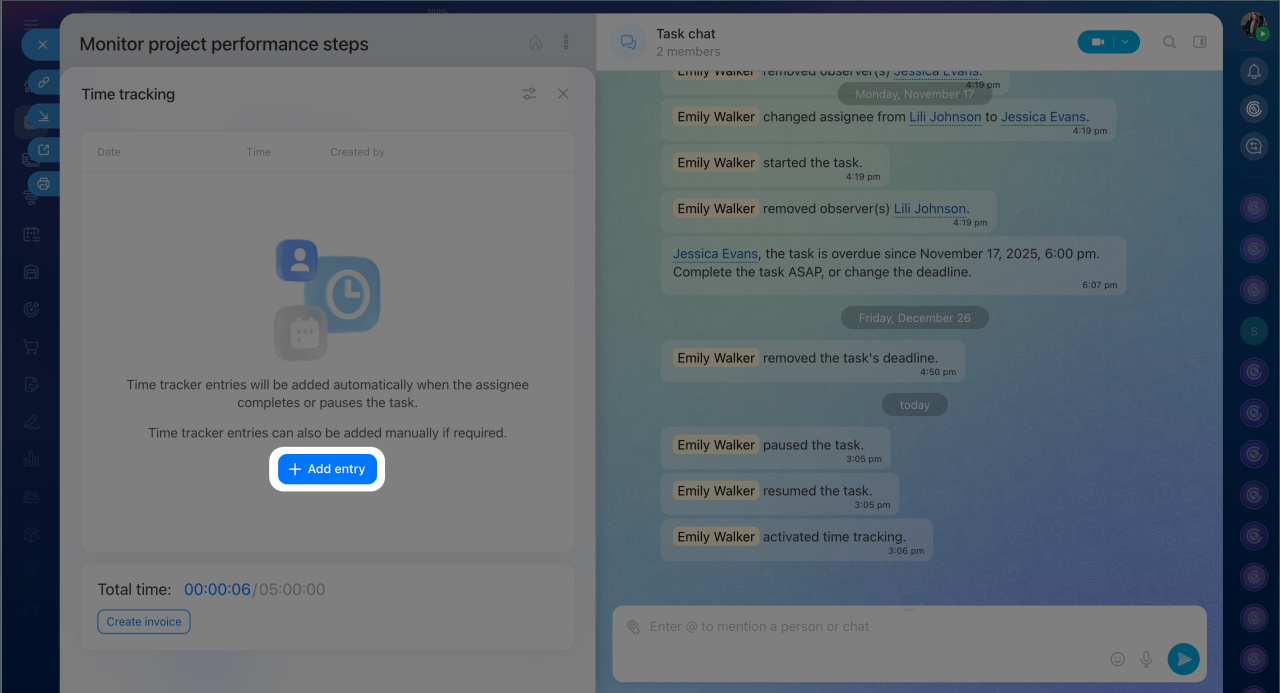
Add time. If you forgot to start the tracker or worked offline, you can manually add time to the task. These records will appear in the history and be included in the total task time.
- Open the task and click the tracker.
- Click Add record or Record.
- Enter the time spent on the task and a comment. For example, describe what you accomplished during that time.
- Save the changes.
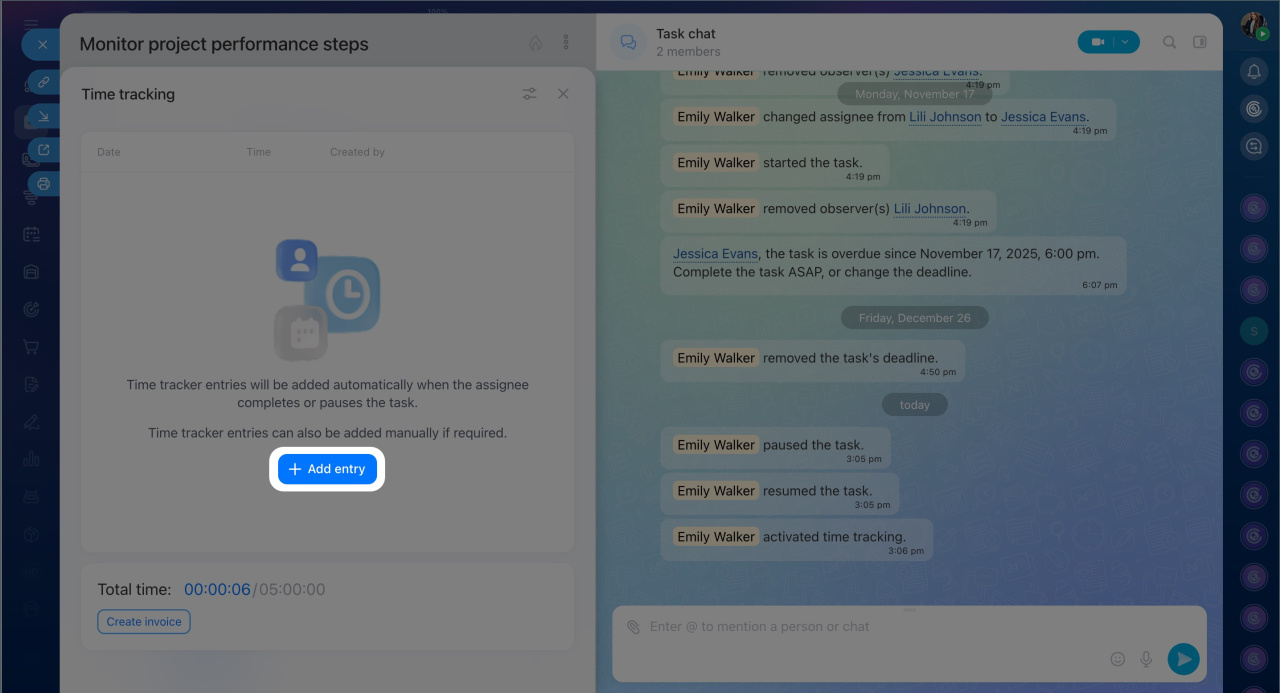
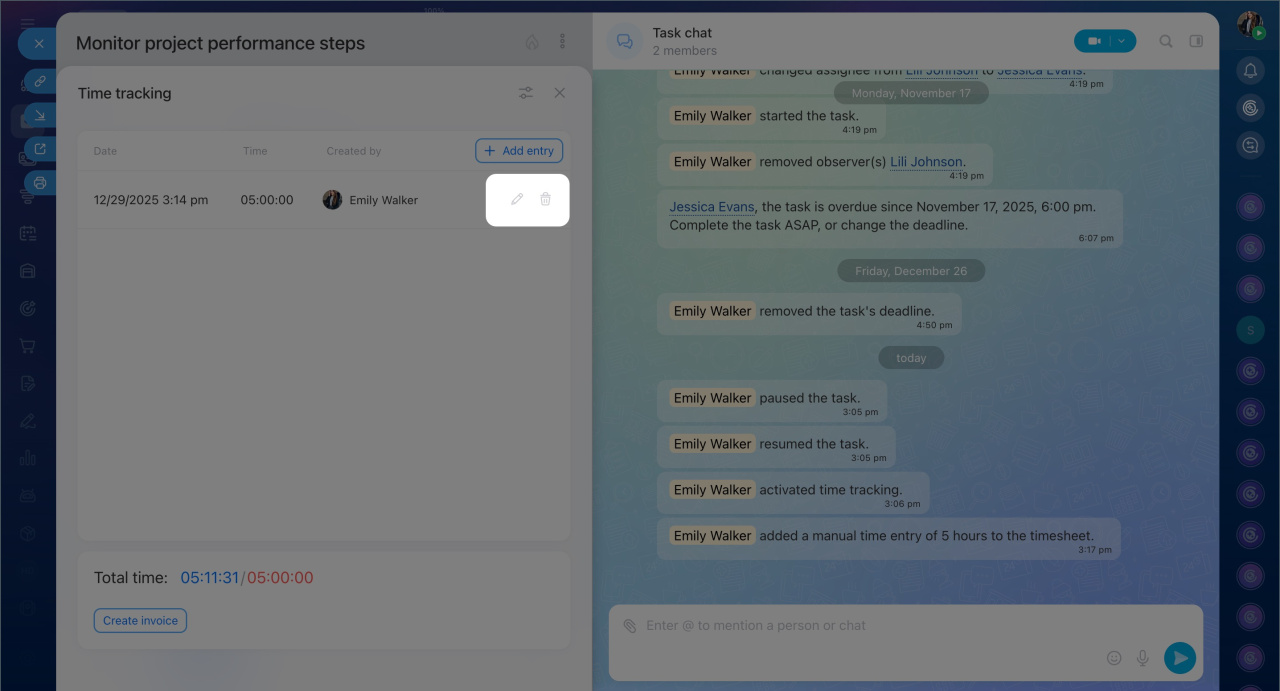
Edit or delete a record. You can adjust the time logged for a task. For example, if you started the timer by mistake or forgot to stop it.
Hover over the record and select the desired action.
In brief
- In Bitrix24, you can track how much time employees spend on specific tasks. All data is automatically saved in the task form.
- The creator can enable time tracking when creating or editing a task.
- To set up time tracking, go to Tasks and Projects, create a new task, or open an existing one. Click Time tracking.
- You can start and pause the timer from the task form or the task list.
- Only one task can be tracked at a time. If you start tracking a second task, the timer for the first one will automatically pause.
- The time tracking history shows who worked on the task, when, and for how long. You can view the history in the task chat or the task form.
- If you forgot to start the tracker or worked offline, you can manually add time to the task. These records will appear in the history and be included in the total task time.
- Participants can edit or delete their records in the time tracking history.
