
If a task is large and consists of several stages, you can divide it into subtasks in Bitrix24. This structure helps distribute work among employees, monitor each step, and see the overall result.
The main task to which subtasks are linked is called the parent task. It unites all related tasks and shows the overall project progress.
Create a subtask
You can create a subtask in Bitrix24 on both the desktop and mobile app.
In the desktop version of Bitrix24, there are two ways to create a subtask.
Add a subtask within the parent task. Subtasks help structure work: each team or employee is responsible for their stage, while the overall result is recorded in the parent task. Specify the main project goal in the parent task and assign an employee responsible for the final result.
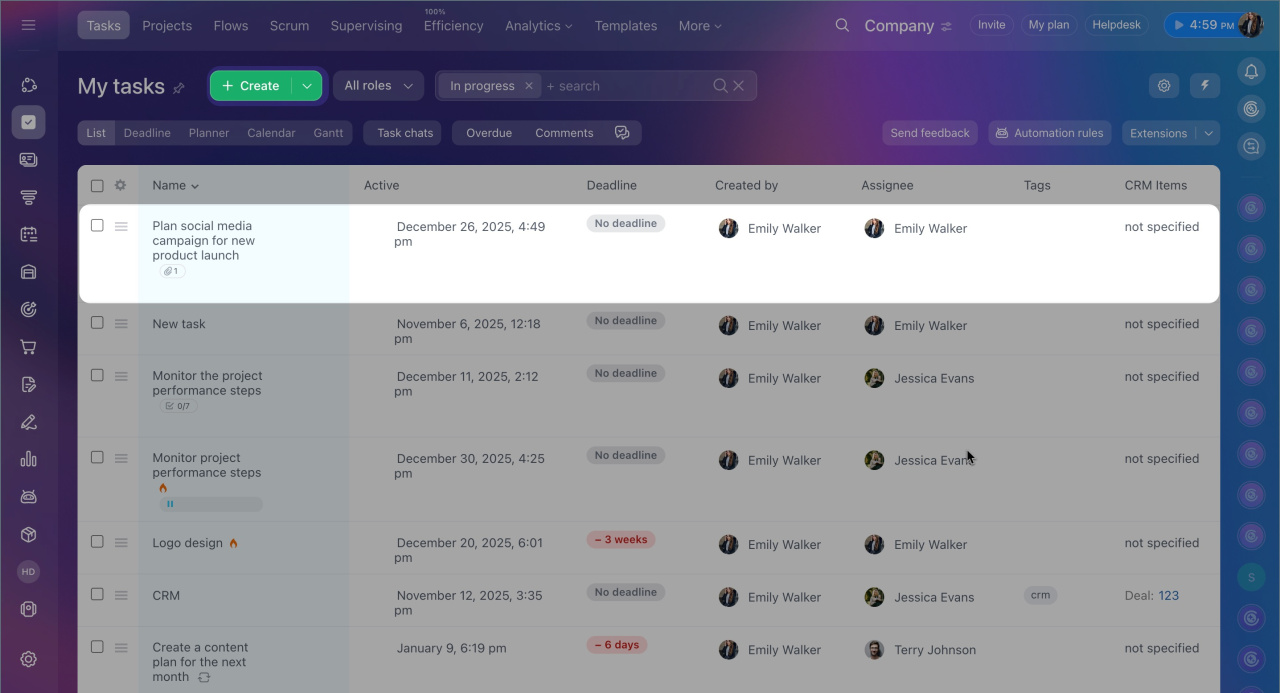
1. Open or create a new task that will serve as the parent task.
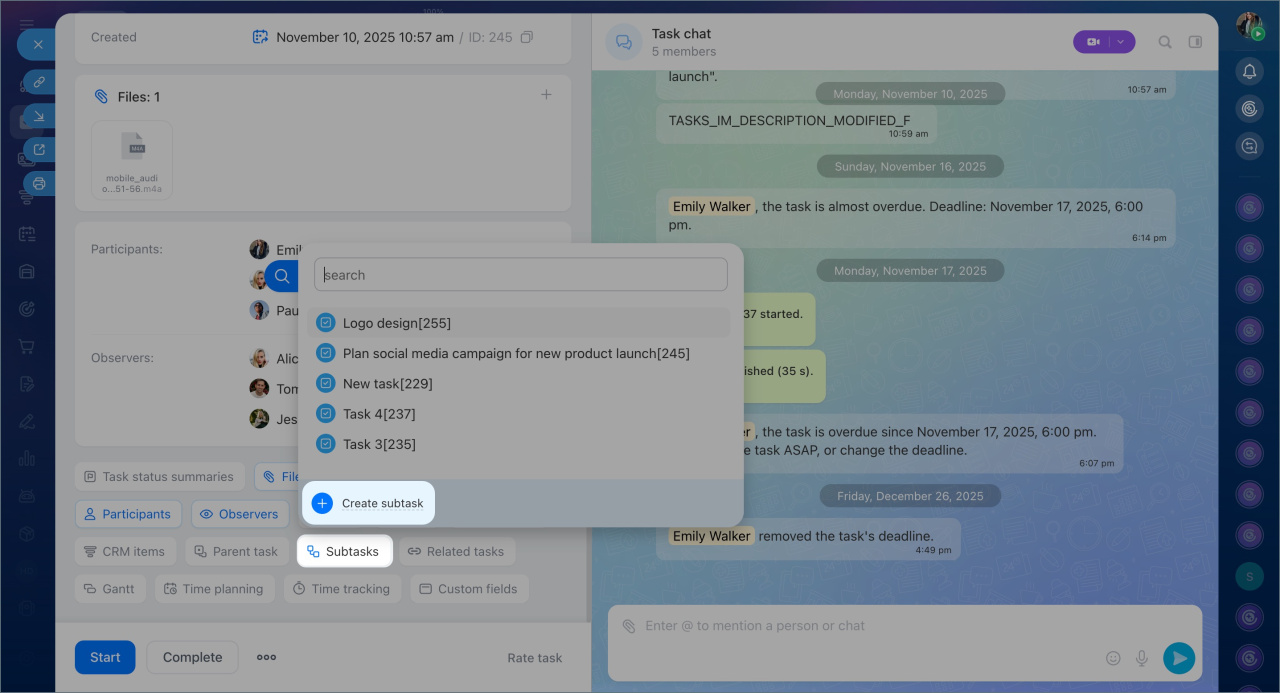
2. Click Subtasks.
3. Use the search to find one or more tasks to make subtasks or create new ones.
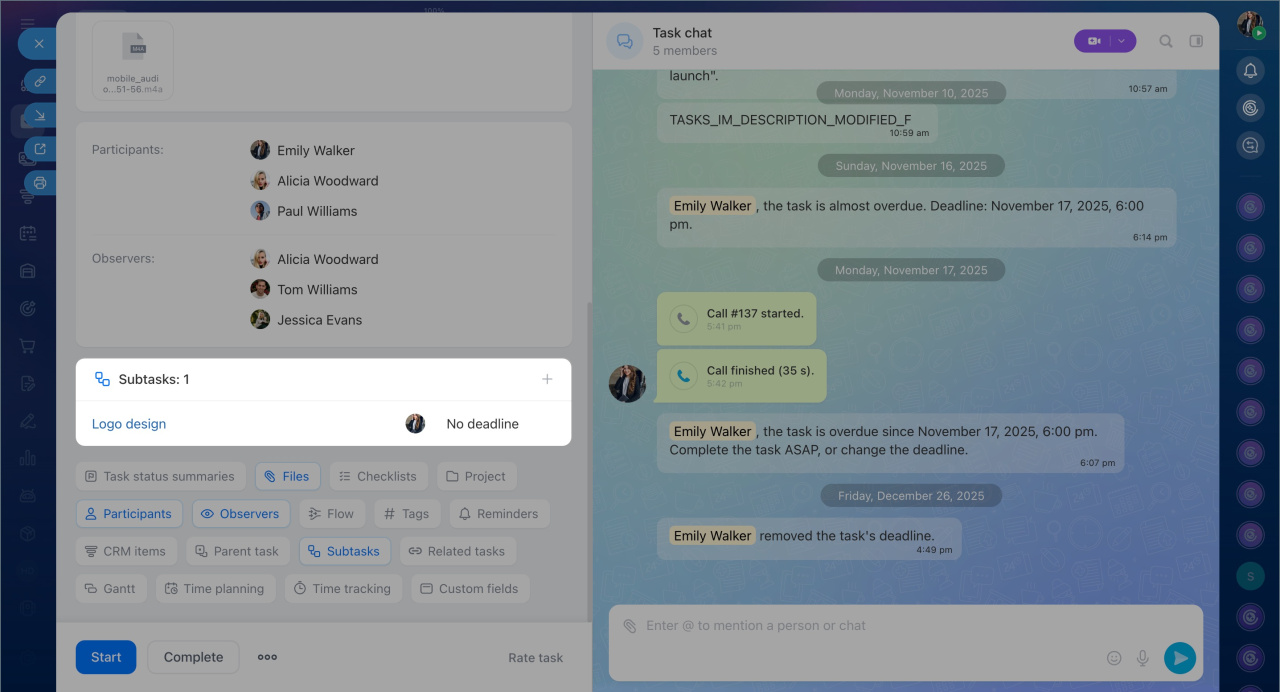
4. All subtasks will appear in the parent task form.
Specify the parent task within the subtask. Each subtask can have only one parent task.
1. Open or create a task that should become a subtask.
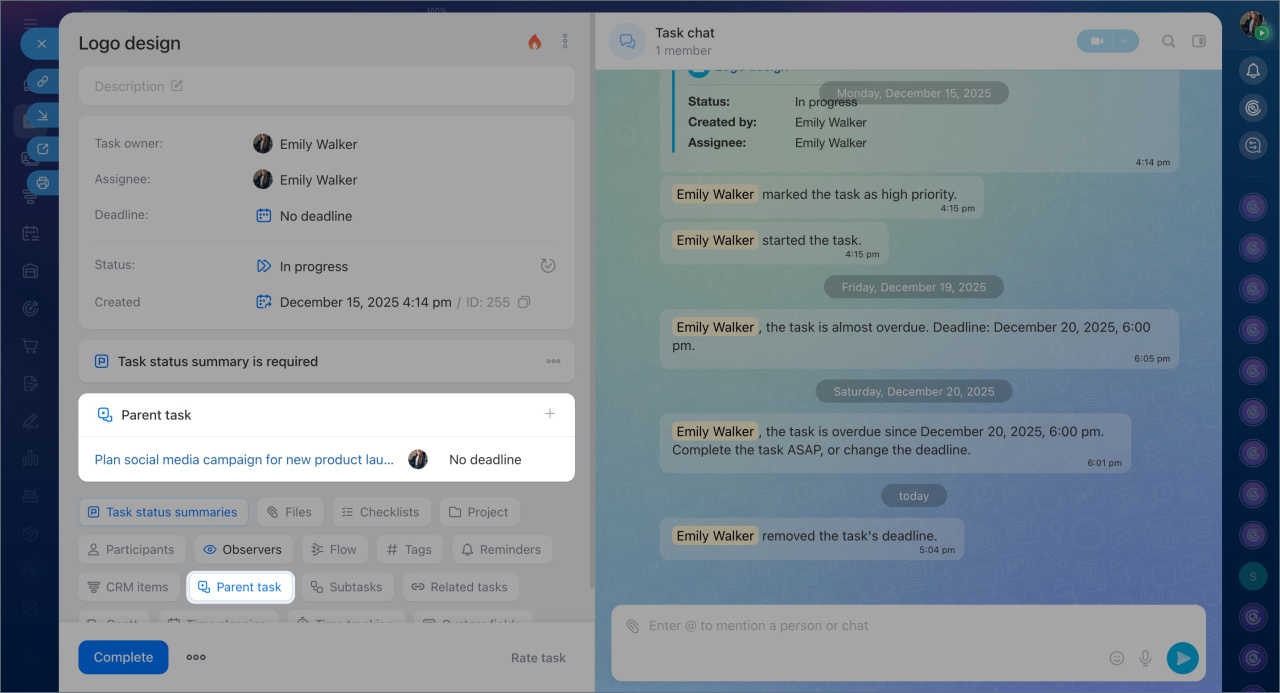
2. Click the Parent task button.
3. Use the search to find and select the required task.
4. The parent task will appear in the subtask form.
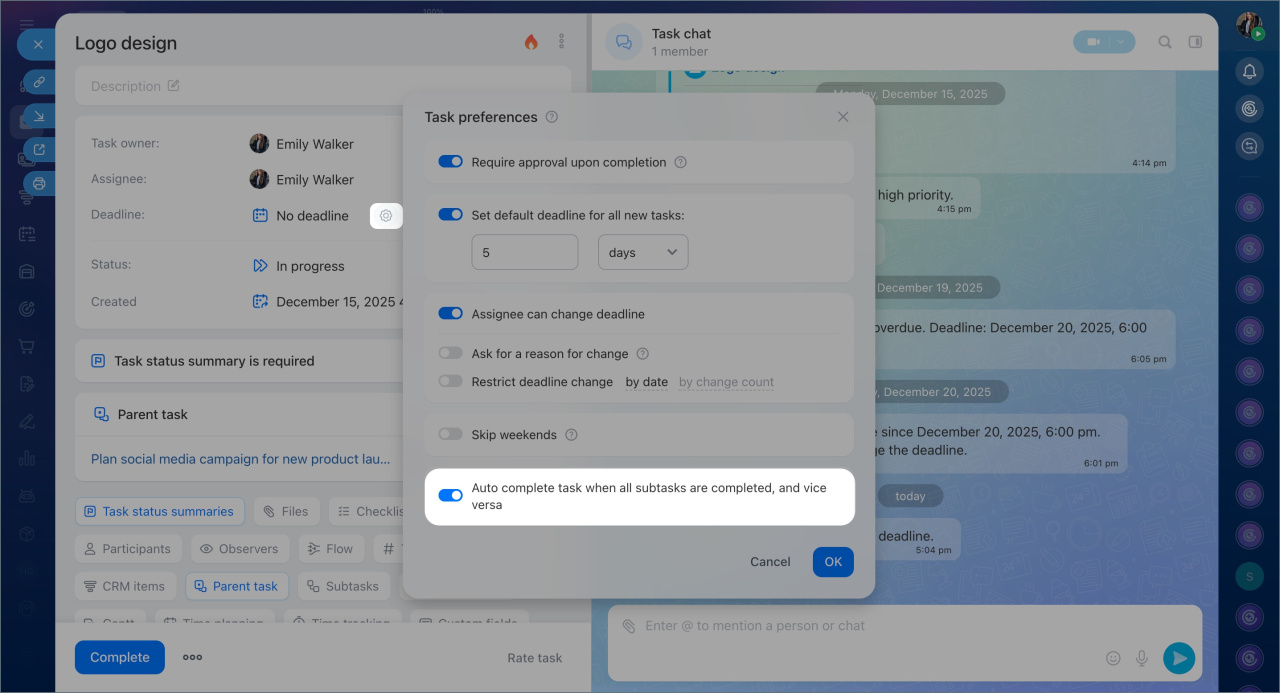
To automatically close tasks and subtasks, enable the "Auto complete task when all subtasks are completed, and vice versa" option. When all subtasks are completed, Bitrix24 will close the parent task. If you complete the parent task, all related subtasks will also be completed.
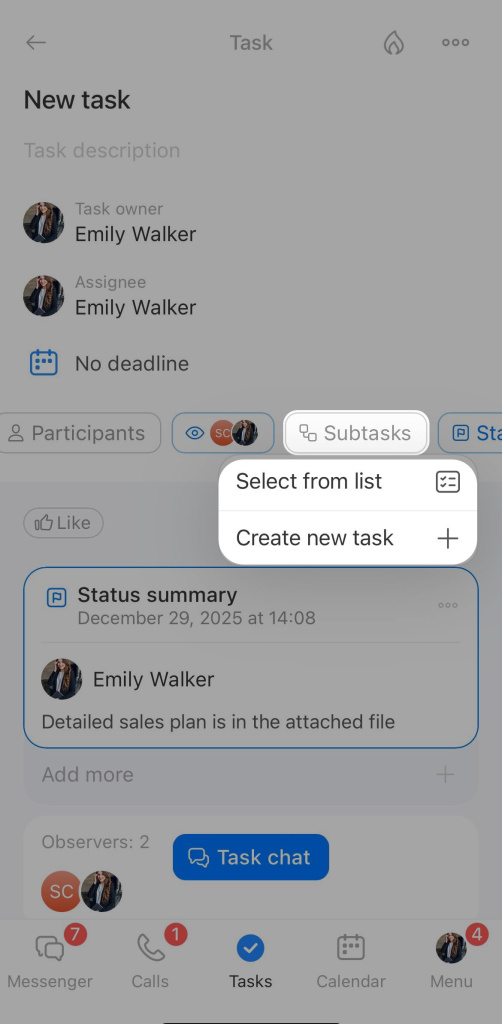
In the mobile app, you can create a subtask only within the parent task. Open the parent task, click Subtasks in the carousel menu, and select or create a new one.
Unlink a subtask from the parent task
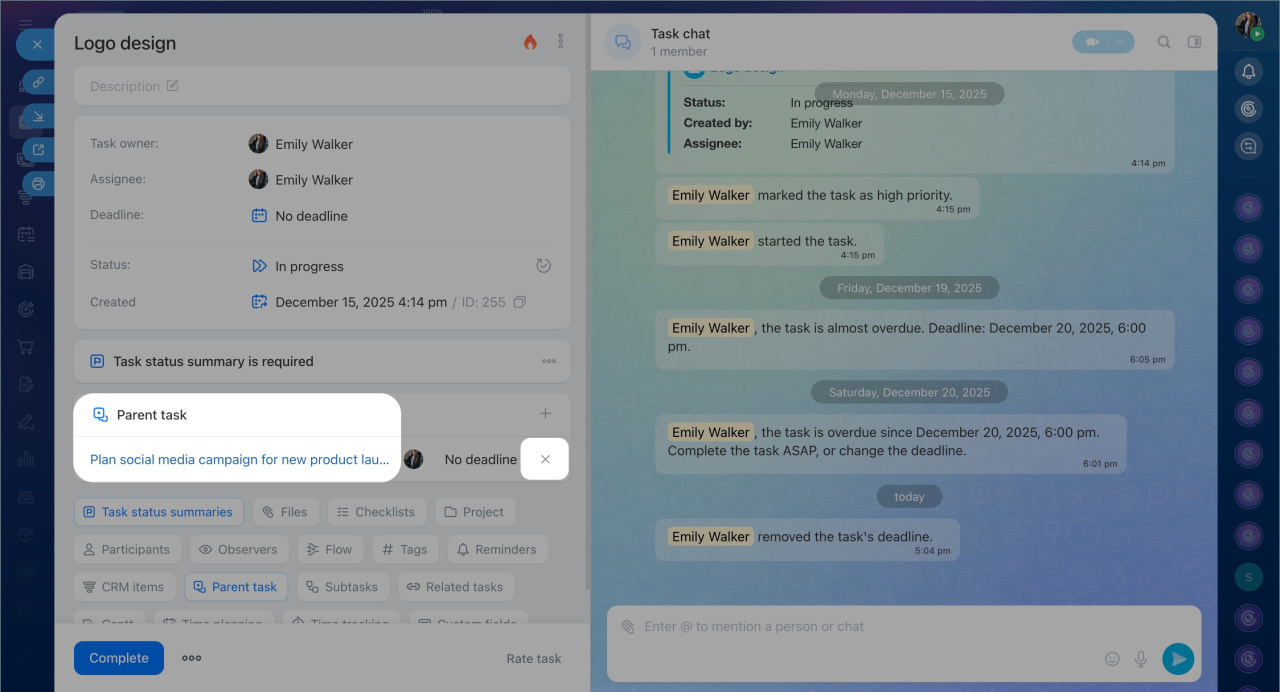
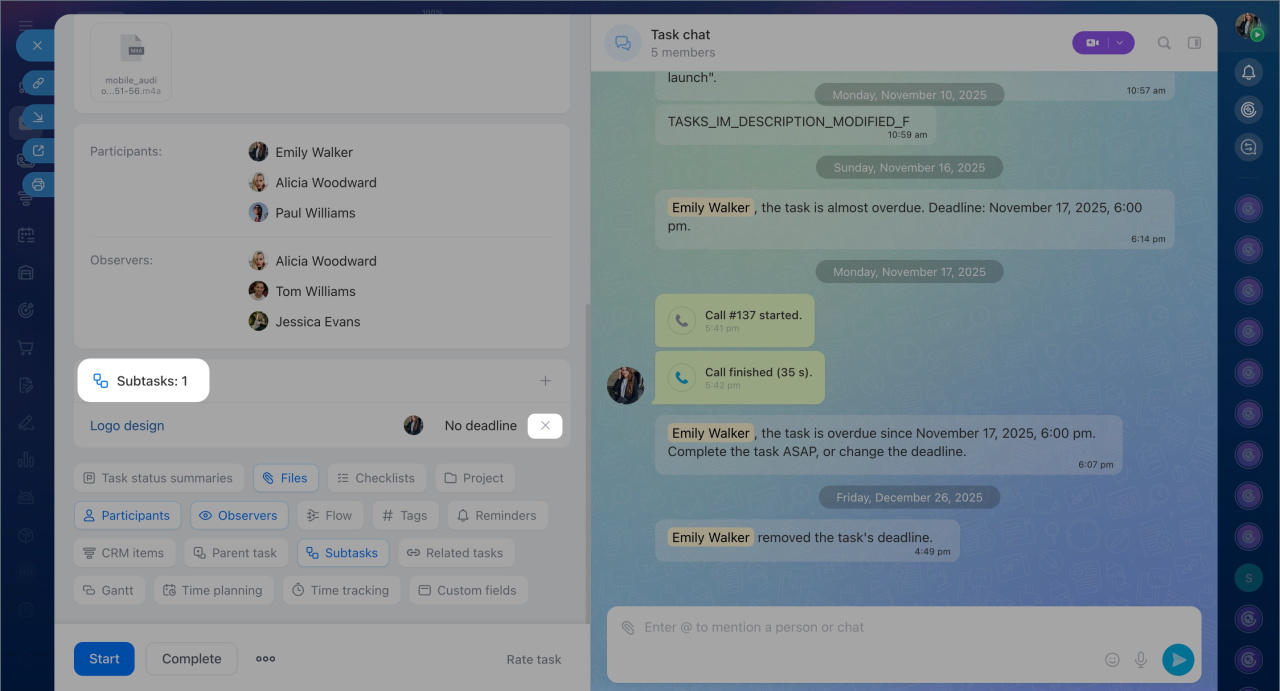
If a subtask is no longer related to the main project, you can make it independent. This can be done from the parent task form or the subtask form.
In the subtask form, find the Parent task section and click Remove (x) next to the task.
In the parent task form, find the Subtasks section and click Remove (x) next to the required subtask.
In brief
- If a task is large and consists of several stages, you can divide it into subtasks in Bitrix24. This structure helps distribute work among employees, monitor each step, and see the overall result.
- You can create a subtask in Bitrix24 on both the desktop and mobile app.
- To create a subtask, add it to an existing parent task or select a parent task in the form of an already created task.
- Each subtask can have only one parent task.
- Enable the "Auto complete task when all subtasks are completed, and vice versa" option to let Bitrix24 close the parent task when all subtasks are completed. If you complete the parent task, all related subtasks will also be completed.
