
Data from Bitrix24 CRM forms is saved in the CRM, but sometimes it needs to be duplicated, for example, sent via email. You can set up automatic email forwarding of form data to yourself or colleagues. This ensures you don’t miss priority requests and can respond to them even without accessing the CRM.
For instance, a company installing plastic windows runs a promotion called "Measurements on the day of request." Customers submit requests through a CRM form, and their data is automatically sent to the manager's email. The manager reviews the email, checks the information, and arranges for a specialist to visit.
Bitrix24 plans and pricing
In this article:
Set up a CRM form
CRM forms with any scenario can be used to set up automatic email forwarding to an employee.
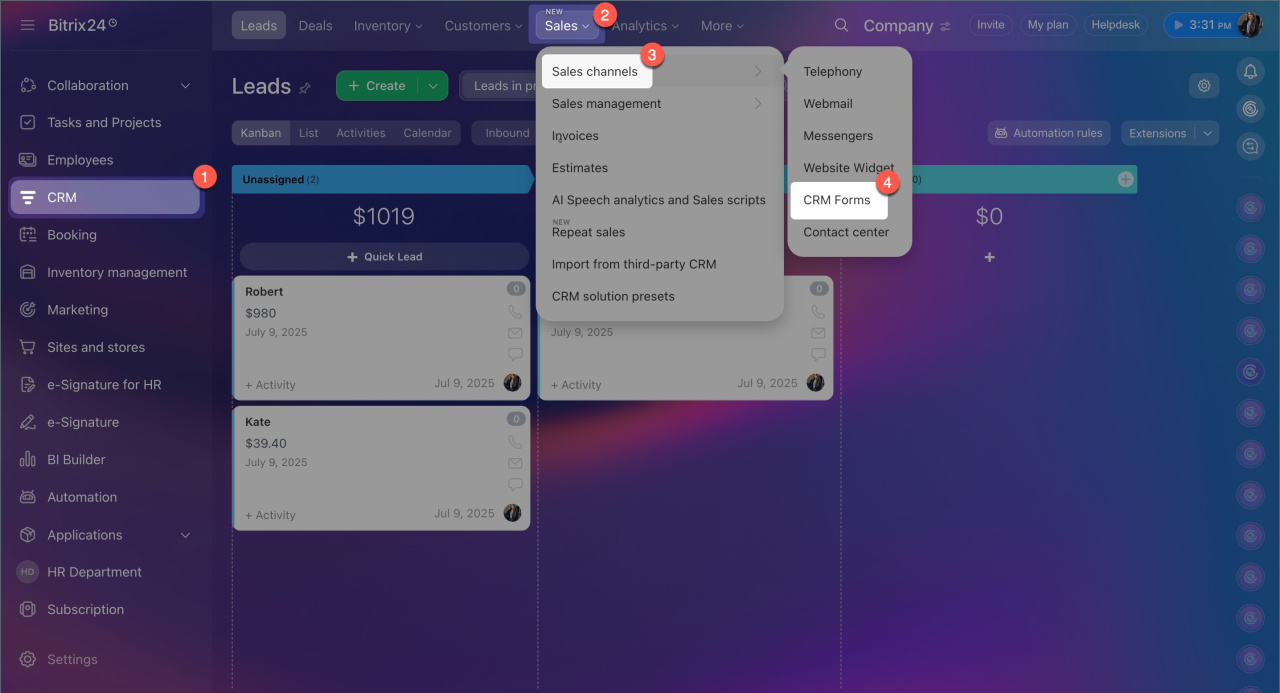
1. Go to CRM > Sales > Sales Channels > CRM Forms.
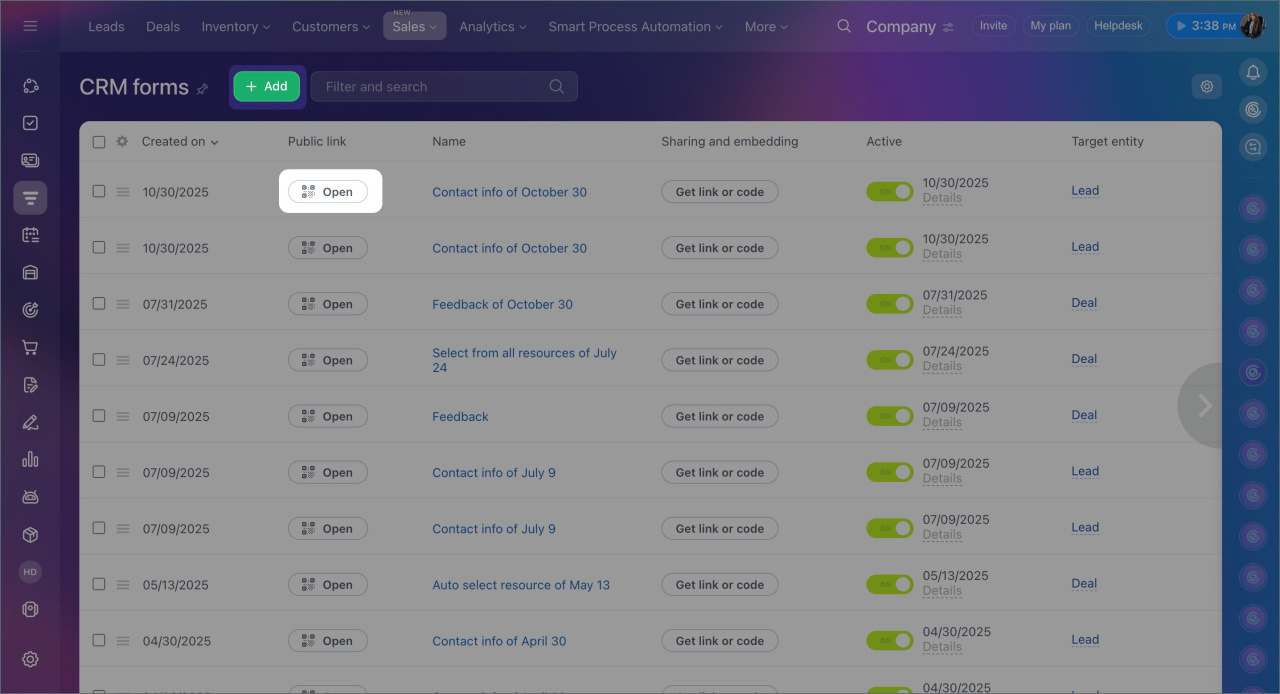
2. Add a new form or select the required one from the list.
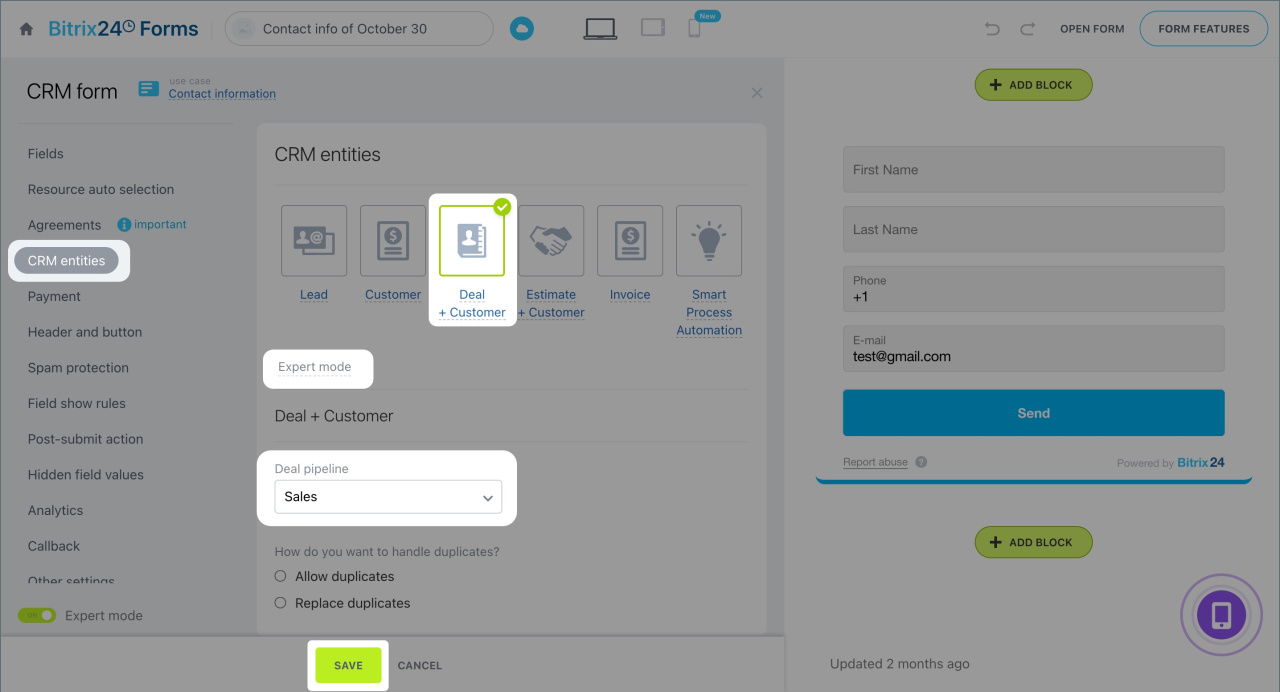
3. In the CRM items tab, choose which items will appear in the CRM when a client fills out the form: Lead, Deal + customer, Estimate + customer, Invoice, or Smart Process.
4. If the form creates a deal or smart process, click Advanced settings and select the pipeline where the forms will appear.
5. Save the changes.
Create and configure CRM forms
Connect a mailbox
You can connect a mailbox in the Webmail section or use the Set up sender option for sending emails.
Mailbox added in the Webmail section is suitable for receiving and sending emails. Any employee can connect it unless restricted by the Bitrix24 administrator.
Configure access permissions to Bitrix24 Mail
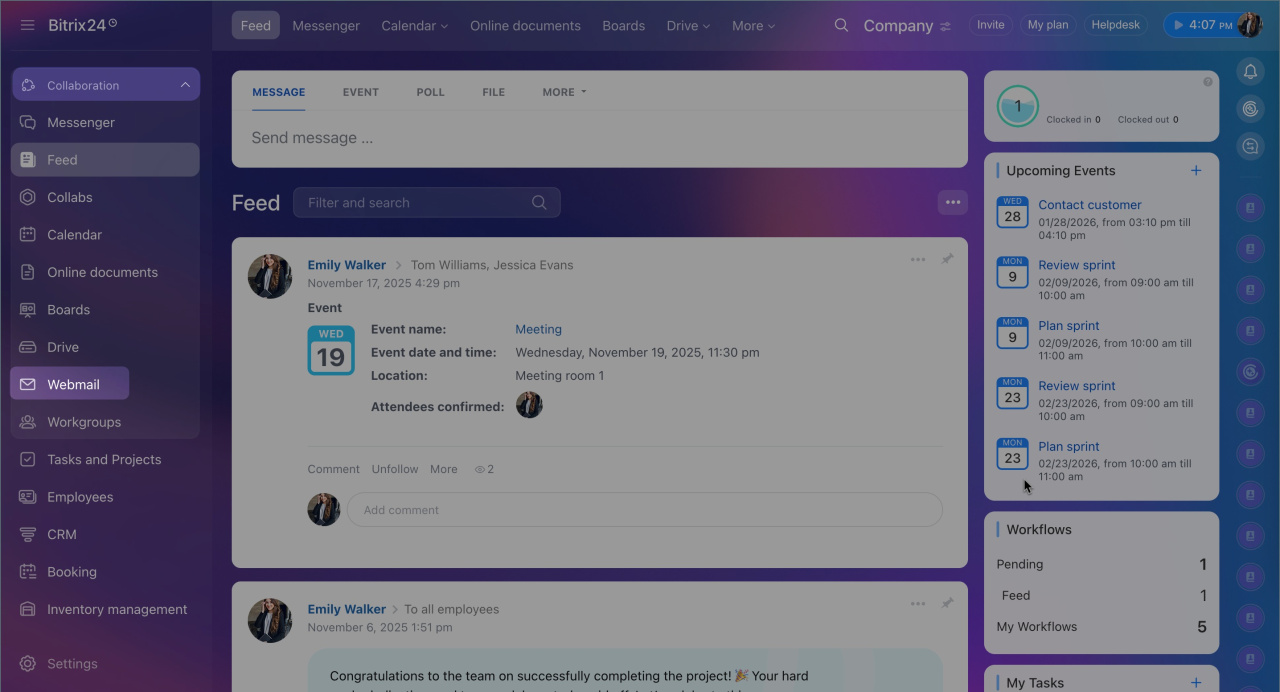
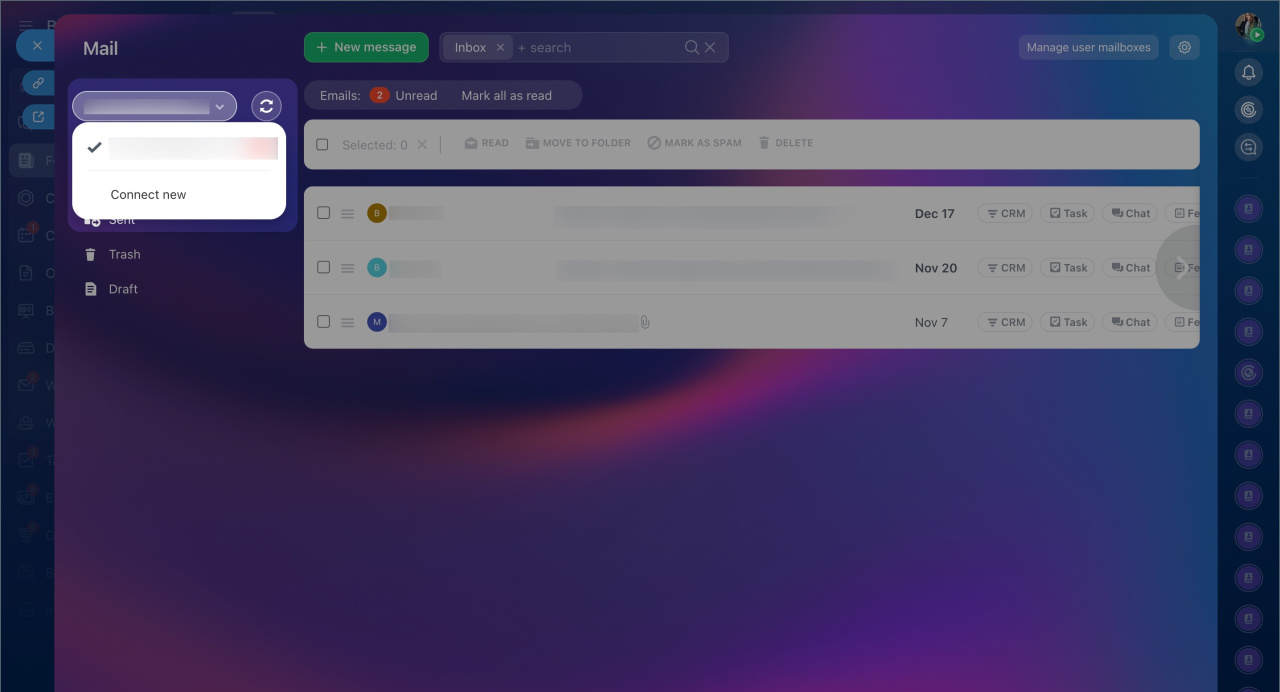
1. Go to Webmail.
2. Click on the email address and select Connect new to add another one.
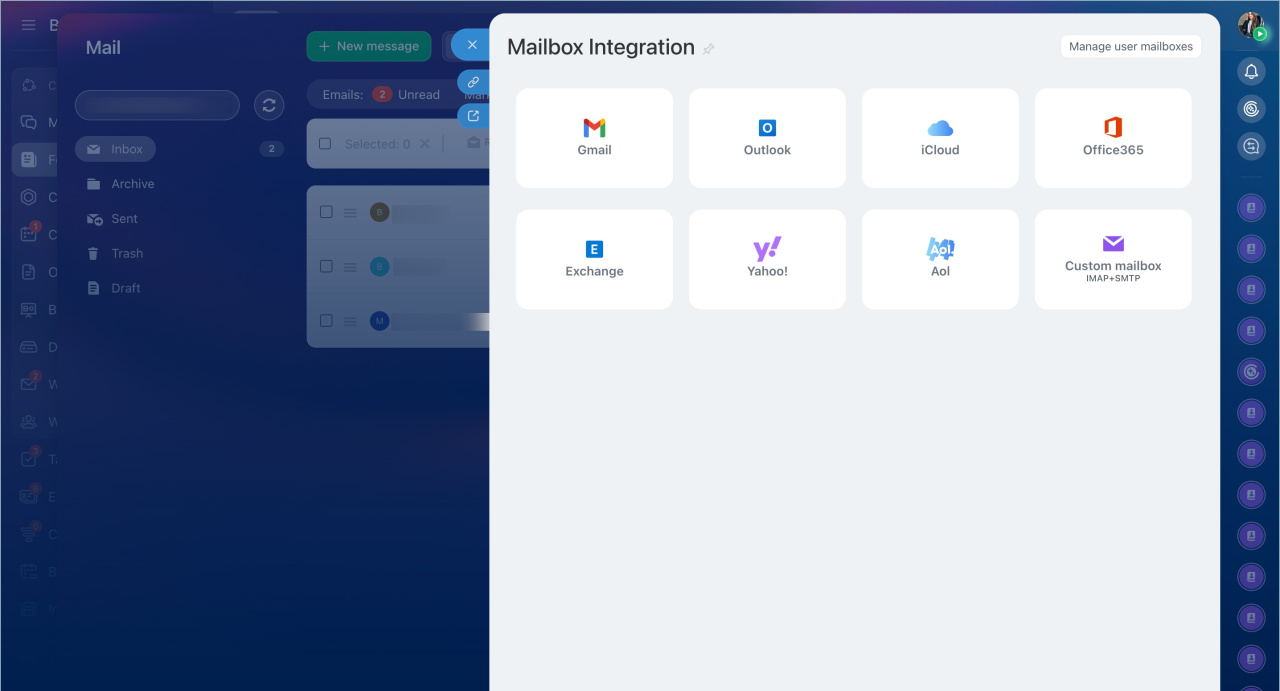
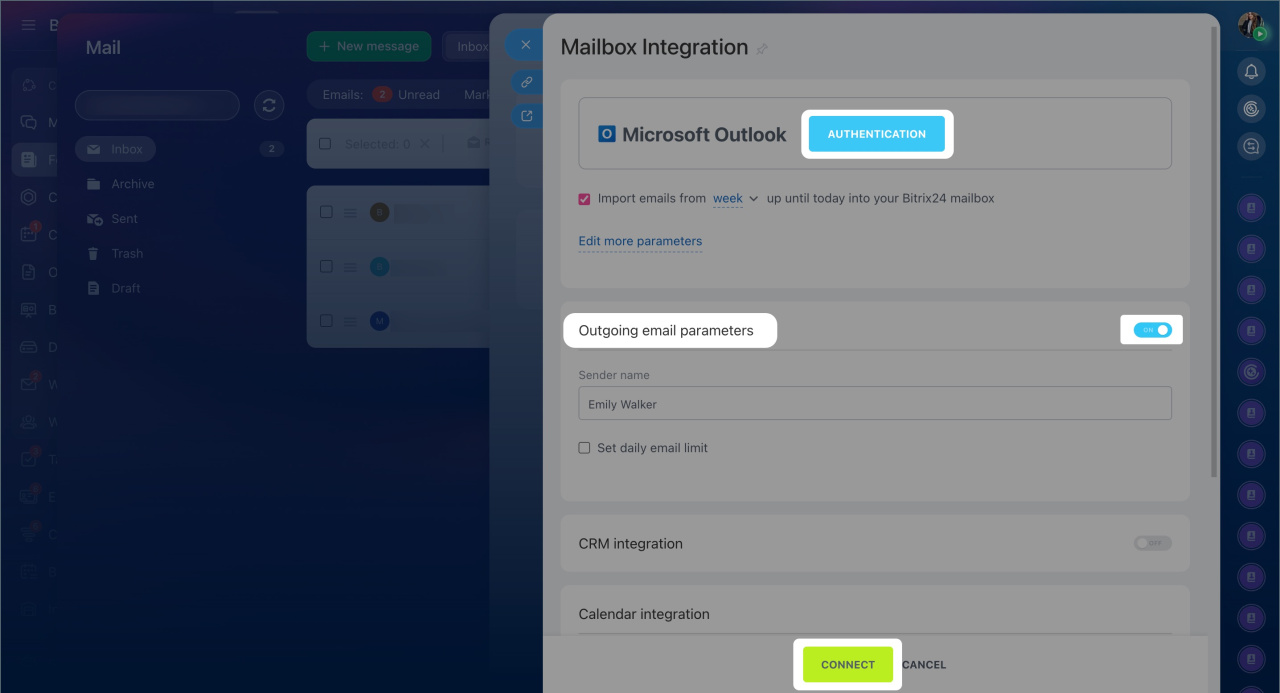
3. Choose the email service and log in to the account.
6. If the Outgoing email settings option is disabled, enable it. This speeds up email delivery and reduces the chance of emails being marked as spam.
7. Click Connect.
Connect mailboxes to Bitrix24
Set up sender option. Connect a mailbox for outgoing emails via an SMTP server. It will not appear in the Webmail section and will only be available in the sender list. This option is available in the Webmail, CRM, and Marketing sections.
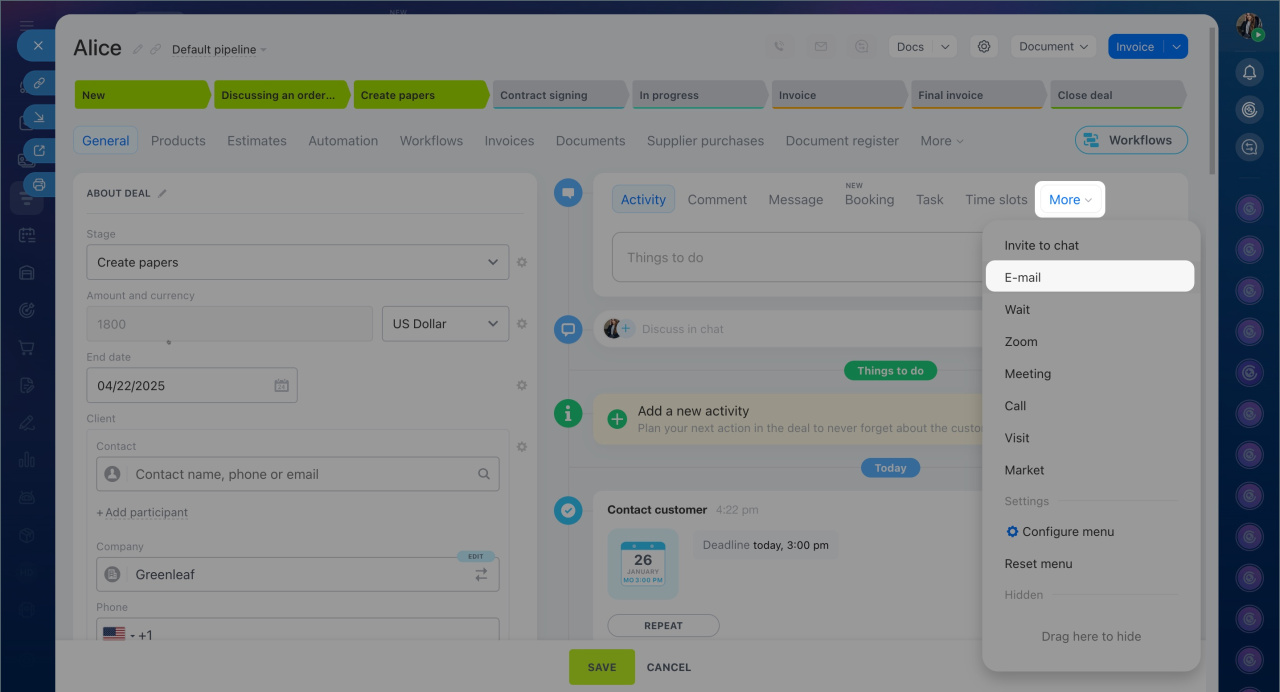
1. Go to CRM > Deals and open any form.
2. Click More > Email.
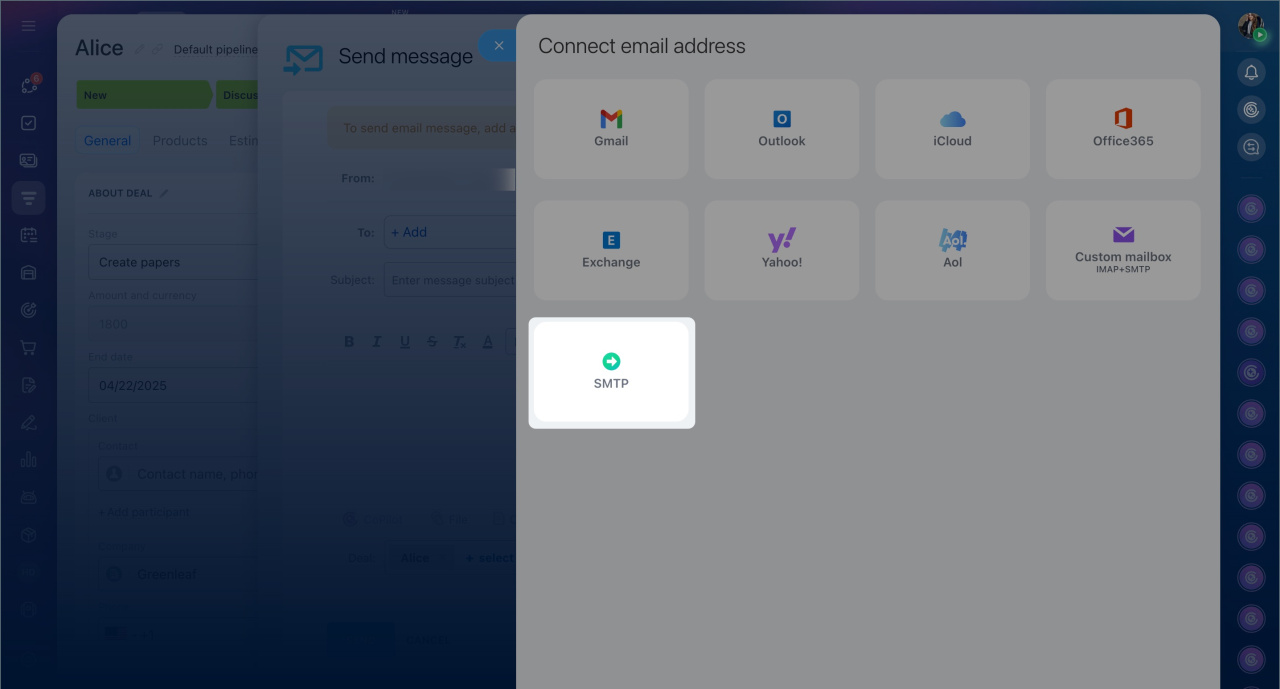
3. In the From field, click Add sender > SMTP.
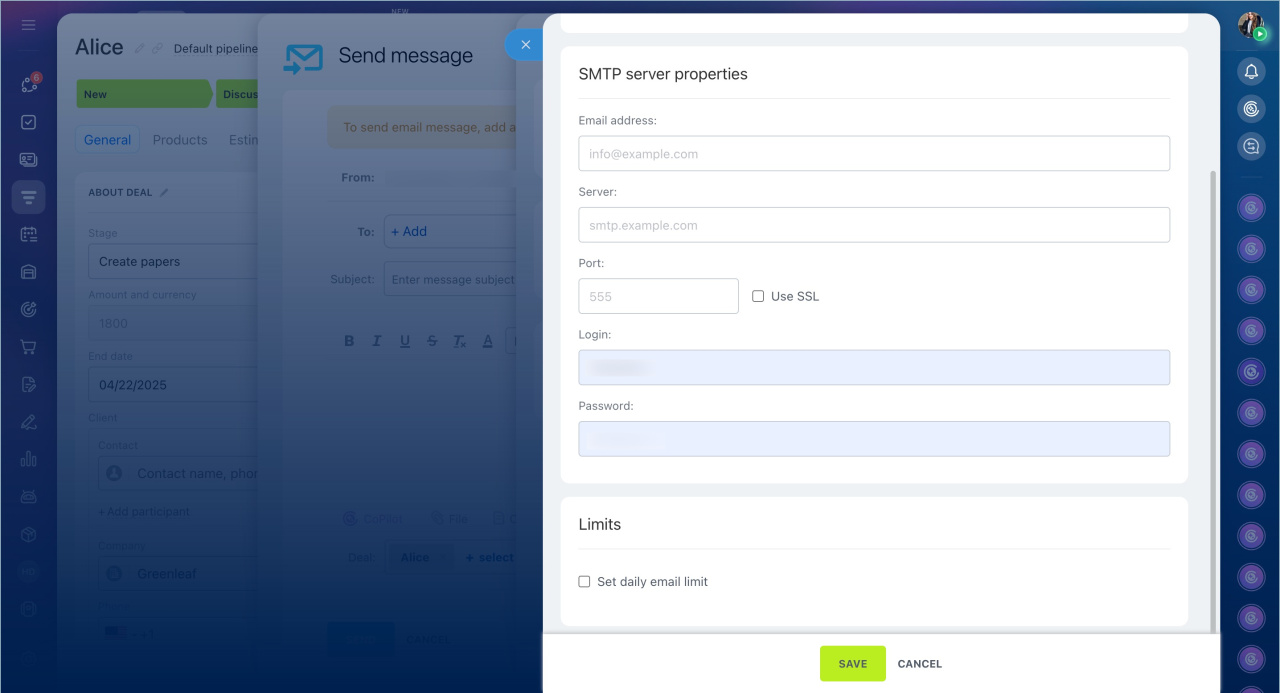
4. Fill in the SMTP server details and click Save.
Use SMTP server to send emails
Create and configure an automation rule
To automatically send CRM form data to an employee's email, use automation rules. These need to be created and configured for the items that appear in the CRM after a client fills out the form. For example, if you need to duplicate data from all forms that create deals, set up the automation rule in deals.
Automation rules in CRM
Create an automation rule.
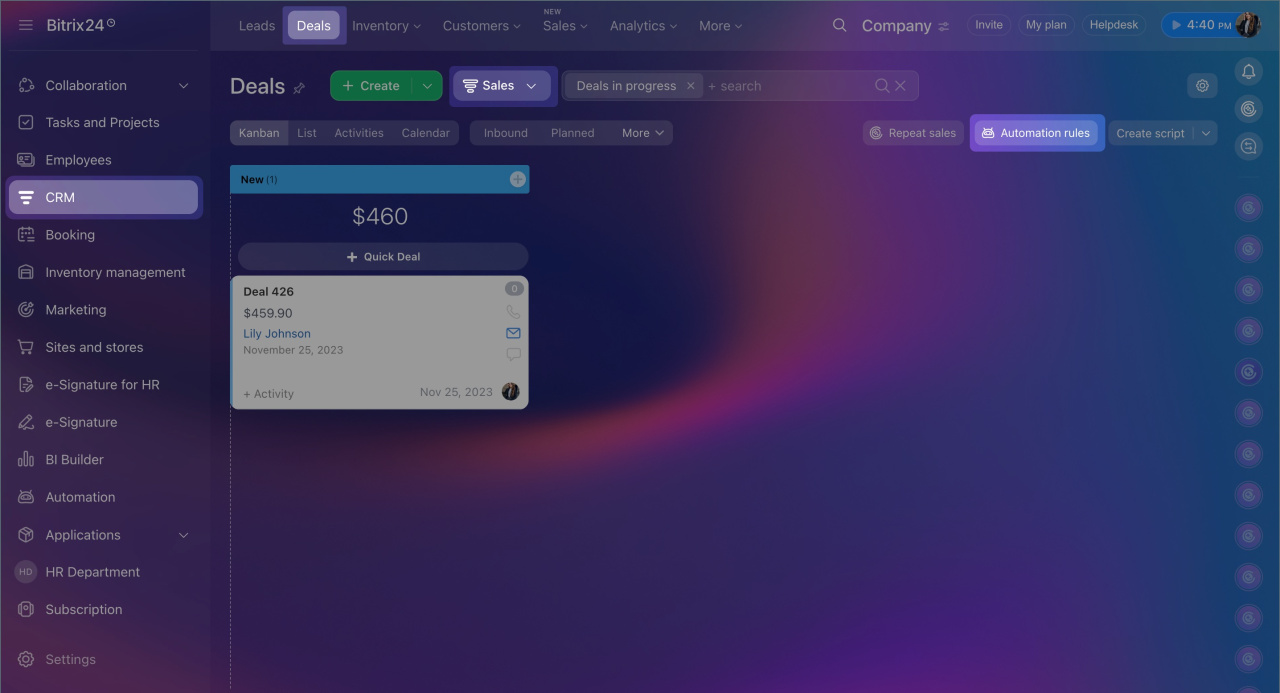
1. Go to the CRM section and select the required item, such as Deals.
2. Select the pipeline.
3. Click Automation rules.
4. Click + Add on the first stage.
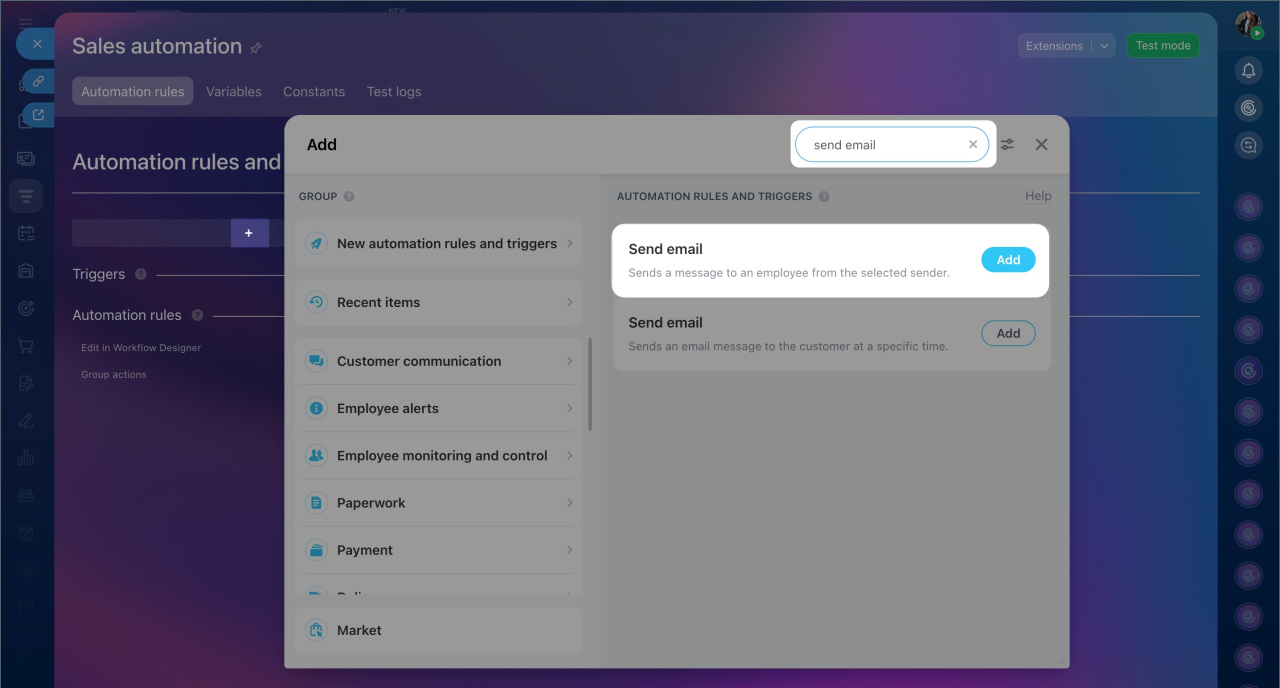
5. In the search bar, type Send email to employee. Add the automation rule — a configuration window will open.
Configure the automation rule.
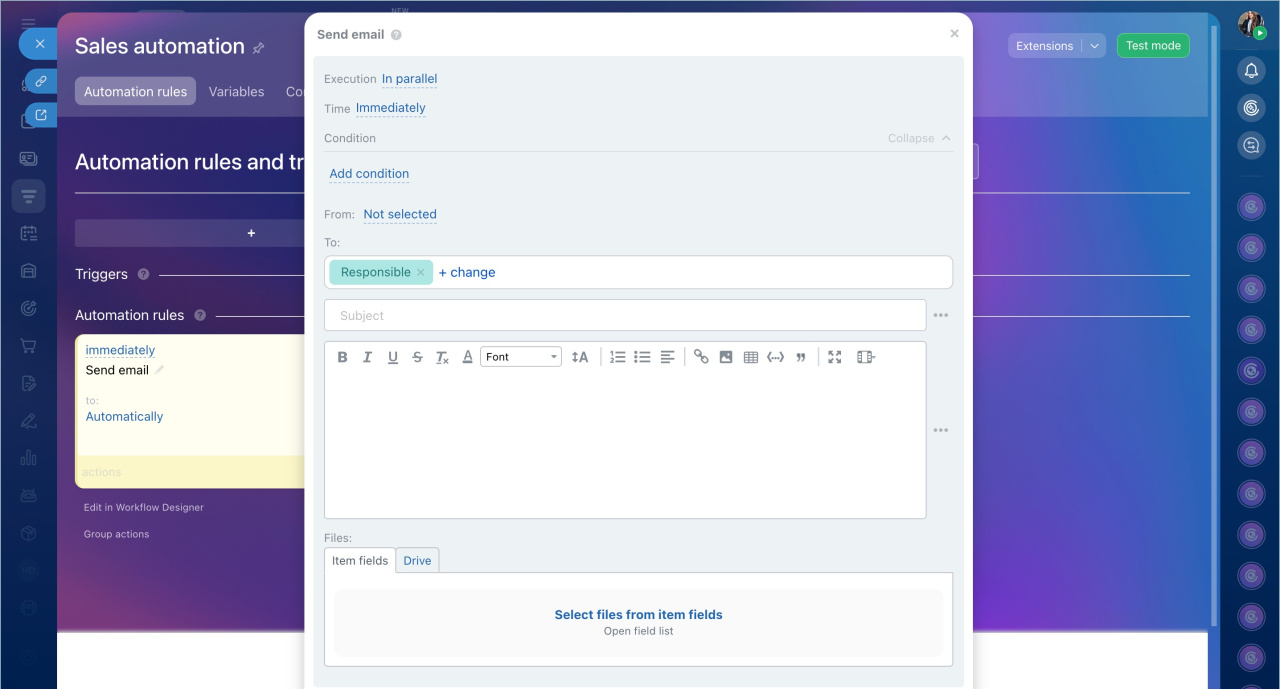
1. Specify the parameters:
- Sequentially — leave the option Independently of other automation rules. The email will be sent even if other automation rules at this stage fail.
- When — leave the option Immediately so the automation rule sends the email right after the deal is created.
- From — select the mailbox from which the automation rule will send the email to the employee.
- Condition — set the value Source equals CRM form.
Conditions in automation rules - To — select the employee to whom the automation rule will send the email to the address specified in their profile. By default, this is the person responsible for the item, but you can choose another user.
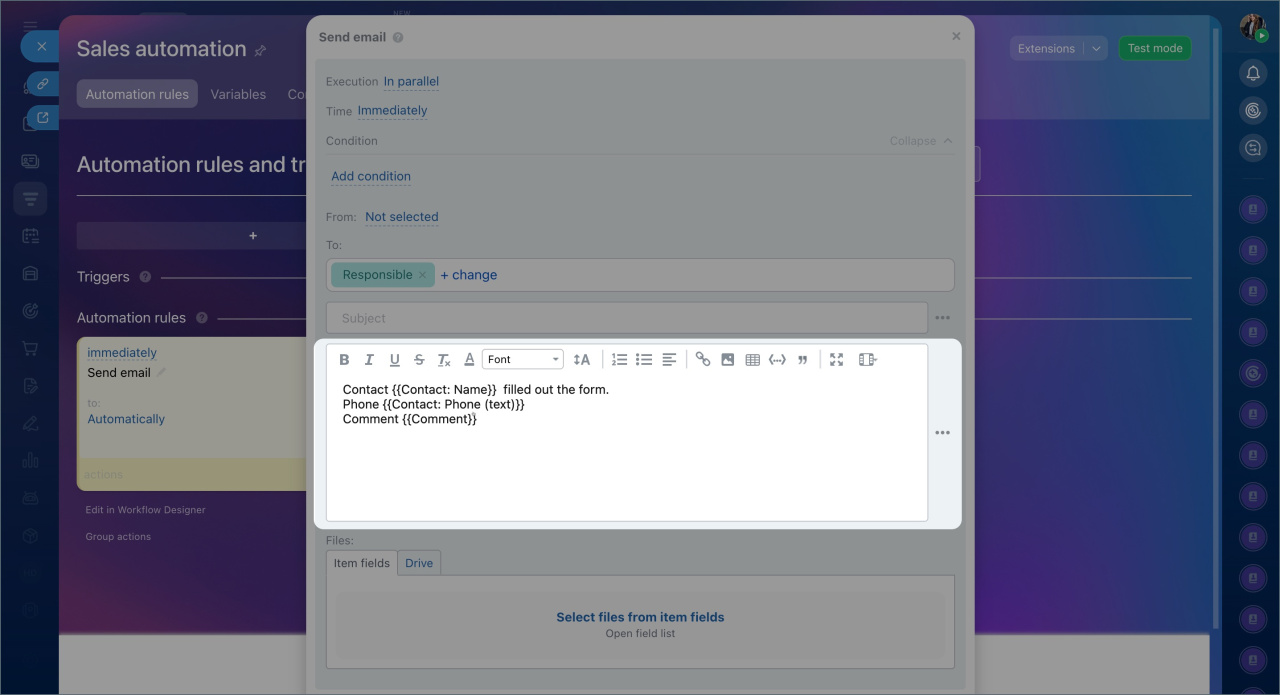
2. Add field values from the CRM form to the subject and body of the email. Click the Three dots (...) next to the required field. In the search bar, type the name of the field and select the item from which you want to retrieve data.
3. Add context to understand which fields' data is included in the email. For example, "Client filled out the form," "Phone," "Client comment."
4. Save the changes in the automation rule settings and on the Automation rules tab.
How the scenario works
When a client fills out the form, the data is saved in the CRM. A form is created in the corresponding CRM section, and the automation rule sends an email with the data from this form to the employee's email.
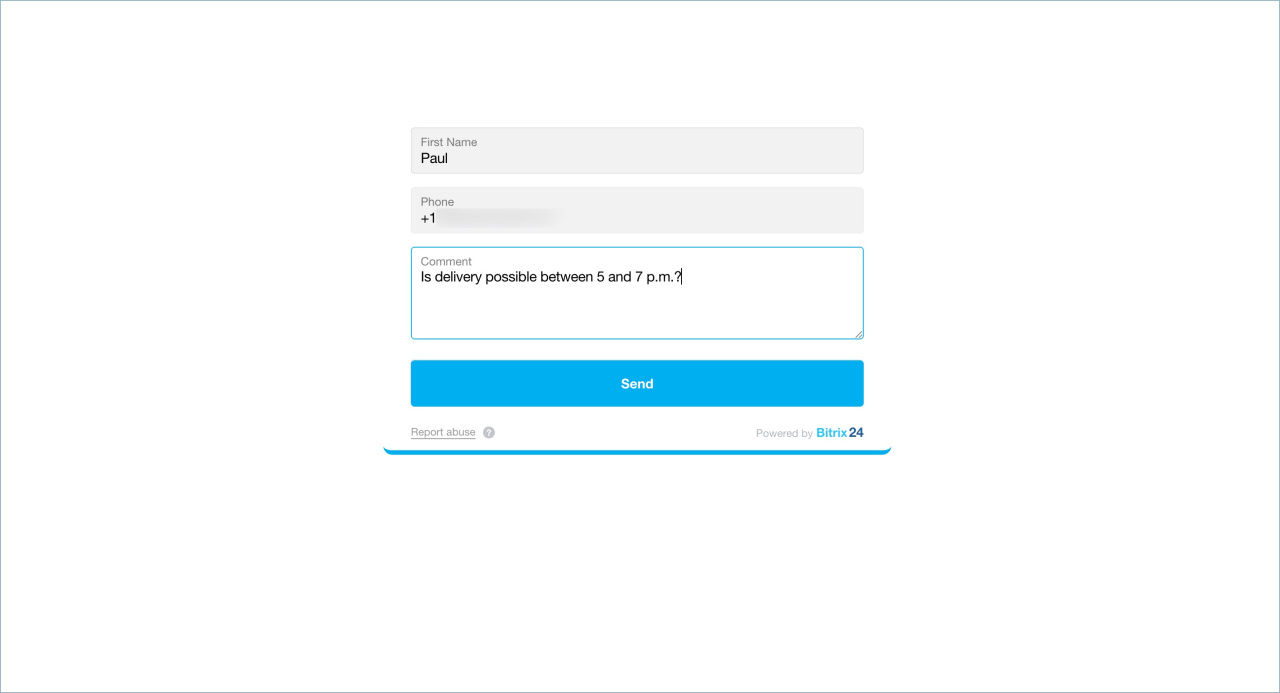 The client filled out the form
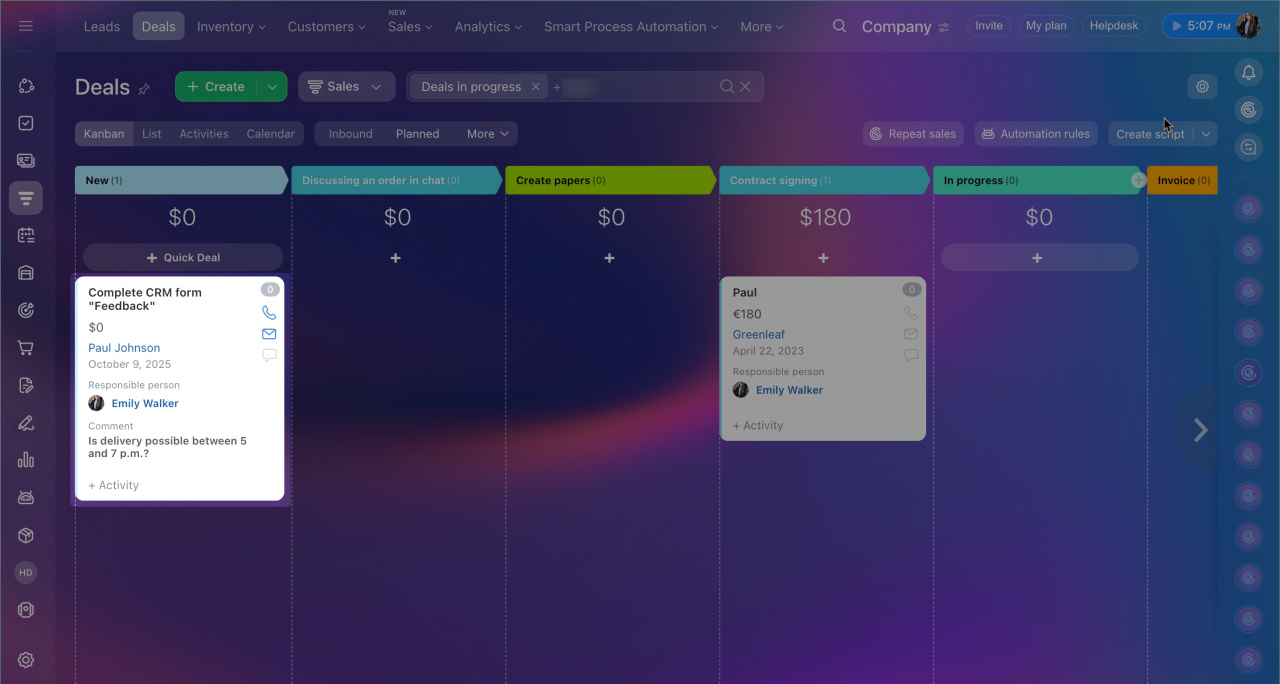 A CRM item was created in Bitrix24
The automation rule sent an email with data from the CRM form to the employee
In brief
- In Bitrix24, you can set up automatic email forwarding of data from any CRM forms to yourself or colleagues. This helps ensure priority requests are not missed and can be addressed even without accessing the CRM.
- To duplicate form data to email, connect a mailbox in Bitrix24 or configure an SMTP server.
- Create the Send email to employee automation rule at the first stage of the CRM item created by the form.
- Configure the automation rule: specify its parameters and add field values from the CRM form to the email subject and body. Use fields from the same items as in the CRM form.
